Understanding file sharing in Microsoft Teams is essential for effective collaboration. Whether you are sharing files in a channel, a chat, or a meeting, Microsoft Teams file sharing integrates directly with SharePoint and OneDrive to keep your documents organized and accessible. This guide covers the key updates and best practices for sharing files in Teams.
In this article, we’ll walk you through updates to file sharing in Microsoft Teams. A future article will cover sharing with Outlook.
Microsoft Teams Presentation
First and foremost, Microsoft Teams is a software that enhances teamwork. Users can collaborate and communicate with each other, all of which helps streamline their work.
Notably, this software now allows files linked to channels. Users can share, collaborate in real time, and discover important files directly within Teams. This strategy lets Microsoft deliver consistent and intelligent file experiences. These services provide content processing agents powered by:
- artificial intelligence,
- access control mechanisms such as data loss prevention (DLP),
- records management and conservation,
- industry-leading information protection with encryption at rest and in transit.
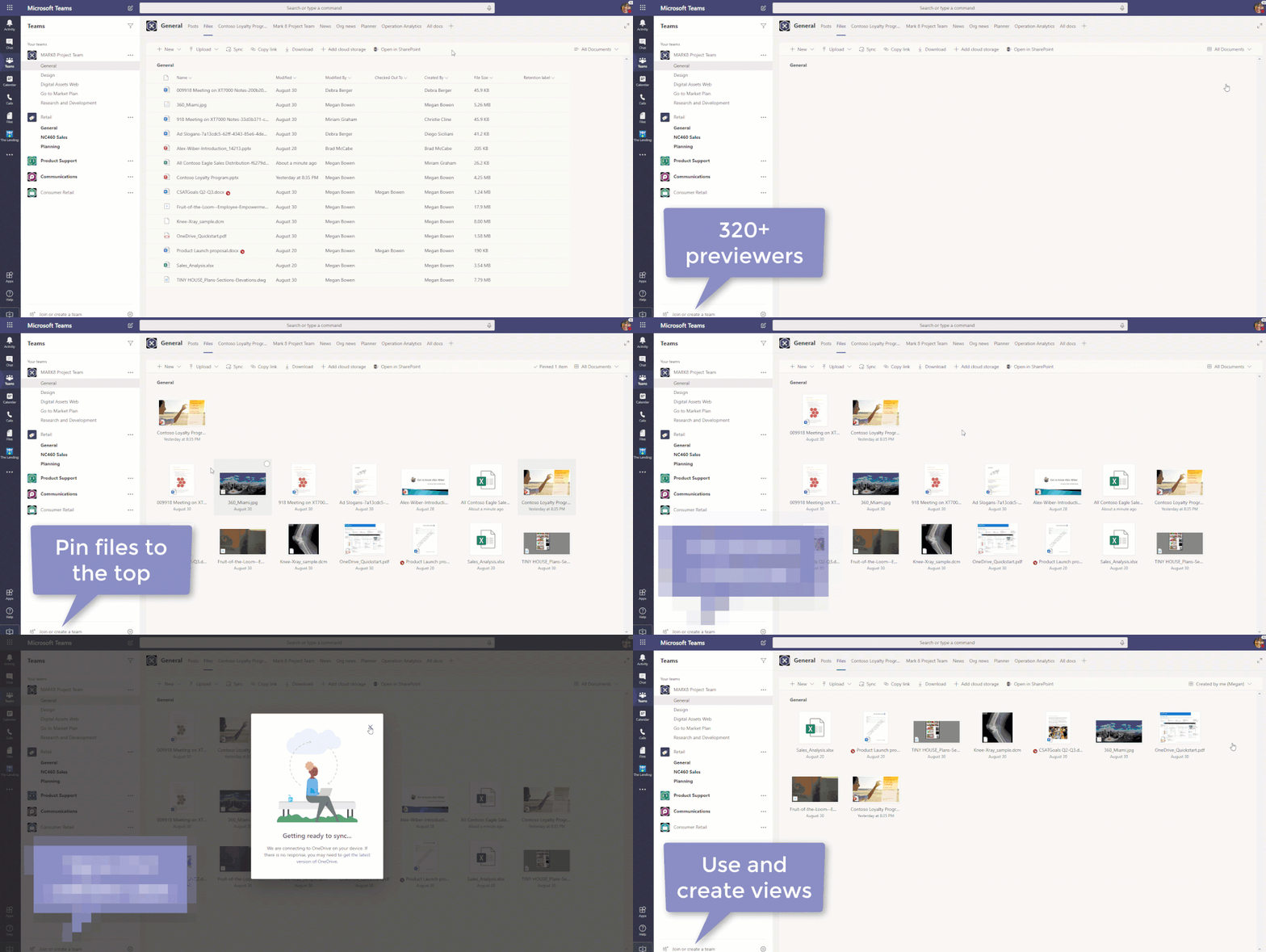
The new file experience in Microsoft Teams
The new files experience in Teams (web and desktop)
With SharePoint File Management, it’s now possible to work on files from within Teams. This new file experience in Teams is available across both the web and desktop apps. For example, you’ll be able to:
- File synchronization on PC or Mac
- Rich previews on over 320 file types
- Creating custom views
- Metadata management
- Document lifecycle signals
- File card inspection at the top
- Pinned files displayed at the top
- to take measures such as check-in and check-out…
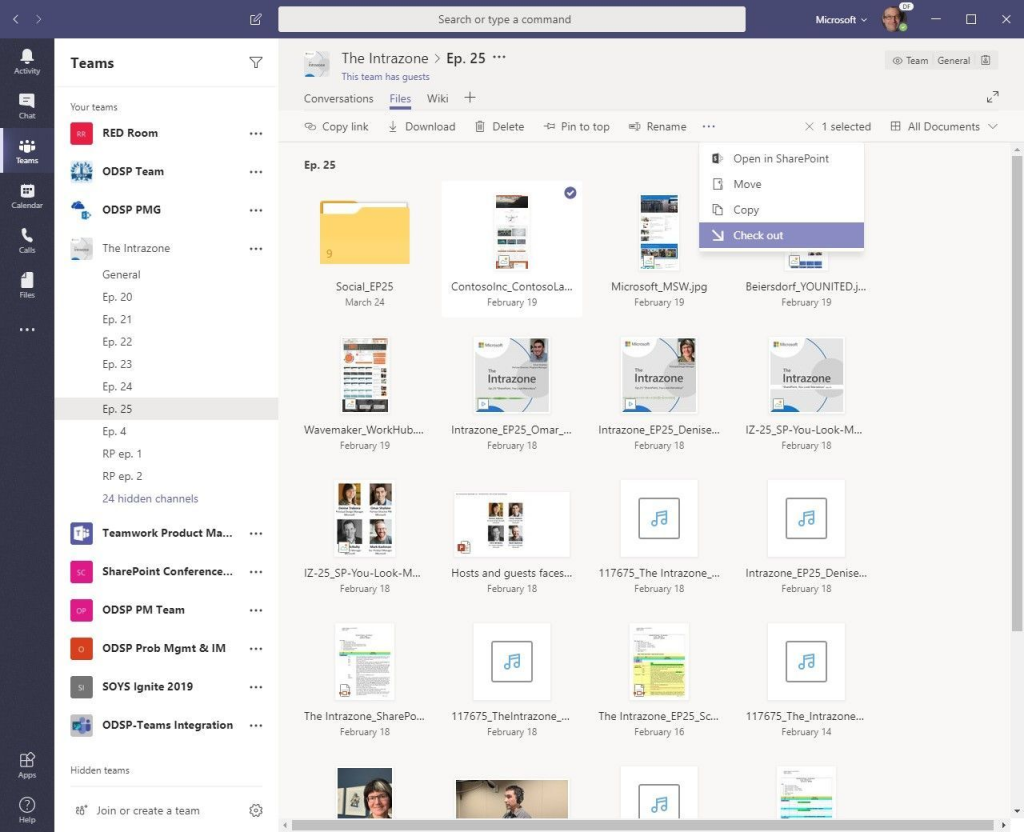
Example of file preview
The new file sharing experience in Teams (desktop, web, and mobile)
Microsoft wants to make sharing possible from anywhere while maintaining consistency. That’s why it will also be possible to share files available on OneDrive. Ultimately, this streamlining ensures users have a rich sharing experience that’s compatible across devices and platforms.
Simplified sharing gives users the flexibility to share their files however they want. For example, they can share a file directly in the chat. They can also copy and paste a Teams-formatted sharing link to make it look good within the chat. Once a user shares a document, they can edit its settings at any time. This keeps them in control of everything that is shared. After a document is shared, the user receives automatic reminders after seven days to stay up to date on any changes.
Updated OneDrive Teams experience
Microsoft Teams and OneDrive work together, so it’s possible to share files stored on OneDrive without leaving Teams. This allows users to stay productive.
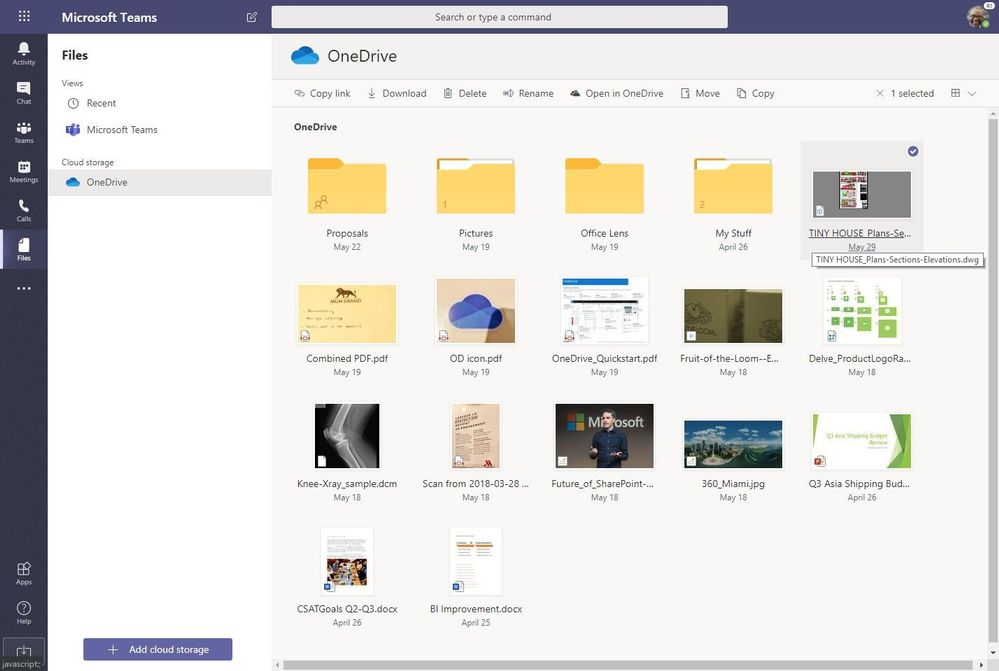
Sharing OneDrive files from Teams
Microsoft 365 allows employees to share and collaborate with each other. Microsoft 365 provides protection against accidental loss and malicious attacks.
So, the various new features presented in this article have been available since November 2019. The new file experience was rolled out at the end of 2019. All the other new features mentioned are already available in Outlook or in the OneDrive mobile app.
However, to benefit from this new sharing experience, it is mandatory to save documents to OneDrive. By default, OneDrive is private, but it is entirely possible to share files with other people.
Best Practices for File Sharing in Microsoft Teams
When sharing files in Microsoft Teams, follow these best practices to keep your workspace organized. First, share files directly in the relevant channel rather than via chat, so the documents are accessible to all channel members. Additionally, use the Files tab in each channel to browse and manage shared documents without leaving Teams. Furthermore, apply sensitivity labels if your organization uses Microsoft Teams sensitivity labels to automatically protect confidential files. Finally, pin frequently used files to the channel tabs for quick access by all team members.
Related Microsoft Teams Guides
Explore more Teams tutorials:
🛡️ Free: M365 Tenant Security Audit Checklist
17-page PDF with 50 hands-on checks covering Entra ID, Exchange Online, SharePoint, Teams, Intune, license waste, and audit logging. PowerShell commands included. Built from 60+ real tenant audits at Wintive.