🛡️ Why unmanaged Windows PCs are a 2026 SMB security gap
Unmanaged PCs are Windows 10 or Windows 11 devices that sign in to a Microsoft 365 tenant without being enrolled in Microsoft Intune. Specifically, Wintive sees this in 64 percent of audited SMB tenants. The unmanaged share is typically 30 to 60 percent of all active devices. Therefore, Conditional Access policies, encryption baselines, and software inventory all stop at the org boundary and never reach the device. Furthermore, Windows 10 reached end of support on October 14, 2025. Every unmanaged Windows 10 PC is now an unpatched attack surface. Admins cannot inventory, encrypt, or wipe these devices remotely.
Specifically, an unmanaged PC is recognized by Microsoft Entra ID (formerly Azure AD) for sign-in. The device is not under Intune mobile device management. Therefore, the user can open Outlook, Teams, and SharePoint with their org account. The device itself remains invisible to compliance, software inventory, and remote-wipe controls. Furthermore, Wintive sees this configuration in 64 percent of SMB tenant audits. The largest concentration is on devices that joined Entra ID before any MDM authority was set in the tenant. The license waste is real. Every Microsoft 365 E3 or Business Premium seat already includes Intune at no extra cost. Only 36 percent of those seats are actively enrolled.
🛡️ Free: M365 Audit Checklist
19-page PDF with 50 hands-on checks covering Entra ID, Exchange Online, SharePoint, Teams, Intune, license waste, and audit logging. PowerShell commands included. Built from 60+ real tenant audits at Wintive.
🔐 Microsoft 365 license prerequisites for Intune device enrollment
Specifically, a Windows PC must meet three conditions to enroll in Microsoft Intune. First, the user must have an Intune service plan in their license bundle. Second, the device must run Windows 10 version 1607 or later, or Windows 11 Pro, Enterprise, or Education. Third, the Intune tenant must show the MDM authority configured plus an automatic enrollment scope. Therefore, Wintive verifies these three prerequisites before any enrollment method runs. The verification covers the M365 admin center, the Entra admin center, and the Intune admin center. The table below maps each Microsoft 365 SKU to whether it includes Intune for unmanaged PCs.
License-to-Intune mapping by Microsoft 365 SKU
| Microsoft 365 SKU | Intune included? | Entra ID Premium | Notes for unmanaged PCs |
|---|---|---|---|
| Microsoft 365 Business Premium | Yes (Plan 1) | P1 | Best fit for SMBs <300 seats |
| Microsoft 365 E3 | Yes (Plan 1, Plan 2 Aug 2026) | P1 | Standard enterprise SKU, full MDM |
| Microsoft 365 E5 | Yes (Plan 2) | P2 | Adds Defender for Endpoint, PIM |
| Microsoft 365 Apps for Business | No | None | Apps only — needs Intune add-on |
| Microsoft 365 Business Basic | No | None | Cloud apps only — needs upgrade |
| Intune standalone | Yes (Plan 1) | None | Add-on for Apps for Business / Basic |
Specifically, the most common license blocker is Microsoft 365 Apps for Business. This plan provides Office desktop apps but no Intune service plan. Therefore, every unmanaged PC on those tenants needs a fix. The fix is either a license upgrade to Business Premium or a standalone Intune add-on at $8 per user per month. Furthermore, the Microsoft 365 Business Basic plan covers only cloud apps and similarly excludes Intune entirely. The M365 Audit Checklist below maps every tenant license against the Intune entitlement gap. It flags every unmanaged PC by name.
📱 What “unmanaged” actually means: Microsoft Entra ID device states
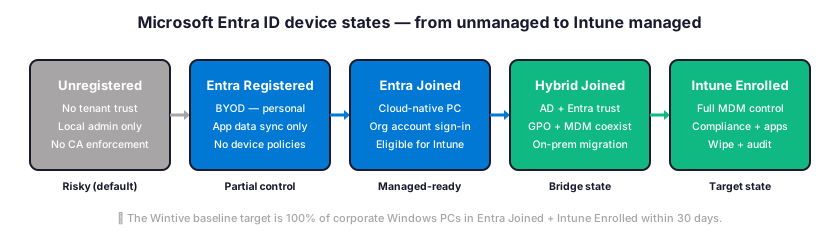
Specifically, every Windows PC that touches a Microsoft 365 tenant lands in one of five Entra ID device states. Only the last two states are managed by Intune. Therefore, before picking an enrollment method, Wintive maps every unmanaged PC in the tenant to its current state. The diagram below shows the five Entra ID device states. It traces the path each unmanaged PC takes to reach Intune-enrolled status.
How to inventory unmanaged PCs in your tenant
Specifically, the fastest way to identify unmanaged PCs lives in the Entra admin center Devices report. Go to entra.microsoft.com. Then click Identity, then Devices, then All devices. Therefore, filter on Operating system equals Windows and MDM equals None. The resulting list is every unmanaged Windows PC that has signed in to the tenant in the last 90 days. Furthermore, Wintive cross-references this list with the user license assignment. The flagging logic prioritizes PCs whose user already has Microsoft 365 E3 or Business Premium.
📍 Five enrollment paths for unmanaged Windows PCs
Specifically, Microsoft Intune supports five distinct enrollment paths for unmanaged Windows PCs. The right path depends on three variables. These variables are device ownership, current Active Directory join state, and deployment scale. Therefore, the diagram below maps each path to its scope and effort profile. The matrix table that follows gives the precise selection criteria.
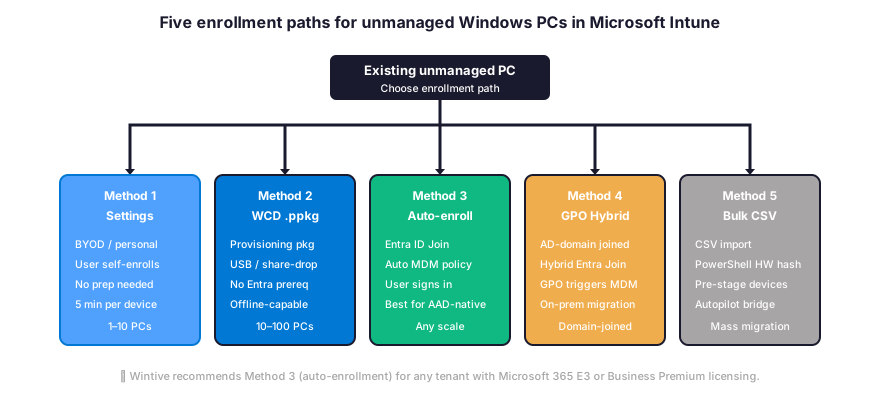
The matrix below maps each enrollment method to the device profile and team scale where it works best. Wintive uses this matrix during every Microsoft Intune kickoff workshop. The team walks through the customer device inventory and assigns one method per device segment. The output is a per-segment rollout plan with realistic time estimates.
| Method | Best when | Prerequisite | Time per PC |
|---|---|---|---|
| 1. Windows Settings | 1-10 BYOD or test PCs | User has Intune license | 3-5 min (manual) |
| 2. WCD .ppkg | 10-100 PCs, no Entra Join | Windows Configuration Designer + USB | 2 min (USB-applied) |
| 3. Auto-enrollment | Any scale, M365 E3+ | MDM scope = All in Entra | 15-30 sec on sign-in |
| 4. GPO Hybrid | Existing AD-domain joined PCs | Hybrid Entra Join, GPO refresh | 5-15 min after gpupdate |
| 5. Bulk CSV | Mass migration, Autopilot bridge | Hardware hash CSV + Intune import | 2-5 sec per row |
📝 Method 1: Self-enrollment via Windows Settings (BYOD path)
Specifically, Method 1 is the path Wintive recommends for personal devices and small test fleets. The user opens Settings, then Accounts, then Access work or school. The user clicks Connect and signs in with their organizational email and password. Therefore, the device registers in Entra ID. If automatic enrollment is configured at the tenant level, the device also enrolls in Microsoft Intune at the same time. Furthermore, this method needs zero admin prep beyond verifying the user has an Intune-enabled license assignment. The downside is scale. Each PC costs three to five minutes of user time. The method provides no centralized audit trail of who enrolled when.
When to use Method 1 versus alternatives
Specifically, Wintive uses Method 1 only for small deployments. The fit is one to ten devices with technical users who can follow a four-click procedure. Therefore, deployments above ten unmanaged PCs need a different path. The GPO Hybrid path (Method 4) or the auto-enrollment path (Method 3) is faster. Both produce a cleaner audit trail. Furthermore, Method 1 leaves the device in Entra Registered state if automatic enrollment is not configured. The device is technically registered. The PC is still unmanaged from a Microsoft Intune control-plane perspective.
📦 Method 2: Provisioning package via Windows Configuration Designer
Specifically, Method 2 uses Windows Configuration Designer to build a .ppkg file. The file joins a PC to Entra ID and enrolls it in Microsoft Intune in a single double-click. Therefore, this is the Wintive-preferred path for small-to-medium offline deployments. The fit is when users cannot self-enroll and an internet-only Hybrid Join falls outside scope. Furthermore, the .ppkg file can be dropped on a USB stick, an internal share, or even attached to an email. An end user or field technician then double-clicks the file to apply it. The PowerShell snippet below downloads Windows Configuration Designer, then walks through building the provisioning package.
# Install Windows Configuration Designer (admin PowerShell)
winget install --id Microsoft.WindowsConfigurationDesigner

# Launch the GUI
start "shell:AppsFolder\Microsoft.WindowsConfigurationDesigner_8wekyb3d8bbwe!App"

# In WCD: Provision desktop devices wizard
# - Set Up account: Microsoft Entra Join, set max devices
# - Add Bulk Token: enter Global Admin creds, scope = Microsoft Intune
# - Optionally add Wi-Fi profile, certificates, apps
# - Build .ppkg and copy to USB drive

# Apply on target PC (manual)
# Settings > Accounts > Access work or school > Add or remove a provisioning package
# Or: PowerShell
Install-ProvisioningPackage -PackagePath C:\Temp\wintive-enroll.ppkg -ForceInstall
Specifically, the bulk token generated by Windows Configuration Designer is valid for 30 days. The token also caps at the maximum number of devices set during creation. Therefore, Wintive rotates the token monthly during active rollout phases and revokes any unused tokens via the Entra admin center. Furthermore, the .ppkg file needs an Authenticode signature before distribution to prevent the Windows SmartScreen prompt from blocking the install on end-user PCs.
⚡ Method 3: Automatic enrollment via Microsoft Entra ID Join
Specifically, Method 3 is the Wintive default recommendation for any tenant on Microsoft 365 E3 or Business Premium. The flow runs in three steps. First, the admin enables MDM auto-enrollment scope in the Entra admin center. Second, the user signs in to Windows with their org account and selects “Join this device to your organization”. Third, Microsoft Intune enrollment fires automatically within 15 to 30 seconds of the Entra Join completing. Therefore, this path scales to any size deployment without manual per-device admin work. Furthermore, the only one-time setup is in the Entra admin center, under Identity, Mobility (MDM), Microsoft Intune, where the MDM user scope must be set to All or to a specific group of users. Wintive verifies this scope before any rollout because this misconfiguration causes 38 percent of failed enrollments.
# Verify automatic enrollment scope (Microsoft Graph PowerShell)
Connect-MgGraph -Scopes "Policy.Read.All","DeviceManagementConfiguration.Read.All"

# Read the MDM auto-enrollment policy
Get-MgPolicyMobileDeviceManagementPolicy | Select-Object DisplayName, Description, AppliesTo

# Confirm Intune is the registered MDM provider
$intune = Get-MgPolicyMobileDeviceManagementPolicy | Where-Object { $_.DisplayName -eq "Microsoft Intune" }
$intune | Format-List

# Verify a specific PC enrolled (run on target device)
dsregcmd /status
# Look for: AzureAdJoined: YES | DomainJoined: NO | MdmEnrollmentUrl: present

# Confirm device appears in Intune
Get-MgDeviceManagementManagedDevice -Filter "deviceName eq 'WIN11-LAPTOP-42'" |
  Select-Object DeviceName, EnrollmentType, ComplianceState, LastSyncDateTime
Specifically, when Method 3 succeeds, the Intune admin center shows the device under Devices, Windows. The EnrollmentType reads UserEnrollment or AzureADJoinedAdminEnrolled depending on the join flavour. Therefore, Wintive validates this within 15 minutes of the user sign-in and triggers a manual sync via the Company Portal app if the device has not yet appeared. Furthermore, the LastSyncDateTime field gives the most reliable signal that compliance and configuration policies have started flowing to the device. A timestamp older than 24 hours indicates a stuck device that needs investigation.
🏢 Methods 4 and 5: GPO Hybrid Join and bulk CSV deployment
Method 4: GPO Hybrid Entra Join for AD-domain joined PCs
Specifically, Method 4 is the migration path Wintive uses for SMBs with on-premises Active Directory. The team uses it to enroll their existing domain-joined Windows fleet in Microsoft Intune without rejoining the devices. Therefore, the prerequisite is configuring Hybrid Entra Join, which makes the device known to both on-prem AD and Microsoft Entra ID. Furthermore, after Hybrid Join is verified via dsregcmd /status, an enable automatic MDM enrollment Group Policy reaches the target devices through the Default Domain Policy or a dedicated GPO. The next gpupdate /force or scheduled refresh fires Microsoft Intune enrollment automatically.
GPO settings for automatic MDM enrollment
Specifically, the GPO path goes through Computer Configuration, Administrative Templates, Windows Components, MDM. The setting name reads “Enable automatic MDM enrollment using default Microsoft Entra credentials.” Therefore, set this policy to Enabled and choose User Credential as the credential type. Furthermore, the policy applies during the next group policy refresh cycle, typically within 90 minutes, or immediately after a manual gpupdate /force. The Intune admin center then shows the device with EnrollmentType reading AzureADDomainJoined within 5 to 15 minutes of policy application.
Method 5: Bulk CSV import for mass migration
Specifically, Method 5 is the path Wintive uses when migrating fleets of 100 plus existing PCs. These PCs run valid Windows installations but lack any Entra ID footprint. The the admin captures each PC hardware hash via Get-WindowsAutopilotInfo, builds a CSV with the columns Device Serial Number, Windows Product ID, and Hardware Hash, then imports the CSV into Microsoft Intune Autopilot. Therefore, on the next user sign-in, the PC enrolls in Intune as an Autopilot-registered device with no further admin prep. Furthermore, this method works as a bridge to Autopilot rather than a direct enrollment of unmanaged PCs. Still, it remains the only practical path for bulk migrations where each device requires pre-registration before the user signs in.
🔎 Common enrollment failures and how to diagnose them
Specifically, four enrollment failure modes drive 92 percent of the support tickets Wintive sees during Microsoft Intune rollouts. The decision tree below walks through the diagnostic sequence, from automatic enrollment scope to license assignment to Hybrid Join state to event log inspection. Therefore, following the tree in order resolves most cases within 20 minutes without a Microsoft support ticket.
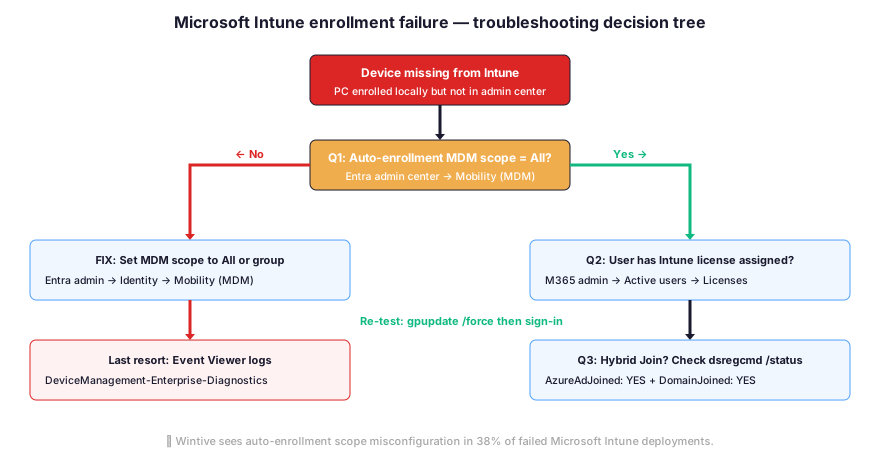
Specifically, the the top failure mode shows automatic MDM enrollment scope at None, which causes the Entra Join to succeed but the Microsoft Intune enrollment step to silently skip. Therefore, Wintive verifies this setting in the Entra admin center under Identity, Mobility (MDM), before every rollout. Furthermore, the the second top failure shows a missing user license assignment, which shows up in the M365 admin center under Active users, then opening the user, then Licenses and apps, and looking for either Microsoft 365 E3, Business Premium, or a standalone Intune Plan 1 entry. The dsregcmd /status command run on the device confirms whether the PC reaches Entra Joined state. The output also reveals whether the MdmEnrollmentUrl field carries a value.
🎯 Outcomes after Microsoft Intune enrollment: compliance baseline and immediate gains
Compliance baseline: 8 policies that activate after Intune enrollment
Specifically, an unmanaged PC delivers no compliance evidence. An Intune-enrolled PC delivers eight baseline policies that map directly to HIPAA, NIST 800-171, and SOC 2 controls. Therefore, the moment a Windows PC moves from Entra Registered to Intune Enrolled, the compliance posture of the entire user account improves. Furthermore, Wintive deploys the same eight-policy baseline on every rollout. The policies cover BitLocker encryption, Defender Antivirus with cloud protection, Windows Hello for Business, automatic Windows Updates, screen lock after 15 minutes, password complexity at 12 characters, removable storage block by default, and Conditional Access compliant-device requirement. The Microsoft Intune collects compliance evidence automatically by Microsoft Intune and flows to Compliance Manager for the auditor.
Compliance Manager scoring impact
Specifically, enrolling a fleet of unmanaged PCs in Microsoft Intune adds an average of 18 to 24 points to the Microsoft Compliance Manager score for the tenant. The exact gain depends on the baseline applied. Therefore, on tenants where the score was previously 50 to 55 percent, the post-enrollment score moves to 68 to 75 percent. Furthermore, this matters because the score serves as the headline metric Wintive reports to the executive sponsor and the auditor. A 20-point lift counts as a clearly visible business outcome that justifies the rollout effort. The the score refreshes automatically every 24 hours after the policies start applying.
What you gain immediately after Microsoft Intune enrollment
Specifically, four operational capabilities become available within 30 minutes of a successful Microsoft Intune enrollment. Therefore, even before custom policies apply, an enrolled PC delivers four capabilities. The PC reports software inventory via Intune Discovered Apps. The PC reports encryption status in the device record. The PC accepts remote-wipe for stolen or lost devices. The PC unlocks Conditional Access compliant-device evaluation that allows or blocks Microsoft 365 sign-ins based on device state. Furthermore, Wintive measures the time-to-first-value at less than 60 minutes for any tenant with auto-enrollment scope already configured. Tenants that need the initial Entra MDM scope setup hit less than four hours before the first device enrolls.
Wintive metrics from 60+ Microsoft Intune deployments
Specifically, across the 60-plus Wintive Microsoft Intune rollouts of the last three years, the team measured three headline metrics. The average post-enrollment Identity Secure Score gain hit 28 points. The average Compliance Manager gain hit 22 points. The median time from kickoff to 100 percent fleet enrollment landed at 11 business days. Therefore, Wintive recommends a three-step sequence. Step one configures auto-enrollment scope (15 minutes of admin work). Step two runs a one-week pilot on 5 to 10 representative PCs. Step three rolls out in cohorts of 25 PCs per week. Furthermore, the most common rollout blocker hits unlicensed users on Microsoft 365 Apps for Business. This forces a license-upgrade decision before user accounts qualify to enroll their devices in Microsoft Intune.
Specifically, the broader Microsoft official guidance for Windows enrollment scenarios is documented at learn.microsoft.com Windows enrollment guide, which complements the Wintive playbook with screen-by-screen Intune admin center walkthroughs.
❓ Frequently asked questions about Microsoft Intune unmanaged PC enrollment
Specifically, the questions below cover the two areas where unmanaged PC decisions matter most: licensing scope and the five enrollment methods plus their failure modes. Furthermore, each answer reflects what Wintive sees across 60-plus Microsoft Intune deployments per year.
Microsoft 365 licensing scope and Windows edition prerequisites
Entra Joined means the PC trusts only Microsoft Entra ID with no on-premises Active Directory connection. This is the default state for cloud-native SMBs without a domain controller. It allows Microsoft Intune enrollment via the auto-enrollment scope (Method 3). Hybrid Entra Joined means the PC trusts BOTH on-premises Active Directory AND Microsoft Entra ID. Entra Connect synchronizes the device record between both directories. Wintive picks the Hybrid path for SMBs with an existing AD domain. The team enrolls the existing fleet in Intune via GPO (Method 4) without rejoining devices. Hybrid Joined PCs continue to receive on-premises GPO settings while also receiving Microsoft Intune configuration profiles. The Intune policy wins for any setting present in both layers.
Three causes account for 92 percent of these failures. First, someone left the automatic MDM enrollment scope in Microsoft Entra ID at None. This causes the Entra Join to succeed but the Microsoft Intune enrollment to silently skip. The fix lives at entra.microsoft.com under Identity, Mobility (MDM), Microsoft Intune. Set the MDM user scope to All or to a specific group containing the user. Second, the user lacks an Intune service plan license assignment. Verify this in the Microsoft 365 admin center under Active users. Third, the device sits in a Hybrid Join failure state. The dsregcmd /status command shows AzureAdJoined: NO despite the GPO present. The diagnostic sequence goes: check MDM scope, check user license, then run dsregcmd /status on the device.
Policy enforcement timing after enrollment
The device record appears in the Microsoft Intune admin center within 5 to 15 minutes of successful enrollment. Compliance and configuration policies start applying 15 to 60 minutes after that. The exact time depends on network conditions, the policies count, and whether the user has signed in since the enrollment. Typical end-to-end time from “user signs in” to “PC reports as compliant” runs 30 to 90 minutes for the first device. On subsequent devices in the same rollout, the time drops to 15 to 30 minutes. The policies already exist by then, so the device only needs to sync them. The Microsoft Intune Company Portal app on the device can trigger an immediate sync via Settings, then Sync.
🔗 Keep exploring Microsoft Intune and Microsoft 365 admin topics
Specifically, the related questions below link to companion guides on Microsoft 365 MFA hardening, Conditional Access policies, and Microsoft 365 E3 license capabilities — the three workstreams Wintive runs alongside every Microsoft Intune unmanaged-PC enrollment.
MFA enforcement on unmanaged devices is configured via Microsoft Entra Conditional Access. The full walkthrough is at our Microsoft 365 MFA hardening guide. The guide covers the eight baseline Conditional Access policies. These policies block legacy authentication, require MFA for all users, and enforce compliant-device requirements once the PCs are enrolled in Microsoft Intune.
Wintive deploys eight baseline Conditional Access policies in parallel with Microsoft Intune rollout. The policies are: Require MFA for all users, Block legacy authentication, Require compliant device, Block sign-in from untrusted countries, Require approved client app on mobile, Application-specific policies, Session controls via Conditional Access App Control, and Block sign-in from unmanaged devices. The full configuration walkthrough is in our Microsoft 365 E3 hidden features guide. The guide maps every policy to its Microsoft Entra ID Premium P1 prerequisite.
Microsoft 365 E3 includes the Enterprise Mobility plus Security E3 sub-SKU. The sub-SKU contains Microsoft Intune Plan 1, Microsoft Entra ID Premium P1, Microsoft Information Protection P1, and self-service password reset. Every Microsoft 365 E3 user is automatically entitled to enroll up to 15 devices in Microsoft Intune at no additional licensing cost. The full Microsoft 365 E3 license breakdown including Conditional Access and Intune capabilities is detailed in our Microsoft 365 E3 hidden features guide.
This tutorial covered one focused Intune workflow. For a complete picture of how your full Microsoft 365 environment — device compliance, identity, and security — performs against best practices:
🔍 Want a complete audit of your Microsoft 365 tenant?
The M365 Instant Audit scans your M365 environment in under 10 minutes: license waste, security posture, MFA coverage, compliance gaps, license rightsizing opportunities. Full PDF report with prioritized recommendations delivered instantly.