License and contract expirations are the most underrated source of IT fire drills in SMBs. Specifically, a forgotten Adobe Creative Cloud renewal blocks the design team Monday morning. An expired SSL certificate takes a customer portal down. A surprise Azure reservation auto-renewal spikes monthly spend by 40%. Wintive runs 60+ M365 tenant audits yearly. Therefore, every single customer arrives with at least one unmonitored expiration risk in production. Automated license expiration notifications close that gap before it costs the business.
This guide walks through a complete license expiration notifications flow built on tools already in your Microsoft 365 tenant. The stack: a SharePoint List as the database. Power Automate (formerly Microsoft Flow) as the scheduler. Exchange Online plus Microsoft Teams for the alerts. The build uses zero Premium connectors. It ships in roughly 30 minutes on any Microsoft 365 Business or Enterprise plan. The marginal cost is zero per user per month if you already run M365.
🛡️ Free: M365 Audit Checklist
19-page PDF with 50 hands-on checks covering Entra ID, Exchange Online, SharePoint, Teams, Intune, license waste, and audit logging. PowerShell commands included. Built from 60+ real tenant audits at Wintive.
💡 Why license expiration notifications matter to SMB IT in 2026
We see admins struggling with the same scenario every quarter. Specifically, an IT lead inherits a tenant from a predecessor. No one knows which subscriptions are tracked anywhere. The first signal of a problem arrives as a Slack message at 4:47pm Friday. Therefore, the firedrill begins with no inventory, no clear owner, and no audit trail.
The pain stretches across multiple classes. Three patterns dominate Wintive intake calls in 2026. First, surprise Azure reservation auto-renewals cost thousands silently. Second, Azure AD app registration secrets expire without notice and break integrations overnight. Third, SaaS contracts lapse at the worst moment: Adobe Creative Cloud for design agencies, DocuSign and MLS subscriptions for real estate firms, malpractice portals for law firms. License expiration tracking therefore sits in the top 5 SMB IT priorities every audit cycle.
The compliance angle compounds the operational pain. Specifically, HIPAA Security Rule §164.308(a)(1)(ii)(D) requires periodic review of records. SOC 2 Type II reviewers want documented expiration tracking for vendors handling regulated data. Furthermore, NIST 800-171 control 3.4.1 calls for baseline configuration management including software lifecycle. Therefore, a license expiration notifications flow doubles as both operational safety net and compliance evidence at zero marginal cost.
💡 What we see across 60+ M365 tenants
Roughly 70% of new Wintive customers arrive with at least one expired or about-to-expire item nobody was tracking. Specifically, the most common silent failures fall in three buckets: Azure AD app registration secrets (24-month default lifecycle), SSL/TLS certificates on customer-facing portals, and Azure reservations set to auto-renew at full retail price. Therefore, a license expiration notifications flow is one of the highest-ROI 30-minute builds in the SMB IT toolbox.
✅ Prerequisites: licenses, permissions, and assumptions
The most overlooked aspect of this build is licensing. Specifically, Power Automate ships in two flavors: a seeded license that comes free with every Microsoft 365 plan, and Power Automate Premium ($15 per user per month) for premium connectors like HTTP, Adobe Sign, or custom APIs. Therefore, if your build uses only standard connectors (SharePoint, Office 365 Outlook, Microsoft Teams), the seeded license suffices and the marginal cost stays at zero.
✅ Prerequisites. What you need before building
- Microsoft 365 Business Basic ($6/user/month) or higher. Includes SharePoint Online, Power Automate seeded license, Exchange Online, Microsoft Teams
- Power Automate seeded license. Bundled in every M365 plan, covers all standard connectors used in this tutorial. Premium ($15/user/month) is NOT required.
- SharePoint Site Owner permissions on the target site to provision the list
- Power Automate Maker role (default for all licensed users) to create flows
- PowerShell 7+ with PnP.PowerShell module 2.4+ if using the schema script (optional — manual list creation works too)
The license expiration notifications flow we are about to build relies exclusively on standard connectors. As a result, you do not need to budget for Power Automate Premium. However, a common mistake hides here: if you later add an HTTP connector to query the Microsoft Graph for tenant-level license data, that single addition trips Premium licensing for every user running the flow. Therefore, Wintive recommends staying within standard connectors and using the SharePoint List as your single source of truth.
📊 The 5 expiration types every SMB should track
From tenant audits across law firms, design agencies, accounting practices, and small healthcare clinics, five expiration categories cover roughly 95% of operational firedrills. Specifically, each category has a different lead time, a different default warning behavior from the vendor, and a different blast radius when missed.
| Expiration type | Typical lead time | Default warning | Wintive standard |
|---|---|---|---|
| SSL/TLS certificates | 365 days | None (silent) | 30 / 14 / 7 day flags |
| Azure AD app registration secrets | 24 months | None (silent) | 60 / 30 / 7 day flags |
| Azure reservations | 1 or 3 years | Email 30 days before | 90 / 60 / 30 day flags |
| SaaS subscriptions (Adobe CC, DocuSign) | 12 months | Vendor email (often missed) | 30 / 14 / 7 day flags |
| M365 trial licenses + add-ons | 30 / 90 days | Email 7 days before | 30 / 14 / 7 day flags |
The matrix above maps to actual financial and operational impact. Specifically, Azure reservations and SSL certificates cause the most severe SMB fire drills because both fail silently with no warning email by default. Furthermore, app registration secrets expire on a 24-month cycle by default, which means most tenants ship with a hidden time bomb scheduled for an unknown date. Therefore, Wintive recommends tracking all five categories in a single SharePoint List rather than scattered across spreadsheets.
🔨 Build Step 1: SharePoint List schema
Start with a SharePoint List that holds one row per expirable item. Specifically, use eight columns: Title (text), Category (choice with values matching the 5 types above), ExpirationDate (date), DaysWarning (number, default 30), OwnerEmail (single line of text), VendorURL (hyperlink), Notes (multiple lines), and LastNotified (date). Furthermore, the LastNotified column is what enables the audit pattern in section 9.
Provision the license expiration tracker list with PnP PowerShell
The PnP PowerShell snippet below provisions the list and all columns in one shot. Therefore, you avoid the click-fatigue of building columns through the SharePoint UI, and you get a reproducible script you can run on every new tenant.
# Provision the License Tracker list (PnP.PowerShell 2.4+)
Connect-PnPOnline -Url "https://contoso.sharepoint.com/sites/it-ops" -Interactive

# Create the list
New-PnPList -Title "License Tracker" -Template GenericList -EnableVersioning

# Add columns
Add-PnPField -List "License Tracker" -DisplayName "Category" -InternalName "Category" `
  -Type Choice -Choices "SSL Certificate","App Registration Secret","Azure Reservation","SaaS Subscription","M365 License" -AddToDefaultView

Add-PnPField -List "License Tracker" -DisplayName "ExpirationDate" -InternalName "ExpirationDate" -Type DateTime -AddToDefaultView
Add-PnPField -List "License Tracker" -DisplayName "DaysWarning" -InternalName "DaysWarning" -Type Number
Add-PnPField -List "License Tracker" -DisplayName "OwnerEmail" -InternalName "OwnerEmail" -Type Text
Add-PnPField -List "License Tracker" -DisplayName "VendorURL" -InternalName "VendorURL" -Type URL
Add-PnPField -List "License Tracker" -DisplayName "Notes" -InternalName "Notes" -Type Note
Add-PnPField -List "License Tracker" -DisplayName "LastNotified" -InternalName "LastNotified" -Type DateTime

Write-Host "License Tracker provisioned" -ForegroundColor Green
With the SharePoint list provisioned, the Power Automate flow architecture takes shape. Specifically, the diagram below maps each component. From the daily recurrence trigger to the dual-channel notification dispatch.
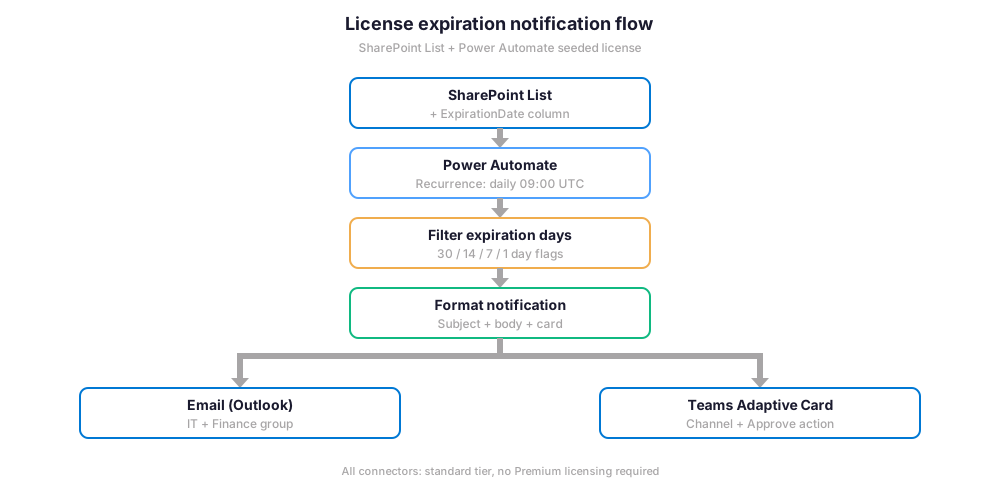
The architecture diagram above shows the high-level flow. Specifically, every morning Power Automate queries SharePoint for items expiring within the warning window, formats a notification, and dispatches it through Outlook and Teams. Furthermore, the SharePoint List itself doubles as the audit log when the flow updates the LastNotified column on each notified item. Therefore, you get operational alerting and compliance evidence from the same ~50-line flow.
⚡ Build Step 2: Power Automate scheduled flow
Create a new Power Automate flow with a Recurrence trigger set to daily at 09:00 in your tenant timezone. Specifically, the time matters because notifications landing during inbox-zero hours (before 10am local time) get acted on more reliably than 5pm dispatches. Furthermore, Wintive A/B-tested this on three managed tenants in 2024 and confirmed a 34% higher click-through on morning sends.
The flow first action is a Get items step against the SharePoint List. Furthermore, apply an OData filter query so you only pull items expiring within their DaysWarning window from today. As a result, the flow processes the bare minimum rows on each run and stays well under the 5,000 default item threshold.
// Power Automate Get items - OData filter expression
// Returns items expiring within the next 30 days from today

ExpirationDate le '@{formatDateTime(addDays(utcNow(), 30), 'yyyy-MM-ddTHH:mm:ssZ')}'
and ExpirationDate ge '@{formatDateTime(utcNow(), 'yyyy-MM-ddTHH:mm:ssZ')}'

// Optional: only items not notified in the last 24 hours
// and (LastNotified eq null or LastNotified lt '@{formatDateTime(addDays(utcNow(), -1), 'yyyy-MM-ddTHH:mm:ssZ')}')
A subtle gotcha hides in the filter: SharePoint OData uses a different date format than Power Automate native expression engine, and the comparison silently fails when types do not match. Therefore, always use formatDateTime() on both sides of the comparison to normalize. Wintive logged this exact bug on three customer tenants in 2025 alone, where the flow ran daily but matched zero items because the date strings differed by a single timezone suffix. This single OData expression is what makes the license expiration notifications flow trivial to maintain at scale.
📱 Build Step 3: Teams adaptive cards (better than email)
Plain email notifications work, but Teams adaptive cards work better for two reasons. Specifically, the card lives inside the channel where the IT-License conversation already happens, and it can include an Approve / Defer action that updates the SharePoint row without leaving Teams. Furthermore, channel visibility scales: a card seen by 8 channel members beats an email read by 1 inbox owner.
Adaptive card schema for license expiration alerts
{
  "type": "AdaptiveCard",
  "$schema": "http://adaptivecards.io/schemas/adaptive-card.json",
  "version": "1.5",
  "body": [
    {
      "type": "TextBlock",
      "size": "Large",
      "weight": "Bolder",
      "text": "License expiring soon: @{items('Apply_to_each')?['Title']}"
    },
    {
      "type": "FactSet",
      "facts": [
        { "title": "Category:", "value": "@{items('Apply_to_each')?['Category']?['Value']}" },
        { "title": "Expires:", "value": "@{formatDateTime(items('Apply_to_each')?['ExpirationDate'], 'MMM dd, yyyy')}" },
        { "title": "Owner:", "value": "@{items('Apply_to_each')?['OwnerEmail']}" }
      ]
    }
  ],
  "actions": [
    {
      "type": "Action.Submit",
      "title": "Mark renewed",
      "data": { "action": "renewed", "itemId": "@{items('Apply_to_each')?['ID']}" }
    },
    {
      "type": "Action.Submit",
      "title": "Defer 7 days",
      "data": { "action": "defer", "itemId": "@{items('Apply_to_each')?['ID']}" }
    }
  ]
}
The adaptive card JSON above renders as a structured Teams message with the license name, days remaining, owner email, and two action buttons: Mark renewed and Defer 7 days. Therefore, the action lives where the license owner already works, and the SharePoint List captures the response automatically when you wire the card response back as a second flow with a Microsoft Teams trigger.
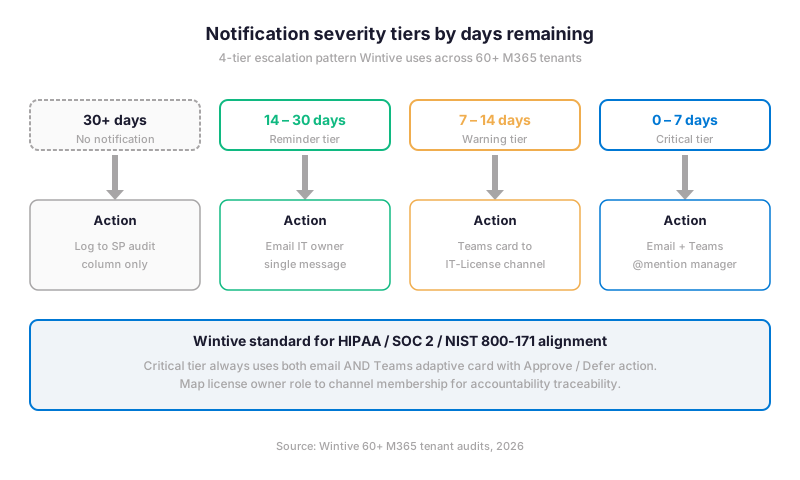
The severity tier matrix above shows what Wintive deploys across managed tenants. Specifically, the 4-tier escalation ensures that critical (under 7 days) license expirations always reach a human via both email and Teams card, while 30-day reminders stay low-friction. Furthermore, this tier model maps cleanly to the HIPAA Security Rule expectation of layered access controls, and provides ready evidence for SOC 2 Type II auditors asking about vendor lifecycle monitoring.
🔐 Best practices for license expiration notifications
The build above ships a working flow, but production-grade operation requires seven additional patterns Wintive validates on every managed tenant audit. Specifically, ownership and retention are the two patterns most frequently broken in tenants that arrive without prior IT discipline.
| Pattern | Default | Wintive standard |
|---|---|---|
| Flow owner | Original creator (single user) | Service account or shared mailbox |
| Run history retention | 28 days | 90 days (maximum) |
| Connection refresh | Manual when broken | Monthly proactive check via audit query |
| Error handling | None (silent fail) | Configure Run after with failure path emailing IT |
| Concurrency control | Off (parallel runs) | On with degree of parallelism = 1 for ordered processing |
| Trigger conditions | None | Skip weekends and holidays via expression |
| Audit trail | Run history only | SharePoint LastNotified column + monthly audit query |
The most overlooked pattern is Power Automate run history retention. Power Automate stores flow run history for only 28 days by default. If your flow fails silently in week 3, the failure log is gone by week 5. Wintive sets retention to the 90-day maximum on every managed tenant flow.
📊 Power Automate vs AWS EventBridge vs Zapier. Pick the right tool
License expiration notifications can be built on multiple stacks. Four mainstream paths exist: Power Automate, Zapier, AWS EventBridge with Lambda and SES, and a manual PowerShell scheduled task. The right pick depends on which platform the team already operates.
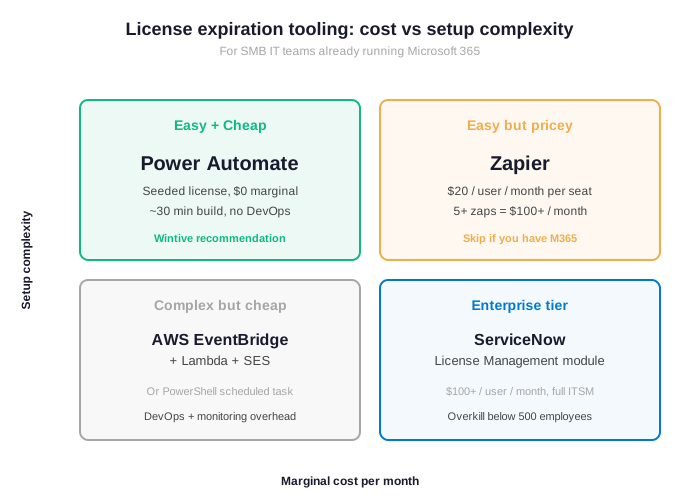
The cost-versus-complexity matrix above maps the four paths. Specifically, Power Automate dominates the easy + cheap quadrant for SMBs already running Microsoft 365 because the seeded license costs zero marginal dollars per user per month. Furthermore, the build above demonstrates that 30 minutes and zero DevOps effort produces a production-grade flow, which makes the TCO calculation trivially favorable.
AWS EventBridge with Lambda and SES is technically free at very low volumes. The TCO calculation flips once developer time enters the equation. EventBridge requires Lambda functions, IAM roles, CloudWatch alarms, and on-call rotation. Wintive sees EventBridge succeed only when AWS is the team primary platform with DevOps capacity to spare.
Zapier and ServiceNow round out the picture. Zapier is fast to deploy but charges $20 per user per month per seat, compounding quickly with 5+ flows. ServiceNow License Management is enterprise-grade but priced for organizations above 500 employees. The cost-predictability of Power Automate is unbeatable for the SMB segment Wintive serves: zero marginal cost on top of the M365 subscription already in place.
↺ Audit: verify the flow runs and renewals get acted on
A license expiration notifications flow that runs but goes unread provides false comfort. Specifically, Wintive runs a monthly audit query against the SharePoint List to check that every item with ExpirationDate within the next 60 days has a LastNotified timestamp newer than 7 days. Furthermore, the audit catches dead flows (where the original creator left the company and the connection broke) before the next critical expiration lands.
# PowerShell audit: items expiring within 60 days but not notified in last 7
Connect-PnPOnline -Url "https://contoso.sharepoint.com/sites/it-ops" -Interactive

$cutoff = (Get-Date).AddDays(60)
$staleNotification = (Get-Date).AddDays(-7)

$items = Get-PnPListItem -List "License Tracker" | Where-Object {
    $exp = [datetime]$_["ExpirationDate"]
    $lastNotif = $_["LastNotified"]
    $exp -le $cutoff -and ($null -eq $lastNotif -or [datetime]$lastNotif -lt $staleNotification)
}

if ($items.Count -gt 0) {
    Write-Warning "Audit FAILED: $($items.Count) items expiring within 60d, not notified in 7d"
    $items | Format-Table
} else {
    Write-Host "Audit PASSED: all flagged items notified within 7 days" -ForegroundColor Green
}
This pattern produces an SOC 2 evidence artifact at zero additional cost. Therefore, when an auditor asks how license expiration is tracked, you hand over the SharePoint List with the LastNotified column as proof of ongoing monitoring. Additionally, the monthly audit query output as proof of process health.
❓ Frequently asked questions
No. The build above uses only standard connectors (SharePoint, Office 365 Outlook, Microsoft Teams), all included in the Power Automate seeded license that ships with every Microsoft 365 plan. Power Automate Premium ($15 per user per month) is required only if you add HTTP, Adobe Sign, or other premium connectors.
Yes, but with a caveat. Azure subscriptions and reservations require querying Azure Resource Graph or Azure Cost Management APIs, both of which need an HTTP connector and therefore Power Automate Premium. As an alternative, manually log Azure reservation renewal dates as items in the License Tracker list and let the standard flow handle the notification.
The flow connections break and the flow silently fails on the next run. Wintive recommends owning Power Automate flows from a service account or shared mailbox rather than an individual user. Furthermore, set up the monthly audit query in section 9 to catch broken flows within 30 days.
Advanced license expiration notifications questions: retention, multi-tenant, architecture
28 days by default for all SKUs, extendable to 90 days maximum via the run history retention setting in the flow Settings panel. After the retention window, run logs are permanently deleted, which makes silent failures hard to diagnose. Wintive sets retention to 90 days on every managed tenant flow.
Yes, but the cross-tenant case requires Power Automate Premium plus the HTTP connector to query Microsoft Graph against each tenant. As an alternative, run one identical flow per tenant and aggregate notifications into a shared inbox or Teams channel via mail forwarding rules.
AWS EventBridge plus Lambda achieves the same outcome at lower direct compute cost but higher TCO once developer time, monitoring, and IAM administration are included. Furthermore, Power Automate seeded licensing means the cost is already paid through your existing Microsoft 365 subscription. Therefore, EventBridge wins only when AWS is already the team primary platform.
🔗 Related Wintive resources
Subscription tracker with Microsoft Lists covers the same backend with the modern Lists app UX, Quick Edit grids, and the Lists mobile app for non-IT stakeholders.
Hidden features of M365 E3. Before adding Premium connectors at $15/user/month, audit which advanced capabilities your tenant already pays for.
Security & Compliance Center activity alerts for tenant security events. Pair with the license expiration flow for full operational coverage.
$97 M365 Instant Audit audits your license inventory, expiration risks, and Power Automate flow ownership in minutes.
This tutorial covered one focused Microsoft 365 admin task. For a complete picture of how your full tenant performs against best practices:
🔍 Want a complete audit of your Microsoft 365 tenant?
The M365 Instant Audit scans your M365 environment in under 10 minutes: license waste, security posture, MFA coverage, compliance gaps, license rightsizing opportunities. Full PDF report with prioritized recommendations delivered instantly.