Choosing between Google Workspace and Office 365 is one of the most important decisions for any organization adopting cloud productivity tools. This in-depth comparison of Google Workspace vs Office 365 covers pricing, features, collaboration tools, and security.
🛡️ Free: M365 Tenant Security Audit Checklist
17-page PDF with 50 hands-on checks covering Entra ID, Exchange Online, SharePoint, Teams, Intune, license waste, and audit logging. PowerShell commands included. Built from 60+ real tenant audits at Wintive.
There was a time when Microsoft Office ruled the business world. By the late 1990s, Microsoft’s office suite had swept away its rivals. So, there was no competition on the horizon. Then, in 2006, Google arrived with Google Docs & Spreadsheets, an online word processor and spreadsheet. This software duo was combined with other business services to later form Google Workspace.
Although Google’s suite didn’t immediately capture the business world, it gradually gained popularity. It now has over 5 million paying customers. Microsoft, meanwhile, has abandoned its traditional Office software in favor of Office 365, a subscription-based version. There are frequent updates and new features. This article focuses on Office 365.
Today, choosing an office suite is no longer as simple as it used to be. We’re here to help.
Wintive take (from 60+ M365 audits in SMBs of 50–500 employees): The Google Workspace vs Office 365 debate rarely ends where people think it does. Pricing looks similar. Features overlap on paper. But when you map what teams actually do day-to-day — collaborative docs, email flow, security, licensing — the gap widens fast. Here is how they stack up on the criteria that matter for growing businesses.
📊 At a glance: Google Workspace vs Microsoft 365
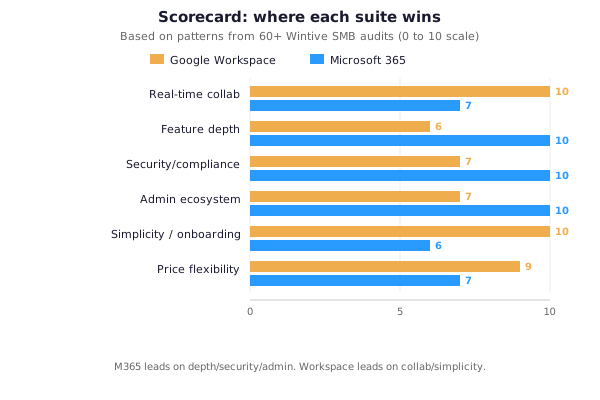
Google Workspace leads on simplicity and real-time collaboration. Microsoft 365 pulls ahead on enterprise depth, security posture, and admin ecosystem. The right pick depends on which gap matters most for your business.
🤝 Commonalities between Google Workspace and Office 365
Google Workspace and Office 365 have a lot in common. Both are subscription-based and charge businesses a monthly fee per person. There are different pricing tiers, depending on the features customers are looking for. While Google Workspace is web-based, it can also work offline. And while Office 365 is based on installed software, it also offers lightweight web-based versions of its applications.
Both suites work well with a wide range of devices. Web-based Google Workspace runs in most browsers on any operating system. Google also offers apps for Android and iOS. Microsoft offers Office client apps for Windows, macOS, iOS, and Android. Its web apps also work on all browsers.
The suites ship with the same core application categories — but the specific apps differ. Here is the side-by-side:
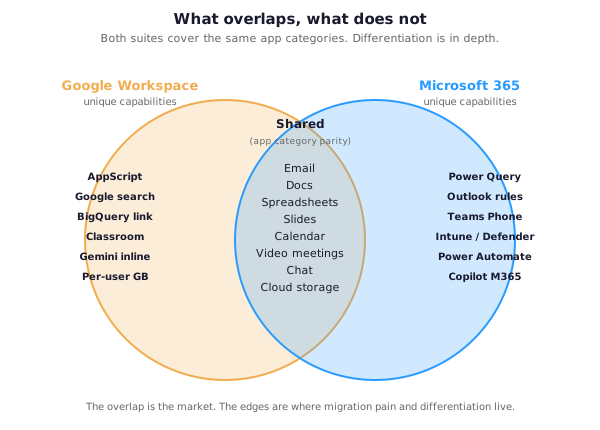
Each is paired with a cloud storage system. But these individual applications vary greatly from one suite to the next. And both suites also offer a host of additional tools. Deciding which suite is best for your business can be extremely difficult.
That’s where this article comes in. We offer a detailed examination of all aspects of office suites. Here, we focus on how the suites work for businesses, rather than individual use.
📄 Word processing: Google Docs or Microsoft Word
| Criterion | Google Docs | Microsoft Word |
|---|---|---|
| Real-time collaboration | Gold standard, built in | Functional via Word Online, clunkier UX |
| Feature depth | Covers 90% of doc needs | Advanced formatting, macros, citations, references |
| Templates | ~100 | 1,000+ across verticals |
| Offline mode | Chrome extension required | Native desktop app |
| Best fit for SMBs | Teams-first, light doc workflows | Legal, finance, policy-heavy documentation |
Deciding whether your business is better off using Google Docs or Microsoft Word is pretty straightforward. What’s more important to your users? Easy-to-use collaboration or the widest range of document creation and editing features? For collaboration, Google Docs is better. For the most comprehensive word processor you can find, you need Word.
Word has exceptional capabilities that make your workflow easier and more productive. Whether you’re creating a report, brochure, or resume, Word offers an excellent set of pre-designed templates. These allow you to write quickly, knowing that your document will have a solid and useful design. For example, Word offers nearly 50 different report templates, while Google Docs only offers five. Word also offers more types and styles of charts to integrate into your documents.
🚀 Collaboration: Where Google Docs Pulls Ahead
Microsoft Word has far more powerful features than Google Docs. This includes numerous pre-made templates to choose from when creating a new document. But Google Docs outperforms Word when it comes to live collaboration. Seamless collaboration was built in from the start. In Word, however, it’s more difficult to use and isn’t as comprehensive. It feels like an add-on rather than an integral part of the program.
When it comes to live collaboration, Google Docs far surpasses Microsoft Word. When it comes to offline collaboration, Word has always been the gold standard. But Google Docs has come a long way and is now almost as good as Word. Word’s editing tools offer slightly more precise controls, but they’re roughly on par.
📈 Spreadsheets: Google Sheets and Microsoft Excel
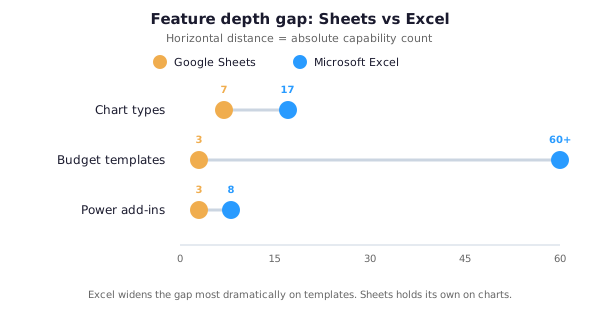
Do your company’s users mostly work alone on spreadsheets? Or do they frequently collaborate with others? The answer to this question will determine whether Excel or Google Sheets is better for your business.
For those who work primarily alone, Excel is the clear winner. As with Word, its wide selection of templates offers incredible depth. For example, there are over 60 templates for different types of budgets. For example, for a marketing event, you’re likely to find one that suits your needs. In contrast, Google Sheets only offers three different budget templates.
Excel also offers many more chart types than Google Sheets—17 in total. Additionally, many chart types have multiple subtypes. For example, bar charts include clustered bars, stacked bars, and so on. Google Sheets only has seven main chart types. It’s also easier to create charts in Excel than in Google Sheets.
Excel has far more sophisticated features than Google Sheets, including many more chart types. However, Google Sheets far surpasses Excel when it comes to real-time collaboration. Like Docs, collaboration is built right into Sheets. Not only are the tools more powerful, but they’re naturally integrated and easy to access. The same goes for editing and commenting on spreadsheets.
🎤 Presentations: Google Slides or Microsoft PowerPoint
| Criterion | Google Slides | Microsoft PowerPoint |
|---|---|---|
| Templates | Basic selection | 1,000+ including QuickStarter AI |
| Animations and transitions | 7-8 options | 50+ including Morph transition |
| Rehearse Timings | Not available | Built in |
| Real-time collaboration | Gold standard | Via PowerPoint Online |
| Best fit for SMBs | Internal team updates, quick decks | Client pitches, sales decks, board presentations |
The question of whether Google Slides or PowerPoint is the best choice comes down to one thing. Do you value collaboration or powerful features in a presentation program? If collaboration is king in your business, Google Slides is the best choice. For all other reasons, PowerPoint is.
For example, PowerPoint’s QuickStarter feature lets you quickly jump-start a presentation. Choose your presentation topic, and QuickStarter guides you through creating an outline, starter slides, and more. Google Slides has no equal.
PowerPoint has many features that Google Slides can’t match. QuickStarter helps you create an outline, starter slides, templates, and themes. Likewise, PowerPoint makes it easier to add charts, transitions, animations, and multimedia. It also offers more types of charts and tables. And it’s packed with features when it comes to delivering the presentation itself. Innovative features like Rehearse Timings calculate how much time you spend on each slide during a rehearsal. That way, you don’t get bogged down on a single slide. And you can practice giving each slide its rightful place. Google Slides has nothing like that.
However, Google Slides is the gold standard for collaboration, with far greater capabilities than PowerPoint. And because Slides offers fewer features than Excel, it’s slightly easier to create slides.
📧 Email: Gmail and Microsoft Outlook
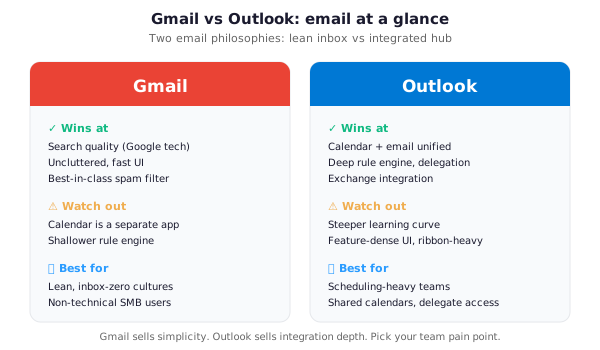
If you value simplicity, you’ll prefer Gmail to Outlook. Gmail has a much cleaner, less cluttered interface than Outlook’s default, offering the best balance between ease of use and powerful features. However, Outlook has made some strides toward becoming easier to use with a new, simplified ribbon that you can activate.
Gmail offers an intuitive interface with easy-to-use tools to get things done quickly. These include an option that suggests words and phrases as you type. There’s also a “nudge” feature to help you find forgotten messages. Finally, a handy “snooze” button lets you delay the arrival of messages.
However, when it comes to powerful features, Outlook is the best. For example, Outlook’s Focused Inbox lets you respond to the most important emails first. Its Clean Up feature does a great job of streamlining long email threads to make them easier to follow up on. And because the Contacts and Calendar features are part of Outlook, they’re well integrated with email. Gmail relies on the separate Google Contacts and Calendar apps, which can be a bit more complicated to navigate.
If your users want all the bells and whistles, Outlook provides them all. To get things done quickly, Gmail is a better choice.
💬 Collaboration: Google Chat and Meet vs. Microsoft Teams
When it comes to collaborating on documents, Google Workspace is much better for document collaboration than Office 365. Collaboration is built into the interface, rather than being treated as an afterthought like in Office 365. Everything is right in front of you: inviting people to collaborate, setting their collaboration rights, and chatting with them. The learning curve for collaboration in Office 365 is steeper. And even if you do learn to master it, it’s nowhere near as seamless as it is in Google Workspace.
Working together on individual documents is only part of the equation, however. For more complex, enterprise-wide collaboration features, Office 365 includes tools that surpass Google Workspace. Microsoft Teams, for example, combines
| Collaboration feature | Microsoft Teams (unified app) | Google Workspace (separate apps) |
|---|---|---|
| Group chat | Channels + threaded replies built in | Google Chat (separate app) |
| Online meetings | Teams meetings (native) | Google Meet (separate app) |
| Video conferencing | Up to 1,000 participants (E3) | Up to 500 participants (Enterprise) |
| Personalized workspaces | Teams + private channels | Spaces in Google Chat |
| Shared file repositories | SharePoint + OneDrive, fully integrated | Google Drive shared drives |
| Phone system | Teams Phone (direct routing, PSTN) | Google Voice (add-on) |
And Teams offers effortless integration with Outlook, SharePoint, OneDrive for Business and more.
🌐 Who Should Use Google Workspace
Given all this, what type of business should use Google Workspace? If document collaboration is a core part of your company’s DNA, Google Workspace is for you. Its live collaboration features far surpass anything Office 365 has to offer. They’re so integral to the suite’s design that the learning curve is very small.
Google Workspace is also a good choice if your business doesn’t need all the sophisticated features of Office 365. Each individual app in Google Workspace is easier to use than the one in Office 365. Gmail, in particular, is easier to use than Outlook. And if your users do a lot of document searches, Google Drive search outperforms Office 365.
🏢 Who Should Use Office 365
If you prioritize powerful and sophisticated collaboration features, then Office 365 is for you. Each of its apps outperforms its Google Workspace counterpart. And it’s not like you can’t do live collaboration in Office 365. It’s just a little more difficult and less straightforward than in Google Workspace. Additionally, Office 365’s markup features are exemplary, making it an ideal solution for people who need to review each other’s work.
📨 Beyond Collaboration: Email Hosting and Teams
There are other reasons why a business should use Office 365. While Google Drive is useful for file sharing, it can’t compete with SharePoint’s collaborative environments. If you want to manage your email server, rather than using hosted email, you’ll also need Office 365. And Microsoft Teams is a great way for teams to share their work with each other.
See also our Google Workspace vs Office 365 comparison.
💼 Wintive take: 3 patterns we see in SMB audits
After running 60+ tenant audits on businesses between 50 and 500 employees, three patterns keep showing up in the Google Workspace vs Office 365 decision — usually post-factum, when the wrong choice is already bolted in:
- The free-tier trap. Teams start on Gmail free, outgrow it, and migrate mid-flight. The cost is not the $6/user — it is the 6 months of disruption, email threads stitched across identities, and calendar fragmentation. Google Workspace Business Starter is fine. What is not fine is starting on personal Gmail for work data.
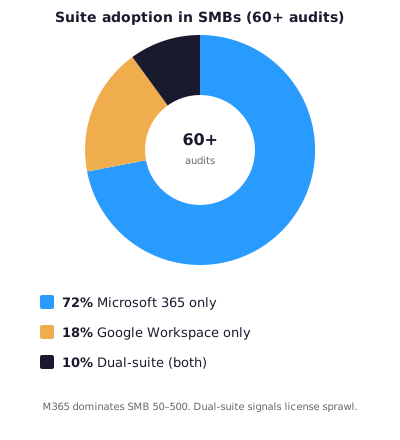
- Dual-suite sprawl. Finance uses Excel. Marketing uses Sheets. Sales uses both because their CRM exports CSVs to whichever opens faster. By year two you are paying for M365 E3 AND Workspace Business Standard — and neither admin console owns the source of truth.
- Security as an afterthought. Workspace ships with solid baselines, but SMBs rarely flip on the advanced controls (2SV enforcement, context-aware access, DLP rules) until an incident. M365 E3 includes Conditional Access, DLP, and labeling policies by default — but only 3 in 10 SMBs we audit have actually configured them.
💰 License economics: what you actually pay for
Headline pricing is almost identical at the entry tier. The real cost shows up at scale, when add-ons, per-user upgrades, and shelfware accumulate. Below is the PowerShell snippet we run on every M365 audit to surface license waste — assigned SKUs that nobody is actually using.
# Connect to Microsoft Graph PowerShell
Connect-MgGraph -Scopes "Organization.Read.All", "AuditLog.Read.All"

# Pull every subscribed SKU with assigned/consumed counts + waste%
Get-MgSubscribedSku | Select-Object `
    SkuPartNumber, `
    @{N='Assigned';E={$_.ConsumedUnits}}, `
    @{N='Purchased';E={$_.PrepaidUnits.Enabled}}, `
    @{N='Waste%';E={
        if ($_.PrepaidUnits.Enabled -eq 0) { 0 }
        else { [math]::Round((($_.PrepaidUnits.Enabled - $_.ConsumedUnits) / $_.PrepaidUnits.Enabled) * 100, 1) }
    }} | `
    Sort-Object -Property Waste% -Descending | `
    Format-Table -AutoSize
Same audit logic applies to Google Workspace — the GAM (Google Apps Manager) CLI is the equivalent admin Swiss Army knife:
# Install GAM (one-time) — github.com/GAM-team/GAM
# Then authenticate with your Google Workspace super admin
gam oauth create

# Find users inactive 30+ days (prime license reclaim candidates)
gam report users
    parameters accounts:last_login_time
    start $(date -d '30 days ago' +%Y-%m-%d)
    end $(date +%Y-%m-%d)

# Count seats per SKU (assigned vs purchased)
gam print licenses | awk -F',' 'NR>1 {print $3}' |
    sort | uniq -c | sort -rn

# Export the full license report to Google Drive for deeper analysis
gam print licenses todrive
Typical Wintive findings on Google Workspace vs Office 365 tenants: 12 to 25 percent waste rate, especially in Business Standard where seats get added during growth phases but rarely reclaimed after turnover. At $14/user/month, a 200-seat Workspace tenant with 20% waste leaves roughly $6,700/year on the table — same order of magnitude as M365 E3, same recoverable spend.
💵 Annual cost at scale (50→500 seats)
| Seats | Workspace Business Standard ($14/user) | M365 Business Standard ($12.50/user) | M365 E3 ($22/user) |
|---|---|---|---|
| 50 | $8,400/yr | $7,500/yr | $13,200/yr |
| 100 | $16,800/yr | $15,000/yr | $26,400/yr |
| 200 | $33,600/yr | $30,000/yr | $52,800/yr |
| 500 | $84,000/yr | $75,000/yr | $132,000/yr |
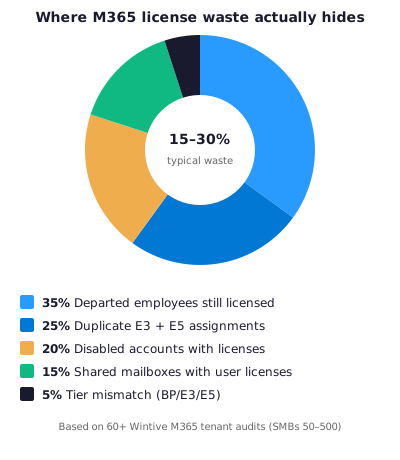
Typical findings from our audits: 15 to 30 percent of purchased licenses sit idle (departed employees, over-provisioned departments, duplicate E3+E5 assignments). At $22/user/month for E3, that is easily $5,000 to $20,000/year in recoverable spend for a 200-person company — often more than the annual cost of a proper M365 managed service.
🎯 The decision framework: when to pick which
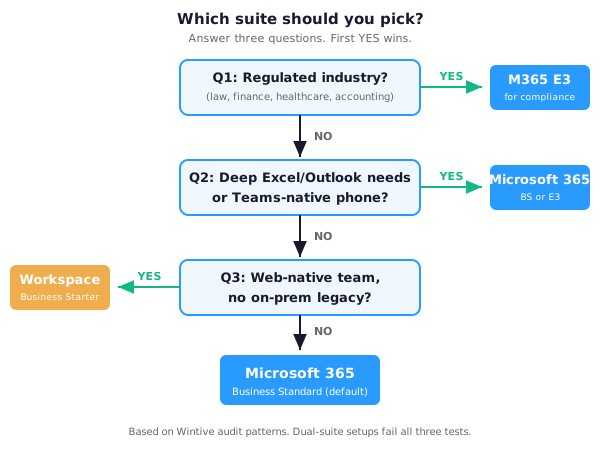
If you only remember one thing: the office suite is not the decision — the ecosystem is. Pick based on where your business is going, not where it started.
- Pick Google Workspace if: your team is web-native, you do not care about deep Excel/Outlook features, you have no on-prem AD/Exchange legacy, and your security needs are standard (no regulated industry, no sensitive data classification requirements).
- Pick Microsoft 365 if: you operate in a regulated industry (law, finance, healthcare, accounting), you need Teams-native phone and meetings, you already run Windows endpoints that benefit from Intune + Defender, or you are migrating off on-prem Exchange/AD.
- Do not pick both: dual-suite architectures double your licensing cost, fracture your security posture, and create admin gray zones where nothing is owned.
If you are planning a migration from Google Workspace to M365, start with the Google Workspace to Microsoft 365 migration guide. For a broader cost perspective, see the CFO guide to Microsoft 365 predictable costs.
🔍 Keep Exploring
📘 Productivity & setup
The CFO’s Guide to Microsoft 365: Predictable Costs, Zero Surprises
🔐 Security & admin
Microsoft Defender: Getting the Most Out of Office 365 Policies