SharePoint Online is now the default intranet platform for SMBs on Microsoft 365. If you run between 50 and 500 seats, you almost certainly don’t need a third-party “intranet in a box” like Unily or Valo — native SharePoint covers 90% of what an SMB needs, at no extra licensing cost.
In this three-part series, we show you how to build a clean, branded intranet using only what’s included in your M365 license. Part 1 covers site setup: picking the right site type, creating it from the SharePoint admin center, and locking down the basics (logo, title, header).
What you’ll build in Part 1
- Pick the right SharePoint site type for an intranet homepage
- Create the site from the SharePoint admin center
- Set the logo, title, and header branding
- Remove the default footer for a cleaner look
Part 2 covers branding (custom theme, colors, typography). Part 3 covers content (news, hero sections, quick links, audience-targeted web parts).
Why native SharePoint beats third-party intranets for SMBs
SharePoint Online in 2026 is a vastly different product from its 2018 version. What used to require SPFx customizations, promoted links, or third-party add-ons is now handled natively:
- Modern pages with hero banners, quick links, news, and events web parts
- The SharePoint Look Book ships 10+ professional templates
- Audience targeting filters content by Entra ID group membership
- Hub sites cascade branding and navigation across associated sites
- Viva Connections turns the intranet into a Teams-native experience
The math is simple. Unily and Valo start around $5 per user per month. For a 200-seat SMB, that’s $12,000 per year on top of M365 licensing — for features SharePoint now provides natively. In 60+ tenant audits at Wintive, we’ve only seen two cases where a third-party intranet was genuinely justified (both regulated industries with complex governance requirements).
SharePoint site types: which one for an intranet?
SharePoint Online offers three main site types. Each serves a different purpose — picking the right one at creation time saves a lot of rework later.
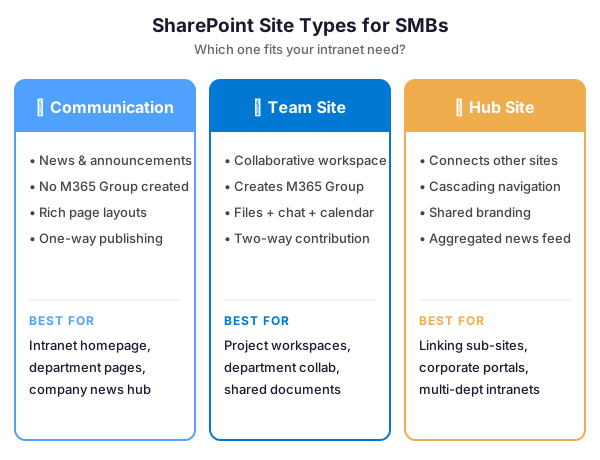
Short version: use a Communication Site for your intranet homepage. Team Sites auto-create a Microsoft 365 Group (unnecessary baggage for a one-way intranet). Hub Sites are for connecting multiple sites together — useful in Part 3 when we add department sub-sites under a central homepage.
Step 1 — Create the Communication Site
You need to be a Global Administrator or SharePoint Administrator. If you’re neither, stop here and get your admin to run these steps — granting yourself temporary roles just to create a site is a governance red flag.
From the admin center (GUI):
- Go to admin.microsoft.com
- Navigate to Admin Centers → SharePoint
- Click Active Sites, then Create
- Choose Communication Site → Blank template (Topic and Showcase templates pre-populate web parts you’ll likely remove)
- Fill in site name, web address, owner, language, then click Finish
Or in one PowerShell command:
# Connect to SharePoint admin center
Connect-SPOService -Url https://<tenant>-admin.sharepoint.com

# Create a Communication Site (blank template)
New-SPOSite `
  -Url https://<tenant>.sharepoint.com/sites/intranet `
  -Owner admin@<tenant>.onmicrosoft.com `
  -Title "HUB 365" `
  -Template SITEPAGEPUBLISHING#0 `
  -StorageQuota 1024
The SITEPAGEPUBLISHING#0 template is the blank Communication Site. The site appears in the active sites list within 30 seconds.
Step 2 — Remove the default footer
Most SMB intranets look cleaner without the default footer. One toggle:
- Click the gear icon (top right) → Change the look
- Select Footer → toggle Off
Keep the footer if you need legal disclaimers or contact info visible on every page. Otherwise the extra visual weight competes with your actual content.
Step 3 — Upload your logo
- Change the look → Header
- Click Edit → upload your logo (PNG or SVG, 64×64 minimum)
- Pick header layout (Standard, Compact, Minimal, or Extended)
PowerShell alternative (uploads logo programmatically via PnP):
# Connect with PnP PowerShell
Connect-PnPOnline -Url https://<tenant>.sharepoint.com/sites/intranet -Interactive

# Upload logo to Site Assets and set as site logo
Add-PnPFile -Path .logo.png -Folder "SiteAssets"
Set-PnPSite -LogoFilePath .logo.png
Step 4 — Set a memorable title
By default the site title matches the site name you entered at creation. For a more distinctive intranet identity, give it a short, memorable name:
- Click Site Contents → Site Settings
- Under Look and Feel, click Title, description, and logo
- Enter a short, distinctive title (examples: “HUB 365”, “Atlas”, “Pulse”, “Nexus”)
- Click OK
Or via PowerShell:
Set-PnPSite -Title "HUB 365" -Description "Your company intranet homepage"Tip: uppercase or letter-spaced titles (“H U B 365”) feel more designed, but it’s pure aesthetics. Your team will read it hundreds of times — pick something that feels right, not just clever.
Wintive take: 3 branding mistakes we see in tenant audits
- Logo too detailed. Square logos with fine text or thin lines render as mush in the 32×32 app launcher tile. Use a bold monogram or stylized icon that stays legible at small sizes.
- Site name with spaces or accents. A name like “Zürich Marketing” generates a mangled URL (
/sites/z_rich_marketing). Pick an ASCII slug at creation — you can’t rename the URL later without recreating the site. - No sensitivity label at creation. Set “General” or “Internal” from the start. Retrofitting labels across an active intranet with thousands of items is painful and generates user-facing access denied errors during re-classification.
Conclusion
You now have a blank SharePoint Communication Site with the branding basics locked in: clean header, your logo, a memorable title, no default footer clutter. This is the canvas for your intranet homepage.
Next: in Part 2 we apply a custom theme and color palette to match your brand. Part 3 fills the homepage with news, hero sections, quick links, and audience-targeted content.
See also our introduction to SharePoint pages and web parts.
🛡️ Free: M365 Tenant Security Audit Checklist
17-page PDF with 50 hands-on checks covering Entra ID, Exchange Online, SharePoint, Teams, Intune, license waste, and audit logging. PowerShell commands included. Built from 60+ real tenant audits at Wintive.