This guide is an introduction to SharePoint Online, Microsoft’s cloud-based collaboration and document management platform included in Microsoft 365. Whether you are new to SharePoint or transitioning from an on-premises deployment, this introduction to SharePoint Online covers everything you need to get started.
🛡️ Free: M365 Tenant Security Audit Checklist
17-page PDF with 50 hands-on checks covering Entra ID, Exchange Online, SharePoint, Teams, Intune, license waste, and audit logging. PowerShell commands included. Built from 60+ real tenant audits at Wintive.
Across 60+ tenant audits at Wintive, we have seen the same pattern: SharePoint communication sites drift into messy intranets when teams do not master SharePoint pages and web parts. First, this guide walks you through communication site template pages. Then, it covers every web part available in modern SharePoint. Finally, we share the SMB gotchas we keep hitting on 50–500-seat tenants. Master pages, layouts, and content placeholders sit outside scope — those belong to the classic model.
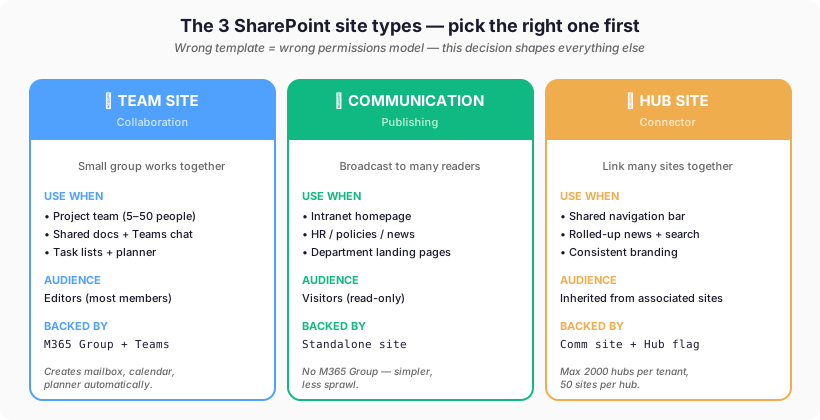
📄 SharePoint Pages
A SharePoint page is the canvas you build content on. Pages display text, images, videos, lists, news, and embedded apps. Every communication site automatically creates a Site Pages library with a Home.aspx default page. You edit pages directly from the home page or through the library. Pages are .aspx files served by SharePoint Online. The modern editor hides that complexity behind a drag-and-drop interface. No coding is required to publish polished internal content.
First, when a communication site is built, it creates a site page library by default. In this library, you will find the Home.aspx page, which is your site’s home page. You can edit the page from here or directly from the home page. For your information, an ASPX file is an Active Server Page Extended file designed for Microsoft’s ASP.NET framework. And that’s all there is to it technically.
Moreover, you can create a new page and set it as the home page. You can also copy pages, which is ideal if you are designing a template that will be used for service pages, etc.
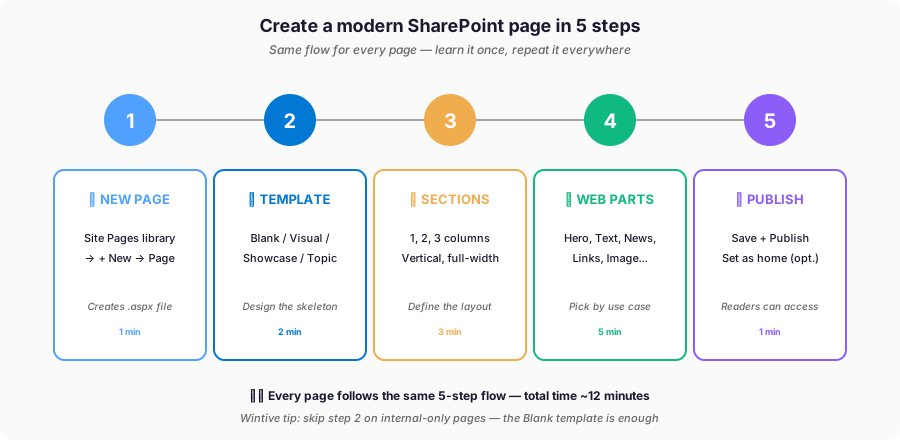
Create SharePoint pages with PowerShell
💻 Prefer PowerShell? The same 5 steps can be scripted with PnP PowerShell — handy for provisioning dozens of pages at once:
# Connect to the site
Connect-PnPOnline -Url https://contoso.sharepoint.com/sites/intranet -Interactive

# Create a new blank modern page
New-PnPPage -Name "Department-Policy" -LayoutType Article

# Set it as the site home page (optional)
Set-PnPHomePage -RootFolderRelativeUrl "SitePages/Department-Policy.aspx"

# List every modern page in the site
Get-PnPPage | Select-Object Name, Title, PageLayoutType
🧩 Web Parts
Web parts are the building blocks of SharePoint pages. They are pre-built modules for text, images, video, news feeds, file lists, and charts. Web parts also embed forms, Stream videos, Planner boards, and dozens more. Microsoft groups them into categories: text-and-media, documents-and-data, news, communication, planning. Pick from the right bucket first. Combine web parts on a page like paintings on a wall. The page is the structure. Web parts are the content.
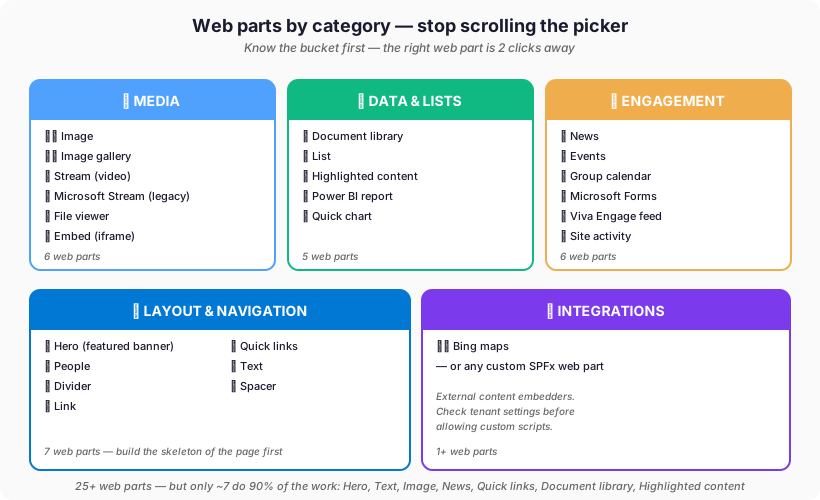
Web Parts are the building blocks used for SharePoint pages. They allow you to modify your pages and display content and business data that is important to your team or company.
For me, SharePoint pages are like the walls of a house. You can have paintings, graffiti, windows, doors, decorations, posters, etc.
Adding text or images to your page is like adding paintings, graffiti, wall stencils, or posters. The content is only on the page and does not reside anywhere else.
Adding a library, list, Power BI, embedded code, etc. is like adding a window to your wall. This allows you to display content that is actually located elsewhere (in the next room, so to speak).
Plan SharePoint pages around user needs
When planning your home page and other pages, it is important to keep in mind what users will be looking for and need to access first. The fewer clicks it takes for the user to get to their destination, the more comfortable they are likely to feel on the site.
📚 Available web parts
First, to see the available web parts, put your page in edit mode and click on the “+” in the middle of the page. The easiest way to learn is, of course, to play around with it. I suggest you try out each web part to get a better understanding of what it offers.

🧱 Core building blocks
These six web parts appear on almost every page. First, you will use them as the foundation of any layout.
| Icon | Web part | What it does |
|---|---|---|
| 📃 | Text | Rich text paragraphs with formatting |
| 🖼️ | Image | Insert an image from your site or upload |
| ➖ | Divider | Insert a horizontal line between components |
| 📏 | Spacer | Control vertical space between components |
| 🔗 | Link | Add an internal or external link as a card |
| 🏞️ | Image Gallery | Display a collection of images |
📂 Content and file display
Next, when you need to surface stored content, these three web parts do the job. Moreover, they keep files in sync automatically.
| Icon | Web part | What it does |
|---|---|---|
| 📁 | Document Library | Display a document library with custom title and view |
| 📋 | List | Display a SharePoint list with a chosen view |
| 📄 | File Viewer | Insert Excel, Word, PowerPoint, PDF, or 3D files |
👥 Team and events
Then, for collaboration, these five web parts keep teams informed. In addition, they integrate directly with Microsoft 365 groups.
| Icon | Web part | What it does |
|---|---|---|
| 📰 | News | Display news posts from your site |
| 👥 | People | Show a group of people with contact details |
| 📅 | Events | Display upcoming events with location and map |
| 📆 | Group Calendar | Show a Microsoft 365 group calendar |
| 💬 | Viva Engage | Embed a Viva Engage conversation feed |
🎬 Media and embeds
Furthermore, when visuals matter most, these five web parts bring rich media into the page. As a result, engagement goes up significantly.
| Icon | Web part | What it does |
|---|---|---|
| 🎯 | Hero | Visually prominent banner with up to 5 items |
| 🧷 | Embed | Show content from other sites like YouTube |
| 🎥 | Stream | Display a video from your organization |
| 🎬 | Stream (legacy) | Legacy video platform, use Stream instead |
| 🗺️ | Bing Maps | Embed an interactive map by address |
📊 Data and interaction
Finally, for interactive dashboards and user input, these six web parts turn a static page into a tool. Therefore, they are essential for intranets.
| Icon | Web part | What it does |
|---|---|---|
| 📊 | Power BI | Embed an interactive Power BI report |
| 📈 | Quick Chart | Simple bar or pie chart from data points |
| 📝 | Microsoft Forms | Embed a survey, quiz, or poll |
| 🌟 | Highlighted content | Dynamic content by type, filter, or search |
| ⚡ | Quick Links | Pinned shortcuts to pages, files, or sites |
| 🌐 | Site Activity | Recent activity and file changes on the site |
💡 Why Use SharePoint Online?
SharePoint Online is the cloud version of SharePoint hosted by Microsoft as part of Microsoft 365. It requires no server infrastructure, no patching, and no manual upgrades. Every Microsoft 365 Business or Enterprise subscription includes it. SharePoint Online is always up to date and scales without hardware. It integrates natively with Teams, OneDrive, Power Automate, and Microsoft Search.
SharePoint Online is the cloud version of Microsoft SharePoint, hosted by Microsoft as part of Microsoft 365. Unlike the on-premises version, SharePoint Online requires no server infrastructure and is always up to date. Every Microsoft 365 Business or Enterprise subscription includes SharePoint Online, making it accessible to organizations of all sizes.
Key advantages of SharePoint Online include automatic updates, 99.9% uptime SLA, built-in security compliance features, and seamless integration with Teams sites, OneDrive, and Power Platform.
🔗 Explore Our SharePoint Tutorials
Dive deeper into SharePoint Online with these step-by-step guides:
📘 Getting started with SharePoint
🔧 Daily collaboration and features
Microsoft 365 for Art Galleries: Curate Your Back Office Too