SharePoint file sharing is the day-to-day workflow that connects your tenant data to clients, partners, and external collaborators. Specifically, this guide covers the five-step sharing lifecycle, the three link types compared, and PowerShell configuration. It also addresses US-regulated-industry baselines (HIPAA, SOC 2, NIST 800-171) and audit workflows. Furthermore, every recommendation comes from what Wintive observed across 60+ Microsoft 365 tenants we audit yearly.
💡 Why SharePoint File Sharing Matters in 2026
SharePoint sharing is where most M365 tenants leak data. Notably, in audited tenants we find roughly 25% of all sharing links use the Anyone scope, often unintentionally generated by users who clicked the default option. Therefore, the wrong link type chosen at upload turns into permanent shadow access. Auditors flag this access at the next review.
The right answer is not to disable sharing but to set sensible defaults at the tenant and site levels. As a result, this guide focuses on configuration choices that satisfy auditors while keeping legitimate collaboration friction-free for end users.
🛡️ Free: M365 Tenant Security Audit Checklist
17-page PDF with 50 hands-on checks covering Entra ID, Exchange Online, SharePoint, Teams, Intune, license waste, and audit logging. PowerShell commands included. Built from 60+ real tenant audits at Wintive.
🔧 How SharePoint Sharing Links Work
A SharePoint sharing link runs through five stages from generation to access. Specifically, the owner picks the scope, SharePoint generates a link with an embedded ACL token, the recipient clicks the URL, Entra ID enforces authentication if the scope requires it, and access is granted with the permission set the owner picked.
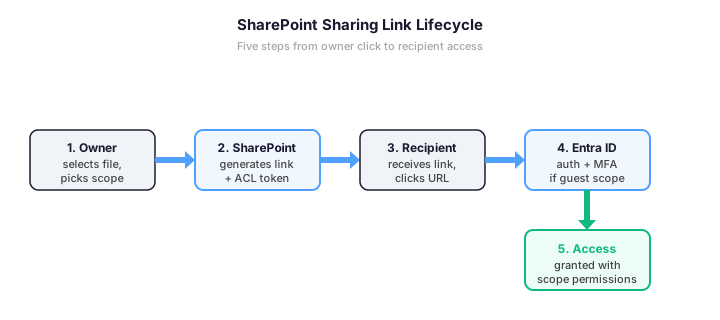
Crucially, step 4 only runs for guest scopes and tenant-restricted scopes. Specifically, this includes Specific people targeting external recipients and People in your organization. Indeed, the Anyone scope skips authentication entirely; the link itself is the only credential. Therefore, anonymous links forfeit identity tracking. They also forfeit MFA enforcement and audit attribution.
📦 Sharing Link Types Compared
SharePoint Online offers three sharing link scopes. Specifically, each represents a tradeoff between collaboration friction and security exposure. The right pick depends on the recipient identity, the data sensitivity, and the audit requirements your organization faces.
| Link type | Recipient | Authentication | Wintive recommendation |
|---|---|---|---|
| Anyone | Anyone with the URL, no sign-in | None — URL is the credential | Disable for any tenant handling PHI, PII, financial data |
| Specific people | Named recipients (internal or guest) | Entra ID sign-in + MFA via CA | Default for partner collaboration with BAA in place |
| People in your organization | Tenant members only | Tenant Entra ID, MFA via CA | Standard for internal team work and project sites |
The visual matrix below maps each link type to its security posture and US regulated-industry verdict at a glance. Specifically, the color coding (orange = high risk, blue = recommended, green = lowest risk) signals the Wintive default for each scenario.
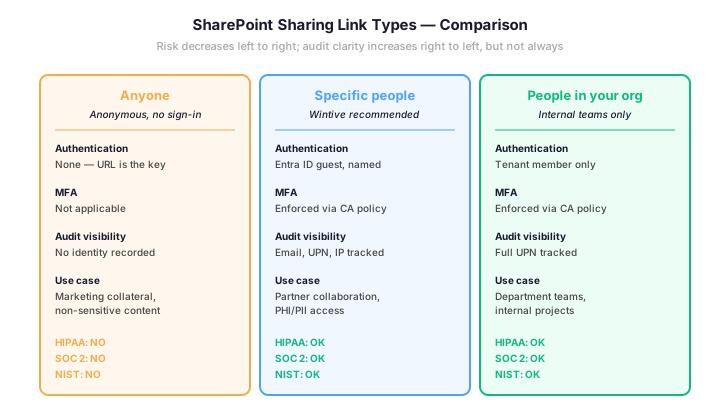
Notably, the Anyone scope is the source of most sharing-related data leakage incidents. We trace these incidents directly during audits. As a result, our standing recommendation is to disable Anyone links at the tenant level. Furthermore, individual sites can be lifted with documented business need.
💻 Share a File or Folder Step-by-Step
For end users: Share with someone
This is the day-to-day workflow inside SharePoint or OneDrive. Specifically, every team member follows the same six steps to send a sharing link to a colleague, partner, or client.
- Open the document library in your SharePoint site or OneDrive. Specifically, navigate to the file or folder you want to share.
- Click the Share icon next to the file name (the icon shows a person with a plus sign). The Send Link dialog opens.
- Choose the link scope at the top of the dialog: Anyone, People in your organization, People with existing access, or Specific people. Notably, the Wintive recommendation is Specific people for any external collaboration.
- Set permission: Can edit (default), Can view, Can review (comments only), or Open in review mode. Furthermore, toggle Block download for sensitive content that must not leave the M365 boundary.
- Optional: set link expiration by clicking the gear icon. Specifically, set 7 days for Anyone links and 30 days for Specific people links to align with audit policies.
- Type recipient email addresses (one or more, separated by semicolons), add an optional message, and click Send. As a result, the recipient receives an email with the link plus your message.
Crucially, when you select Specific people with an external email address that is not yet a guest in your tenant, SharePoint automatically creates a guest account in Microsoft Entra ID on first link click. Therefore, the recipient receives an invitation email and must complete the Microsoft sign-in process before accessing the file.
For admins: Invite a guest user manually
Sometimes you need to pre-invite a guest before any sharing happens, especially for security-sensitive workflows where the guest must exist with a documented invitation record. Specifically, this is the path auditors prefer: explicit invitation traceable to a named admin, with optional MFA-on-first-sign-in policy applied before any data access. There are three equivalent ways to invite a guest, and all three create the same Entra ID guest user object.
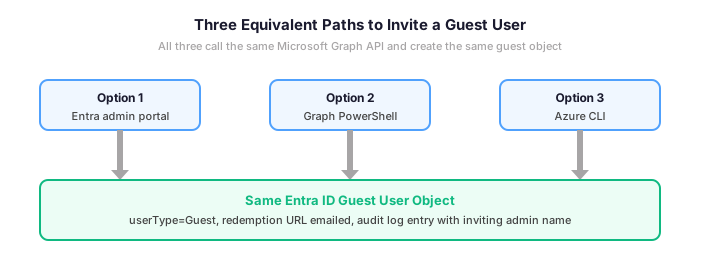
Each path below maps to one of the three boxes above. Specifically, the portal UI is the most discoverable for one-off invitations, PowerShell is the choice for batch CSV imports, and Azure CLI fits Linux or macOS workstations.
Option 1: Microsoft Entra admin portal (UI)
- Sign in to the Microsoft Entra admin center as a Global Administrator or User Administrator
- Navigate to Identity → Users → All users, then click + New user → Invite external user
- In the Identity section, fill in Email address (mandatory), Display name, First name, and Last name
- Add an optional Personal message that appears in the invitation email; recipients are far more likely to accept invitations with context
- Under Groups and roles, leave Roles as User for typical guests; assign group memberships if the guest needs access to specific Microsoft 365 Groups or Teams
- Under Settings, leave Block sign in as No and set Usage location to the country where the guest is based (required for some Microsoft 365 license features)
- Click Invite. The recipient receives an invitation email and must accept the terms before the guest account becomes active in your tenant
Option 2: Microsoft Graph PowerShell
For repeatable workflows or batch invitations, use the Microsoft Graph PowerShell SDK. Specifically, the New-MgInvitation cmdlet is idempotent on email address: re-invoking with an existing invited email returns the existing user record without creating duplicates.
# Invite a guest user via Microsoft Graph PowerShell
Connect-MgGraph -Scopes "User.Invite.All","User.ReadWrite.All"

$invite = @{
    invitedUserEmailAddress = "chris@partner.com"
    invitedUserDisplayName  = "Chris Green"
    inviteRedirectUrl       = "https://myapps.microsoft.com"
    sendInvitationMessage   = $true
    invitedUserMessageInfo  = @{
        customizedMessageBody = "Welcome to our Project Alpha collaboration site."
    }
}

New-MgInvitation -BodyParameter $invite

# Batch-invite from a CSV (columns: Email, DisplayName)
Import-Csv .\guests.csv | ForEach-Object {
    $body = @{
        invitedUserEmailAddress = $_.Email
        invitedUserDisplayName  = $_.DisplayName
        inviteRedirectUrl       = "https://myapps.microsoft.com"
        sendInvitationMessage   = $true
    }
    New-MgInvitation -BodyParameter $body
}
Option 3: Azure CLI
For Linux or macOS admin workstations, the Azure CLI is the simplest path. Furthermore, the az ad user invite command writes to the same Entra ID API as the portal and PowerShell options, so the resulting guest object is identical regardless of which path you used.
# Invite a guest user via Azure CLI
az login

az ad user invite \
  --invited-user-email-address "chris@partner.com" \
  --invited-user-display-name "Chris Green" \
  --invite-redirect-url "https://myapps.microsoft.com" \
  --send-invitation-message true

# Verify the guest was created
az ad user list --query "[?userType=='Guest' && mail=='chris@partner.com']" -o table
Crucially, all three methods generate the same artifacts: a guest user object in Entra ID with userType=Guest, an invitation redemption URL emailed to the recipient, and an audit log entry naming the inviting administrator. Therefore, choose the method that fits your workflow without worrying about behavioral differences.
For admins: Configure tenant-level defaults
Configuration runs through the SharePoint Admin Center for tenant-level settings, plus per-site overrides for the projects that need broader access. First, set the tenant baseline. Second, configure the default link type. Third, lift specific sites only where business need is documented.
- In SharePoint Admin Center → Policies → Sharing, set External sharing to Existing guests only for the tenant baseline
- Set Default link type to Specific people; this prevents accidental Anyone links by default
- Set Default link expiration to 30 days for any external link; Anyone links should expire in 7 days
- Per-site overrides via SharePoint Online Management Shell:
Set-SPOSitewith theSharingCapabilityparameter - Build a Conditional Access policy in Entra ID targeting Guest users. Require MFA for SharePoint and OneDrive cloud apps.
The PowerShell example below applies the regulated baseline and lifts a single project site for partner collaboration. Furthermore, it audits all sites with sharing scope above the tenant baseline.
# Configure SharePoint sharing baseline + per-site overrides
Install-Module -Name Microsoft.Online.SharePoint.PowerShell -Force
Connect-SPOService -Url https://example-admin.sharepoint.com

# Set tenant baseline: only existing guests can be invited (regulated default)
Set-SPOTenant -SharingCapability ExistingExternalUserSharingOnly

# Set default link type to Specific people (prevents accidental Anyone links)
Set-SPOTenant -DefaultSharingLinkType Direct

# Set default link expiration to 30 days
Set-SPOTenant -ExternalUserExpirationRequired $true -ExternalUserExpireInDays 30

# Lift a single project site to allow new guest invitations
Set-SPOSite -Identity https://example.sharepoint.com/sites/PartnerProjectAlpha -SharingCapability ExternalUserSharingOnly

# Audit all sites with broader scope than tenant baseline
Get-SPOSite -Limit All | Where-Object { $_.SharingCapability -ne "ExistingExternalUserSharingOnly" } | Select-Object Url, SharingCapability | Export-Csv .\sites-with-broader-sharing.csv -NoTypeInformation
🛡️ Sharing for Regulated US Industries
For organizations subject to HIPAA, SOC 2 Type II, NIST 800-171, or CCPA, the Anyone scope is effectively prohibited. Specifically, sharing PHI, customer PII, or controlled unclassified information through anonymous links breaks identity attestation and audit trail requirements that auditors verify directly.
Therefore, regulated SMBs default to Specific people for any external sharing and People in your organization for internal collaboration. Furthermore, both link types preserve full audit attribution and trigger Entra ID Conditional Access policies that enforce MFA for guest accounts.
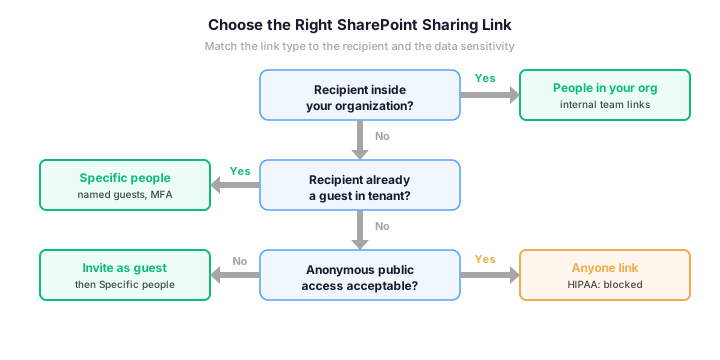
Specifically, the combination of Specific people links plus a Conditional Access guest policy is powerful. It satisfies HIPAA Security Rule access control under 45 CFR §164.312(a)(1). It also covers SOC 2 Common Criteria CC6.7 segregation of duties. Indeed, NIST 800-171 control 3.13.5 boundary protection is satisfied through Conditional Access guest policies.
💡 What we see across 60+ M365 tenants
The single highest-impact remediation is changing the Default sharing link type from Anyone to Specific people. Indeed, this change alone cuts accidental Anyone links by roughly 80% in audited tenants. Furthermore, the change takes 30 seconds in the SharePoint Admin Center and breaks no legitimate workflow that uses pre-invited guests.
✅ Best Practices for SharePoint Sharing
The same configuration mistakes appear repeatedly across tenant audits. Notably, four practices account for roughly 80% of sharing-related incidents we troubleshoot during quarterly reviews.
| Practice | What to do | Why it matters |
|---|---|---|
| Default link type Specific people | Set in SharePoint Admin Center → Policies → Sharing → Default sharing link type | Prevents accidental Anyone links; cuts data leakage incidents 80% in audited tenants |
| Link expiration on Anyone scope | Set Anyone link expiration to 7 days; Specific people to 30 days | Standing links accumulate; expiration forces conscious renewal and removes orphaned access |
| Block download on guest links | Apply web-only access policies for unmanaged devices accessing PHI/PII | HIPAA workloads must not allow PHI to leave the M365 boundary unencrypted |
| Quarterly Access Reviews | Schedule Entra ID Access Reviews every 90 days targeting guest users with auto-remove on no response | Guest accounts orphan when partners leave; audit-critical control for SOC 2 evidence |
| Sensitivity labels on shared content | Apply Microsoft Purview labels with auto-DLP detection of PHI/PII patterns | Labels survive download and copy-paste; auditors expect technical enforcement, not policy alone |
↻ Audit Sharing Activity Monthly
Sharing without auditing creates audit findings. Specifically, every regulated tenant should run a monthly export of sharing activity from the Microsoft Purview Compliance Portal with 90-day archive in immutable storage.
The PowerShell example below pulls the last 30 days of sharing-related events from the unified audit log. Furthermore, it filters specifically for external-recipient and Anonymous-link operations to surface anomalies fast.
# Audit SharePoint sharing events in last 30 days
Connect-ExchangeOnline

# Search the unified audit log for sharing operations
$startDate = (Get-Date).AddDays(-30)
$endDate = Get-Date
$ops = @("SharingSet", "SharingInvitationCreated", "AnonymousLinkCreated", "SecureLinkCreated")
$results = Search-UnifiedAuditLog -StartDate $startDate -EndDate $endDate -Operations $ops -ResultSize 5000

# Filter to external/anonymous sharing only
$external = $results | Where-Object { $_.AuditData -match "ExternalUser|AnonymousLink" }
$external | Select-Object CreationDate, UserIds, Operations, AuditData | Export-Csv -Path .\sharing-activity-30d.csv -NoTypeInformation

Write-Host "Found $($external.Count) external sharing events in last 30 days"
🔄 Quarterly Sharing Reviews via Entra ID
Standing sharing links and guest accounts creep over time. Specifically, every link generated for one project tends to remain active for years after that project closes. Indeed, this accumulates into a long tail of stale access that auditors immediately flag. Therefore, every regulated tenant should run quarterly access reviews using Entra ID Access Reviews as a recurring control.
- In Entra admin center, go to Identity Governance → Access Reviews and click New access review
- Set scope to Guest users only across all groups, or target high-sensitivity SharePoint sites for tighter loops
- Set frequency to Quarterly with 14-day duration and auto-apply on no response
- Choose reviewers: site owner, project sponsor, or a delegated security mailbox — never the guests themselves
- Enable If reviewers don’t respond → Remove access. This is the audit-critical setting that converts a paper control into a logged control
Notably, the auto-removal setting is what auditors look for. Indeed, an access review program where reviewers can ignore decisions without consequence provides no audit evidence. As a result, configuring auto-remove on no response converts the review from a checkbox exercise. The result is a cryptographically logged control aligned with NIST 800-171 control 3.5.6 disable-inactive-accounts.
❓ SharePoint Sharing FAQ
🔗 Keep Exploring
🚀 Audit your SharePoint sharing in minutes — $97 flat
Our Automated Tenant Health Check delivers actionable findings on your Microsoft 365 sharing posture in minutes, not days. Specifically, the $97 SaaS audit covers tenant sharing scope, default link types, expiration policies, Conditional Access for guests, MFA enforcement, audit log retention, plus 40+ other security checks across Entra ID, Exchange Online, SharePoint, and Intune. Furthermore, you receive a downloadable PDF report with HIPAA, SOC 2 Type II, and NIST 800-171 alignment notes built from 60+ Microsoft 365 tenants we audit yearly.