SharePoint guest access lets external collaborators (clients, partners, contractors) work on documents and lists hosted in your Microsoft 365 tenant without consuming an internal license. Specifically, this guide covers four governance layers and four sharing scopes compared. It also addresses PowerShell configuration, US-regulated-industry baselines (HIPAA, SOC 2, NIST 800-171), and audit workflows. Furthermore, every recommendation comes from what Wintive observed across 60+ Microsoft 365 tenants we audit yearly.
💡 Why External Sharing Matters in SharePoint in 2026
External collaboration is no longer optional for any SMB doing business with clients, vendors, or fractional staff. Therefore, blocking guest sharing entirely pushes users to consumer-grade tools. Personal Dropbox, WhatsApp, and free Google Drive remove all IT visibility, audit trail, and data classification. Notably, in audited tenants we see roughly 30% of total file shares are external by the second year of M365 adoption.
The right answer is not to disable sharing but to govern it. As a result, this guide focuses on the configuration choices that satisfy auditors while keeping collaboration friction-free for legitimate partner work.
🛡️ Free: M365 Tenant Security Audit Checklist
19-page PDF with 50 hands-on checks covering Entra ID, Exchange Online, SharePoint, Teams, Intune, license waste, and audit logging. PowerShell commands included. Built from 60+ real tenant audits at Wintive.
🔧 How Guest Access Works in M365
SharePoint guest access is governed at four nested layers. Crucially, the most restrictive setting wins, so a permissive site-level configuration cannot override a tenant-level lockdown. First, Microsoft Entra ID B2B defines who can invite guests organization-wide. Second, the SharePoint Admin Center sets the tenant-level sharing scope. Third, each site can apply a more restrictive scope. Fourth, individual files and folders generate sharing links within those bounds.
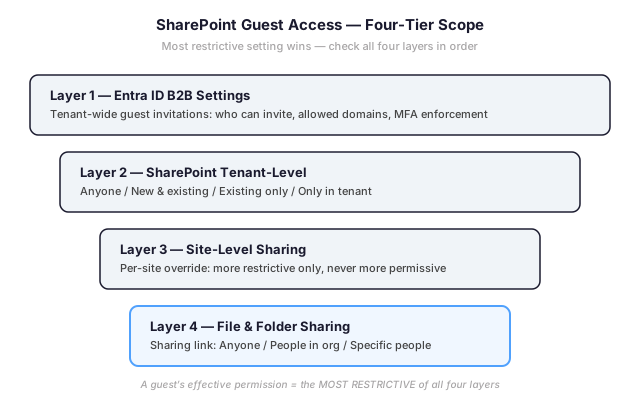
Indeed, this nested model explains about 70% of the “why can’t this guest open the link” tickets we troubleshoot. Therefore, before opening Microsoft support, validate each of the four layers in order from broadest to narrowest. The configuration steps below walk through each layer in the correct order.
📦 SharePoint Sharing Scopes Compared
SharePoint Online offers four tenant-level sharing scopes. Each defines how broadly guests can be invited. Specifically, the choice is a tradeoff between collaboration friction and security exposure, and the right pick depends on your regulated-data posture and audit requirements.
| Scope | Who can be invited | Security posture | Wintive recommendation |
|---|---|---|---|
| Anyone | Anonymous links, no sign-in required | Highest risk — no identity, no MFA, limited audit trail | Disable for any tenant handling PHI, PII, financial data |
| New & existing guests | Anyone via email invitation, becomes Entra ID guest | Sign-in enforced, MFA via Conditional Access | Default for active partner collaboration with BAA in place |
| Existing guests only | Only pre-invited Entra ID guests | Pre-vetted users, MFA enforced, full audit trail | Recommended for HIPAA, SOC 2, NIST regulated SMBs |
| Only people in your org | Internal members only | No external paths, sovereign-cloud aligned | Government, defense, classified workloads only |
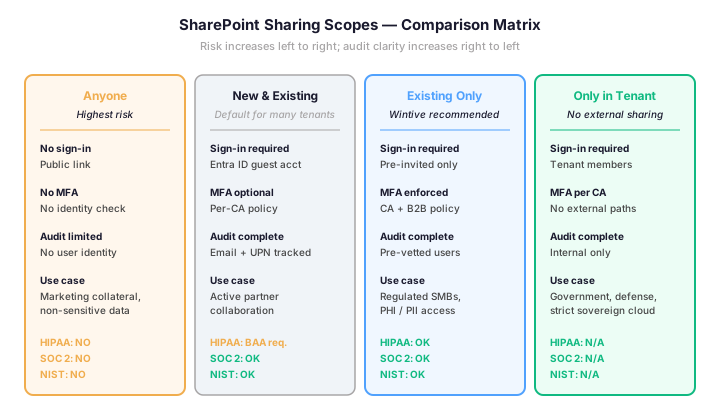
Notably, the Anyone scope is the source of about 40% of the data leakage incidents we trace during audit work. As a result, regulated SMBs should drop the tenant-level setting to Existing guests only. Furthermore, individual sites can receive a more permissive scope only when business need is documented.
💻 Configure External Sharing Step-by-Step
The configuration sequence runs through three Microsoft admin centers. First, validate Entra ID B2B settings. Second, set the SharePoint tenant-level scope. Third, configure individual site overrides through PowerShell or the SharePoint Admin Center UI.
- Entra ID B2B — In Entra admin center, go to External Identities → External collaboration settings. Confirm Guest invite settings allow your designated inviters and restrict domains to known business partners.
- SharePoint tenant scope — In SharePoint Admin Center, navigate to Policies → Sharing. Set External sharing to Existing guests only for the tenant baseline.
- Per-site overrides — Under Sites → Active sites, select the project sites that need broader access and lift their setting to New & existing guests. Document each exception in your sharing register.
- Conditional Access for guests — In Entra ID Conditional Access, build a policy targeting Guests. Require MFA plus compliant device for SharePoint and OneDrive cloud apps.
For scripted configuration across multiple sites, the SharePoint Online Management Shell exposes Set-SPOTenant for tenant settings and Set-SPOSite for per-site sharing scopes. The example below sets a regulated tenant baseline and lifts a single project site for partner collaboration.
# Configure SharePoint external sharing scopes via PowerShell
Install-Module -Name Microsoft.Online.SharePoint.PowerShell -Force
Connect-SPOService -Url https://example-admin.sharepoint.com

# Set tenant baseline to Existing guests only (regulated SMB default)
Set-SPOTenant -SharingCapability ExistingExternalUserSharingOnly

# Confirm the new tenant baseline
Get-SPOTenant | Select-Object SharingCapability, RequireAcceptingAccountMatchInvitedAccount, EmailAttestationRequired

# Lift a single project site to allow new guest invitations
Set-SPOSite -Identity https://example.sharepoint.com/sites/PartnerProjectAlpha -SharingCapability ExternalUserSharingOnly

# Audit all sites with sharing scope above tenant baseline
Get-SPOSite -Limit All | Where-Object { $_.SharingCapability -ne "ExistingExternalUserSharingOnly" } | Select-Object Url, SharingCapability
🛡️ Guest Sharing for Regulated US Industries
For organizations subject to HIPAA, SOC 2 Type II, NIST 800-171, or CCPA, the Anyone scope is effectively prohibited. Specifically, sharing PHI, customer PII, or controlled unclassified information through anonymous links breaks identity attestation and audit trail requirements. Therefore, regulated SMBs default to Existing guests only at the tenant level and require a Conditional Access guest policy.
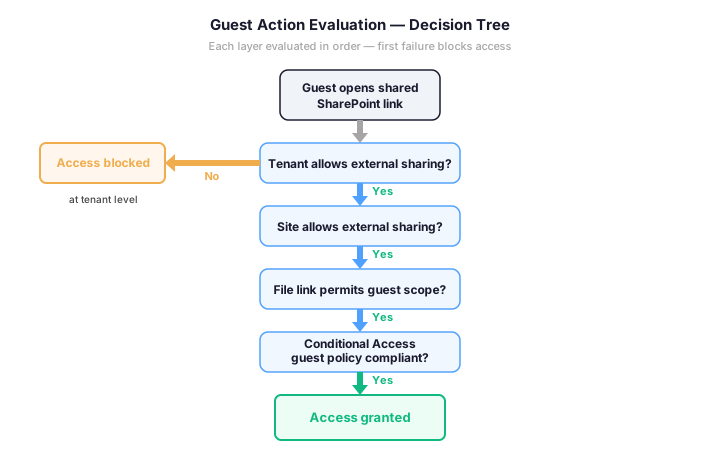
Crucially, the Conditional Access guest policy must require MFA, mark sessions as compliant, and apply to all SharePoint and OneDrive cloud apps. As a result, this combination satisfies HIPAA Security Rule access control (45 CFR §164.312(a)(1)). It also covers SOC 2 Common Criteria CC6.7 segregation of duties. Furthermore, NIST 800-171 control 3.13.5 boundary protection is satisfied through Conditional Access guest policies.
For organizations operating in GCC or GCC High tenants, all four sharing scopes remain available. However, external invitations route through sovereign-cloud B2B endpoints. Notably, cross-cloud guest invitations between commercial and GCC High tenants require explicit cross-cloud federation configuration in Entra ID.
💡 What we see across 60+ M365 tenants
About one tenant in three we audit has the Anyone scope still enabled at the tenant level — usually because it was the default during initial M365 setup years ago and never tightened. Indeed, this single setting is the highest-impact remediation we recommend in audit reports for regulated SMBs. The change takes 30 seconds to apply and breaks no legitimate workflow that uses pre-invited guests.
✅ Best Practices for Guest Collaboration
The same configuration mistakes appear repeatedly across audits. Notably, four practices account for roughly 80% of guest-related incidents. Specifically, ungoverned Anyone links, missing MFA on guest accounts, no expiration on shared content, and no quarterly review of standing guest access.
| Practice | What to do | Why it matters |
|---|---|---|
| Disable Anyone scope tenant-wide | Set tenant-level to Existing guests only; lift specific sites only with documented business need | Anonymous links break HIPAA/SOC 2 audit trail; ungoverned links account for 40% of data leakage incidents |
| Require MFA on guest accounts | Build a Conditional Access policy targeting Guest users requiring MFA for SharePoint and OneDrive cloud apps | Guest accounts often have weak passwords from third-party tenants; MFA closes the credential-stuffing path |
| Default 30-day link expiration | In SharePoint Admin Center, set Anyone links and People in your organization links to expire in 30 days | Standing links accumulate and outlive the project; expiration forces conscious renewal |
| Quarterly Access Reviews | Schedule Entra ID Access Reviews every 90 days targeting all guest users; auto-remove if reviewer takes no action | Guest accounts orphan when partners leave; without reviews, access creeps for years |
| Sensitivity labels on guest-shareable sites | Apply Microsoft Purview sensitivity labels with auto-applied DLP rules for PHI/PII detection | Labels survive download, screen capture, and copy-paste; auditors expect technical enforcement, not policy alone |
↻ Audit and Monitor Guest Activity
Sharing without auditing creates audit findings. Therefore, every regulated tenant should run a monthly export of guest sharing activity from the Microsoft Purview Compliance Portal. Furthermore, archive 90 days of audit data in immutable storage. The PowerShell example below pulls the last 30 days of external sharing and group-membership events into a CSV for review.
# Audit external sharing events in the last 30 days via Microsoft Graph PowerShell
Connect-ExchangeOnline

# Search the unified audit log for sharing-related operations
$startDate = (Get-Date).AddDays(-30)
$endDate = Get-Date
$ops = @("SharingSet", "AnonymousLinkCreated", "SecureLinkCreated", "AddedToGroup", "PermissionLevelModified")
$results = Search-UnifiedAuditLog -StartDate $startDate -EndDate $endDate -Operations $ops -ResultSize 5000

# Filter to external/anonymous sharing only
$external = $results | Where-Object { $_.AuditData -match "ExternalUser|AnonymousLink" }
$external | Select-Object CreationDate, UserIds, Operations, AuditData | Export-Csv -Path .\guest-activity-30d.csv -NoTypeInformation

Write-Host "Found $($external.Count) external sharing events in last 30 days"
🔄 Quarterly Access Reviews via Entra ID
Standing guest access creeps. Specifically, every guest invited for one project tends to remain active for years after that project closes. Indeed, this accumulates into a long tail of stale accounts that auditors immediately flag. Therefore, every regulated tenant should run quarterly access reviews using Entra ID Access Reviews as a recurring, audit-evidenced control.
- In Entra admin center, go to Identity Governance → Access Reviews and click New access review
- Set scope to Guest users only across all groups (or target specific high-sensitivity groups for a tighter loop)
- Set frequency to Quarterly, duration 14 days, with auto-apply if reviewer takes no action
- Choose reviewers: group owner, project sponsor, or a delegated security mailbox — never the guests themselves
- Enable If reviewers don’t respond → Remove access. This is the audit-critical setting that converts a control on paper into a control in practice
Notably, the auto-removal setting is what auditors look for. Indeed, an access review program where reviewers can ignore decisions without consequence provides no audit evidence. As a result, configuring auto-remove on no response converts the review from a checkbox exercise. The result is a cryptographically logged control aligned with NIST 800-171 control 3.5.6 disable-inactive-accounts.
❓ SharePoint Guest Sharing FAQ
No. Specifically, guest users are tracked in Entra ID without consuming a paid M365 license. Each tenant gets up to 5 guest users for every paid licensed user. This generous quota is included in the Microsoft Entra External ID free tier. Indeed, a 50-user tenant can host up to 250 guest accounts at no additional cost. This quota covers the partner collaboration needs of most SMBs.
Yes. Furthermore, this works through SharePoint unmanaged-device policies combined with Conditional Access app-enforced restrictions. Guests on unmanaged devices receive web-only access (no download, no print, no sync). Notably, this is essential for HIPAA workloads where PHI must not leave the M365 boundary.
OneDrive sharing applies to personal files in a user’s OneDrive for Business. SharePoint sharing applies to files in team sites and Microsoft 365 Groups. Crucially, both are governed by the same tenant-level external sharing setting, but each has independent site-level overrides. Specifically, you can disable OneDrive external sharing entirely while keeping SharePoint guest collaboration active for project sites.
Use SharePoint Online Management Shell. Specifically, run Get-SPOSite -Limit All | Where-Object { $_.SharingCapability -eq "ExternalUserAndGuestSharing" }. Therefore, any site returned by that query has Anyone-link sharing enabled. Indeed, we recommend exporting that list to CSV monthly and reviewing each site for documented business need.
The Microsoft 365 unified audit log captures all sharing operations. Specifically, SharingSet, SharingInheritanceBroken, AnonymousLinkCreated, SecureLinkCreated, and AddedToGroup events all surface in the unified log. Furthermore, the log retains 90 days by default. For HIPAA, SOC 2, and NIST 800-171 evidence, extend retention to 1 year via Microsoft Purview Audit Premium. Export to immutable storage monthly.
🔗 Keep Exploring
This tutorial covered one focused SharePoint Online workflow. For a complete picture of how your full Microsoft 365 environment — document governance, identity, and security — performs against best practices:
🔍 Want a complete audit of your Microsoft 365 tenant?
The Automated Tenant Health Check scans your M365 environment in under 10 minutes: license waste, security posture, MFA coverage, compliance gaps, license rightsizing opportunities. Full PDF report with prioritized recommendations delivered instantly.