Azure Disk Storage remains the foundation of every production workload running on Azure virtual machines, and choosing the right tier directly shapes both performance and monthly cost. Specifically, this guide covers the five managed disk types, IOPS and throughput trade-offs, the Wintive radar comparison, the I/O flow through cache and persistence, snapshot and backup strategy, resize procedures, and PowerShell automation. Furthermore, every recommendation comes from what Wintive observed across 60+ Microsoft 365 and Azure tenants.
🛡️ Free: M365 Audit Checklist
19-page PDF with 50 hands-on checks covering Entra ID, Exchange Online, SharePoint, Teams, Intune, license waste, and audit logging. PowerShell commands included. Built from 60+ real tenant audits at Wintive.
💾 The five Azure managed disk types
Azure offers five managed disk types, each tuned for a specific workload profile. Specifically, Standard HDD targets archive workloads, Standard SSD covers dev and test, Premium SSD is the production baseline, Premium SSD v2 is the new performance-cost sweet spot, and Ultra Disk handles mission-critical SQL or SAP. Therefore, picking the right tier is the single highest-impact decision for VM disk cost.

The radar shape tells the story instantly. Indeed, Ultra Disk dominates every performance axis but pays for it in cost-efficiency. In contrast, Standard HDD is cheap but loses on IOPS, throughput, and latency. As a result, Premium SSD remains the Wintive default for production VMs — it covers 90% of SMB workloads at predictable cost.
📊 Cost, IOPS, and throughput trade-off
Disk pricing is not linear — performance tiers stack non-uniformly. Specifically, paying twice as much per GB does not double IOPS or throughput. Furthermore, the bubble chart below visualizes the relationship: X-axis is cost per GB, Y-axis is maximum IOPS, and bubble size represents throughput in MB/s.

Premium SSD v2 quietly disrupted the disk pricing landscape. Indeed, it delivers 3x the IOPS of Premium SSD at lower cost per GB, with no minimum size penalty. Therefore, for new production deployments in 2026, Wintive recommends evaluating Premium SSD v2 as the first-choice tier — it dominates Premium SSD on every measurable axis except for the longest track record.
🌊 How I/O flows through the disk subsystem
Understanding the I/O path explains why cache configuration matters as much as disk tier. Specifically, every read and write traverses four layers: VM applications, host cache, the managed disk itself, and finally snapshot or backup persistence. As a result, optimizing any single layer can dramatically improve overall performance.
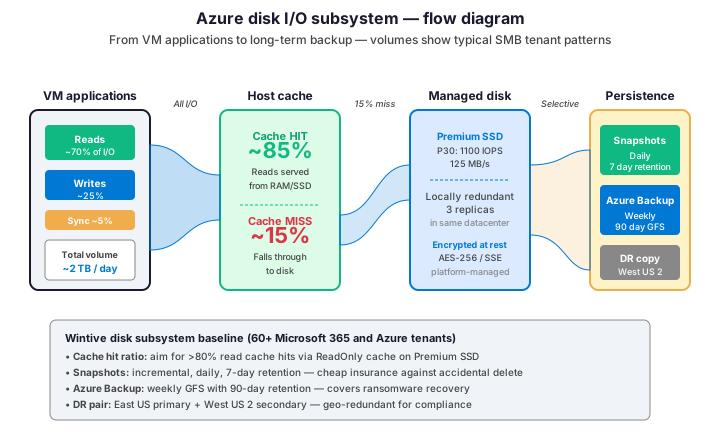
Cache hit ratio is the most overlooked tuning lever. Specifically, with ReadOnly cache enabled on Premium SSD, 80-85% of reads never touch the underlying disk — they are served from host RAM at sub-millisecond latency. Therefore, before upgrading to a more expensive disk tier, verify cache configuration first. Indeed, Wintive routinely sees clients with under-utilized cache settings that mask the real bottleneck.
🎯 How to choose the right Azure disk type
Disk choice should follow workload profile, not budget pressure. Specifically, four questions narrow the decision: what is the IOPS requirement, what is the throughput requirement, how critical is latency, and how predictable is the workload pattern. Therefore, the table below maps each Wintive workload archetype to its recommended disk tier.
| Workload | IOPS need | Recommended tier | Wintive note |
|---|---|---|---|
| File server | Low (under 500) | Standard SSD | Cheap, reliable, low write volume tolerates SSD |
| Web tier VMs | Moderate (500-1500) | Premium SSD P10-P30 | ReadOnly cache enabled, predictable cost |
| Application tier | Moderate (1000-3000) | Premium SSD v2 | 2026 default for new deployments |
| Database OS disk | Low (boot only) | Premium SSD P10 | Boot disk separate from data disks |
| Database data disk | High (5000-15000) | Premium SSD v2 or Ultra | Ultra for SQL Server with sub-ms latency requirement |
| Backup target | Sequential bulk | Standard HDD | Cost wins for write-once read-rarely |
| Dev/test VMs | Low | Standard SSD | Auto-shutdown overnight saves more than tier change |
The most common Wintive recommendation is to migrate dev/test VMs from Premium SSD to Standard SSD. Indeed, 30% of audited tenants over-provision dev environments because the original deployment template used production tiers. As a result, switching dev/test to Standard SSD typically saves $80-150 per month per VM with zero workflow impact.
🔄 Resize and migrate Azure disks
Azure managed disks support live resize for size increases and tier upgrades, but downsize requires a different procedure. Specifically, increasing capacity is non-disruptive on most VM SKUs, while downsizing capacity requires a snapshot-restore workflow. Furthermore, tier changes (Standard SSD to Premium SSD) are typically zero-downtime if VM size supports the target tier.
# PowerShell: resize and retier Azure managed disks
# Prerequisites: Az.Compute module + Contributor on resource group

$rg       = 'rg-prod-eastus'
$diskName = 'vmss-web-prod_OsDisk_1'
$vmName   = 'vmss-web-prod-vm0'

# 1. Inspect current disk configuration
$disk = Get-AzDisk -ResourceGroupName $rg -DiskName $diskName
Write-Host "Current: $($disk.DiskSizeGB)GB / $($disk.Sku.Name) / $($disk.Tier)"
Write-Host "IOPS: $($disk.DiskIOPSReadWrite) / Throughput: $($disk.DiskMBpsReadWrite) MB/s"

# 2. Stop the VM (required for OS disk resize on most SKUs)
Stop-AzVM -ResourceGroupName $rg -Name $vmName -Force

# 3. Resize disk (increase only - decrease requires snapshot-restore)
$disk.DiskSizeGB = 256
$disk.Sku = [Microsoft.Azure.Management.Compute.Models.DiskSku]::new('Premium_LRS')
Update-AzDisk -ResourceGroupName $rg -DiskName $diskName -Disk $disk

# 4. Restart the VM
Start-AzVM -ResourceGroupName $rg -Name $vmName

# 5. Verify in guest OS (Windows: extend volume, Linux: resize2fs or xfs_growfs)
Write-Host 'Disk resized. Extend the partition inside the guest OS.'
Three migration patterns cover most production needs. Specifically, in-place tier upgrade (Standard SSD to Premium SSD) is the simplest, snapshot-and-restore covers downsizing, and disk swap covers SKU changes that the in-place path does not support. Therefore, always test the migration on a non-production replica first — particularly when changing between LRS and ZRS redundancy.
📸 Snapshots and Azure Backup strategy
Disk durability is high (99.999999999% for LRS) but does not protect against accidental deletion or ransomware. Specifically, snapshots and Azure Backup serve different recovery objectives: snapshots provide fast point-in-time copies, while Azure Backup adds policy-driven retention and cross-region restore. Therefore, both layers belong in any production deployment.
| Capability | Disk snapshots | Azure Backup |
|---|---|---|
| Frequency | Manual or scripted | Policy-driven, scheduled |
| Retention | Indefinite (manual cleanup) | GFS up to 99 years |
| Cross-region | Manual export to other region | Built-in geo-redundant restore |
| Application-aware | No (crash-consistent only) | Yes (VSS for Windows, pre/post scripts for Linux) |
| Cost model | Per-GB stored (incremental) | Per-VM protected + storage |
| Restore granularity | Whole disk only | File-level recovery available |
| Wintive use case | Pre-deployment safety net | Daily/weekly compliance backup |
The Wintive baseline combines both layers. Specifically, take an incremental disk snapshot before any infrastructure change (deployment, config update, OS patch), and run Azure Backup with a daily schedule plus 90-day GFS retention for compliance. As a result, recovery time stays under 30 minutes for accidents and under 4 hours for full disaster recovery scenarios.
✅ Best practices for Azure Disk Storage
Six practices cover the highest-impact disk decisions. Indeed, each row below comes from a real client incident at Wintive.
| Practice | What to do | Why it matters |
|---|---|---|
| Match tier to workload | Use the radar comparison and bubble chart, not deployment defaults | 30% of dev/test VMs are over-provisioned on Premium SSD |
| Enable host cache | ReadOnly for OS disks, ReadOnly or None for data disks based on access pattern | 80%+ cache hit ratio reduces actual disk IOPS pressure |
| Separate OS and data disks | Boot disk on Premium SSD P10, data disks sized to workload | Independent scaling and clearer cost attribution |
| Snapshot before changes | Incremental snapshot before deployment, patch, or config change | Rollback in minutes vs. restore from backup in hours |
| Enable Azure Backup | Daily schedule, 90-day GFS retention minimum | Compliance and ransomware recovery cover |
| Encrypt with CMK | Customer-managed keys for regulated workloads | Required for HIPAA, SOC 2, and many SMB compliance frameworks |
Of these six practices, matching tier to workload is the highest-impact win. Specifically, in tenants Wintive audits, disk over-provisioning accounts for 15-25% of total compute spend. Therefore, run the disk audit first — the savings often fund the entire infrastructure review.
❓ Frequently asked questions
What is the difference between Azure Disk Storage and Azure Blob Storage?
Azure Disk Storage is block storage attached to a virtual machine and presented as a local drive, while Azure Blob Storage is object storage accessed via REST APIs for unstructured data like images, backups, and archives. Specifically, disks support OS and database workloads with low-latency random I/O, while blobs target large sequential read/write patterns. Therefore, the choice depends on access pattern: VMs need disks, applications need blobs.
When should I use Premium SSD v2 instead of regular Premium SSD?
Premium SSD v2 is the recommended choice for most new production deployments in 2026. Specifically, it delivers 3x the IOPS at lower cost per GB, supports independent IOPS and throughput tuning, and removes the minimum-size penalty of Premium SSD. Therefore, for new VMs, default to Premium SSD v2 unless the VM SKU does not support it. As a result, Wintive deploys Premium SSD v2 by default and keeps Premium SSD only for legacy workloads.
How much does Azure Disk Storage cost compared to alternatives?
Cost varies dramatically by tier and region. Specifically, in East US 2026 pricing, a 256GB managed disk costs approximately $10/month for Standard HDD, $20/month for Standard SSD, $35/month for Premium SSD, $26/month for Premium SSD v2, and $80/month for Ultra Disk. Furthermore, snapshot storage adds $0.05/GB/month for incremental snapshots. Therefore, switching dev/test from Premium SSD to Standard SSD on 10 VMs saves roughly $1,500/year.
Can I change the disk type without downtime?
Most tier upgrades are zero-downtime if the VM SKU supports the target tier. Specifically, going from Standard SSD to Premium SSD requires only a brief disk update operation while the VM stays running. However, downsizing capacity (256GB to 128GB) requires the snapshot-restore workflow with VM stop and detach. Therefore, plan tier changes during off-peak windows for safety, even when zero-downtime is theoretically supported.
🔗 Related Azure guides
Try Auto-Scaling Azure Virtual Machines: Scale Sets, Metrics and PowerShell
Read also Azure Storage Account: Types, Redundancy, Tiers and Pricing
See Azure Networking Fundamentals: VNets, NSGs, VPN and Hub-Spoke
This tutorial covered one focused Azure workflow. For a complete picture of how your full Microsoft 365 and Azure environment performs against best practices:
🔍 Want a complete audit of your Microsoft 365 tenant?
The M365 Instant Audit scans your M365 environment in under 10 minutes: license waste, security posture, MFA coverage, compliance gaps, license rightsizing opportunities. Full PDF report with prioritized recommendations delivered instantly.