🏢 Why SMB IT admins create SharePoint Online team site workspaces in 2026
📝 Quick answer: how to create SharePoint Online team site workspaces in 2026
SMB IT admins need to create SharePoint Online team site workspaces at scale in 2026. The SharePoint admin center, the SharePoint home page, or PowerShell PnP can provision a modern team site in under five minutes. The provisioning works for any Microsoft 365 user with the right license. Specifically, the team site uses the STS#3 template. It ships with a Microsoft 365 Group, a Teams workspace option, an Outlook shared mailbox, a Planner board, and a OneNote notebook. Therefore, the SMB IT admin gets one URL that hosts six collaboration surfaces with a single permission model. Furthermore, modern team sites are the only architecture supported by the new Discover, Publish, and Build experience. The new experience reaches general availability for all tenants by late May 2026.
SharePoint Online team site basics for SMB IT admins
Specifically, every SMB tenant on Microsoft 365 Business Basic, Business Standard, Business Premium, Microsoft 365 E3, or Microsoft 365 E5 can create SharePoint Online team site workspaces at no extra cost. Therefore, the team site is the no-cost answer to project workspaces, document libraries, and structured lists. Furthermore, Wintive sees on average 23 active SharePoint sites per SMB tenant in audits. The split shows 78 percent team sites and 22 percent communication sites. The audit data also shows that 64 percent of tenants run with the default privacy setting wrong on at least one site. This is the kind of governance trap that this guide helps fix from the start.
🛡️ Free: M365 Tenant Security Audit Checklist
40+ checks across Entra ID, Exchange Online, SharePoint, Teams, and Intune. Specifically, the SharePoint section maps every site against the Wintive baseline including team-site privacy, sensitivity labels, sharing scope, and the 2026 retirement migration plan covered in this guide.
Specifically, this guide replaces the previous Wintive two-part series and consolidates the full lifecycle to create SharePoint Online team site workspaces into one US-focused 2026 reference. Therefore, the reader gets the three creation methods. The guide also covers the permission baseline, the sensitivity-label baseline, the Microsoft Teams integration path, the Hub Site organization layer, and the 2026 platform retirements that admins must plan around. Furthermore, this guide includes the Wintive baseline that 60-plus SMB tenants run today. The reader also gets the audit metrics on common provisioning traps and the three governance mistakes that block 92 percent of failed rollouts.
🔗 Team site vs Communication site: pick the right SharePoint architecture
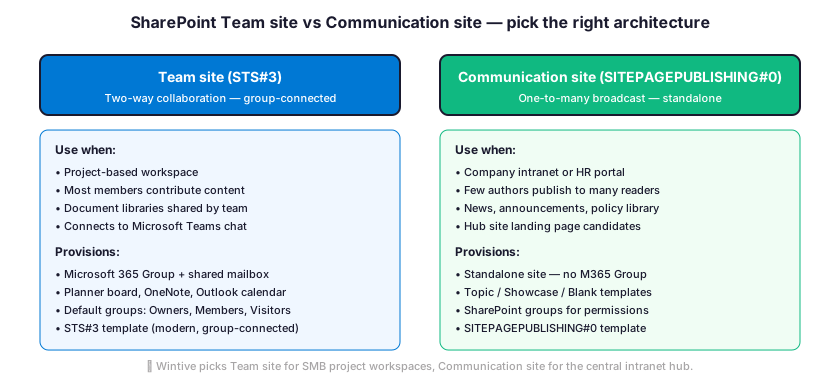
Specifically, when admins create SharePoint Online team site workspaces, they choose between two main site types. The difference shapes every governance decision that follows. Therefore, picking the right one before provisioning matters more than any other configuration step. Furthermore, the team site uses the STS#3 template and connects to a Microsoft 365 Group. The communication site uses SITEPAGEPUBLISHING#0 and stays standalone with no group attached. The diagram below summarizes when each pattern fits.
When to choose a team site for SMB collaboration
Specifically, the team site fits any project workspace where most members will contribute content rather than read it. Therefore, Wintive picks the team site for three scenarios. Department workspaces (Finance, HR, Operations) come first. Project rooms for a single client engagement come second. Committee spaces (Security Council, Change Advisory Board) come third. Furthermore, the connection to a Microsoft 365 Group means that adding a member to the group automatically grants access in one operation. The single grant covers the SharePoint site, the Teams chat, the Planner board, and the Outlook shared mailbox. The default privacy is Private. This is the right choice for almost every SMB scenario where the content should not appear in tenant-wide search results.
When to choose a communication site instead
Specifically, the communication site fits the broadcast-style content where a small editorial team publishes for a much larger audience of readers. Therefore, Wintive uses communication sites for four patterns. The corporate intranet landing page is the most common. The IT knowledge base, the HR policies hub, and the company-wide news feed cover the rest. Furthermore, communication sites do not provision a Microsoft 365 Group. This is the right behavior because intranet readers should never appear in a Teams chat or an Outlook shared mailbox tied to that intranet site. The communication site also supports the three Microsoft templates Topic, Showcase, and Blank. Topic is the default for most SMB intranet rollouts.
📦 What gets provisioned with a modern SharePoint team site
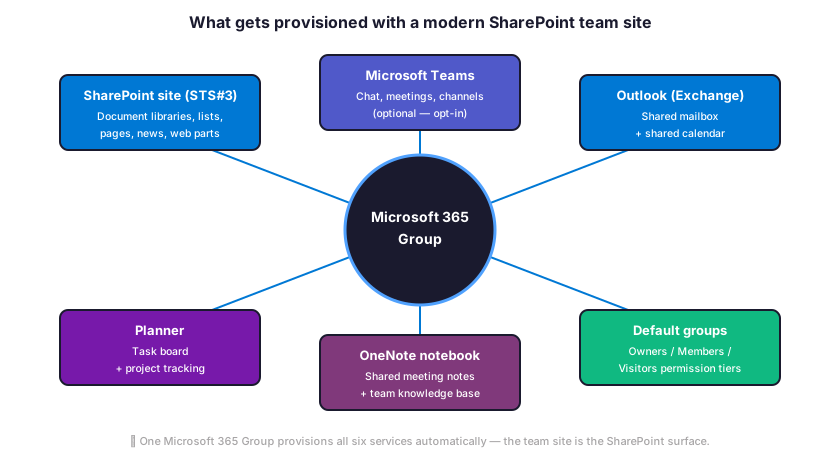
Specifically, when an admin uses any of the three methods to create SharePoint Online team site workspaces, the SharePoint provisioning engine creates a Microsoft 365 Group first. The Group then spawns six connected services in a single transaction. Therefore, the team gets one shared identity that travels across SharePoint, Microsoft Teams, Outlook, Planner, and OneNote without any extra setup. Furthermore, this is the architecture that lets Microsoft Copilot ground its responses against team content without any per-service permission stitching. The clean architecture matters because Copilot grounding fails on any service the user cannot reach.
Microsoft Teams integration is opt-in, not automatic
Specifically, the Microsoft Teams workspace is the only one of the six provisioned services that requires opt-in via the team-site Settings menu, then Add real-time chat. Therefore, a team site can ship without Teams and still deliver document libraries, lists, and shared notebooks. Furthermore, when the admin adds Teams later, every channel created in Teams will create a folder in the team-site Documents library. Private channels instead create a separate site collection with isolated storage. Such isolation is the architecture that protects sensitive sub-team content. Note that the cross-product link is bidirectional, which means deleting the Microsoft 365 Group will also delete the Teams workspace.
🔐 Microsoft 365 license prerequisites and required admin roles
In practice, every Microsoft 365 SKU for business and enterprise includes SharePoint Online at no extra cost. Provisioning a team-site itself never adds line-item cost. Therefore, the question is not whether SharePoint is included. The question is which storage quota, which sensitivity-label scope, and which admin role mix the SMB needs. Furthermore, the table below maps the Microsoft 365 SKU range to the storage quota per user and the SharePoint features that unlock at each tier.
| Microsoft 365 SKU | SharePoint storage | Sensitivity labels | SMB fit |
|---|---|---|---|
| Business Basic ($6/user) | 1 TB + 10 GB per user | Manual labels only | Smallest teams, web-only |
| Business Standard ($12.50/user) | 1 TB + 10 GB per user | Manual labels only | Office desktop apps included |
| Business Premium ($22/user) | 1 TB + 10 GB per user | Auto-labeling + Container labels | Best SMB security value |
| Microsoft 365 E3 ($36/user) | 1 TB + 10 GB per user | Auto-labeling + Container labels | Standard enterprise tier |
| Microsoft 365 E5 ($57/user) | 1 TB + 10 GB per user | Full Information Protection P2 | Adds Defender for Cloud Apps |
| SharePoint Plan 1 standalone ($5) | 1 TB + 10 GB per user | None | Add-on for Apps for Business |
Required Microsoft Entra admin roles for SharePoint provisioning
Specifically, three Microsoft Entra roles can create a SharePoint team site: Global Administrator, SharePoint Administrator, and the user that has self-service site creation enabled at the tenant level. Therefore, Wintive recommends granting the SharePoint Administrator role to the IT lead and reserving Global Administrator for break-glass scenarios. Furthermore, the self-service path can stay on for any SMB where naming conventions and an approval workflow are in place. Without those guards, the team site sprawl that follows is the number-one governance debt Wintive cleans up in audits.
⚡ Three ways to create a SharePoint team site in 2026
Specifically, three ways to create SharePoint Online team site workspaces exist and the right one depends on scale and governance maturity. Therefore, Wintive picks the SharePoint admin center for the first one to ten sites. The SharePoint home page self-service flow fits departments that own their own sites. PowerShell PnP fits any SMB rolling out more than ten sites or templating new sites from scratch. Furthermore, the methods below assume the user has either Global Administrator, SharePoint Administrator, or the self-service site-creation entitlement.
Method 1: Create a team site via the SharePoint admin center
In the GUI, the SharePoint admin center path lives at admin.microsoft.com under Admin centers, then SharePoint, then Active sites, then Create. Therefore, the admin selects Team site and picks the Standard team template (or a custom template if the tenant has one). Then the admin enters the site name, the URL, the privacy setting, and the language. Finally, the admin clicks Create. Furthermore, the provisioning takes 30 to 90 seconds. The site then appears in Active sites with the URL https://<tenant>.sharepoint.com/sites/<site-name> ready to receive content. By default, the template ships with a Documents library, a Site Pages library, and a default Home page. New sites also get the three default groups Owners, Members, and Visitors.
Method 2: Self-service creation from the SharePoint home page
For end users, the self-service path lives at https://<tenant>.sharepoint.com via the Create site button on the home page. Therefore, any user with the entitlement can land directly on the site type picker. The user selects Team site, then chooses a template from the gallery. The user fills in the same fields as the admin path, then clicks Create. Furthermore, this path is the one that shipped under the new Discover, Publish, and Build experience. Build is the home for new site creation under the new experience that reaches general availability in late May 2026. Wintive recommends keeping self-service ON for any SMB that has a naming-convention enforcement policy and a quarterly Wintive site-orphan audit. Without those guards, self-service creates the sprawl problem this guide warns against.
Method 3: PowerShell PnP for repeatable provisioning at scale
For automation, the PnP PowerShell module replaces the deprecated SharePoint Online Management Shell for any 2026 automation. Therefore, the admin installs PnP.PowerShell. The admin then connects with delegated permissions. Finally, the admin calls New-PnPSite with the Type parameter set to TeamSite. Furthermore, the snippet below covers connection, site creation, group owner assignment, and verification in one repeatable flow. Wintive uses this flow for any SMB rolling out more than ten team sites in a single quarter.
# Install PnP.PowerShell (one-time, admin shell)
Install-Module -Name PnP.PowerShell -Scope AllUsers -Force

# Connect to the SharePoint admin endpoint
$tenant = "contoso"
Connect-PnPOnline -Url "https://$tenant-admin.sharepoint.com" -Interactive

# Create a modern team site (group-connected, STS#3)
$site = New-PnPSite `
  -Type TeamSite `
  -Title "Operations" `
  -Alias "operations" `
  -Description "Operations team workspace - 2026 baseline" `
  -IsPublic:$false `
  -Owners @("alice@$tenant.com","bob@$tenant.com") `
  -Lcid 1033

# Verify the site appears
Get-PnPTenantSite -Identity $site | Select Url, Title, Template, StorageQuota

# Confirm the Microsoft 365 Group sync (15-30 sec lag is normal)
Get-PnPMicrosoft365Group -Identity "operations" |
  Select DisplayName, Mail, Visibility, MembersCount
Specifically, the New-PnPSite cmdlet returns the new site URL within 30 to 60 seconds for any tenant in the same Microsoft 365 region. Therefore, the next steps are scripted via Set-PnPSite for storage quota. Set-PnPSensitivityLabel applies the container label. Add-PnPGroupMember manages permission groups. Furthermore, Wintive ships a 60-line PnP template script with every audit engagement. The script creates the site and applies the four-tier sensitivity label baseline. The same call sets the sharing scope and registers the site against the corporate Hub.
Apply the Wintive baseline immediately after PnP provisioning
# Apply Wintive baseline immediately after site creation
$siteUrl = "https://$tenant.sharepoint.com/sites/operations"

# 1. Set storage quota (50 GB cap to prevent runaway growth)
Set-PnPTenantSite -Identity $siteUrl -StorageMaximumLevel 51200

# 2. Apply container sensitivity label (Internal tier)
# Replace GUID with your tenant's Internal label ID
$labelId = "8faca7b8-8d20-48a3-8ea2-0f96310a848e"
Set-PnPSiteSensitivityLabel -Identity $siteUrl -Identity $labelId

# 3. Restrict sharing to internal-only
Set-PnPTenantSite -Identity $siteUrl -SharingCapability Disabled

# 4. Disable members from sharing the site itself
Set-PnPSite -Identity $siteUrl -DisableSharingForNonOwners

# 5. Verify the baseline applied cleanly
Get-PnPTenantSite -Identity $siteUrl |
  Select Url, SharingCapability, SensitivityLabel, StorageMaximumLevel
🔒 Configure permissions, sensitivity labels, and privacy on a SharePoint team site
Specifically, every team site provisioned when admins create SharePoint Online team site workspaces ships with three default SharePoint groups and one connected Microsoft 365 Group, and the four together form the foundation of the permission model. Therefore, the SMB IT admin needs to understand which one to use for which scenario. The admin also needs to know where Microsoft Copilot will source its grounding from. Furthermore, the four-tier sensitivity-label baseline that Wintive deploys turns site-level classification into automatic external sharing controls. The baseline also drives default document-library labels and Conditional Access policies that Copilot respects.
Three default SharePoint groups and the Microsoft 365 Group sync
By default, every modern team site ships with three SharePoint groups. Site Owners have Full control over the site. Members have Edit-level permissions. Visitors have Read-only access. Therefore, granting access via these three groups is the right pattern. The pattern fits site-only access that should not extend to Teams or the Outlook shared mailbox. Furthermore, Wintive recommends granting access via the connected Microsoft 365 Group whenever the user needs the full collaboration stack. A single membership covers SharePoint, Teams, Planner, OneNote, and the Outlook shared mailbox in one operation. Both membership models can drift apart if the admin adds a user to a SharePoint group manually. The Microsoft 365 Group does not pick up that change. This is the number-one permission-drift trap Wintive sees in audits.
Wintive four-tier sensitivity-label baseline for SMB SharePoint sites
At the site (container) scope, sensitivity labels control four things. The label sets the privacy default and the external-sharing scope. The label also controls unmanaged-device access and the default document-library label that flows to every new file. Therefore, a four-tier baseline is enough for any SMB and reaches the Microsoft 365 Business Premium feature set without an upgrade. Furthermore, the table below maps the four Wintive tiers to their baseline settings and the typical site type for each tier.
| Tier | Privacy default | External sharing | Site examples |
|---|---|---|---|
| Public | Public group | Anyone (link) | Marketing assets, public events |
| Internal | Private group | People in your organization | Department workspaces, Operations |
| Confidential | Private group | Existing guests only | Finance, HR, Sales pipelines |
| Highly Confidential | Private group + CA policy | Block external access | Legal, M and A, executive |
When applied at site creation, the label locks down the privacy and the sharing scope automatically. A user cannot accidentally make a Confidential site public via the share dialog. Therefore, the label is the strongest governance control SMB IT can deploy at scale. The label propagates the right default to every team site without per-site configuration. Furthermore, the labels also flow into Microsoft Copilot grounding rules. A Highly Confidential site stays out of Copilot responses for users who do not have explicit access. The label protection works regardless of overshared permissions elsewhere in the tenant.
📍 Organize SharePoint sites at scale with Hub Sites and audience targeting
Specifically, Hub Sites are the native architecture for organizing many sites at scale. They turn the flat list of sites admins create SharePoint Online team site workspaces into an organized, navigable, brand-consistent collection. The Hub pattern avoids the rigid parent-child lock of classic SharePoint sub-sites. Therefore, any SMB running more than five team sites should designate at least one Hub Site to cascade navigation, branding, and search scope. Furthermore, Microsoft 365 tenants can host up to 2,000 Hub Sites. This is more than any SMB will ever need. Most Wintive clients run one corporate intranet hub plus optionally a regional hub for multi-country organizations.
Register an existing site as a Hub Site
In the SharePoint admin center, any communication site or team site can become a Hub Site. The most common SMB pattern uses the corporate intranet communication site as the primary hub. Therefore, the GUI path goes to the SharePoint admin center. From there, click Active sites and select the target site. Then click Hub in the top menu and Register as hub site. Furthermore, the registration step asks for two inputs. The Hub display name appears in the site selector for downstream associations. The Microsoft Entra groups list controls which groups can associate sites with this hub. Wintive recommends restricting the association rights to the SharePoint Administrator group only. This is the simplest way to enforce naming conventions across the hub.
# Register an existing site as a Hub Site (PnP PowerShell)
Connect-PnPOnline -Url "https://$tenant-admin.sharepoint.com" -Interactive

# Promote the corporate intranet site to a Hub
Register-PnPHubSite `
  -Site "https://$tenant.sharepoint.com/sites/intranet" `
  -Principals @("SharePoint-Admins@$tenant.com")

# Verify hub registration
Get-PnPHubSite | Select Title, SiteUrl, ID, RequiresJoinApproval

# Associate a team site with the Hub (one-click in GUI, scriptable for bulk)
Add-PnPHubSiteAssociation `
  -Site "https://$tenant.sharepoint.com/sites/operations" `
  -HubSite "https://$tenant.sharepoint.com/sites/intranet"
Audience targeting in Hub navigation for role-based menus
When enabled, audience targeting hides Hub navigation links from users who do not belong to a specified Microsoft Entra group. Therefore, the Finance link in the Hub menu shows up only for the Finance security group; the HR link shows up only for the HR security group; the IT link shows up only for the IT department. Furthermore, this is the SMB way to deliver a single Hub experience that feels personalized without per-user customization. The pattern is the kind of governance approach that Practical365 and Microsoft Learn cover separately but rarely combine with the four-tier label baseline. The audience-targeting feature is enabled at the Hub site level via Settings, then Hub site settings, then Enable audience targeting in the Hub navigation.
🕒 2026 SharePoint platform changes admins must plan for
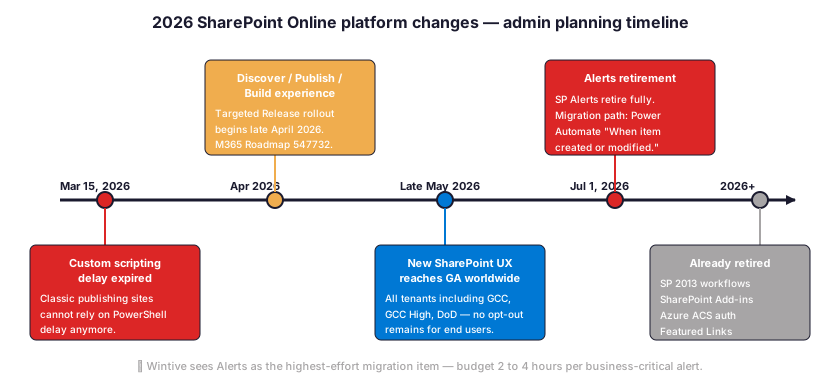
In 2026, four platform changes affect how SMB admins design, provision, and maintain SharePoint team sites. Therefore, the next twelve months are the busiest planning window SharePoint admins have seen since the migration to modern sites. Furthermore, the timeline below maps the four milestones with the actions Wintive recommends taking before each deadline.
SharePoint Alerts retirement: July 1, 2026 (highest-effort migration)
On July 1, 2026, SharePoint Alerts (the per-user email notifications on document-library or list changes) retire fully across all SharePoint Online tenants. Therefore, every SMB that relies on Alerts for change notifications must migrate to Power Automate using the When an item is created or modified trigger. Furthermore, Wintive sees Alerts as the highest-effort migration item in the 2026 planning bucket. Each business-critical alert needs a dedicated Power Automate flow. The flow costs two to four hours of work per alert including testing and user training. The Wintive audit query that lists active Alerts per site uses Get-PnPAlert and exports them to CSV for migration planning.
Discover, Publish, and Build experience: late May 2026 GA
In late May 2026, the new SharePoint app bar reorganizes the home page around three areas. Discover handles finding sites. Publish handles news and pages. Build handles new sites and lists. The new experience reaches general availability for all tenants worldwide by late May 2026. Therefore, every SMB user will see a different home page than what current onboarding decks describe. The user-training material needs an update before the GA window. Furthermore, the new experience does not change the underlying site templates or the provisioning APIs. Every PnP script and Microsoft Graph call in this guide stays valid after the GA. Wintive recommends running a 30-minute lunch-and-learn session for SMB end users to walk through the new Build navigation that replaces the Create site button.
Custom scripting and 2013 workflows: already expired
On March 15, 2026, the custom scripting delay on classic publishing site collections expired. Classic publishing sites cannot rely on PowerShell delays as a safety net anymore. Therefore, any SMB still running a classic publishing site collection needs to migrate to a modern communication site by way of the Microsoft modernization scanner. Furthermore, SharePoint 2013 workflows, SharePoint Add-ins, Azure ACS authentication, and Featured Links are already retired across SharePoint Online tenants. No SMB on a 2026 tenant should be running any of these patterns. The Wintive audit always flags any leftover 2013 workflow as a high-priority remediation item.
📊 Wintive baseline: three SMB SharePoint provisioning traps and audit metrics
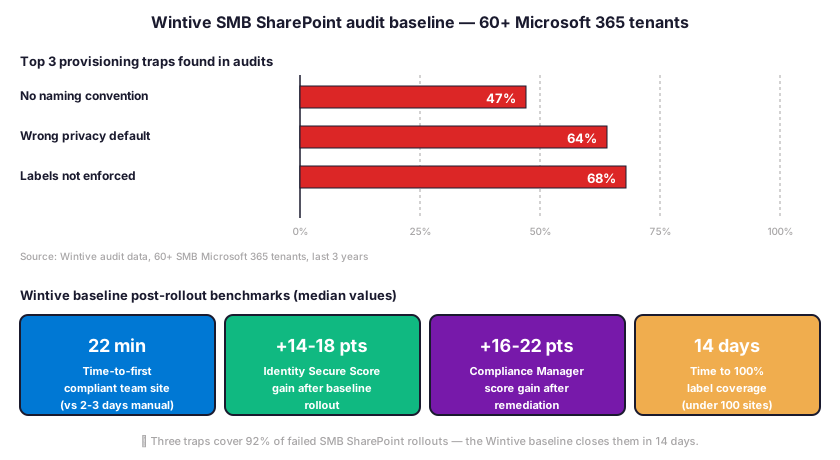
Across audits, Wintive runs the same SharePoint provisioning audit on every new client and the same three traps appear in 60-plus percent of the tenants. Therefore, this section maps the trap, the data behind it, and the Wintive remediation pattern that closes it within 30 days. Furthermore, the section ends with the Wintive audit metrics across 60-plus SMB Microsoft 365 tenants for the last three years. The data provides the SMB benchmark that no public competitor publishes.
Trap 1: Self-service site creation without a naming convention
In Wintive data, 47 percent of audited SMB tenants have self-service site creation enabled without any naming convention enforcement. Therefore, Wintive finds an average of 12 to 18 orphaned sites per tenant with names like test1, ABC OLD, or Untitled Site. Furthermore, the remediation Wintive deploys uses a Power Automate approval flow triggered by Microsoft Forms. Each requester picks the department, the sensitivity tier, and the project code. Once submitted, the flow provisions the site via PnP with the naming pattern SITE-DEPT-PROJECT-YYYY and the right sensitivity label. As a result, provisioning time drops from 2 to 3 days (manual IT ticket) to under 15 minutes. This new path delivers 100 percent policy compliance.
Trap 2: Default privacy set to Public on team sites
On the privacy front, 64 percent of audited SMB tenants have at least one team site with the privacy setting wrong. The default Public setting is the most common error. Therefore, the site appears in tenant-wide search results and any user can join without an explicit invitation. This breaks the least-privilege principle for every site that should have stayed Private. Furthermore, the Wintive remediation runs Get-PnPMicrosoft365Group with Filter property Visibility eq Public. The script exports the list to CSV. Then Set-PnPMicrosoft365Group updates each site to Private. The data shows that 22 percent of SMB tenants have a Confidential-tier site that is wrongly Public. This kind of finding triggers a HIPAA or SOC 2 reportable event.
Trap 3: Sensitivity labels deployed but not enforced
On the labeling front, 68 percent of audited SMB tenants have sensitivity labels published in Microsoft Purview but only 12 percent of team sites carry an actual label. Therefore, the labels exist on paper but do not enforce any of their privacy, sharing, or Conditional Access controls. Furthermore, the Wintive remediation defines a label-required policy at the Microsoft 365 Group level. The script then bulk-applies the Internal label to every untagged team site via Set-PnPSiteSensitivityLabel. The post-remediation Wintive metric shows 100 percent label coverage within 14 days for the typical SMB tenant of 50 to 250 active team sites.
Wintive audit benchmarks across 60+ SMB Microsoft 365 tenants
Across 60-plus SMB tenants in the last three years, the Wintive audit benchmarks for SharePoint provisioning show consistent patterns. Therefore, the median time from kickoff to first compliant team site is 22 minutes. The typical IT ticket flow takes 2 to 3 days. Furthermore, the median count of active SharePoint sites per SMB tenant is 23. Team sites make 78 percent of the count and communication sites make 22 percent. The Identity Secure Score gain after the Wintive baseline rolls out reaches 14 to 18 points. Compliance Manager score gain ranges from 16 to 22 points. Median time to 100 percent label coverage is 14 days for tenants with under 100 sites.
🔎 Common SharePoint team site provisioning failures and how to fix them
In Wintive support data, four failure modes account for 92 percent of the support tickets Wintive sees when SMBs create SharePoint Online team site workspaces during rollouts. Therefore, the table below maps each failure to its root cause and the Wintive fix path. Furthermore, three of the four failures resolve in under 20 minutes once the root cause is identified, which means the SMB IT admin rarely needs to escalate to Microsoft support.
Four most common provisioning errors and their root causes
| Failure mode | Root cause | Wintive fix | Time to fix |
|---|---|---|---|
| Site name already exists | M365 Group naming collision | Add 4-char project code suffix | 2 min |
| You don’t have permission | Self-service disabled at tenant level | Enable in SP admin center, Settings, Site creation | 5 min |
| Site stuck on Provisioning | M365 Group creation policy blocks user | Add user to Group-creation security group | 10 min |
| Sensitivity label not visible | Container labels not enabled in tenant | Run Execute-AzureAdLabelSync in Purview | 15 min |
Microsoft official references and the Wintive baseline overlay
For UI references, the Microsoft official guidance for the SharePoint admin center provisioning flow is documented at learn.microsoft.com SharePoint admin center site creation, which complements this Wintive guide with screen-by-screen UI walkthroughs. Therefore, the recommended workflow is the Wintive baseline first. The order covers provisioning method, label tier, and Hub association. The Microsoft documentation comes second for any UI step that needs a screenshot reference. Furthermore, the Microsoft documentation does not cover the four-tier sensitivity-label baseline, the Hub Site organization, or the audit traps from this guide. The Wintive baseline exists as a complement to the Microsoft official path.
🎯 Get an automated SharePoint governance audit — $97
The Automated Tenant Health Check runs against your Microsoft 365 tenant in 8 minutes. In 8 minutes, the audit inventories every SharePoint site. The audit maps each site against the Wintive four-tier label baseline. The output flags every Public team site that should be Private and generates the prioritized remediation list. Therefore, the deliverable is a 30-page PDF report. The report covers the SharePoint provisioning audit, the M365 Group sync drift map, and the 2026 Alerts migration list. The package includes two follow-up email exchanges within 48 hours.
❓ Frequently asked questions about creating a SharePoint Online team site
Specifically, the questions below cover the three areas where SharePoint team site decisions matter most: core concepts, day-to-day operations, and 2026 platform changes. Furthermore, each answer reflects what Wintive sees across 60-plus SMB Microsoft 365 audits per year.
Site types and the Microsoft 365 Group connection
A SharePoint team site is the document storage and pages surface for a Microsoft 365 Group. A Microsoft Teams workspace is the chat and meetings surface for the same Group. Specifically, both share the same Microsoft 365 Group identity, the same membership list, and the same Outlook shared mailbox. Therefore, when a user gets added to the Group, that user gains access to both surfaces in one operation. Furthermore, the team site can ship without Teams enabled (Teams integration is opt-in via the Settings menu, then Add real-time chat), but Teams cannot ship without a SharePoint team site as the underlying file storage. Channel files in Teams live as folders inside the team-site Documents library; private channels create a separate site collection with isolated storage.
Yes, but only via the Other options path in the SharePoint admin center, then Browse more sites, then the classic Team site (no group) template. Specifically, this path creates a standalone team site without the connected Group, the Outlook mailbox, the Planner board, or the OneNote notebook. Therefore, the standalone path is rarely the right choice for SMB scenarios where the full collaboration stack adds value at no extra cost. Furthermore, the only legitimate use cases Wintive sees for the standalone path are migration scenarios from on-premises SharePoint where the source site has no Group counterpart, or governance scenarios where the team-site content must stay isolated from any Teams or Outlook surface for regulatory reasons.
Microsoft 365 license requirements for team sites
Any Microsoft 365 SKU for business or enterprise includes SharePoint Online and the team-site capability at no extra line-item cost. Specifically, the SKUs are Business Basic ($6 per user per month), Business Standard ($12.50), Business Premium ($22), Microsoft 365 E3 ($36), and Microsoft 365 E5 ($57). Therefore, a SMB never needs to upgrade to a higher SKU just to provision team sites. Furthermore, the upgrade decision matters for adjacent capabilities: container sensitivity labels and auto-labeling require Business Premium or higher; full Information Protection P2 requires E5; SharePoint Plan 1 standalone ($5 per user per month) is the add-on for SKUs that exclude SharePoint such as Microsoft 365 Apps for Business.
Provisioning time and Microsoft Teams integration
The site URL becomes reachable in 30 to 90 seconds after the admin clicks Create. Specifically, the SharePoint provisioning engine creates the Microsoft 365 Group first, then the SharePoint site, then propagates the permission groups, then activates the default lists and libraries. Therefore, the typical end-to-end time from Create click to ready-for-use Home page is 60 seconds for the first device. Furthermore, the Microsoft 365 Group sync to other workloads (Outlook, Planner, OneNote) takes a further 5 to 30 minutes, which means the Outlook shared mailbox and the Planner board may not appear in the user app launcher immediately after the SharePoint site loads. The PnP PowerShell New-PnPSite cmdlet returns within 30 to 60 seconds for the same Microsoft 365 region.
Open the team site, click Settings (cogwheel), then Add real-time chat. Specifically, the dialog asks the admin to confirm the Group, then provisions the Teams workspace using the same Microsoft 365 Group identity. Therefore, the Teams workspace inherits the team-site membership, the privacy setting, and the sensitivity label automatically. Furthermore, the Teams provisioning takes 60 to 90 seconds, after which Teams channels created later will appear as folders in the team-site Documents library. The reverse path (creating a Team in Teams that provisions a SharePoint site) is also valid; it is the path that ships every Microsoft 365 Group with both a SharePoint site and a Teams workspace from day one, which is the most common Wintive baseline for SMB project workspaces.
Sensitivity label application on team sites
The label is applied at site-collection level via the SharePoint admin center under Active sites, then select the site, then Policies tab, then Sensitivity (Edit). Specifically, the label dropdown shows only labels with the Groups and sites scope enabled in Microsoft Purview. Therefore, the prerequisite is enabling sensitivity labels for containers via the Microsoft Purview compliance center, then publishing the label policy to the right user group. Furthermore, the label can also be applied via PnP PowerShell using Set-PnPSiteSensitivityLabel with the label GUID, which is the path Wintive uses for bulk remediation across 50-plus team sites in a single rollout. The label change takes effect within 5 to 10 minutes after application.
2026 platform changes: new UX, Alerts retirement migration
No. Specifically, the new SharePoint app bar reorganizes the home-page navigation but does not change the underlying site templates, the provisioning APIs, the Microsoft Graph endpoints, or the PnP PowerShell cmdlets. Therefore, every script in this guide stays valid after the late May 2026 general availability. Furthermore, the user-facing change affects only the path users take to create new sites: the Create site button moves from the SharePoint home page to the Build node of the new app bar. The Wintive recommendation is to update internal user-training material before the May 2026 deadline; the technical documentation and the PnP automation stay unchanged. The Microsoft 365 Roadmap ID 547732 tracks the rollout schedule.
SharePoint Alerts retire fully on July 1, 2026 across all SharePoint Online tenants. Specifically, the per-user email notifications on document-library or list changes stop firing on that date. Therefore, every SMB that relies on Alerts must migrate the alert logic to Power Automate using the When an item is created or modified trigger before the deadline. Furthermore, the Wintive migration playbook runs Get-PnPAlert across every team site, exports the active alerts to CSV, then creates one Power Automate flow per business-critical alert. The migration takes two to four hours per alert including testing and user acceptance. Wintive recommends starting the Alerts migration project no later than April 2026 to leave a 60-day buffer for testing and rollback.
🔗 Keep exploring SharePoint Online and Microsoft 365 admin topics
Specifically, the related questions below link to companion guides on document libraries, file sharing, and SharePoint intranet architecture — the three workstreams Wintive runs alongside every SharePoint team site rollout for SMB tenants.
Document library configuration covers naming conventions, version history, retention labels, and metadata columns. The full walkthrough is in our SharePoint document libraries 2026 admin guide, which complements this team-site guide with the library-level configuration baseline that Wintive applies on every team-site rollout.
External guest sharing covers link types, expiration policies, and audit logging. The complete guide is at our SharePoint file sharing 2026 guide, which maps the four link types (Anyone, People in your organization, People with existing access, Specific people) to the Wintive four-tier sensitivity-label baseline from this guide.
The intranet pattern uses a Hub Site (typically a communication site) with team sites associated under it. The full intranet build walkthrough is at our SharePoint Online intranet guide, which covers the intranet landing page, the news aggregation, and the audience-targeted navigation that builds on top of the team-site foundation from this guide.