Across the 60+ Microsoft 365 tenants we audit at Wintive, SharePoint document libraries are the most-used surface in the entire stack — and the most poorly configured. In practice, most SMBs accept the default settings at site creation and never tune versioning, retention, or permission inheritance for the documents that actually matter to the business.
However, a handful of governance choices made early at the library level prevent the storage bloat, audit gaps, and orphaned permissions that plague mature tenants. Therefore, this guide walks through the structure, the lifecycle, and the PowerShell PnP commands we run on every onboarding engagement.
🛡️ Free: M365 Tenant Security Audit Checklist
17-page PDF with 50 hands-on checks covering Entra ID, Exchange Online, SharePoint, Teams, Intune, license waste, and audit logging. PowerShell commands included. Built from 60+ real tenant audits at Wintive.
🏗️ Library structure: site, library, folder, file
SharePoint Online stores documents in a strict four-level hierarchy: the site collection defines the storage quota and tenant-wide sharing policy, each site hosts one or more libraries, every library sets its own versioning and retention defaults, and individual items inherit those defaults unless explicitly overridden. Crucially, governance flows top-down by inheritance — settings made at the site level apply to every child library and item until you call Set-PnPList -BreakRoleInheritance to detach a specific scope.
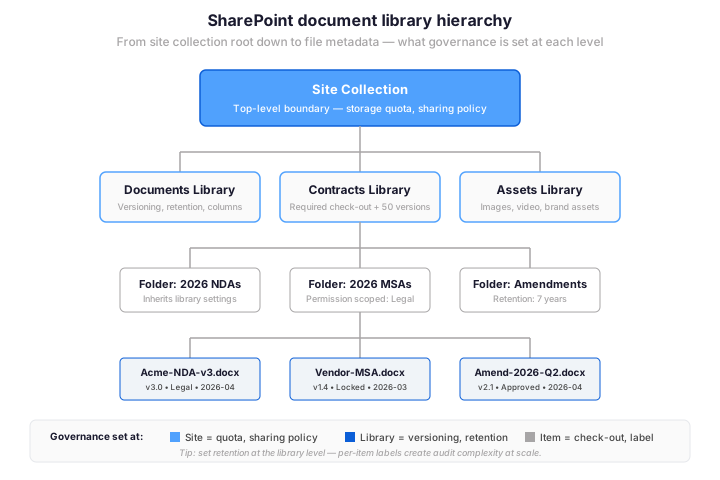
Importantly, storage and sharing live at the site collection, while versioning, retention, and column metadata live at the library. The most common SMB mistake is configuring versioning per item or per folder when the right scope is the library itself — this saves hundreds of click-throughs at audit time and makes settings reproducible via PowerShell.
📚 Five SharePoint library types every admin should know
Microsoft 365 ships five built-in library templates for SharePoint Online, and each one is tuned for a different content shape. Specifically, the Document Library covers Word/Excel/PowerPoint files with full versioning, the Asset Library handles images and video with thumbnails and brand metadata, the Form Library stores InfoPath/Microsoft Forms responses, the Picture Library is a legacy variant of Asset, and the Wiki Page Library hosts internal knowledge pages. So choose the right template at creation time — converting between types after the fact requires migration scripts, not a settings toggle.
| Library type | Best use | Default settings | Wintive recommendation |
|---|---|---|---|
| Document Library | Office files, PDFs, contracts, policies | Versioning on (unlimited), check-out off | Cap at 50 major versions, require check-out for regulated content |
| Asset Library | Brand assets, video, large images | Thumbnail preview, video metadata | Tag with content type, apply retention label at library level |
| Form Library | Microsoft Forms responses, InfoPath legacy | One item per submission | Avoid for new builds — use Lists or Dataverse instead |
| Picture Library | Legacy image archives | Slideshow view, basic metadata | Migrate to Asset Library on greenfield tenants |
| Wiki Page Library | Internal knowledge pages | Wiki linking, version history | Use modern SharePoint Pages instead for new content |
🏷️ Configure metadata columns and content types
Metadata columns turn a library from a folder dump into a queryable database. In practice, three column types cover most SMB scenarios: Choice for fixed taxonomies (contract type, department), DateTime for expiration and review dates, and Managed Metadata for shared term sets that need governance. The result: a contract library with ContractType + ExpirationDate + Department becomes searchable, filterable, and ready for Power Automate workflows like the renewal-reminder pattern.
# Connect to the site
Connect-PnPOnline -Url https://<tenant>.sharepoint.com/sites/finance -Interactive

# Add a required Choice column for contract type
Add-PnPField -List "Contracts" -DisplayName "ContractType" -InternalName "ContractType" `
  -Type Choice -Choices "NDA","MSA","SoW","Amendment" -Required

# Add an expiration date column for renewal automation
Add-PnPField -List "Contracts" -DisplayName "ExpirationDate" -InternalName "ExpirationDate" `
  -Type DateTime

# Add a currency column for contract value
Add-PnPField -List "Contracts" -DisplayName "AnnualValue" -InternalName "AnnualValue" `
  -Type Currency

# Add a managed-metadata column tied to the term store
Add-PnPTaxonomyField -List "Contracts" -DisplayName "Department" `
  -InternalName "Department" -TermSetPath "Tenant|Departments"
However, avoid the temptation to add 15+ columns at library creation. Each new column slows down the library view, complicates the upload form, and creates audit overhead. Ship with three to five columns that cover real business questions, then add more only when a user asks for them.
🔄 Versioning, check-in/out, and document lifecycle
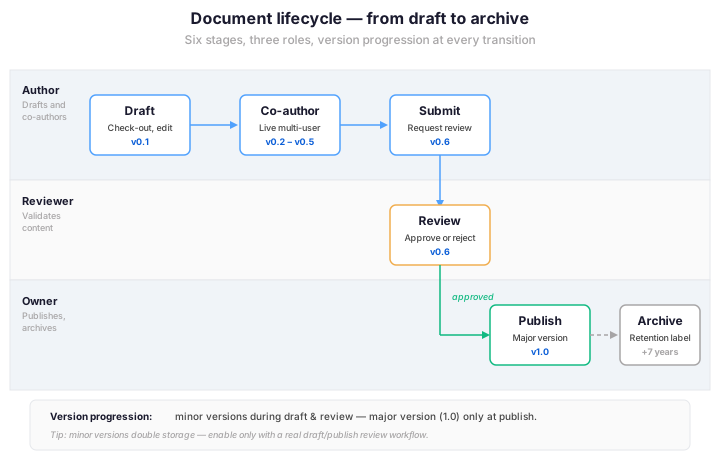
Every document in a SharePoint library moves through six stages from creation to archive, and each transition produces a version number. In a typical lifecycle, an author drafts the file (minor versions v0.1, v0.2), co-authors edit it concurrently, the author submits it for review, a reviewer approves or rejects, the owner publishes it as a major version (v1.0), and after the retention period the file is archived. Mechanically, this lifecycle is enforced through three settings: EnableVersioning, ForceCheckout, and EnableMinorVersions.
# Create a new document library
New-PnPList -Title "Contracts" -Template DocumentLibrary -Url "Contracts"

# Enable versioning + require check-out + cap at 50 major versions
Set-PnPList -Identity "Contracts" `
  -EnableVersioning $true `
  -MajorVersions 50 `
  -ForceCheckout $true `
  -EnableMinorVersions $false

# Confirm the settings stuck
Get-PnPList -Identity "Contracts" |
  Select-Object Title, EnableVersioning, MajorVersionLimit, ForceCheckout
Crucially, enable minor versions only when there is a real draft/publish workflow — for instance an HR policy that goes through a legal review before publication. By contrast, leaving minor versions on for general collaboration libraries doubles storage with zero governance benefit. Our Wintive default is minor versions OFF, major versions capped at 50, and check-out required only for regulated content.
🔐 Permissions cascade and external sharing controls
SharePoint permissions cascade from site collection down to site, library, and individual item by inheritance. Concretely, the Owners, Members, and Visitors groups defined at the site collection flow through every child scope until you explicitly break that inheritance with Set-PnPList -BreakRoleInheritance. Beyond that, breaking inheritance at the library level is the right move for sensitive content like contracts or financial reports, while per-item permission breaks should be avoided because they become unauditable past 50 documents.
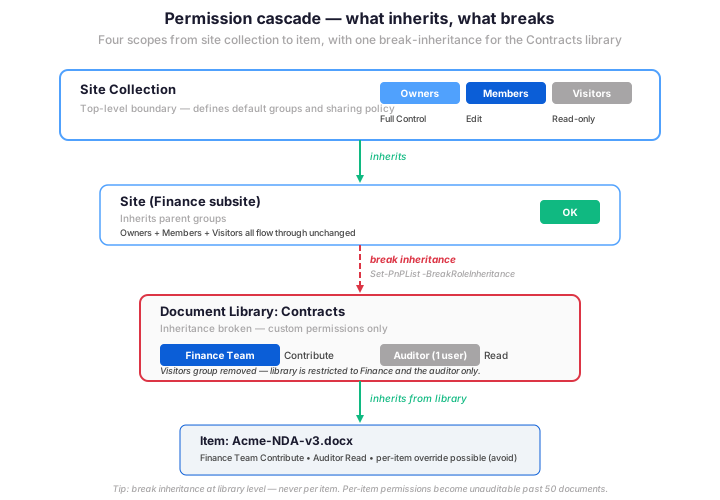
# Break inheritance and copy current role assignments
Set-PnPList -Identity "Contracts" -BreakRoleInheritance -CopyRoleAssignments

# Grant a specific Entra ID group Contribute access to the library
Set-PnPListPermission -Identity "Contracts" -Group "Finance Team" -AddRole "Contribute"

# Remove the default Visitors group from the library
Set-PnPListPermission -Identity "Contracts" -Group "Tenant Visitors" -RemoveRole "Read"

# Grant read-only to a specific user temporarily (audit window)
Set-PnPListPermission -Identity "Contracts" -User "auditor@tenant.com" -AddRole "Read"
Most importantly, external sharing for a library is governed by two layers: the tenant-wide policy in the SharePoint admin center and the per-site sharing setting. So even if a library has Contribute access for a Finance group, external guests cannot reach it unless the parent site allows external sharing. Lock down external sharing at the tenant level by default, then enable it per site only where the business actually collaborates with outside parties.
📜 Retention labels and DLP integration
Retention labels turn a SharePoint document library from a passive storage bucket into a compliance-aware archive. Specifically, a published label applied at the library level cascades to every item by default, then triggers automatic deletion or hold based on the policy you defined in Microsoft Purview. Better still, the same label can drive Data Loss Prevention (DLP) actions like blocking external sharing, watermarking, or encrypting documents that match a sensitive information type.
# Apply a published retention label to the library
Set-PnPLabel -List "Contracts" -Label "Contract-7-Years" -SyncToItems $true

# Verify the label cascaded to existing items
Get-PnPListItem -List "Contracts" |
  Select-Object Id, FieldValues
However, retention labels and library-level retention policies can conflict if both are applied to the same scope. By contrast, the Microsoft Purview rule of thumb is straightforward: the longest retention always wins — so a library with a 7-year contract label and a tenant-wide 3-year default keeps every item for 7 years. As a result, audit your label coverage before assuming a library is compliant.
⚙️ Wintive take: library settings we harden on every tenant
Across our 60+ tenant onboardings at Wintive, the same six library settings come up every time. In effect, leaving these at the SharePoint defaults creates audit gaps that surface six months later as storage bloat, orphaned permissions, or compliance flags during a security review.
| Setting | SharePoint default | Wintive recommendation |
|---|---|---|
| Versioning | On (unlimited major versions) | On, capped at 50 major versions to control storage bloat |
| Require check-out | Off | On for contracts, policies, and financial documents |
| Minor versions | Off | Keep off unless a real draft/publish workflow exists |
| Content approval | Off | On for libraries shared externally with guests |
| Open in browser vs. client | Client app | Browser for most users — faster, fewer support tickets |
| Retention label | None | Apply default label at library level, never per item |
| External sharing | Inherits site setting | Disable on libraries with regulated content (HR, legal, finance) |
🔄 Bulk-apply across multiple sites
Once the right defaults are nailed down for one SharePoint document library, the same script hardens every site in a hub. Furthermore, scripting beats clicking through the SharePoint admin UI by roughly 10x — about 2 minutes per library in PowerShell versus 15 minutes in the browser. Therefore, save the hardening script as a one-shot tool and run it whenever a new site is provisioned.
# Apply the same hardening to every site in a hub
$sites = @(
    "https://tenant.sharepoint.com/sites/finance",
    "https://tenant.sharepoint.com/sites/legal",
    "https://tenant.sharepoint.com/sites/hr"
)

foreach ($url in $sites) {
    Connect-PnPOnline -Url $url -Interactive
    Set-PnPList -Identity "Documents" `
      -EnableVersioning $true `
      -MajorVersions 50 `
      -ForceCheckout $true `
      -EnableMinorVersions $false
    Write-Host "Hardened Documents library on $url"
}
❓ Frequently asked questions about SharePoint document libraries
For most SMBs we recommend 50 major versions, which balances rollback safety with storage cost. In our audits, contracts and policies need 50 to cover several edit cycles, while marketing assets can run on 20. Furthermore, set the limit at the library level via Set-PnPList -MajorVersions 50 rather than per-item.
No — require check-out only for libraries where one author at a time is the rule, such as contracts, policies, and financial reports. However, leaving check-out off for general collaboration libraries lets co-authoring work as Microsoft 365 intends. Therefore, treat ForceCheckout as a governance decision per library, not a tenant-wide default.
Permissions follow the destination library, not the source. When the source had broken inheritance and the destination inherits from the site, the moved file ends up with the site default permissions. Always audit moved files after bulk migrations because permission drift is the most common SharePoint security gap we find at audit.
Yes — use Set-PnPLabel to apply a published retention label to a library, which then cascades to every item by default. On top of that, the same label can be applied via Microsoft Purview policies for tenant-wide consistency. As a result, libraries with regulated content like contracts or HR records get audit-ready retention without per-item action.
🔗 Related Microsoft 365 guides
Need help auditing or hardening your SharePoint document libraries? Wintive runs an automated 50-point Microsoft 365 Tenant Health Check that covers library governance, versioning, retention drift, and orphaned permissions — built from 60+ real tenant audits. 🚀 Get your $97 Tenant Health Check →