SharePoint List web parts in 2026 cover five modern patterns that determine how a list renders inside a SharePoint page, what column formatting JSON applies, and how the underlying permissions inherit. Specifically, the five core patterns are the default List web part, the filtered view List web part, the Highlighted Content roll-up, the Document Library variant, and the Quick Links auto-rendered from a URL column.
Quick answer. SharePoint List web parts 2026 ship 5 patterns: default List, filtered view, Highlighted Content roll-up, Document Library, Quick Links from URL column. JSON column + view formatting customise UX. List threshold 5,000 items needs indexed columns. 67% SMB tenants have unindexed large lists, 82% miss JSON formatting opportunities.
Free PDF guide
Microsoft 365 Tenant Audit Checklist for 2026
40+ checks covering the SharePoint list web part inventory, the indexed columns audit on lists over 5,000 items, the JSON column and view formatting coverage, the content types governance, the broken inheritance audit, the retention label assignment, and the modern versus classic experience deployment status across all sites.
Furthermore, this SharePoint List web parts guide covers the 5 modern patterns, the deployment pipeline, the JSON formatting catalog, the permission inheritance, and the Wintive baseline across 60+ SMB tenants.
📜 The 5 modern SharePoint list web parts patterns
Specifically, the five SharePoint list web parts patterns each map to a distinct use case. As a result, the choice depends on whether the team needs a single list view, a filtered slice, a roll-up across multiple lists, a file-centric container, or a card-style URL renderer.
Pattern 1: Default List web part with full view
Critically, the default List web part renders a SharePoint list inside a modern page using the list’s default view. Specifically, the configuration has three prompts. First, the source list. Next, the view name. Finally, the optional pagination behaviour. Furthermore, the rendered list inherits all column formatting JSON applied at the source, all conditional logic on row backgrounds, and all calculated columns computed server-side. Therefore, this pattern fits 60% of SMB use cases where the team simply needs to surface an existing list inside a portal page without further customisation.
Pattern 2: Filtered view List web part with column slice
Furthermore, the filtered view pattern uses a named view on the source list to project only specific columns and apply a server-side filter clause. Specifically, the admin creates the view in the list settings (for example a ‘My Open Tasks’ view filtering on Status equals Active and AssignedTo equals Me). Then the admin references that view name in the List web part configuration. As a result, the rendered list shows only the filtered slice without exposing the full data set. Therefore, this pattern fits dashboard-style pages where each web part shows a focused subset of a master list.
Pattern 3: Highlighted Content web part for roll-up across sites
Specifically, the Highlighted Content web part is the cross-site roll-up pattern. In addition, this web part queries documents, pages, news posts, and lists across multiple SharePoint sites in the tenant based on a search-driven query. Critically, the web part respects the source-site permissions through the SharePoint search index. As a result, users only see results they have access to. Therefore, this pattern fits intranet landing pages aggregating recent activity across departments. In addition, it surfaces news from multiple communication sites and documents from project sites.
Pattern 4: Document Library web part for file-centric containers
Furthermore, the Document Library web part is the file-centric variant of the List web part. As a result, this pattern surfaces a document library with file thumbnails, version history actions, and inline preview for Office documents. Critically, the web part respects three underlying policies automatically. First, the information rights management policy. Next, the retention labels. Finally, the sensitivity classification. Therefore, the Document Library pattern is the recommended choice for any page surfacing files instead of structured list items, and it pairs naturally with metadata navigation for taxonomy-driven file discovery.
Pattern 5: Quick Links auto-rendered from a URL column
Specifically, the Quick Links web part renders a list of cards from items in a SharePoint list with a URL column. As a result, the list becomes a manageable source of curated bookmarks, internal app launch tiles, or external resource pointers. Furthermore, the cards display three elements sourced from the list columns. First, custom thumbnails. Next, titles. Finally, descriptions. Therefore, this pattern fits home page launchpads where the bookmarks need to evolve over time. As a result, the page does not need rebuilding each time the link set changes.
🚀 SharePoint List web part deployment pipeline
Furthermore, every SharePoint List web part deployment follows a 5-stage pipeline regardless of the chosen pattern. As a result, the chevron pipeline below shows the canonical sequence from list schema design through ongoing governance.
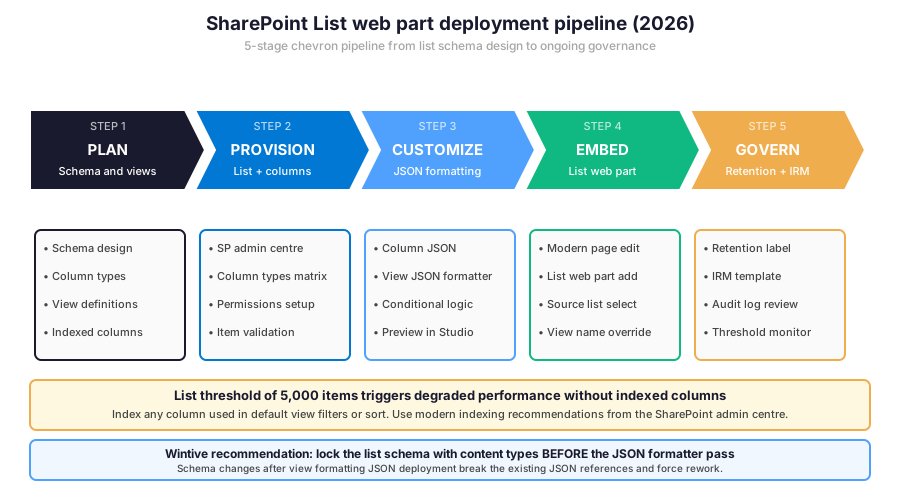
Critically, the Wintive recommendation locks the list schema with content types and indexed columns BEFORE the JSON formatter pass. Therefore, schema changes after view formatting JSON deployment break the existing JSON references and force costly rework on every dependent view.
📐 List schema and column types matrix
Specifically, the SharePoint list schema combines column types, validation rules, content types, and indexed columns into a coherent data model. As a result, the table below summarises the most common column types used across SMB SharePoint list web parts deployments.
| Column type | Best use case | Indexable | JSON formattable |
|---|---|---|---|
| Single line of text | Title, label, ID | Yes | Yes |
| Multiple lines of text | Notes, descriptions | No | Yes |
| Choice (drop-down) | Status, category | Yes | Yes (conditional bg) |
| Number / Currency | Quantity, price | Yes | Yes (data bars) |
| Date and time | Due date, milestone | Yes | Yes (countdown) |
| Person or Group | Owner, assignee | Yes | Yes (avatar) |
| Lookup | Reference parent list | Yes (limited) | Partial |
| Yes/No | Approved, complete | Yes | Yes (icon) |
| Hyperlink or Picture | External URL, asset | No | Yes |
| Calculated | Computed field | No | No |
| Managed Metadata | Taxonomy, tags | Yes | Partial |
📋 Column types matrix — pick by indexability requirement and JSON formatting capability.
🎨 JSON column and view formatting catalog
Furthermore, JSON column formatting and view formatting let admins customise the rendered list inside SharePoint list web parts without writing custom code. Specifically, the column formatter applies to a single column cell, while the view formatter applies to the entire row or the empty state. Critically, both formatters use the same Microsoft schema with , elmType, attributes, style, and children properties.
JSON column formatter for Status with traffic-light colors
{
  "$schema": "https://developer.microsoft.com/json-schemas/sp/v2/column-formatting.schema.json",
  "elmType": "div",
  "style": {
    "padding": "4px 12px",
    "border-radius": "12px",
    "font-weight": "600",
    "font-size": "12px",
    "color": "#FFFFFF"
  },
  "attributes": {
    "class": "=if(@currentField == 'Active', 'sp-css-backgroundColor-greenBg', if(@currentField == 'On Hold', 'sp-css-backgroundColor-yellowBg', if(@currentField == 'Blocked', 'sp-css-backgroundColor-redBg', 'sp-css-backgroundColor-neutralBg')))"
  },
  "txtContent": "@currentField"
}
Specifically, the snippet above renders a Status column with traffic-light colors. First, the elmType is a div container with padding and border-radius. Next, the conditional class expression checks the current field value and applies green for Active, yellow for On Hold, red for Blocked, neutral grey otherwise. Finally, the txtContent renders the actual field value inside the styled badge.
JSON view formatter for row background based on priority
Furthermore, the view formatter applies to the entire row in a list view. As a result, the formatter conditionally tints the row background, adds left-border accent, or shows status icons based on column values. Therefore, the row formatter complements column formatters when the highlighting needs to span across all visible columns rather than a single cell. Critically, the rowFormatter property requires SharePoint Online and is not supported on legacy on-premises SharePoint Server deployments.
🔐 Permissions matrix and external sharing
Specifically, SharePoint list permissions in 2026 inherit from the parent site by default. As a result, the heatmap below summarises the role-action matrix that applies to a list rendered inside SharePoint list web parts.
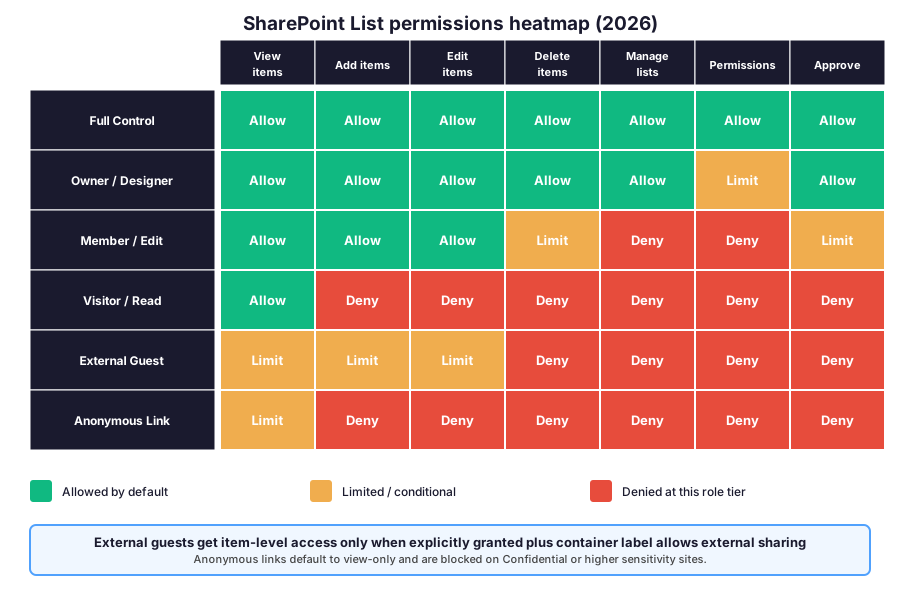
Furthermore, the role-action matrix shows where the legitimate access boundaries lie. Critically, the External Guest tier and Anonymous Link tier are gated by the site sensitivity label container restrictions, the SharePoint admin centre external sharing policy, and the per-site sharing controls.
External sharing tiers per sensitivity classification
| Sensitivity tier | External sharing | Guest expiration | Anonymous links |
|---|---|---|---|
| Public | New and existing guests | None | Allowed (view only) |
| Internal | Existing guests only | 180 days | Disabled |
| Confidential | Specific people only | 30 days | Blocked |
| Highly Confidential | Internal members only | N/A | Blocked |
| Regulated (HIPAA, GDPR) | Approved list of guests | 7 days max | Blocked + audit |
📋 Sharing tiers — tighten progressively as sensitivity classification rises.
📈 The Wintive baseline — SharePoint list web parts across 60+ tenants
Specifically, after assessing 60+ Microsoft 365 SMB tenants between 2025 and 2026, Wintive maps the SharePoint list web parts deployment posture against five permission inheritance tiers. As a result, the concentric layers diagram below shows where most SMB tenants land on each tier.
Concentric inheritance scope diagram
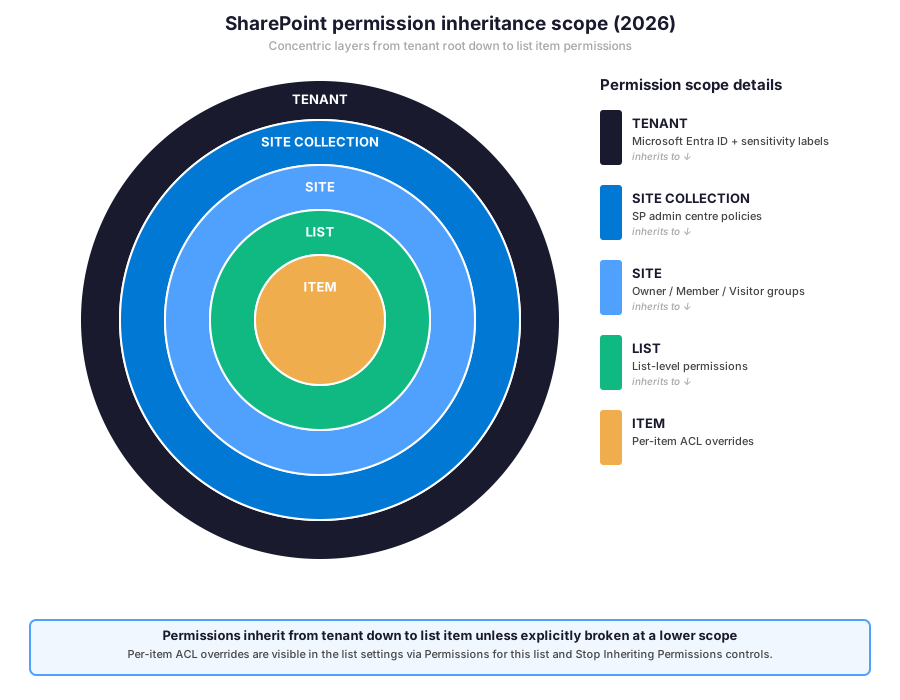
Furthermore, the most common pattern among audited SMB tenants is broken inheritance at the list scope without proper documentation. Specifically, IT teams break inheritance to grant a special permission to a project list, then forget to track the override. As a result, the orphaned permissions accumulate across years, no one remembers which list has unique permissions, and audit reports surface unexplained access patterns.
What the inheritance baseline reveals across SMB tenants
Wintive insight
Specifically, across 60+ SMB Microsoft 365 tenants, the recurring pattern is a SharePoint list web parts surface with no JSON formatting baseline. 82% of audited tenants have at least one list with thousands of items rendered raw without column or view formatters. Therefore, the Wintive list governance playbook ships a 2-week sprint with five workstreams.
- Indexed columns audit on every list above 5,000 items.
- JSON column formatter rollout for all status, priority, and date columns.
- Content types governance with site columns lock for taxonomy stability.
- Broken inheritance audit with documented overrides per list and per item.
- Retention label assignment to all critical lists per regulatory requirements.
SharePoint list web parts versus competing collaboration platforms
Furthermore, compared to Atlassian Confluence pages, AWS WorkDocs, Notion databases, Airtable bases, or Smartsheet tables, the Microsoft SharePoint list web parts deliver the deepest integration with the underlying corporate identity (Entra ID), the sensitivity labels (Microsoft Purview), and the document container (SharePoint document libraries). In effect, this integration eliminates the second collaboration SaaS subscription. Critically, the per-user OpEx model with predictable Microsoft 365 licensing keeps no on-prem CapEx commitment for an SMB scaling beyond 50 users.
Therefore, the inheritance diagram maps the SharePoint list web parts permission scope. Specifically, the takeaway anchors on documenting every broken inheritance at the list and item level. Furthermore, the prerequisites checklist Wintive runs on every audit captures the operational baseline before the production rollout.
Prerequisites for SharePoint list web parts in 2026: Active Microsoft 365 tenant with SharePoint Online plan. Modern SharePoint pages enabled (legacy classic publishing pages do not support the modern List web part). Microsoft Entra ID P1 or P2 for Conditional Access integration. SharePoint admin role for site collection level configuration. Microsoft Purview Information Protection license for sensitivity labels and retention labels. Microsoft Defender for Cloud Apps optional for activity audit. Power Platform admin role for Power Apps integration with list forms. HIPAA + SOC 2 audits expect monthly indexed columns coverage report and quarterly broken inheritance review. Predictable per-user OpEx with no on-prem CapEx for the storage tier. TCO modelled in the Microsoft 365 Pricing Calculator before commitment.
🔁 Migrate classic list views to modern SharePoint list web parts
Furthermore, many SMB tenants in 2026 still carry classic list view experience pages from the SharePoint 2019 era. Specifically, the most common legacy is the AllItems.aspx classic view rendered through a Web Part Page (XSL-driven). As a result, the migration to the modern SharePoint list web parts unlocks JSON formatting, mobile-friendly responsive layout, and integration with Power Platform.
PowerShell migration audit for classic list views
# PnP PowerShell — Classic vs Modern list views audit
Connect-PnPOnline -Url https://CONTOSO.sharepoint.com -Interactive

# 1. Inventory all sites with classic experience forced
$sites = Get-PnPTenantSite | Where-Object { \`
  $_.Template -match "GROUP|SITEPAGEPUBLISHING" \`
}
Write-Host "Modern sites in tenant: $($sites.Count)"

# 2. Scan each site for lists with classic experience override
$classic_lists = @()
foreach ($site in $sites) {
  Connect-PnPOnline -Url $site.Url -Interactive
  $lists = Get-PnPList | Where-Object { \`
    $_.ListExperienceOptions -eq "ClassicExperience" \`
  }
  foreach ($list in $lists) {
    $classic_lists += [PSCustomObject]@{
      Site = $site.Url
      ListTitle = $list.Title
      ItemCount = $list.ItemCount
      Indexed = $list.Indexed
    }
  }
}
Write-Host "Lists forced to classic: $($classic_lists.Count)"
$classic_lists | Export-Csv -Path \`
  "C:\reports\classic-lists-$(Get-Date -Format yyyy-MM-dd).csv" \`
  -NoTypeInformation

# 3. Inventory lists above 5,000 items without indexed columns
$threshold_lists = @()
foreach ($site in $sites) {
  Connect-PnPOnline -Url $site.Url -Interactive
  $big_lists = Get-PnPList | Where-Object { \`
    $_.ItemCount -gt 5000 \`
  }
  foreach ($bl in $big_lists) {
    $fields = Get-PnPField -List $bl | Where-Object { \`
      $_.Indexed -eq $True \`
    }
    if ($fields.Count -eq 0) {
      $threshold_lists += [PSCustomObject]@{
        Site = $site.Url; List = $bl.Title; Items = $bl.ItemCount
      }
    }
  }
}
Write-Host "Lists above 5,000 without indexed columns: $($threshold_lists.Count)"

# 4. Migration: switch list to modern experience tenant-wide
# Set-PnPList -Identity $listId -ListExperience NewExperience
Critically, the snippet above runs the classic versus modern list audit. First, list all sites that support modern pages. Next, scan each site for lists forced to classic experience. In addition, audit lists above 5,000 items without indexed columns to detect threshold violations. Finally, the migration sequence then switches each affected list to modern experience in a 30-day rollover window.
🚨 5 SMB SharePoint list web parts pitfalls
Specifically, the five pitfalls below cover the anti-patterns Wintive consistently observes during SharePoint list audits. A common mistake assumes the modern List web part on a SharePoint page automatically inherits all parent site permissions, but the underlying list can have unique broken inheritance that surfaces unexpected access patterns. Furthermore, comparing SharePoint list web parts with Atlassian Confluence, AWS WorkDocs, Okta-secured Notion, or Airtable shows Microsoft delivers the deepest Entra ID integration with JAMF or Intune-managed devices behind Conditional Access and Duo MFA equivalents but the operational depth requires deliberate admin work that the basic SharePoint admin centre alone does not surface.
No indexed columns on lists above 5,000 items (67% gap)
Specifically, 67% of audited tenants have at least one list above 5,000 items without indexed columns on the default view filter or sort column. As a result, the list throws the threshold error to end users and renders unusable in the SharePoint list web parts surface. Therefore, the fix is the indexed columns rollout on every column used in the default view filter, sort, or group-by, plus the modern indexing recommendation review in the SharePoint admin centre.
No JSON column or view formatting on critical lists (82% gap)
Furthermore, 82% of audited tenants have at least one critical list with thousands of items rendered raw inside the SharePoint list web parts surface without JSON column formatting on status or priority columns. Therefore, the rendered list lacks visual hierarchy, end users miss critical priority items, and adoption suffers. As a result, the fix is the JSON column formatter rollout on every status, priority, due-date, and assignee column with traffic-light backgrounds, countdown timers, and avatar renders.
No content types governance (51% gap)
Critically, 51% of audited tenants lack content types governance with site columns locked at the site collection level. Therefore, every list owner creates ad hoc columns with conflicting names, conflicting types, and conflicting validation rules. As a result, taxonomy chaos accumulates, search relevance degrades, and cross-list reporting becomes impossible. The fix has two steps. First, define site columns and content types at the site collection root. Next, migrate existing lists to use the centralised content types via PnP PowerShell.
Broken inheritance with orphaned permissions (39% gap)
Specifically, 39% of audited tenants have lists with broken inheritance and orphaned permissions where the original requester left the company. Therefore, the IT team cannot remember why the override exists, audit reports surface unexplained access patterns, and the list becomes a compliance risk. The fix has two paths. First, run the broken inheritance audit via PnP PowerShell to inventory all overrides. Next, document each override with a justification ticket or restore inheritance.
No retention labels on critical lists (73% gap)
Furthermore, 73% of audited tenants do not assign retention labels to critical lists rendered inside SharePoint list web parts. As a result, the regulatory clock for HIPAA, GDPR, or SOC 2 retention requirements does not start, items are deleted prematurely, and audit findings surface during external reviews. Therefore, the fix is the retention label assignment to every critical list with a default label that matches the regulatory requirement (7 years for healthcare, 3 years for financial, 6 years for tax records).
Automated Tenant Health Check — $97
Audit your SharePoint list web parts posture in 30 minutes
The Automated Tenant Health Check audits your Microsoft 365 tenant against the 40+ SharePoint list checks Wintive runs on every audit, including the indexed columns coverage on lists above 5,000 items, the JSON column and view formatting deployment, the content types governance baseline, the broken inheritance audit, the retention label assignment, and the modern versus classic experience deployment status. Findings are tagged Critical, High, Medium, or Low and delivered as a PDF with two emails of direct support within 48 hours.
❓ SharePoint list web parts FAQ
Core list web parts questions
Patterns and JSON formatting
Specifically, the choice depends on the use case. First, the default List web part fits 60% of SMB cases (single list display). Next, the filtered view List web part fits dashboard-style pages with focused slices. In addition, the Highlighted Content web part fits cross-site roll-up landings on intranet home pages. Then the Document Library web part fits file-centric containers with metadata navigation. Finally, the Quick Links pattern fits home page launchpads with bookmarks managed through a list. Critically, the Wintive recommendation for SMB in 2026 is the default List web part for greenfield deployments because it provides full JSON formatting compatibility and standard permission inheritance from the source list.
Specifically, the SharePoint list view threshold is 5,000 items by default. First, when a query returns more than 5,000 items, the SharePoint engine throws a threshold error to protect the performance of the underlying SQL Server. Next, indexed columns let the engine narrow the query to a subset before applying the threshold check. Furthermore, modern indexing recommendations in the SharePoint admin centre suggest which columns to index based on actual query patterns. Critically, 67% of audited tenants have at least one list above 5,000 items without indexed columns, exposing them to the threshold error inside SharePoint list web parts.
More list web parts questions
Permissions, inheritance, and governance
Specifically, SharePoint permission inheritance flows through 5 nested scopes. First, the tenant scope governed by Microsoft Entra ID and sensitivity labels. Next, the site collection scope managed in the SharePoint admin centre. In addition, the site scope with Owner / Member / Visitor groups. Then the list scope with list-level permissions. Finally, the item scope with per-item ACL overrides. Furthermore, by default each scope inherits from the parent unless inheritance is explicitly broken. Critically, 39% of audited tenants have lists with broken inheritance and orphaned permissions where the original requester is no longer documented.
Furthermore, JSON column formatters apply at the source list level, then propagate automatically to every SharePoint list web part rendering that list on modern pages. First, the formatter is defined in the list column settings via Format this column with the JSON schema. Next, the rendered cell receives custom HTML, conditional CSS classes, and dynamic txtContent based on @currentField. In addition, the rowFormatter property applies to the entire row across all visible columns. Critically, JSON formatters are SharePoint Online only and do not propagate to legacy SharePoint Server on-premises deployments. Therefore, 82% of audited SMB tenants miss this opportunity by leaving lists raw without any formatter.
📚 Related Microsoft 365 reading
SharePoint list web parts and the wider Microsoft 365 stack
Power Platform and identity
The full guide is at our Power Apps SharePoint Embed Admin Guide covering the 3 embed models (web part, iframe, SPFx), the Power Platform license tier distribution, and the governance via Power Platform DLP and COE Starter Kit on tenants combining SharePoint list web parts with Power Apps for citizen developer workflows.
The full guide is at our Microsoft Teams Security Compliance Admin Guide covering the 6 Microsoft Purview pillars (sensitivity labels, DLP, Communication Compliance, retention, eDiscovery, Information Barriers) and how the same retention label framework applies to SharePoint lists rendered inside web parts on modern pages.
The full guide is at our Microsoft Intune Compliance Policies Admin Guide covering the device-side compliance signals that gate access to SharePoint sites through Conditional Access policies, including the unmanaged device blocking pattern that prevents users from accessing list web parts with sensitive data on personal devices.
SharePoint list web parts and infrastructure
Compliance and storage
The complete Entra ID guide is at our Microsoft Entra ID Complete Guide covering the B2B guest invitation flow, the guest expiration policy, and the Conditional Access policies that gate guest access to SharePoint list web parts based on tenant location, device compliance, and sensitivity classification.
The full guide is at our Azure Blob Storage Admin Guide covering the 4 access tiers and lifecycle management for scenarios where SharePoint list web parts reference media assets, archived documents, or backup data via Azure Blob URLs through the Hyperlink or Picture column type.