Microsoft Teams security and compliance in 2026 spans six pillars enforced through Microsoft Purview: sensitivity labels, Data Loss Prevention, Communication Compliance, retention policies, eDiscovery, and Information Barriers. Specifically, the licensing gate is the deciding factor. Teams DLP, Communication Compliance, and Information Barriers all require Microsoft 365 E5 or the E5 Compliance add-on on top of E3.
Quick answer. Teams security has 6 Purview pillars in 2026: sensitivity labels, DLP (chat + channels + meetings), Communication Compliance, retention, eDiscovery, Information Barriers. Critically, Teams DLP requires E5 or E5 Compliance add-on. M365 E3 only covers manual labels and Standard eDiscovery. 67% of audited SMB tenants run E3 only without Teams DLP coverage.
🛡️ Free: M365 Audit Checklist
19-page PDF with 50 hands-on checks covering Entra ID, Exchange Online, SharePoint, Teams, Intune, license waste, and audit logging. PowerShell commands included. Built from 60+ real tenant audits at Wintive.
Furthermore, this Microsoft Teams security guide covers the 6 pillars, the E3 vs E5 license matrix, the Wintive baseline across 60+ SMB tenants, and 5 anti-patterns observed in production tenants.
📜 The 6 Microsoft Purview compliance pillars for Teams
Specifically, Microsoft Purview consolidates six pillars that govern Microsoft Teams security. Conversely to the legacy Security and Compliance Center, the modern Microsoft Teams security and compliance overview centralises everything at compliance.microsoft.com. Therefore, the decision tree below shows the six pillars and their license dependencies.
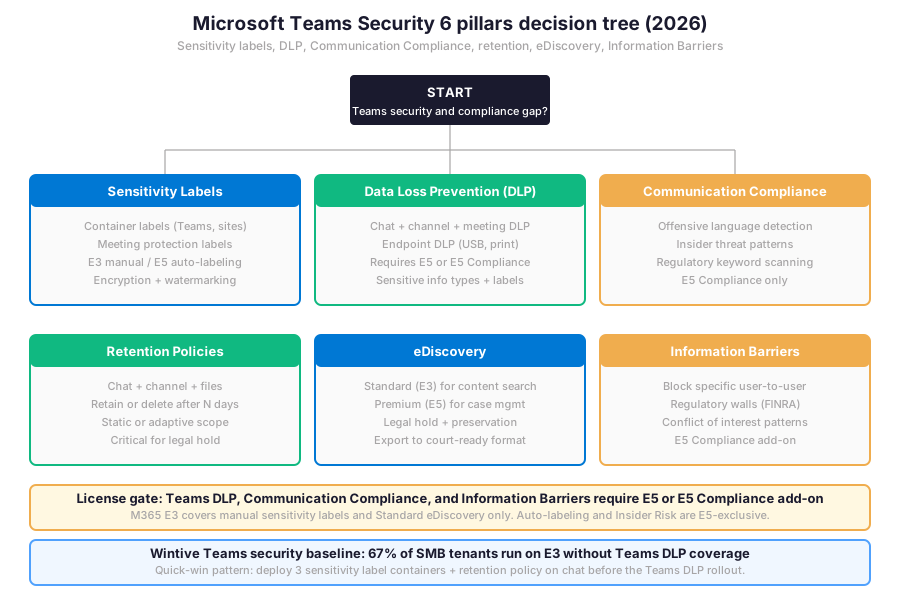
Critically, the Microsoft Teams security pillars are not equally accessible. Some require E5 licensing while others fit within E3. As a result, the next step is the license matrix.
💰 Teams security license matrix — E3 versus E5 versus E5 Compliance
Furthermore, the Microsoft Teams security license matrix below stacks 14 compliance capabilities across the three relevant Microsoft 365 SKUs. Specifically, M365 E3 ($36/user/month) covers manual sensitivity labels, basic DLP for Exchange and SharePoint and OneDrive, Standard eDiscovery, and basic audit log with 180-day retention. In contrast, M365 E5 ($57/user/month) adds auto-labeling, Teams DLP, endpoint DLP, Communication Compliance, Insider Risk Management, eDiscovery Premium, and Advanced Audit. Additionally, the E5 Compliance add-on ($12/user/month on top of E3) brings the same compliance features as E5 at a lower aggregate cost when only the compliance capabilities are needed.
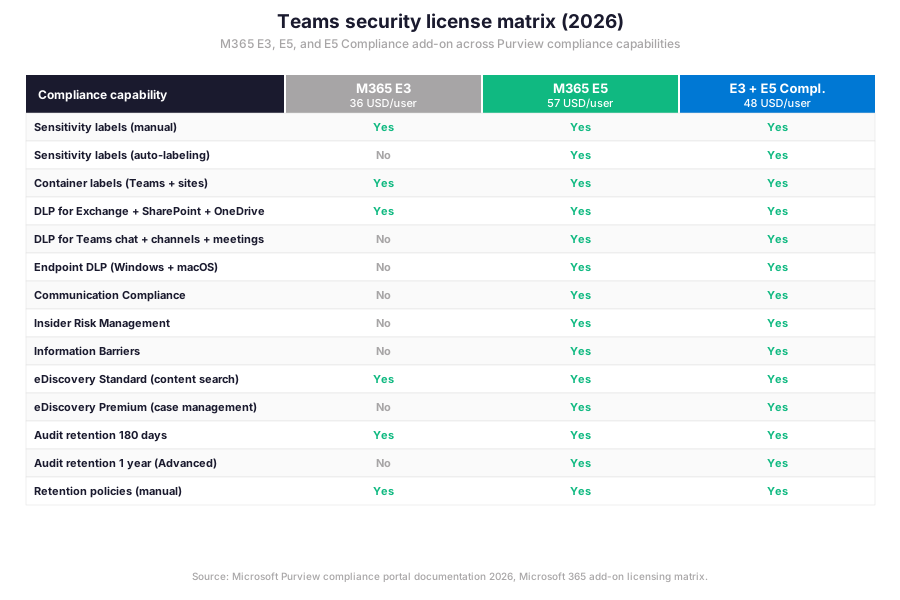
Therefore, the strategic license decision for SMB tenants typically lands on E3 + E5 Compliance for cost-conscious deployments. In particular, this combination delivers full Teams DLP, Communication Compliance, and Information Barriers at $48/user/month rather than $57/user/month for E5 across all features.
🏷️ Sensitivity labels for Teams
Specifically, Microsoft Teams security relies on sensitivity labels from Microsoft Purview that apply directly to Teams as containers, to individual meetings, and to documents shared in channels. Furthermore, labeling a team as Confidential automatically enforces guest access restrictions, external sharing settings, and conditional access policies. In addition, meeting organisers can apply sensitivity labels to individual meetings, controlling who can join, whether recording is allowed, and whether the lobby is enforced.
Container labels for Teams and SharePoint sites
Critically, a container label applied to a Microsoft 365 Group, a Teams team, or a SharePoint site enforces a security baseline at the container level. Specifically, the label can configure the privacy setting (public or private), the guest access policy (allow or block external members), the unmanaged device access (block or allow with restrictions), and the default sharing link type (Anyone, Specific People, Existing Members). Therefore, a single container label like Confidential automatically locks down a Teams team without requiring per-team policy configuration.
Meeting protection labels and Conditional Access integration
Furthermore, Teams meeting labels expose four protection toggles. The first toggle controls who can bypass the lobby (everyone, people in my org, organiser only). Next, a second toggle controls who can present (everyone, specific people, organiser only). In addition, a third toggle controls whether chat history is retained, exported, or restricted to participants. Finally, a fourth toggle blocks recording and transcription. As a result, a Highly Confidential meeting label can prevent any external participant from joining and block all recording.
Sensitivity label PowerShell deployment
# Microsoft Purview — Sensitivity label container audit (PowerShell)
Connect-IPPSSession

# 1. List all sensitivity labels published in tenant
$labels = Get-Label | Select-Object Name, DisplayName, \`
  ContentType, Priority, EncryptionEnabled
$labels | Format-Table -AutoSize
Write-Host "Total labels: $($labels.Count)"

# 2. Find container labels (Teams, sites, M365 Groups)
$container_labels = $labels | Where-Object { \`
  $_.ContentType -match "Site|UnifiedGroup" \`
}
Write-Host "Container labels: $($container_labels.Count)"

# 3. List label policies (which users see which labels)
Get-LabelPolicy | Select-Object Name, Mode, \`
  Labels, ExchangeLocation, ModernGroupLocation | \`
  Format-Table -AutoSize

# 4. Find Teams without container label assigned (anti-pattern)
Connect-MicrosoftTeams
$teams_no_label = Get-Team | Where-Object { \`
  $null -eq $_.Classification \`
}
Write-Host "Teams without container label: $($teams_no_label.Count)"
$teams_no_label | Select-Object DisplayName, GroupId | \`
  Export-Csv "C:\reports\teams-no-label-$(Get-Date -Format yyyy-MM-dd).csv" \`
  -NoTypeInformation
Critically, the snippet above audits the sensitivity label posture. First, list all labels published in the tenant. Next, filter for container labels. In addition, list label policies to verify user coverage. Finally, surface Teams that have no container label assigned (the 88% anti-pattern). Therefore, this audit is the starting point for any Microsoft Teams security hardening sprint.
Auto-labeling for files at rest in SharePoint backing Teams
Specifically, auto-labeling scans existing files in SharePoint and OneDrive that back Teams channels and applies sensitivity labels based on content matching rules. In particular, the rules can match by sensitive information types (credit card, SSN, passport), by trainable classifiers (resume, source code, financial), or by sensitivity label expansion (already-labeled documents in nearby folders). However, auto-labeling requires Microsoft 365 E5 or the E5 Information Protection & Governance add-on. Therefore, E3 tenants are limited to manual labeling.
Furthermore, sensitivity labels are the foundation. Next, Data Loss Prevention layers on top by detecting sensitive content and acting on it.
🛡️ Data Loss Prevention for Teams
Specifically, Microsoft Purview Data Loss Prevention policies in 2026 apply to four Teams locations. First, chat messages between users (1-1 chats and group chats). Next, channel messages (standard and private channels). Furthermore, meeting chat messages (which inherit the host team policy). Finally, files shared in Teams (which inherit the SharePoint backing site DLP policy). Critically, Teams DLP requires Microsoft 365 E5 or the E5 Compliance add-on. M365 E3 alone covers DLP for Exchange and SharePoint and OneDrive but not for Teams chat or channels.
DLP rule structure and detection methods
Furthermore, a DLP rule has three components. First, conditions detect sensitive content via Sensitive Information Types (SIT), trainable classifiers, or sensitivity label conditions. Next, actions determine the outcome (allow, audit, block, block with override, encrypt). Finally, user notifications and policy tips educate users about the policy and offer override paths when configured. Specifically, the most common SMB DLP pattern uses 4-5 SITs (credit card, SSN, IBAN, passport, custom regex for internal identifiers) with the Block with override action plus admin notification.
| SIT category | Detection method | SMB use case | False positive risk |
|---|---|---|---|
| Credit card number | Regex + Luhn checksum | Payment data leak prevention | Low |
| SSN (US) | Regex + format validation | HIPAA + PCI compliance | Low |
| IBAN (EU) | Regex + check digit | GDPR finance regulation | Very low |
| Passport number | Country-specific regex patterns | HR + identity protection | Medium (varies by country) |
| Custom regex (internal ID) | Tenant-defined pattern | Source code, contract IDs | Depends on regex tightness |
| Trainable classifier | ML-based document type detection | Resume, financial, legal docs | Medium (training-dependent) |
Furthermore, the SIT matrix above guides the rule design. Therefore, the next step is the PowerShell deployment audit that surfaces existing Teams DLP policies in the tenant.
Teams DLP PowerShell deployment audit
# Microsoft Purview compliance — Teams DLP audit (PowerShell)
Connect-IPPSSession

# 1. List all DLP policies and find those covering Teams location
$dlp_policies = Get-DlpCompliancePolicy
$teams_dlp = $dlp_policies | Where-Object { \`
  $_.TeamsLocation.Count -gt 0 \`
}
Write-Host "Total DLP policies: $($dlp_policies.Count)"
Write-Host "Teams DLP policies: $($teams_dlp.Count)"

# 2. Inspect each Teams DLP policy details
$teams_dlp | Select-Object Name, Mode, Enabled, \`
  TeamsLocation, ExchangeLocation, SharePointLocation | \`
  Format-Table -AutoSize

# 3. List all DLP rules under each Teams policy
$teams_dlp | ForEach-Object {
  Write-Host "`n=== Policy: $($_.Name) ==="
  Get-DlpComplianceRule -Policy $_.Name | \`
    Select-Object Name, AccessScope, BlockAccess, \`
      NotifyUser, GenerateAlert, ContentContainsSensitiveInformation
}

# 4. Find tenants with NO Teams DLP at all (anti-pattern)
if ($teams_dlp.Count -eq 0) {
  Write-Warning "No Teams DLP policies configured!"
  Write-Host "Action: deploy a baseline policy with PII SITs in audit mode first."
}

# 5. Audit policy mode (TestWithNotifications vs Enforce)
$teams_dlp | Where-Object { $_.Mode -eq "Enforce" } | \`
  Select-Object Name, Enabled | Format-Table -AutoSize
Write-Host "Policies in Enforce mode (active blocking): listed above"
Critically, the snippet above covers the canonical Teams DLP audit pattern. First, list all DLP policies and filter those covering Teams. Next, inspect rule details (access scope, block behaviour, notifications). In addition, audit the policy mode (TestWithNotifications vs Enforce). Finally, surface the anti-pattern of zero Teams DLP coverage. Specifically, the script must run with the Microsoft Purview PowerShell module via Connect-IPPSSession.
🔍 Communication Compliance for Teams
Specifically, Microsoft Purview Communication Compliance monitors Teams chat, channel messages, and attachments for policy violations across four content categories. First, offensive language detection covers harassment, discrimination, and inappropriate content. Next, sensitive information disclosure detection covers regulated data leaving the organisation. Furthermore, insider threat patterns cover departing employee data exfiltration signals. Finally, regulatory keyword scanning covers industry-specific terms (HIPAA PHI, GDPR personal data, FINRA financial). Reviewers receive alerts when the system detects violations, and all evidence persists in a tamper-proof audit trail.
Policy template selection for SMB tenants
Furthermore, Communication Compliance ships with five policy templates that cover the most common SMB scenarios. As a result, the table below summarises the templates and their typical use case.
| Template | Detection target | Best for | License gate |
|---|---|---|---|
| Inappropriate text | Offensive, harassing, threatening | HR + culture monitoring | E5 or E5 Compliance |
| Sensitive information | SITs (SSN, credit card, PII) | Data leak prevention | E5 or E5 Compliance |
| Conflict of interest | Insider trading patterns | Finance + legal teams | E5 or E5 Compliance |
| Regulatory compliance | FINRA, HIPAA, GDPR keywords | Regulated industries | E5 or E5 Compliance |
| Custom policy | Tenant-specific keywords | Brand + IP protection | E5 or E5 Compliance |
♻️ Retention policies for Teams
Specifically, retention policies in Microsoft Purview retain or delete Teams content based on a fixed schedule. In addition, the policy can target three Teams locations: chat (1-1 and group), channel messages (standard and private), and channel files (which inherit the SharePoint retention policy on the backing site). Critically, retention policies execute even after a user account is deleted, ensuring legal hold survives offboarding scenarios.
Static versus adaptive scope
Furthermore, retention policy scope comes in two flavours. First, static scope targets a fixed list of users, groups, or sites configured at creation time. Next, adaptive scope uses query-based rules (department equals Finance, country equals France, hire date before 2023) that automatically include or exclude users as their attributes change. As a result, adaptive scope is the preferred choice for regulated tenants because the scope evolves with HR data without manual reconfiguration.
📚 eDiscovery for Teams
Furthermore, Microsoft Purview eDiscovery in 2026 ships in two tiers. First, eDiscovery Standard (included in M365 E3) supports content search across Teams chat, channels, and meeting recordings via the Microsoft Purview compliance portal. Next, eDiscovery Premium (M365 E5 or E5 eDiscovery add-on) adds case management, legal hold preservation, custodian management, and export to court-ready formats. Specifically, eDiscovery Premium includes review sets where legal teams can tag, redact, and produce evidence in a workflow that aligns with electronic discovery reference model standards.
Information Barriers for regulated industries
Critically, Information Barriers prevent specific user-to-user communication across Teams, SharePoint, and OneDrive. In particular, the typical use case covers regulated industries with conflict of interest walls. For example, the investment banking division cannot communicate with the M&A advisory division, the audit team cannot communicate with the consulting team, the legal team cannot communicate with the executive team during active litigation. Therefore, Information Barriers replace the legacy ethical wall enforcement done via group permissions with a tenant-wide policy enforced by Microsoft Purview. License gate: M365 E5 or E5 Compliance add-on.
Specifically, the six pillars cover the technical surface. Next, the prerequisites checklist Wintive runs on every audited tenant captures the operational baseline.
Prerequisites for Microsoft Teams security and compliance in 2026:
Active Microsoft 365 tenant. M365 Business Premium for SMB or E3 / E5 / E5 Compliance for regulated. Entra ID P1 or P2 for Conditional Access integration with sensitivity labels. Defender for Office 365 Plan 1 or Plan 2 for Safe Links and Safe Attachments on Teams. Purview compliance portal access (admin role: Compliance Administrator or Global Administrator). HIPAA + SOC 2 + GDPR audits expect monthly DLP coverage report, quarterly retention policy review, and yearly Communication Compliance attestation. Predictable per-user OpEx with no on-prem CapEx. TCO modelled in the Microsoft 365 Pricing Calculator before commitment, with a typical SMB blended rate of $48/user/month for E3 + E5 Compliance.
Now, the prerequisites cover the licensing baseline. As a result, the Wintive baseline below shows where the typical SMB tenant stands on Teams security maturity.
📈 The Wintive baseline — Teams security across 60+ tenants
Specifically, after assessing 60+ Microsoft 365 SMB tenants between 2025 and 2026, Wintive has a clear distribution of which Teams security signals correlate with safe production posture and which anti-patterns predict compliance gaps. As a result, the baseline below tells the story.
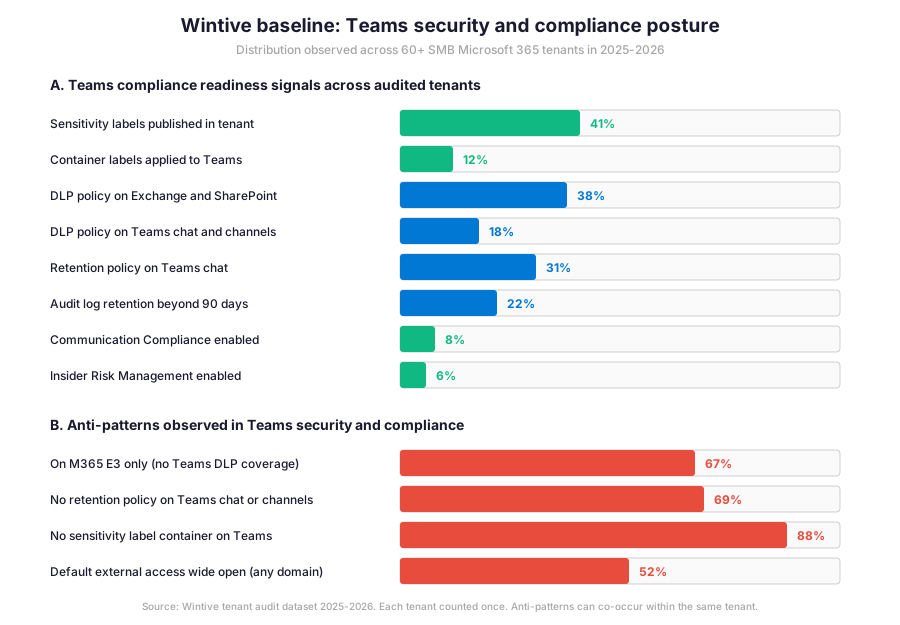
Furthermore, the gap between sensitivity labels published (41%) and container labels actually applied to Teams (12%) is the defining maturity metric. Specifically, even tenants with sensitivity labels deployed at the tenant level often miss the Teams container assignment that locks down guest access and external sharing.
What the Teams security baseline reveals for SMB tenants
Wintive insight
Specifically, across 60+ SMB Microsoft 365 tenants, the standout finding is striking. 67% of audited tenants run on M365 E3 without Teams DLP coverage. Therefore, the Wintive Teams security playbook ships a 3-week governance sprint with five workstreams.
- License upgrade decision (E5 versus E3 + E5 Compliance add-on at $48/user/month).
- Sensitivity label rollout (3 baseline labels: Public, Internal, Confidential) with container assignment to Teams.
- DLP policy deployment in TestWithNotifications mode covering 4-5 SITs (credit card, SSN, IBAN, passport, internal regex).
- Retention policy on Teams chat (1-year retain then delete) and channel messages (3-year retain).
- Communication Compliance pilot policy (inappropriate text + sensitive information) for HR and finance teams.
Furthermore, compared to Slack Enterprise Grid, Google Workspace, AWS WorkDocs, or Zoom for security and compliance, Microsoft delivers the most integrated Purview compliance stack via Teams. In effect, this integration eliminates the need for a third-party DLP or eDiscovery platform. The hourly OpEx model with predictable per-user TCO keeps no on-prem CapEx.
Conversely, the anti-pattern column tells the operational truth. 67% on E3 without Teams DLP. 88% with no sensitivity label container on Teams. 69% with no retention policy. 52% with default external access wide open. As a result, these four anti-patterns explain most compliance gaps Wintive observes in 2026.
🚨 5 SMB Teams security pitfalls in 2026
Specifically, the five pitfalls below cover the anti-patterns Wintive consistently observes during Teams security audits. A common mistake assumes Teams DLP is enabled by default, but 82% of audited tenants have no DLP rule covering Teams chat or channels. Furthermore, comparing Microsoft Teams with Slack Enterprise Grid or Google Workspace shows Microsoft delivers the most integrated Purview stack but the configuration depth requires deliberate admin work that the basic Teams Admin Center alone does not surface.
M365 E3 only without E5 Compliance add-on (67% gap)
Specifically, 67% of audited tenants run on M365 E3 only. As a result, Teams DLP, Communication Compliance, Insider Risk Management, and Information Barriers are all unavailable. Therefore, the fix is the E5 Compliance add-on at $12/user/month on top of E3, which delivers the same compliance features as full E5 at a lower aggregate cost ($48/user/month total vs $57/user/month for E5).
No container labels applied to Teams (88% gap)
Furthermore, 88% of audited tenants have sensitivity labels published but never apply them as container labels to Teams teams or SharePoint sites. Therefore, the labels exist as document classification only without enforcing the guest access, external sharing, and Conditional Access baseline at the container level. Specifically, the fix has three steps. First, enable container labels in the Microsoft Purview compliance portal. Next, publish the labels to all users via a label policy. Finally, apply the appropriate container label to each Teams team during creation or via PowerShell bulk update.
No retention policy on Teams chat or channels (69% gap)
Critically, 69% of audited tenants have no retention policy on Teams chat or channel messages. Therefore, messages persist indefinitely in user mailboxes (chat) and SharePoint sites (channel files), which conflicts with GDPR data minimisation and creates discovery risk during litigation. The fix has two steps. First, deploy a 1-year retain then delete policy on Teams chat. Next, deploy a 3-year retain policy on channel messages with longer retention for legal and finance department adaptive scope.
Default external access wide open (52% gap)
Furthermore, 52% of audited tenants run with the default Teams external access setting that allows communication with all Microsoft 365 organisations. Therefore, any external user from any tenant can find, call, and chat with internal users without admin oversight. The fix is the allow-list approach. First, identify the legitimate external partner tenants. Next, configure Teams external access to allow only those specific domains while blocking all others. As a result, this approach satisfies Zero Trust principles while preserving necessary B2B communication.
Audit log retention stuck at 90-day default
Specifically, 78% of audited tenants leave the unified audit log retention at the default of 90 days for E3 (180 days for newer tenants). However, regulatory frameworks like SOC 2 and ISO 27001 typically require 1-year minimum audit log retention. As a result, the fix is the Microsoft 365 E5 license or the Advanced Audit add-on, both of which extend audit log retention to 1 year by default and 10 years with the additional Audit retention policy configuration. Critically, this matters when investigating insider threats months after the activity occurred.
❓ Microsoft Teams security FAQ
Core Microsoft Teams security questions
Licensing and the 6 pillars
Specifically, Microsoft 365 E3 includes Data Loss Prevention for Exchange, SharePoint, and OneDrive but not for Teams chat or channel messages. Conversely, Teams DLP is a separately licensed feature because it requires real-time message scanning at the Teams service layer, which is more compute-intensive than email or document scanning. Furthermore, the same licensing gate applies to Communication Compliance, Insider Risk Management, and Information Barriers. As a result, the strategic choice for SMB regulated tenants is either a full M365 E5 upgrade ($57/user/month) or the E5 Compliance add-on on top of existing E3 ($12/user/month, total $48/user/month). In particular, the E5 Compliance add-on is the cost-optimal path when only the compliance capabilities are needed without the security or analytics features of full E5.
Furthermore, sensitivity labels in Microsoft Purview apply at three Teams layers in 2026. First, container labels apply to the Teams team itself (and the underlying Microsoft 365 Group + SharePoint site), enforcing privacy, guest access, external sharing, and unmanaged device access at the container level. Next, meeting labels apply to individual Teams meetings, controlling lobby behaviour, who can present, recording allowance, and chat persistence. Finally, document labels apply to files shared in Teams channels (which inherit the SharePoint backing site labelling). Specifically, the most common SMB gap is the container label assignment: 88% of audited tenants publish sensitivity labels at the tenant level but never apply them as container labels to Teams.
More Microsoft Teams security questions
DLP policy mode and Communication Compliance
Critically, DLP policy deployment in 2026 follows a three-phase pattern. First, deploy in TestWithNotifications mode for 2-4 weeks, which detects policy matches and notifies users and admins via email but does not block the action. As a result, this phase surfaces false positives, refines the rule logic, and educates users on the upcoming policy. Next, transition to Block with override mode, which blocks the action but allows users to provide a business justification and override the block. Finally, transition to Block without override for the highest-sensitivity rules. Furthermore, the simulation period prevents the disruption that direct Enforce mode causes when rules misfire on legitimate business workflows.
Specifically, DLP and Communication Compliance solve different problems. First, DLP detects sensitive information types (SSN, credit card, PII patterns) in messages and acts on them with block, audit, or notify actions in real time. Conversely, Communication Compliance scans messages for behavioural and regulatory patterns (offensive language, insider threat indicators, FINRA keyword violations) and routes detections to a reviewer queue for human evaluation. Furthermore, DLP fires on every message that matches a SIT, while Communication Compliance samples messages based on a configurable rate (typically 100% for high-risk groups, 10% sample for general workforce). As a result, the two pillars complement each other: DLP enforces data protection, Communication Compliance enforces behavioural and regulatory standards.
📚 Related Microsoft 365 reading
The full guide is at our Microsoft Teams Phone Admin Guide covering the 4 PSTN connectivity models, the Teams Phone licensing baseline, the Call Queue and Auto Attendant resource accounts, and the emergency calling policies that integrate with Communication Compliance for call recording retention.
The full guide is at our Microsoft 365 Copilot for Teams Admin Guide covering the meeting recap, intelligent summarisation, and how Copilot respects sensitivity labels and DLP policies when summarising chat or extracting action items from conversations.
The full guide is at our Microsoft Intune Compliance Policies Admin Guide covering the device-side compliance signals that gate access to Teams via Conditional Access, including the device health and OS patch level checks that complement the sensitivity label container access policy.
The full guide is at our Exchange Online Email Encryption Admin Guide covering the Office 365 Message Encryption integration with sensitivity labels, the encryption-at-rest model for Teams messages, and the customer-managed key options for regulated tenants.
The complete Entra ID guide is at our Microsoft Entra ID Complete Guide covering the Conditional Access policies that gate Teams sign-in based on device compliance, network location, sign-in risk, and the integration with sensitivity labels for unmanaged device access policies.
This tutorial covered one focused Microsoft Teams workflow. For a complete picture of how your full Microsoft 365 environment — collaboration, identity, and security — performs against best practices:
🔍 Want a complete audit of your Microsoft 365 tenant?
The M365 Instant Audit scans your M365 environment in under 10 minutes: license waste, security posture, MFA coverage, compliance gaps, license rightsizing opportunities. Full PDF report with prioritized recommendations delivered instantly.