Microsoft Teams language interpretation lets multilingual organizations run meetings where audio is translated into each participant’s preferred language in real time. Since 2024, Microsoft has split this capability into two distinct paths: classic human interpretation with assigned interpreters joining a separate audio channel, and AI interpretation powered by Microsoft 365 Copilot that translates automatically without human intervention. This guide walks IT administrators through both models — enabling, configuring, governing, and operating multilingual Teams meetings end to end.
We cover the admin enable flow in the Teams admin center, the organizer setup for assigning language pairs and interpreters, the AI interpretation rollout via Copilot licensing, the PowerShell policies that govern multilingual meeting features tenant-wide, and the production best practices that separate a smooth multilingual session from a chaotic one. For the official documentation, see Microsoft’s Teams language interpretation reference.
🛡️ Free: M365 Audit Checklist
19-page PDF with 50 hands-on checks covering Entra ID, Exchange Online, SharePoint, Teams, Intune, license waste, and audit logging. PowerShell commands included. Built from 60+ real tenant audits at Wintive.
🌐 Why Teams language interpretation matters
Multilingual organizations face a recurring problem: a Teams meeting where half the participants speak English fluently while the other half follow with effort, ask for clarifications, and lose 30 percent of the content. Specifically, language interpretation in Microsoft Teams solves this by letting each participant pick a target language and hear a real-time translation alongside (or instead of) the original speaker.
The use cases stack up quickly. For example, EU institutions and multinational companies routinely run all-hands sessions across French, German, Spanish, and English speakers. In contrast, sales calls with Asian or Middle Eastern clients benefit from instant AI translation. Furthermore, regulated industries with cross-border operations must record multilingual minutes for compliance — something native Teams interpretation supports out of the box when paired with retention policies.
🔀 Human vs AI interpretation in Teams
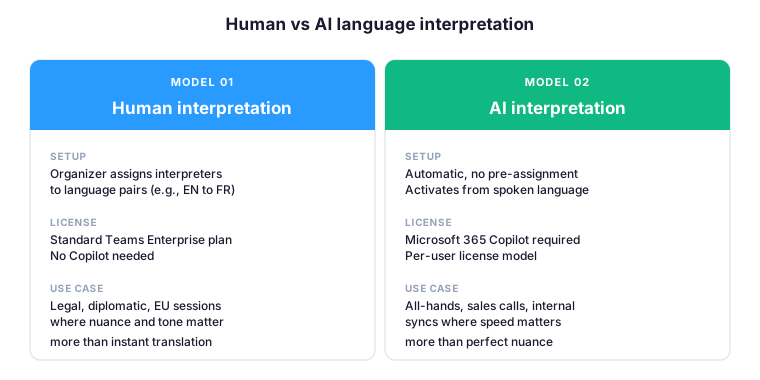
Teams supports two distinct interpretation models, and the choice between them shapes everything from licensing to user experience. Specifically, human interpretation relies on assigned interpreters joining the meeting and broadcasting on a separate audio channel — the gold standard for nuance, tone, and legal accuracy. In contrast, AI interpretation activates automatically based on the spoken language, requires no pre-assignment, and ships with Microsoft 365 Copilot.
Therefore, choose human interpretation for legal, diplomatic, or high-stakes sessions where the interpreter’s training matters. However, AI interpretation is the right pick for internal all-hands, sales calls, and recurring syncs where speed and zero-touch setup matter more than perfect rendering. Indeed, many tenants deploy both models in parallel and let organizers choose per meeting.
🏢 Enable language interpretation as admin
Language interpretation is gated by a Meeting policy in the Teams admin center. Therefore, before any organizer can assign interpreters in a meeting, a Teams admin must enable the feature on the relevant policy and grant it to the right users. The flow takes four steps and applies tenant-wide once the policy is assigned.
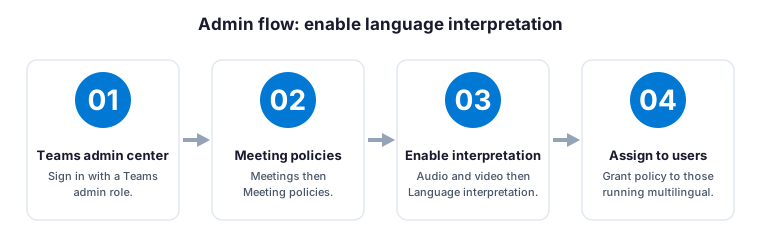
- Sign in to the Teams admin center with a Teams admin role. Specifically, the Teams Communications Administrator role is sufficient — no need to escalate to Global Admin for this change.
- Navigate to Meetings then Meeting policies. Pick the policy you want to modify or duplicate the Global default policy if you prefer to scope this change to a specific group.
- Under Audio & video, enable Language interpretation. Save the policy. Furthermore, this is also where you find related multilingual features such as live captions and live transcription.
- Assign the policy to the users who will organize multilingual meetings. For example, scope it to the events team, executive assistants, or any group running international sessions regularly.
Once the policy is active, meeting organizers see the language interpretation option when scheduling or editing a meeting. However, policy propagation can take up to 24 hours to reach all clients — plan accordingly when you enable interpretation for a specific upcoming event.
👤 Configure a multilingual meeting as organizer
Once the admin policy is in place, the meeting organizer takes over. Specifically, the organizer assigns up to 10 language pairs per meeting and invites a designated interpreter for each pair. The flow runs from the meeting options panel and takes about five minutes for a session with two language pairs.
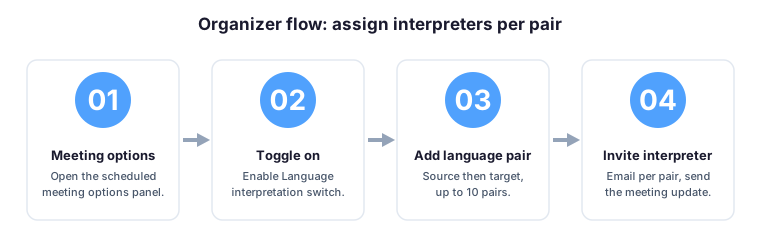
- Open the scheduled meeting in Teams and click Meeting options. The configuration panel opens in a side dialog.
- Toggle Language interpretation on. The interpretation configuration appears below the toggle.
- Click Add language pair and pick the source and target languages — for example, English to French. Repeat for each pair you need, up to 10 per meeting.
- Enter the email address of the designated interpreter for each pair. Therefore, send the meeting update — interpreters receive a specific invitation link that joins them directly to their interpretation channel.
🤖 AI interpretation with Microsoft 365 Copilot
Microsoft 365 Copilot adds a second path to multilingual meetings: AI interpretation that activates automatically based on the spoken language, with no pre-assignment of human interpreters. Specifically, when AI interpretation is enabled, Teams displays a notification to participants that AI is interpreting the meeting, and each participant chooses whether to hear the AI translation in their preferred language.
The AI interpreter appears in the meeting as a virtual participant. Furthermore, AI interpretation works seamlessly with live captions and real-time transcription — a participant can simultaneously hear AI-translated audio and read AI-generated captions in their target language. However, AI interpretation requires a Microsoft 365 Copilot license per user and is currently available for a growing but limited set of language pairs. For example, French, German, Spanish, Italian, Portuguese, Mandarin, and Japanese are all supported as of 2026, with more rolled out quarterly.
For the full Copilot in Teams deployment context including AI interpretation prerequisites and licensing pitfalls, see our Microsoft 365 Copilot in Teams admin guide.
⚙️ Configure Teams meeting policies via PowerShell
For tenants with custom meeting policies or large user counts, the Microsoft Teams PowerShell module is the right tool to govern multilingual meeting features at scale. Specifically, the cmdlets that matter are Get-CsTeamsMeetingPolicy for audit, Set-CsTeamsMeetingPolicy for configuration, and Grant-CsTeamsMeetingPolicy to assign a policy to a user.
To audit your tenant’s meeting policies and identify which ones expose live captions, transcription, and interpretation features:
Connect-MicrosoftTeams
Get-CsTeamsMeetingPolicy | Select-Object Identity, LiveCaptionsEnabledType, LiveTranscriptionEnabledType, AllowMeetingCoach
Get-CsOnlineUser -Identity "organizer@contoso.com" | Select-Object UserPrincipalName, TeamsMeetingPolicy
To enable live captions and live transcription on a tagged policy and grant it to a specific user — useful when scoping multilingual features to events or executive teams:
Set-CsTeamsMeetingPolicy -Identity "MultilingualEvents" -LiveCaptionsEnabledType "EnabledUserOverride" -LiveTranscriptionEnabledType "EnabledUserOverride"
Grant-CsTeamsMeetingPolicy -Identity "organizer@contoso.com" -PolicyName "MultilingualEvents"
For the full PowerShell-based admin context, see our top PowerShell commands for Microsoft 365.
📺 Live captions and real-time translation
Beyond interpretation, Teams offers live captions that display a real-time transcript of the meeting in the participant’s chosen language. Specifically, unlike interpretation, live captions require no organizer setup — any participant enables them mid-meeting from More then Language and speech then Turn on live captions.
With a Microsoft 365 Copilot license, captions are automatically translated into the participant’s preferred language. Therefore, this enables a third path to multilingual participation — passive, text-based, asynchronous — that complements human or AI interpretation. For example, a participant who prefers reading over listening can hear the original audio while reading translated captions in real time.
💡 Best practices for multilingual meetings
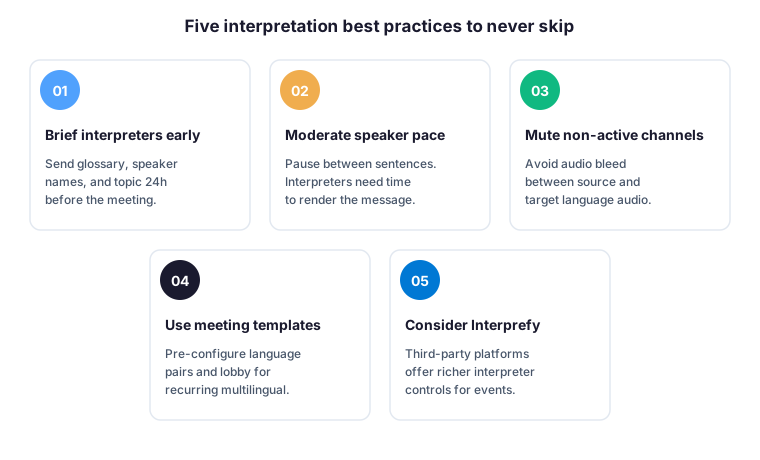
- Brief interpreters early. Send the meeting agenda, speaker names, key acronyms, and a glossary of technical terms at least 24 hours before the session. Therefore, interpreters arrive prepared rather than improvising on terminology mid-sentence.
- Keep speaker pace moderate. Ask presenters to pause between sentences and avoid reading from a script at full speed. For example, a 110 to 130 words per minute pace gives interpreters enough buffer to render each segment cleanly.
- Mute non-active channels. Audio bleed between the source and target language channels degrades quality fast. Specifically, instruct participants to mute the source language when listening on the target channel — a single setting that prevents 80 percent of audio complaints.
- Use Teams meeting templates for recurring multilingual sessions. Pre-configure language pairs, lobby settings, and recording policies once — reuse the template for every weekly all-hands or quarterly board call. Indeed, templates eliminate the configuration error rate that plagues ad-hoc multilingual meetings.
- Consider a third-party platform for events. For large international events with professional interpreters — conferences, regulator hearings, public consultations — evaluate Interprefy or KUDO via the Teams ISV integration. Furthermore, these platforms ship with interpreter management features (booth view, relay interpretation, handover) that the native Teams implementation does not cover.
📋 Human vs AI interpretation comparison
The wintive-table below summarises when to use each interpretation model — useful when budgeting licenses or scoping a multilingual meeting program at the tenant level.
| Criterion | Human interpretation | AI interpretation |
|---|---|---|
| Setup | Organizer assigns interpreters per pair | Automatic, no pre-assignment |
| License | Standard Teams Enterprise | Microsoft 365 Copilot per user |
| Languages | Any pair the interpreter speaks | Limited to supported AI pairs |
| Best for | Legal, diplomatic, high-stakes | Internal all-hands, sales calls |
| Cost model | Per-event interpreter fees | Per-user license |
⚠️ Wintive take: production gotchas
Two pitfalls show up in Microsoft Teams language interpretation tickets every quarter. Specifically, the most common one is the policy that was enabled in the Teams admin center but never propagated to the organizer’s client — the organizer opens meeting options, sees no interpretation toggle, and panics 30 minutes before a board meeting. Therefore, enable the policy at least 24 hours before any critical multilingual session and have the organizer verify the toggle visibility the day before.
The second pitfall is the AI interpretation rollout pace. However, Microsoft adds new AI-supported language pairs every quarter, and the supported list at the time of meeting may differ from the list at the time of planning. Furthermore, AI interpretation quality varies significantly between language pairs — EN to FR is excellent, EN to less common Asian languages may still surprise. Indeed, run a 10-minute AI interpretation test before any high-stakes meeting in a less-common language pair.
🤔 Frequently asked questions about Teams language interpretation
Language interpretation provides spoken audio translation by a human interpreter or by AI on a separate audio channel. Live captions display a real-time text transcript of the meeting in the participant chosen language. Therefore, interpretation suits listeners who prefer audio while live captions suit those who prefer reading. Both can be combined with a Microsoft 365 Copilot license for the richest multilingual experience.
No for human interpretation, yes for AI interpretation. Human interpretation works with any Teams Enterprise plan and only requires a Teams admin to enable the policy. AI interpretation requires a Microsoft 365 Copilot license per user. Therefore, organizations can deploy human interpretation today without licensing changes and add AI interpretation incrementally for users with Copilot.
A single Teams meeting supports up to 10 language pairs simultaneously when using human interpretation. Each pair requires a designated interpreter assigned by the organizer. AI interpretation does not have an explicit pair limit but is constrained to the language pairs supported by Copilot at meeting time. The Microsoft list grows quarterly.
Yes. Recording captures the source language audio by default. With Microsoft 365 Copilot enabled, transcripts and AI translations are also captured in Microsoft Stream and the meeting recap. Therefore, retention policies apply to all language tracks. Verify that compliance recording solutions handle the multi-channel audio correctly before relying on them for regulated industries.
Three causes account for most cases. First, the Teams admin has not enabled Language interpretation on the policy assigned to the organizer. Second, the policy was enabled but has not propagated yet, which can take up to 24 hours. Third, the meeting was scheduled before the policy change. Therefore, edit the meeting after policy propagation or schedule a new one to surface the toggle.
📚 What to read next
Continue your Teams admin journey with these three deep dives covering Copilot integration, security posture, and meeting recording. Each guide expands on adjacent admin workflows you will need beyond Language Interpretation.
This tutorial covered one focused Microsoft Teams workflow. For a complete picture of how your full Microsoft 365 environment — collaboration, identity, and security — performs against best practices:
🔍 Want a complete audit of your Microsoft 365 tenant?
The M365 Instant Audit scans your M365 environment in under 10 minutes: license waste, security posture, MFA coverage, compliance gaps, license rightsizing opportunities. Full PDF report with prioritized recommendations delivered instantly.