Specifically, Microsoft 365 Copilot for Teams in 2026 is no longer a curiosity. Admins are not just trying it in a sandbox tenant. It is a tenant-wide productivity layer at $30 per user per month. The deployment carries hard governance gates around sensitivity labels and DLP. Furthermore, it casts a regulatory shadow from the EU AI Act and from Microsoft Purview audit retention requirements. The pre-deployment readiness gap matters more than the technology itself. Specifically, 68% of enterprises that bought Copilot licenses in 2025 were not ready for tenant-wide rollout. Their SharePoint permissions, sensitivity label coverage, or DLP policies were missing.
Furthermore, this Microsoft 365 Copilot for Teams admin guide covers licensing, data flow architecture, the Purview governance gates, and the Wintive baseline across 60+ SMB tenants.
Quick answer. Microsoft 365 Copilot for Teams costs $30 per user per month on top of a qualifying base license. SMB tenants under 100 seats land on Business Premium plus Copilot. Larger or regulated tenants pick E3 or E5 plus Copilot. Before tenant-wide rollout, hit three governance gates: sensitivity label coverage above 30%, DLP for Copilot configured, and SharePoint Restricted Content Discovery (RCD) on for high-risk sites. Skipping the gates is the single most common cause of Copilot data exposure incidents in SMB.
🛡️ Free: M365 Tenant Security Audit Checklist
19-page PDF with 50 hands-on checks covering Entra ID, Exchange Online, SharePoint, Teams, Intune, license waste, and audit logging. PowerShell commands included. Built from 60+ real tenant audits at Wintive.
📅 Microsoft 365 Copilot for Teams in 2026
Specifically, three forces have reshaped Copilot for Teams admin work between 2024 and 2026. First, Microsoft Purview shipped a dedicated DLP location named Microsoft 365 Copilot and Copilot Chat that lets admins block prompts containing sensitive information types and prevent Copilot from including labelled files in responses. Second, SharePoint Restricted Content Discovery (RCD) graduated from preview and is now the canonical way to exclude high-risk sites from Copilot grounding. Third, Wave 3 Copilot agents launched in Teams chat as the agent runtime, which means autonomous agents now run within the same governance plane as Copilot Chat itself.
Furthermore, the EU AI Act and the EU GDPR both add audit requirements that admins must satisfy. Every CopilotInteraction event needs to be captured in Purview audit logs. Retention must reach 1 year minimum with Purview Premium. Prompt-and-response content must be available to eDiscovery for legal investigations. Therefore, a Copilot for Teams rollout in 2026 is at least 50% governance work. The other 50% is adoption work. Critically, it is not a license activation flip.
💰 The Copilot for Teams license matrix
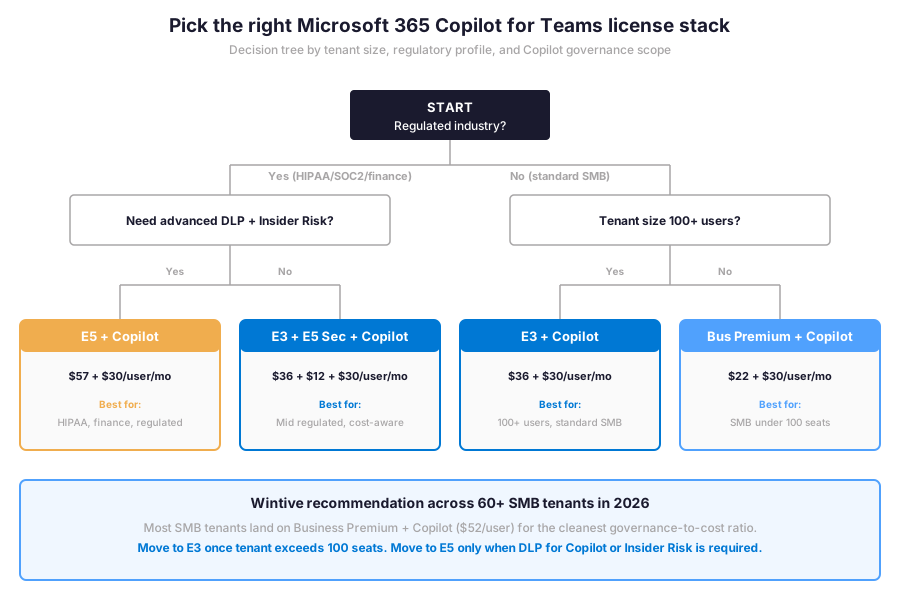
Specifically, Microsoft 365 Copilot is sold at $30 per user per month on top of a qualifying base license: Microsoft 365 Business Basic, Business Standard, Business Premium, E3, or E5. Office 365 plans (without M365 base apps) also qualify. The total cost of ownership (TCO) is predictable on a per-user/month basis with annual NCE commitment, no on-prem CapEx, OpEx only. The all-in cost lands between $52 per user per month (Business Premium plus Copilot) and $87 per user per month (E5 plus Copilot). Therefore, the licensing decision is not just about Copilot itself but about the qualifying base license and the security stack underneath.
License gotchas Wintive sees in 2026
- Frontline plans (F1, F3) do not qualify for Copilot. Frontline workers cannot get Copilot at any price in 2026. SMB tenants with mixed F-plan + E-plan workforces need a license remap before Copilot rollout.
- Annual commit only. Copilot ships on a 1-year commitment in NCE. There is no monthly cancellation path, so over-buying licenses costs the full annual amount.
- Copilot Pro is not Copilot for Teams. Copilot Pro is the consumer Copilot ($20 per user) and does not include the Microsoft 365 grounding, the Purview governance plane, or the audit log integration. Therefore, Copilot Pro is not a substitute for Microsoft 365 Copilot in any Teams admin scenario.
- E5 Security add-on path. Tenants on E3 plus Copilot can layer E5 Security ($12 per user per month) instead of jumping to full E5. The add-on unlocks Defender for Cloud Apps + Purview Insider Risk + Sentinel Connector. This is the cheapest path to advanced Copilot governance for cost-aware mid-market tenants.
| License combo | Base cost/user/mo | + Copilot | Total | SMB scenario fit |
|---|---|---|---|---|
| Business Premium + Copilot | $22 | $30 | $52 | SMB under 100 seats, standard regulation |
| E3 + Copilot | $36 | $30 | $66 | 100+ seats, enterprise compliance |
| E3 + E5 Security + Copilot | $36 + $12 | $30 | $78 | Mid regulated, cost-aware path to advanced DLP |
| E5 + Copilot | $57 | $30 | $87 | HIPAA, finance, regulated industries |
🔐 The Copilot for Teams data boundary
Specifically, the Microsoft 365 Copilot for Teams data boundary is the line between what stays inside the tenant Microsoft 365 service and what crosses to external models or services. The architecture below shows the canonical 5-stage flow from user prompt to response, with the Purview governance gates that an admin tunes in 2026.
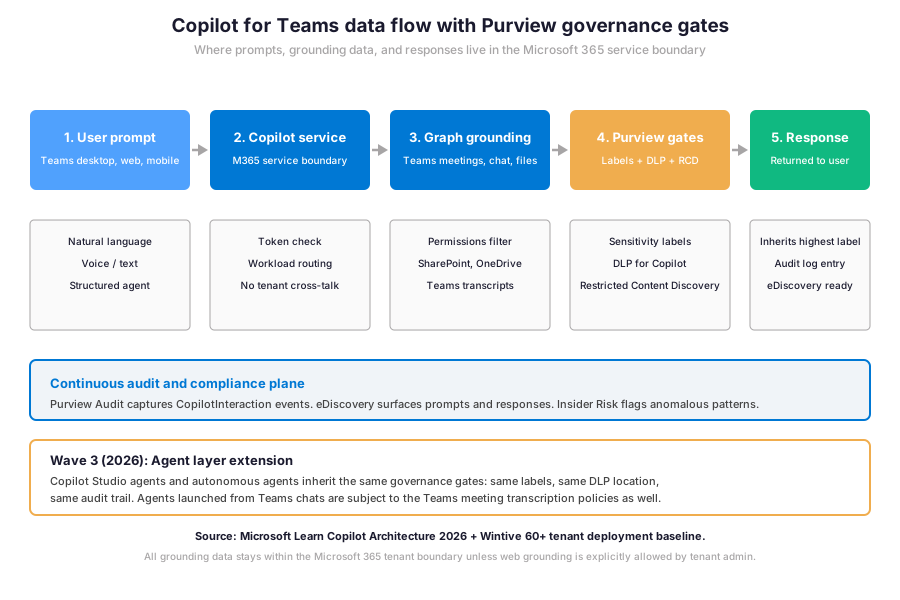
Furthermore, three guarantees travel with the Microsoft 365 service boundary in 2026. Each one matters for SMB compliance. First, prompts and Microsoft 365 grounding data never train any foundation model: customer content stays in the tenant. Second, Copilot honours user-level SharePoint and OneDrive permissions: a user cannot prompt Copilot to surface a file they could not already open through the regular UI. Third, encryption applied via sensitivity labels stays enforced: a labelled file with EXTRACT-restricted rights is not summarised in a Copilot response unless the user holds the EXTRACT right on that file.
⚙ Configure Microsoft 365 Copilot in the admin center
Specifically, most Copilot configuration lives at admin.microsoft.com. Look under Copilot in the left navigation panel. The Copilot dashboard shows seat consumption, top apps used, and the readiness score per workload. Furthermore, the Settings page covers four key controls. First, who can use Copilot via license assignment. Second, web grounding to allow or block external web searches during prompts. Third, pre-built agents that are visible to end users. Fourth, plug-ins that allow third-party connectors.
PowerShell verification of Copilot for Teams configuration
# Microsoft Graph PowerShell — Verify Copilot license assignment + Teams meeting transcription baseline
Connect-MgGraph -Scopes "User.Read.All","Directory.Read.All","OnlineMeetings.Read.All"

# 1. List users with Microsoft 365 Copilot license assigned
$copilotSku = (Get-MgSubscribedSku | Where-Object { $_.SkuPartNumber -like "*COPILOT*" }).SkuId
Get-MgUser -All -Property AssignedLicenses, UserPrincipalName | \`
  Where-Object { $_.AssignedLicenses.SkuId -contains $copilotSku } | \`
  Select-Object UserPrincipalName, Id

# 2. Inspect Teams meeting transcription default policy
Connect-MicrosoftTeams
Get-CsTeamsMeetingPolicy -Identity Global | \`
  Select-Object AllowTranscription, AllowCloudRecording, AllowEngagementReport, MeetingChatEnabledType

# 3. Inspect Copilot in Teams meeting policy (the dedicated Copilot policy)
Get-CsTeamsAIPolicy -Identity Global

# 4. Audit log query for CopilotInteraction events (last 7 days)
Search-UnifiedAuditLog -StartDate (Get-Date).AddDays(-7) -EndDate (Get-Date) \`
  -RecordType CopilotInteraction -ResultSize 100
🏷 Sensitivity labels for Copilot for Teams content
Specifically, sensitivity labels are the single highest-impact governance control for Copilot in 2026. The reason is structural. It is not tactical. A label answers a different question from a permission: permissions ask whether a user can access content, while labels ask whether the content should be included in an AI-generated response. Therefore, a senior team member with broad SharePoint access still gets filtered Copilot results. The reason: sensitive labelled content is excluded from grounding.
Furthermore, the Wintive baseline label taxonomy for SMB tenants in 2026 is five labels. The taxonomy: Public, Internal, Confidential, Confidential External, and Highly Confidential. Auto-labelling policies in Microsoft Purview apply labels based on sensitive information types or trainable classifiers. Examples of sensitive types: credit card numbers, US tax IDs, EU passport numbers. The target before tenant-wide Copilot rollout is 30% label coverage minimum. 80% coverage is the steady-state goal. The industry baseline rarely hits 80% in year one.
Sensitivity labels and Teams meetings interaction
Specifically, Teams meetings can carry their own sensitivity labels via the meeting template policy. A meeting labelled Confidential automatically inherits encryption rules. Chat is restricted to internal participants. Recording is disabled. End-to-end encryption is enabled. Furthermore, Copilot summaries are limited to the same audience. Furthermore, Teams Premium adds the ability to apply sensitivity labels at meeting creation time. Therefore, the organiser cannot bypass the policy.
📊 DLP for Microsoft 365 Copilot for Teams
DLP rule patterns and trigger conditions
Specifically, Microsoft Purview now exposes a dedicated DLP location named Microsoft 365 Copilot and Copilot Chat that lets admins block prompts containing sensitive information types and prevent Copilot from including labelled files in summaries. The location went generally available in mid-2025. It is the canonical answer to the data oversharing risk. Specifically, that risk dominated 2024 Copilot incidents. Furthermore, the same DLP rule can also block external web grounding when a prompt contains regulated content. Therefore, sensitive data stays inside the tenant boundary even when web grounding is enabled tenant-wide.
| DLP rule pattern | Trigger | Action | Best for |
|---|---|---|---|
| Block sensitive prompt | Prompt contains credit card or SSN | Block response, notify user | Tenant-wide PII baseline |
| Block labelled file in summary | Grounding hits Highly Confidential file | Exclude file from response | Regulated industries |
| Block external web grounding | Prompt contains regulated content | Restrict grounding to tenant only | Healthcare, finance |
| Endpoint DLP on Copilot output | User pastes Copilot response to USB or personal cloud | Block paste, log incident | Insider risk programs |
| Adaptive protection | User flagged by Insider Risk Management | Stricter Copilot policy applied | High-risk user remediation |
Specifically, the role required to author DLP policies for Copilot is either Entra AI Admin or Purview Data Security AI Admin. Both roles support the same operations. The least-privilege pattern Wintive recommends is to create a Purview Data Security AI Admins group and add the security team members rather than assigning the Global Administrator role for one-off Copilot DLP work, which keeps the audit trail clean and the principle of least privilege satisfied.
# Microsoft Graph PowerShell — Configure DLP for Copilot location via Purview
Connect-IPPSSession

# Create a DLP policy targeting the Microsoft 365 Copilot location
New-DlpCompliancePolicy -Name "Block-Copilot-Sensitive-Prompts" \`
  -CopilotLocation All \`
  -Mode Enable \`
  -Comment "Wintive baseline DLP for Copilot for Teams in 2026"

# Create the rule that blocks responses on credit card or SSN match
New-DlpComplianceRule -Name "Block-CreditCard-SSN" \`
  -Policy "Block-Copilot-Sensitive-Prompts" \`
  -ContentContainsSensitiveInformation @(
    @{name='Credit Card Number';mincount='1'},
    @{name='U.S. Social Security Number (SSN)';mincount='1'}
  ) \`
  -BlockAccess $true \`
  -NotifyUser SiteAdmin

# Verify the policy is enforced
Get-DlpCompliancePolicy -Identity "Block-Copilot-Sensitive-Prompts" | \`
  Select-Object Name, Mode, CopilotLocation, Enabled
SharePoint Restricted Content Discovery (RCD) for Copilot
Furthermore, SharePoint Restricted Content Discovery (RCD) is the canonical 2026 control for excluding sites from Copilot grounding. Importantly, RCD does not revoke user permissions. Therefore, RCD applies a metadata flag at the site level. Users keep their existing access for direct file open or download operations. Specifically, Copilot stops indexing the site for grounding queries. The licensing path is SharePoint Advanced Management (SAM). Microsoft has been progressively deploying RCD access to all Copilot tenants throughout 2025.
🎤 Copilot in Teams meetings — transcription, summaries, in-meeting assist
Specifically, Copilot in Teams meetings depends on transcription being enabled at the meeting level. The transcription policy is configured under Teams admin center, and the default Global policy controls baseline behaviour for all users not assigned a custom policy. Furthermore, recording is a separate switch from transcription. Therefore, admins can enable transcription for Copilot summaries without forcing every meeting to be recorded.
Meeting transcription and Copilot summary retention
Specifically, meeting transcripts and Copilot-generated summaries are stored in the organiser OneDrive (for personal meetings) or in the SharePoint site behind the Teams channel (for channel meetings). Therefore, retention policies that target OneDrive and SharePoint automatically govern Copilot meeting outputs. The mechanism is straightforward. The Wintive baseline retention is 1 year for transcripts and 90 days for in-meeting Copilot chat. This baseline lines up with most SOC 2 audit windows. Furthermore, the storage cost stays predictable.
💬 Copilot in Teams chat and channels
Specifically, Copilot in Teams chat is the most-used Copilot surface in SMB tenants per the Wintive baseline. Users invoke Copilot in several ways. Common patterns: summarise a long thread, draft a reply, recap unread messages from the past week, retrieve a decision from an old channel. Furthermore, Copilot for Teams chat respects the same sensitivity label and DLP gates as the rest of Microsoft 365 Copilot. Therefore, a labelled message in a chat is filtered before being included in any Copilot summary.
Copilot in Teams Phone calls and voicemail
Specifically, Copilot in Teams Phone surfaces three capabilities in 2026. First, real-time call transcription. Second, post-call summaries with action items. Third, voicemail transcription with sender intent extraction. Furthermore, the call recording control is governed by the Teams calling policy and the regional regulatory consent requirements. A US tenant can default to record-on. Specifically, an EU tenant must default to record-off until both parties consent.
Compliance prerequisites for Copilot for Teams:
Microsoft 365 Business Premium or higher (Entra ID P1 included). Microsoft 365 Copilot license $30 per user per month. Sensitivity label policy published from the Microsoft Purview portal. DLP for Copilot location configured. SharePoint Restricted Content Discovery (RCD) enabled on high-risk sites. In HIPAA-aligned tenants, the BAA must be executed with Microsoft, Copilot interactions captured in audit logs for 6 years, and PHI sensitivity labels mapped to clinical record categories. SOC 2 audits require Copilot governance documented in change management evidence and DLP policies enforced for sensitive customer data. NIST AI RMF alignment expects Copilot use cases inventoried, risk classified, and continuous monitoring established before tenant-wide rollout. Furthermore, every regulated tenant should pilot Copilot with 5 to 20 users for at least 30 days before tenant-wide enforcement.
Specifically, before reviewing the Wintive baseline distribution, the readiness signals matrix shows where SMB tenants typically stand on Copilot deployment versus where they need to be for safe tenant-wide rollout. Therefore, comparing the distributed deployment counts with the anti-pattern counts highlights the governance gap that defines the Copilot for Teams admin work in 2026.
📈 The Wintive baseline — Copilot for Teams patterns across 60+ tenants
Therefore, after assessing 60+ Microsoft 365 SMB tenants for Copilot for Teams readiness between 2025 and 2026, Wintive has a clear distribution of which readiness signals correlate with successful tenant-wide rollouts and which anti-patterns predict incidents in year one. The baseline below tells the story.
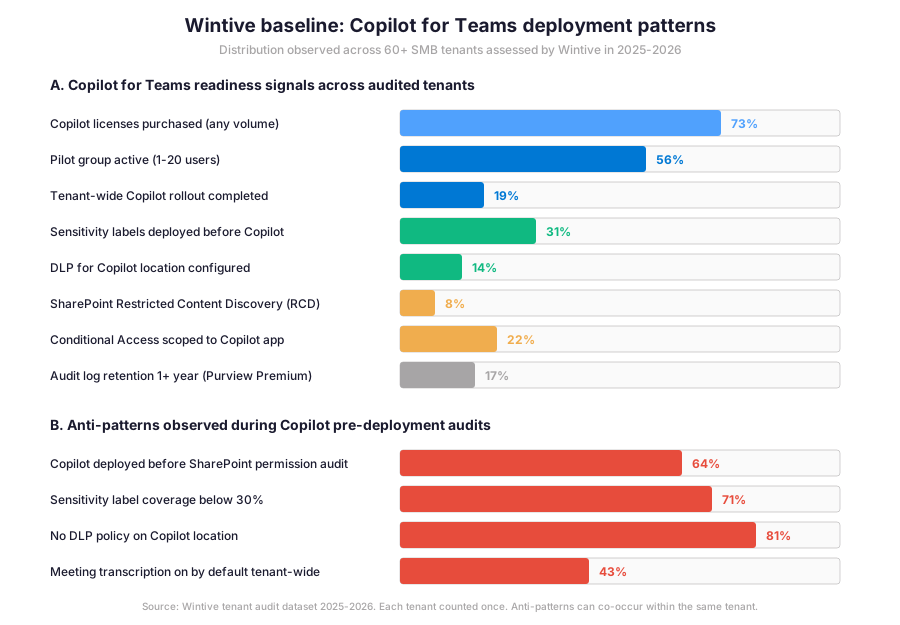
Specifically, the gap between Copilot license purchase (73%) and tenant-wide rollout (19%) is the defining operational metric for Copilot for Teams in 2026. Furthermore, the insight callout below distils what that gap means for SMB admin practice and where the typical 6-week governance sprint focuses its remediation effort.
Wintive insight
Across 60+ SMB tenants, the standout finding is the gap between licenses purchased (73%) and tenant-wide rollout (19%). Most tenants stall in the pilot phase because the governance prerequisites surfaced during pilot were larger than expected. Therefore, the Wintive Copilot for Teams playbook ships a 6-week governance sprint between license purchase and pilot, covering the SharePoint permission audit, sensitivity label deployment, DLP-for-Copilot configuration, and Conditional Access scoping for the Copilot app.
Furthermore, the anti-pattern column tells the operational truth: 64% of audited tenants deployed Copilot before completing the SharePoint permission audit, 71% sit below 30% sensitivity label coverage, 81% never configured a DLP policy on the Copilot location, and 43% have meeting transcription on by default tenant-wide without consent governance. These four anti-patterns explain most year-one incidents and most CIO escalations Wintive sees in 2026.
🚨 5 SMB Copilot for Teams deployment pitfalls
Importantly, the five pitfalls below cover the anti-patterns Wintive consistently observes during Microsoft 365 Copilot for Teams pre-deployment audits. A common mistake is assuming Copilot license activation is the rollout. Admins struggle with this gotcha because the license is only the price tag. Furthermore, comparing Microsoft Copilot governance with AWS Bedrock or Google Vertex AI shows that the Microsoft stack uniquely couples the AI assistant with the productivity suite governance plane (Purview labels, DLP, audit), which is why most SMB Copilot for Teams incidents are governance issues rather than model issues.
Copilot deployed before SharePoint permission audit
Specifically, the most common gap. Copilot inherits user permissions across SharePoint and OneDrive, so unaudited Everyone or Everyone except external users access on sensitive sites turns into instant data exposure the moment a user prompts Copilot. The Wintive remediation runs a Microsoft Graph permission report against every SharePoint site over a defined sensitivity threshold and removes broad access before pilot.
No DLP policy on the Copilot location
Therefore, 81% of audited tenants never configured a DLP policy on the dedicated Microsoft 365 Copilot and Copilot Chat location in Microsoft Purview. The fix is a baseline policy that blocks responses when prompts contain credit card numbers, US tax IDs, EU passport numbers, or custom regex matching the tenant regulated data inventory.
Sensitivity label coverage below 30%
Furthermore, sensitivity label coverage of 12% is the industry average per third-party audit data. The Wintive minimum threshold before tenant-wide Copilot rollout is 30% coverage, with auto-labelling policies running for at least two weeks to catch new content. The 80% coverage steady-state target takes 6 to 12 months in most SMB tenants.
Meeting transcription on by default tenant-wide
Specifically, transcription on by default tenant-wide creates two problems: regulatory consent issues in EU jurisdictions and over-retention of meeting content that may be subject to eDiscovery years later. The Wintive default is transcription on per request only, with Copilot summary opt-in available to organisers who explicitly enable it for a specific meeting.
No Conditional Access policy scoped to the Copilot app
Therefore, only 22% of audited tenants have Conditional Access policies that target the Microsoft 365 Copilot app specifically. The Wintive baseline policy requires multi-factor authentication, compliant device, and named-location restriction for any Copilot session, which prevents Copilot prompts from unmanaged devices and from geographies outside the tenant operating perimeter.
❓ Microsoft 365 Copilot for Teams FAQ
Microsoft 365 Copilot is sold as a $30 per user per month add-on on top of a qualifying Microsoft 365 base license. The total cost of ownership (TCO) is predictable on a per-user/month basis with annual NCE commitment, no on-prem CapEx, OpEx only. The all-in cost lands between $52 per user per month (Business Premium plus Copilot, the SMB sweet spot) and $87 per user per month (E5 plus Copilot, for regulated tenants). Frontline F1 and F3 plans do not qualify and Copilot Pro is the consumer SKU rather than the enterprise license. Annual commitment applies in NCE without monthly cancellation.
No. Microsoft 365 Copilot operates within the Microsoft 365 service boundary and customer prompts and grounding data do not train any foundation model. Copilot honours user-level SharePoint and OneDrive permissions and respects sensitivity label encryption settings. The Microsoft 365 service boundary, the Purview audit log of CopilotInteraction events, and the eDiscovery integration all confirm that customer content stays in the tenant.
The Wintive minimum threshold is 30% sensitivity label coverage before tenant-wide Copilot rollout, with auto-labelling policies running for at least two weeks to catch new content. The steady-state target is 80% coverage, which takes 6 to 12 months in most SMB tenants. Industry baseline data shows 12% average label coverage at the moment of Copilot license purchase, which is why the governance sprint between purchase and tenant-wide rollout is the defining work of Copilot for Teams admin in 2026.
More Microsoft 365 Copilot for Teams questions
In the Microsoft Purview portal under Data Loss Prevention, create a policy with the location Microsoft 365 Copilot and Copilot Chat. The policy uses Content contains plus Sensitive information types as the condition, with action Block response when matched. The Wintive baseline policy blocks responses when prompts contain credit card numbers, US tax IDs, or EU passport numbers. The role required is Entra AI Admin or Purview Data Security AI Admin.
No. Default-on transcription tenant-wide creates regulatory consent issues in EU jurisdictions and over-retention of meeting content subject to eDiscovery later. The Wintive default is transcription on per request only, with Copilot summary opt-in available to meeting organisers who explicitly enable it. Therefore, the rule is per-meeting opt-in rather than tenant-wide default-on, which keeps the governance posture clean across regions.
📚 Related Microsoft 365 Copilot reading
The complete deployment guide is at our Copilot in Microsoft Intune Admin Guide covering the Copilot Intune device targeting, the Endpoint DLP setup for Copilot output, and the Conditional Access scoping for the Copilot app.
The step-by-step rollout playbook is at our Deploy Microsoft 365 Copilot with Intune Step-by-Step Admin Guide covering license assignment, app deployment, channel governance, and the pilot to tenant-wide rollout sequence.
The complete Entra ID guide is at our Microsoft Entra ID Complete Guide covering the Suite, the Agent ID, and the Conditional Access scoping that protects the Copilot app from unmanaged devices and out-of-perimeter geographies.
The full encryption admin guide is at our Exchange Online Email Encryption guide covering Microsoft Purview Message Encryption, sensitivity labels, and how encrypted email content is filtered from Copilot grounding by default.
The 12 highest-value tasks are listed at our 12 Exchange Online admin productivity wins for 2026 covering EXO V3 PowerShell, Copilot in Outlook, and the EWS retirement timeline that affects Copilot integrations.
This tutorial covered one focused Microsoft Teams workflow. For a complete picture of how your full Microsoft 365 environment — collaboration, identity, and security — performs against best practices:
🔍 Want a complete audit of your Microsoft 365 tenant?
The Automated Tenant Health Check scans your M365 environment in under 10 minutes: license waste, security posture, MFA coverage, compliance gaps, license rightsizing opportunities. Full PDF report with prioritized recommendations delivered instantly.