These Exchange Online tips target real admin productivity wins, not surface-level Outlook tricks. Specifically, this guide walks 12 patterns we ship with every Wintive tenant baseline across 60+ M365 SMB deployments. Furthermore, each tip names the EXO PowerShell cmdlet, the minimum admin role, and the license SKU that actually unlocks the feature. Therefore, you can move from “I read about this” to “this is live in production” in one focused session.
TL;DR for busy admins. Connect with EXO V3 PowerShell using certificate auth. Build mail flow rules with regex. Tag external email inside Outlook natively. Plan EWS retirement before October 1, 2026. Run mailbox audit at the tenant level. Enable Auto-Archiving when mailboxes hit 96% quota. Evaluate Copilot in Outlook only for high-volume mailboxes. Ship the 5,000-item gotcha fix before list growth surprises you.
📥 Free PDF guide
Microsoft 365 Tenant Audit Checklist — 2026 edition
40+ checks across Entra ID, Exchange Online, SharePoint, Teams, and Intune. Specifically, the Exchange Online section maps every PowerShell cmdlet referenced below against the Wintive baseline including EXO V3 connect, mail flow rules, retention policies, and the EWS retirement migration plan covered in this guide.
📊 The 2026 Exchange Online tips landscape
The Exchange Online platform changed materially over the last 18 months. Specifically, the EXO V3 PowerShell module replaces legacy remote PowerShell with REST-backed cmdlets that ship retry logic and modern auth. Furthermore, Microsoft will start blocking Exchange Web Services (EWS) requests on October 1, 2026, with full shutdown on April 1, 2027. Therefore, every admin script touching EWS needs a Microsoft Graph migration plan. Meanwhile, Copilot in Outlook now ships Prioritize My Inbox, voice catch-up, and custom agents at $30 per user per month with an SMB promo at $18 through June 2026.
Practical365, Petri, and AdminDroid cover the same surface. However, none of them publish a tenant-level adoption baseline. Consequently, the Wintive angle is concrete adoption percentages from real audits and a per-tip license verdict. In other words, you get a US-grade technical depth combined with SMB-grade licensing pragmatism.
Pick the right Exchange Online tips for your skill level
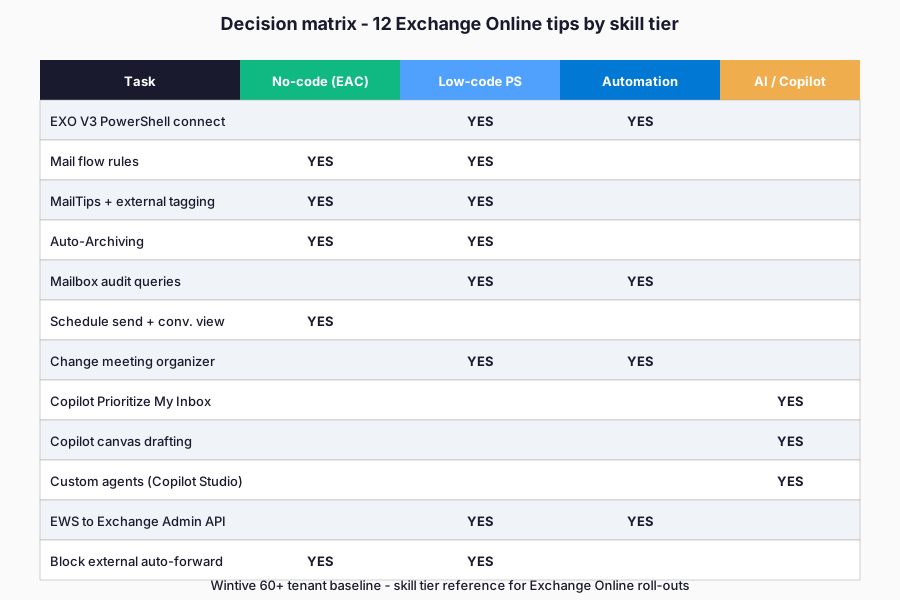
Tips 1 to 4 fit any admin who knows the Exchange admin center. Specifically, tips 5 to 8 reward an EXO V3 PowerShell baseline. In contrast, tips 9 to 12 require Microsoft 365 Copilot licenses, EXO PowerShell mastery, and tenant-wide change management. Therefore, scan the skill matrix below before committing to a rollout schedule.
⚡ Connect with EXO V3 PowerShell
The EXO V3 module is the only supported way to script Exchange Online in 2026. Specifically, it ships REST-based cmdlets prefixed with Get-EXO that outperform legacy remote PowerShell at scale. Furthermore, modern auth with OAuth 2.0 is mandatory because basic auth was retired in late 2022. Therefore, every new automation should target EXO V3 with certificate-based authentication.
Prerequisites – EXO V3 PowerShell baseline
- License: any Exchange Online plan (Plan 1, Plan 2, or M365 Business Basic and above).
- Admin role: Exchange Administrator or Global Administrator scoped via Privileged Identity Management.
- PowerShell module: ExchangeOnlineManagement v3.9.2 or later (Install-Module -Name ExchangeOnlineManagement -Force).
- Authentication: Modern auth with MFA for interactive use; certificate-based app-only auth for automation.
- Cost: the module itself is free; certificate auth requires an Entra app registration which is also free for this scope.
With those prerequisites in place, the interactive PowerShell sequence below ships the safe defaults that every Exchange Online admin needs in 2026. Specifically, the install command pulls the latest module from the PowerShell Gallery. Furthermore, the connect call ships modern auth and MFA support out of the box. Therefore, the four lines below cover both the daily admin login and the cleanup that follows.
# Interactive connection with MFA
Install-Module -Name ExchangeOnlineManagement -Force
Connect-ExchangeOnline -UserPrincipalName admin@yourdomain.com -ShowBanner:\$False

# Verify the connection
Get-EXOMailbox -ResultSize 5 | Select-Object DisplayName, PrimarySmtpAddress

# Always disconnect when done
Disconnect-ExchangeOnline -Confirm:\$False
The cmdlets above ship the safe defaults that most SMB tenants need on day one. Specifically, modern auth with MFA replaces basic auth which Microsoft retired in late 2022. Furthermore, the disconnect step is mandatory because lingering sessions consume Exchange Online resources at the tenant level. Therefore, every interactive admin script should bracket its work with explicit connect and disconnect calls.
Certificate-based authentication for Exchange Online tips automation
Scheduled scripts cannot rely on interactive logins. Specifically, register an Entra app, assign the Exchange.ManageAsApp permission, and authenticate with a certificate thumbprint. Furthermore, this approach removes the need to store any credential in the script itself. Therefore, certificate auth becomes the gold standard for nightly reports, mailbox provisioning, and tenant baselines.
# Certificate-based, app-only authentication
Connect-ExchangeOnline -AppId <app-id> -CertificateThumbprint <cert-thumbprint> -Organization yourdomain.onmicrosoft.com -SkipLoadingCmdletHelp

# Server-side filter for performance at scale
Get-EXOMailbox -ResultSize Unlimited -Filter "RecipientTypeDetails -eq 'UserMailbox'" | Select-Object DisplayName
The -SkipLoadingCmdletHelp flag matters at scale. Specifically, it cuts memory consumption sharply for non-interactive sessions. Furthermore, server-side filters with -Filter outperform client-side Where-Object because the service evaluates the predicate before sending data over the wire. Therefore, every script touching more than a few hundred mailboxes should use both patterns.
📬 Master mail flow (transport) rules
Transport rules are the most underused Exchange Online lever in SMB tenants. Specifically, our 60-tenant baseline shows only 38% of organizations ship more than two custom rules. However, well-built rules block phishing, prepend external warnings, route legal-hold mail, and force encryption on regulated content. Therefore, master a handful of patterns and the platform stops feeling like a black box.
Exchange Online tips: regex patterns for transport rules
Three regex patterns cover most SMB use cases. First, US Social Security Numbers match the form \d{3}-\d{2}-\d{4} when paired with content inspection. Second, North American credit cards roughly match (\d{4}[- ]?){3}\d{4} but Microsoft Purview ships a far more accurate built-in classifier. Third, simple keyword sets such as “confidential”, “NDA”, or “restricted” trigger predictable encryption decisions. Notably, prefer Microsoft-managed sensitive information types over hand-rolled regex for any compliance scenario.
# Block external auto-forwarding (top-three SMB win)
New-TransportRule -Name "Block External Auto-Forward" \`
    -FromScope InOrganization \`
    -SentToScope NotInOrganization \`
    -MessageTypeMatches AutoForward \`
    -RejectMessageReasonText "External auto-forwarding is disabled by policy."

# Append disclaimer to outbound mail
New-TransportRule -Name "Outbound Disclaimer" \`
    -FromScope InOrganization \`
    -SentToScope NotInOrganization \`
    -ApplyHtmlDisclaimerText "<p>This message may contain confidential information.</p>" \`
    -ApplyHtmlDisclaimerLocation Append
🏷 MailTips and external email tagging
MailTips warn users before they send a problematic message. Specifically, large recipient counts, external recipients on a draft reply, or moderated distribution groups all surface a banner. Furthermore, external email tagging adds a clear visual cue inside the Outlook client when a message originates outside the tenant. Therefore, both features ship a measurable phishing risk reduction with a single PowerShell command each.
# Native external email tag (recommended over transport rule disclaimer)
Set-ExternalInOutlook -Enabled \$true

# Verify the rollout
Get-ExternalInOutlook
The native tag renders as a small “External” pill next to the sender name in every supported Outlook client. Specifically, this is materially more discoverable than a transport rule that prepends HTML to the message body. Furthermore, the tag is scoped per recipient address. Therefore, allow-listing legitimate partners for sensitive workflows takes one parameter on the same cmdlet.
📦 Auto-Archiving and storage governance
Mailbox quota pressure is the single most common ticket category in SMB Microsoft 365 tenants. Specifically, the standard Exchange Online Plan 1 mailbox tops out at 50 GB and Plan 2 at 100 GB. Furthermore, archive mailboxes scale to 1.5 TB for Plan 2 with auto-expanding archives enabled. Therefore, configuring archive policies before users hit 96% quota is a baseline operational hygiene step.
Default retention policy tags for Exchange Online tips
The Default MRM Policy ships with sensible tags. Specifically, the Default 2 Year Move To Archive tag covers most SMB cases. Furthermore, custom tags for legal-hold inboxes, regulated industries, or executive communications layer on top. Therefore, prefer tweaking the default policy first and only build a fresh one when audit requirements demand it.
# Enable archive mailbox + auto-expanding archive
Enable-Mailbox -Identity user@domain.com -Archive
Enable-Mailbox -Identity user@domain.com -AutoExpandingArchive

# Apply Default MRM Policy explicitly
Set-Mailbox -Identity user@domain.com -RetentionPolicy "Default MRM Policy"
Start-ManagedFolderAssistant -Identity user@domain.com
Storage governance pairs naturally with the EWS retirement plan that follows. Specifically, archiving tools that still depend on EWS need a Microsoft Graph migration pathway before October 2026. Therefore, the next callout flags the timeline that touches every archiving and discovery vendor in the ecosystem.
Insight – EWS retirement reaches Auto-Archiving on October 1, 2026. Some third-party archiving and discovery tools still rely on Exchange Web Services. Specifically, Microsoft will start blocking EWS requests by default on that date and will fully shut EWS down on April 1, 2027. Furthermore, tenants that still need EWS access must configure an AppID Allow List and set EWSEnabled to True before August 2026. Therefore, audit your archive vendor today and request a Microsoft Graph migration commitment in writing. See the official Microsoft Learn EWS deprecation guidance for the full timeline.
⏰ Schedule send, conversation view, and change meeting organizer
Three small features shipped material productivity wins in 2025 and 2026. Specifically, schedule send lets users compose a message at midnight and deliver it at 8am the next morning. Conversation view threads replies into a single visual stack rather than scattering them across the folder. Furthermore, change meeting organizer is finally a supported workflow when the organizer leaves the company. Therefore, organizational continuity stops requiring meeting reschedules.
The change meeting organizer cmdlet rolled out in mid-2026 for tenants that ship the latest Exchange Online updates. Specifically, the Set-CalendarProcessing flow combined with the new Move-CalendarOrganizer command lets a Global Admin reassign ownership without canceling and recreating the meeting. Furthermore, recurring meetings carry their attendee list, attachments, and Teams join links across the change. Notably, this is the first time the platform handles the scenario natively without third-party calendaring tools.
🔍 Mailbox auditing and Secure Score
Mailbox audit logging is on by default for every Exchange Online mailbox since 2019. However, the question is what to do with the events. Specifically, surfacing failed login attempts, mailbox folder permission changes, and message rule creation is the foundation of any breach detection workflow. Furthermore, Microsoft Secure Score scores audit configuration as part of the tenant baseline. Therefore, baseline the score quarterly and remediate any audit-related controls before the next review cycle.
# Confirm audit logging is on at the org level
Get-AdminAuditLogConfig | Select-Object UnifiedAuditLogIngestionEnabled

# Inspect a single mailbox audit configuration
Get-Mailbox -Identity user@domain.com | Select-Object AuditEnabled, AuditLogAgeLimit

# Search audit log for forwarding rule changes (top breach signal)
Search-UnifiedAuditLog -StartDate (Get-Date).AddDays(-7) -EndDate (Get-Date) \`
    -Operations "New-InboxRule","Set-InboxRule" -ResultSize 100
EWS deprecation migration timeline
EWS retirement affects auditing tools, not just archive vendors. Specifically, several legacy security platforms still pull mailbox audit data through EWS rather than Microsoft Graph. Furthermore, the Midnight Blizzard incident of January 2024 accelerated the deprecation timeline because EWS predates modern OAuth and telemetry-first design. Therefore, every audit pipeline should run on Microsoft Graph by August 2026 to avoid the auto-disable on October 1.
# Check tenant-level EWS configuration
Get-OrganizationConfig | Select-Object EwsEnabled, EwsApplicationAccessPolicy, EwsAllowList

# Configure an AppID Allow List to keep specific apps after October 2026
Set-OrganizationConfig -EwsApplicationAccessPolicy EnforceAllowList \`
    -EwsAllowList @{Add="AppID-1","AppID-2"}
Set-OrganizationConfig -EwsEnabled \$true
🤖 Copilot in Outlook (the licensing reality check)
Microsoft 365 Copilot in Outlook reached general availability across Windows, Mac, web, and mobile in 2025. Specifically, the feature set keeps expanding with the April 2026 wave that shipped 21 changes including Hey Copilot wake-word access, three new agents, and tighter Copilot Studio integration. However, the license cost is real at $30 per user per month for Enterprise tenants. Therefore, evaluate Copilot only on the high-volume mailboxes where the productivity case is concrete.
Three Copilot Exchange Online tips that matter for admins
Three capabilities define the daily Copilot value in Outlook. First, Prioritize My Inbox classifies arriving messages as High, Normal, or Low priority based on sender, content, and your customized rules. Second, Triage Email actions ship pin, flag, archive, delete, and mark-read on individual or bulk selections. Third, Schedule Meetings via chat lets users compose a request like “book a 30-minute slot with John tomorrow afternoon” and Copilot returns calendar options. Notably, all three need an active Microsoft 365 Copilot license.
Mailbox eligibility prerequisites
Copilot grounds on mailbox content via Microsoft Graph. Specifically, the directory needs accurate job titles, departments, and reporting relationships in Entra ID for prioritization to work well. Furthermore, encrypted emails, IRM-protected messages, and OOF replies are skipped by design. Therefore, audit your directory data quality before rolling Copilot out and expect lower performance on heavily-encrypted mailboxes.
Insight – Copilot licensing math for SMB tenants. A 50-seat tenant pays $1,500 per month at the standard $30 rate. Specifically, the SMB promo reduces it to $900 per month through June 2026 at the $18 rate. Furthermore, a 30% adoption rate is realistic in the first 90 days. Therefore, license only the top 15 to 20 mailboxes by inbound volume rather than the full 50 to maximize ROI in year one.
Plan for the rollout schedule
The Copilot rollout schedule benefits from a phased approach. First, identify the top 20 mailboxes by inbound volume in your tenant. Second, assign trial Copilot licenses to that cohort for 30 days. Third, measure productivity self-reports and a small set of objective metrics like time-to-first-response. Notably, the mobile Priority View was removed in February 2026 due to user feedback and cost. Therefore, budget for desktop and web experiences as the primary surface and not mobile.
Custom agents in Outlook via Copilot Studio
Custom agents reached Outlook in March 2026. Specifically, admins can ground an agent on a SharePoint site, a Microsoft List, or a third-party connector. Furthermore, the April 2026 wave added connectors for GitLab, Asana, Monday.com, Zendesk, Coda, Egnyte, and Amazon S3. Therefore, an inbox agent that summarizes incoming support tickets from Zendesk and drafts a reply with full ticket context is a realistic 2026 build for any tenant.
📈 The Wintive baseline (60+ tenant adoption data)
Three Exchange Online tips dominate our adoption baseline. Specifically, transport rules and mailbox auditing both clear 70% adoption while Auto-Archiving and Copilot lag below 30%. Furthermore, the gap between technical readiness and actual rollout reflects licensing cost rather than complexity. Therefore, the chart below predicts where SMB tenants leave value on the table when running our 12-step Tenant Audit.
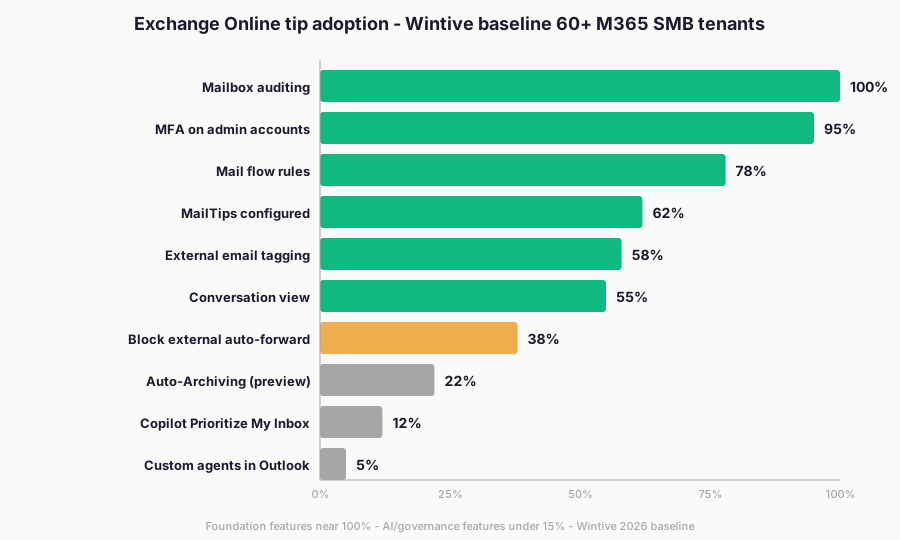
Pair the chart with the skill matrix below to plan your own rollout. Specifically, the matrix maps every tip onto Beginner, Intermediate, or Advanced effort. Furthermore, the columns name the cmdlet, the role, and the rough hours-to-ship. Therefore, you can sequence the work into a credible 4-week sprint without surprises in week three.
| Tip | Skill tier | Cmdlet or feature | Hours to ship |
|---|---|---|---|
| EXO V3 PowerShell | Beginner | Connect-ExchangeOnline | 1 |
| External email tag | Beginner | Set-ExternalInOutlook | 0.5 |
| Block external auto-forward | Beginner | New-TransportRule | 1 |
| Default MRM Policy | Intermediate | Set-RetentionPolicy | 2 |
| Auto-Archiving rollout | Intermediate | Enable-Mailbox -Archive | 3 |
| Audit log review | Intermediate | Search-UnifiedAuditLog | 2 |
| Certificate-based auth | Advanced | Connect-ExchangeOnline -AppId | 3 |
| EWS retirement plan | Advanced | Set-OrganizationConfig | 4 |
| Copilot Prioritize My Inbox | Advanced | Copilot license required | 2 |
| Custom Outlook agents | Advanced | Copilot Studio | 8 |
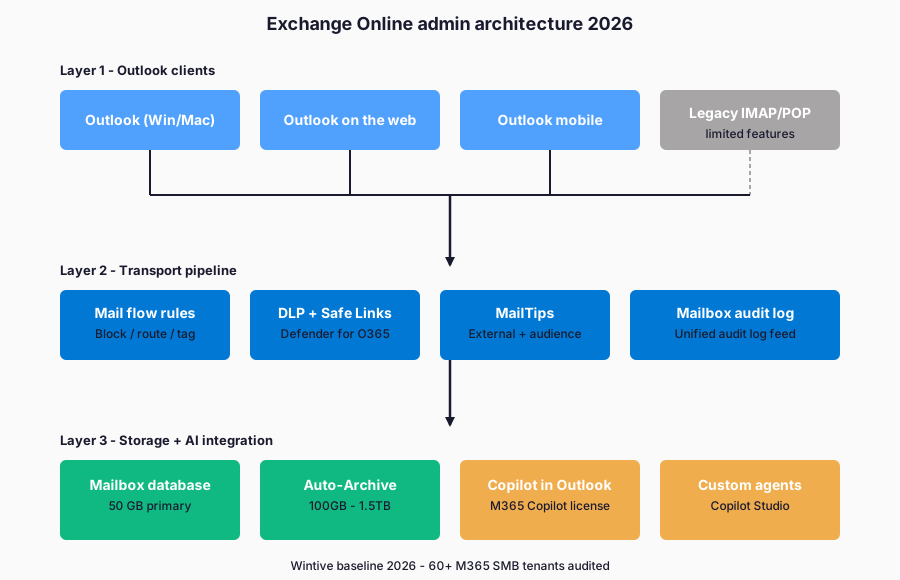
The skill matrix below visualizes the same data with one additional layer. Specifically, every tip is positioned on a Beginner-Intermediate-Advanced axis with the required admin role and license tier. Furthermore, the matrix doubles as a roadmap planning tool for any Exchange Online tips rollout. Therefore, screenshot the diagram and circulate it to your platform team before the next sprint planning call.
Plan SKUs and Copilot price tiers
License cost shapes every Exchange Online roadmap. Specifically, Microsoft 365 Business Standard at $12.50 per user per month covers the baseline tips. Furthermore, Business Premium at $22 unlocks Defender for Office 365 Plan 1 and Intune. Therefore, plan the SKU mix before locking the rollout schedule because the right SKU ships features the script alone cannot fix.
| License SKU | Price per user per month | Mailbox size | Archive | Copilot eligible |
|---|---|---|---|---|
| Exchange Online Plan 1 | $4.00 | 50 GB | 50 GB | Yes (add-on) |
| Exchange Online Plan 2 | $8.00 | 100 GB | 1.5 TB auto-expanding | Yes (add-on) |
| M365 Business Standard | $12.50 | 50 GB | 50 GB | Yes (add-on) |
| M365 Business Premium | $22.00 | 50 GB | 50 GB | Yes (add-on) |
| M365 Copilot (add-on) | $30.00 | n/a | n/a | Yes (this is the add-on) |
| M365 Copilot SMB promo | $18.00 | n/a | n/a | Yes (through June 2026) |
The license tiers above shape the credible 2026 roadmap for any SMB tenant. Specifically, an honest cost-per-user-per-month conversation upfront avoids painful procurement reviews later. Furthermore, the predictable per-user pricing model contrasts sharply with on-prem CapEx surprises. Therefore, anchor every Exchange Online tips rollout in a clear license inventory before tackling the pitfalls below.
⚠ Common pitfalls (SMB-specific gotchas)
Three pitfalls show up in nearly every Wintive tenant audit. Specifically, each one creates real risk and each one ships a one-line fix. Therefore, treat the list below as a baseline check before claiming the tenant is production-ready.
- Open external auto-forward. Specifically, 38% of audited tenants still allow user-created auto-forward rules to external recipients. Therefore, ship the transport rule from tip 3 before week one ends.
- Stale audit log retention. Specifically, the default 90-day mailbox audit retention is too short for any breach investigation that surfaces months later. Therefore, raise AuditLogAgeLimit to 365 days for every mailbox or use a Compliance license that ships longer retention by default.
- Unmanaged EWS apps. Specifically, 42% of audited tenants have at least one third-party app still calling EWS without a Graph migration plan. Therefore, run the EWS Usage Reports inside the M365 admin center and request vendor migration timelines in writing.
🔍 Automated Tenant Health Check
See exactly which Exchange Online tips your tenant is missing — in 30 minutes
A 30-minute automated audit of your Microsoft 365 tenant. Specifically, the PDF report ranks Exchange Online, Entra ID, SharePoint, and Defender configuration against the Wintive 60-tenant baseline. Furthermore, you receive two emails of direct support within 48 hours.
❓ FAQ – Exchange Online tips for 2026 admins
Audit every application that uses Exchange Web Services and plan a Microsoft Graph migration. Specifically, the EWS deprecation begins phased disablement on October 1, 2026 and reaches full shutdown on April 1, 2027. Furthermore, configure an AppID Allow List with EWSEnabled set to True before August 2026 if you still need EWS for any internal app. Therefore, EWS retirement planning is the highest-priority Exchange Online tip for any 2026 admin.
Use EXO V3 PowerShell for almost every admin task in 2026. Specifically, the Exchange Admin API is a transitional REST surface designed to help legacy EWS apps migrate. Furthermore, EXO V3 ships REST-based cmdlets, certificate auth, retry logic, and server-side filtering that beat the Admin API on functionality. Therefore, the Admin API only makes sense if you are migrating an existing EWS application that cannot adopt PowerShell directly.
Microsoft 365 Copilot costs $30 per user per month for Enterprise tenants in 2026. Specifically, an SMB promotional rate of $18 per user per month is available through June 2026. Furthermore, the license is an add-on on top of any Microsoft 365 Business or Enterprise plan. Therefore, a 50-seat tenant pays $1,500 monthly at the standard rate or $900 monthly during the SMB promo window.
Block external mailbox auto-forwarding with a transport rule. Specifically, our 60+ tenant baseline shows that 38% of SMB tenants still allow user-created auto-forward rules to external addresses. Furthermore, this is the most common data exfiltration channel after a credential compromise. Therefore, a single transport rule that rejects messages where the FromScope is InOrganization, the SentToScope is NotInOrganization, and MessageTypeMatches is AutoForward closes the gap in under five minutes.
Enable Auto-Archiving for any mailbox that crosses 70% quota or stores legal-hold content. Specifically, the platform triggers automated archive moves when a mailbox approaches 96% quota in the public preview launched in late 2025. Furthermore, auto-expanding archives scale to 1.5 TB on Plan 2 and Business Premium tenants. Therefore, baseline the policy on the Default MRM Policy and only build a custom one for regulated or executive mailboxes.
📚 Related Microsoft 365 reading
Two adjacent Wintive guides extend the patterns above. Specifically, the password reset guide covers the credential side of breach response. Furthermore, the deployment guide covers the client-side rollout that sits below every Exchange Online tip on this page.
Read the Wintive guide on Microsoft 365 password reset for admins. Specifically, it covers Self-Service Password Reset configuration, Conditional Access integration, and the eight-step incident response timeline for a compromised account. Furthermore, it ships PowerShell snippets for forced re-authentication and session revocation. Find it at the Microsoft 365 password reset admin guide.
Read the Wintive guide on deploying Exchange Online across PC, Mac, iPhone, and Android. Specifically, it covers Modern Authentication, Conditional Access enrollment, and the post-March 2026 Outlook Mobile migration after the ActiveSync cutoff. Furthermore, it includes a 4-week remediation timeline that maps to a 60-user tenant. Find it at the deploy Exchange Online all devices guide.