Setting up an out-of-office automatic reply in Office 365 ensures your contacts know you are unavailable during holidays or business trips. This guide covers how to configure your out-of-office reply in Office 365 via Outlook on the web and on iPhone.
Planning to be away during your vacation? Before you leave, you may also want to check our guide on Microsoft 365 productivity tips. Disconnect completely by setting up an automatic response to emails you receive. Provided you have a compatible email account (an account configured with Microsoft Exchange servers), an option is available directly in your email account’s configuration options. Here’s how to set up an automatic response message on Office 365, iPhone, or iPad.
🖥️By web application
First, the prerequisite is to have an Office 365 subscription such as Exchange Online or Microsoft Business. You must go to https://outlook.office.com using your username/password.
1. Parameter (cogwheel in the top right banner)

2. Click “Show all Outlook settings”:
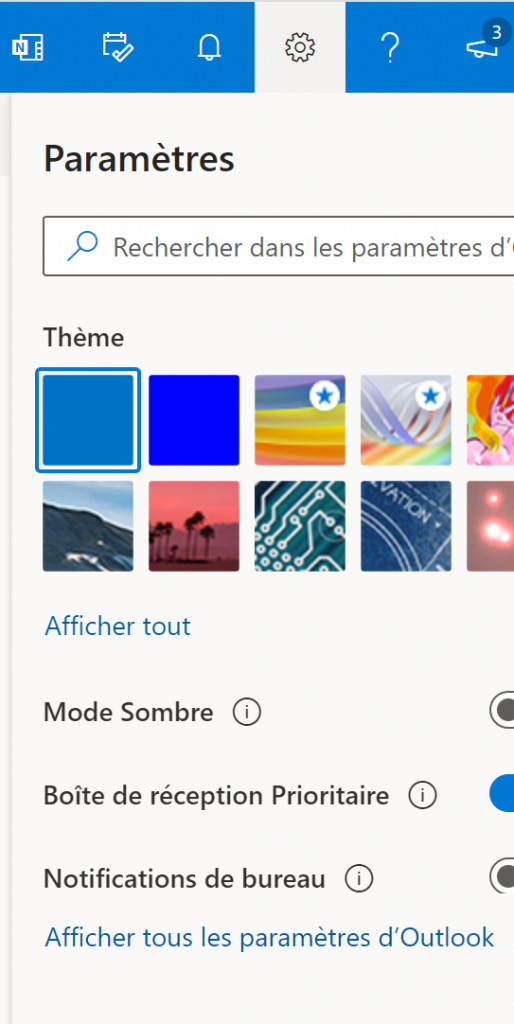
3. Go to “Mail” then “Automatic replies”
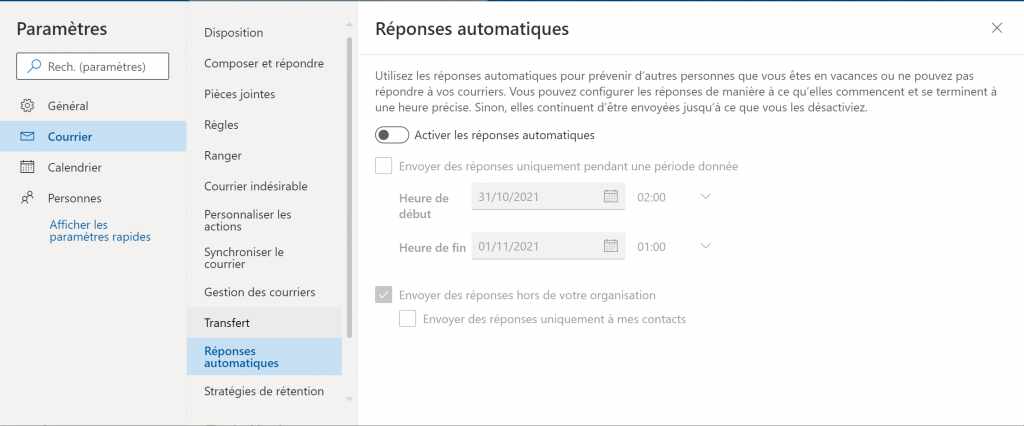
4. Toggle the switch to “On” and finally fill in an absence text in the “Send replies outside your organization” field
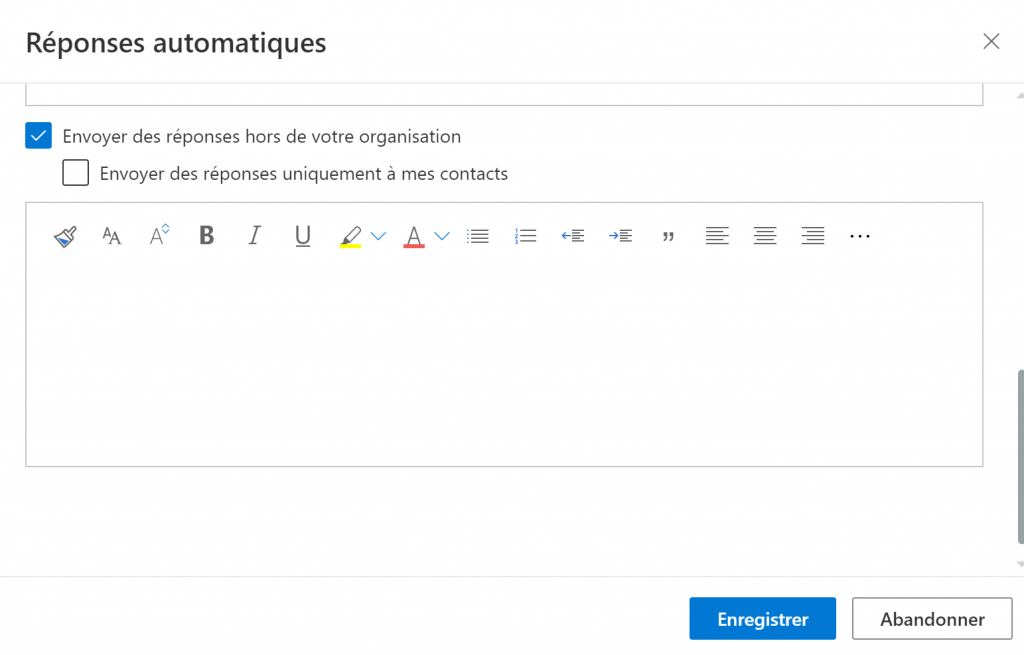
Once you have typed your message, don’t forget to click “Save”.
Tip : To save time, you can type the direct URL into your browser, namely https://outlook.office.com/mail/options/mail/automaticReplies
📱On the iPhone
1. Open Settings
Go to iOS Settings, then under Accounts & Passwords, navigate to the email account for which you want to set up an auto-reply message.
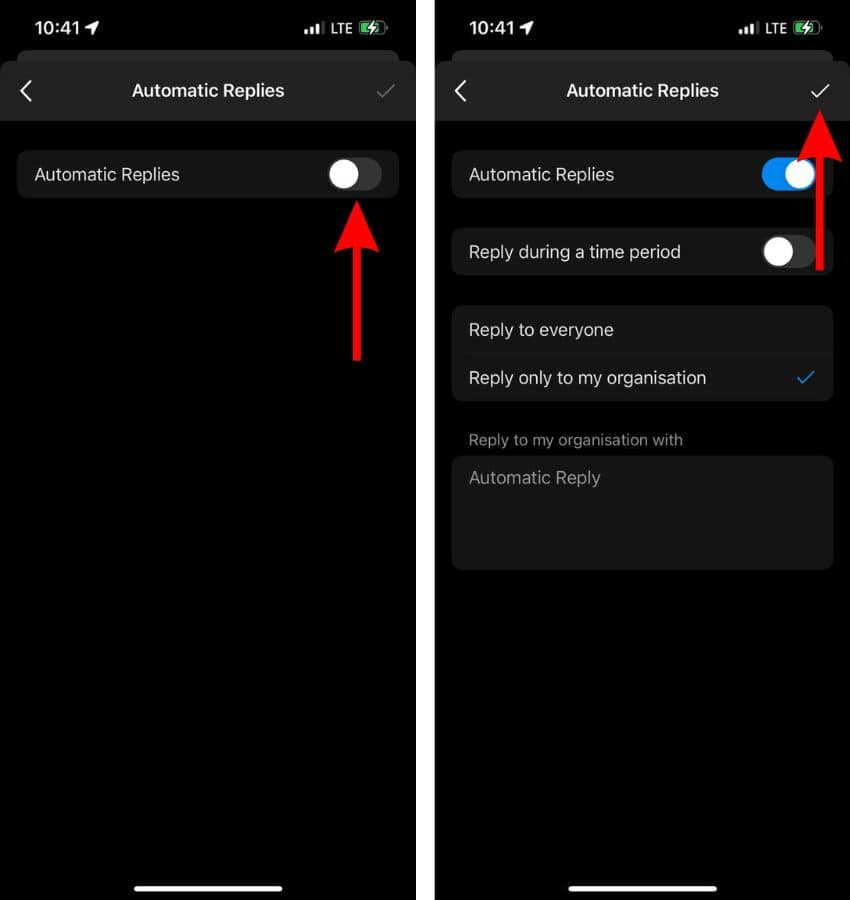
2. Enable auto-reply
At the bottom of the email account settings, enter the Auto-Reply menu, then activate the Auto-Reply function.
3. Set the duration
The auto-reply setup starts as soon as you save your Auto-Reply settings. However, iOS allows you to choose an end date that will disable auto-reply without any intervention.
Go to the End Date menu and set the date you want the feature to turn off.
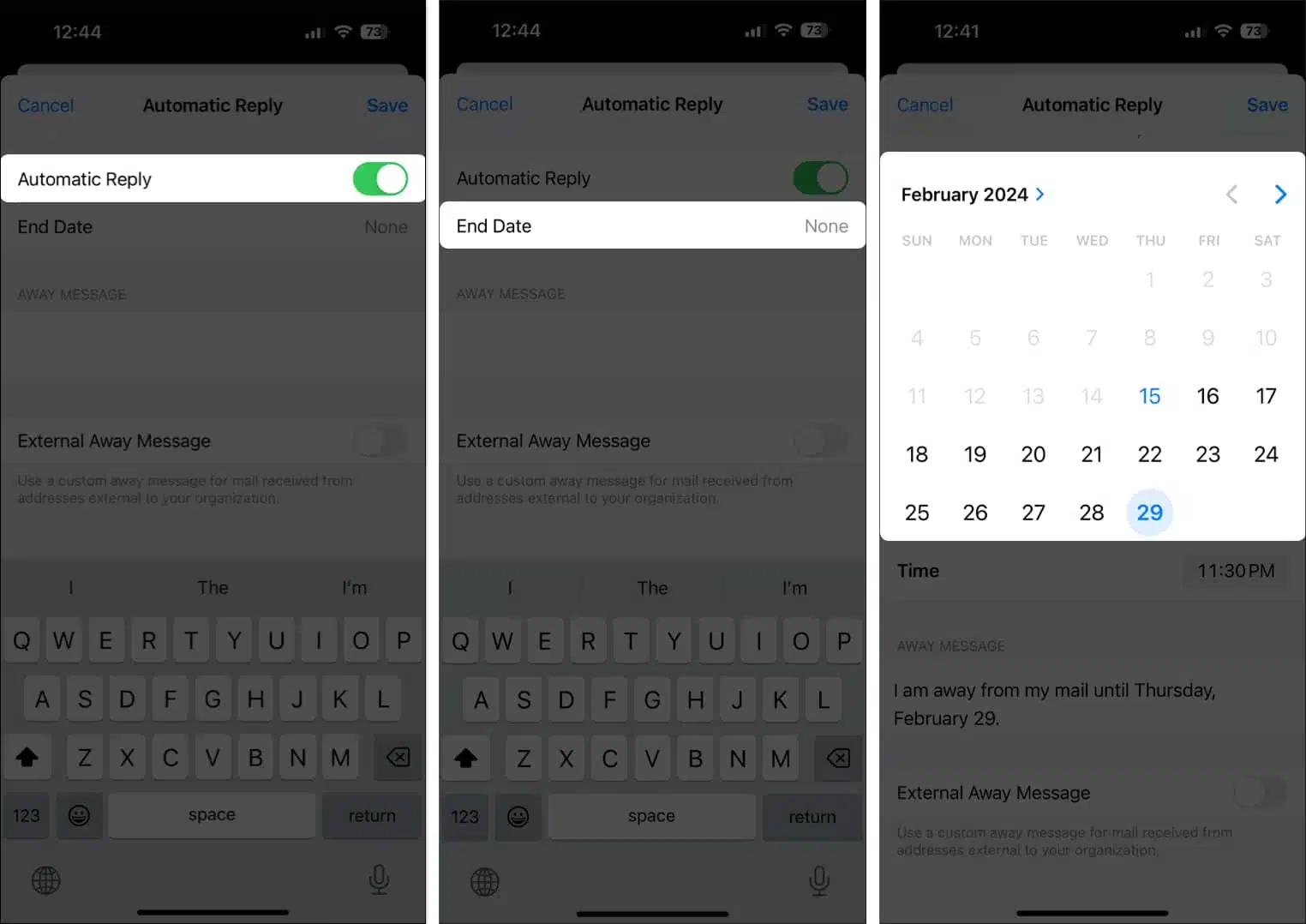
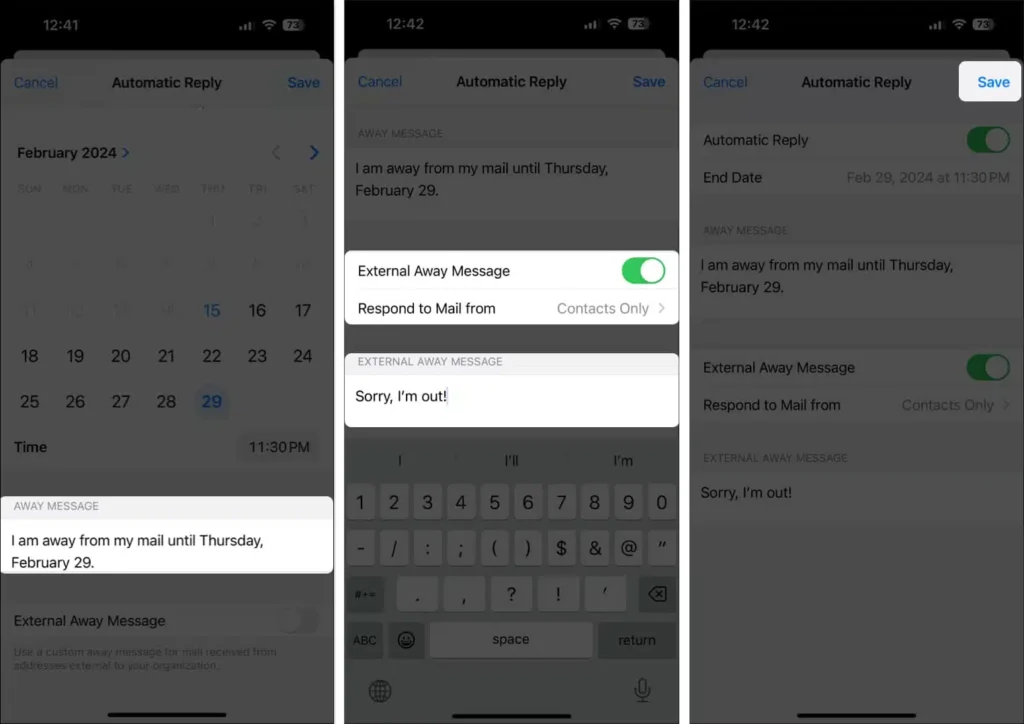
Finally, in the “Away Message” field, enter the message you want to automatically send to everyone who contacts you during your absence. Confirm by pressing Save.
Tips for Writing an Effective Out-of-Office Message
A well-written out-of-office automatic reply sets clear expectations for people who contact you. First, always include the exact dates you are unavailable. Additionally, mention an alternative contact person with their email or phone number in case of urgent matters. Furthermore, keep your message professional and concise — one or two short paragraphs is ideal. For external contacts, avoid sharing internal project details or sensitive information in your auto-reply message.
How to Disable Your Out-of-Office Reply When You Return
When you return from your absence, go back to the same Automatic Replies settings page and toggle the switch to Off. Alternatively, you can set a specific end date when configuring your reply so that Office 365 disables it automatically. Moreover, if you forgot to set an end date, you can also disable the out-of-office reply directly from the Outlook Web App settings.
📱 Need help with your Exchange Online setup or migration?
We handle Exchange migrations, mail flow configuration, and PowerShell automation for organizations of all sizes. Get in touch for a free assessment. 📅 Book a free 30-min call | 💬 Chat on WhatsApp
Configure Out-of-Office via PowerShell (Admin)
As an Exchange Online administrator, you can configure out-of-office replies for any mailbox using PowerShell — useful when a user is unavailable or has left the organization:
Set-MailboxAutoReplyConfiguration -Identity "user@domain.com" -AutoReplyState Enabled -InternalMessage "I am currently out of office." -ExternalMessage "I am out of office."Out-of-Office Best Practices
- Set separate internal and external messages — avoid sharing internal contact names with external senders
- Always include a return date and an alternative contact
- For departing employees, use a shared mailbox or forwarding rule rather than a permanent auto-reply
For more Exchange Online administration, see our top Exchange Online PowerShell commands.
Out-of-Office and Compliance
In regulated industries, auto-reply messages may be subject to email retention policies. Microsoft Purview can apply retention labels to auto-reply messages just like regular emails. Additionally, if your organization uses Exchange mail flow rules to block outbound messages, ensure that auto-replies from specific addresses are explicitly allowed to avoid blocking legitimate absence notifications. For centralized Exchange Online administration, see our Exchange Online PowerShell guide.