Knowing how to change your Exchange password in Microsoft 365 — alongside features like MFA and two-step verification — is essential for keeping your account secure. This guide covers two scenarios: changing your password when you know your current one, and resetting it after losing or forgetting it. Before you proceed, note that changing your Microsoft 365 password will require you to update it across all apps and devices.
Important Disclaimer :
This procedure requires advanced user experience. When you change your Exchange password, it will need to be changed everywhere:
- across all your Mail, Calendar, Contacts applications,
- on all your devices,
- also at the Teams, SharePoint and Azure level
Be the master of the password means having a good understanding of the implications.
Understanding Password Guidelines
Password best practices fall into a few broad categories:
- Resisting common attacks: This involves choosing where users enter passwords (trusted devices).
- Containing successful attacks: Containing successful hacker attacks involves limiting exposure to a specific service. For example, ensuring that a compromised social media account doesn’t lead to a breach of your bank account.
- Understanding human nature: Many valid password practices fail in the face of natural human behavior. Research shows that any rules imposed on users will lead to a weakening of password quality. Length requirements and special characters all lead to password standardization. This makes it easier for attackers to guess or crack them.
Change your Exchange password knowing your current password
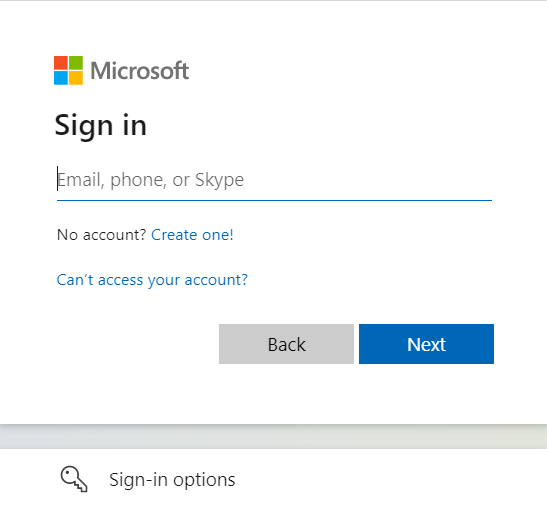
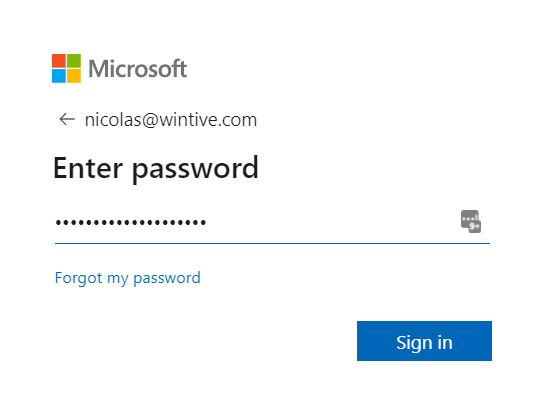
Log in using your username (email address) and password associated with the URL
https://account.activedirectory.windowsazure.com/ChangePassword.aspx
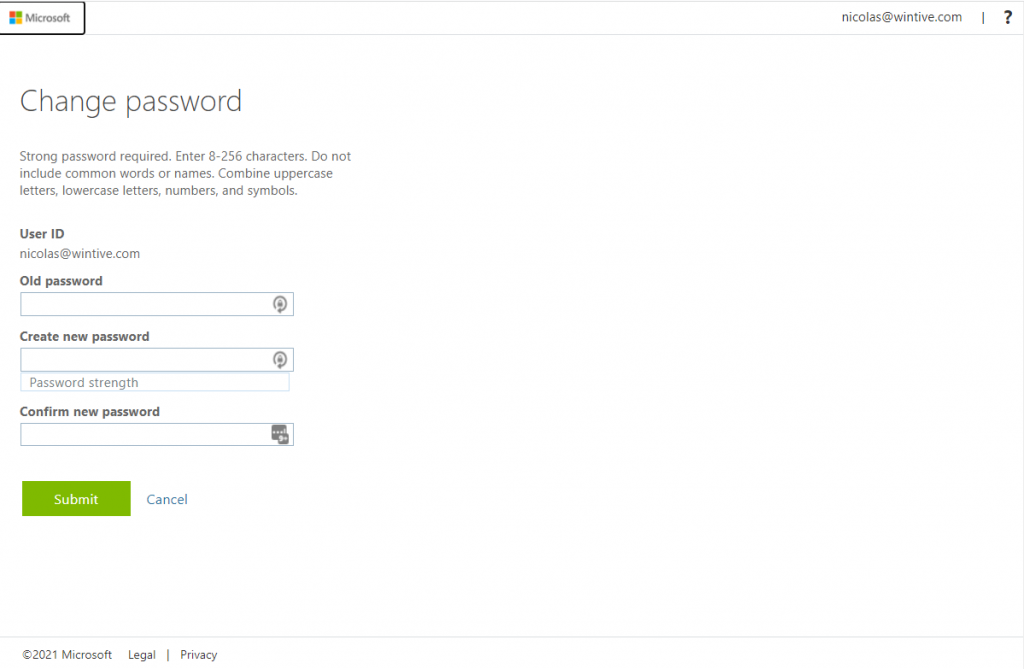
You will arrive at the page where you must enter your current password and set a new one:
Set a new password after losing or forgetting it
Log in to https://portal.office.com using your username (email address):
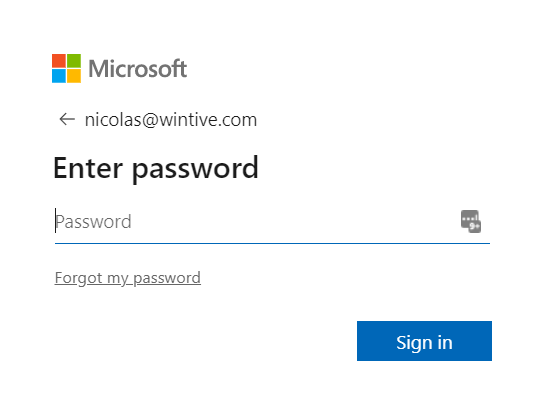
Then click on “forgot my password”
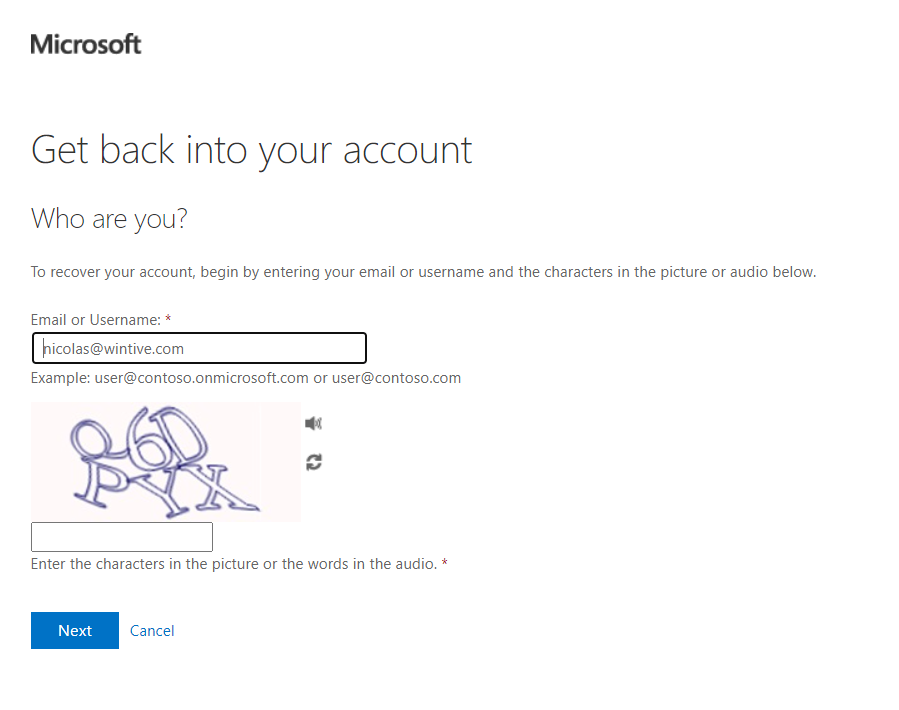
Complete the Captcha
Microsoft 365 Password Requirements
When you set a new Microsoft 365 password, it must meet the following requirements: a minimum of 8 characters, at least one uppercase letter, one lowercase letter, one number, and one special character. Furthermore, Microsoft 365 passwords expire every 90 days by default, although administrators can adjust this policy. To check or change your expiry settings, go to the Microsoft 365 Admin Center.
What to Do After Changing Your Exchange Password
After you successfully change your Exchange password in Microsoft 365, you must update it in several places. Specifically, update it in Outlook on all your devices, in the Microsoft Teams app, and in any third-party apps that connect to your mailbox. Additionally, if you use Outlook in cached mode, you may need to re-enter your credentials to reconnect. Failing to update these promptly can result in account lockouts.
📱 Need help with your Exchange Online setup or migration?
We handle Exchange migrations, mail flow configuration, and PowerShell automation for organizations of all sizes. Get in touch for a free assessment. 📅 Book a free 30-min call | 💬 Chat on WhatsApp
Change Password via Microsoft 365 Admin Center
Microsoft 365 administrators can reset any user’s password from the admin center. Go to admin.microsoft.com → Users → Active users → select the user → Reset password. You can auto-generate a password or set a custom one, and choose whether to require the user to change it on next sign-in.
Force Password Change via PowerShell
For bulk password resets or automation, use PowerShell with the Microsoft Graph module:
Update-MgUserPassword -UserId "user@domain.com" -NewPassword "NewP@ssw0rd!"Alternatively, enforce a password reset on next sign-in for all users in a group using a bulk export from the admin center. For more Exchange Online PowerShell tips, see our top 6 PowerShell commands for Exchange Online. To further secure mailboxes, configure MFA policies in Microsoft 365.
Enable Self-Service Password Reset (SSPR)
Self-Service Password Reset (SSPR) in Microsoft Entra ID lets users change or reset their own Exchange passwords without contacting the helpdesk. Enabling SSPR significantly reduces IT support tickets while maintaining security. To enable it, go to Entra admin center → Protection → Password reset → enable for all users or a specific group. Require at least two authentication methods (app notification, email code, or SMS) before a reset is permitted. See our Microsoft Entra ID guide for the full identity management context.