Learning how to deploy Exchange (Outlook) on PC, Mac, iPhone, and Android is one of the first tasks for any Microsoft 365 administrator. For password management after deployment, see changing your Exchange password. This guide covers the key benefits of the Microsoft 365 architecture for Outlook, then walks you through adding your Exchange account on each major platform including Windows, macOS, iOS, and Android.
The Microsoft 365 architecture builds on Office 365 and offers the following benefits:
- Data locality : User mailbox data adheres to Microsoft 365 data regionality commitments. In other words, user mailbox data is stored in the region where the customer is located (or mailbox in the case of a multi-site customer).
- Device ID : Each Outlook for iOS and Android login registers in the Microsoft 365 console. The latter can manage the device ID as a single login.
- Modern Authentication (OAuth) : Outlook leverages modern authentication (OAuth) to protect user credentials. Outlook authentication includes a security mechanism for accessing Microsoft 365 data without ever touching a user’s credentials. When signing in, the user authenticates directly to an identity platform (Azure AD or an on-premises identity provider like ADFS). They then receive an access token that grants Outlook access to the user’s mailbox. At no time does the service have access to the user’s password in any form.
- Enterprise Mobility + Security Suite Support : Customers can use Microsoft Enterprise Mobility Security (EMS). This enables Intune Conditional Access and App Protection policies. These policies control and protect corporate data on mobile devices.
In the Microsoft 365-based architecture, Outlook for iOS and Android uses native Microsoft synchronization technology.
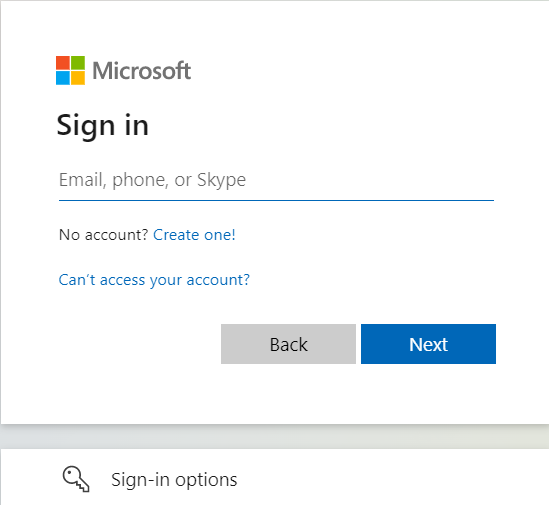
Webmail Login
Username = [your_email_address]
Password = [your_password]
Configure Outlook 2016, 2019, 2021 PC
In Outlook, go to “File” then “Add Account”
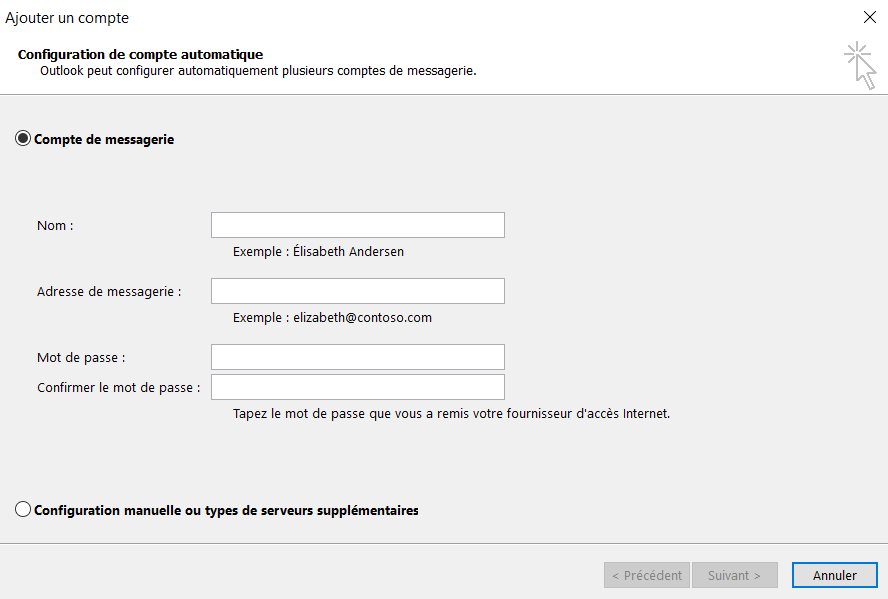
Then click next, the server settings will be detected automatically. (A Microsoft window may ask you for the password again, you will enter it.
Configure Outlook 2016, 2019, 2021 Mac
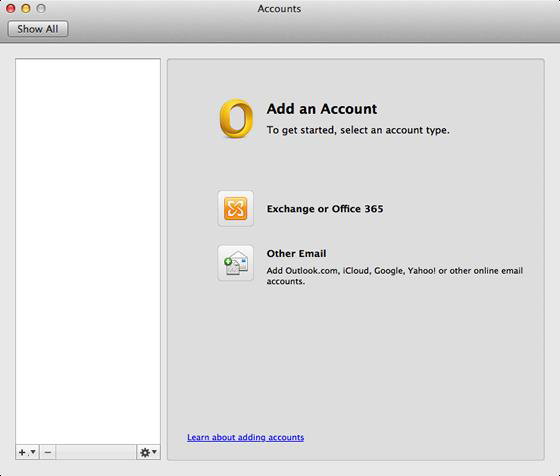
In Outlook, click on preferences then “Account”
Select Exchange Office 365
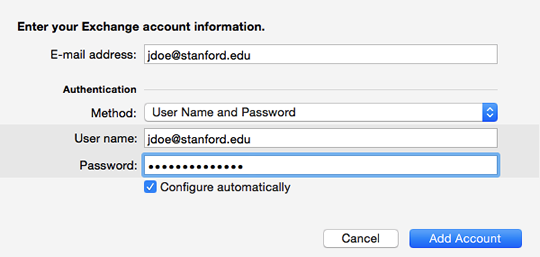
Fill in the “Username” and “password” fields:
Set up iPhone
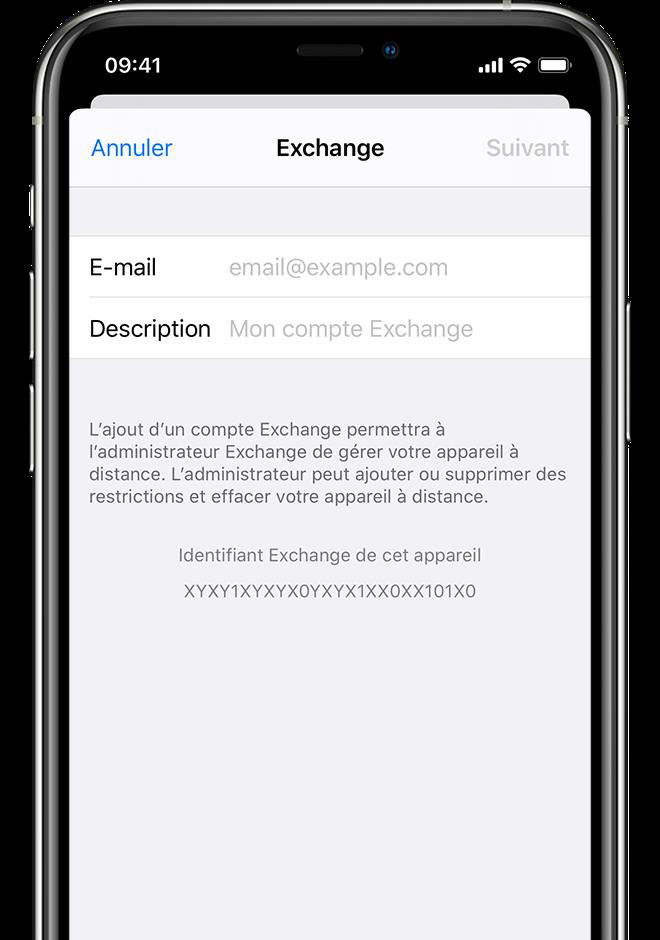
Go to Settings > Mail > Add Account > Microsoft Exchange. Enter your email address.
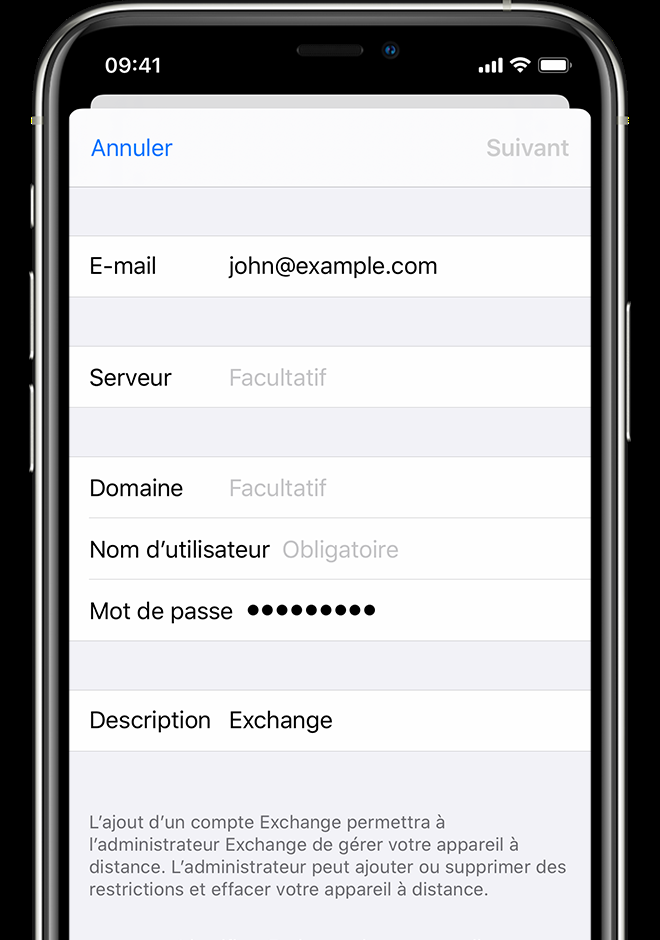
Connect to the Exchange server. The username is the email address:
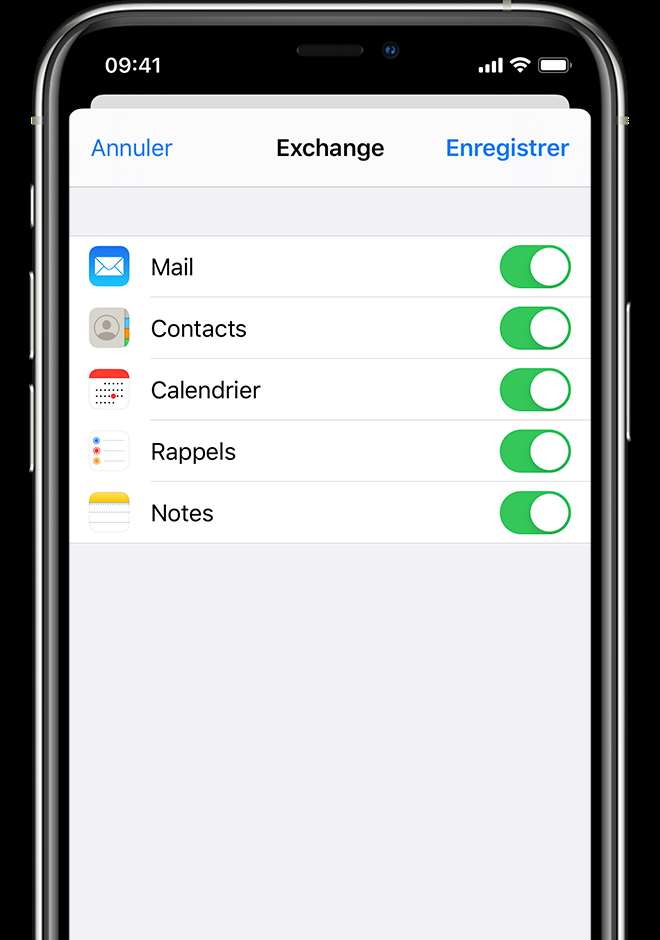
Synchronize your content:
Configure Android
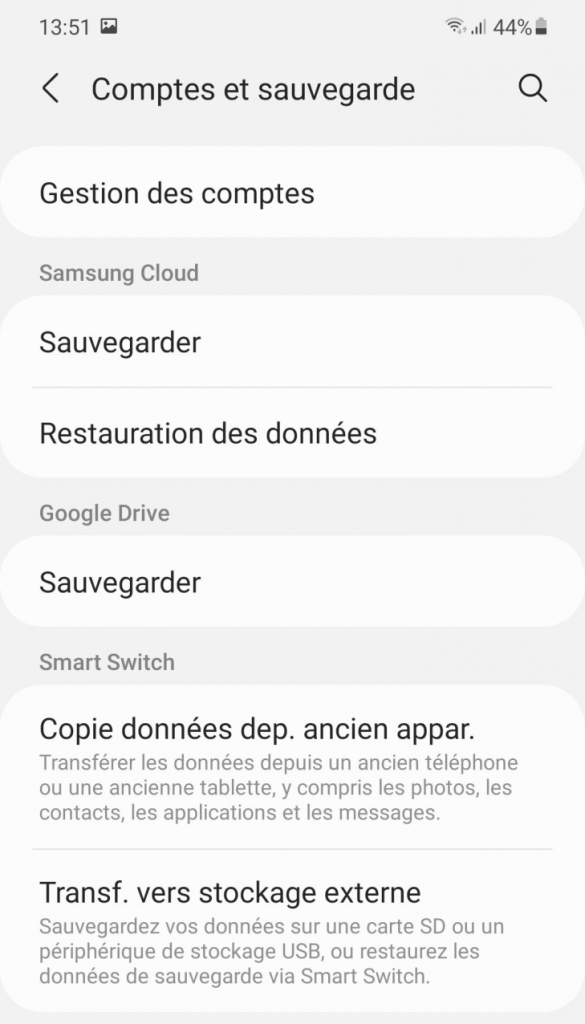
Go to “Settings” then “Accounts and backups” and finally “Account management”.
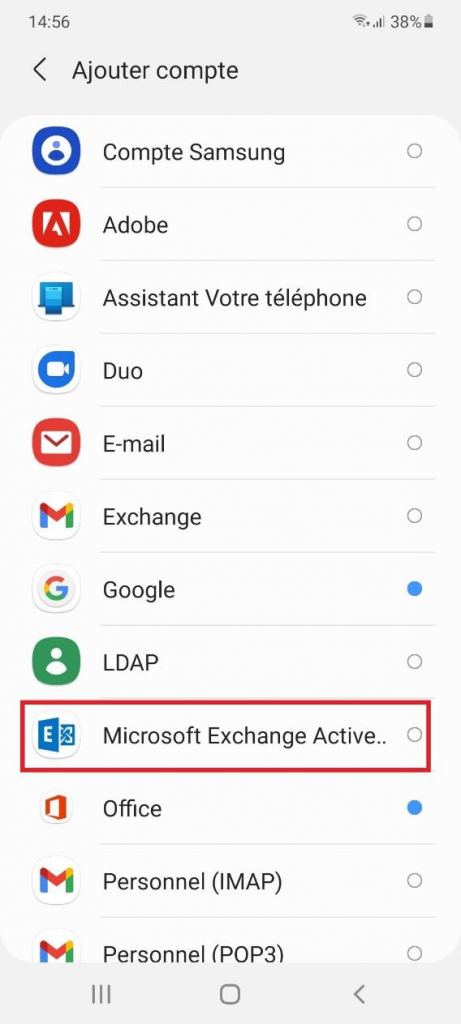
Click on “Add an account” then on “Microsoft Exchange Active..” :
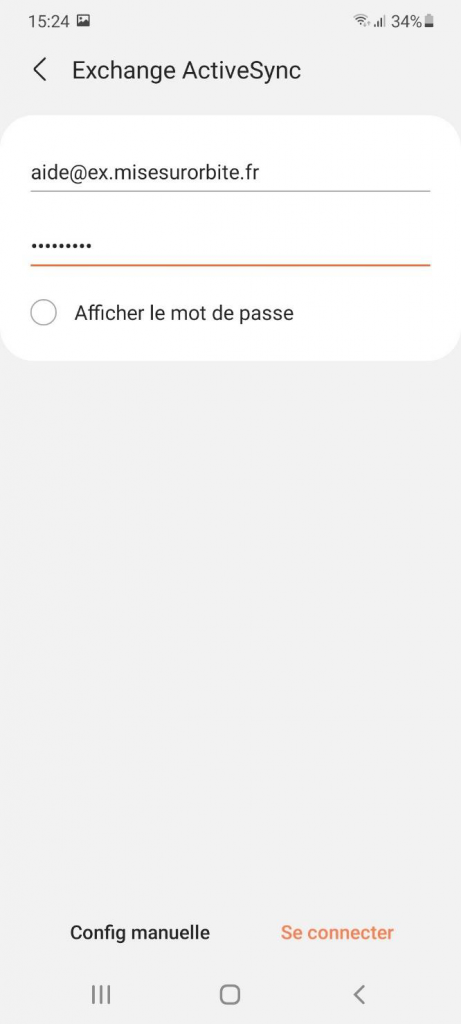
Enter your “email” , your “password” and click on “Manual configuration” :
Fill in the following fields. The server is outlook.office365.com :
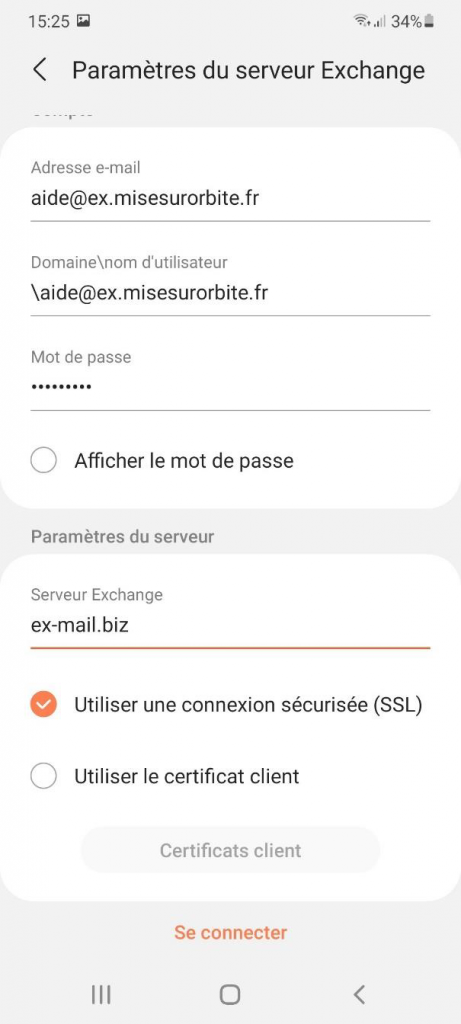
If you have the window below “Apply” security settings:

Troubleshooting Exchange Connection Issues
If Outlook fails to connect after you deploy Exchange, first verify that Autodiscover works correctly by checking your DNS records. Additionally, ensure that modern authentication (OAuth) is enabled in your Microsoft 365 tenant, as older basic authentication may be blocked. Furthermore, if you are on a corporate network with a proxy or firewall, confirm that the required Microsoft 365 endpoints are whitelisted. For mobile devices, an Intune conditional access policy may prevent enrollment if the device is not compliant.
📱 Need help with your Exchange Online setup or migration?
We handle Exchange migrations, mail flow configuration, and PowerShell automation for organizations of all sizes. Get in touch for a free assessment. 📅 Book a free 30-min call | 💬 Chat on WhatsApp
Deploy Outlook via Microsoft Intune
For organizations managing devices with Microsoft Intune, deploying Outlook to all platforms is the recommended approach. Intune lets you push the Outlook app to iOS, Android, Windows, and macOS devices silently, with a pre-configured Exchange account — users do not need to enter server settings manually. This is the enterprise-grade alternative to manual Exchange configuration. See our guide on what Microsoft Intune is for the broader endpoint management context.
Troubleshoot Exchange Connectivity Issues
- Authentication errors — ensure Modern Authentication (OAuth) runs in your Exchange Online tenant; legacy Basic Auth reached end-of-life at Microsoft in 2022
- Autodiscover failures — verify that your domain’s Autodiscover DNS record points to autodiscover.outlook.com
- Mobile device sync issues — check the ActiveSync device list in the Exchange admin center under the user’s mailbox
For more Exchange Online administration techniques, see our top PowerShell commands for Exchange Online.