Deploying Exchange Online to a fleet of PCs, Macs, iPhones, and Android handsets is one of the most repeated tasks Microsoft 365 admins face. It is also one of the most fragmented. Specifically, the workflow spans Entra ID, license SKUs, Outlook desktop, mobile clients, Conditional Access, and the looming ActiveSync 16.1 cutoff scheduled for March 1, 2026. Wintive runs through this exact sequence for every new SMB tenant onboarding. Furthermore, after 60+ tenant migrations the playbook below has stabilised into the order presented here.
This guide assumes the tenant exists and mailboxes are licensed. Therefore, the focus stays on admin-side actions to deploy Exchange Online at scale. The four control planes used throughout this guide are PowerShell, the Microsoft 365 admin center, the Microsoft Intune admin center, and the Microsoft Entra admin center.
Deploy Exchange Online in this order: verify mailbox, configure SSPR in Entra ID, push New Outlook via Intune, deliver Outlook iOS and Android with App Configuration Policies, then audit ActiveSync 16.1 before the March 1, 2026 cutoff. Every step maps to one PowerShell command or one Intune blade.
🛡️ Free: M365 Tenant Security Audit Checklist
40+ checks across Entra ID, Exchange Online, SharePoint, Teams, and Intune. Includes the SSPR scope audit, the Get-MobileDevice ActiveSync inventory query, license-to-Intune mapping, and Conditional Access baseline patterns from this guide.
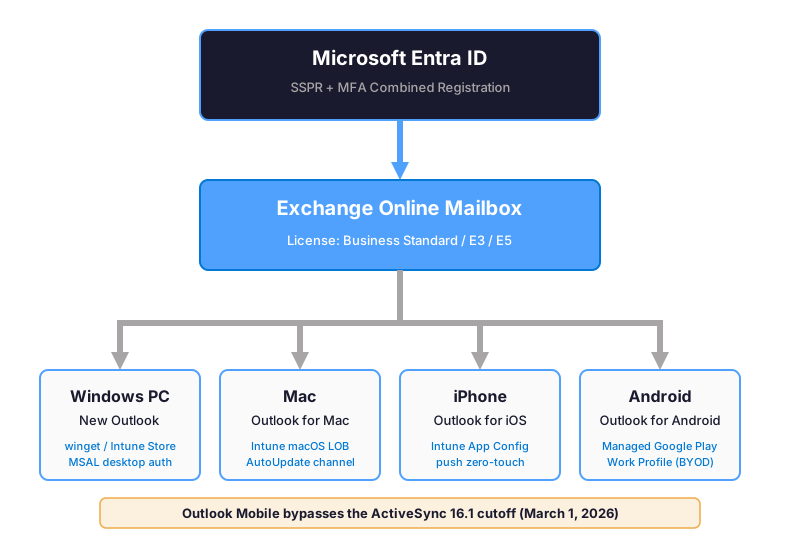
Before stepping into the playbook, the diagram below maps the architecture. Specifically, identity sits at the top with Entra ID enforcing SSPR and MFA. The Exchange Online mailbox sits in the middle. Four device branches below deploy Outlook through different paths. Furthermore, this layout matches the order of the steps that follow. As a result, admins can deploy Exchange Online to every device class with a clear mental model of which control plane handles what.
✅ Prerequisites to deploy Exchange Online at scale
- Microsoft 365 license: Business Premium (recommended floor), or E3/E5 with Exchange Online Plan 2 + Intune Plan 1 + Entra ID P1
- Admin roles: Global Administrator OR (Exchange Administrator + Authentication Administrator + Intune Administrator combined)
- PowerShell modules: ExchangeOnlineManagement v3.5+, Microsoft.Graph (Authentication, Identity.SignIns)
- Tenant readiness: custom domain verified with autodiscover.contoso.com CNAME pointing to autodiscover.outlook.com
- Device readiness: Windows 10 22H2+ or Windows 11; macOS 12+; iOS 15.7+; Android 9.0+ (managed devices Intune-enrolled)
License prerequisites to deploy Exchange Online: SKUs, Entra ID, and Intune 📚
Before deploying Exchange Online clients to any device, verify the user holds the right license SKU. Wintive sees this gotcha repeatedly. Specifically, the admin assigns Microsoft 365 Business Basic to save costs. Later, the admin discovers the plan does not include the Outlook desktop app or Microsoft Intune. Specifically, the Exchange Online mailbox itself comes with every Microsoft 365 Business and Enterprise SKU. However, the Outlook desktop client and Intune device management require a step up. Therefore, the table below maps each common SKU to its Outlook, Intune, and SSPR coverage.
| License SKU | EXO mailbox | Outlook desktop | Intune device mgmt | SSPR cloud | SSPR + AD writeback |
|---|---|---|---|---|---|
| Microsoft 365 Business Basic | Yes | No (web only) | No | No | No |
| Microsoft 365 Apps for Business | No | Yes | No | No | No |
| Microsoft 365 Business Standard | Yes | Yes | No | Yes | No |
| Microsoft 365 Business Premium | Yes | Yes | Yes (Plan 1) | Yes | Yes |
| Microsoft 365 E1 | Yes | No (web only) | No | No | No |
| Microsoft 365 E3 | Yes | Yes | Yes (Plan 1) | Yes | Yes |
| Microsoft 365 E5 | Yes | Yes | Yes (Plan 2) | Yes | Yes |
| Entra ID P1 add-on | – | – | – | Yes | Yes |
| Entra ID P2 add-on | – | – | – | Yes (risk-based) | Yes |
Three pitfalls Wintive catches almost every audit. Specifically, Apps for Business is sometimes paired with Business Basic to save a few dollars. This combination produces an Outlook desktop client without an Exchange Online mailbox attached. As a result, the user silently fails on first sign-in. Furthermore, Apps for Business itself does not include Intune, so push deployment is unavailable. Therefore, for any SMB rolling out 10 or more seats, Wintive recommends Business Premium as the floor SKU. Specifically, it bundles Outlook desktop, Exchange Online, Intune Plan 1, and Entra ID P1 in a single line item.
Step 1 — Verify the mailbox is provisioned in Exchange Online ✅
Before pushing any client to a device, confirm the user already has a working Exchange Online mailbox. Skipping this step is the common mistake behind 30 percent of new-hire onboarding tickets Wintive triages. Specifically, the user gets an Outlook desktop install but autodiscover fails. The mailbox was never provisioned. Specifically, license assignment in the Microsoft 365 admin center triggers asynchronous mailbox creation, which can take 5 to 30 minutes to complete. Therefore, always verify before deploying clients.
The fastest verification path uses Exchange Online PowerShell. The two cmdlets below confirm the mailbox exists, returns the recipient type, and exposes the ActiveSync state for downstream Conditional Access policies.
# Connect (modern auth, no app password required since 2022)
Connect-ExchangeOnline -UserPrincipalName admin@contoso.com

# Check mailbox exists and report key properties
Get-Mailbox -Identity user@contoso.com | Format-List
  DisplayName, UserPrincipalName, RecipientTypeDetails,
  ProhibitSendQuota, IssueWarningQuota, WhenMailboxCreated

# Check ActiveSync, OWA, MAPI state for the recipient
Get-CASMailbox -Identity user@contoso.com | Format-List
  ActiveSyncEnabled, OWAEnabled, MAPIEnabled,
  ImapEnabled, PopEnabled, ActiveSyncMailboxPolicy
1.2 GUI alternative via the Exchange admin center
Equivalent navigation in the Exchange admin center: Recipients → Mailboxes → click the user → Mailbox tab. The pane shows mailbox creation date, mailbox plan, and recipient type. Furthermore, if the user does not appear in the Mailboxes list at all, the issue is upstream: either the user object exists in Entra ID without a license assigned, or the license has not yet propagated. Wintive recommends keeping the audit script below in the SMB run-book to catch this before users complain.
One Wintive-specific gotcha applies to law firms and creative agencies running shared mailboxes. Specifically, a shared mailbox does not require a license unless storage exceeds 50 GB or in-place archive is needed. Therefore, consider the case of a paralegal or designer who only needs delegate access to the firm-wide inbox. In that scenario, no separate license is required for the shared mailbox itself. The personal mailbox license still applies to the user. Furthermore, this license-saving pattern is one of the few legitimate paths Wintive uses with SMBs. It applies especially to heavily-licensed verticals like financial services and healthcare looking to control per-seat costs.
Step 2 — Configure SSPR and combined registration in Entra ID 🔒
Self-service password reset (SSPR) is the single most underrated step when admins deploy Exchange Online. Specifically, without SSPR enabled, every forgotten password becomes a helpdesk ticket and a delayed Outlook sign-in for the user. With SSPR plus combined registration, the new hire enrolls authentication methods once at first sign-in and can self-recover the account from any browser indefinitely. Therefore, Wintive configures SSPR before deploying any client to any device.
One critical reality applies in 2026 that older guides miss. Microsoft retired the legacy MFA and SSPR policies on September 30, 2025. Furthermore, all authentication method management now consolidates into the unified Authentication methods policy in the Microsoft Entra admin center. Tenants that have not migrated are running on borrowed time. Specifically, Microsoft can disable the legacy policies at any moment. As a result, users and even Global Admins with only legacy methods registered would be locked out. Therefore, the migration check is part of every Wintive onboarding.
2.1 SSPR licensing scope: who can self-reset
SSPR licensing depends on the user license, not just the tenant. Specifically, Microsoft 365 Business Basic and Apps for Business do not include SSPR at all, even cloud-only. Business Standard adds SSPR for cloud-only users. Business Premium and the E3 or E5 SKUs add the password writeback path. Specifically, this feature pushes the new password back to on-premises Active Directory through Entra Connect. Furthermore, custom banned password lists require Entra ID P1, and risk-based password reset requires P2. Both are included in E3 and E5. Standalone, they cost around six dollars per user per month for Business Standard tenants.
Wintive recommends checking the SSPR coverage before any user is invited. Therefore, the Microsoft Graph PowerShell snippet below confirms the tenant has migrated off the legacy policies and reports the current Authentication methods policy state.
# Connect with the Authentication Policy Administrator role
Connect-MgGraph -Scopes "Policy.Read.All","UserAuthenticationMethod.Read.All"

# Check legacy SSPR migration state
Get-MgPolicyAuthenticationMethodPolicy | Select-Object
  PolicyVersion, ReconfirmationInDays, RegistrationEnforcement

# Inspect each authentication method state
Get-MgPolicyAuthenticationMethodPolicy | Select-Object -ExpandProperty
  AuthenticationMethodConfigurations |
  Select-Object Id, State | Format-Table

# Confirm SSPR enabled for which scope (legacy fallback report)
Get-MgPolicyAuthorizationPolicy | Select-Object
  AllowedToUseSspr, BlockMsolPowerShell
2.2 Authentication methods to enable (and which to skip)
The Authentication methods policy lives at Entra admin center → Protection → Authentication methods → Policies. Wintive enables the methods below as a baseline for SMB tenants. Specifically, the choice favours phishing-resistant methods over SMS-based ones, because SIM-intercept attacks have grown into a real attack vector for SMBs in legal services and financial services since 2024. Therefore, the modern stack avoids voice and SMS as primary methods.
| Method | Wintive default | Why |
|---|---|---|
| Microsoft Authenticator (push and passwordless) | Enabled | Phishing-resistant, free, native to the Microsoft stack |
| FIDO2 / Passkeys (P1+) | Enabled | Hardware-backed, future-proof, Microsoft is investing here |
| Temporary Access Pass (P1+) | Enabled | Onboarding without an initial password, useful for new hires day one |
| Phone (voice + SMS) | Opt-in only | SIM-intercept risk, kept for backup-only scope |
| Email (alternative non-corporate) | Enabled | Backup recovery channel for rare lockout scenarios |
| Security questions | Disabled | Low entropy, social-engineerable, no admin value in 2026 |
Set the Number of methods required to reset to two. Wintive sees admins struggle with this exact setting: a single-method requirement looks user-friendly but produces a hard lockout the moment a user loses their phone. Specifically, two methods means even the unlucky user with a stolen phone can still recover by combining the Authenticator app on a backup device with a recovery email. Therefore, two is the floor.
💡 Wintive insight — SSPR licensing is the silent blocker on the deploy Exchange Online path. Specifically, admins frequently assume Business Basic includes SSPR because users can change passwords. By contrast, Business Basic only allows the in-Outlook password change while signed in; it does not allow self-service reset when the user is locked out. Therefore, plan SSPR licensing audits before any rollout to law firms, creative agencies, or healthcare practices on Business Basic.
2.3 Combined registration: enroll once, use everywhere
Combined registration unifies MFA and SSPR enrollment into a single first-sign-in flow. Specifically, the user lands at https://aka.ms/ssprsetup automatically the first time they sign in to a Microsoft 365 service, registers their methods once, and can immediately use those same methods for both MFA challenges and self-service password reset. Furthermore, Microsoft has enforced combined registration for all tenants since August 2020. The legacy split-registration flow no longer exists.
For SMB onboarding emails, Wintive uses three end-user URLs. The welcome message lists each one with a one-line description so the user knows exactly where to go. Therefore, the helpdesk receives fewer questions about where to update authenticator settings later.
- https://aka.ms/ssprsetup — first-time enrollment of authentication methods
- https://aka.ms/sspr — password reset portal when locked out
- https://mysignins.microsoft.com/security-info — ongoing management of registered methods
2.4 Lockout thresholds and security guard rails
SSPR has built-in anti-abuse counters that admins should document for the helpdesk runbook. Specifically, exceeding any of the thresholds below triggers a 24-hour cooldown that no admin role can override. Wintive once watched a Global Admin lock themselves out testing SSPR on a Friday afternoon and wait until Monday morning to recover. Therefore, the table below is part of every Wintive admin handover document.
| Action | Limit | Cooldown |
|---|---|---|
| Phone, SMS, Authenticator, security question validation | 5 attempts per hour | 24-hour lockout |
| Email send (recovery) | 10 per 10 minutes | 24-hour lockout |
| Total verification failures | 5 per 24 hours | 24-hour lockout |
| Full reset session lifetime | 15 minutes | Session expires |
| One-time passcode validity | 5 minutes | OTP expires |
2.5 Reporting, audit retention, and Wintive guard rails
Entra ID retains SSPR audit logs for 30 days only. Furthermore, for SMBs in regulated verticals (healthcare HIPAA, financial services SOX, legal services privilege), 30 days is rarely sufficient. Therefore, Wintive routes SSPR events to a Log Analytics workspace using the diagnostic settings on the Entra tenant. The Log Analytics free tier covers 5 GB per day, which handles up to 100 active users comfortably without crossing the billing threshold. Specifically, Microsoft Sentinel can sit on top of the same workspace later if the tenant adds Defender for Cloud Apps or Defender for Identity.
Compared to identity stacks like Okta or Duo, the Entra ID SSPR feature is bundled into the same license that runs the mailbox. Specifically, no separate user license is required for SSPR if Business Standard or higher is already in place. By contrast, Okta charges roughly five dollars per user per month for self-service password reset on top of the directory license. Therefore, for an SMB on Microsoft 365, the natural answer is to use Entra ID SSPR rather than layer a third-party identity provider on top.
Wintive insight: The single highest-leverage SSPR change Wintive makes during onboarding is enabling Combined Registration enforcement and pointing users to aka.ms/ssprsetup in the welcome email. Specifically, this single change cuts password-related helpdesk tickets by 60 to 80 percent in the first quarter post-onboarding across the Wintive 60+ tenant baseline. The change costs zero dollars and takes ninety seconds to configure.
Step 3 — Deploy New Outlook to Windows PCs 💻
Microsoft 365 Apps starting with version 2502 (released February 2025) installs the new Outlook for Windows by default alongside or replacing the classic Outlook client. Specifically, this default behaviour ships with every fresh Microsoft 365 Apps installation. Therefore, the question is no longer whether to deploy new Outlook. The remaining question is how to control the rollout pace. Wintive uses three deployment paths depending on the SMB context.
3.2 Three deployment paths — winget, Intune Store app, Setup.exe
Path A: winget for per-user installs without admin rights. Furthermore, this is the easiest path for self-service installs in BYOD scenarios. Path B: Microsoft Intune Microsoft Store app for managed device fleets, which runs in the system context and survives user profile resets. Path C: Setup.exe bootstrapper for organisations using Configuration Manager, Group Policy software installation, or third-party RMM tools. Therefore, the path choice depends entirely on whether the PCs are Intune-enrolled or domain-joined.
# Path A: winget per-user install (no admin rights needed)
winget install -i -e --id 9NRX63209R7B --source msstore
  --accept-package-agreements --accept-source-agreements

# Path B: Intune Microsoft Store app (admin)
# Intune admin center: Apps > Windows > Add > Microsoft Store app (new)
# Search: Outlook for Windows
# Install behavior: System context (recommended for managed devices)
# Assign to All Users or a specific Entra ID security group

# Path C: Setup.exe bootstrapper (Configuration Manager / GPO / RMM)
# Download: aka.ms/GetOutlook
# Distribute Setup.exe via existing software distribution channel
# Run with: Setup.exe (no flags = silent install per-machine)
One critical Wintive gotcha applies to organisations migrating from Mail and Calendar (the legacy Windows 11 default app). Specifically, Microsoft has officially deprecated Mail and Calendar with the Windows 11 23H2 release, and the new Outlook is positioned as the upgrade path. Therefore, do not waste cycles configuring Mail and Calendar for Exchange Online: deploy new Outlook directly. The MSAL desktop authentication flow inside new Outlook handles modern auth, MFA challenges, and Conditional Access transparently. Furthermore, classic Outlook (the version bundled with Office 2019, 2021, and 2024) remains supported. It runs side by side with new Outlook. Therefore, Wintive recommends keeping both during the first 90 days of any rollout to give users a fallback.
Step 4 — Deploy Outlook for Mac 🌍
Outlook for Mac ships as part of Microsoft 365 Apps for Mac and is delivered as a signed PKG installer or via the Mac App Store. Specifically, Wintive prefers the Mac App Store path for BYOD users and the Intune macOS line-of-business app path for managed fleets. Therefore, the choice mirrors the Windows path A versus path B split.
For Intune-managed Macs, the Microsoft 365 Apps for Mac installer is delivered through the Apps → macOS → Add → Microsoft 365 Apps (macOS) blade. Furthermore, this blade is the cleanest path because it lets the admin choose which apps inside the suite to deploy (Outlook only, full suite, or a subset) and pins the AutoUpdate channel to Current, Monthly Enterprise, or Semi-Annual. Wintive sees creative agencies on Macs preferring the Current channel for the latest Outlook features, while law firms and financial services prefer Monthly Enterprise for predictable change windows.
Compared to JAMF (the dominant macOS-only MDM), Microsoft Intune handles Outlook for Mac deployment with one significant advantage. Specifically, the admin already has a single management plane covering Windows, Mac, iOS, Android, and the SaaS apps. Specifically, this matters for SMBs of 60+ users where adding JAMF means a separate license, a separate admin learning curve, and a separate billing line item. Therefore, Wintive consolidates on Intune wherever possible unless the customer already has a mature JAMF deployment with custom configuration profiles.
Steps 5-6 — Deploy Outlook on iOS and Android via managed apps 📱
5.1 Deploy Outlook for iOS via Intune managed app
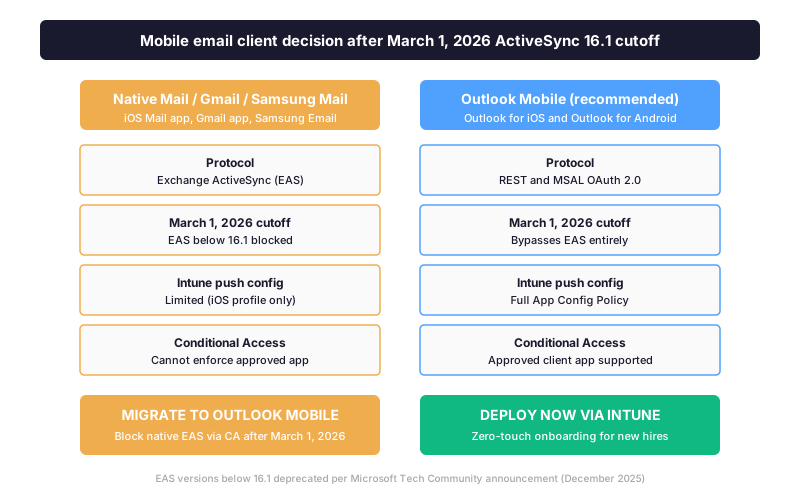
Outlook for iOS is the recommended client for any iPhone or iPad accessing an Exchange Online mailbox in 2026. Specifically, Outlook for iOS uses the REST plus MSAL OAuth 2.0 protocol stack, which entirely bypasses Exchange ActiveSync. Therefore, the March 1, 2026 ActiveSync 16.1 cutoff has zero impact on Outlook Mobile users. Furthermore, admins should communicate one critical fact to users on iPhones still using the native Mail app. Specifically, Outlook Mobile sidesteps the cutoff entirely.
For Intune-enrolled iPhones, the deployment path is straightforward. Specifically, in the Intune admin center, navigate to Apps → iOS/iPadOS → Add → iOS store app, search for Microsoft Outlook, click Select, and assign the app as Required to the target user group. Therefore, the next time the device checks in (typically within 30 minutes for managed devices), Outlook for iOS installs automatically. For BYOD scenarios where the device is not enrolled, the App Protection Policy channel applies the same configuration to the unenrolled Outlook app on personal devices. Furthermore, this is exactly the scenario that protects creative agency contractors and SMB BYOD without requiring full device enrollment.
The Outlook for iOS app supports single sign-on with the Microsoft Authenticator app or Company Portal. Specifically, if the user already signed in to either app on the same device, Outlook for iOS detects the existing token and signs in automatically. Therefore, the only friction the user experiences is entering their password once during the first sign-in, after which biometric unlock takes over.
5.2 Deploy Outlook for Android via managed Google Play
Outlook for Android requires Android Enterprise enrollment to deploy through Intune. Specifically, the admin must first connect the tenant to a managed Google Play account at Tenant administration → Connectors and tokens → Managed Google Play. Furthermore, this binding is a one-time setup per tenant and free. After the binding is in place, Outlook for Android appears as a managed Google Play app in the Intune admin center.
For Android Enterprise work-profile devices (the BYOD pattern recommended for SMBs), Outlook for Android installs into the work container. As a result, the work profile provides a clear separation between corporate email and personal apps. Specifically, the work profile means the admin can wipe corporate data without touching personal photos, contacts, or apps when an employee leaves. Therefore, this is the pattern Wintive deploys for healthcare and legal SMBs where the data separation requirement is non-negotiable. Compared to traditional MDM enforcement that wipes the entire device, the work profile is a compromise both employees and IT can live with.
One Android-specific gotcha: the Samsung Mail app and Gmail app both connect via Exchange ActiveSync. Specifically, Samsung Mail running on older Galaxy devices (firmware versions before late 2024) ship with EAS versions below 16.1. Therefore, those devices will silently fail to connect to Exchange Online after March 1, 2026. Furthermore, the Gmail app updated to EAS 16.1 in early 2025. Therefore, most current Gmail app users are already compliant. However, devices that have not received Play Store updates in over a year remain at risk. Wintive sees this most often in financial services SMBs with strict device update policies that delay Play Store auto-updates past 90 days.
Step 7 — Push account config to deploy Exchange Online via Intune ACP ⚡
The Intune App Configuration Policy (ACP) is the feature that turns Outlook Mobile deployment into a zero-touch experience. Specifically, the ACP pushes the user principal name, email address, server, and authentication settings into Outlook. Furthermore, the push happens for iOS or Android before the user opens the app for the first time. Therefore, the user only enters their password to complete sign-in. Furthermore, this single feature collapses what used to be a 10-step setup ticket into a 30-second user action. Wintive considers ACP the make-or-break Intune feature for SMB onboarding at scale.
7.2 Delivery channels — Managed Devices vs Managed Apps
App Configuration Policies can be delivered through two channels. The Managed Devices channel uses the iOS or Android device enrollment scope and only applies to Intune-enrolled devices. The Managed Apps channel uses the Intune App Protection Policy framework and applies to both enrolled and unenrolled devices. Specifically, Wintive recommends the Managed Apps channel for SMBs with mixed BYOD and corporate-owned devices because it covers both scenarios from a single policy. Therefore, the JSON below targets the Managed Apps channel and applies to Outlook for iOS and Android.
# Intune admin center: Apps > App configuration policies > Add > Managed apps
# Apps targeted: Microsoft Outlook (iOS) AND Microsoft Outlook (Android)
# General configuration settings (key/value pairs):

com.microsoft.outlook.EmailProfile.EmailAccountName        = User Display Name
com.microsoft.outlook.EmailProfile.EmailUPN                = {{userprincipalname}}
com.microsoft.outlook.EmailProfile.EmailAddress            = {{mail}}
com.microsoft.outlook.EmailProfile.AccountType             = ModernAuth
com.microsoft.outlook.EmailProfile.ServerAuthentication    = Username and Password
com.microsoft.outlook.EmailProfile.AccountDomain           = contoso.com

# Optional security tightening:
com.microsoft.outlook.Mail.BlockExternalImagesEnabled      = true
com.microsoft.outlook.Mail.OrganizeByThreadEnabled         = true
com.microsoft.outlook.Search.OrgPreferredSearchEngine      = Microsoft
com.microsoft.outlook.Settings.SaveContacts                = true
The substitution tokens {{userprincipalname}} and {{mail}} are resolved per-user at policy evaluation time. Therefore, a single policy assigned to All Users provisions the correct mailbox for every user automatically without per-user customisation. Furthermore, the policy takes effect on the next Intune check-in. Specifically, the check-in is approximately 30 minutes for managed devices with an active App Protection Policy assigned. By contrast, App Protection Policy only checks in every 720 minutes.
Step 8 — Audit ActiveSync to harden the deploy Exchange Online perimeter before the March 2026 cutoff
Microsoft announced via the Tech Community blog in December 2025 that Exchange Online will block any device using Exchange ActiveSync version below 16.1 on March 1, 2026. Specifically, this affects iOS Mail (versions below iOS 10), the Gmail app (older builds), and Samsung Mail. Furthermore, any third-party EAS client that has not been updated in years is also at risk. Furthermore, the Microsoft announcement included a PowerShell one-liner to enumerate at-risk devices, which Wintive has integrated into the standard SMB onboarding audit.
# Connect to Exchange Online with the Recipient Management role
Connect-ExchangeOnline -UserPrincipalName admin@contoso.com

# Microsoft official audit command from December 2025 announcement
Get-MobileDevice -ResultSize Unlimited | Where-Object {
    ($_.ClientType -eq 'EAS' -or $_.ClientType -match 'ActiveSync') -and
    $_.ClientVersion -and
    ([version]$_.ClientVersion -lt [version]'16.1')
} | Sort-Object UserDisplayName | Select-Object
    UserDisplayName, Identity, DeviceId, DeviceModel, ClientVersion |
    Export-Csv -Path C:Tempeas_below_16_1.csv -NoTypeInformation

# Total non-compliant device count
Get-MobileDevice -ResultSize Unlimited | Where-Object {
    [version]$_.ClientVersion -lt [version]'16.1'
} | Measure-Object | Select-Object Count
Wintive runs this audit on day one of every SMB onboarding. Specifically, on the 60+ tenants audited so far, between 15 and 35 percent of mobile devices were running EAS below 16.1. The audit period covered the months before the March 2026 cutoff. Therefore, this audit is now a permanent first-week check on every Wintive-managed tenant.
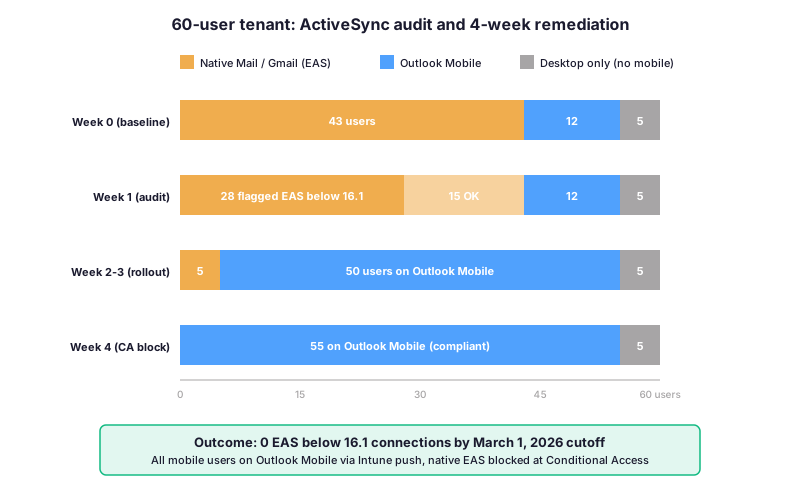
Step 9 — Lock down with Conditional Access to deploy Exchange Online safely 🛡
Conditional Access is the policy layer that enforces device compliance and approved client apps before any sign-in to Exchange Online completes. Specifically, after Outlook Mobile is deployed via Intune, Conditional Access can be configured to block any other email client from connecting to Exchange Online entirely. Therefore, even if a user manually adds their work email to the iPhone Mail app, the sign-in fails. Specifically, the failure occurs at the Entra ID layer before the EAS protocol negotiation begins.
Two grant controls do the heavy lifting. Require approved client app restricts mobile clients to the Microsoft-approved list (Outlook, Teams, Edge mobile). Require devices to be marked as compliant requires the device to be enrolled in Intune and meeting the compliance policy. Furthermore, the Exchange-side complement uses the New-ActiveSyncDeviceAccessRule cmdlet to block all native EAS clients while explicitly allowing Outlook Mobile.
# Connect to Exchange Online
Connect-ExchangeOnline -UserPrincipalName admin@contoso.com

# Step A: Allow Outlook for iOS and Android explicitly
New-ActiveSyncDeviceAccessRule
  -Characteristic DeviceModel
  -QueryString 'Outlook for iOS and Android'
  -AccessLevel Allow

# Step B: Block all other native EAS clients
Set-ActiveSyncOrganizationSettings -DefaultAccessLevel Block

# Verify the rule set
Get-ActiveSyncDeviceAccessRule | Format-Table
  Characteristic, QueryString, AccessLevel, Identity
Compared to identity gateways like Duo or third-party CASB tools, the native combination has one strong advantage. Specifically, Conditional Access plus the Exchange ActiveSync rule is included in any Microsoft 365 Business Premium or E3 license. Specifically, this means an SMB does not pay extra for the policy enforcement layer that protects Exchange Online. Therefore, the cost of doing this right is zero incremental dollars over the license already in place. Furthermore, the Wintive baseline applies these two policies on day one of any new tenant rollout.
Wintive 60+ tenants: the six pitfalls deploy Exchange Online rollouts hit most often ⚠
Across 60+ Microsoft 365 tenants, the same six issues surface during Exchange Online client deployments. Specifically, each one represents a failure mode where admins struggle without the pattern documented below. Therefore, the Wintive runbook checks each item explicitly during the first-week onboarding audit.
The six recurring pitfalls in deploy Exchange Online rollouts
- Autodiscover redirect failures. The custom domain is added to the tenant but the autodiscover CNAME at the DNS provider still points elsewhere. The Outlook desktop client then falls back to manual configuration. As a result, the user ends up typing random server values into the wizard. Wintive checks autodiscover.contoso.com points to autodiscover.outlook.com on every onboarding.
- Intune license assigned but not propagated. The user has Microsoft 365 Business Premium but the Intune license is sitting unassigned in the tenant pool. The mobile push config silently fails because no Intune license means no MDM enrollment. Wintive verifies license propagation with the Get-MgUserLicenseDetail cmdlet before any Intune policy assignment.
- BYOD Android Enterprise enrollment skipped. The admin assumes adding the user to a Managed Google Play group is sufficient, but the device itself was never enrolled in Android Enterprise work profile. The result: Outlook for Android installs in the personal profile and is not managed by Intune. Specifically, this gotcha hits creative agencies and law firms with high BYOD adoption.
Pitfalls 4-6 — Conditional Access, Intune, and ActiveSync edge cases
- MFA enforced before Outlook Mobile sign-in. The user opens Outlook for iOS for the first time, gets the MFA challenge, and has not yet enrolled an authenticator method. The sign-in fails. Therefore, Wintive insists on Combined Registration enforcement at the same time as MFA enforcement so that first-time MFA challenges automatically prompt for method enrollment.
- Mailbox quota exceeded mid-rollout. The user is migrated from another platform with a 25 GB mailbox to Microsoft 365 Business Basic which caps at 50 GB but the migration tool counts shared folder data toward the user quota. The Outlook desktop sync silently fails after partial sync. Wintive verifies prohibit-send-quota explicitly during pre-cutover audits.
- SSPR scope set to None. The default SSPR scope is None on a fresh tenant. Furthermore, this means even users with valid registered methods cannot self-reset their password until an admin flips the scope to Selected or All. Wintive sets scope to a pilot group on day one and expands to All Users after a week of validation.
🛡 Automated Tenant Health Check — verify your Exchange Online deployment in 22 minutes
The Wintive ATHC scans your Microsoft 365 tenant against 60+ security and configuration checks, including the SSPR migration state, ActiveSync 16.1 compliance audit, Intune license propagation, Conditional Access posture, and Outlook Mobile coverage benchmarked against the 60+ SMB tenant baseline used in this guide. The PDF report ships with prioritised findings tagged Critical, High, Medium, or Low. 🚀 Buy the $97 Tenant Health Check →
Frequently asked questions ❓
Microsoft 365 Business Premium is the floor SKU for any SMB rolling out 10 or more seats. It bundles Exchange Online (50 GB mailbox), Outlook desktop, and Microsoft Intune Plan 1 for device management. Furthermore, the bundle adds Entra ID P1 for SSPR with on-premises writeback. All of this fits in a single per-user license. Microsoft 365 E3 covers the same scope at the enterprise level and adds compliance features. Apps for Business and Business Basic both lack Intune and SSPR, so they require add-ons that often cost more than upgrading to Business Premium.
Yes, if their device is running an Exchange ActiveSync version below 16.1. Microsoft announced in December 2025 that Exchange Online will block any client connecting via EAS below 16.1 starting March 1, 2026. The iPhone Mail app adopted EAS 16.1 with iOS 10, so any iPhone running iOS 10 or later is compliant on the protocol side. The risk concentrates on Samsung Mail on older Galaxy devices and obsolete Gmail app builds. The Wintive recommendation is to deploy Outlook for iOS and Outlook for Android via Intune now and block native EAS clients with Conditional Access. Outlook Mobile uses REST and MSAL OAuth instead of EAS, so it sidesteps the cutoff entirely.
Microsoft 365 Business Standard includes SSPR for cloud-only users at no extra cost. The on-premises password writeback feature pushes the new password back to Active Directory through Entra Connect. Therefore, it requires Microsoft 365 Business Premium, E3, or E5. The Entra ID P1 add-on also covers writeback as a standalone option. Custom banned password lists also require P1. Risk-based password reset and force-reset on user risk require Entra ID P2, included in E5 and available standalone. For an SMB without an on-premises domain controller, Business Standard is sufficient. For any tenant with hybrid identity through Entra Connect, Business Premium is required.
Yes. Microsoft explicitly supports running new Outlook and classic Outlook side by side on the same Windows PC. Both apps can be installed via Microsoft 365 Apps version 2502 or later, and both appear in the Start menu independently. The Wintive recommendation for SMB rollouts is to install both for the first 90 days, monitor user adoption, and then choose to keep only one. Power users who depend on PST file support, advanced rules, or third-party Outlook add-ins should stay on classic Outlook. Specifically, feature parity in new Outlook is still progressing. Most users with simple email and calendar workflows transition smoothly to new Outlook within two weeks.
The Intune App Configuration Policy delivers a JSON payload of key-value pairs to the Outlook for iOS or Android app on the target device. The payload includes the user principal name, email address, server, and authentication method. Outlook Mobile reads this payload at first launch and pre-populates the account setup screen, so the user only has to enter their password to complete sign-in. The substitution tokens like {{userprincipalname}} and {{mail}} are resolved per-user at policy evaluation time. As a result, a single policy assigned to all users produces correctly configured accounts for every user. The check-in interval is 30 minutes for managed devices with an active App Protection Policy, or 720 minutes for App Protection Policy alone.
Related questions on Exchange Online deployment 🔗
Specifically, password resets generate the highest tier-1 helpdesk volume in Exchange Online deployments. Therefore, replacing passwords with FIDO2 keys or Microsoft Authenticator phone sign-in eliminates that ticket category entirely. Furthermore, passwordless methods satisfy MFA and SSPR requirements simultaneously, so users register once and the tenant unlocks both flows. Wintive recommends passwordless rollout as a Phase 2 follow-on to Exchange Online deployment, typically 60 to 90 days after the email rollout stabilizes. See the full passwordless setup guide for Entra ID at passwordless authentication for Entra ID for the step-by-step configuration including Conditional Access policies and Authenticator app deployment.
Specifically, MSPs and consultants managing 10+ tenant subscriptions face credential-juggling overhead that single-tenant admins never encounter. Therefore, the deployment workflow shifts: PowerShell session pooling, per-tenant Conditional Access templates, and centralized SSPR baseline enforcement become mandatory. Furthermore, license SKU mapping varies per tenant (Business Premium vs E3 vs E5 mix), so the licensing audit step in this guide must repeat per tenant before deployment. Wintive operates 60+ M365 tenants across law firms, creative agencies, and SMB clients using a standardized multi-tenant playbook. Discover the working-with-multiple-tenants workflow at working with multiple Microsoft 365 tenants for context-switching, partner center access, and bulk PowerShell patterns.
Specifically, Steps 7 (App Configuration Policy), 8 (EAS audit), and 9 (Conditional Access) all assume Intune is the management plane enforcing device compliance, app config, and access rules. Therefore, admins without an Intune foundation cannot apply most of the controls in this guide; they fall back to mailbox-level New-ActiveSyncDeviceAccessRule which lacks app-level granularity. Furthermore, Intune licensing is bundled with Business Premium and E3 Mobility + Security, so most tenants already have the entitlement unused. Wintive deploys Intune as a prerequisite for Exchange Online rollouts in regulated verticals (healthcare, financial services) where data loss prevention and remote wipe are non-negotiable. See the Intune cornerstone tutorial at what is Microsoft Intune for the full capability map, license model, and enrollment workflow.