Microsoft 365 password reset operations span four interfaces: the Microsoft 365 admin center, Microsoft Graph PowerShell, the Entra ID self-service portal, and on-premises Active Directory for hybrid tenants. Specifically, choosing the right path depends on the scenario (forgotten password vs compromised account vs offboarding) and the tenant topology (cloud-only vs hybrid with Entra Connect). Wintive runs through this exact decision tree for every SMB tenant onboarding. Furthermore, after 60+ tenant migrations the playbook below has stabilised into the order presented here.
This admin-side playbook covers Microsoft 365 password resets at scale: bulk operations, compromised accounts, hybrid writeback, and audit trails.
Reset Microsoft 365 passwords in this priority order. First, enable SSPR with combined registration in Entra ID for end-user resets. Second, use the Microsoft 365 admin center for one-off help-desk resets. Third, fall back to Update-MgUser PowerShell for force-change at next sign-in. Fourth, run CSV bulk scripts for offboarding and scheduled rotation. Finally, follow the eight-step compromised account playbook: disable, force-change, revoke sessions, audit forwarding, inbox rules, OAuth grants, then re-enable with new MFA. Specifically, hybrid tenants reset twice in on-premises AD to mitigate pass-the-hash, then audit every Microsoft 365 password reset via the Purview unified audit log.
Free PDF — Tenant Audit Checklist: 47 admin checks Wintive runs on every Microsoft 365 SMB onboarding. Specifically, the checklist covers SSPR posture, password protection settings, Conditional Access rules, MFA registration, and audit log retention. Download the free PDF →
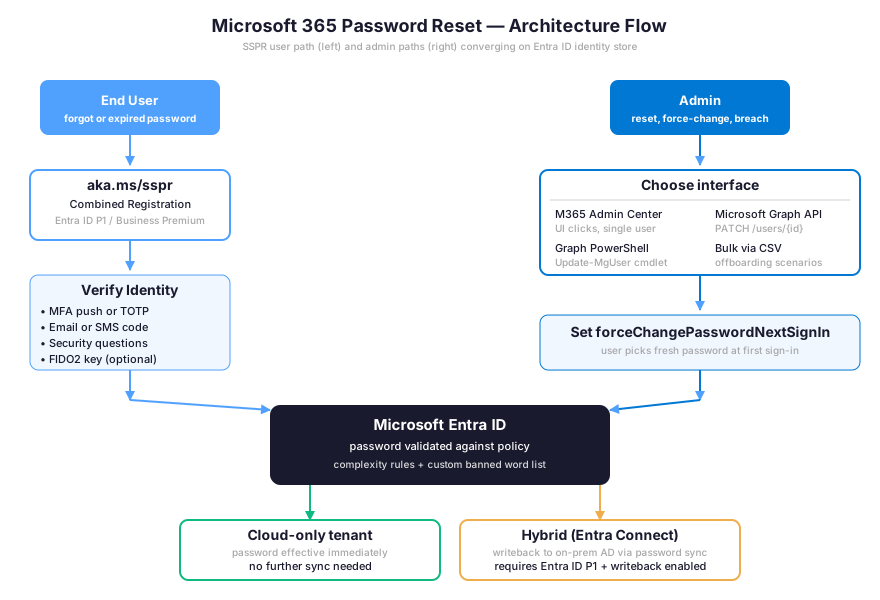
Before configuring SSPR or running PowerShell resets, review the Microsoft 365 password reset architecture below. Specifically, the diagram maps user-initiated SSPR paths on the left against admin-initiated paths on the right, then shows the convergence point where Entra ID issues the credential update. Furthermore, the hybrid versus cloud-only fork at the bottom determines whether your tenant requires password writeback to on-premises Active Directory.
📋 License prerequisites for Microsoft 365 password reset operations
With the architecture in mind, verify the prerequisites your tenant must meet before any password reset operation. Therefore, license tier and admin role assignments together determine which reset methods are actually available to your administrators. Specifically, missing one prerequisite silently disables features such as password writeback or banned password lists, and Microsoft 365 will not surface a clear error message during configuration.
Prerequisites checklist: Microsoft 365 Business Standard (cloud SSPR only) or Business Premium (cloud + on-prem writeback). Specifically, Entra ID P1 covers password writeback to Active Directory, custom banned password lists, and smart lockout. Entra ID P2 adds risk-based password reset for risky sign-ins. Furthermore, an admin account with Authentication Administrator, User Administrator, Global Administrator, or Privileged Authentication Administrator role is required for force-change operations. The Microsoft Graph PowerShell SDK (Microsoft.Graph module 2.0+) replaces the deprecated MSOnline and AzureAD modules.
License-tier feature support across SKUs
The license tier dictates which password operations are available to the tenant. Therefore, the table below maps SKU to feature support across the Microsoft 365 password ops surface, based on Wintive baseline observations across SMB tenants.
License tier directly controls which password operations a tenant can perform. Specifically, the matrix below maps each Microsoft 365 SKU to its supported reset methods so administrators can identify upgrade paths when a feature is missing from their current plan.
| License SKU | SSPR (cloud) | Password writeback | Custom banned passwords | Risk-based reset |
|---|---|---|---|---|
| Apps for Business | No | No | No | No |
| Business Basic | No | No | No | No |
| Business Standard | Cloud only | No | No | No |
| Business Premium | Yes | P1 included | P1 included | Needs P2 |
| Microsoft 365 E3 | Yes | P1 included | P1 included | Needs P2 |
| Microsoft 365 E5 | Yes | P2 included | P2 included | P2 included |
| Entra ID P1 standalone | Yes | Yes | Yes | No |
| Entra ID P2 standalone | Yes | Yes | Yes | Yes |
One Wintive gotcha: many SMB tenants on Apps for Business or Business Basic try to enable SSPR and discover the feature is silently unavailable. Specifically, the SSPR toggle in the Entra admin center accepts the configuration silently. However, registration emails are never sent and the aka.ms/sspr URL returns an unsupported license error. Therefore, before deploying SSPR check the tenant license inventory using Get-MgSubscribedSku.
📊 Step 1 — Decision matrix: SSPR, admin center, PowerShell, or hybrid AD reset
The first decision before touching any password is choosing the right interface for the scenario. Specifically, the same Microsoft 365 password reset operation can be done five ways, but only one is the right path per scenario. Furthermore, getting the wrong path costs time and creates audit gaps. Wintive uses the matrix below to route every help-desk ticket without thinking.
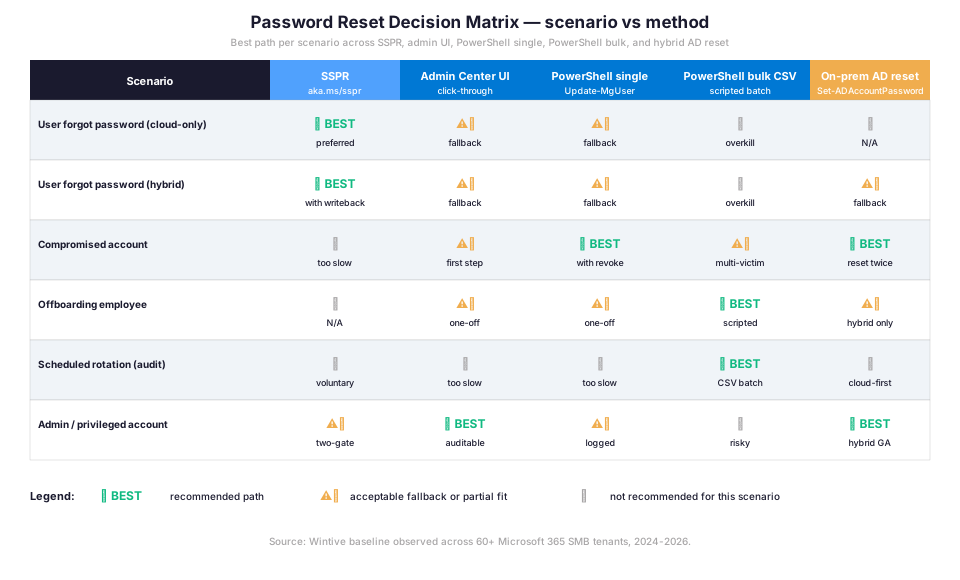
Three rules stand out in this matrix. Specifically, end-user forgotten passwords belong to SSPR (no help-desk ticket required, scales to zero IT touches). Therefore, prioritize SSPR registration during onboarding so users are ready before they need it. Furthermore, compromised accounts always go through PowerShell (Update-MgUser plus Revoke-MgUserSignInSession), never through the admin center UI alone, because the UI does not revoke active access tokens. Finally, scheduled rotation for compliance audits (HIPAA 164.308, PCI DSS 8.3) requires CSV bulk PowerShell because the admin center does not support batch operations.
One competitor comparison worth flagging: Okta and Duo offer similar self-service password reset tooling, but neither integrates writeback to on-premises Active Directory the way Entra Connect does. Therefore, hybrid SMBs running Microsoft 365 with on-prem domain controllers stay with Entra ID SSPR plus password writeback. This holds even when Okta or Duo is the primary SSO surface for SaaS apps.
🔐 Step 2 — Configure SSPR with combined registration in Entra ID
Self-service password reset (SSPR) is the highest-leverage control to deploy first because it eliminates 30 to 50 percent of help-desk tickets in the typical SMB tenant. Specifically, SSPR allows users to recover their account using pre-registered authentication methods (MFA push, phone OTP, email, security questions) without involving IT. Furthermore, SSPR is bundled with Business Premium and E3 at no extra cost, so the only barrier is configuration.
2.1 Enable SSPR for the entire tenant or a target group
Open the Microsoft Entra admin center and navigate to Identity → Protection → Password reset. Specifically, the Properties tab toggles SSPR to None, Selected, or All. Wintive recommends Selected scoped to a security group named SSPR-Enabled-Users for the first 30 days of a rollout, then flipping to All once registration completion exceeds 90 percent. Therefore, scoping by group lets the help desk pilot SSPR with a willing cohort before broad rollout.
# Enable SSPR for the default user role via Microsoft Graph PowerShell
Connect-MgGraph -Scopes "Policy.ReadWrite.Authorization"
Import-Module Microsoft.Graph.Identity.SignIns

$params = @{ allowedToUseSSPR = $true }
Update-MgPolicyAuthorizationPolicy -BodyParameter $params

# Verify SSPR is enabled for the default user role
Get-MgPolicyAuthorizationPolicy | Select-Object AllowedToUseSspr

# DISABLE SSPR for administrators (Wintive recommended for privileged accounts)
# Uses two-gate policy by default; explicit disable hardens privileged identity
$paramsDisable = @{ allowedToUseSSPR = $false }
# WARNING: this disables SSPR globally including for users
# For admin-only scoping use Conditional Access user risk policies instead
2.2 Authentication methods (one-gate vs two-gate)
SSPR requires users to verify their identity using authentication methods registered in advance. Specifically, Microsoft Entra ID supports six methods. Available options include Microsoft Authenticator (push and TOTP), mobile phone (SMS or call), office phone, email, security questions, and FIDO2 keys for passwordless flows. Furthermore, the policy can require one gate (single method) or two gates (two distinct methods) to complete a reset. Wintive baseline configures two gates for all SMB tenants because the one-gate policy is one-factor and identical to the original sign-in security level.
| SSPR setting | Wintive baseline (SMB) | Rationale |
|---|---|---|
| Methods required to register | 2 | Two-gate policy needs two registered methods |
| Methods required to reset | 2 | One method is single-factor identical to sign-in |
| Authentication methods enabled | Mobile app, mobile phone, email | Avoid security questions (low entropy) |
| Office phone | Disabled | Voice phishing risk for VoIP-routed numbers |
| Number of days before users register again | 180 days | Forces method refresh twice per year |
| Notify users on password reset | Yes | Email alert for the user surfaces account hijack attempts |
| Notify all admins when other admins reset their password | Yes | Detection signal for admin compromise |
2.3 Combined registration via aka.ms/setupsecurityinfo
Combined registration is the unified portal where users register both their MFA methods and their SSPR methods in a single flow. Specifically, the URL aka.ms/setupsecurityinfo handles registration. The URL aka.ms/sspr handles password reset. Finally, aka.ms/mysecurityinfo lets users edit their methods after the fact. Therefore, point users to the registration URL during onboarding and bookmark the reset URL on company devices. Wintive observed that registration completion improves by 25 to 40 percent when these URLs are surfaced in the new-hire welcome email instead of buried in IT documentation.
🖱 Step 3 — Reset a Microsoft 365 password from the admin center
The Microsoft 365 admin center is the path of least resistance for one-off help-desk resets when SSPR is unavailable or registration is incomplete. Specifically, navigate to admin.microsoft.com → Users → Active users, find the target user, click their name to open the details pane, and select Reset password. Furthermore, the dialog offers two options: auto-generate a temporary password (Microsoft creates a 12-character random string shown one time only) or specify a custom password. The Wintive recommendation is auto-generate plus the Require this user to change their password when they first sign in toggle.
One critical Wintive gotcha for the help desk: never email the temporary password as plain text. Specifically, common mistake is sending the temp password through Outlook to the user, leaving the credential in mailbox archives, server-side rules, and potentially DLP audit logs. Therefore, hand off the temporary password through a side channel only. Acceptable channels include a secure messaging app (Signal, Microsoft Teams direct chat with retention disabled), a one-time-link service (1Password, Bitwarden Send), or in person. Furthermore, the temp password is valid for the user to change at first sign-in. After the change, the password is invalidated, so the exposure window is narrow but still measurable.
For tenants integrated with Conditional Access, password resets do not bypass CA policies. Therefore, the user signing in with the new temporary password still satisfies the require MFA grant control if the policy is configured. This is the desired behaviour. Wintive verifies it for every help-desk hand-off across financial services and healthcare SMBs. Specifically, compliance frameworks like HIPAA 164.312(d) and SOC 2 CC6.1 require post-reset re-authentication with MFA.
⚡ Step 4 — Force password change at next sign-in with PowerShell
The Microsoft 365 admin center UI lets the help desk reset and force a change in two clicks. However, it does not scale beyond one user at a time and produces noisy audit log entries. Specifically, PowerShell with the Microsoft Graph SDK lets the admin force a password change without resetting the existing password. This is the cleanest path when the goal is to require the user to pick a fresh password without disclosing a temporary one. Furthermore, this is the recommended PowerShell pattern for compliance-driven scheduled rotation and post-incident hardening.
# Force a single user to change password at next sign-in (no reset of current)
Connect-MgGraph -Scopes "User.ReadWrite.All"
Import-Module Microsoft.Graph.Users

$upn = "alice@contoso.com"
$passwordProfile = @{
    ForceChangePasswordNextSignIn        = $true
    ForceChangePasswordNextSignInWithMfa = $false  # set to $true to require MFA at change
}

Update-MgUser -UserId $upn -PasswordProfile $passwordProfile

# Verify the flag was set
Get-MgUser -UserId $upn -Property PasswordProfile | Select-Object -ExpandProperty PasswordProfile

# Reset password AND force change at next sign-in (single operation)
$newPwd = ConvertTo-SecureString "TempP@ssw0rd-2026!" -AsPlainText -Force
$resetProfile = @{
    Password                      = ConvertFrom-SecureString $newPwd -AsPlainText
    ForceChangePasswordNextSignIn = $true
}
Update-MgUser -UserId $upn -PasswordProfile $resetProfile
The flag ForceChangePasswordNextSignInWithMfa is a Wintive favourite for hybrid scenarios. Specifically, setting it to true forces the user to re-authenticate with MFA before changing their password. Therefore, this closes a gap where an attacker with stolen credentials but no MFA could still trigger a password reset flow. Therefore, for any compromised account or post-breach hardening, set both flags to true. Furthermore, this combination is what the Microsoft Defender for Office 365 incident response playbook recommends in the Microsoft Learn documentation.
📦 Step 5 — Reset passwords in bulk for offboarding, breach response, or scheduled rotation
Three SMB scenarios require bulk Microsoft 365 password reset operations. Specifically, three scenarios drive bulk operations. First, offboarding scenarios cover a department layoff, a project end, or an acquisition close. Second, breach response forces a change for all users in the affected security group after a phishing incident. Third, scheduled rotation handles compliance audits requiring quarterly password updates. Furthermore, the admin center UI does not support batch operations, so PowerShell with a CSV input is the only path. Wintive uses the script below as a baseline template for all bulk operations.
# Bulk force-password-change from CSV (one UPN per line)
# CSV format: a single column named UserPrincipalName
Connect-MgGraph -Scopes "User.ReadWrite.All","AuditLog.Read.All"

$csvPath  = "C:\Wintive\bulk-force-change.csv"
$logPath  = "C:\Wintive\bulk-force-change-log.csv"
$users    = Import-Csv -Path $csvPath
$results  = @()

foreach ($row in $users) {
    $upn = $row.UserPrincipalName.Trim()
    try {
        $passwordProfile = @{
            ForceChangePasswordNextSignIn        = $true
            ForceChangePasswordNextSignInWithMfa = $true
        }
        Update-MgUser -UserId $upn -PasswordProfile $passwordProfile -ErrorAction Stop
        $results += [PSCustomObject]@{ UPN = $upn; Status = "OK"; Timestamp = Get-Date }
        Write-Host "OK: $upn" -ForegroundColor Green
    }
    catch {
        $results += [PSCustomObject]@{ UPN = $upn; Status = "FAIL: $($_.Exception.Message)"; Timestamp = Get-Date }
        Write-Host "FAIL: $upn - $($_.Exception.Message)" -ForegroundColor Red
    }
}

$results | Export-Csv -Path $logPath -NoTypeInformation
Write-Host "Done. Log written to $logPath" -ForegroundColor Cyan
The script logs every operation with a timestamp for audit purposes. Specifically, the output CSV becomes evidence for SOC 2 compliance audits requiring proof that scheduled password rotation actually executed. Therefore, retain bulk-force-change logs for the standard 90-day retention minimum, or 7 years for healthcare tenants subject to HIPAA. Furthermore, the same script template handles offboarding when the input CSV is the list of departing employees. Specifically, the force-change locks them out of mobile sessions while HR completes the offboarding workflow.
Hybrid batching gotcha for tenants over 300 users
One critical Wintive gotcha applies to bulk operations against hybrid tenants. Specifically, force-changing 200 cloud passwords simultaneously creates a writeback queue back to on-premises Active Directory through Entra Connect. Therefore, the on-prem domain controllers may experience 5 to 15 minutes of writeback lag. During the lag window, the user can sign in to cloud apps with the new flag, but on-prem AD-bound apps still require the old password (Wi-Fi 802.1X, file shares, RDP gateways). Wintive recommends batching bulk operations in groups of 50 with a 5-minute delay between batches for hybrid tenants over 300 users.
🚨 Step 6 — Compromised account incident response: 8-step playbook
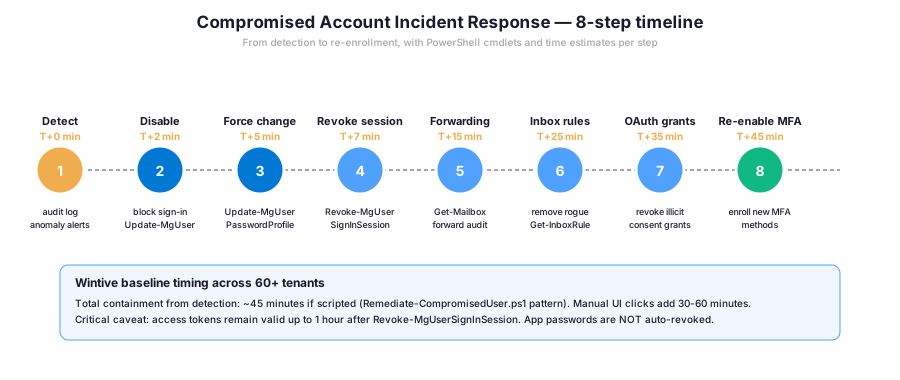
A compromised Microsoft 365 account is not solved by a password reset alone. Specifically, an attacker with stolen credentials may have already added forwarding rules, granted OAuth consent to malicious apps, registered their own MFA devices, and harvested mailbox content. Therefore, the incident response playbook below covers the full containment from detection to safe re-enablement, in the order Wintive runs across SMB tenants. Furthermore, scripted execution of all eight steps takes about 45 minutes, while UI-only execution takes 90 minutes or more.
6.1 Steps 1-4: detect, disable, force-change, revoke sessions
The first four steps form the immediate containment phase. Specifically, Step 1 (detect) starts when an audit log alert fires for impossible-travel sign-in, password spray, or anomalous mailbox activity. Disabling the account (Step 2) blocks any new sign-in attempt. The forced change (Step 3) invalidates the current password regardless of whether it was leaked. Session revocation (Step 4) terminates active refresh tokens to evict the attacker from open browser windows and mobile clients.
# Steps 1-4: containment phase for compromised user
Connect-MgGraph -Scopes "User.ReadWrite.All","Directory.ReadWrite.All"

$compromisedUser = "alice@contoso.com"

# Step 2: Disable the account
Update-MgUser -UserId $compromisedUser -AccountEnabled:$false

# Step 3: Force password change at next sign-in (with MFA)
$passwordProfile = @{
    ForceChangePasswordNextSignIn        = $true
    ForceChangePasswordNextSignInWithMfa = $true
}
Update-MgUser -UserId $compromisedUser -PasswordProfile $passwordProfile

# Step 4: Revoke all active sign-in sessions (invalidate refresh tokens)
Revoke-MgUserSignInSession -UserId $compromisedUser

Write-Host "Containment complete for $compromisedUser" -ForegroundColor Green
One critical caveat the Microsoft Learn documentation flags explicitly. Specifically, even after Revoke-MgUserSignInSession invalidates refresh tokens, existing access tokens remain valid until their natural expiry of about one hour. Therefore, an attacker with a fresh access token can still hit Microsoft Graph endpoints for up to 60 minutes post-revoke. Furthermore, this is why Conditional Access continuous access evaluation (CAE) matters for incident response. Specifically, CAE-aware apps re-evaluate the policy in near real-time and block the attacker faster than the standard token lifetime allows.
6.2 Steps 5-8: forwarding, inbox rules, OAuth, re-enable
The second phase covers the persistence mechanisms attackers use to maintain access after the initial password is reset. Specifically, mailbox forwarding rules silently exfiltrate mail to external addresses, so the attacker keeps reading mail even with no credentials. Furthermore, inbox rules redirect or auto-reply, while OAuth consent grants give third-party apps token-based access that survives password reset. Therefore, all three persistence vectors must be audited and cleaned before re-enabling the account.
# Steps 5-7: persistence audit and removal
Connect-ExchangeOnline -UserPrincipalName admin@contoso.com

# Step 5: Check for forwarding (silent exfiltration)
Get-Mailbox -Identity $compromisedUser | Format-List ForwardingAddress,ForwardingSmtpAddress,DeliverToMailboxAndForward

# Remove forwarding if present
Set-Mailbox -Identity $compromisedUser -ForwardingAddress $null -ForwardingSmtpAddress $null

# Step 6: Audit inbox rules (rogue rules harvest invoices, password resets, etc.)
Get-InboxRule -Mailbox $compromisedUser | Select-Object Name,Enabled,Description,RedirectTo,ForwardTo,DeleteMessage

# Remove rogue rules by name
Remove-InboxRule -Mailbox $compromisedUser -Identity "<RuleName>" -Confirm:$false

# Step 7: List OAuth consent grants for the user
Get-MgUserOauth2PermissionGrant -UserId $compromisedUser | Format-Table Scope,ClientId,ResourceId

# Revoke a specific OAuth grant
Revoke-MgUserOauth2PermissionGrant -UserId $compromisedUser -OAuth2PermissionGrantId "<GrantId>"
Step 8 re-enables the account after the user resets their password through SSPR. The user then registers fresh MFA methods at aka.ms/setupsecurityinfo. Specifically, Wintive recommends deleting the existing methods and re-registering from scratch in case the attacker added their own phone. Finally, confirm the audit trail in Microsoft Purview. Therefore, the user is back online with a hardened identity, and the SOC has a complete timeline of the incident for compliance reporting. Furthermore, this 8-step pattern is what Microsoft Defender for Office 365 documents in the Responding to a Compromised Email Account guide on Microsoft Learn.
🔄 Step 7 — Hybrid writeback troubleshooting: the “reset twice” pass-the-hash mitigation
Hybrid Microsoft 365 tenants synchronise identities from on-premises Active Directory through Microsoft Entra Connect. Specifically, password writeback flows in both directions. Cloud SSPR resets push back to on-prem AD. Furthermore, on-prem AD password changes push up to Entra ID through password hash sync. Furthermore, this bidirectional flow creates a subtle attack surface: pass-the-hash. Therefore, when an admin resets a compromised user password in on-premises AD, the procedure has a critical caveat. Specifically, Microsoft Learn explicitly recommends resetting the password twice to invalidate any cached hash the attacker may have captured.
Reset twice procedure for compromised hybrid accounts
# Hybrid scenario: reset twice in on-premises AD to mitigate pass-the-hash
# Run on a domain-joined admin workstation
Import-Module ActiveDirectory

$user = "alice"

# First reset (random temporary password)
$tempPwd1 = ConvertTo-SecureString -String ([System.Web.Security.Membership]::GeneratePassword(20,3)) -AsPlainText -Force
Set-ADAccountPassword -Identity $user -NewPassword $tempPwd1 -Reset

# Disable the account immediately
Disable-ADAccount -Identity $user

# Wait briefly for replication, then reset again with the operational password
Start-Sleep -Seconds 30
$tempPwd2 = ConvertTo-SecureString -String ([System.Web.Security.Membership]::GeneratePassword(20,3)) -AsPlainText -Force
Set-ADAccountPassword -Identity $user -NewPassword $tempPwd2 -Reset

# Trigger Entra Connect delta sync to push to cloud immediately
Import-Module ADSync
Start-ADSyncSyncCycle -PolicyType Delta

Write-Host "Hybrid reset twice complete. Cloud sync triggered." -ForegroundColor Green
Replication lag and Entra Connect sync verification
Two pitfalls hit hybrid tenants regularly. Specifically, replication lag between domain controllers can mean the second reset arrives before the first replicates, causing a brief window where the password is inconsistent across DCs. Therefore, Wintive recommends running the reset twice script from a DC in the same site as the user, then forcing replication to the global catalog with repadmin /syncall. Furthermore, the Start-ADSyncSyncCycle delta sync is asynchronous: the cmdlet returns immediately. However, the actual sync to Entra ID can take 2 to 5 minutes depending on directory size. Therefore, admins must verify the change landed in the cloud before re-enabling the account.
🔍 Step 8 — Audit Microsoft 365 password resets via the Purview unified audit log
Every password reset, force-change, and SSPR operation is logged to the Microsoft Purview unified audit log by default. Specifically, the audit log captures the actor (admin UPN or user UPN for SSPR), the target user, the timestamp, the source IP, and the operation type. Furthermore, retention is 90 days for E3 tenants, 365 days for E5, and up to 10 years with the Audit Premium add-on. Therefore, the audit log is the source of truth for compliance audits asking who reset what and when, including SOC 2 CC6.1, HIPAA 164.308(a)(5), and PCI DSS 8.3.6 evidence requirements.
# Search the unified audit log for password reset operations
# Connect via the Exchange Online PowerShell module with IPPS endpoint
Connect-IPPSSession -UserPrincipalName admin@contoso.com

$start = (Get-Date).AddDays(-30)
$end   = Get-Date

# All admin-initiated resets in the last 30 days
$adminResets = Search-UnifiedAuditLog \
    -StartDate $start -EndDate $end \
    -Operations "Reset user password.","Change user password.","Set force change user password." \
    -ResultSize 5000

$adminResets | Select-Object CreationDate,UserIds,Operations,@{N='Target';E={(ConvertFrom-Json $_.AuditData).ObjectId}} |
    Export-Csv -Path C:\Wintive\password-resets-30d.csv -NoTypeInformation

# All SSPR self-service operations in the same window
$ssprEvents = Search-UnifiedAuditLog \
    -StartDate $start -EndDate $end \
    -RecordType "AzureActiveDirectory" \
    -Operations "Reset password (self-service).","Change password (self-service)." \
    -ResultSize 5000

Write-Host "Admin-initiated resets: $($adminResets.Count)"
Write-Host "Self-service resets: $($ssprEvents.Count)"
The Search-UnifiedAuditLog cmdlet returns up to 5,000 records per call. Specifically, for tenants over 500 users with active SSPR registration the script must paginate using the SessionId and SessionCommand parameters, otherwise audit gaps appear in compliance reports. Furthermore, AdminDroid and similar third-party tools wrap this cmdlet in pre-built dashboards with retention-aware queries, which Wintive recommends for SMBs without dedicated PowerShell expertise. Read the full Microsoft Purview audit log search documentation for advanced filtering and the complete operation taxonomy.
⚠️ Wintive 60+ tenants: six common Microsoft 365 password reset pitfalls
The pitfalls below are observed across 60+ Microsoft 365 SMB tenants Wintive runs through audits in 2024-2026. Specifically, each pitfall silently breaks the assumed security posture after a password reset. Therefore, the help desk may think the incident is contained when an attacker still has access. Therefore, the post-reset checklist below covers all six gaps explicitly.
| # | Pitfall | Why it matters | Mitigation |
|---|---|---|---|
| 1 | Forwarding rules persist after reset | Attacker keeps reading mail without credentials | Get-Mailbox ForwardingAddress*, remove explicitly |
| 2 | App passwords not auto-revoked | Legacy apps with stored credentials still work | User deletes app passwords at aka.ms/mfasetup |
| 3 | OAuth consent grants survive reset | Malicious apps retain Graph API access via tokens | Get-MgUserOauth2PermissionGrant, revoke individually |
| 4 | Attacker MFA methods stay registered | Attacker reauths and bypasses new password | Force re-registration at aka.ms/setupsecurityinfo |
| 5 | Hybrid sync delays cause inconsistent state | User locked out of on-prem apps after cloud reset | Start-ADSyncSyncCycle Delta, verify replication |
| 6 | License tier silently blocks SSPR | SSPR config saves but registration emails never send | Get-MgSubscribedSku, verify P1 inclusion |
Persistence vectors versus operational mistakes
Pitfalls 1, 2, 3, and 4 are persistence vectors attackers use intentionally. Specifically, the attacker plants forwarding, app passwords, OAuth grants, and rogue MFA methods early in the breach so that resetting the password later does not evict them. Therefore, every compromised account incident response must check all four. Furthermore, pitfalls 5 and 6 are operational mistakes that affect legitimate password operations. Specifically, hybrid sync delays leave users half-resetted, and license tier silently blocks SSPR rollouts that admins assumed would work.
Automated Tenant Health Check — $97 one-time: Wintive runs 47 automated audit checks across your Microsoft 365 tenant in under 15 minutes. Specifically, the audit covers SSPR posture, password protection settings, Conditional Access coverage, MFA registration completion, audit log retention, forwarding rule inventory, OAuth consent grants, and the six pitfalls listed above. Furthermore, every check returns a verdict (✅ / ⚠️ / 🚫) with the exact PowerShell remediation. Therefore, you get a one-shot snapshot of your password and identity posture in the same time it takes to drink a coffee. Buy Automated Tenant Health Check — $97 →
❓ Frequently asked questions
SSPR with cloud-only password reset is bundled with Microsoft 365 Business Standard, Business Premium, E3, and E5. Specifically, password writeback to on-premises Active Directory and custom banned password lists require Entra ID P1, which is included in Business Premium and E3. Furthermore, risk-based password reset for risky sign-ins requires Entra ID P2, included in E5. Apps for Business and Business Basic do not include any SSPR features.
SSPR is the right path when an end user forgets their password and has registered authentication methods, because it requires zero help-desk involvement and scales to thousands of users. Specifically, admin reset from the Microsoft 365 admin center is for users who never registered SSPR methods, accounts where SSPR is intentionally disabled (privileged admins), or one-off help-desk tickets. Furthermore, PowerShell with Update-MgUser is the path for compromised accounts, bulk operations, and scheduled rotation, not the admin center UI.
Use Update-MgUser with PasswordProfile @{ForceChangePasswordNextSignIn=$true} without specifying a Password value. Specifically, this flag forces the user to pick a fresh password at next sign-in using their existing current password to authenticate first. Therefore, the admin never knows the new password and the temporary credential never exists, eliminating the side-channel handoff problem entirely. This is the cleanest pattern for compliance-driven scheduled rotation.
Hybrid forensics & audit retention
Resetting the on-premises Active Directory password twice mitigates pass-the-hash attacks where the attacker has captured a cached NTLM hash. Specifically, replication delays between domain controllers can leave the old hash valid for several minutes after the first reset. Therefore, the second reset arrives after replication completes and invalidates any hash the attacker captured between the two resets. Microsoft Learn documents this explicitly in the Revoke user access in an emergency guide for Microsoft Entra ID hybrid scenarios.
Default retention is 90 days for Microsoft 365 E3 and Business Premium tenants, 365 days for E5, and up to 10 years with the Audit Premium add-on license. Specifically, every admin-initiated reset, force-change, and SSPR self-service reset creates an audit record retained for the tenant retention window. Furthermore, compliance frameworks like SOC 2 and HIPAA typically require longer retention than the E3 default, which is why Wintive recommends Audit Premium or Sentinel log archival for healthcare and financial services SMBs.