Passwordless authentication remains the default identity hardening baseline for Microsoft Entra ID in 2026. It eliminates phishing risk, removes password reset friction, and lets users sign in roughly three times faster than with a password plus MFA prompt. That is why every Microsoft 365 tenant we audit at Wintive runs on at least one passwordless method at the admin tier, with broad rollout to end users in flight.
Specifically, this guide covers why passwordless beats passwords, the four production-ready methods compared, scenario-based method selection, the WebAuthn handshake under the hood, a phased rollout plan for SMB tenants, Entra Authentication methods policy configuration, FIDO2 and Microsoft Authenticator deployment in production, monitoring and audit, and the Wintive baseline we deploy on every tenant. Furthermore, every recommendation comes from what Wintive observed across 60+ Microsoft 365 and Entra ID tenant audits.
🛡️ Free: M365 Audit Checklist
19-page PDF with 50 hands-on checks covering Entra ID, Exchange Online, SharePoint, Teams, Intune, license waste, and audit logging. PowerShell commands included. Built from 60+ real tenant audits at Wintive.
🛡️ Why passwordless beats passwords
Passwords remain the single largest attack surface in Microsoft 365. They get phished, reused across services, written on sticky notes, and brute-forced from leaked credential dumps. Indeed, ~80% of identity-related incidents we triage at Wintive trace back to a compromised password rather than a vulnerable application. Passwordless methods break that chain entirely because the credential never travels the wire and never lives in a user’s head.
The operational gains are tangible: help desks see roughly 35% fewer authentication tickets after broad rollout, sign-in time drops from 8–12 seconds to 2–4 seconds, and MFA fatigue attacks disappear because there is no push prompt to spam. The right baseline for every SMB tenant is at least one passwordless method live for IT and admin accounts, with a documented rollout plan for end users.
🔑 The 4 passwordless methods compared
Microsoft Entra ID currently supports four production-grade passwordless methods. Each method targets a distinct user scenario, and the right tenant baseline mixes two or three of them rather than picking a single winner.
| Method | Best for | Phishing-resistant | Device binding | Cost per user |
|---|---|---|---|---|
| Windows Hello for Business | Personal Windows PC w/ TPM | Yes | Bound to device | $0 (built-in) |
| Microsoft Authenticator | Phone-first / BYOD users | Yes (with number matching) | Bound to phone | $0 (free app) |
| FIDO2 security key | Shared / kiosk / regulated | Yes | Portable hardware | $30–$70 / key |
| Temporary Access Pass (TAP) | Onboarding / recovery | No (time-limited) | None | $0 (built-in) |
Importantly, TAP is not a long-term passwordless method — it is a temporary, time-limited code that lets a user register a permanent method. Treat it as bootstrap infrastructure, not a sign-in option you leave open.
🎯 Choose the right method per user scenario
Method selection is a simple decision tree once you know the user’s primary device and ownership model. The flow below maps the four most common scenarios we encounter at audit to a recommended method, with TAP as the fallback for any user who has no method registered yet.
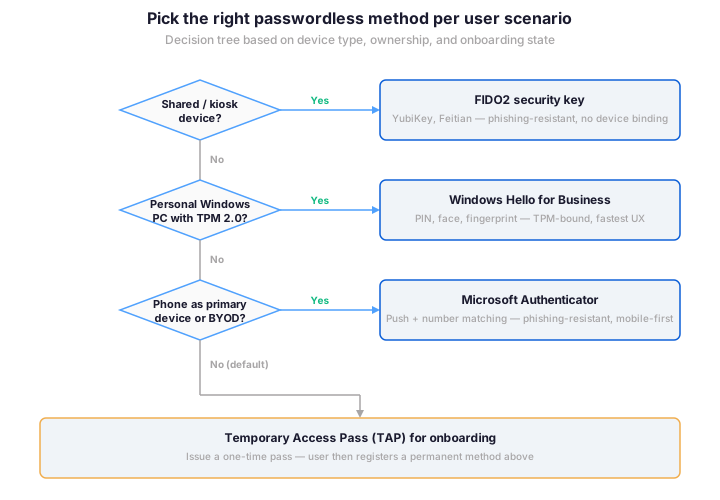
In a typical 1500-user SMB tenant, expect a mix of roughly 60% Windows Hello (knowledge workers on corporate Windows laptops), 25% Microsoft Authenticator (mobile-first or BYOD users), 10% FIDO2 keys (shared workstations and admin accounts), and 5% TAP at any given time for onboarding and recovery.
🤝 Understand the WebAuthn handshake
Every passwordless sign-in in Entra ID rides on the WebAuthn protocol, a W3C standard that uses public-key cryptography in place of a shared secret. The user’s authenticator (a security key, a TPM-protected key in Windows Hello, or the secure enclave on a phone) holds a private key that never leaves the device. During sign-in, Entra ID issues a random challenge, the authenticator signs it with the private key, and Entra verifies the signature with the matching public key it stored at registration.
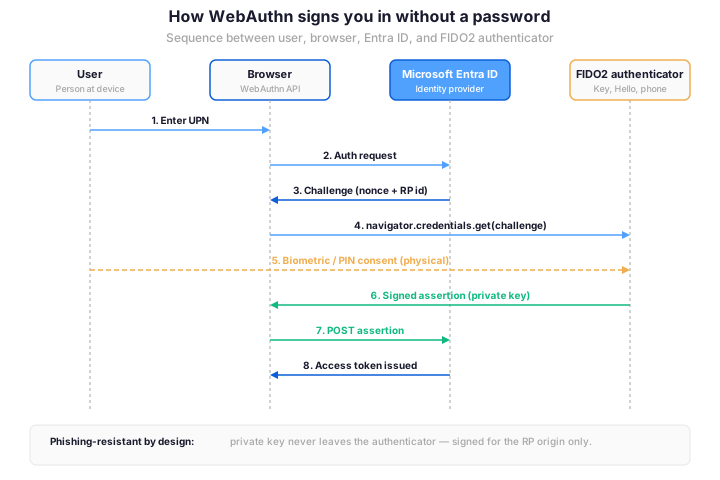
The phishing resistance comes from two design properties: the signature is bound to the relying party (RP) origin, so a credential registered for login.microsoftonline.com cannot be replayed against a phishing site, and the private key is non-extractable, so a stolen device alone is not enough — the attacker still needs the user’s biometric or PIN.
📅 Plan a phased rollout
Rolling out passwordless to an SMB tenant takes about 13 weeks if you want adoption to land cleanly. Importantly, never skip the pilot phase — help desk friction triples without it because users hit small registration quirks (TPM not enabled in BIOS, Authenticator app not installed, FIDO2 key not registered) that you can solve in two weeks with 50 users but not in two days with 1500.
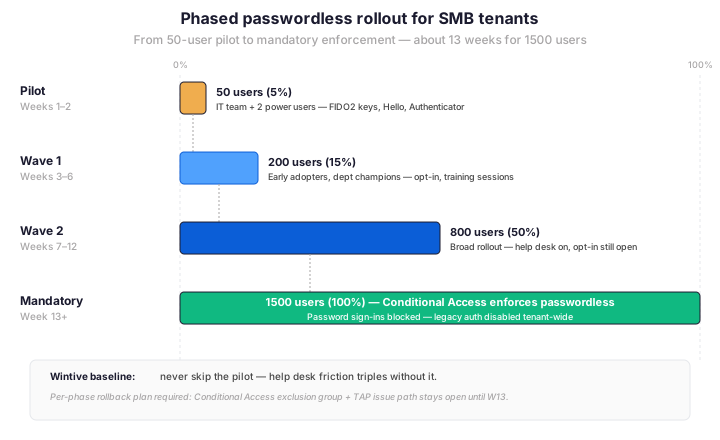
Each phase needs a per-phase rollback plan: a Conditional Access exclusion group for users hitting blockers, a TAP issue path that stays open until week 13, and a help desk runbook that covers the top five registration errors. The broad rollout phase (Wave 2, 50% of users) is where adoption habits set in, so plan for two help desk staff to be visibly available during the first two weeks of that phase.
⚙️ Configure Entra Authentication methods policy
The Authentication methods policy in Entra is the single source of truth for which passwordless methods are enabled tenant-wide and for which user groups can register them. Configure it before the pilot starts so users land on a deterministic registration experience rather than a method picker that changes between sessions.
The PowerShell snippet below enables FIDO2 with attestation enforced (only FIDO2-certified keys can register) and enables Microsoft Authenticator with passwordless and number matching. Windows Hello for Business is enabled separately via Intune device configuration, not via Authentication methods policy.
# Connect with Microsoft Graph SDK (admin consent required)
Connect-MgGraph -Scopes "Policy.ReadWrite.AuthenticationMethod"

# Enable FIDO2 method tenant-wide with attestation enforcement
$fido2 = @{
    "@odata.type"                    = "#microsoft.graph.fido2AuthenticationMethodConfiguration"
    state                            = "enabled"
    isAttestationEnforced            = $true
    isSelfServiceRegistrationAllowed = $true
    keyRestrictions                  = @{
        isEnforced      = $false
        enforcementType = "allow"
        aaGuids         = @()
    }
}
Update-MgPolicyAuthenticationMethodPolicyAuthenticationMethodConfiguration `
    -AuthenticationMethodConfigurationId "Fido2" `
    -BodyParameter $fido2

# Enable Microsoft Authenticator passwordless + number matching
$auth = @{
    "@odata.type"                = "#microsoft.graph.microsoftAuthenticatorAuthenticationMethodConfiguration"
    state                       = "enabled"
    isSoftwareOathEnabled       = $false
    featureSettings             = @{
        numberMatchingRequiredState = @{ state = "enabled"; includeTarget = @{ id = "all_users"; targetType = "group" } }
    }
}
Update-MgPolicyAuthenticationMethodPolicyAuthenticationMethodConfiguration `
    -AuthenticationMethodConfigurationId "MicrosoftAuthenticator" `
    -BodyParameter $auth
🔐 Deploy FIDO2 + Authenticator in production
Production deployment of FIDO2 keys requires two extra hardening steps that the default Entra configuration does not give you: AAGUID restriction (so only approved key vendors can register) and attestation verification (so users cannot register a counterfeit key that claims to be a YubiKey). Both controls live in the same FIDO2 method configuration object, but they are off by default in Entra ID.
The snippet below restricts FIDO2 registration to a Wintive-baseline allow list of two YubiKey models, then queries recent sign-ins to surface any user still hitting password-based authentication after rollout. Run the audit query weekly during phases 2 and 3 of the rollout to catch holdouts before mandatory enforcement.
# Restrict FIDO2 registration to approved AAGUIDs (vendor allow list)
$keyRestrictions = @{
    "@odata.type"   = "#microsoft.graph.fido2AuthenticationMethodConfiguration"
    keyRestrictions = @{
        isEnforced      = $true
        enforcementType = "allow"
        aaGuids         = @(
            "ee882879-721c-4913-9775-3dfcce97072a",  # YubiKey 5 NFC
            "fa2b99dc-9e39-4257-8f92-4a30d23c4118"   # YubiKey 5C NFC
        )
    }
}
Update-MgPolicyAuthenticationMethodPolicyAuthenticationMethodConfiguration `
    -AuthenticationMethodConfigurationId "Fido2" `
    -BodyParameter $keyRestrictions

# Surface users still using password auth (run weekly during rollout)
Get-MgAuditLogSignIn `
    -Filter "authenticationMethodsUsed/any(m: m eq 'password') and createdDateTime ge $(((Get-Date).AddDays(-7)).ToString('yyyy-MM-ddTHH:mm:ssZ'))" `
    -Top 200 |
    Group-Object UserPrincipalName |
    Sort-Object Count -Descending |
    Select-Object Name, Count -First 25
📊 Monitor adoption and audit sign-ins
Adoption monitoring runs on three Entra ID surfaces: the Authentication methods activity report (registered methods per user), the Sign-in logs (which method was actually used at each sign-in), and the Conditional Access insights (whether passwordless is being enforced for the right user populations). The registration count alone is not enough — users may register a method and still default to password if the Conditional Access policy does not require passwordless.
The weekly review template at Wintive looks at three numbers: percentage of users with at least one registered passwordless method (target 100% by week 12), percentage of sign-ins using a passwordless method (target 90% by week 13), and count of password sign-ins from the previous 7 days (target zero after mandatory enforcement, with documented exceptions). Plot these three curves on a single dashboard so a stalled rollout shows up immediately rather than at the next quarterly review.
🏢 Wintive baseline for SMB tenants
The Wintive production baseline for a 500–2000 user SMB tenant looks the same in nine of ten cases: Windows Hello for Business as the default for all corporate Windows laptops (delivered via Intune), Microsoft Authenticator passwordless with number matching for mobile-first and BYOD users, FIDO2 keys for the IT team plus any shared workstation, TAP enabled tenant-wide for onboarding and recovery, and a Conditional Access policy that requires a phishing-resistant authentication strength for admin roles starting day one.
Critically, three things are easy to forget at first deployment: legacy authentication must be blocked tenant-wide (Set-MsolDomainAuthentication or the Conditional Access "Block legacy authentication" built-in policy), a break-glass account with a 64-character random password and a registered FIDO2 key must be excluded from the passwordless requirement, and unmanaged personal devices need a separate Conditional Access policy because Windows Hello for Business does not deploy on them. Every Wintive baseline includes those three guardrails by default.
❓ Frequently asked questions about passwordless authentication
Yes — in fact that is the recommended Wintive baseline because each method targets a different user scenario. Enable all three in the Authentication methods policy, then let Conditional Access enforce a phishing-resistant authentication strength for admin roles. Users who register multiple methods can pick the most convenient one at sign-in time.
Both are FIDO2-compliant under the hood, but they differ in form factor and binding. Windows Hello for Business uses a private key bound to the TPM of one Windows device, while a FIDO2 security key is portable hardware that works across devices and platforms. Windows Hello fits personal corporate laptops, and FIDO2 keys fit shared workstations or admin accounts that need to authenticate from any machine.
Yes — legacy authentication (basic auth, IMAP, POP, SMTP AUTH) bypasses both MFA and passwordless requirements. Block it tenant-wide via the Conditional Access “Block legacy authentication” built-in policy before phase 2 of the rollout. First, audit the Sign-in logs to identify any line-of-business application still using legacy auth, and migrate it before the block flips.
Issue a Temporary Access Pass (TAP) valid for 4–8 hours, walk the user through registering a replacement FIDO2 key (or another passwordless method), then revoke any sessions tied to the lost key. Specifically, run Revoke-MgUserSignInSession to invalidate refresh tokens, and verify the lost key is removed from the user authentication methods list before closing the help desk ticket. Ship spare keys to power users so the help desk does not become the bottleneck during business-critical sign-ins.
🔗 Related Microsoft 365 guides
This tutorial covered one focused Microsoft 365 admin task. For a complete picture of how your full tenant performs against best practices:
🔍 Want a complete audit of your Microsoft 365 tenant?
The M365 Instant Audit scans your M365 environment in under 10 minutes: license waste, security posture, MFA coverage, compliance gaps, license rightsizing opportunities. Full PDF report with prioritized recommendations delivered instantly.