An Azure blob container is the folder-like grouping that holds Binary Large Objects (BLOBs) inside an Azure Storage Account. Specifically, this guide covers the storage hierarchy, the four access tiers compared, and Azure CLI and PowerShell creation. It also addresses US-regulated-industry baselines (HIPAA, SOC 2, NIST 800-171) and lifecycle policies for cost optimization. Furthermore, every recommendation comes from what Wintive observed across 60+ Microsoft 365 tenants we audit yearly.
💡 Why Azure Blob Containers Matter in 2026
Object storage is the foundation of modern cloud applications. Azure blob containers host websites, application assets, database backups, IoT telemetry, and machine-learning datasets. Therefore, getting container design wrong cascades into security exposures, pricing surprises, and compliance findings later.
The two most expensive mistakes we see in audits are common. First, public anonymous access on containers holding regulated data. Second, Hot tier storage used for content that nobody touches for months. Notably, both are configuration choices made at container creation that compound silently over time.
🛡️ Free: M365 Tenant Security Audit Checklist
17-page PDF with 50 hands-on checks covering Entra ID, Exchange Online, SharePoint, Teams, Intune, license waste, and audit logging. PowerShell commands included. Built from 60+ real tenant audits at Wintive.
🔧 How Azure Blob Storage Is Organized
Azure organizes blob storage in a strict five-level hierarchy. Crucially, permissions, encryption, redundancy, and pricing all scope at specific levels. As a result, understanding which level holds which setting saves hours of debugging when a blob URL returns 403.
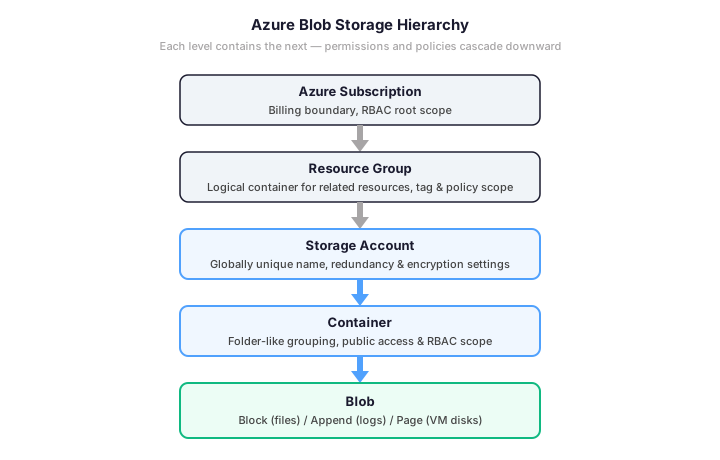
The Storage Account holds most of the configuration. Specifically, redundancy (LRS, ZRS, GRS), encryption keys (platform-managed or customer-managed), public network access, and TLS minimum version. Specifically, these settings apply to every container and blob inside the account; you cannot vary them per container.
The Container level governs public anonymous access (Private, Blob, or Container) and serves as the natural RBAC scope for application-specific permissions. Indeed, granting a service principal Storage Blob Data Contributor on a single container is far safer. The alternative, granting at the Storage Account level, is broader than necessary.
📦 Access Tiers and Blob Types Compared
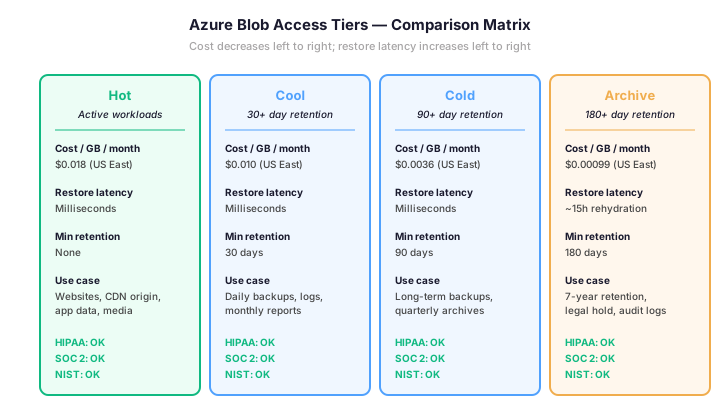
Azure Blob storage has two orthogonal choices: the blob type (how the data is structured) and the access tier (how often you read it). Specifically, the blob type is set at upload time and cannot be changed; the access tier can move between Hot, Cool, Cold, and Archive at any time.
| Blob type | Best for | Operations | Notes |
|---|---|---|---|
| Block blob | Documents, images, videos, app data | Append, read, delete | Default choice for 95% of use cases |
| Append blob | Logs, audit streams, time-series | Append-only writes | Optimized for write-heavy log scenarios |
| Page blob | Azure VM disks, random-access workloads | Random read & write | Backed by managed disks under the hood |
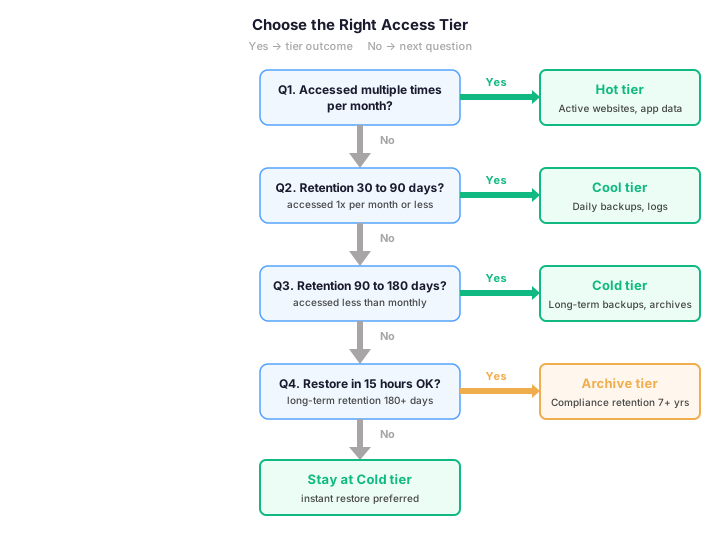
The access tier choice drives the bill far more than people expect. Notably, a 1 TB container in Hot tier costs about $18.50 per month. The same container in Archive costs $1.02 (US East 2026 prices). Therefore, a misclassified container can be 18x more expensive than the optimal tier. The user sees no functional difference.
📊 Azure Blob vs AWS S3 — Cross-Cloud Comparison
Many SMBs operate hybrid environments with workloads on both Azure and AWS. Therefore, knowing how Azure Blob maps to AWS S3 saves design time, simplifies migration estimates, and helps team members move between platforms. Specifically, the two services share most concepts but differ in a few important details around hierarchy, naming, and access tiers.
| Concept | Microsoft Azure | Amazon AWS | Key difference |
|---|---|---|---|
| Top-level container | Storage Account | S3 Bucket | Azure groups multiple containers under one account; AWS bucket is the unit |
| Folder grouping | Container (real entity) | Prefix (virtual, flat namespace) | Azure containers have RBAC; S3 prefixes are just key conventions |
| Object types | Block / Append / Page blob | Object (single type) | AWS uses one object type; multipart upload covers large files |
| Access tiers | Hot / Cool / Cold / Archive | Standard / Standard-IA / One Zone-IA / Glacier IR / Glacier Flexible / Glacier Deep Archive | AWS has more granularity; Azure’s 4 tiers cover the same use cases |
| Default public access | Private (disable with allow-blob-public-access false) | Private (Block Public Access on by default since 2023) | Both default to private; both require explicit opt-in for public |
| Encryption at rest | Platform-managed or CMK in Key Vault | SSE-S3, SSE-KMS, or SSE-C | Equivalent capabilities; Azure CMK = AWS SSE-KMS |
| Cross-region replication | GRS / RA-GRS at account level | S3 Cross-Region Replication (CRR) per bucket | Azure is account-wide; AWS is per-bucket with more flexibility |
| Lifecycle policies | Built-in lifecycle management (free) | S3 Lifecycle (free) + Intelligent-Tiering (small fee) | AWS Intelligent-Tiering auto-moves between tiers; Azure needs explicit rules |
| Compliance certifications | HIPAA, SOC 2, NIST 800-171, GCC, GCC High | HIPAA, SOC 2, NIST 800-171, GovCloud (US) | Equivalent regulatory coverage for US workloads |
The most operationally significant difference is the hierarchy depth. Specifically, AWS S3 uses a flat namespace where folders are just naming conventions inside a bucket. As a result, listing a folder in S3 is a prefix scan; in Azure, a container is a real resource with its own RBAC scope.
For applications written natively to S3, the migration path to Azure typically involves remapping each S3 bucket to an Azure container (not to a Storage Account). Therefore, plan for one Storage Account per logical workload domain rather than per bucket. Notably, the AzCopy tool from Microsoft handles bulk S3-to-Azure data migration including SAS-style preserved metadata.
💻 Create a Container and Upload a Blob Step-by-Step
Three options exist: the Azure portal for one-off creation, Azure CLI for scripted automation, and the Az.Storage PowerShell module for Windows-friendly pipelines. Specifically, the CLI is the fastest path to repeatable, idempotent infrastructure.
- Pre-create the Storage Account — choose region, redundancy (LRS for dev, GRS for production), and enable customer-managed keys for regulated workloads
- Create the container — set public access to Private (the recommended default); name must be lowercase 3-63 chars
- Configure access tier on the container (default tier inherited from the Storage Account; can override per blob)
- Upload blobs via az storage blob upload, AzCopy, or PowerShell Set-AzStorageBlobContent
- Apply RBAC at the container level for application identities and Conditional Access for human users
The Azure CLI script below creates a Storage Account, a private container, and uploads a sample file in three commands. Furthermore, the same script is idempotent: re-running it returns the existing resources without errors.
# Azure CLI: create storage account, container, and upload a blob
az login
az account set --subscription "your-subscription-id"

# Variables (replace with your values)
RG="rg-prod-storage"
LOCATION="eastus"
SA="wintivestorage$RANDOM"
CONTAINER="documents"

# Create resource group and storage account (StorageV2 with hot tier default)
az group create --name $RG --location $LOCATION
az storage account create --name $SA --resource-group $RG --location $LOCATION \
  --sku Standard_LRS --kind StorageV2 --access-tier Hot \
  --min-tls-version TLS1_2 --allow-blob-public-access false

# Create the container with private access
az storage container create --name $CONTAINER --account-name $SA --auth-mode login --public-access off

# Upload a blob to the container
az storage blob upload --account-name $SA --container-name $CONTAINER \
  --name "readme.txt" --file "./readme.txt" --auth-mode login
The --allow-blob-public-access false flag is the single most important hardening setting. Indeed, this flag prevents anyone from enabling public anonymous access on any container in this Storage Account, even with full Owner permissions. As a result, this is exactly the control HIPAA and SOC 2 auditors look for in cloud storage configurations.
🛡️ Blob Containers for Regulated US Industries
For organizations subject to HIPAA, SOC 2 Type II, NIST 800-171, or CCPA, three controls are non-negotiable on every blob container. First, public anonymous access must be disabled at the Storage Account level. Second, encryption at rest must use customer-managed keys (CMK) stored in Azure Key Vault. Third, all read and write operations must flow through private endpoints with no public network exposure.
Specifically, this combination satisfies HIPAA Security Rule 45 CFR §164.312(a)(2)(iv) for technical safeguards. It also covers SOC 2 Common Criteria CC6.1 logical access and NIST 800-171 control 3.13.16 protect-information-at-rest. Notably, signing a Business Associate Agreement (BAA) with Microsoft is also required for HIPAA workloads. Specifically, Microsoft signs BAAs at the Azure Subscription level, not per resource.
For organizations operating in GCC or GCC High tenants, all four access tiers and all blob types are available. However, network endpoints route through sovereign-cloud regions (USGov Virginia, USGov Texas). Therefore, confirm your applications target *.blob.core.usgovcloudapi.net instead of the commercial endpoint before running production workloads.
💡 What we see across 60+ M365 tenants
About 1 in 4 audited Azure tenants has at least one Storage Account with allow-blob-public-access set to true. Indeed, this single flag is the highest-impact remediation we recommend. The fix takes 30 seconds via Azure CLI. Furthermore, it breaks no legitimate workflow that uses Shared Access Signatures or RBAC for blob access.
✅ Best Practices for Azure Blob Containers
The same configuration mistakes appear repeatedly. Notably, four practices account for roughly 80% of blob storage incidents we troubleshoot during audits.
| Practice | What to do | Why it matters |
|---|---|---|
| Disable public blob access | Set allow-blob-public-access false on every Storage Account | Prevents anonymous links to PHI/PII; one click stops 90% of data leakage paths |
| Customer-managed keys for regulated data | Store encryption keys in Azure Key Vault with annual rotation policy | HIPAA, SOC 2 require key control evidence; Microsoft platform keys do not provide it |
| Soft delete + versioning enabled | Enable blob soft-delete (14 days) and container soft-delete (7 days) | Recovers from accidental deletion; ransomware mitigation control auditors expect |
| Lifecycle management policies | Move blobs older than 30 days to Cool, 90 days to Cold, 180 days to Archive | Cuts storage cost by 50-80% on data with predictable access decay (logs, backups) |
| Diagnostic logs to Log Analytics | Enable Storage Account logging to a centralized workspace, retain 90 days | Audit evidence for access patterns; required for SOC 2 CC7.2 monitoring controls |
↻ Audit and Monitor Blob Container Access
After deployment, configure diagnostic logs and review them monthly. Specifically, the Azure Monitor diagnostic settings for Storage Accounts capture every read, write, and delete operation against blobs. As a result, this is the audit trail HIPAA and SOC 2 reviewers expect.
The Azure CLI script below pulls all blob access events for a Storage Account in the last 7 days into a CSV. Therefore, you can quickly identify anomalous access patterns, unexpected source IPs, or large-volume reads that signal data exfiltration.
# Audit blob access via Azure Monitor logs (Log Analytics workspace required)
WORKSPACE_ID="your-log-analytics-workspace-id"
QUERY='StorageBlobLogs | where TimeGenerated > ago(7d) | where StatusCode != 200 or AuthenticationType == "Anonymous" | project TimeGenerated, OperationName, StatusCode, CallerIpAddress, AuthenticationType, ObjectKey | take 1000'

az monitor log-analytics query --workspace $WORKSPACE_ID --analytics-query "$QUERY" \
  --output table > blob-anomalies-7d.csv

# Detect anonymous reads on regulated containers (last 30 days)
az monitor log-analytics query --workspace $WORKSPACE_ID --analytics-query \
  "StorageBlobLogs | where TimeGenerated > ago(30d) | where AuthenticationType == 'Anonymous' | summarize count() by AccountName, ObjectKey" \
  --output table
🔄 Automate Tier Movement with Lifecycle Management
Manual tier management does not scale. Specifically, lifecycle management policies move blobs between Hot, Cool, Cold, and Archive based on age or last-modified date, with no human intervention. As a result, you can save 50 to 80% on storage costs. This applies over a 3-year retention period for log-style data.
The PowerShell example below applies a lifecycle rule to a Storage Account. Specifically, blobs in the logs container move to Cool after 30 days, Cold after 90 days, Archive after 180 days, and delete after 7 years (HIPAA-compatible retention).
- In Azure portal, open your Storage Account → Data management → Lifecycle management
- Click Add a rule; name it descriptively (e.g., logs-tier-down)
- Set scope: limit using filters like prefix match on the logs container or tag-based filters
- Add base blob tier transitions: Cool after 30, Cold after 90, Archive after 180 days
- Optionally, add a delete action after 2555 days (7 years)
Notably, lifecycle policies run once per day around 00:00 UTC. Indeed, tier transitions are not instant. Expect up to 24 hours of lag between the trigger condition and the actual tier move. Furthermore, the policy applies only to blobs not modified in the trigger window. As a result, an updated blob resets its age counter.
❓ Azure Blob Container FAQ
A Storage Account is the top-level Azure resource that holds redundancy, encryption, and network settings. Specifically, a single Storage Account can hold unlimited containers, queues, tables, and file shares. Indeed, the container is one level below: a folder-like grouping of blobs inside that account, used as the natural RBAC scope for application-specific permissions.
Containers themselves are free; you pay only for the blob data they hold and the operations performed. Specifically, in US East 2026 prices, 1 TB of Hot tier costs about $18.50 per month, Cool $10, Cold $3.60, and Archive $1.02. Furthermore, transactions cost $0.0044 per 10000 operations on Hot tier and rise as you move to colder tiers. Therefore, lifecycle management policies typically cut total bills by 50 to 80% for log-style data.
Technically yes, by setting container public access to Blob or Container level. However, this is the configuration that violates HIPAA, SOC 2, and most cyber-insurance requirements. As a result, the recommended pattern is to disable public access at the Storage Account level and serve public content through Shared Access Signatures (SAS) or Azure CDN with Front Door for cacheable content.
For daily backups retained 30 to 90 days, use Cool tier. Specifically, Cool tier matches the access pattern of rare reads with monthly retention. It also matches the minimum retention requirement of 30 days. Furthermore, for backups retained 90+ days, move to Cold tier. Notably, do not use Archive for backups unless you accept the 15-hour rehydration time during a disaster recovery scenario.
Yes, if soft-delete is enabled. By default, blob soft-delete is OFF on new Storage Accounts. Therefore, enable it explicitly with a 14-day retention window for production accounts. Specifically, soft-delete also covers container deletes with 7-day default. Furthermore, blob versioning is part of the same recovery feature. As a result, this combination is the standard recovery path from accidental deletion or ransomware-style mass overwrites.
🔗 Keep Exploring
🔐 Need help auditing or optimizing Azure Blob Storage?
We audit Microsoft 365 and Azure tenants for HIPAA, SOC 2, and NIST 800-171 alignment. Furthermore, our review covers your full blob storage posture: public access, customer-managed keys, lifecycle policies, soft delete, and audit log retention. Built from 60+ Microsoft 365 tenants we audit yearly.
📅 Book a Free 30-Min Call | 💬 Chat on WhatsApp | See Our Plans →