The Azure Portal remains where most cloud admin work happens in 2026, despite the rise of Bicep and Terraform. Specifically, this guide breaks down its anatomy, navigation patterns, daily workflows, and dashboard tips. Moreover, all recommendations come from what Wintive has observed across 60+ Microsoft 365 and Azure tenant audits.
🧭 Why the Azure Portal still matters in 2026
Infrastructure-as-code now provisions most production workloads. However, the portal remains the front door for cost reviews, identity work, support tickets, and incident response. Even in heavily automated estates, IT teams open the portal a dozen times a day for ad-hoc reads.
Knowing the portal cold pays off in two places. First, troubleshooting under pressure: when a VM is down, you do not want to discover the Activity log tab. Second, cost reviews: dashboard tiles aimed at finance partners turn the portal into a daily standup tool. Therefore, both depend on muscle memory.
🛡️ Free: M365 Tenant Security Audit Checklist
17-page PDF with 50 hands-on checks covering Entra ID, Exchange Online, SharePoint, Teams, Intune, license waste, and audit logging. PowerShell commands included. Built from 60+ real tenant audits at Wintive.
⚡ Anatomy of the Azure Portal interface
The portal layout has stayed remarkably stable since 2017. Specifically, four zones do all the work. Therefore, knowing each one and what lives there is the foundation for every workflow that follows.
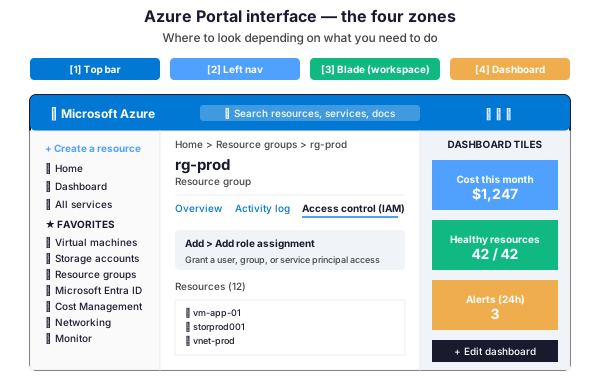
At the top sits the top bar. Specifically, it hosts the global search box, notifications, Cloud Shell launcher, and your tenant or subscription switcher. Indeed, search is the fastest way to land anywhere. As a result, most experienced admins barely touch the left nav.
Down the side, the left navigation rail holds favorites first, then all services alphabetically. However, you should pin only what you use weekly. In contrast, the blade is your active workspace — everything you click opens here as a panel. Finally, the dashboard zone on the right is yours to customize with tiles for the metrics that matter.
🧭 Navigating to your resources fast
Most admins waste minutes hunting for features in the left nav. Instead, use this decision tree. Specifically, map your intent to a portal location in seconds.
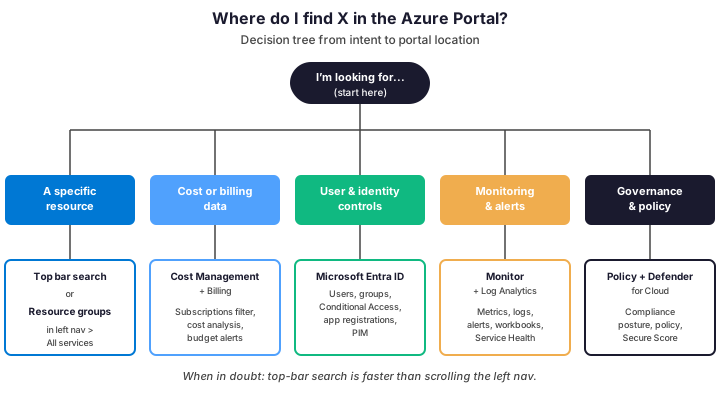
The fastest path to any resource is the top bar search. Specifically, type the resource name, the resource type, or even the tag value. Furthermore, the portal autocompletes across your entire tenant scope. Consequently, you will rarely need more than 3 keystrokes.
For cost work, never click around services individually. Instead, open Cost Management + Billing directly. There, the dashboard shows trends across all subscriptions and resource groups in one view. Additionally, pair it with budgets to get email alerts when spend crosses a threshold.
➕ Creating resources the right way
Two paths exist for creating Azure resources from the portal: the visual blade wizard or the embedded Cloud Shell. However, the right choice depends on whether you will repeat the operation later.
Provision via the portal blade
To start, click Create a resource in the top-left of the left nav, or hit the global search and type the resource type. Then, the wizard walks you through tags, region, SKU, and networking. Therefore, use this path for one-off resources or when exploring a service for the first time.
However, one trap matters here: always set tags at create time. Specifically, the CostCenter, Environment, Owner, and Application tags should be mandatory in your governance. Otherwise, adding tags later means clicking through every resource one by one.
Or use Azure CLI for repeatability
For anything you will rebuild more than twice, drop into Cloud Shell. Notably, the portal has it built in — click the >_ icon in the top bar. Furthermore, the same script works locally and in CI/CD pipelines.
# Azure CLI: create a resource group + storage account with tags
# Run from Cloud Shell (top bar) or locally

$rgName    = 'rg-prod-storage'
$location  = 'eastus'
$storName  = 'storprod' + (Get-Random -Maximum 9999)

# Create resource group with mandatory tags
az group create \`
    --name $rgName \`
    --location $location \`
    --tags CostCenter=IT-001 Environment=prod Owner=alice@contoso.com Application=core-storage

# Create storage account, GRS, secured by default
az storage account create \`
    --name $storName \`
    --resource-group $rgName \`
    --location $location \`
    --sku Standard_GRS \`
    --kind StorageV2 \`
    --access-tier Hot \`
    --allow-blob-public-access false \`
    --min-tls-version TLS1_2
Specifically, the same resource via the blade wizard takes 8 to 12 clicks across 6 tabs. In contrast, the CLI version takes 2 commands and ships in your repo. Once your team is comfortable, 80% of resource creation should leave the portal entirely.
💳 Understanding Azure subscriptions
Subscriptions are the billing and access boundary in Azure. However, getting the structure wrong on day one means fighting cost reporting and RBAC for years. Specifically, five subscription types exist in 2026.
| Type | Best for | Pricing model | Key constraint |
|---|---|---|---|
| Free trial | Testing, POCs (30 days) | $200 credit, 12mo free tier | Auto-converts to PAYG |
| Pay-as-you-go | Small teams, dev/test | Monthly billing, no commit | Higher unit price than commit |
| Enterprise Agreement (EA) | Large organizations >500 users | 3-year commit, monetary upfront | Requires Microsoft sales contact |
| CSP (Cloud Solution Provider) | SMBs via partner | Monthly via partner, no commit | Partner manages billing & support |
| Sponsorship / MPN | ISVs, MS partners | Credit-based, time-limited | Not for production workloads |
Most SMBs land on CSP. Specifically, the partner handles invoicing in local currency and offers tier-1 support before escalating to Microsoft. In contrast, EA only makes financial sense at scale — usually 500+ users or $200k+ annual Azure spend. Meanwhile, PAYG is fine for dev sandboxes but expensive at scale.
📊 Customizing your dashboards for daily ops
By default, the Azure dashboard is empty. Indeed, that is intentional. Therefore, pin only the tiles you check daily. Otherwise, the rest is one search away.
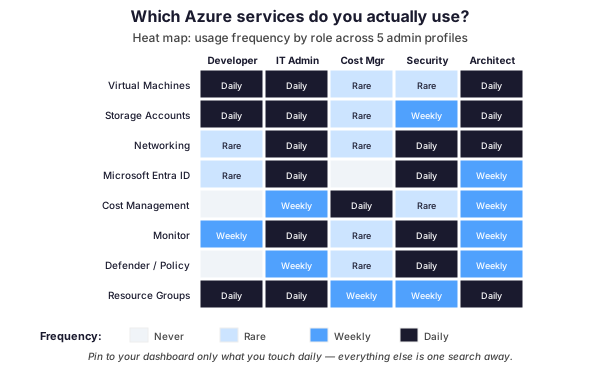
Pin patterns differ by role. Specifically, IT admins typically pin VM health, storage capacity, and Activity log filtered to write operations. In contrast, cost managers pin a monthly burn rate tile, a forecast tile, and the budget alerts list. Meanwhile, security officers pin Defender Secure Score, Conditional Access deny rate, and PIM activation requests.
Furthermore, share your dashboard layout with the team via Share > Publish. Subsequently, the dashboard becomes a JSON file you can version in Git. As a result, new hires onboard with the same view. Indeed, standardized dashboards are a Wintive recommendation in every tenant audit.
⚠️ Common Azure Portal pitfalls
Across 60+ tenant audits, the same portal mistakes show up over and over. Notably, each row below has fixed an actual incident at a Wintive client.
| Pitfall | Symptom | Fix |
|---|---|---|
| Wrong subscription scope | Resources missing from views or RBAC denials | Top bar > Settings > Directories + subscriptions: enable all relevant subs |
| No tags on resources | Cost reports show $0 per project | Apply Azure Policy require-tag at resource group level |
| Stale Conditional Access | External users blocked, internal MFA prompts everywhere | Entra ID > Sign-in logs filter on failed: rebuild policies from observation |
| Activity log blindness | Cannot trace who changed what last week | Send Activity logs to Log Analytics workspace with 90-day retention min |
| Default network rules | Storage accounts and SQL exposed to all Azure services | Disable public network access, use private endpoints + VNet rules |
| Single global admin | Account compromised = tenant compromised | Implement PIM with MFA, time-bound role activation, and break-glass accounts |
🚀 Power tips for Azure admins
Five shortcuts pay back the time investment within a week of practice. Indeed, most experienced admins use all of them daily.
- Cloud Shell from the top bar. Persistent storage, both Bash and PowerShell, az / Az / kubectl preinstalled.
- Resource Explorer. Type resource explorer in search to browse the entire ARM tree as JSON. Useful for templates.
- Sign in as guest. Switch directories from the top bar to test user experience in cross-tenant scenarios.
- Pin filtered queries. Run an Azure Resource Graph query and pin the result as a dashboard tile that auto-refreshes.
- Send to Microsoft. The hidden chat icon (top right) is a real diagnostic line for Premier support customers.
Specifically, for Resource Graph queries, the language is KQL. Furthermore, the script below counts all resources by type across your tenant. As a result, it is the single most useful audit query in Wintive’s playbook.
# Azure CLI: count all resources by type across tenant
# Run from Cloud Shell - no auth needed once you are in the portal

az graph query -q "
  Resources
  | summarize count() by type
  | order by count_ desc
"

# Or get all VMs without backup protection
az graph query -q "
  Resources
  | where type == 'microsoft.compute/virtualmachines'
  | extend vmName = name
  | project vmName, location, resourceGroup, properties.provisioningState
  | order by vmName
"
Notably, Resource Graph queries run against the same Resource Manager metadata Microsoft uses internally. Consequently, results return in seconds even on tenants with 10,000+ resources. Therefore, pin the most useful ones as dashboard tiles and your portal becomes a live operations console.
❓ Azure Portal — FAQ
Yes, in 2026 the portal remains the daily tool for cost reviews, identity work, support tickets, and incident response. Even fully automated estates open the portal a dozen times a day for ad-hoc reads. The right pattern is to provision via IaC and operate via the portal.
Yes. Each user has their own dashboard, pinned services in the left nav, and theme preferences. Dashboards can be shared as JSON via Share > Publish. Teams typically version dashboard JSON in Git so new hires get the standard layout on day one.
They are two separate portals. portal.azure.com is the unified Azure Portal covering all resources. entra.microsoft.com is the dedicated Microsoft Entra ID admin center for identity management. Both share authentication but each surface different features. Most identity admins prefer entra.microsoft.com for its richer Conditional Access experience.
Click your profile icon in the top right, then Switch directory. The portal lists all tenants where your account has at least Reader role. Multi-tenant admins typically pin a Resource Graph dashboard tile that filters across all tenants in one view, removing the need to switch directories for read operations.
🔗 Keep exploring
Need help auditing your Azure Portal setup, RBAC, or governance posture? Book a free 30-minute consultation with our Microsoft 365 and Azure experts.