An Azure Virtual Network (VNet) is the network boundary inside which all your Azure resources communicate privately. Specifically, this guide covers VNet structure, subnetting, peering, endpoints, and DNS. Furthermore, every recommendation comes from what Wintive observed across 60+ Microsoft 365 and Azure tenants.
💡 Why VNet design matters
VNet decisions are difficult to undo. Specifically, the address space you pick at provisioning time stays with the VNet for its life. Furthermore, expanding it later requires careful planning around peering and route tables. Therefore, getting the design right at day zero saves multi-week migrations 2 years down the line.
Beyond technical constraints, VNet design also drives compliance posture. Indeed, network segmentation between production and dev or between regulated and non-regulated workloads is what auditors check first. As a result, the right hub-and-spoke layout from the start makes ISO 27001 or HIPAA audits smoother every year after.
🛡️ Free: M365 Tenant Security Audit Checklist
17-page PDF with 50 hands-on checks covering Entra ID, Exchange Online, SharePoint, Teams, Intune, license waste, and audit logging. PowerShell commands included. Built from 60+ real tenant audits at Wintive.
🧪 VNet structure: address space, subnets, NICs
An Azure Virtual Network is built from four nested layers. Specifically, the outermost is the VNet address space, then subnets carve that space into segments, NICs attach to subnets, and IP addresses are allocated to NICs. The diagram below makes the relationship visual.

The outer VNet address space is what you pick at creation time. Notably, this is one or more CIDR ranges from the RFC 1918 private space. In contrast, subnets divide that space into named segments aligned to your security tiers (web, app, data, management).
Each subnet reserves 5 IPs for Azure use: network address, default gateway, two DNS, and broadcast. As a result, a /24 subnet (256 IPs theoretical) leaves 251 usable for your workloads. Importantly, this matters when you provision NICs and need to know exact capacity per subnet.
📐 IP address planning and subnetting
Picking the wrong CIDR range is the most common VNet mistake. Specifically, two pitfalls dominate: choosing a range too small for future growth, or picking 192.168.0.0/16 which collides with home networks for VPN users. Therefore, default to the 10.0.0.0/8 RFC 1918 space and allocate per-environment /16 blocks.
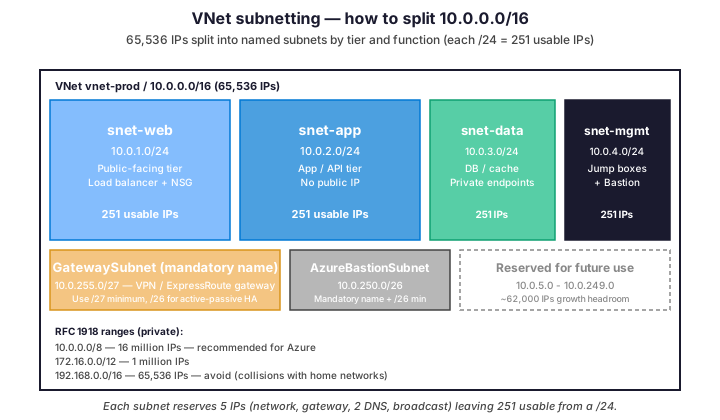
The pattern above scales to most SMB needs. Notably, a /24 per tier gives 251 usable IPs which covers most production workloads. Furthermore, leaving 60K+ IPs unused for future growth costs nothing — Azure does not bill on address space, only on actual resources.
Two subnet names are reserved by Azure: GatewaySubnet for VPN/ExpressRoute and AzureBastionSubnet for Bastion. Importantly, the names are case-sensitive and must match exactly. Indeed, GatewaySubnet must be /27 minimum (/26 recommended for active-passive HA), and AzureBastionSubnet must be /26 minimum.
🕸️ VNet peering: hub-and-spoke topology
VNet peering connects two VNets so that resources communicate as if on the same network. Specifically, peering is non-transitive by default, which leads to the hub-and-spoke pattern as the de-facto Azure landing zone topology.

Regional vs global peering
Regional peering connects two VNets in the same Azure region. Specifically, it offers full bandwidth at lowest latency (sub-millisecond inside a region). Furthermore, traffic stays on the Azure backbone and never traverses the public internet. Therefore, it is the default choice for connecting spokes to a hub.
Global peering connects VNets across regions or even across continents. Notably, latency depends on the geographical distance — expect 30 to 150 ms for typical inter-continental paths. Importantly, ExpressRoute Global Reach is the alternative when you need higher predictability or guaranteed bandwidth between regions.
Transit through the hub
By default, peering does not transit. Specifically, if VNet A peers with B and B peers with C, A cannot talk to C through B. Therefore, to enable spoke-to-spoke communication, you have two options: enable User Defined Routes (UDR) pointing to the hub firewall, or use Azure Virtual WAN which handles routing automatically.
The UDR approach is the standard hub-and-spoke pattern. Indeed, all spoke-to-spoke traffic transits through Azure Firewall in the hub, which provides centralized inspection and egress control. As a result, you get consistent security policies without duplicating Firewall instances per spoke.
🔌 Service endpoints vs Private endpoints
Both options secure access from your VNet to Azure PaaS services like Storage, SQL, or Key Vault. However, they work differently and target different scenarios. The table below clarifies the trade-offs.
| Dimension | Service Endpoint | Private Endpoint |
|---|---|---|
| Connection method | Public IP, traffic stays on Azure backbone | Private IP from your subnet |
| DNS resolution | Public DNS, public name | Private DNS zone, private name |
| From on-prem via VPN | Not accessible | Accessible (true private IP) |
| NSG control | Limited (service tag) | Full (private IP, standard NSG rules) |
| Cost | Free | ~$0.01/hour per endpoint + data |
| Best for | Azure-only access, dev/test environments | Hybrid scenarios, compliance, production |
For SMB production workloads, default to Private Endpoints. Indeed, the cost premium is small ($7-10 per month per endpoint) compared to the security and audit benefits. Specifically, traffic flows over a private IP that NSGs can inspect, and on-prem clients connecting via VPN can reach the service as if it were on a local network.
🔍 DNS in Azure VNets
Each VNet has a default DNS resolver. Specifically, VMs use 168.63.129.16 by default, which is Azure-provided DNS. However, this default works only for public name resolution. Therefore, three options exist for private name resolution.
First, Azure Private DNS Zones work for VNet-internal name resolution without any infrastructure to deploy. Second, Azure DNS Private Resolver (PaaS service) allows hybrid scenarios where on-prem and Azure resolve each other. Third, custom DNS servers (your own AD DCs) handle resolution if you migrate from on-prem.
Configure custom DNS at the VNet level via PowerShell:
# PowerShell: configure custom DNS on a VNet
$vnet = Get-AzVirtualNetwork -ResourceGroupName 'rg-prod-network' -Name 'vnet-prod'
$vnet.DhcpOptions.DnsServers = @('10.0.0.10', '10.0.0.11')  # custom DC IPs
Set-AzVirtualNetwork -VirtualNetwork $vnet
Notably, custom DNS settings apply only to new VMs deployed after the change. As a result, existing VMs need a network interface restart or full reboot to pick up the new DNS servers. Therefore, plan a maintenance window if you change DNS on an active VNet.
💻 Provision a hub-and-spoke with PowerShell
For any landing zone, automation beats portal clicks. Specifically, the script below provisions a hub VNet with three subnets and one production spoke peered to it. Furthermore, the same pattern adapts to Bicep or Terraform with minimal changes.
# PowerShell: provision hub VNet + 1 spoke + bidirectional peering
Connect-AzAccount
Set-AzContext -Subscription 'your-subscription-id'

$rgName    = 'rg-prod-network'
$location  = 'eastus'

New-AzResourceGroup -Name $rgName -Location $location \`
    -Tag @{ CostCenter='IT-001'; Environment='prod' }

# 1. Hub VNet with 3 subnets
$gwSubnet      = New-AzVirtualNetworkSubnetConfig -Name 'GatewaySubnet' \`
                    -AddressPrefix '10.0.255.0/27'
$bastionSubnet = New-AzVirtualNetworkSubnetConfig -Name 'AzureBastionSubnet' \`
                    -AddressPrefix '10.0.250.0/26'
$fwSubnet      = New-AzVirtualNetworkSubnetConfig -Name 'AzureFirewallSubnet' \`
                    -AddressPrefix '10.0.0.0/26'

$hub = New-AzVirtualNetwork -ResourceGroupName $rgName -Location $location \`
    -Name 'vnet-hub-we' -AddressPrefix '10.0.0.0/16' \`
    -Subnet $gwSubnet, $bastionSubnet, $fwSubnet

# 2. Production spoke VNet
$webSubnet  = New-AzVirtualNetworkSubnetConfig -Name 'snet-web' \`
                  -AddressPrefix '10.10.1.0/24'
$appSubnet  = New-AzVirtualNetworkSubnetConfig -Name 'snet-app' \`
                  -AddressPrefix '10.10.2.0/24'
$dataSubnet = New-AzVirtualNetworkSubnetConfig -Name 'snet-data' \`
                  -AddressPrefix '10.10.3.0/24'

$spoke = New-AzVirtualNetwork -ResourceGroupName $rgName -Location $location \`
    -Name 'vnet-spoke-prod' -AddressPrefix '10.10.0.0/16' \`
    -Subnet $webSubnet, $appSubnet, $dataSubnet

# 3. Bidirectional peering (both directions required)
Add-AzVirtualNetworkPeering -Name 'hub-to-spoke-prod' -VirtualNetwork $hub \`
    -RemoteVirtualNetworkId $spoke.Id -AllowForwardedTraffic -AllowGatewayTransit

Add-AzVirtualNetworkPeering -Name 'spoke-prod-to-hub' -VirtualNetwork $spoke \`
    -RemoteVirtualNetworkId $hub.Id -AllowForwardedTraffic -UseRemoteGateways
The peering flags matter for hybrid scenarios. Specifically, AllowGatewayTransit on the hub side and UseRemoteGateways on the spoke side enable spokes to reach on-prem via the VPN gateway in the hub. As a result, a single VPN connection serves all spokes without each needing its own gateway.
✅ Best practices for SMBs
Six practices come up repeatedly across Wintive tenant audits. Notably, each row below has prevented an actual incident or audit finding at a real client.
| Practice | What to do | Why it matters |
|---|---|---|
| Reserve generous address space | One /16 per environment, /24 per tier, leave 60% headroom. | Cannot shrink an address space later; growth is free if reserved upfront. |
| Avoid 192.168.0.0/16 | Use 10.0.0.0/8 for production, 172.16.0.0/12 for dev. | Home networks use 192.168 — VPN clients cannot route correctly. |
| Adopt hub-and-spoke from day 1 | Deploy hub VNet even with one spoke initially. | Easy to add spokes later; refactoring flat to hub is painful. |
| Enforce private endpoints | Disable public access on Storage, SQL, Key Vault, etc. | Compliance baseline for ISO 27001, HIPAA, PCI DSS. |
| Tag every VNet | Environment, CostCenter, Owner, NetworkOwner as required. | Network cost reports allocate cleanly; ownership clear at audit. |
| Document IP plan in source control | Bicep, Terraform, or markdown table in Git. | One source of truth; avoids subnet collisions during growth. |
Of these six items, the IP planning document is the single highest-leverage win. Indeed, an undocumented IP plan creates collisions every time a new spoke is added — we have seen 3-day debugging sessions caused by overlapping CIDRs that simple Git-tracked planning would have prevented.
🚨 Troubleshoot common VNet issues
Most VNet incidents trace back to four causes. Specifically, peering mis-configuration, NSG blocking traffic, route table override, or DNS resolution failure. The script below covers Wintive triage workflow.
# PowerShell: VNet triage workflow
$rgName  = 'rg-prod-network'
$vnetName = 'vnet-spoke-prod'
$nicName  = 'vm-web-01-nic'

# 1. VNet topology + peering state
Get-AzVirtualNetwork -ResourceGroupName $rgName -Name $vnetName | \`
    Format-List Name, AddressSpace, Subnets, VirtualNetworkPeerings

# 2. Peering state - must be Connected on both sides
Get-AzVirtualNetworkPeering -ResourceGroupName $rgName \`
    -VirtualNetworkName $vnetName | \`
    Format-Table Name, PeeringState, AllowForwardedTraffic

# 3. Effective routes on a NIC (the actual routing table)
Get-AzEffectiveRouteTable -NetworkInterfaceName $nicName \`
    -ResourceGroupName $rgName | Format-Table Source, State, AddressPrefix, NextHopType

# 4. Effective NSG rules on a NIC
Get-AzEffectiveNetworkSecurityGroup -NetworkInterfaceName $nicName \`
    -ResourceGroupName $rgName | \`
    Select-Object -ExpandProperty EffectiveSecurityRules | \`
    Format-Table Name, Direction, Priority, Access, DestinationPortRange

# 5. DNS resolution from the VM perspective
Resolve-DnsName -Name 'storage.example.com' \`
    -Server (Get-AzVirtualNetwork -Name $vnetName -ResourceGroupName $rgName).DhcpOptions.DnsServers[0]
If two VNets cannot communicate despite peering being Connected, check effective routes next. Specifically, a route with NextHopType=None or VirtualAppliance pointing nowhere blackholes traffic silently. Therefore, always look at the EffectiveRouteTable before chasing NSG rules.
❓ Azure VNet — FAQ
Yes for adding new ranges (e.g., add 10.1.0.0/16 to a VNet originally /16 at 10.0.0.0). However, you cannot shrink the original range or fully replace it. Therefore, plan address space generously upfront. Adding ranges still requires updating peering and route tables on connected networks.
Typically 3 to 6 in production. One hub VNet with shared services (firewall, DNS, gateway, identity), plus one spoke per environment (prod, staging, dev) and optionally per major application. Going beyond 10 VNets without a clear segmentation reason adds operational overhead with no real security benefit.
Peering itself has no setup fee. However, data transfer through peering links is billed: $0.01/GB outbound for regional peering, $0.035/GB for global peering. For typical workloads, this is negligible, but high-bandwidth applications (video processing, big data) can rack up significant transfer costs.
Peering links two Azure VNets directly over the Microsoft backbone with sub-millisecond latency and no encryption overhead. VPN tunnels traffic over the public internet with IPsec encryption. Peering only works between VNets in Azure. VPN connects Azure to on-premises or another cloud provider.
🔗 Keep exploring
This tutorial covered one focused Azure workflow. For a complete picture of how your full Microsoft 365 and Azure environment performs against best practices:
🔍 Want a complete audit of your Microsoft 365 tenant?
The Automated Tenant Health Check scans your M365 environment in under 10 minutes: license waste, security posture, MFA coverage, compliance gaps, license rightsizing opportunities. Full PDF report with prioritized recommendations delivered instantly.