Azure Files delivers fully managed SMB and NFS shares in the cloud. Specifically, this guide covers performance tiers, authentication options, OS mount workflows, and pricing. Furthermore, every recommendation comes from what Wintive observed across 60+ Microsoft 365 and Azure tenants.
💡 Why Azure Files matters in 2026
On-premises file servers are aging out. Specifically, Windows Server 2012 R2 lost extended support in October 2023, and many SMBs are now migrating SMB shares to the cloud. Azure Files solves this without rebuilding apps that depend on standard file paths.
Beyond pure migration, Azure Files unlocks hybrid scenarios that on-prem cannot match. Notably, Azure File Sync caches frequently used files locally while keeping cold data in Azure. Therefore, branch offices get LAN-speed access without replicating full datasets to every site.
🛡️ Free: M365 Audit Checklist
19-page PDF with 50 hands-on checks covering Entra ID, Exchange Online, SharePoint, Teams, Intune, license waste, and audit logging. PowerShell commands included. Built from 60+ real tenant audits at Wintive.
🔄 Azure Files vs Azure Blobs
Both services live in a Storage Account. However, they solve different problems. The table below summarizes when each fits.
| Dimension | Azure Files | Azure Blobs |
|---|---|---|
| Access protocol | SMB 3.x, NFS 4.1, REST | REST API only |
| Mountable as drive | Yes (Z:\\, /mnt/share) | No (SDK or BlobFuse) |
| POSIX permissions | Yes (NFS) / NTFS ACLs (SMB) | No |
| Native lift-and-shift | Yes — legacy apps work as-is | No — requires rewrite |
| Lifecycle tiering | Hot / Cool / Tx Optimized | Hot / Cool / Cold / Archive |
| Best fit | File shares, app config, user profiles | Object storage, backups, static assets |
Pick Azure Files when applications expect a UNC path or POSIX mount. Conversely, pick Blobs for object storage, backups, or any workload that already speaks REST.
⚡ Performance tiers and pricing
Azure Files offers four tiers in 2026. Specifically, three Standard SKUs (Hot, Cool, Transaction Optimized) on HDD-backed storage, plus one Premium tier on SSD with millisecond latency targets.

The right tier depends on your access pattern. Notably, Standard Hot fits typical user shares with mixed read/write throughout the day. In contrast, Standard Cool works for shares accessed less than once per week per file. Furthermore, Transaction Optimized targets workloads with millions of small operations and few capacity needs.
Reserve Premium for SAP HANA file shares, SQL on Linux databases, or any workload requiring sub-millisecond latency. Indeed, Premium uses provisioned IOPS rather than pay-per-transaction billing, which makes it predictable but expensive. As a result, most SMB workloads land on Standard Hot or Cool.
🔐 Authentication options
Azure Files supports four authentication methods in 2026. However, only two are recommended for new deployments. Specifically, choose between Entra ID Kerberos for cloud-native shares or AD DS for hybrid environments.
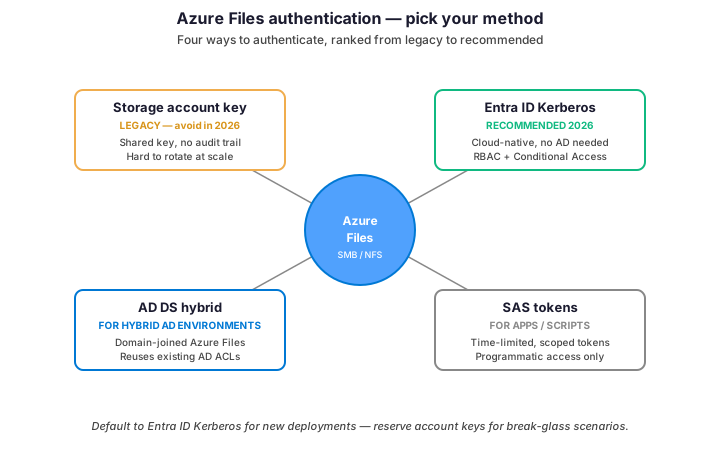
Storage account key — legacy
The storage account key is the original auth method. Specifically, every storage account has two 512-bit keys (key1, key2) that grant full access to all data. However, this approach has serious drawbacks: keys do not expire, rotating them breaks every connected client, and there is no per-user audit trail. Therefore, treat account keys as break-glass credentials only and never deploy them as the primary auth method in 2026.
Entra ID Kerberos — recommended 2026
Entra ID Kerberos delivers the modern auth experience. Notably, it works without on-prem domain controllers, integrates with Conditional Access, and provides per-user audit trails through Azure Monitor. Furthermore, RBAC on Entra ID groups maps directly to NTFS permissions on the share. Indeed, this is the recommended path for any tenant born in the cloud or running M365.
Setup requires a one-time configuration on the storage account followed by NTFS ACL assignment. Importantly, end users sign in with their normal Entra ID credentials and access shares with no additional prompts when on a compliant device. Hence, the user experience matches what they had on Windows file servers.
💾 Mount workflows by OS
Mounting Azure Files follows similar steps across Windows, Linux, and macOS. However, the exact commands differ by OS. The diagram below summarizes the five-step path for each.
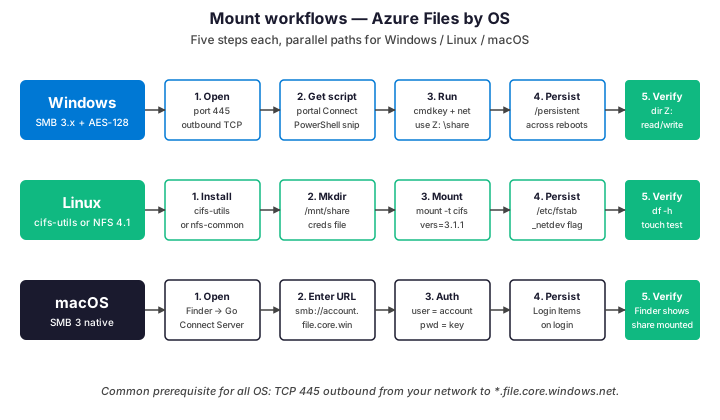
Step 1 is the most common blocker: TCP port 445 outbound must reach Azure. Specifically, many ISPs and corporate firewalls block 445 by default to limit SMB worm propagation. Therefore, before any mount attempt, verify connectivity with Test-NetConnection -ComputerName account.file.core.windows.net -Port 445 on Windows or nc -zv account.file.core.windows.net 445 on Linux.
If 445 is blocked, two workarounds exist. First, route the connection through a VPN gateway or ExpressRoute that exits via Azure backbone. Second, use a private endpoint to expose Azure Files on a private IP inside your VNet. Notably, the second option is the cleanest path for production workloads.
🎯 Use cases for SMBs
Across 60+ tenant audits, Wintive sees Azure Files solve five distinct problems. Notably, each row below maps to a real client deployment.
| Use case | Tier choice | Why it works |
|---|---|---|
| Lift-and-shift legacy file server | Standard Hot + AD DS auth | Apps keep using UNC paths, ACLs migrate as-is. |
| FSLogix profile containers | Premium SSD | Profile load times stay under 5s for AVD users. |
| App config sharing across VMs | Standard Hot | One source of truth, no rsync between nodes. |
| Branch office hybrid (Azure File Sync) | Standard Cool + AFS agent | Hot files cached locally, cold tier in Azure. |
| Backup target for legacy systems | Standard Cool or Tx Optimized | SMB-mountable target accepts robocopy or rsync. |
FSLogix on Premium is the use case where the cost premium pays back. Indeed, slow profile loads waste 2 to 5 minutes per user logon — multiplied across 50 users twice a day, that is 4 to 8 hours of lost productivity daily. Therefore, the extra cost on Premium is offset within weeks.
💻 Provision with PowerShell
For any production share, automation beats portal clicks. Specifically, the script below provisions a hardened Azure Files share with Entra ID Kerberos auth, soft delete, and tagged for cost reporting.
# PowerShell: provision Azure Files with Entra ID Kerberos
# Prerequisites: Az.Storage 5.x, Az.Resources 6.x

Connect-AzAccount
Set-AzContext -Subscription 'your-subscription-id'

$rgName    = 'rg-prod-files'
$location  = 'eastus'
$storName  = 'storfiles' + (Get-Random -Maximum 9999)
$shareName = 'corp-share'

# 1. Resource group with mandatory tags
New-AzResourceGroup -Name $rgName -Location $location \`
    -Tag @{ CostCenter='IT-001'; Environment='prod'; Owner='alice@example.com' }

# 2. Storage account: Standard Hot, GRS, hardened
$sa = New-AzStorageAccount -ResourceGroupName $rgName -Name $storName \`
    -Location $location -SkuName Standard_GRS -Kind StorageV2 \`
    -AccessTier Hot -AllowBlobPublicAccess $false \`
    -MinimumTlsVersion TLS1_2 -EnableHttpsTrafficOnly $true

# 3. Enable Entra ID Kerberos for SMB authentication
Set-AzStorageAccount -ResourceGroupName $rgName -Name $storName \`
    -EnableAzureActiveDirectoryKerberosForFile $true

# 4. Create share with soft delete (14-day retention)
$ctx = $sa.Context
New-AzStorageShare -Name $shareName -Context $ctx
Update-AzStorageFileServiceProperty -StorageAccount $sa \`
    -ShareDeleteRetentionPolicyEnabled $true \`
    -ShareDeleteRetentionPolicyDays 14

# 5. Verify configuration
Get-AzStorageAccount -ResourceGroupName $rgName -Name $storName | \`
    Format-List Sku, Kind, AccessTier, AzureFilesIdentityBasedAuth
Three settings matter for security: EnableAzureActiveDirectoryKerberosForFile activates Entra ID auth, MinimumTlsVersion=TLS1_2 enforces modern crypto, and ShareDeleteRetentionPolicy protects against accidental share deletion. As a result, these three flags should default to true for any new share in 2026.
✅ Security best practices
Six practices matter most for Azure Files in production. Specifically, each row below has prevented an actual security incident or compliance finding at a real Wintive client.
| Practice | What to do | Why it matters |
|---|---|---|
| Disable account key auth | Set AllowSharedKeyAccess=false after Entra Kerberos setup. | Forces all access through Entra ID, gets per-user audit. |
| Enable soft delete on shares | 14-day retention via ShareDeleteRetentionPolicy. | Recovers from accidental delete or ransomware encryption. |
| Use private endpoints | Deploy Azure Files behind PE in your VNet. | Bypasses port 445 ISP blocks, locks data in your perimeter. |
| Enforce SMB 3.x + AES-128 | SmbProtocolVersionsAllowed = SMB3.1.1 only. | Blocks SMB 1.0 / 2.0 attacks (EternalBlue family). |
| Apply NTFS ACLs at folder level | Map Entra ID groups to folder permissions. | Least-privilege access without per-user rules. |
| Enable Defender for Storage | Threat detection on the storage account. | Alerts on anomalous access patterns and ransomware signs. |
Of these six items, disabling account key auth is the highest-impact win. Indeed, an exposed account key in a Git repo or a developer laptop grants full read/write to every share in the account. Therefore, fix this first during any tenant audit.
🚨 Troubleshoot common issues
Most Azure Files incidents trace back to four causes. Specifically, port 445 blocked, NTFS ACLs misconfigured, transactions throttled, or Kerberos ticket expired. The script below covers the Wintive triage workflow.
# PowerShell: Azure Files triage on Windows client
# Run as the user experiencing issues

$accountName = 'storfiles123'
$shareName   = 'corp-share'
$endpoint    = "$accountName.file.core.windows.net"

# 1. Test SMB port reachability
Test-NetConnection -ComputerName $endpoint -Port 445

# 2. Verify SMB version negotiated
Get-SmbConnection -ServerName $endpoint | \`
    Format-Table ServerName, ShareName, Dialect, Encrypted

# 3. Check existing mappings
net use

# 4. Get Kerberos ticket status (if Entra Kerberos)
klist | Select-String -Pattern 'azurefiles|cifs'

# 5. Test write permission on share
$testFile = "\\$endpoint\$shareName\test-$(Get-Random).txt"
try {
    'wintive triage test' | Out-File -FilePath $testFile -ErrorAction Stop
    Remove-Item $testFile
    Write-Host '[OK] Read-write access confirmed' -ForegroundColor Green
} catch {
    Write-Host "[FAIL] $($_.Exception.Message)" -ForegroundColor Red
}

# 6. Server-side metrics (Azure side, throttling check)
Get-AzMetric -ResourceId (Get-AzStorageAccount -ResourceGroupName 'rg-prod-files' \`
    -Name $accountName).Id -MetricName 'Transactions','SuccessE2ELatency' \`
    -TimeGrain (New-TimeSpan -Hours 1) -StartTime (Get-Date).AddDays(-1)
If port 445 is reachable but the mount still fails, check NTFS ACLs next. Specifically, Entra ID Kerberos requires both share-level RBAC (assigned via Azure portal) AND folder-level NTFS ACLs (assigned via Windows). Therefore, missing one of these two layers blocks all access even with valid credentials.
❓ Azure Files — FAQ
Blobs for new backups. Files only when legacy backup tools require an SMB target. Blob lifecycle tiering reaches Archive at $0.001/GB-month, while Files Cool sits at $0.01/GB-month – 10x more expensive for the same cold data.
Yes via Azure File Sync. Install the AFS agent on your existing Windows file server, register it with a Storage Sync Service, and the sync runs in the background. Hot files stay cached locally while cold tier migrates to Azure. Cutover happens when ready.
A single file can reach 4 TiB. Standard share scales to 100 TiB with large file shares feature enabled (default 5 TiB). Premium share starts at 100 GiB minimum and scales to 100 TiB. For shares larger than 100 TiB, split into multiple shares within the same account.
Yes by default. SMB 3.x sessions negotiate AES-128-CCM or AES-128-GCM encryption automatically. The storage account setting RequireSecureTransfer is enabled by default and rejects unencrypted SMB 3.0 or older SMB 2.x connections.
🔗 Keep exploring
This tutorial covered one focused Azure workflow. For a complete picture of how your full Microsoft 365 and Azure environment performs against best practices:
🔍 Want a complete audit of your Microsoft 365 tenant?
The M365 Instant Audit scans your M365 environment in under 10 minutes: license waste, security posture, MFA coverage, compliance gaps, license rightsizing opportunities. Full PDF report with prioritized recommendations delivered instantly.