
Importing or exporting PST files in Exchange Online requires one specific permission: the Mailbox Import Export role. By default, no admin holds it — not even the Global Admin. Therefore, you must assign the Mailbox Import Export role explicitly before you can run New-MailboxImportRequest or New-MailboxExportRequest. At Wintive, this is the first call we get when a client tries to migrate a PST and hits a cryptic permission error.
This guide walks the two ways to assign the Mailbox Import Export role — via the Exchange Admin Center and via PowerShell — plus the audit query you should run first to check who already has it, and the revocation step most teams forget. In practice, getting this right takes 5 minutes once you know where to click and which cmdlet to run.
🛡️ Free: M365 Audit Checklist
19-page PDF with 50 hands-on checks covering Entra ID, Exchange Online, SharePoint, Teams, Intune, license waste, and audit logging. PowerShell commands included. Built from 60+ real tenant audits at Wintive.
🤔 What is the Mailbox Import Export role?
The Mailbox Import Export role is a management role in Exchange Online that grants permission to import PST files into mailboxes and export mailbox content to PST. Specifically, it unlocks the New-MailboxImportRequest and New-MailboxExportRequest cmdlets — both unavailable by default to every admin tier, including Global Admin.
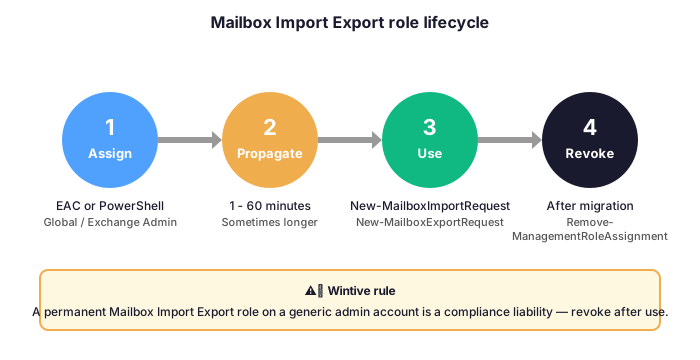
The role is scoped per tenant and survives Exchange version upgrades. However, assigning it does not take effect immediately — Exchange Online needs anywhere from 1 minute to 60 minutes to propagate the change, and the diagram below shows the full lifecycle from assignment to revocation.
🔍 Audit existing role assignments first
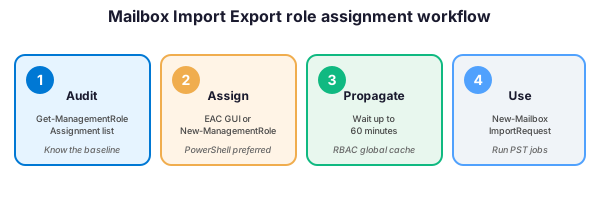
Before you assign the Mailbox Import Export role to anyone new, list who already has it. In practice, we have audited tenants where 6 to 8 admins held the role from forgotten migrations — a real compliance liability, since each holder can export any mailbox to PST.
# Connect to Exchange Online (one-time per session)
Connect-ExchangeOnline -UserPrincipalName admin@yourtenant.onmicrosoft.com

# Wintive audit: list every account holding the Mailbox Import Export role
Get-ManagementRoleAssignment -Role "Mailbox Import Export" |
  Select-Object Name, RoleAssigneeName, RoleAssigneeType, Enabled |
  Format-Table -AutoSize

# Spot direct user assignments (vs group-based) - usually the suspicious ones
Get-ManagementRoleAssignment -Role "Mailbox Import Export" |
  Where-Object { $_.RoleAssigneeType -eq "User" } |
  Select-Object Name, RoleAssigneeName, WhenChanged
📋 Prerequisites
- Global Administrator or Exchange Administrator role on the target tenant
- Exchange Online PowerShell module v3.0 or later (
Install-Module -Name ExchangeOnlineManagement) - A target user or security group that will hold the role — ideally a dedicated migration group, not a permanent admin account
- A planned revocation date — the role should not stay assigned permanently
⚖️ EAC vs PowerShell — pick your tool
Both methods produce the same result. However, they differ on speed, auditability, and how they scale — especially when assigning the Mailbox Import Export role to multiple users at once.
| Criteria | 🖥️ EAC (GUI) | ⚡ PowerShell |
|---|---|---|
| Time to assign 1 user | ~3 minutes | ~10 seconds |
| Time to assign 10 users | ~30 minutes (manual loop) | ~30 seconds (script) |
| Auditable | Limited — admin audit log only | Full — transcript + Exchange logs |
| Idempotent | No | Yes (with checks) |
| Best for | One-off, occasional admins | Production, automation, audit trail |
🖥️ Option A — Exchange Admin Center (GUI)
The Exchange Admin Center route works well for a one-time assignment. For example, when you onboard a single migration admin and want to confirm the role visually before applying it. The matrix below shows the five clicks end-to-end.
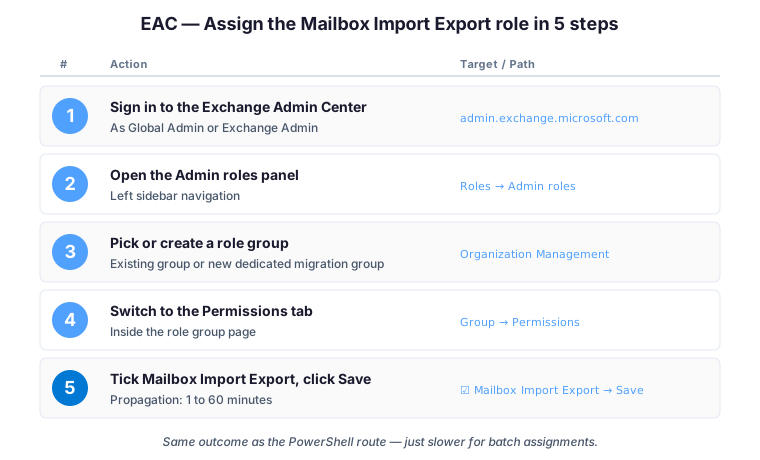
Important: the role assignment is created the second you click Save, but the cmdlets it unlocks are not effective immediately. Therefore, expect 1 to 60 minutes of propagation before New-MailboxImportRequest becomes visible to the assignee.
⚡ Option B — PowerShell (recommended)
PowerShell is the Wintive default for any production tenant. Specifically, the cmdlets are scriptable, idempotent, and produce a transcript that drops straight into your change-management ticket.
Assign the Mailbox Import Export role to a single user:
# Connect to Exchange Online if not already connected
Connect-ExchangeOnline -UserPrincipalName admin@yourtenant.onmicrosoft.com

# Assign the role to one user
New-ManagementRoleAssignment `
  -Role "Mailbox Import Export" `
  -User "migration-admin@yourtenant.onmicrosoft.com" `
  -Name "MIE-MigrationAdmin"

# Confirm the assignment was created
Get-ManagementRoleAssignment -RoleAssignee "migration-admin@yourtenant.onmicrosoft.com" |
  Where-Object { $_.Role -eq "Mailbox Import Export" }
Assign the Mailbox Import Export role to a security group (preferred — group membership is easier to audit and revoke than individual assignments):
# Assign the role to an existing role group
New-ManagementRoleAssignment `
  -Role "Mailbox Import Export" `
  -SecurityGroup "Organization Management" `
  -Name "MIE-OrgManagement"

# Or create a dedicated role group for migrations only
New-RoleGroup `
  -Name "PST Migration Operators" `
  -Roles "Mailbox Import Export" `
  -Members "migration-admin@yourtenant.onmicrosoft.com"
Test that the role is active (run from the assigned user’s PowerShell session, not the assigning admin):
# Reconnect as the assigned user
Connect-ExchangeOnline -UserPrincipalName migration-admin@yourtenant.onmicrosoft.com

# Verify the cmdlet is now visible (returns nothing if role is not effective yet)
Get-Command New-MailboxImportRequest -ErrorAction SilentlyContinue

# If empty: wait 15 minutes and retry. Propagation can take up to 60 minutes.
⏱️ Why role propagation takes up to an hour
Even after a successful New-ManagementRoleAssignment, the cmdlets unlocked by the Mailbox Import Export role do not always work immediately. Indeed, Exchange Online caches the effective permission set per session, and the cache refreshes asynchronously across the tenant’s servers. Wintive observation: most tenants see propagation within 5 to 15 minutes, but plan for up to 60 minutes — particularly on Friday afternoons when the platform is busy.
Therefore, do not chain a fresh assignment with an immediate New-MailboxImportRequest in the same script. Instead, wait for the assignment to take effect — or run the import the next morning if the migration window allows.
❌ Remove the Mailbox Import Export role when done
Once the migration is complete, revoke the role. Otherwise, you leave a mailbox-export capability sitting on an account — a finding any auditor will flag, and a real lateral-movement risk if the account is ever compromised.
# List all assignments first to find the exact -Identity name
Get-ManagementRoleAssignment -Role "Mailbox Import Export" |
  Select-Object Name, RoleAssigneeName

# Remove a specific assignment by its Name
Remove-ManagementRoleAssignment -Identity "MIE-MigrationAdmin" -Confirm:$false

# Or remove the entire dedicated role group
Remove-RoleGroup -Identity "PST Migration Operators" -Confirm:$false
💡 Wintive take: gotchas we have hit in production
- Always audit before assigning. We have audited tenants with 8 admins holding the Mailbox Import Export role from forgotten migrations — each one a potential mailbox-export vector. Therefore, run the audit query before granting anything new.
- Use a dedicated role group, not personal accounts. Create a
PST Migration Operatorsgroup, add the role to that group, then add and remove members as needed. Consequently, revocation becomes a single membership change instead of hunting down individual assignments. - Plan the revocation date upfront. Add a calendar reminder for the day after the migration window closes. In practice, this is the single most common gotcha — the role gets assigned, the migration runs, and three years later it is still active.
- Propagation delay is normal — not a bug. If
Get-Command New-MailboxImportRequestreturns nothing 5 minutes after the assignment, do not re-assign or escalate to support. Instead, wait 15 minutes and retry. We have seen Microsoft support tickets opened needlessly because admins assumed the cmdlet was broken. - For native backup needs, evaluate Microsoft 365 Backup before third-party tools. Microsoft 365 Backup went GA in 2024 and offers Graph-native restore with an SLA. For example, this is the only first-party option that does not depend on the Mailbox Import Export role at all — backup and restore happen at the Graph layer.
✅ Final word
The Mailbox Import Export role is a five-minute permission change that unlocks PST import and export in Exchange Online. However, the right workflow is: audit first, prefer a dedicated role group over personal accounts, expect up to 60 minutes of propagation, and revoke as soon as the migration window closes. For more details, see the Microsoft docs on managing recipient permissions.
❓ Frequently Asked Questions
The role unlocks the New-MailboxImportRequest, New-MailboxExportRequest, Get-MailboxImportRequest, Get-MailboxExportRequest, Remove-MailboxImportRequest, and Remove-MailboxExportRequest cmdlets in Exchange Online PowerShell. Specifically, without the role assigned, these cmdlets either return RBAC permission errors or do not appear at all in the session.
Microsoft treats PST import and export as a sensitive operation because the resulting files contain full mailbox content in clear text. Therefore, the role is decoupled from Global Administrator and must be assigned explicitly. In practice, this forces a deliberate decision and an audit trail every time someone needs to move bulk mailbox data.
Most tenants see the role active within 5 to 15 minutes. However, Microsoft documents up to 60 minutes for full RBAC propagation across the platform. Consequently, do not chain a fresh New-ManagementRoleAssignment with an immediate New-MailboxImportRequest in the same script; instead, separate them with an explicit wait or run them in two scheduled jobs.
Yes. Specifically, the recommended pattern is to create a dedicated mail-enabled security group, for example MIE-Operators, and assign the role to that group with New-ManagementRoleAssignment -SecurityGroup. Furthermore, group-based assignment makes onboarding and offboarding migration staff trivial without touching the RBAC configuration each time.
Yes. The role grants access to clear-text mailbox content, so leaving it assigned permanently expands the attack surface unnecessarily. Therefore, schedule the revocation with Remove-ManagementRoleAssignment as soon as the migration completes, and document the revocation date in the change-management ticket.
🔗 Keep exploring
Why Your Law Firm Is Drowning in Email Chaos (And How to Fix It)
This tutorial covered one focused Exchange Online workflow. For a complete picture of how your full Microsoft 365 environment — mail flow, security posture, and beyond — performs against best practices:
🔍 Want a complete audit of your Microsoft 365 tenant?
The M365 Instant Audit scans your M365 environment in under 10 minutes: license waste, security posture, MFA coverage, compliance gaps, license rightsizing opportunities. Full PDF report with prioritized recommendations delivered instantly.