
Knowing how to manage senders using PowerShell in Exchange Online is essential for IT admins fighting spam, allowing legitimate partners through, and auditing what is already in place. This guide takes a 2026 angle: the modern Set-MailboxJunkEmailConfiguration patterns, where Junk Email lists actually fit in the EOP defense chain, and when to graduate from per-mailbox lists to a Tenant Allow/Block List.
🛡️ Free: M365 Audit Checklist
19-page PDF with 50 hands-on checks covering Entra ID, Exchange Online, SharePoint, Teams, Intune, license waste, and audit logging. PowerShell commands included. Built from 60+ real tenant audits at Wintive.
Specifically, we cover the four tools at your disposal (per-mailbox Junk Email, Tenant ATL, transport rules, Outlook client lists), the workflow we use at Wintive when an audit reveals stale or duplicated entries, and a migration playbook from a fragmented per-user setup to a clean tenant-wide policy. Therefore, you leave with the criteria to choose the right tool for each scenario, not just one cmdlet to memorize.
🆕 Why bother managing senders in 2026?
Microsoft Exchange Online Protection (EOP) and Defender for Office 365 catch the vast majority of spam automatically. In practice, however, business email keeps producing edge cases that justify hands-on sender management. Specifically, marketing platforms send legitimate mail from rotating IPs that EOP occasionally flags, partner domains roll out new MTA hosts faster than allow-lists update, and internal staff still receive convincing impersonation attempts no anti-phish rule has caught yet.
For these reasons, IT admins still need to manage senders at the right granularity. Furthermore, the choice of tool matters: a permissive per-user safe-list spread across 4,000 mailboxes becomes a phishing surface, while a tenant-wide block of a noisy newsletter is a productivity hit. Therefore, the cmdlet you reach for matters, but the policy logic behind it matters more.
Three concrete scenarios surface in nearly every Wintive audit. First, a finance team complains that quarterly statements from a payroll provider land in Junk because the provider rotates sending IPs. Second, an executive assistant adds five public-relations agencies to a personal safe-list, then leaves the company two years later, and the list rots in place. Third, a real estate firm receives a wave of spoofed-domain phishing attempts that EOP scores below the action threshold. Each scenario maps to a different sender management tool, and that mapping is exactly what we cover next.
⚡ Set-MailboxJunkEmailConfiguration: the modern essentials
The cmdlet Set-MailboxJunkEmailConfiguration is the workhorse for per-mailbox sender management in Exchange Online. Specifically, it controls two list properties on every mailbox: TrustedSendersAndDomains (safe senders) and BlockedSendersAndDomains (blocked senders). These lists roam with the mailbox and are honored by Outlook on every device.
💡 Connect to Exchange Online with EXO v3
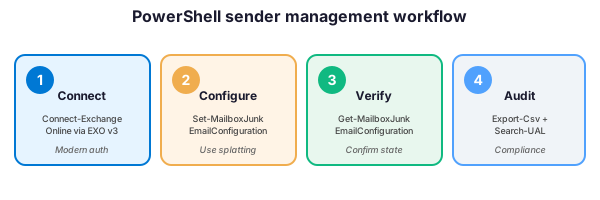
First, connect using the modern Exchange Online Management module (EXO v3). The legacy Basic Authentication endpoint is gone, so you need modern auth. For example:
# Install once on the workstation
Install-Module -Name ExchangeOnlineManagement -Scope CurrentUser

# Connect interactively
Connect-ExchangeOnline -UserPrincipalName admin@example.com
✅ Add a trusted sender to a single mailbox
The basic case adds one or more trusted senders to a single mailbox. For example:
# Replace the entire trusted list (overwrites existing entries)
Set-MailboxJunkEmailConfiguration -Identity alice@example.com `
    -TrustedSendersAndDomains "newsletter@partner.com","marketing.example.net"
However, this overwrites the existing list. To append instead, use the modern hashtable splatting syntax with the @{Add=…} notation:
# Append without overwriting (recommended pattern)
$params = @{
    Identity = "alice@example.com"
    TrustedSendersAndDomains = @{Add = "newsletter@partner.com","marketing.example.net"}
}
Set-MailboxJunkEmailConfiguration @params
⚠️ Add a blocked sender
Blocking a sender at the mailbox level is symmetrical. Specifically, target BlockedSendersAndDomains instead:
Set-MailboxJunkEmailConfiguration -Identity alice@example.com `
    -BlockedSendersAndDomains "spam.example.org","persistent@bad.example"
💧 Valid input formats and limits
Specifically, the cmdlet accepts three input shapes for both list properties: a full email address (alice@example.com), a domain name (partner.com), or a subdomain (alerts.vendor.example.net). In contrast, wildcard patterns such as *@partner.com are not supported, because the domain form already matches every address at that domain. Furthermore, each list is capped at roughly 510 entries combined per mailbox, which sounds generous until a team accumulates years of one-off additions; therefore, treat the lists as policy artifacts to be reviewed, not write-only buckets.
🛡️ Where Junk Email lists fit in the EOP defense chain
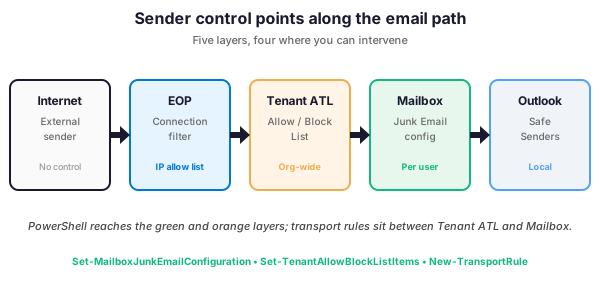
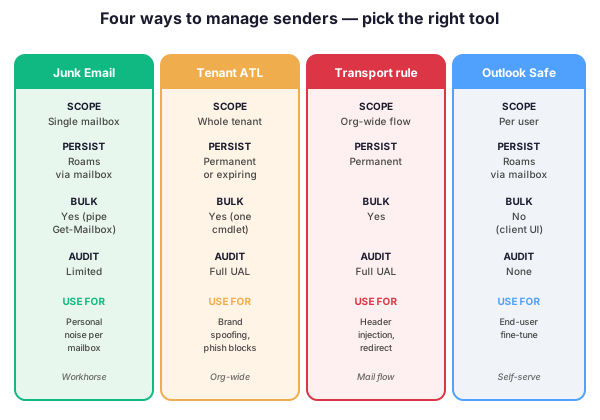
To manage senders with PowerShell is one of four tools that act on inbound email. Therefore, picking the wrong layer creates either gaps or duplication. In particular, Tenant Allow/Block List sits before the mailbox, transport rules sit between organizational policy and delivery, and Outlook Safe Senders is essentially a client-side mirror of the mailbox-level lists.
The diagram clarifies the difference. In practice, when a vendor routes alerts through a transactional email platform, you should add the platform domain to TrustedSendersAndDomains and the Tenant ATL allow list, because EOP filtering may quarantine the message before the per-mailbox rule ever runs. Moreover, this dual-add is exactly the pattern Microsoft documents for legitimate marketing senders.
📋 Bulk operations across the tenant
Per-mailbox commands work for one user; furthermore, real tenants need bulk patterns. Specifically, two scenarios come up regularly: applying the same safe-sender list to every mailbox, and pruning a known-bad domain from every blocked list after a vendor change.
🚀 Apply a baseline trusted list to every mailbox
# Baseline trusted senders for the whole tenant
$baseline = "newsletter@partner.com","alerts@vendor.example.net"

Get-Mailbox -ResultSize Unlimited | ForEach-Object {
    Set-MailboxJunkEmailConfiguration -Identity $_.UserPrincipalName `
        -TrustedSendersAndDomains @{Add = $baseline}
}
Furthermore, the @{Add=…} pattern is critical here: without it, the script overwrites every user existing list, which is rarely the intent. Indeed, a careless overwrite is one of the most common production incidents we audit at Wintive, and it tends to surface only days later when users complain that newsletters they previously trusted have stopped landing in the Inbox.
🗑️ Remove a stale entry from every mailbox
The mirror operation removes a domain after a vendor change, breach, or rebrand. Specifically, use the @{Remove=…} notation:
# Strip a deprecated domain from every mailbox trusted list
Get-Mailbox -ResultSize Unlimited | ForEach-Object {
    Set-MailboxJunkEmailConfiguration -Identity $_.UserPrincipalName `
        -TrustedSendersAndDomains @{Remove = "old-vendor.example"}
}
📋 Compare tools at a glance
The capability matrix below summarizes when each tool wins. In contrast to anecdotal advice, this comparison reflects the operational reality across Wintive tenant audits.
| Capability | Junk Email per-mailbox | Tenant ATL | Transport rule | Outlook Safe Senders |
|---|---|---|---|---|
| Scope | One mailbox | Whole tenant | Org-wide flow | Per user |
| Persistence | Roams via mailbox | Permanent or expiring | Permanent | Roams via mailbox |
| Bulk-friendly | Yes (Get-Mailbox pipe) | Yes (one cmdlet) | Yes | No (client-side) |
| Audit logging | Limited | Full UAL | Full UAL | None |
| Recommended for | Personal noise | Brand spoofing, phish blocks | Header injection, redirect logic | End-user fine-tune |
🔍 Audit and report on configured senders
To audit current state, use Get-MailboxJunkEmailConfiguration. Specifically, the snippet below exports the trusted and blocked lists for every mailbox to a CSV ready for review:
# Audit trusted/blocked senders across the tenant
Get-Mailbox -ResultSize Unlimited | ForEach-Object {
    $cfg = Get-MailboxJunkEmailConfiguration -Identity $_.UserPrincipalName
    [PSCustomObject]@{
        Mailbox       = $_.UserPrincipalName
        TrustedCount  = $cfg.TrustedSendersAndDomains.Count
        BlockedCount  = $cfg.BlockedSendersAndDomains.Count
        TrustedSample = ($cfg.TrustedSendersAndDomains | Select-Object -First 5) -join "; "
    }
} | Export-Csv -Path "C:\Reports\sender-audit.csv" -NoTypeInformation
For compliance contexts, additionally check the Unified Audit Log via Search-UnifiedAuditLog. In contrast to per-mailbox cmdlets, Tenant ATL changes are fully tracked there with the operation TenantAllowBlockListItems.
Indeed, our quarterly review pattern at Wintive treats the CSV export as input for three quick checks: outliers (mailboxes with more than 50 entries usually point to a former assistant role), duplicates promoted to Tenant ATL (if a domain appears on more than 25 mailboxes, it belongs at tenant level), and orphan vendors (entries pointing to domains no longer in the supplier database). Consequently, each quarter prunes roughly 10-15% of accumulated drift without a single user complaint.
🚀 Migration playbook: from per-mailbox to Tenant ATL
When per-mailbox lists drift across thousands of users, consolidate to Tenant ATL. In particular, this is the four-step pattern we follow during M365 Master Audits at Wintive:
- Inventory. Run the audit script above and identify the most common entries across mailboxes.
- Promote. Add the top legitimate domains to the Tenant Allow list with New-TenantAllowBlockListItems.
- Strip. Remove the now-promoted entries from per-mailbox lists using Remove notation: TrustedSendersAndDomains @{Remove = …}.
- Communicate. Document which entries belong at tenant level so users stop adding them locally.
Consequently, the steady-state has Tenant ATL covering brand-wide allow/block decisions and per-mailbox lists handling user-specific preferences. Therefore, audit drift drops dramatically, and the next quarterly review focuses on policy intent rather than chasing scattered entries.
❓ Frequently Asked Questions
TrustedSendersAndDomains is set server-side and roams across every Outlook client; in contrast, Outlook Safe Senders are stored per device profile and never appear in audit logs. Therefore, the PowerShell cmdlet is the recommended path for IT-managed sender control.
Run Get-MailboxJunkEmailConfiguration -Identity alice@example.com. Specifically, the cmdlet returns TrustedSendersAndDomains and BlockedSendersAndDomains as string arrays you can inspect, count, or export to CSV.
For per-mailbox lists, no. You must pipe Get-Mailbox into Set-MailboxJunkEmailConfiguration to apply the same list to every mailbox. However, the Tenant Allow/Block List achieves tenant-wide allow or block in a single cmdlet, which is why we recommend it for org-wide decisions.
Junk Email lists act at the mailbox layer after EOP filtering, while Tenant ATL acts before EOP filtering decisions. Consequently, an entry in Tenant ATL bypasses or enforces filtering at the org level, whereas a per-mailbox entry only changes how an already-delivered message is sorted into the Inbox or Junk folder.
Yes. The cmdlet is part of the Exchange Online Management module v3 and works under modern authentication. Indeed, the legacy Basic Authentication endpoint is fully retired, so EXO v3 is the only supported path.
🔗 Keep Exploring
This tutorial covered one focused Exchange Online workflow. For a complete picture of how your full Microsoft 365 environment — mail flow, security posture, and beyond — performs against best practices:
🔍 Want a complete audit of your Microsoft 365 tenant?
The M365 Instant Audit scans your M365 environment in under 10 minutes: license waste, security posture, MFA coverage, compliance gaps, license rightsizing opportunities. Full PDF report with prioritized recommendations delivered instantly.