Setting up an automatic reply in Microsoft 365 (also known as out-of-office reply) is one of those small but high-value admin tasks that comes up every holiday season, every sick day, and every offboarding ticket. Configuring an automatic reply Microsoft 365 message correctly means choosing the right channel, writing a message that respects internal versus external boundaries, and avoiding the classic mistakes that turn a two-minute task into an HR headache.
This guide walks through the three channels available to set up an out of office automatic reply in Office 365 — Outlook on the web, the iPhone Mail app, and PowerShell for administrators. We also cover the lifecycle, the best practices for return dates and alternative contacts, and the compliance angle most tutorials skip. For more Microsoft 365 absence-management ideas, see our Microsoft 365 productivity tips.
🛡️ Free: M365 Tenant Security Audit Checklist
17-page PDF with 50 hands-on checks covering Entra ID, Exchange Online, SharePoint, Teams, Intune, license waste, and audit logging. PowerShell commands included. Built from 60+ real tenant audits at Wintive.
🔁 Automatic reply Microsoft 365 lifecycle: from configure to disable
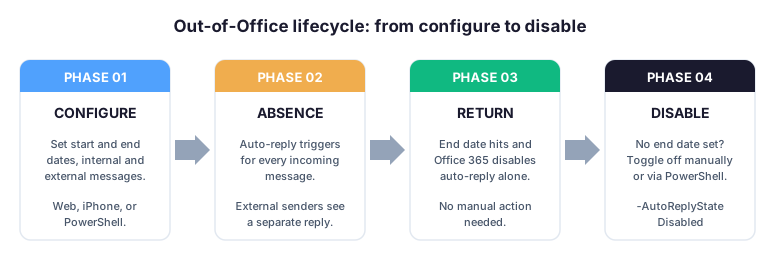
An out-of-office reply in Office 365 follows four predictable phases. First, you configure the date range and the message body — once for internal recipients, once for external senders. Then, during the absence, Exchange Online auto-replies once per sender per day to internal contacts and once in total to each external sender. Furthermore, when the end date hits, the reply auto-disables without any manual action. However, if no end date was configured, you must disable it manually — which is exactly where most “I forgot to turn off my out of office” stories begin.
🚦 Three channels for an automatic reply in Microsoft 365
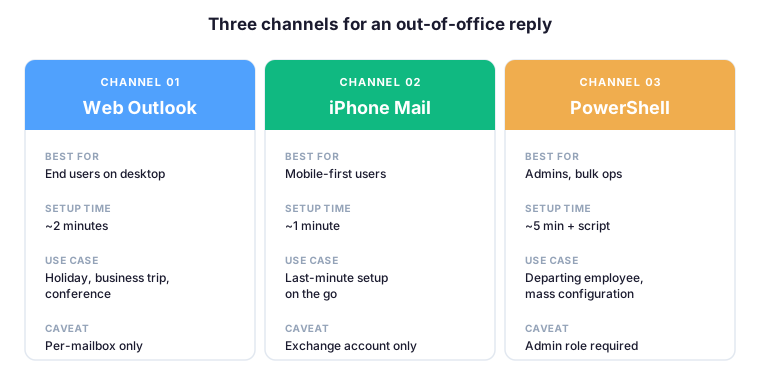
Office 365 offers three ways to configure an out of office automatic reply, and each channel covers a different use case. For example, the web Outlook flow is the most common path for end users with a desktop session. In contrast, the iPhone Mail app is the fastest option for a last-minute setup on the go. Specifically, PowerShell is the only practical choice for administrators handling departing employees, bulk configuration, or scripted compliance routines across multiple mailboxes.
🖥️ Automatic reply Microsoft 365 via Outlook on the web
The prerequisite is an Office 365 subscription with Exchange Online — for example Microsoft 365 Business Standard or Microsoft 365 Apps for Business. Open https://outlook.office.com and sign in with your work or school account.
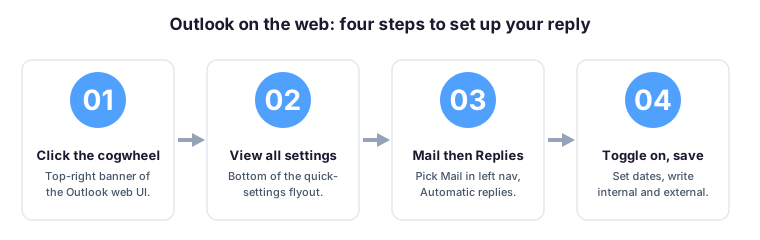
⚙️ 1. Open the settings cogwheel
Click the cogwheel icon in the top-right banner of the Outlook web interface. The settings panel opens on the right side of the window.
📋 2. Show all Outlook settings
At the bottom of the quick-settings flyout, click “View all Outlook settings” to open the full preferences modal where every Outlook option lives.
📨 3. Go to Mail then Automatic replies
In the left navigation of the settings modal, select Mail, then choose Automatic replies from the second column. This is where the out of office configuration lives.
✏️ 4. Toggle on, set dates, write the messages
Enable the “Turn on automatic replies” toggle, set the start and end date if applicable, and fill in both the internal message and the external one in the “Send replies outside your organization” field. Click Save to confirm.
Tip: to skip the menu navigation, paste the direct URL https://outlook.office.com/mail/options/mail/automaticReplies straight into your browser address bar.
📱 Automatic reply Microsoft 365 on iPhone Mail
The iOS Mail app exposes its own auto-reply switch for any Microsoft Exchange account. Specifically, the flow is faster than the web equivalent — useful when you realise you forgot to set your out-of-office reply at the airport.
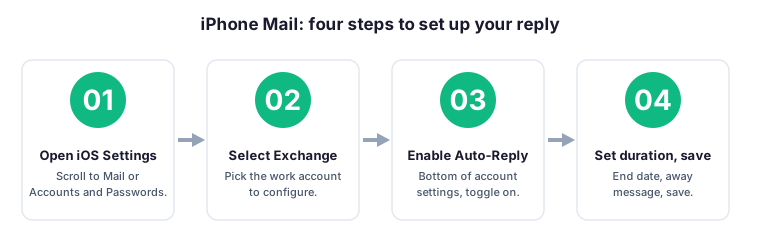
⚙️ 1. Open iOS Settings
Open the iOS Settings app, scroll to “Mail” or “Accounts and Passwords”, and select the Exchange account you want to configure for the out of office reply.
🔔 2. Enable Auto-Reply
At the bottom of the account settings panel, tap the Auto-Reply menu and toggle the function on. The auto-reply takes effect immediately.
📅 3. Set the duration
The auto-reply runs as soon as you save. However, you can pick an End Date so iOS disables the function automatically. Therefore, configure the End Date the same way you would set a calendar reminder, especially for short trips where you risk forgetting to disable it on return.
✉️ 4. Write the away message
In the “Away Message” field, enter the body that recipients should receive during your absence. Toggle the External Away Message option to send a different reply to senders outside your organization. Tap Save to confirm.
⚡ Configure automatic reply Microsoft 365 via PowerShell
As an Exchange Online administrator, you can configure an out-of-office reply for any mailbox in the tenant — useful when a user is unavailable, has left the organization, or never signed into Outlook in the first place. The cmdlet is Set-MailboxAutoReplyConfiguration and it requires a Mail Recipients or Organization Management role. The official Microsoft Learn reference for Set-MailboxAutoReplyConfiguration documents every parameter for the automatic reply Microsoft 365 admin scenario.
To enable an auto-reply with separate internal and external messages on a single mailbox:
Set-MailboxAutoReplyConfiguration -Identity "user@domain.com" -AutoReplyState Enabled -InternalMessage "I am out of the office until Monday. For urgent matters contact ops@domain.com." -ExternalMessage "I am currently out of office and will reply when I return."To audit existing out of office configurations across the tenant — for example before a holiday season to spot mailboxes still set to a stale message:
Get-Mailbox -ResultSize Unlimited | Get-MailboxAutoReplyConfiguration | Where-Object {$_.AutoReplyState -ne "Disabled"} | Select-Object Identity, AutoReplyState, StartTime, EndTime | Export-Csv .\oof-audit.csv -NoTypeInformationWhen handling a departing employee, the cleaner pattern is a permanent forwarding rule plus a temporary out-of-office message that points to the replacement contact. For example:
Set-MailboxAutoReplyConfiguration -Identity "leaver@domain.com" -AutoReplyState Enabled -InternalMessage "John has left the company. Please contact jane@domain.com for ongoing matters." -ExternalMessage "John has left the company. Please contact jane@domain.com for ongoing matters."
Set-Mailbox -Identity "leaver@domain.com" -ForwardingSmtpAddress "jane@domain.com" -DeliverToMailboxAndForward $true
Beyond this guide, see our top PowerShell commands for Exchange Online and our mailbox migration guide for additional admin patterns.
💡 Best practices for an automatic reply in Microsoft 365
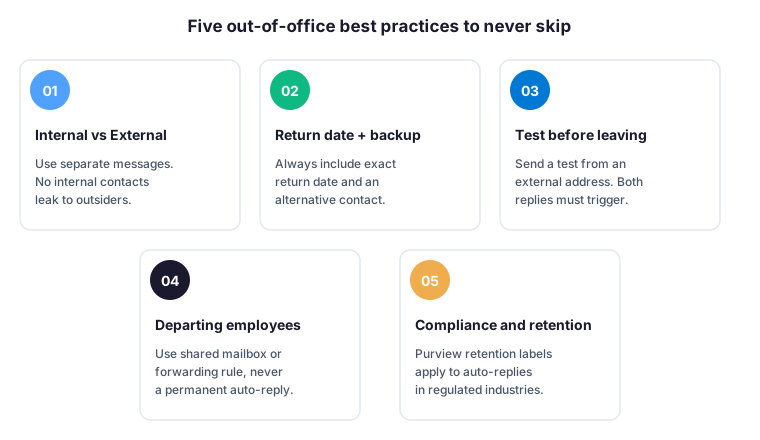
- Set separate internal and external messages. Internal contacts and project codenames have no business leaking to outside senders. Therefore, treat the External Away Message as a public-facing statement and the internal one as a quick handover note for colleagues.
- Always include a return date and an alternative contact. A reply that says “I am away” without a date or a fallback name forces every sender to either wait or escalate. For example, “Back on Monday 5 May. For urgent matters, contact ops@domain.com” is a complete answer in one line.
- Test before leaving. Send yourself a test email from an external address and verify both the internal and the external reply trigger correctly. In particular, the external reply will not fire if your tenant blocks auto-replies to specific domains via mail flow rules.
- For departing employees, prefer a shared mailbox or a forwarding rule. A permanent out-of-office reply on a leaver mailbox creates noise for every external sender and never lets them know the contact has actually changed. Specifically, a shared mailbox preserves the address and routes incoming mail to the replacement.
- Mind compliance and retention. In regulated industries, auto-reply messages may be subject to Microsoft Purview retention policies like any other email. Indeed, the auto-reply body and metadata are journaled and discoverable.
📋 Channel comparison for automatic reply Microsoft 365
The wintive-table below summarises when to use each channel — useful for first-line support tickets where the user asks “how do I set up my out of office reply” without knowing what device they have in front of them.
| Channel | Best for | Setup time | Caveat |
|---|---|---|---|
| Web Outlook | End users on desktop | ~2 minutes | Per-mailbox only |
| iPhone Mail | Mobile-first or last-minute | ~1 minute | Exchange account required |
| PowerShell | Admins, bulk operations, leavers | ~5 min plus script | Admin role required |
🛡️ Compliance for automatic reply Microsoft 365 retention
Auto-reply messages count as outbound mail and inherit the same compliance rules as any other email leaving the tenant. For example, Microsoft Purview retention labels can be applied to auto-reply messages just like regular emails — meaning the message body, the recipient list, and the timestamp may be retained for the policy duration.
Additionally, if your organization uses Exchange mail flow rules to restrict outbound traffic, ensure that auto-replies from sensitive mailboxes are explicitly allowed. Otherwise, legitimate absence notifications may be silently dropped and the sender will never know you are away.
⚠️ Wintive take: common out-of-office pitfalls
Three pitfalls show up in tickets every single quarter. Specifically, the most common one is the user who forgot to set an end date and stayed in “I am out of office” mode for two extra weeks. However, the most expensive one is the leaver mailbox running a permanent auto-reply for six months — every external sender now has confirmation that the address is monitored, which is a phishing reconnaissance gift. Therefore, run the audit script above at least once per quarter and clear stale out of office configurations.
The third pitfall is the missing alternative contact. For example, finance teams routinely receive urgent invoice queries that cannot wait for a returning colleague. Furthermore, an out-of-office reply that names a backup contact also signals continuity to external partners — useful when audit season hits and someone has to confirm a transaction reference.
🤔 Frequently asked questions about automatic reply Microsoft 365
An out-of-office reply in Exchange Online activates within seconds of saving your settings. However, mail flow rules or Conditional Access policies may delay the first reply by a few minutes during peak times. Therefore, test from an external address before relying on it for a critical absence.
Yes. Both Outlook on the web and PowerShell expose separate InternalMessage and ExternalMessage fields. Use this separation to keep internal context such as project codenames or backup contacts away from external auto-replies.
Without an end date, your auto-reply runs until you manually disable it. Always configure an end date during setup to avoid the classic “I forgot to turn off my out of office” scenario after returning from holiday.
Yes, via Set-MailboxAutoReplyConfiguration. This is the standard admin pattern for departing employees, extended sick leave, or any case where the user cannot sign in. The admin needs Mail Recipients or Organization Management role.
Yes. Auto-replies count as outbound mail and inherit Microsoft Purview retention labels and journaling rules. In regulated industries such as finance or healthcare, treat them as part of your overall email retention scope.
📚 What to read next
Three Microsoft 365 admin guides extend the automatic reply playbook.