Microsoft 365 productivity in 2026 is a different problem than 2018 ribbon-and-Tell-Me era. The 2026 stack spans Copilot Chat at $30 per user per month Enterprise ($18 SMB promo through June 2026). The New Outlook for Windows is now mandatory. Loop workspaces hit general availability in August 2024. Microsoft Planner now combines Project for the web with Loop integration. As a result, an SMB tenant that pretends nothing changed since 2020 is leaving roughly 30% of productivity gains on the table, and the gap widens every quarter.
💡 The 7 Microsoft 365 productivity tips for 2026 in 90 seconds.
- Adopt Copilot Chat as the daily knowledge cockpit
- Master New Outlook 2026 features (Mobile Priority View was retired February 4 2026)
- Reduce meeting overhead via Teams meeting recap and Speaker Coach
- Unify task surfaces with Planner + To Do + Loop
- Optimise OneDrive with Files On-Demand and Storage Sense
- Automate repetitive work with Power Automate Desktop and AI Builder
- Surface knowledge with Microsoft Search and Topics
The average SMB knowledge worker spends 60% of the workweek on email plus meetings before any deep work. Copilot adoption funnel data shows a 65-point drop-off from awareness to trial license activation. Hands-on workshops outperform email rollouts.
Free guide
Microsoft 365 productivity audit checklist for 2026
A 28-page PDF covers 7 areas. Copilot rollout phases. New Outlook 2026 settings. Teams meeting hygiene. Planner unification with To Do. OneDrive sync optimisation. Power Automate Desktop quick wins. Microsoft Search configuration. Wintive uses the same checklist on 60+ tenants.
📥 Download the free Microsoft 365 productivity checklist (PDF)
Furthermore, the Microsoft 365 productivity surface in 2026 is overwhelmingly broad. Specifically, Copilot Chat alone added voice chat in April 2026 wave 21, the Hey Copilot wake word in late February 2026, and three new agents (PowerPoint, Excel, Planner) the same month. This guide focuses on the 7 modern tips that compound across every workday. It includes concrete configuration patterns. License SKU prerequisites are listed per tip. A 60-tenant Wintive baseline shows realistic adoption rates and ROI thresholds.
📜 The 7 modern Microsoft 365 productivity tips for 2026
Specifically, the seven Microsoft 365 productivity tips below cover the highest-leverage capabilities released or substantially changed between 2024 and 2026. As a result, each tip targets a measurable productivity friction point identified across Wintive’s 60-plus SMB tenant baseline. Furthermore, the tips compound: tip 2 amplifies tip 1, tip 4 multiplies the effect of tip 3, and so on.
Tip 1 — Copilot Chat as daily knowledge cockpit
Copilot Chat in 2026 is the single tab that compresses email triage, document drafting, meeting prep, and policy lookup into one pane. Furthermore, Copilot Pages enable collaborative AI-assisted documents that branch from a Chat conversation directly into a shareable canvas. The Copilot $30 per user per month Enterprise SKU includes the agents released in April 2026 wave 21.
- PowerPoint agent — auto-generates first-draft decks from a brief plus brand guidelines
- Excel agent — pivot-table reasoning, formula explanation, anomaly detection
- Planner agent — surfaces overdue tasks and re-prioritises by Outlook calendar load
- Hey Copilot wake word — GA late February 2026 for hands-free voice prompts
- Voice chat — April 2026 wave 21 (low-latency conversation mode)
Tip 2 — New Outlook for Windows 2026 mastery
The New Outlook for Windows is now mandatory across all supported tenants. Classic Outlook reaches end of mainstream support in 2026. The Mobile Priority View was retired on February 4 2026. The 2026 productivity playbook covers 5 surfaces:
- Schedule send for non-urgent replies (preserves async culture)
- Pin and snooze for triage (replaces flag-everything anti-pattern)
- AI categorisation rules (auto-tagging by sender or topic)
- Loop components for collaborative tables and lists embedded directly in emails
- Coaching with Copilot for tone, length, and clarity feedback before send
In addition, focus time blocking via Microsoft Viva Insights protects deep work hours from interruption.
Tip 3 — Teams meeting intelligence and async via Loop
Teams meeting intelligence in 2026 ships three Copilot-powered upgrades that compress prep and review time:
- Meeting recap with Copilot summaries — action items, decisions, attendee statements auto-extracted post-meeting
- Speaker Coach — private feedback on pace, filler words, inclusivity language
- Intelligent cameras with auto-framing — follows the active speaker in hybrid rooms
Furthermore, the asynchronous alternative is Loop workspaces (GA August 2024) that replace synchronous status meetings with persistent collaborative documents. Organisations reporting Wintive baseline data cut total meeting hours by 18% on average within 90 days of combining Copilot recap plus Loop workspaces. Critically, the Channel Calendars feature surfaces meeting times directly in Teams without context-switching to Outlook.
Tip 4 — Planner + To Do + Loop unified task surface
Furthermore, Microsoft Planner in 2026 combines Project for the web (Gantt views, capacity planning, dependencies) with native Loop integration. Specifically, the unified task surface lets one Planner task appear in 4 places. It surfaces in a Teams chat as a Loop component. It also lands in a user’s personal To Do list. The same task appears in the Outlook task pane. Finally, it shows in a SharePoint list view. Therefore, the “where did I save that task” problem dissolves when the surface is configured correctly. Critically, Planner Premium (formerly Project Online) is required for Gantt and capacity planning, while basic Planner ships with all Microsoft 365 Business Premium and Enterprise SKUs.
Tip 5 — OneDrive Files On-Demand and Storage Sense
OneDrive Files On-Demand keeps file metadata locally without consuming disk space until the file is opened. As a result, a 1 terabyte mailbox plus OneDrive footprint can run on a 256 gigabyte SSD without storage anxiety. The 2026 OneDrive productivity stack rests on 4 controls:
- Files On-Demand — cloud-only files appear as placeholders, downloaded on first open
- Storage Sense (Group Policy or Intune) — auto-dehydrates files unused for 30 days
- Selective sync — limits which folders synchronise per device (laptop versus workstation)
- Known Folder Move — redirects Desktop, Documents, Pictures to OneDrive automatically
Therefore, multi-device file access works without manual cleanup or external sync tools like Dropbox or Google Drive. The Microsoft 365 Business Premium plan ships with the full OneDrive stack at no incremental cost.
Tip 6 — Power Automate Desktop and AI Builder
Power Automate Desktop ships with Microsoft 365 Business Premium and Enterprise plans, providing personal RPA without additional licensing. Common automations target the same daily friction points across SMB IT teams:
- Email attachment to Excel — extract structured data from supplier invoices into a tracker
- SharePoint list scraping — daily summary of new items into a managed mailbox
- Outlook to Teams notification — flagged emails trigger a Teams chat or channel post
- Approval routing — multi-stage sign-off via Teams adaptive cards
- Legacy app data entry — UI automation for Win32 apps without modern API
Furthermore, AI Builder layers on top at $500 per month per environment for 1 million credits, covering OCR, document processing, and form recognition. Critically, governance via the Power Platform admin centre prevents flow sprawl across personal accounts.
Tip 7 — Microsoft Search and Topics for enterprise knowledge
Microsoft Search in 2026 federates results across the full Microsoft 365 estate. Specifically, the search bar surfaces hits from 5 surfaces in a single results pane:
- Outlook mailboxes — emails, calendar, contacts
- OneDrive files — personal cloud storage and shared-with-me
- SharePoint sites — pages, documents, lists, tenant-wide
- Teams chats — messages, files, channel posts
- Yammer / Viva Engage threads — communities and conversations
Furthermore, Microsoft Topics auto-extracts key concepts from tenant content (project names, product codes, internal acronyms) and surfaces them as clickable cards. As a result, a query for Q4 forecast returns the document plus a Topics card with related people, recent discussions, and key metrics. Therefore, knowledge silos collapse across departments without manual tagging effort.
📊 Where the 40-hour workweek actually goes (2026 baseline)
Specifically, productivity tips that ignore where the time actually goes are theatre. Furthermore, the treemap below distributes the average knowledge worker workweek across six categories aggregated from 2026 Microsoft Work Trend Index data plus the Wintive 60-plus tenant baseline. As a result, meetings (32%) plus email and IM (28%) consume 60% of the workweek before any deep work begins.
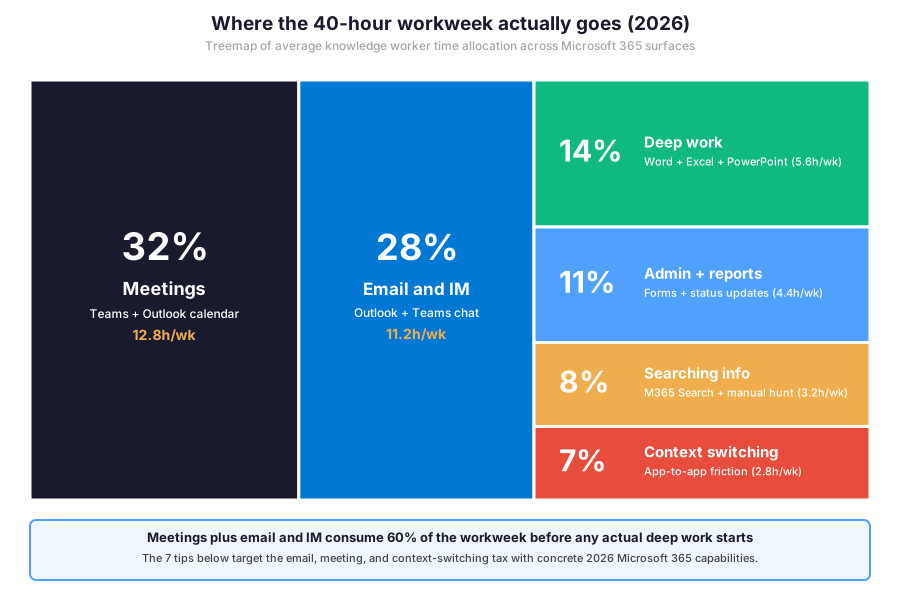
📈 Treemap — meetings plus email and IM consume 60% of the workweek before deep work begins.
⚠ The hidden tax: context switching consumes 7% of the workweek (2.8 hours) and searching for information consumes 8% (3.2 hours). As a result, almost a full workday per week is lost to friction that Microsoft 365 productivity capabilities (M365 Search + Topics, unified task surface) directly target.
🎯 Effort versus impact analysis of the 7 productivity tips
Furthermore, not every Microsoft 365 productivity tip carries the same return on effort. Specifically, the bubble chart below plots the seven tips on an effort by impact axis with bubble size proportional to current SMB adoption rate. Therefore, two clear quick wins emerge with low implementation effort and high impact: tip 2 (Outlook 2026 mastery, 45% adoption) and tip 5 (OneDrive sync optimisation, 52% adoption). In addition, two strategic high-effort high-impact investments stand out: tip 1 (Copilot Chat) and tip 6 (Power Automate Desktop).
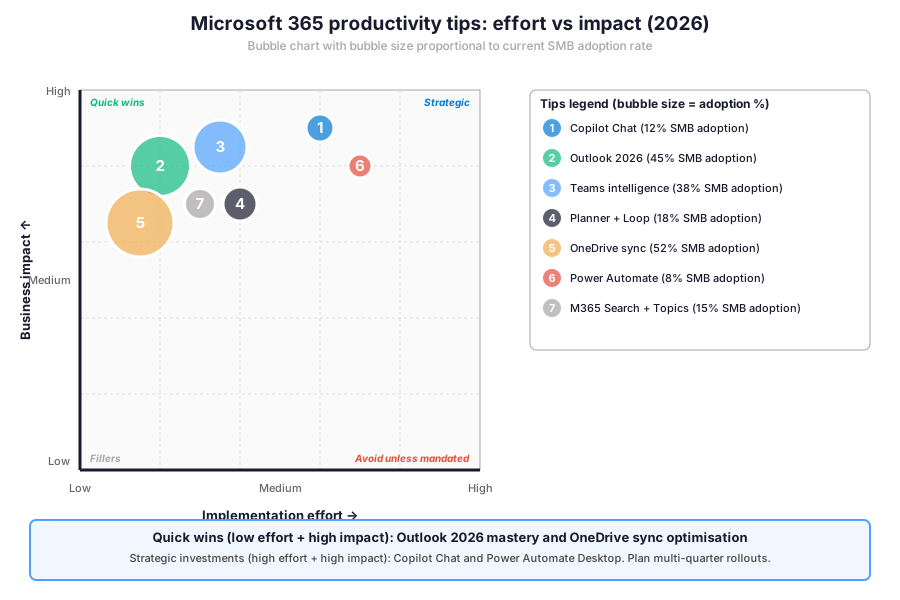
🎯 Bubble chart — effort by impact with bubble size proportional to current SMB adoption rate.
Critically, tip 1 (Copilot Chat) sits at the top right of the matrix because the impact is high but only 12% of SMB tenants have Copilot Pro deployed at scale. The strategic move for an SMB IT lead in 2026 is simple. Lock in the $18 SMB promotional pricing through June 2026. Run a 25-seat pilot. Then expand based on funnel conversion. Furthermore, tip 7 (Microsoft Search + Topics) sits in the medium-effort medium-impact zone because the underlying technology requires no new license SKU but configuration spans tenant-wide settings.
📉 Copilot adoption funnel: from awareness to ROI
Specifically, Copilot rollouts in 2026 follow a predictable funnel shape across SMB tenants. Furthermore, the 5-stage funnel below tracks 100 starting users from initial awareness through to demonstrable ROI realisation. As a result, 8 out of 100 users typically reach the “power user with measurable productivity gain” stage within a 12-month rollout window. Therefore, planning a Copilot rollout requires sizing the original cohort by the target ROI count (i.e., for 8 ROI-positive users, license 100 awareness candidates).
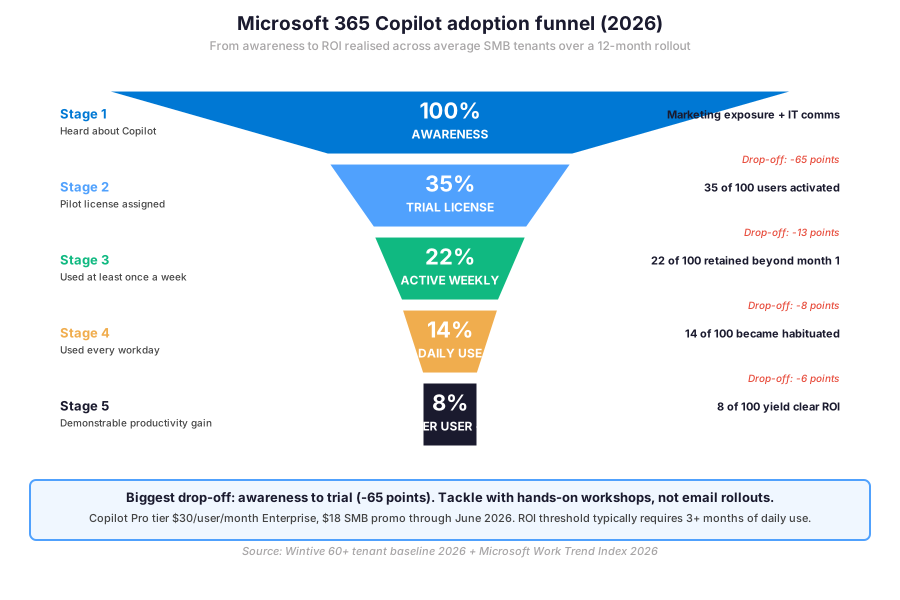
📉 Funnel — biggest drop-off is awareness to trial license activation at 65 percentage points lost.
⚠ Funnel insight: the awareness-to-trial drop is 65 points and is the single biggest leakage. A hands-on workshop format lasts 45 to 90 minutes per cohort. It includes sample prompts and a take-home cheat sheet. This format outperforms email-driven rollouts by 3 times in trial activation rate per Wintive tenant data.
📐 Microsoft 365 productivity dimensions assessment
Furthermore, single-metric productivity scores miss the multidimensional reality of Microsoft 365 work. Specifically, the radar chart below scores tenants across five dimensions (Communication, Collaboration, Knowledge, Automation, Wellness) on a 0 to 10 scale and overlays the 2026 SMB baseline against a Wintive target profile. As a result, the biggest gaps emerge in Automation (+4 points) and Wellness (+4 points), followed by Knowledge (+3) and Communication (+3). In addition, Collaboration shows the smallest gap (+2) because real-time co-authoring and Loop workspaces have already reached majority adoption.
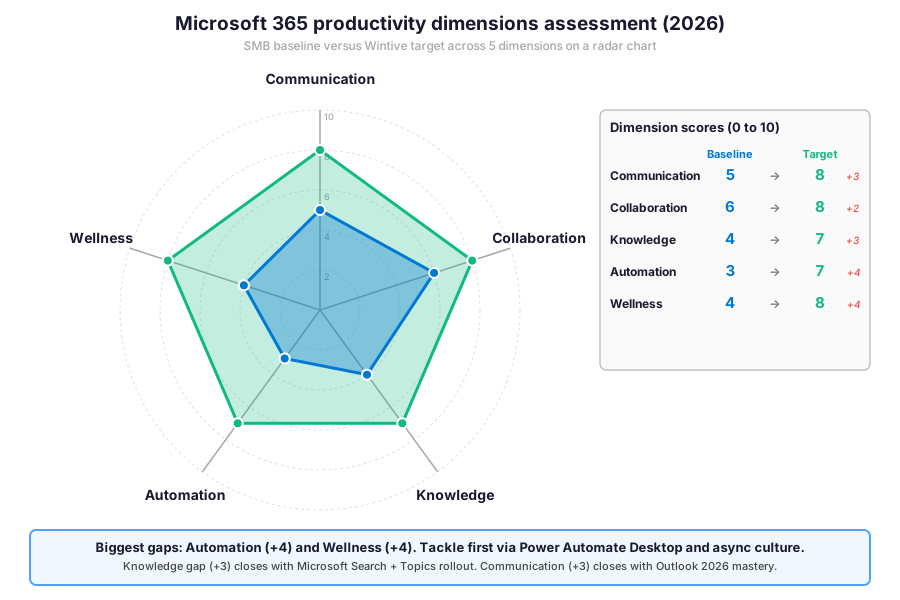
📐 Radar chart — SMB baseline (blue polygon) versus Wintive target (green polygon) across 5 productivity dimensions.
Therefore, the prioritisation order falls out of the gap analysis. Automation and Wellness come first because they show the largest gaps. Knowledge and Communication come second. Collaboration comes last because the gap is small. Closing the Automation gap requires two moves. First, Power Automate Desktop pilots. Second, AI Builder for form processing. Therefore, closing the Wellness gap also requires two moves. First, async culture with Loop workspaces replacing status meetings. Second, Viva Insights focus time configuration.
📈 The Wintive baseline — Microsoft 365 productivity across 60+ SMB tenants
Specifically, Wintive’s portfolio of 60-plus Microsoft 365 SMB tenants in 2026 (50 to 500 seat range) yields concrete adoption baselines. Furthermore, the table below maps each productivity capability to the required license SKU, current SMB adoption rate, and median time-to-value once configuration starts. As a result, IT leads can size license budgets and rollout timelines against realistic data instead of vendor marketing claims. In addition, the matrix highlights which capabilities ship with Microsoft 365 Business Premium versus Enterprise E3 versus the new Copilot tiers.
| Capability | License required | SMB adoption | Time-to-value |
|---|---|---|---|
| Copilot Chat (Enterprise) | Microsoft 365 Copilot $30/user/mo | 12% | 3 to 6 months |
| Copilot Chat (SMB promo) | Copilot Business $18/user/mo through June 2026 | 22% | 2 to 4 months |
| New Outlook for Windows 2026 | Microsoft 365 Business Premium / E3 / E5 | 45% | 2 to 3 weeks |
| Teams meeting recap | Teams Premium $10/user/mo OR Copilot license | 38% | 1 to 2 months |
| Loop workspaces | Microsoft 365 Business Premium / E3 / E5 | 28% | 4 to 6 weeks |
| Microsoft Planner Premium | Project Plan 1/3/5 | 18% | 2 to 3 months |
| OneDrive Files On-Demand | Microsoft 365 Business Premium / E3 / E5 | 52% | 1 week |
| Power Automate Desktop | Microsoft 365 Business Premium / E3 / E5 | 8% | 4 to 12 hours per flow |
| Microsoft Search + Topics | Microsoft 365 Business Premium / E3 / E5 | 15% | 4 to 8 weeks |
📋 License matrix — capability versus required Microsoft 365 SKU plus SMB adoption rate and median time-to-value.
🔐 Microsoft 365 productivity prerequisites and license SKUs
Specifically, the productivity tips below presume a baseline Microsoft 365 license stack. Furthermore, several capabilities require add-on licenses that an SMB IT lead must validate before rolling out the configuration. As a result, attempting to enable Copilot Chat on Microsoft 365 Apps for Business (the Office-only license without Entra ID and Intune) will fail at the user assignment step.
🔐 Prerequisites for the 7 productivity tips:
- Microsoft 365 Business Premium or Enterprise E3 / E5 for the New Outlook 2026, Loop, OneDrive Files On-Demand, Power Automate Desktop, and Microsoft Search + Topics. Critically, Microsoft 365 Apps for Business (formerly Business Standard) does not include Loop or Power Automate.
- Microsoft 365 Copilot add-on ($30 per user per month Enterprise, $18 SMB promotional through June 2026) for Copilot Chat, Pages, Coaching with Copilot, and the 3 new agents (PowerPoint, Excel, Planner) added in April 2026 wave 21.
- Teams Premium $10 per user per month OR a Copilot license for Meeting recap, Speaker Coach, and intelligent recap summaries.
- Microsoft Intune (P1 or P2) for Storage Sense Group Policy deployment, Outlook 2026 baseline configuration, and selective sync templates across managed devices. In addition, Intune replaces JAMF or Workspace ONE for managing both Windows and macOS endpoints in the Microsoft 365 ecosystem.
- Project Plan 1, 3, or 5 (formerly Project Online) for Microsoft Planner Premium with Gantt views, capacity planning, and dependencies. Furthermore, basic Planner ships with all Business Premium and Enterprise SKUs.
🔁 Bulk Microsoft 365 productivity rollout via PowerShell and Microsoft Graph
Bulk Microsoft 365 productivity rollout in 2026 sits across four toolchains. PowerShell modules remain legacy but indispensable. Microsoft Graph API is the modern path. The Microsoft 365 admin centre covers GUI scenarios. Power Platform admin centre handles governance. As a result, picking the right tool per task saves hours every week. The matrix below summarises the 2026 Wintive recommendation per scenario.
| Task | Best tool (2026) | License needed | Wintive verdict |
|---|---|---|---|
| Assign Copilot licenses to a group | Microsoft Graph PowerShell SDK | Tenant admin | RECOMMENDED, GUI is per-user only |
| Force New Outlook for Windows rollout | Intune configuration profile | Intune Plan 1 | Use Intune over GPO in 2026 |
| Bulk-create Loop workspaces by team | Microsoft Graph API + PowerShell | E3 + Loop license | Manual provisioning fails at scale |
| Audit Power Automate flows tenant-wide | Power Platform admin centre + PowerShell | Power Platform admin role | Critical for governance |
| Roll out OneDrive Files On-Demand | Intune ADMX templates | Intune Plan 1 or M365 E3 | One-time setup, set-and-forget |
📋 Microsoft 365 productivity tooling matrix for bulk rollout scenarios.
\nPowerShell modules for bulk Microsoft 365 productivity rollout
Furthermore, scaling the productivity tips beyond a 25-seat pilot benefits from PowerShell automation. Specifically, two recurring scripts cover 80% of the bulk admin work: assigning Copilot licenses to a security group of pilot users, and provisioning recurring focus time blocks across user calendars. As a result, a 200-seat tenant rollout that takes 8 hours via the GUI compresses to under 30 minutes once the scripts are tested in a non-production tenant.
The first script bulk-assigns the Microsoft 365 Copilot license to all members of a security group via Microsoft Graph PowerShell. Specifically, this approach replaces the manual per-user assignment in the M365 admin centre with an idempotent loop that handles 200 seats in under a minute.
# Bulk-assign Microsoft 365 Copilot license to a security group
Connect-MgGraph -Scopes "User.ReadWrite.All","GroupMember.Read.All","Organization.Read.All"

$group       = Get-MgGroup -Filter "displayName eq 'Copilot Pilot Users'"
$copilot_sku = Get-MgSubscribedSku | Where-Object { $_.SkuPartNumber -eq 'Microsoft_365_Copilot' }

# Verify license availability before bulk assign
$available = $copilot_sku.PrepaidUnits.Enabled - $copilot_sku.ConsumedUnits
Write-Host "Available Copilot licenses: $available"

$members = Get-MgGroupMember -GroupId $group.Id -All
foreach ($m in $members) {
    Set-MgUserLicense -UserId $m.Id `
        -AddLicenses    @(@{ SkuId = $copilot_sku.SkuId }) `
        -RemoveLicenses @()
    Write-Host "Assigned Copilot to $($m.AdditionalProperties.userPrincipalName)"
}
Specifically, the second script provisions recurring focus time blocks (2 hours every Monday and Wednesday morning) across a user cohort to enforce deep work calendar protection. Furthermore, the recurrence rule mirrors what users would otherwise create manually for 12 weeks of meeting protection.
Microsoft Graph SDK and AI Builder for Power Automate inventory
# Provision recurring focus time blocks via Microsoft Graph
Connect-MgGraph -Scopes "Calendars.ReadWrite"

$users = Get-MgGroupMember -GroupId $group.Id -All
foreach ($u in $users) {
    $upn = $u.AdditionalProperties.userPrincipalName

    $event = @{
        subject  = "Focus Time (deep work block)"
        body     = @{ contentType = "Text"; content = "Reserved for deep work via Wintive baseline" }
        start    = @{ dateTime = "2026-05-12T09:00:00"; timeZone = "Europe/Paris" }
        end      = @{ dateTime = "2026-05-12T11:00:00"; timeZone = "Europe/Paris" }
        showAs   = "busy"
        categories = @("Focus")
        recurrence = @{
            pattern = @{
                type = "weekly"
                interval = 1
                daysOfWeek = @("monday","wednesday")
            }
            range = @{
                type = "endDate"
                startDate = "2026-05-12"
                endDate   = "2026-12-31"
            }
        }
    }
    New-MgUserEvent -UserId $upn -BodyParameter $event
}
Critically, both scripts require the Microsoft Graph PowerShell SDK module (Install-Module Microsoft.Graph -Scope CurrentUser) and an Entra ID role of User Administrator or Privileged Role Administrator. Furthermore, Microsoft Learn maintains the canonical reference for the Graph PowerShell cmdlets at learn.microsoft.com Microsoft Graph PowerShell overview with the latest 2026 cmdlet additions. Therefore, validating the script logic in a developer tenant before production rollout is the safe pattern.
🚨 5 SMB Microsoft 365 productivity pitfalls Wintive sees in tenant audits
Furthermore, the same five productivity pitfalls recur across Wintive’s tenant audit portfolio. Specifically, each one is preventable with a 30-minute configuration change. Therefore, the 5 pitfalls below highlight the gap between “productivity capabilities purchased” and “productivity capabilities actually delivering value.”
Copilot licenses assigned without onboarding workshop
Specifically, dropping Copilot licenses into mailboxes without a 45 to 90 minute workshop produces 65-point trial drop-off per the funnel data. As a result, a $30 per user per month investment yields zero ROI for 65% of seats. Furthermore, an Okta-secured Notion or Atlassian Confluence Cloud knowledge base referenced during the workshop accelerates adoption when sample prompts are built around real organisational content.
Old Outlook still pinned in user taskbars after February 2026
Furthermore, the Mobile Priority View was retired on February 4 2026 and classic Outlook for Windows enters end-of-mainstream-support in 2026. Specifically, leaving the old client pinned creates split UX behaviour where some users get the new pinned-and-snooze workflow while others run on the legacy ribbon. Therefore, an Intune compliance policy hiding classic Outlook (or a JAMF equivalent on macOS) prevents user friction.
Loop workspaces created without governance
Critically, Loop workspaces (general availability since August 2024) replicate the early-Teams chaos when launched without governance. As a result, Wintive audits routinely find 50+ orphaned Loop workspaces in 200-seat tenants, each holding sensitive content with no owner. Furthermore, sensitivity labels and Microsoft Purview retention policies must extend to Loop containers from day one to avoid an AWS S3 bucket-style discoverability incident.
Power Automate Desktop flows running on personal accounts
Specifically, citizen-developer flows in Power Automate Desktop often start under a personal Microsoft account instead of the organisational tenant. As a result, when the employee leaves, the flow breaks and the credentials are unrecoverable. Therefore, an Entra ID service principal with managed credentials secured by Conditional Access and Duo MFA equivalents (or built-in Entra ID MFA) is the correct ownership pattern from day one.
Microsoft Search and Topics never configured
Furthermore, Microsoft Search ships disabled at the federation level for SharePoint and OneDrive in default tenant configurations. Specifically, an SMB Microsoft 365 productivity audit routinely finds Microsoft Search returning zero results because the search admin role was never delegated. As a result, the “searching for information” tax (8% of the workweek per the treemap) stays uncapped, and users default to AWS WorkDocs-style external knowledge bases or GCP Workspace shadow IT.
Automated Tenant Health Check — $97
Audit your Microsoft 365 productivity surface before the next Copilot rollout
The Automated Tenant Health Check audits Copilot license utilisation, New Outlook 2026 deployment status, Teams meeting hygiene, Loop governance, OneDrive sync health, Power Automate inventory, and Microsoft Search configuration. Findings tagged Critical, High, Medium, or Low across 50+ checks. Two emails of direct support within 48 hours are included plus 14 days of email Q and A.
❓ Microsoft 365 productivity FAQ
Core Microsoft 365 productivity questions
Copilot pricing and licensing
Microsoft 365 Copilot Enterprise is priced at $30 per user per month with annual commitment for organisations on E3, E5, or Microsoft 365 Apps for enterprise. Microsoft 365 Copilot Chat (the previously-named Copilot Pro) launched at $18 per user per month with an SMB promotional pricing window through June 2026, layered on top of Microsoft 365 Business Standard or Business Premium. The price includes Copilot Chat across web, Office apps, Teams, and Outlook, plus the new agents released in April 2026 wave 21 (PowerPoint, Excel, Planner agents).
Yes. Microsoft completed the migration of Mail and Calendar to the New Outlook in 2024, and the classic Outlook for Windows continues to receive updates only through monthly enterprise channel until late 2026. The Mobile Priority View setting was retired on February 4 2026, and several admin controls have moved to the Microsoft 365 admin centre. SMB tenants on Business Premium should plan a 2026 migration window, communicate the change to users, and validate add-in compatibility (especially CRM and signature management add-ins).
Microsoft Planner in 2026 is the unified task surface that combines the original Planner board with Project for the web (Gantt, dependencies, capacity planning) and Loop integration. Microsoft To Do remains the personal task list (My Day, Important, Planned views) and now syncs bidirectionally with Planner assignments. Loop workspaces (general availability since August 2024) provide collaborative pages and components that embed live in Teams chat, Outlook email, and Word. The 2026 best practice assigns work in Planner, surfaces personal items in To Do, and uses Loop for collaborative agenda or status pages.
Tooling and adoption questions
Power Automate Desktop runs RPA-style flows on a Windows machine (attended or unattended) and is included free with Windows 11. Power Automate Cloud runs on Microsoft-hosted compute and connects to 1,200+ connectors including the April 2026 wave 21 additions (GitLab, Asana, Monday, Zendesk, Coda, Egnyte, Amazon S3). The 2026 split is simple: Desktop for legacy app automation (filling fields in a Win32 application, scraping Excel sheets), Cloud for SaaS-to-SaaS orchestration. AI Builder ($500 per month per environment for 1M credits) layers on top of both for OCR, document processing, and form recognition.
Microsoft Search is the unified search bar in the Microsoft 365 app launcher, SharePoint, OneDrive, Office.com, and Bing-at-Work. Microsoft Topics (a Viva component) is the AI knowledge curation layer that surfaces topic cards based on documents, emails, and Teams conversations. The 2026 setup connects Microsoft Search results to Topics cards, so a query for “Q4 forecast” returns the document plus a Topics card showing related people, recent discussions, and key metrics. Both are included in Microsoft 365 E3 and above; Topics requires Viva Topics or the Viva Suite.
The 65 points drop-off reflects the gap between users who have heard of Copilot (100% awareness) and users who have actually activated their trial license (35% trial). The friction sits in license assignment workflows (admin must enable Copilot per user), Conditional Access policies (some block the sign-in flow), and lack of hands-on training (rollout-by-email rarely converts). Wintive sees 2 to 3 times higher trial activation when IT runs a 60-minute hands-on workshop versus an email rollout. The next 35-to-22 drop-off (active weekly retention) tracks usefulness in the daily workflow.
📚 Related Microsoft 365 reading
Microsoft 365 productivity essentials
Copilot, Outlook, and Teams deep-dives
- For the foundational identity layer behind Copilot Chat licensing assignment, see the Microsoft Entra ID Complete Guide covering license groups and Conditional Access patterns.
- For Exchange Online configuration that underpins New Outlook 2026 mailbox behaviour, read the Deploy Exchange on PC, Mac, iPhone and Android guide covering modern auth and OAuth.
- For SharePoint and OneDrive sync optimisation patterns, the SharePoint Online Features Complete Admin Guide covers Files On-Demand and selective sync at scale.
Wider Microsoft 365 administration
- For Microsoft 365 tenant configuration baselines (Entra ID, Defender, Purview, Intune), see the Tenant Configuration Snapshot guide with PowerShell scripts for export and audit.
- For SharePoint Online intranet design patterns that complement the productivity surface, read the SharePoint Online Intranet Complete Admin Guide covering hub architecture and Viva Connections.