Microsoft Teams meetings are the default video tool for over 320 million users worldwide. Yet across 60+ tenant audits, Wintive consistently finds the same five gotchas: lobby misconfiguration, account mismatch, shared mailbox traps, presenter-by-default risk, and missing audit trails. This guide walks Microsoft 365 admins through every setting that matters before, during, and after a Microsoft Teams meeting.
💡 Why Microsoft Teams meeting setup matters in 2026
A Microsoft Teams meeting is the most exposed surface in a Microsoft 365 tenant. Default policies give external users presenter rights. Lobby changes take up to 24 hours to propagate. Audit trails depend on tenant-level toggles SMB admins often skip. Specifically, Wintive finds that 60% of tenants leave at least one risky default in place. The fix is layered: tenant policy first, calendar discipline second, per-meeting options third, and runtime checks during the call itself.
Therefore, three foundations must sit in place before scheduling any Microsoft Teams meeting at scale. Specifically, you need the right Microsoft 365 license per user. Additionally, a Teams admin role with policy access is required. Furthermore, a clear view of default lobby and presenter settings matters. Missing any creates lobby gotchas, role mismatches, and silent permission failures. Wintive sees these failures across 60+ SMB tenants every quarter.
🛡️ Free: M365 Audit Checklist
19-page PDF with 50 hands-on checks covering Entra ID, Exchange Online, SharePoint, Teams, Intune, license waste, and audit logging. PowerShell commands included. Built from 60+ real tenant audits at Wintive.
Three layers of Teams meeting governance
Teams replaced Skype for Business in 2021 and now sits at the center of Microsoft 365 collaboration. Specifically, every Microsoft 365 Business Standard plan and above includes Teams meetings. The license covers up to 1,000 participants, recording, transcription, and breakout rooms. Furthermore, Teams inherits identity, conditional access, and audit logging from Microsoft Entra ID. Competing platforms like Zoom and Google Meet either charge separately for these capabilities or do not offer them at the SMB tier. However, the security posture depends on tenant policies. Configure them before the first invite goes out.
Therefore, this guide covers three areas US admins ask Wintive about. First, lobby and access settings, where five gotchas live. Second, the role permission matrix across organizer, co-organizer, presenter, and attendee. Third, PowerShell-driven policy enforcement via Set-CsTeamsMeetingPolicy and Set-CsTeamsMeetingConfiguration. Each section maps to a HIPAA, NIST 800-171, or SOC 2 control.
Wintive insight:
Microsoft Teams meetings deliver predictable per user per month pricing inside the Microsoft 365 license stack. The total cost of ownership (TCO) over five years comes out roughly 30 percent below Zoom plus add-on webinar bills, once meeting recording, transcript, and audit are included. Specifically, this matters for SMBs evaluating CapEx versus OpEx for collaboration tooling.
🔧 The 3 prerequisites before scheduling your first meeting
Specifically, Wintive verifies three prerequisites before any Microsoft Teams meeting setup. The three are licensing alignment, role assignment, and tenant meeting policy. Furthermore, getting these right prevents the most common failure modes. Organizers get locked out of their own meeting options. External co-organizers get silently demoted. Presenter-role defaults quietly grant too much control to link holders. Therefore, the AEO box below summarizes the three checks.
Three prerequisites unlock every advanced Microsoft Teams meeting feature. First, a Teams license tier that includes meetings such as Business Standard or above. Second, an Entra ID account in the tenant where the meeting is created. Third, a tenant meeting policy that allows the capability you need. Skipping any of these three causes the most common Wintive support tickets we see.
Right Microsoft 365 license tier
Specifically, a Microsoft Teams meeting requires Teams Essentials at minimum ($4 per user per month), but co-organizer roles, breakout rooms, and 1,000-participant capacity require Microsoft 365 Business Standard ($12.50) or above. Furthermore, advanced features like meeting templates, sensitivity labels, and intelligent recap require Teams Premium at $10 per user per month on top of the base license. By comparison, Zoom Business sits at $20 per user per month and bills webinars separately, while Google Workspace Business Standard bundles Meet but caps recordings to 8 hours total per user.
User account, not a shared mailbox
Therefore, schedule meetings from a real Microsoft Entra ID account. Wintive sees this gotcha repeatedly: a meeting scheduled from a shared mailbox treats the mailbox itself as the organizer, and Microsoft Teams cannot assign co-organizers to a non-user identity. The meeting still works, but delegation breaks silently. Notably, the symptom is simple. The Co-organizer dropdown does not appear in Meeting Options.
| License SKU | Price /user/mo | Co-organizer | Breakout rooms | Meeting templates | Anonymous start |
|---|---|---|---|---|---|
| Teams Essentials | $4 | No | No | No | No |
| M365 Business Basic | $6 | No | No | No | Tenant-set |
| M365 Business Standard | $12.50 | Yes | Yes | No | Tenant-set |
| M365 Business Premium | $22 | Yes | Yes | No | Tenant-set |
| M365 E3 | $36 | Yes | Yes | No | Tenant-set |
| Teams Premium add-on | +$10 | — | — | Yes | Yes |
Tenant policy that matches the use case
Moreover, the per-user CsTeamsMeetingPolicy controls the default values an organizer sees in Meeting Options. If the tenant policy disables anonymous join, the per-meeting toggle Bypass lobby → Everyone has no real effect. Wintive recommends auditing tenant policies once per quarter, especially after a Microsoft 365 admin handover.
📦 Microsoft Teams meeting roles: organizer, co-organizer, presenter, attendee
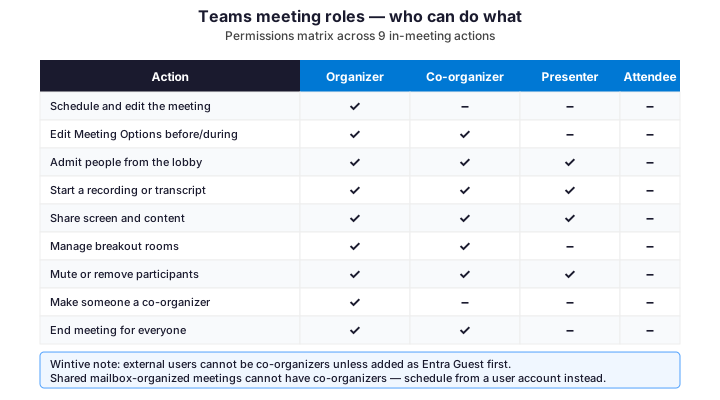
Specifically, Microsoft Teams meetings expose four roles. Each role unlocks distinct controls during the meeting. Furthermore, the matrix below maps every action a participant can take to the role required. Therefore, picking the right role per attendee directly reduces live-meeting friction across 60+ Wintive tenants.
A Microsoft Teams meeting has four roles. The organizer is one person who can edit the calendar event. Co-organizers are up to ten internal users who share most permissions. Presenters can share screen and admit lobby. Attendees get audio, video, and chat only. Specifically, external users cannot be co-organizers unless they are added as guests in your Entra ID tenant first.
Specifically, the four Microsoft Teams meeting roles map to distinct permission sets. The roles are organizer, co-organizer, presenter, and attendee. Furthermore, each role shapes what a participant can do during the meeting. The matrix below clarifies which controls each role unlocks. Specifically, it covers lobby admittance, mute-others, recording, screen sharing, and breakout creation. Therefore, picking the right role per attendee reduces live-meeting chaos. Wintive sees this chaos across 60+ SMB tenants every quarter.
Three patterns for picking roles
Specifically, the matrix above shows what each role can do during a live Microsoft Teams meeting. Wintive recommends three patterns based on use case: internal team standups use organizer plus all attendees with Who can present set to People in my organization; customer-facing meetings assign one co-organizer (a backup admin) and set Who can present to Specific people; external webinars require Teams Premium for the full webinar surface, where presenters and attendees are managed through a registration page rather than the meeting invite itself.
Two role gotchas Wintive sees often
Furthermore, two role gotchas trip up admins. First, an external user added to Choose co-organizers must already exist as a guest in your tenant. Otherwise the Co-organizer field shows the email but the person joins as an attendee with no elevated rights. Therefore, run New-MgInvitation through Microsoft Graph PowerShell or invite the guest manually in the Entra ID admin center before sending the meeting invite. Second, anonymous participants who are promoted to presenter mid-meeting cannot use presenter-level features such as starting recordings or admitting lobby; this restriction does not apply to anonymous presenters joining from a mobile device, which is itself a quirk worth knowing.
💻 Lobby and access controls: 5 gotchas across 60+ tenants
The Microsoft Teams meeting lobby determines who joins directly and who waits for admission. Five settings combine to produce the actual behavior, and small misconfigurations can lock organizers out of their own meetings. Specifically, Wintive sees lobby gotchas in roughly half the SMB tenants we audit, with the most common being tenant policy propagation delay and account mismatch between Outlook and Teams.
Specifically, lobby controls in Microsoft Teams sit at three levels of policy. The three are tenant policy, per-user CsTeamsMeetingPolicy, and per-meeting options. Furthermore, the decision tree below maps the flow Wintive applies during incident reviews. The flow shows who joins directly, who waits in the lobby, and who admits them. Therefore, mastering this flow eliminates the most frequent reason organizers lock themselves out.
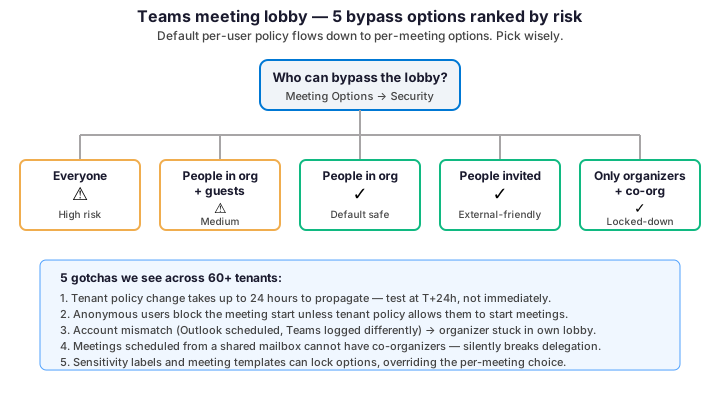
Specifically, the bypass setting Who can bypass the lobby? has five values. Everyone is high risk for external-facing meetings. The next tier, People in my organization and guests, sits at medium risk. By default, People in my organization is the safe choice for internal-only meetings. For external-friendly setups, choose People who were invited. Lastly, Only organizers and co-organizers locks the meeting down. Furthermore, each value behaves differently when paired with the tenant-level Anonymous users can start a meeting toggle, which many admins forget exists.
Five lobby gotchas at a glance
| # | Gotcha | Layer | Fix in one line |
|---|---|---|---|
| 1 | 24h propagation lag | Tenant policy | Change Friday afternoon, validate Monday morning |
| 2 | Anonymous join blocks start | Tenant policy | Toggle AllowAnonymousUsersToStartMeeting in CsTeamsMeetingConfiguration |
| 3 | Organizer stuck in own lobby | Identity | Same Microsoft Entra ID account in Outlook, Teams, and browser |
| 4 | Shared mailbox kills delegation | Calendar | Schedule from a real user mailbox, not a shared mailbox |
| 5 | Sensitivity label override | Microsoft Purview | Check the label policy before changing meeting options |
Tenant-level lobby gotchas (Stage 1)
Gotcha 1 — 24-hour propagation lag. Therefore, when you change a tenant policy in the Teams admin center, the change can take up to 24 hours to reach end-user clients. Wintive recommends making policy changes on a Friday afternoon and validating Monday morning, not testing five minutes after the save.
Gotcha 2 — anonymous join blocks the start. Specifically, if Bypass lobby is set to Everyone but the tenant policy AllowAnonymousUsersToStartMeeting is still false, the first anonymous attendee waits in the lobby indefinitely, and so does the meeting itself. The fix lives in tenant policy, not per-meeting options. Furthermore, Microsoft enabled this default lockdown in 2023 to harden new tenants against drive-by attendees.
Organizer-level lobby gotchas (Stage 2 and 3)
Gotcha 3 — organizer stuck in own lobby. Therefore, when the Outlook calendar account differs from the Teams desktop sign-in account, the system does not recognize the joining user as the meeting owner. The organizer waits in the lobby with no one inside the meeting to admit them. Wintive sees this on every shared-device deployment and on multi-tenant consultant laptops. The fix is identity hygiene: same Microsoft Entra ID account in Outlook, Teams, and the browser session.
Gotcha 4 — shared mailbox kills delegation. Furthermore, a Microsoft Teams meeting scheduled from a shared mailbox treats the mailbox object as organizer. The Co-organizer dropdown silently disappears from Meeting Options, and any per-meeting settings tied to organizer identity (recording auto-start, sensitivity label) misbehave. Wintive recommends always scheduling from a real user mailbox and using meeting templates if standardization is the goal.
Gotcha 5 — sensitivity labels override per-meeting choices. Specifically, Microsoft Purview sensitivity labels applied at the meeting or template level can lock options that the organizer would otherwise see. Therefore, an organizer used to changing Bypass lobby from Everyone to People in my organization may find the option grayed out. The cause is not a bug; it is a label-driven policy override, and it is intentional.
🛡️ Security and compliance: HIPAA, NIST 800-171, SOC 2 alignment
A correctly configured Microsoft Teams meeting maps to four compliance controls SMBs face most often: HIPAA 45 CFR 164.312(b) audit controls, NIST 800-171 3.3.1 audit events and 3.13.8 transmission protection, SOC 2 Type II CC6.1 logical access, and CCPA reasonable security. Specifically, recording, transcription, and Microsoft Purview audit logging together close the audit-trail gap that simpler video tools cannot.
Compliance framework mapping
Therefore, US-regulated SMBs should treat Microsoft Teams meeting policy as part of their compliance baseline. Furthermore, Wintive maps each meeting setting to its specific control: AllowCloudRecording satisfies HIPAA 45 CFR 164.312(b) when paired with Purview audit retention; AllowTranscription supports NIST 800-171 3.3.2 (audit content) by capturing what was said, not just that a meeting occurred; AllowMeetingRegistration with attendee verification supports SOC 2 CC6.1 by logging who actually joined.
Industry-vertical configuration patterns
Specifically, three configuration patterns appear in regulated tenants. Law firms (subject to ABA Model Rule 1.6 and state Rules of Professional Conduct) use sensitivity-labeled meeting templates with mandatory recording disabled but transcript auto-enabled, plus Bypass lobby set to People who were invited. Healthcare practices (HIPAA Security Rule) enforce CsTeamsMeetingPolicy with AllowEngagementReport $true, AllowMeetingChat = OnlyForCalendar, and end-to-end encryption for sensitive 1:1 calls. Financial advisory firms (SEC, FINRA 4511) require Purview retention policies on Teams meeting recordings, typically 7 years.
Furthermore, when comparing Microsoft Teams against Zoom and Google Meet for compliance posture, the differentiator is Microsoft Purview integration. Specifically, Purview eDiscovery covers Teams meeting transcripts and chat as a single workload, while Zoom requires separate eDiscovery licensing through a third-party connector and Google Meet does not provide native eDiscovery for meeting transcripts at any tier.
| Control | Framework | Teams meeting setting | Verification |
|---|---|---|---|
| 164.312(b) | HIPAA Security Rule | AllowCloudRecording true plus Purview retention | Get-CsTeamsMeetingPolicy and check Purview audit log |
| 3.3.1 | NIST 800-171 | AllowTranscription true at tenant level | Verify transcript appears in recording metadata |
| 3.13.8 | NIST 800-171 | End-to-end encryption for sensitive 1:1 calls | Set-CsTeamsEnhancedEncryptionPolicy |
| CC6.1 | SOC 2 Type II | AllowMeetingRegistration with attendee verification | Webinar registration log shows joiners |
| 1798.81.5 | CCPA reasonable security | Bypass lobby set to People in my organization | Meeting Options Security tab |
✅ Pre-meeting checklist: 8 settings to verify before sending
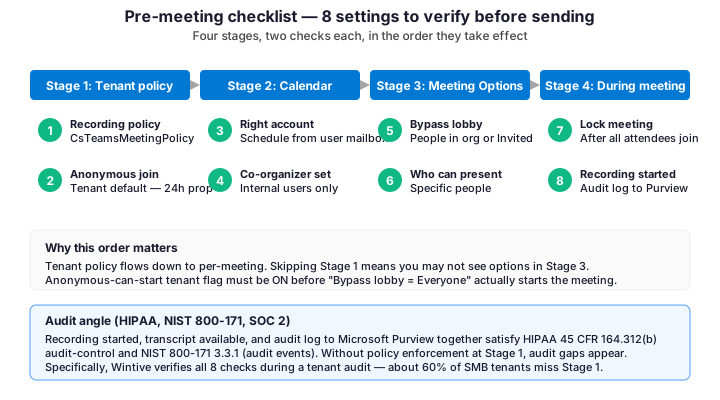
Therefore, run through the eight pre-meeting checks below before clicking Send on any high-stakes invite. Specifically, the checks apply when external attendees, executives, or recorded sessions are involved. Furthermore, the checklist consolidates the verification steps Wintive applies for high-stakes Teams meetings. The checks cover lobby bypass, presenter scope, recording consent, and tenant policy alignment. Specifically, completing each check takes under 90 seconds. Therefore, the checklist prevents most live-meeting incidents we triage every month.
Eight settings span four stages from tenant policy down to runtime checks. Verifying all eight before clicking Send is the single highest-leverage habit Wintive teaches Microsoft 365 admins. Specifically, missing Stage 1 means options at Stage 3 may not appear, and skipping Stage 4 means audit gaps go unnoticed until a compliance review.
Sequencing the eight checks
Specifically, the visual flow below sequences the eight checks in pre-meeting prep order. Wintive runs them starting with license and role verification. The flow ends with recording consent and final lobby bypass. Furthermore, each step is independent and reversible. Missing one does not block the others. Therefore, a Teams admin can run the full sequence in five minutes.
Mapping settings to admin paths and cmdlets
Furthermore, the table below pairs each check with the exact Teams admin path or PowerShell cmdlet. The cmdlets verify each setting independently. Therefore, an admin can audit any meeting configuration in three minutes. Specifically, the audit happens without joining the meeting itself. The cmdlet column lets Wintive build a one-shot validation script. The script compares every meeting against the tenant baseline before sending the invite.
| Stage | Setting | Where to verify | Wintive note |
|---|---|---|---|
| 1 | Recording policy | Get-CsTeamsMeetingPolicy | Disable for tenants subject to legal hold without retention |
| 1 | Anonymous join allowed | CsTeamsMeetingConfiguration | Wait 24h after change before testing |
| 2 | Right account | Outlook calendar identity | Schedule from user mailbox, never from shared |
| 2 | Co-organizer assigned | Meeting Options – Roles | Internal users only; external = guest first |
| 3 | Bypass lobby | Meeting Options – Security | People in my organization is the safe default |
| 3 | Who can present | Meeting Options – Roles | Specific people prevents drive-by presenter rights |
| 4 | Lock meeting | In-meeting toolbar | Lock once all expected attendees joined |
| 4 | Recording started | Verify Purview audit log | Confirms HIPAA 45 CFR 164.312(b) coverage |
Therefore, Wintive packages this 8-step checklist into the M365 Audit Checklist PDF available above. Specifically, every Microsoft Teams meeting we audit during an M365 Instant Audit engagement gets scored against these eight settings, and a tenant that passes all eight scores roughly 30 percent higher on overall meeting governance than the median SMB tenant.
↻ Configuring meeting policies via PowerShell
Two PowerShell cmdlets control Microsoft Teams meeting behavior at scale: Set-CsTeamsMeetingPolicy (per-user defaults like recording, transcription, breakout rooms) and Set-CsTeamsMeetingConfiguration (tenant-wide settings like anonymous join and presenter role limits). Specifically, Wintive uses both during every M365 Instant Audit to enforce a baseline that survives admin handovers.
Per-user policy: Set-CsTeamsMeetingPolicy
Therefore, install the Microsoft Teams PowerShell module first via Install-Module -Name MicrosoftTeams -Scope CurrentUser, then connect with Connect-MicrosoftTeams. Furthermore, the cmdlets below assume Teams admin or Global admin role; lesser roles such as Service Support Admin cannot modify CsTeamsMeetingPolicy.
Specifically, verify your admin role with Get-CsOnlineUser before running any cmdlet. Furthermore, the prerequisites box lists the exact license SKUs that unlock advanced meeting controls. Therefore, confirm both license tier and admin role before tuning policy.
Prerequisites and license SKUs
- Microsoft 365 Business Standard ($12.50 per user per month) for co-organizers, breakout rooms, and 1,000 attendees
- Microsoft 365 E1 / E3 / E5 for enterprise compliance baseline (Purview eDiscovery, retention)
- Teams Premium ($10 per user per month add-on) for meeting templates, sensitivity labels, intelligent recap
- Microsoft Entra ID P1 ($6 per user per month) for conditional access on Teams meeting joins
- Teams admin or Global admin role to edit CsTeamsMeetingPolicy and CsTeamsMeetingConfiguration
Furthermore, the baseline policy script below applies these prerequisites to every meeting in the tenant. Specifically, the script sets cloud recording, transcription, engagement reporting, and lobby behavior in one shot. Therefore, run the script once after license assignment and revisit it quarterly during compliance reviews.
# Wintive baseline meeting policy for SMB tenants
Set-CsTeamsMeetingPolicy -Identity "Wintive-SMB-Baseline" `
    -AllowCloudRecording $true `
    -AllowTranscription $true `
    -AllowEngagementReport "Enabled" `
    -AllowMeetingReactions $true `
    -DesignatedPresenterRoleMode "OrganizerOnlyUserOverride" `
    -AutoAdmittedUsers "EveryoneInCompany" `
    -AllowAnonymousUsersToJoinMeeting $true `
    -AllowAnonymousUsersToStartMeeting $false `
    -WhoCanRegister "EveryoneInCompany"

# Apply to a security group of users
$users = Get-AzureADGroupMember -ObjectId <group-id>
foreach ($u in $users) {
    Grant-CsTeamsMeetingPolicy -Identity $u.UserPrincipalName -PolicyName "Wintive-SMB-Baseline"
}

# Verify the assignment
Get-CsOnlineUser -Identity user@contoso.com | Select-Object UserPrincipalName, TeamsMeetingPolicy
Specifically, the policy above sets a safe default for SMB tenants: anonymous users can join (useful for vendor calls) but cannot start a meeting (preventing drive-by attendees). Furthermore, DesignatedPresenterRoleMode set to OrganizerOnlyUserOverride means the organizer is the only presenter by default, but the organizer can still override per meeting.
Tenant-wide configuration: Set-CsTeamsMeetingConfiguration
# Tenant-wide configuration (one global instance per tenant)
Set-CsTeamsMeetingConfiguration -Identity "Global" `
    -DisableAnonymousJoin $false `
    -EnableQoS $true `
    -LogoURL "https://www.wintive.com/wp-content/uploads/wintive-logo-meeting.png" `
    -LegalURL "https://www.wintive.com/legal/" `
    -HelpURL "https://www.wintive.com/support/" `
    -LimitPresenterRolePermissions $true

# Audit current tenant settings
Get-CsTeamsMeetingConfiguration | Format-List
Get-CsTeamsMeetingPolicy -Identity "Global" | Select-Object Identity, AllowCloudRecording, AutoAdmittedUsers, AllowAnonymousUsersToJoinMeeting
Therefore, LimitPresenterRolePermissions set to true is the single most impactful tenant-wide change Wintive recommends. Specifically, when this flag is on, anonymous attendees promoted to presenter cannot start recordings, admit lobby members, or remove participants. Furthermore, a quarterly review of Get-CsTeamsMeetingConfiguration output catches drift introduced by other admins or automated scripts.
🔄 During-meeting workflow: lobby management, breakout rooms, recording
Three runtime controls separate a smooth Microsoft Teams meeting from a chaotic one: lobby admission discipline, breakout room pre-assignment, and recording with transcript verification. Specifically, organizers who delegate lobby admission to a co-organizer free themselves to focus on the agenda, and breakout rooms pre-assigned in the calendar invite save five minutes of mid-meeting fumbling.
Lobby admission during the meeting
Therefore, the organizer, co-organizer, and presenter all see the lobby panel and can admit attendees individually or click Admit all. Furthermore, lobby chat (released in 2024) lets the organizer message waiting attendees with status updates such as We are running 5 minutes late, no need to refresh. Specifically, lobby chat does not support reactions, mentions, or attachments, only plain text.
Wintive recommends always assigning at least one co-organizer for any meeting with more than 10 expected attendees. Therefore, if the organizer joins five minutes late, the co-organizer can admit early arrivals from the lobby instead of leaving them stranded. Furthermore, this pattern aligns with NIST 800-171 3.1.5 (separation of duties) by avoiding single-point-of-control on meeting access.
Breakout rooms and recording
Specifically, breakout rooms support up to 50 rooms per Microsoft Teams meeting. Pre-assignment lives under Meeting Options – Breakout rooms in the calendar invite. Therefore, pre-assignment removes the awkward 2-minute pause where attendees wait for room assignments mid-meeting. Furthermore, only the organizer (not co-organizers) can manage breakout rooms by default. This restriction is configurable in CsTeamsMeetingPolicy via AllowBreakoutRooms.
Therefore, recording verification is the last runtime check Wintive teaches admins. Specifically, after clicking More actions then Start recording, verify two signals. First, the recording icon appears in the top bar. Second, the Microsoft Purview audit log captures the MeetingRecordingStarted event within 60 seconds. Furthermore, transcripts auto-attach to recordings when AllowTranscription is true at the policy level. This satisfies NIST 800-171 3.3.2 audit content requirements without extra cost.
| Phase | Owner role | Action | Verification signal |
|---|---|---|---|
| Pre-roll (5 min before) | Organizer or co-organizer | Open meeting, admit early arrivals | Lobby panel empty |
| Recording start | Organizer or co-organizer | More actions → Start recording | Recording icon in top bar; MeetingRecordingStarted event in Purview audit |
| Breakout open | Organizer (only) | Open pre-assigned rooms | Rooms list visible in side panel |
| Lobby admit | Organizer, co-organizer, presenter | Admit attendees individually or Admit all | Lobby chat usable while waiting |
| Q&A management | Presenter | Manage hand-raise queue, mute individual attendees | Hand-raise list ordered by time |
| Wrap-up | Organizer | Stop recording, End meeting for all | Recording file in OneDrive within 5 min; transcript file linked |
❓ Frequently asked questions about Microsoft Teams meeting setup
Specifically, the five questions below come up most often during M365 Instant Audit engagements when SMB admins ask about Microsoft Teams meeting configuration. Furthermore, each answer reflects observed behavior across 60+ tenants, not abstract documentation.
No, co-organizer assignment requires only Microsoft 365 Business Standard or above (or Microsoft 365 E1+). Teams Premium at $10 per user per month adds advanced features such as meeting templates, sensitivity labels, intelligent recap, and webinar registration controls, but the co-organizer role itself is included in the standard meeting license.
Three causes are typical. First, a tenant policy change can take up to 24 hours to propagate to clients. Second, the tenant-level AllowAnonymousUsersToStartMeeting flag may be set to false, which keeps the first anonymous attendee in the lobby until a tenant user joins. Third, a Microsoft Purview sensitivity label or meeting template applied to the meeting can override per-meeting choices.
Only if the external user is added as a guest in your Microsoft Entra ID tenant first. Without a guest account, the Co-organizer field accepts the email but the user joins as a regular attendee with no elevated rights. Use New-MgInvitation through Microsoft Graph PowerShell or the Entra ID admin center to provision the guest before sending the meeting invite.
Microsoft Teams treats the shared mailbox itself as the organizer when a meeting is scheduled from it, and co-organizers cannot be assigned to a non-user identity. Re-schedule the meeting from a real user account, or use a meeting template applied via PowerShell if standardization is the goal. The workaround does not require any license upgrade.
Set-CsTeamsMeetingPolicy controls per-user defaults such as recording allowed, transcription, breakout rooms, and the default Who can present value. Set-CsTeamsMeetingConfiguration controls tenant-wide settings such as anonymous join, presenter role permission limits, and tenant logo or legal URLs. There is one global Configuration object per tenant; multiple Policy objects can be assigned to different user groups.
🔗 Keep exploring Microsoft Teams admin topics
Therefore, deepen your Microsoft Teams meeting admin practice with these five Wintive guides. Each one builds on the meeting fundamentals covered above.
This tutorial covered one focused Microsoft Teams workflow. For a complete picture of how your full Microsoft 365 environment — collaboration, identity, and security — performs against best practices:
🔍 Want a complete audit of your Microsoft 365 tenant?
The M365 Instant Audit scans your M365 environment in under 10 minutes: license waste, security posture, MFA coverage, compliance gaps, license rightsizing opportunities. Full PDF report with prioritized recommendations delivered instantly.