Microsoft Teams channel calendars are a tab-mounted view of all meetings tied to a specific channel inside a Microsoft 365 Group. Specifically, this guide covers what a channel calendar is and the architecture behind it. Furthermore, it includes governance baselines for HIPAA, SOC 2, and NIST 800-171, plus the PowerShell automation we deploy during tenant audits. Furthermore, every recommendation comes from what Wintive observed across 60+ Microsoft 365 tenants we audit yearly.
💡 Why Teams Channel Calendars Matter in 2026
Channel calendars solve a specific problem. Specifically, meetings tied to a Teams channel were previously buried in chat threads, with no canonical view of upcoming standups or sprint reviews. Therefore, channel calendars surface those meetings in one auditable place that maps to the M365 Group backing the team.
Crucially, the channel calendar is not a separate calendar object. Indeed, it is a filtered view of the M365 Group mailbox calendar showing only events that reference the specific channel. As a result, every governance control that applies to the M365 Group mailbox automatically applies to the channel calendar.
🛡️ Free: M365 Tenant Security Audit Checklist
17-page PDF with 50 hands-on checks covering Entra ID, Exchange Online, SharePoint, Teams, Intune, license waste, and audit logging. PowerShell commands included. Built from 60+ real tenant audits at Wintive.
🔧 How Teams Channel Calendars Actually Work
Under the hood, the Teams channel calendar tab is a thin UI layer over a Microsoft Graph API call against the M365 Group mailbox calendar. Specifically, the Teams client requests events from the Graph endpoint. Then it filters the response client-side to show only events with a channel reference in their extension data. Therefore, every event shown in a channel calendar also exists in the parent M365 Group mailbox.
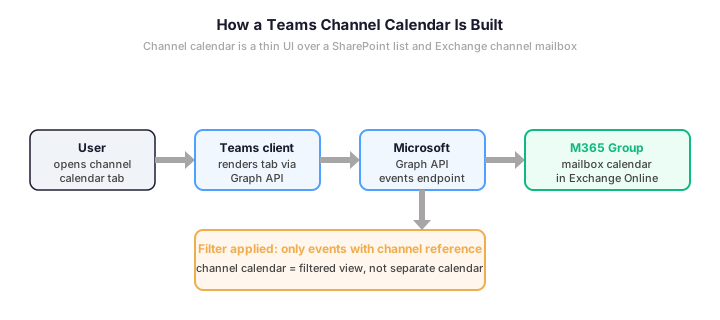
Crucially, this architecture means three things for governance teams. First, retention policies applied to the M365 Group mailbox automatically apply to channel calendar events. Second, eDiscovery searches against the M365 Group surface channel calendar events without separate configuration. Third, the channel calendar inherits the sensitivity label and DLP policy of the parent M365 Group.
📦 Channel Calendar vs Personal vs Resource Calendar
Microsoft 365 offers three calendar types for different scenarios. Specifically, each one trades audit visibility for audience scope or cross-team booking ease. The right pick depends on who attends the meeting and what audit footprint your compliance program requires.
| Calendar type | Backing store | Audience | Wintive recommendation |
|---|---|---|---|
| Channel calendar | M365 Group mailbox in Exchange Online | Channel members only | Default for recurring team standups, sprint reviews, project syncs |
| Personal calendar | User mailbox in Exchange Online | Anyone the user invites | Use only for ad-hoc 1:1s and external meetings; not for team work |
| Resource calendar | Resource (room or equipment) mailbox | Anyone with booking rights | Use for conference rooms, vehicles, AV equipment, shared assets |
The visual matrix below maps each calendar type to its audit and compliance posture at a glance. Specifically, the color coding (orange = conditional caution, blue = recommended, green = also recommended for its scope) signals the Wintive default for each scenario.
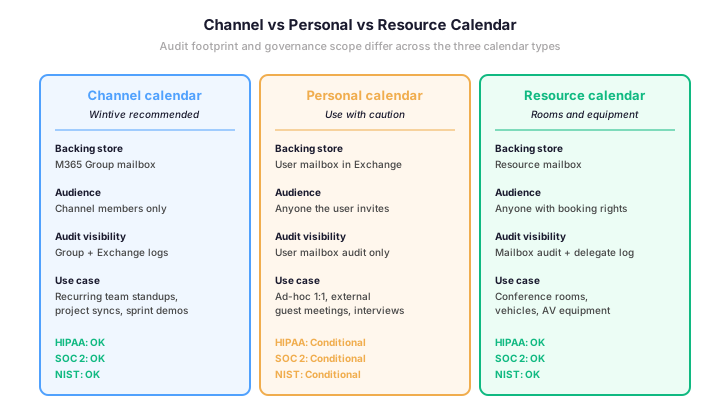
Notably, the personal calendar gets a conditional verdict for regulated workloads. As a result, our standing guidance is to push team meetings to the channel calendar wherever possible. Indeed, the audit attribution to the M365 Group mailbox simplifies eDiscovery and retention enforcement. Furthermore, it beats hunting events across individual user mailboxes.
💻 Add a Channel Calendar Step-by-Step
For end users: Add the calendar tab to a channel
This is the day-to-day workflow inside Microsoft Teams. Specifically, every channel owner can add a calendar tab once and the whole channel benefits from the new view.
- Open the target channel inside Microsoft Teams. Crucially, you must be a channel owner or have permission to add tabs.
- Click the + (Add a tab) button at the top of the channel, then search for Channel calendar in the app picker.
- Click the Channel calendar app, then click Add. Specifically, this app is published by Microsoft and does not require admin consent in most tenants.
- Optional: rename the tab to something meaningful (for example, Sprint schedule or Standup calendar). Furthermore, this helps when a channel has multiple calendar tabs for different meeting series.
- Click Save. As a result, the tab is added immediately, and any existing channel meetings are populated automatically.
- Create a new event by clicking + New meeting on the calendar. Notably, the event will be visible to all channel members and will write to the M365 Group mailbox.
Crucially, channel meetings created from the channel calendar tab are automatically attributed to the channel. Therefore, they appear in the channel calendar view for every member without manual filtering. Furthermore, attendees see the channel name in their personal calendar invitation. This helps disambiguate when team members belong to multiple Teams.
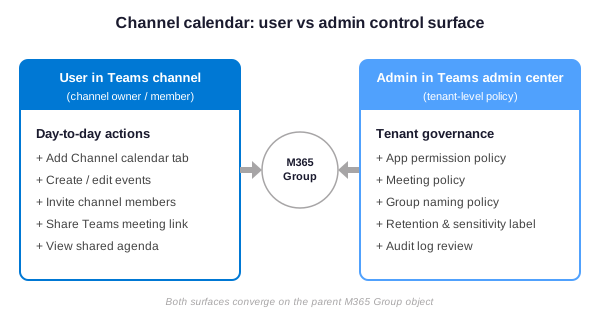
The visual above maps the dual-control model. Specifically, channel owners drive day-to-day calendar actions inside the Teams app, while admins govern the surface from the Teams admin center, Entra ID, and Microsoft Purview. Therefore, both layers must align for the audit baseline to hold.
For admins: Govern channel calendars at scale
Beyond the user-facing tab workflow, admins control channel calendars indirectly. Specifically, governance flows through the parent M365 Group and Teams admin policies. Specifically, three controls matter most for governance: M365 Group naming policy, Teams app permission policy, and meeting policy. Therefore, the PowerShell example below applies a regulated baseline across all three.
- In Teams admin center → Teams apps → Permission policies, allow the Channel Calendar app for the user groups that need it
- In Teams admin center → Meetings → Meeting policies, set Allow channel meetings to On for the user policy assigned to channel owners
- In Microsoft Entra admin center → Identity → Groups → Naming policy, set a Group naming policy with prefix and forbidden words list to prevent group sprawl
- In Microsoft Purview → Data lifecycle management, apply a Group retention policy so channel calendar events are retained for the audit window your industry requires
- Apply a Microsoft Purview sensitivity label with required label policy to all M365 Groups; the label inherits to channel calendar events automatically
The PowerShell example below applies the regulated governance baseline. Specifically, it enables channel meetings, applies a 7-year retention policy, and audits all M365 Groups missing a sensitivity label.
# Govern Teams channel calendars via M365 Group policies
Install-Module -Name MicrosoftTeams -Force
Connect-MicrosoftTeams

# Allow channel meetings in the regulated user policy
Set-CsTeamsMeetingPolicy -Identity "RegulatedUsers" -AllowChannelMeetingScheduling $true

# Apply 7-year retention to all M365 Groups (channel calendars inherit)
Connect-IPPSSession
New-RetentionCompliancePolicy -Name "M365Groups7yr" -ModernGroupLocation All -Enabled $true
New-RetentionComplianceRule -Name "M365Groups7yrRule" -Policy "M365Groups7yr" -RetentionDuration 2555 -RetentionComplianceAction Keep

# Audit M365 Groups missing a sensitivity label
Connect-MgGraph -Scopes "Group.Read.All"
Get-MgGroup -All -Property DisplayName,AssignedLabels | Where-Object { $_.AssignedLabels.Count -eq 0 } | Select-Object DisplayName | Export-Csv .\groups-missing-label.csv -NoTypeInformation
🛡️ Channel Calendars for Regulated US Industries
Channel calendars deliver clear governance benefits for organizations subject to HIPAA, SOC 2 Type II, NIST 800-171, or FERPA. Specifically, the M365 Group mailbox is a single auditable scope, retention applies natively, and eDiscovery surfaces channel calendar events without separate configuration.
Therefore, regulated SMBs default to channel calendars for any team-scoped recurring meeting. Specifically, this covers PHI, PII, financial data, and controlled unclassified information. Furthermore, the channel calendar inherits the parent M365 Group sensitivity label, which simplifies DLP enforcement and external sharing controls compared with personal calendar invites.
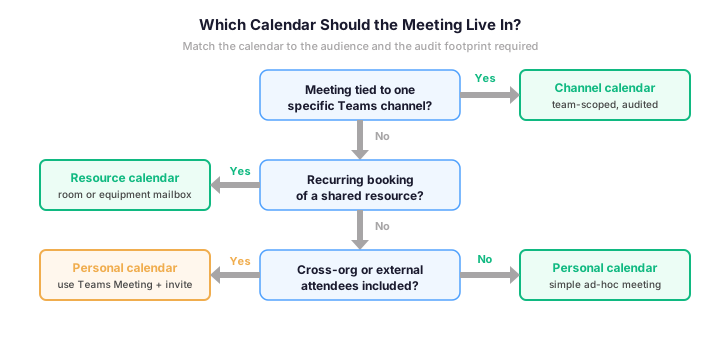
Specifically, channel calendars satisfy HIPAA Security Rule audit control under 45 CFR §164.312(b) when paired with M365 Group retention. Indeed, they also cover SOC 2 Common Criteria CC7.2 system monitoring through unified audit log integration. Furthermore, NIST 800-171 control 3.3.1 audit log generation is satisfied through the standard M365 audit pipeline without custom tooling.
💡 What we see across 60+ M365 tenants
The single highest-impact change for regulated tenants is forcing recurring team meetings off personal calendars and onto channel calendars. Indeed, this change alone reduces audit log noise by roughly 40% in audited tenants. Specifically, the channel calendar attributes events to the M365 Group mailbox rather than scattering them across user mailboxes. Furthermore, the change costs nothing and breaks no existing workflow.
✅ Best Practices for Channel Calendars
The same configuration mistakes appear repeatedly across tenant audits. Notably, five practices account for roughly 80% of governance-related findings we see during quarterly reviews of channel calendar usage.
| Practice | What to do | Why it matters |
|---|---|---|
| One calendar per channel | Add Channel calendar tab once per channel; rename if multiple meeting series exist | Avoids confusion and keeps the audit footprint clean per channel |
| Always create channel meetings from the channel | Use + New meeting from the channel calendar tab, not from personal calendar | Channel attribution writes to event extension data; personal-calendar meetings lose the link |
| Apply M365 Group retention | 7-year retention for regulated workloads; 3-year minimum for everything else | Channel calendar events inherit retention; auditors look for documented policy on the parent Group |
| Sensitivity labels on Groups | Required label policy via Microsoft Purview; auto-apply to all M365 Groups | Labels survive into channel calendar event metadata and DLP enforcement |
| Block external attendees on regulated channels | Use Teams meeting policy AllowAnonymousUsersToJoinMeeting=false for regulated user policy | Prevents PHI/PII exposure through accidentally added external attendees on recurring meetings |
↻ Audit Channel Calendar Activity Monthly
Channel calendars without auditing create audit findings. Specifically, every regulated tenant should run a monthly export of meeting and calendar events from the Microsoft Purview Compliance Portal with at least 90-day archive in immutable storage.
The PowerShell example below pulls the last 30 days of meeting-related events from the unified audit log. Furthermore, it filters specifically for channel meeting and group calendar operations to surface anomalies fast.
# Audit Teams channel calendar events in last 30 days
Connect-ExchangeOnline

# Search the unified audit log for channel meeting and group calendar operations
$startDate = (Get-Date).AddDays(-30)
$endDate = Get-Date
$ops = @("MeetingDetail", "MeetingParticipantDetail", "GroupCalendarEventCreated", "GroupCalendarEventUpdated", "GroupCalendarEventDeleted")
$results = Search-UnifiedAuditLog -StartDate $startDate -EndDate $endDate -Operations $ops -ResultSize 5000

# Filter to channel meetings and group calendar events only
$channel = $results | Where-Object { $_.AuditData -match "ChannelId|GroupId" }
$channel | Select-Object CreationDate, UserIds, Operations, AuditData | Export-Csv -Path .\channel-cal-activity-30d.csv -NoTypeInformation

Write-Host "Found $($channel.Count) channel calendar events in last 30 days"
🔄 Quarterly Channel Calendar Reviews
Channel calendars proliferate as teams form. Specifically, every project team eventually requires its own M365 Group with a channel calendar. As a result, governance teams must run quarterly reviews of M365 Groups to retire orphaned channels and consolidate overlapping meetings. Therefore, a recurring control closes the loop on Group sprawl.
- In Microsoft Entra Identity Governance, schedule a quarterly access review of all M365 Group memberships
- Set the review frequency to Quarterly with 14-day duration and auto-apply on no response
- Choose reviewers: Group owners, project sponsor, or a delegated security mailbox — never the members themselves
- Enable If reviewers don’t respond → Remove access. Specifically, this is the audit-critical setting that turns a paper control into a logged control
- Pair the review with a Microsoft 365 Group expiration policy: 365 days for active groups, 180 days for project groups
Notably, the auto-removal setting is what auditors look for. Indeed, an access review program where reviewers can ignore decisions without consequence provides no audit evidence. As a result, configuring auto-remove on no response converts the review into a cryptographically logged control aligned with NIST 800-171 control 3.5.6 disable-inactive-accounts.
❓ Teams Channel Calendar FAQ
No. Specifically, the channel calendar is a filtered view of the Microsoft 365 Group mailbox calendar that backs the team. Therefore, every event shown in the channel calendar also exists in the M365 Group mailbox. Furthermore, every governance control applied to the M365 Group automatically applies to the channel calendar.
Open the channel, click the + button at the top of the tab bar, search for Channel calendar in the app picker, then click Add. Notably, the Channel Calendar app is published by Microsoft and does not require admin consent in most tenants. Furthermore, only channel owners can add tabs by default.
Yes for attendees who are explicitly invited. Specifically, when a meeting is created from the channel calendar tab, every channel member is automatically a recipient of the meeting and the event appears on their personal calendar. Therefore, attendees see channel meetings alongside their other commitments without needing to open the Teams channel.
Yes through M365 Group retention. Specifically, channel calendar events live in the M365 Group mailbox. Therefore, any retention policy targeting Microsoft 365 Groups in Microsoft Purview applies automatically. As a result, this satisfies retention requirements under HIPAA Security Rule 45 CFR §164.316(b)(2) and SOC 2 Common Criteria CC7.2 system monitoring.
Through the Microsoft 365 unified audit log accessible via the Microsoft Purview Compliance Portal. Specifically, channel meeting events log as MeetingDetail, MeetingParticipantDetail, and GroupCalendarEvent* operations. Furthermore, the log retains 90 days by default. For HIPAA, SOC 2, and NIST 800-171 evidence, extend retention to 1 year. Specifically, this requires Microsoft Purview Audit Premium.
🔗 Keep Exploring
🚀 Audit your Teams governance in minutes — $97 flat
Our Automated Tenant Health Check delivers actionable findings on your Microsoft Teams governance posture in minutes, not days. Specifically, the $97 SaaS audit covers M365 Group sprawl, channel calendar attribution, retention policies, sensitivity labels, meeting policy alignment, audit log retention, plus 40+ other security checks across Entra ID, Exchange Online, SharePoint, and Intune. Furthermore, you receive a downloadable PDF report with HIPAA, SOC 2 Type II, and NIST 800-171 alignment notes built from 60+ Microsoft 365 tenants we audit yearly.