A DNS zone is the administrative slice of the DNS namespace where you actually manage records: the A, MX, TXT, and CNAME entries that route traffic for your domain. Specifically, this guide breaks down zone anatomy, M365-critical records (SPF, DKIM, DMARC, MX), resolution flow, and troubleshooting. Moreover, every recommendation comes from what Wintive observed across 60+ Microsoft 365 and Azure tenant audits.
🧭 Why DNS zones for Microsoft 365 matter in 2026
DNS used to feel like plumbing. However, in 2026 it sits at the heart of email security and zero-trust posture. Specifically, every Microsoft 365 onboarding requires 6 to 8 DNS records. Furthermore, a missing DKIM key or a wrong SPF flag means messages land in junk or get rejected outright.
Email auth records are now the primary attack surface for tenant takeover. Consequently, attackers harvest credentials, forge sender domains, and abuse weak SPF policies. Therefore, knowing your zone cold is no longer optional for any admin running Exchange Online, Defender for Office 365, or a custom Azure App Service domain. For deeper protocol references, see Microsoft Learn — Add a domain and RFC 7489 (DMARC).
🛡️ Free: M365 Audit Checklist
19-page PDF with 50 hands-on checks covering Entra ID, Exchange Online, SharePoint, Teams, Intune, license waste, and audit logging. PowerShell commands included. Built from 60+ real tenant audits at Wintive.
🧬 Anatomy of a DNS zone for Microsoft 365
A DNS zone is a contiguous portion of the namespace under one administrative authority. Specifically, when you buy example.com, you become authoritative for the example.com zone. Furthermore, every record under that name lives inside your zone — not at the registrar, not at the TLD.
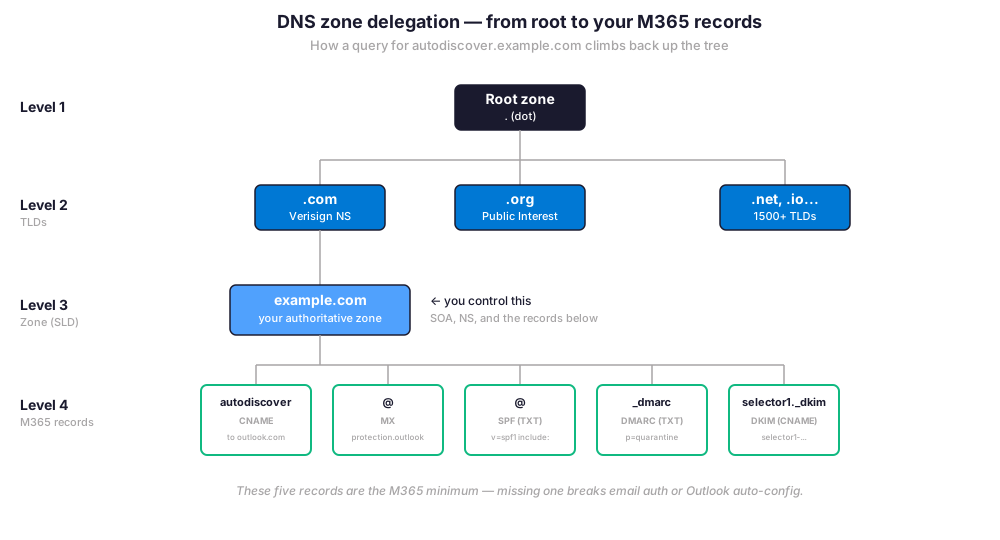
At the top sits the root zone (a single dot). Below the root, ICANN delegates to top-level domains like .com, .org, .net, and 1500+ others. Then, each TLD operator delegates second-level domains (SLDs) to registrants like you. Finally, you operate the SLD zone — example.com — and add records below it: www, mail, autodiscover, _dmarc, and so on.
Every zone has two mandatory records: an SOA (start of authority, names the primary nameserver and serial) and a set of NS records (which servers hold the zone). Notably, both are created automatically by your DNS provider. As a result, your job is the records below: A, MX, TXT, CNAME — the ones that actually route traffic.
📋 The 7 record types every M365 admin must know
Hundreds of record types exist in DNS. However, M365 admins use seven on a daily basis. The table below summarizes when each one matters in a typical Microsoft 365 estate.
| Type | Maps to | M365 use case | Example |
|---|---|---|---|
| A | IPv4 address | Custom apex pointing to Azure App Service | app.example.com → 20.50.10.5 |
| AAAA | IPv6 address | IPv6-only deployments (rare for M365) | app.example.com → 2603::1 |
| CNAME | Alias to another name | autodiscover, sip, lyncdiscover, enterpriseregistration | autodiscover → autodiscover.outlook.com |
| MX | Mail server | Routes inbound email to Exchange Online | example-com.mail.protection.outlook.com |
| TXT | Text data | SPF, DKIM, DMARC, domain verification | v=spf1 include:spf.protection.outlook.com -all |
| NS | Authoritative server | Delegates a subdomain (e.g., dev.example.com) | NS ns1.azure-dns.com |
| SRV | Service location | Skype/Teams federation, autodiscover SRV | _sip._tls.example.com weight 100 port 443 |
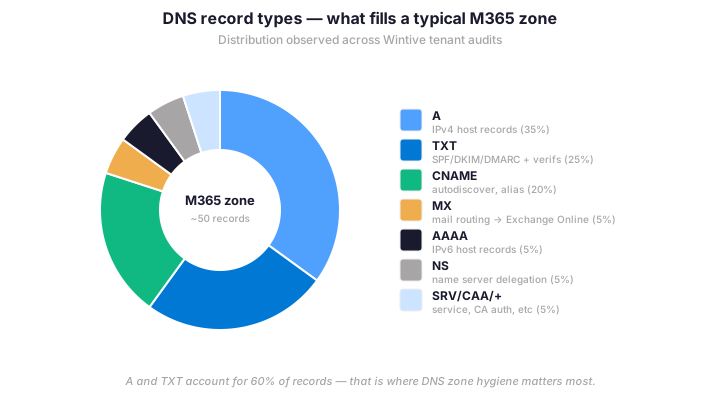
Looking at the distribution observed across 60+ Wintive tenant audits, three record types dominate. Specifically, A records and TXT records together account for 60% of zone entries. Furthermore, TXT explosion comes from the email auth stack — SPF, DKIM selectors, DMARC policy, and tenant verification all live there.
📧 Email auth records: SPF, DKIM, DMARC, MX
From the DNS zone perspective, email authentication for Microsoft 365 sits in four records published at the apex and at _dmarc + _domainkey sub-labels. Specifically, MX routes inbound mail, SPF lists authorized outbound senders, DKIM publishes the public keys via two CNAME selectors, and DMARC tells receivers what to do when SPF or DKIM fail. Furthermore, weak email auth remains the top finding in Wintive tenant audits across 60+ M365 SMB rollouts.
🔗 Full setup guide for 2026. This article covers the DNS zone perspective. For the complete Microsoft 365 custom domain setup with DKIM 2048-bit in the Defender Portal (the new location since Microsoft moved it from EAC), the four-stage DMARC progression p=none → p=quarantine → p=reject, the SKU coverage matrix, the multi-domain PowerShell ForEach -Parallel automation, and the fail-state runbook for when DKIM toggle stays grey, see our 2026 Microsoft 365 custom domain setup guide.
The rest of this guide focuses on what is unique to the DNS zone layer: the M365 onboarding record set as it sits inside the zone, how DNS resolution actually flows for inbound mail, the public versus private zone trade-offs for hybrid Azure deployments, and the troubleshooting workflow when records resolve at the registrar but not at the receiver.
📌 M365 onboarding: the 6 DNS records you must configure
When you add a custom domain to a Microsoft 365 tenant, the admin center prompts you to add a fixed set of records. Therefore, copy the block below into your DNS provider (Azure DNS, Cloudflare, Route 53, OVH, GoDaddy — same syntax everywhere). Then, replace example-com with your {domain}-{tld} Microsoft tenant identifier.
# M365 baseline DNS records for example.com
# Replace example-com with your {domain}-{tld} M365 identifier
# Replace example with your tenant short name in onmicrosoft.com

# 1. Domain ownership verification (TXT at apex)
@   IN  TXT  "MS=ms12345678"

# 2. Mail flow (MX at apex, priority 0)
@   IN  MX   0  example-com.mail.protection.outlook.com.

# 3. Anti-spoofing - SPF (TXT at apex)
@   IN  TXT  "v=spf1 include:spf.protection.outlook.com -all"

# 4. Outlook autodiscover (CNAME)
autodiscover    IN  CNAME  autodiscover.outlook.com.

# 5. DKIM signing - both selectors required
selector1._domainkey   IN  CNAME  selector1-example-com._domainkey.example.onmicrosoft.com.
selector2._domainkey   IN  CNAME  selector2-example-com._domainkey.example.onmicrosoft.com.

# 6. DMARC policy (TXT at _dmarc subdomain)
_dmarc  IN  TXT  "v=DMARC1; p=none; rua=mailto:dmarc@example.com; fo=1"
Once propagation completes (5 minutes to 48 hours depending on your TTL), validate everything from the Microsoft 365 admin center under Settings > Domains. Specifically, every record turns green when DNS resolves correctly. Furthermore, after DKIM CNAMEs resolve, enable signing in the Microsoft Defender Portal at security.microsoft.com under Email & Collaboration > Threat policies > DKIM (Microsoft moved this from the classic Exchange Admin Center in 2024).
🔄 How DNS resolution works for inbound M365 email
When an email arrives at your M365 tenant, a multi-step authentication chain runs in milliseconds. Notably, knowing this sequence helps debug messages stuck in junk or quarantine.
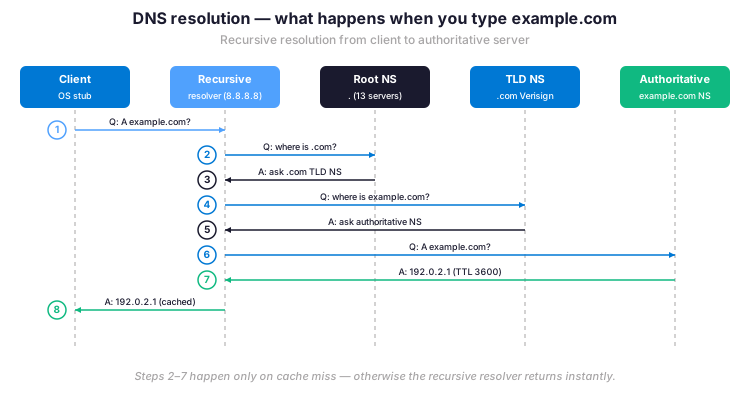
The MX lookup tells the sender where to deliver. Then, on arrival at {tenant}.mail.protection.outlook.com, Defender for Office 365 fetches the SPF record at the sender domain. Specifically, it verifies the sending IP against the SPF allowlist. Furthermore, DKIM signature verification follows: the recipient pulls the public key from the signing domain’s selector._domainkey CNAME chain.
Finally, DMARC policy evaluates the alignment between SPF/DKIM signing domains and the From header. As a result, three outcomes exist: pass (deliver), quarantine (junk folder or admin queue), or reject (bounce). Indeed, mail flow rules in Defender can override DMARC for trusted partners, but only when explicitly configured.
🌍 Public vs Private zones for M365 and Azure
DNS zones come in three flavors depending on the audience. Specifically, public zones answer queries from anywhere on the internet. In contrast, private zones answer only inside an Azure VNet or on-prem network. Furthermore, conditional forwarders bridge the two for hybrid scenarios.
| Zone type | Visible to | Hosted on | Typical use case |
|---|---|---|---|
| Public DNS zone | Whole internet | Azure DNS, Cloudflare, OVH, Route 53… | example.com, M365 records, marketing site |
| Private DNS zone (Azure) | Linked Azure VNets only | Azure Private DNS | Internal apps, private endpoints, Azure SQL |
| Conditional forwarder | On-prem ↔ Azure | Windows Server DNS or Azure DNS resolver | Hybrid setups, ADDS in Azure VM |
Most SMBs only ever touch the public zone — that is where M365 records live. However, growing organizations adding Azure VNets, private endpoints for storage, or App Service VNet integration will end up running both. Therefore, plan zone strategy at architecture stage, not after the first private endpoint breaks.
🚨 Troubleshoot M365 DNS issues
Most M365 mail issues trace back to DNS misconfiguration. Specifically, four PowerShell and shell commands solve 90% of zone problems. The block below is the Wintive go-to triage script.
# PowerShell + dig: M365 DNS triage
# Replace example.com with your domain

# 1. SPF check
Resolve-DnsName -Name example.com -Type TXT | \`
    Where-Object { $_.Strings -like '*spf1*' }

# 2. MX check (must point to mail.protection.outlook.com)
Resolve-DnsName -Name example.com -Type MX

# 3. DKIM CNAMEs (both selectors must resolve)
Resolve-DnsName -Name selector1._domainkey.example.com -Type CNAME
Resolve-DnsName -Name selector2._domainkey.example.com -Type CNAME

# 4. DMARC policy + alignment
Resolve-DnsName -Name _dmarc.example.com -Type TXT

# Bonus: verify DKIM signing is enabled in Exchange Online
Get-DkimSigningConfig -Identity example.com | \`
    Format-List Domain, Enabled, Status, KeySize
If Get-DkimSigningConfig returns Enabled: False while the CNAMEs resolve, simply enable signing: Set-DkimSigningConfig -Identity example.com -Enabled $true. However, if the CNAMEs do not resolve, propagation has not completed or the records were typed wrong. Therefore, always verify DNS propagation with dig +trace from a clean resolver before opening a Microsoft support ticket.
❓ DNS zones — FAQ
A DNS zone is a logical slice of the namespace. A DNS server is the software that hosts and answers queries for one or more zones. One server can host hundreds of zones. One zone can be replicated across multiple servers for redundancy.
Yes. SPF only validates the sending IP, not the message content. DKIM signs the message body. DMARC ties SPF and DKIM together with an explicit policy. In 2026, Gmail and Yahoo require all three for bulk senders.
Propagation depends on the TTL on the previous record. Most M365 records use TTL between 1 hour and 24 hours. For onboarding, set TTL to 5 minutes (300 seconds), do all changes, then raise it back to 3600 seconds.
Yes, and it is the Wintive recommendation for any organization already on Azure. Azure DNS supports all M365 record types, integrates with role-based access control, and lets you manage records via Bicep or Terraform.
🔗 Keep exploring
This tutorial covered one focused Microsoft 365 admin task. For a complete picture of how your full tenant performs against best practices:
🔍 Want a complete audit of your Microsoft 365 tenant?
The M365 Instant Audit scans your M365 environment in under 10 minutes: license waste, security posture, MFA coverage, compliance gaps, license rightsizing opportunities. Full PDF report with prioritized recommendations delivered instantly.