Microsoft 365 MFA in 2026 sits at a turning point. Specifically, Microsoft will enforce MFA for Azure portal access starting October 1, 2026. Furthermore, Authentication Strengths now replace the legacy Require MFA grant control, and External MFA went GA in April 2026. Therefore, the old playbook of just enabling Authenticator push is no longer enough.
This guide covers the full Microsoft 365 MFA stack as Wintive deploys it in 2026. Specifically, we walk through every method Entra ID supports, the 5-tier user framework Wintive uses across 60+ M365 tenants, and the audit script that holds it all together.
🛡️ Free: M365 Audit Checklist
19-page PDF with 50 hands-on checks covering Entra ID, Exchange Online, SharePoint, Teams, Intune, license waste, and audit logging. PowerShell commands included. Built from 60+ real tenant audits at Wintive.
💡 Why Microsoft 365 MFA hardening matters in 2026
Five recent shifts moved MFA from checklist item to top of the 2026 admin agenda.
- Platform hardening: Authentication Strengths replaced Require MFA, CBA at position 3 March 2026.
- Threat industrialization: 0ktapus and Lapsus playbooks made MFA fatigue routine.
- Regulatory tightening: HIPAA Security Rule + SOC 2 Type II flag tenants without phishing-resistant methods.
- Cost collapse: FIDO2 keys under $25, synced passkeys GA across Entra, iCloud, Google, Bitwarden, 1Password.
- External MFA GA: April 2026 enables Duo, RSA, WatchGuard natively in Conditional Access.
Wintive sees the cumulative impact across 60+ M365 tenants we audit yearly. In practice, the gap between MFA enabled and MFA hardened predicts whether a tenant survives the next phishing wave intact.
🔧 The 16 MFA methods Entra ID supports in 2026
Microsoft 365 MFA in 2026 is not one method. Specifically, Entra ID supports 16 distinct methods spanning six categories. Furthermore, each one has a specific use case Wintive has road-tested across our managed plans.
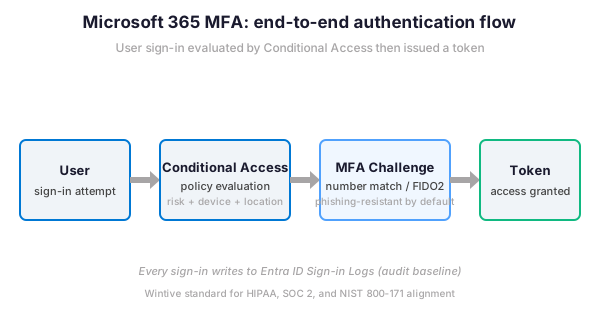
The methods break down into six categories. Specifically, push-based methods include Microsoft Authenticator push (deprecated as primary), Authenticator number matching, and Authenticator Lite in Outlook mobile. Furthermore, TOTP methods include Microsoft Authenticator OTP, third-party software OATH TOTP, and hardware OATH tokens.
Phishing-resistant methods include FIDO2 security keys, device-bound passkeys, synced passkeys, Windows Hello for Business, and certificate-based authentication. Specifically, onboarding and recovery is covered by Temporary Access Pass. Furthermore, External MFA (formerly EAM) extends Entra ID to Duo, RSA, and WatchGuard. Finally, SMS and voice remain available but Wintive treats them as legacy and avoid.
| Method | Class | Phishing-resist | Wintive default for |
|---|---|---|---|
| Microsoft Authenticator number match | Push-based | Strong | T4 knowledge workers |
| Microsoft Authenticator OTP | TOTP | OK | T4 backup method |
| Third-party TOTP (1Password, Bitwarden, KeePass) | TOTP | OK | T4 alt for password-manager users |
| Hardware OATH token (Yubico OTP, Token2) | TOTP | OK | T5 frontline without smartphone |
| FIDO2 security key (Yubikey, Feitian) | Phishing-resistant | Strong | T1 break-glass and T2 admins |
| Synced passkey (iCloud, Google, Bitwarden) | Phishing-resistant | Strong | T3 executives and finance |
| Windows Hello for Business | Phishing-resistant | Strong | T2 admins on managed devices |
| Certificate-based authentication (CBA) | Phishing-resistant | Strong | T2 regulated roles |
| Temporary Access Pass | Time-limited | Variable | Onboarding and T1 recovery |
| External MFA (Duo, RSA, WatchGuard) | EAM | Variable | Tenants with existing provider |
| SMS or voice | Legacy | Weak | Avoid as primary method |
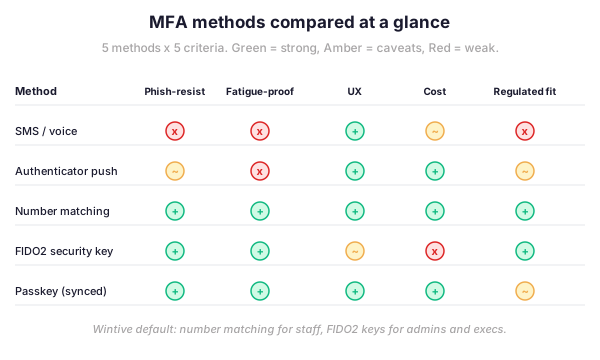
The visual matrix below scores the methods on five operational criteria. Furthermore, it highlights why Wintive recommends a tiered baseline rather than a one-size-fits-all method.
🛡️ Authentication Strengths: the new way to require MFA
The Authentication Strengths grant control replaced Require multifactor authentication, which accepted any registered method (allowing SMS even for Global Admins). Three built-in strengths exist: MFA (legacy default), Passwordless MFA, and Phishing-resistant MFA. Furthermore, custom strengths let you restrict to specific FIDO2 key models via AAGUID, so you can require Yubikey-only for break-glass while accepting any FIDO2 key for regular admins.
# Connect with the right scopes
Connect-MgGraph -Scopes "Policy.ReadWrite.AuthenticationMethod", "Policy.ReadWrite.ConditionalAccess"

# Read built-in Authentication Strengths
Get-MgPolicyAuthenticationStrengthPolicy | Select-Object Id, DisplayName, PolicyType

# Create a custom strength for break-glass: FIDO2 hardware keys only
$custom = New-MgPolicyAuthenticationStrengthPolicy ``
    -DisplayName "Wintive T1 - FIDO2 hardware only" ``
    -Description "Break-glass and Global Admin sign-ins" ``
    -AllowedCombinations @("fido2")

# Apply to a Conditional Access policy in report-only mode
$caParams = @{
    displayName = "CA-T1 - Privileged accounts FIDO2"
    state = "enabledForReportingButNotEnforced"
    conditions = @{
        users = @{
            includeRoles = @("62e90394-69f5-4237-9190-012177145e10")
            excludeUsers = @("BREAKGLASS_OBJECT_ID")
        }
        applications = @{ includeApplications = @("All") }
    }
    grantControls = @{
        operator = "OR"
        authenticationStrength = @{ id = $custom.Id }
    }
}
New-MgIdentityConditionalAccessPolicy -BodyParameter $caParams
This pattern forbids weaker methods like SMS even if registered, and the strength applies to all sign-in evaluations. Therefore, MFA fatigue attacks become structurally harder to land. Wintive deploys five Authentication Strengths per managed tenant, one per user tier, bound to role-based groups so new admin assignments inherit the right policy automatically.
🔑 TOTP in password managers: the corporate option Microsoft will not advertise
Most M365 admin guides assume MFA means Microsoft Authenticator. However, Entra ID also supports any third-party TOTP app via the Software OATH tokens control. Therefore, users can register their MFA seed in 1Password, Bitwarden, KeePassXC, Google Authenticator, Authy, Aegis, or Raivo.
| App | Cross-device sync | End-to-end encrypted | Wintive standard for |
|---|---|---|---|
| 1Password | Yes (1Password vault) | Yes | T4 enterprise standard |
| Bitwarden | Yes (Bitwarden vault) | Yes | T4 SMB and self-hosted |
| KeePassXC | Manual (file sync) | Yes | T2 high-security air-gapped |
| Authy | Yes (Authy cloud) | Yes | T4 BYOD without password manager |
| Aegis (Android) | Local backup | Yes | T4 Android privacy-focused users |
| Raivo (iOS) | iCloud sync | Yes | T4 iOS privacy-focused users |
| Google Authenticator | Yes (Google account) | No | Personal use only – avoid corporate |
Three user populations resist Microsoft Authenticator: privacy-focused users refusing a Microsoft app on personal phones, BYOD users already managing credentials in a password manager, and regulated-industry users with phone restrictions. Furthermore, password managers provide TOTP backup synchronization through their encrypted vault, so recovery is built in.
The trade-offs are real. Specifically, third-party TOTP is not phishing-resistant. As a result, Wintive limits it to T4 (knowledge workers) and uses FIDO2 or passkeys for everything above. Furthermore, the user experience requires switching apps to read the code, which is slower than Authenticator number matching.
- Allow third-party TOTP when: users already standardized on a password manager, BYOD population without managed devices, or regulated environments restricting Microsoft apps.
- Require Microsoft Authenticator when: tenant runs Intune device compliance, push notifications are critical, or users need passwordless phone sign-in.
- Skip both and use FIDO2 when: account is privileged (Global Admin, Auth Admin), executive, or break-glass.
To enable third-party TOTP, an admin updates the Software OATH tokens control in the Authentication methods policy (separate from Microsoft Authenticator OTP since the 2024 granular split). Wintive treats it pragmatically: not a default for new tenants, but a first-class T4 method for tenants already standardized on 1Password or Bitwarden where forcing Authenticator creates friction without security gain.
💻 Configure number matching step-by-step
Number matching is the highest-impact change you can ship this quarter, and it has been the Microsoft default since February 2023. Therefore, every tenant should validate it explicitly.
For end users: register the Authenticator app
This is the user-facing workflow inside Microsoft Authenticator. Specifically, every user with a smartphone can complete it in under five minutes. Furthermore, no admin involvement is needed once the tenant policy is set.
- Open the Microsoft Authenticator app on your phone, then tap Add account.
- Select Work or school account, then tap Sign in.
- Sign in with your Microsoft 365 credentials when prompted.
- Approve any pending notification, then complete the device registration.
- From the next sign-in, expect a number to appear on your computer screen.
- Type that number into the Authenticator app to approve the request.
Wintive sees the cumulative impact across 60+ M365 tenants we audit yearly. In practice, the gap between MFA enabled and MFA hardened predicts whether a tenant survives the next phishing wave intact.
Crucially, this workflow does not change the user password. Therefore, no helpdesk ticket is needed for the rollout. Furthermore, Wintive ships a one-page user guide with every managed plan.
For admins: enable number matching tenant-wide
Beyond the user-facing setup, admins control the policy in Entra ID. Specifically, the authentication methods policy ships with number matching forced on by default. However, tenants migrated from the legacy MFA portal often have it explicitly disabled. Therefore, every refonte starts with confirming the actual policy state.
# Connect to Microsoft Graph with the right scopes
Connect-MgGraph -Scopes "Policy.ReadWrite.AuthenticationMethod"

# Enable number matching for all users
$body = @{
    featureSettings = @{
        numberMatchingRequiredState = @{
            state = "enabled"
            includeTarget = @{ targetType = "group"; id = "all_users" }
        }
    }
}
Update-MgPolicyAuthenticationMethodPolicyAuthenticationMethodConfiguration ``
    -AuthenticationMethodConfigurationId "MicrosoftAuthenticator" ``
    -BodyParameter $body
The change writes to the Entra ID audit log (visible within minutes) and is reversible by setting state to disabled. Wintive keeps a rollback script in every tenant runbook.
🎯 The Wintive 5-tier MFA framework
Most M365 tenants treat MFA as a single policy: one Conditional Access rule for all users with the same method. As a result, privileged admins and shop-floor users get the same authentication path. Therefore, fatigue attacks succeed because the policy cannot distinguish between low-value and high-value accounts.
Wintive deploys MFA in five tiers, each mapping a user category to a method and Authentication Strength, validated across 60+ M365 tenant audits.

The framework reads top to bottom by sensitivity. Specifically, T1 covers the two break-glass accounts every tenant should maintain for emergency recovery. Then T2 protects the active privileged admins (Global, Authentication, Application, Exchange, SharePoint). T3 covers executives and finance staff with payroll or treasury access. T4 is the default knowledge-worker tier with smartphones. T5 covers frontline and shared-device users without personal smartphones.
Wintive applies a different Conditional Access policy with a matching Authentication Strength to each tier. Specifically, T1 uses a custom FIDO2-only strength. Furthermore, T2 uses the built-in Phishing-resistant MFA strength. T3 uses Passwordless MFA. T4 and T5 use the Multifactor authentication strength. Therefore, the policy structurally blocks weaker methods at the highest tiers, even if a user accidentally registers them.
✅ Best practices versus anti-patterns
The baseline matters more than any single control. The rules below cover the seven patterns Wintive validates on every audit.
What we see across 60+ M365 tenants
MFA fatigue accounts for roughly 80% of post-MFA breaches we encounter. Furthermore, the same tenants typically have number matching disabled or unenforced. Therefore, the simple act of enabling number matching by default eliminates most fatigue risk overnight.
The Wintive baseline maps directly to the seven anti-patterns below. Specifically, each row pairs the policy we deploy with the failure mode we still encounter on most tenant audits.
| Wintive baseline | Anti-pattern we still see |
|---|---|
| Number matching enforced tenant-wide | Plain push-approve enabled |
| FIDO2 keys for admins, third-party TOTP allowed for workers | Same MFA method for all roles |
| Authentication Strengths replacing Require MFA grant | Legacy Require MFA still in production |
| 5-tier user framework with role-based groups | Single CA policy for everyone |
| Conditional Access in report-only first | Direct enforce with helpdesk overload |
| Break-glass excluded by group | Single-user exclusion drifting over time |
| Quarterly Authenticator method audit | Set-and-forget after initial rollout |
These rules cover the bulk of fatigue-driven breaches. Therefore, Wintive validates each one during the $97 M365 Instant Audit. Furthermore, the report flags any deviation against the baseline.
↻ Audit MFA adoption with PowerShell
Audit closes the loop. Specifically, you need evidence that every active user has registered a method matching their tier, and regulators ask for this at SOC 2 time. The PowerShell script below produces a CSV of registered methods per user, flagging weak or missing methods. Furthermore, it can be scheduled in Azure Automation for continuous evidence.
# Audit all users authentication methods across all 16 Entra ID method types
Connect-MgGraph -Scopes "UserAuthenticationMethod.Read.All", "User.Read.All"
$users = Get-MgUser -All -Property "Id,UserPrincipalName,AccountEnabled"

$report = foreach ($u in $users | Where-Object AccountEnabled) {
    $methods = Get-MgUserAuthenticationMethod -UserId $u.Id
    $types = $methods.AdditionalProperties.'@odata.type'
    [PSCustomObject]@{
        UPN              = $u.UserPrincipalName
        HasFido2         = ($types -match 'fido2').Count -gt 0
        HasPasskey       = ($types -match 'passkey|fido2').Count -gt 0
        HasAuthenticator = ($types -match 'microsoftAuthenticator').Count -gt 0
        HasThirdPartyTotp= ($types -match 'softwareOath').Count -gt 0
        HasHardwareOath  = ($types -match 'hardwareOath').Count -gt 0
        HasWindowsHello  = ($types -match 'windowsHelloForBusiness').Count -gt 0
        HasSms           = ($types -match 'phoneAuthentication').Count -gt 0
        MethodCount      = $methods.Count
    }
}
$report | Export-Csv -Path "mfa-audit-$(Get-Date -Format 'yyyyMMdd').csv" -NoTypeInformation
The output feeds straight into a SOC 2 evidence pack and gives a continuous audit trail when scheduled monthly. Wintive includes a polished version in every managed plan.
❓ Frequently asked questions
Yes, in any modern Entra ID tenant. Specifically, the Software OATH tokens control in the Authentication methods policy enables third-party TOTP apps. Furthermore, this control is now granular and separate from Microsoft Authenticator OTP since the 2024 split. Therefore, you can allow Bitwarden TOTP without enabling the Microsoft app.
Specifically, an Authentication Strength is a Conditional Access grant control that replaces Require multifactor authentication. Furthermore, it lets you require specific method combinations like FIDO2 only or Phishing-resistant MFA. Therefore, weaker methods cannot satisfy a strict policy even if the user has registered them.
Yes, if you already run that provider. Specifically, External MFA went GA in April 2026 and integrates natively with Conditional Access. However, if you are starting fresh, the Wintive recommendation is the native Microsoft stack with FIDO2 and Authenticator. Furthermore, External MFA requires Entra ID P1 or higher.
No. Specifically, Authenticator versions older than 6.6.8 fall back to legacy approve. Therefore, users who have not updated still authenticate, just without the number prompt.
Specifically, MFA hardening addresses 45 CFR § 164.312(d) Person or Entity Authentication and § 164.312(b) Audit Controls. Furthermore, SOC 2 Type II auditors now expect Authentication Strengths or equivalent on privileged roles. Therefore, the Wintive baseline maps cleanly onto both frameworks.
🔗 Related Wintive resources
Microsoft 365 Audit Checklist covers MFA, Conditional Access, Defender, SharePoint, and more.
Defender for Office 365 policy hardening for inbound email and link protection.
Admin center essentials for the daily M365 operations baseline.
$97 M365 Instant Audit validates your full MFA + Conditional Access baseline in minutes.
This tutorial covered one focused Microsoft 365 admin task. For a complete picture of how your full tenant performs against best practices:
🔍 Want a complete audit of your Microsoft 365 tenant?
The M365 Instant Audit scans your M365 environment in under 10 minutes: license waste, security posture, MFA coverage, compliance gaps, license rightsizing opportunities. Full PDF report with prioritized recommendations delivered instantly.