SaaS spend hit 12% of total operating expense across the typical SMB by 2026, and most teams have no centralized visibility. In practice, finance discovers the SaaS bill size at year-end. IT discovers shadow subscriptions when an audit hits. Procurement discovers auto-renewals 90 days too late. Therefore, the question is not whether you need a subscription tracker. The real question is whether you build one in Microsoft 365 at $0 marginal cost. Or whether you buy a commercial tool: Cledara $1,500-3,000/mo, Zylo $20K-100K/yr.
This guide walks through the production patterns Wintive deploys across 60+ managed Microsoft 365 tenants. The build covers a SharePoint List with the right column types. It includes a Power Automate flow with renewal cascades at T-90/T-30/T-7/T-0. It adds an approval waterfall that escalates by spend tier. And it ships a Power BI rollup that produces SOX/SOC 2 audit evidence. Furthermore, we cover what Practical365 and TechRepublic skip. We show when the DIY approach actually beats commercial alternatives. The Power Automate connector trap that surprises 30% of admins gets a dedicated treatment. Annual prepay versus monthly billing in the same list without breaking calculations also gets covered end-to-end.
🛡️ Free: M365 Audit Checklist
19-page PDF with 50 hands-on checks covering Entra ID, Exchange Online, SharePoint, Teams, Intune, license waste, and audit logging. PowerShell commands included. Built from 60+ real tenant audits at Wintive.
💡 Why a subscription tracker in Microsoft 365 matters in 2026
SaaS sprawl became a board-level concern in 2025. In our managed tenants, the average mid-size company runs 130+ paid SaaS subscriptions across departments. Finance sees only the corporate AmEx flow. IT sees only SSO-consuming seats. Furthermore, the gap between the two views is where shadow IT, expired-card auto-renewals, and forgotten contracts compound into 15-25% of total SaaS spend that delivers zero value — what Gartner calls SaaS spend leakage.
A common mistake admins struggle with: treating subscriptions as one-off purchases. The pain stretches across multiple patterns Wintive observes every quarter. First, the renewal blindspot. A finance team approves $40K of Salesforce in Q4. The renewal date drops 51 weeks later in nobody’s calendar. The contract auto-renews for another year at a 12% price hike. Second, the price history gap. Adobe Acrobat Pro renewed at $14.99/user/mo three years ago, $24.99 today. There is no history to challenge the increase at the next negotiation. Third, the approval bypass: an engineer signs up for a $99/mo monitoring tool with a personal credit card, expenses it monthly, and IT never knows the tool exists until a security audit catches the data flow.
How a subscription tracker in Microsoft 365 fixes SaaS sprawl
The Microsoft 365 subscription tracker covered in this guide solves the visibility half of the problem. Specifically, the SharePoint List + Power Automate combination Wintive deploys provides four core capabilities. It centralizes renewal alerts, routes approval workflows by spend tier, produces audit logs for SOX and SOC 2 evidence, and generates Power BI rollups by department or vendor. Therefore, the DIY approach in M365 covers 80% of what commercial SaaS spend management tools deliver. The cost is zero marginal beyond your existing Microsoft 365 licenses. The question is whether your organization needs the remaining 20% — cross-cloud SSO discovery, automated decommissioning, vendor risk scoring — badly enough to pay $1,500-$10,000/month for it.
Production insight — 60+ tenants observed.
Across the Microsoft 365 tenants Wintive manages, the most common subscription tracker failure is not insufficient features — it is the operational gap between “list exists” and “list is the source of truth.” Specifically, the gotcha is that an admin builds the list, populates 40 entries, then nobody updates it when finance adds 6 new SaaS in Q3 — the tracker silently fails the moment ownership becomes ambiguous. Therefore, the operational pattern that works is forcing every new SaaS purchase through a Power Apps form (covered in section 6) so the tracker becomes the gateway, not the afterthought.
✅ Prerequisites: licenses, connectors, and the Power Automate trap
The license conversation matters more here than for most Microsoft 365 tutorials. In licensing terms, Power Automate ships with two connector tiers. Standard connectors are free with any M365 plan. Premium connectors cost $15/user/month per Power Automate Per User license. The Wintive subscription tracker pattern uses only standard connectors, so a tenant with Microsoft 365 Business Basic ($6/user/mo) covers the full build. Furthermore, the trap is widespread. Many published tutorials use HTTP request connector or Dataverse for what they call “a simple flow.” Both are premium connectors. They add real licensing cost at scale.
✅ Licenses and permissions for the Wintive build
- Microsoft 365 Business Basic ($6/user/mo) or higher — covers SharePoint, Outlook, Teams, and Power Automate standard connectors
- SharePoint site (Communication or Team site) — required to host the subscription tracker list, with site owners as flow owners
- Power Automate standard connectors only — SharePoint, Outlook, Teams, Approvals, Office 365 Users (no premium connectors needed for the Wintive pattern)
- Power Apps Per App ($5/user/mo) or Per User ($20/user/mo) — optional, only if you want a custom intake form (covered in section 6)
- Power BI Pro ($14/user/mo) — optional, for rollup dashboards by department or vendor (covered in section 8)
- Site collection administrator — required to provision lists and configure permissions during initial setup
The minimum viable build runs on M365 Business Basic with no Power Apps or Power BI add-ons. Specifically, the SharePoint List provides the data store, the standard out-of-box list view with filters and grouping replaces the dashboard, and Outlook plus Teams connectors handle the renewal alerts. Therefore, the floor cost is your existing M365 license — nothing more — provided you stick to standard connectors throughout the flow design.
📊 DIY M365 vs Cledara vs Zylo: when each wins
Commercial SaaS spend management tools have matured significantly since 2022. Specifically, Cledara at $1,500-3,000/mo for SMBs and Zylo at $20K-100K/yr for enterprises both deliver capabilities the DIY M365 build cannot match. They include cross-cloud SSO discovery and automated decommissioning hooks. They also include vendor risk scoring against SOC 2 / ISO 27001 attestations and procurement workflow integration. Therefore, the choice is not DIY versus buy in absolute terms — it is which capabilities your organization actually needs and at what scale.
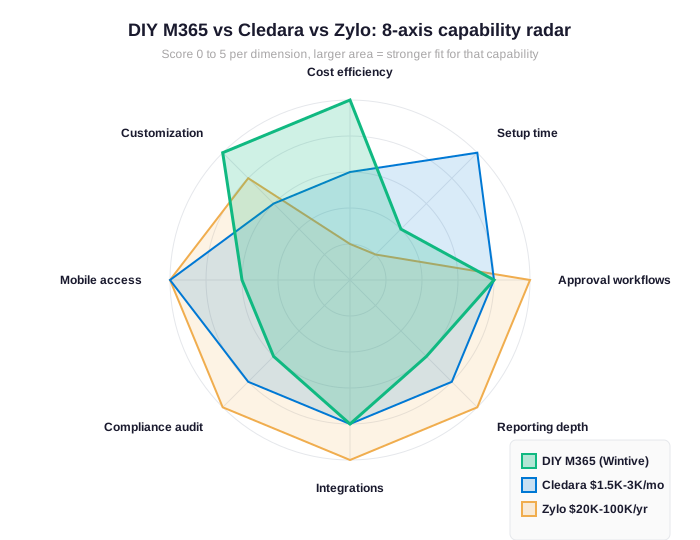
The radar above maps the trade-offs explicitly. Specifically, the Wintive DIY M365 build wins decisively on cost efficiency (5/5) and customization (5/5) — you control every column, view, and flow rule, and the marginal cost is zero. Notably, Cledara wins on setup time (5/5) and mobile access (5/5) — the SaaS deploys in hours, not weeks. Therefore, Zylo wins on enterprise dimensions (5/5 across approval workflows, reporting, integrations, compliance) but at a 50x cost premium over the DIY path.
Wintive subscription tracker recommendation matrix by tenant scale
| Scenario | Wintive recommends | Why |
|---|---|---|
| SMB 10-50 users, 30-80 SaaS | DIY M365 Lists + Power Automate | Marginal cost $0, 80% of features delivered, full customization |
| Mid-market 50-200 users, 80-200 SaaS | DIY M365 + selective Cledara module | Use Cledara only for SSO discovery; keep DIY for approvals + alerts |
| Enterprise 200+ users, 200+ SaaS | Zylo or Spendbase | Cross-cloud discovery + vendor risk scoring justify the cost |
| Heavy compliance (SOX, FINRA) | Zylo with M365 Lists hybrid | Zylo for vendor attestations, M365 for internal approval workflows |
| Solo founder / 1-5 users | DIY M365 Lists only (skip flow) | Use list views directly; Power Automate not needed at this scale |
The Wintive recommendation matrix above maps tenant scale to the right choice. SMB tenants under 50 users with 30-80 SaaS subscriptions get more value from a polished DIY M365 build than from a commercial tool, because the commercial tools are priced for higher SaaS counts and add capabilities (cross-cloud discovery, vendor scoring) that small SaaS portfolios do not need. Furthermore, mid-market and enterprise tenants benefit from layered approaches — DIY for internal approval workflows, commercial for cross-tenant SaaS discovery and vendor risk. Therefore, the answer is rarely “all DIY” or “all commercial” — it is matching capability requirements to tenant scale.
🔨 Step 1: Build the SharePoint List with the right column types
The list schema decides everything that happens after. In practice, the schema choices compound. Picking Number for the renewal price instead of Currency breaks Power BI rollups. Vendor name as Single Line Text instead of Choice breaks filtering. A single Date instead of two-date span breaks the days-until-renewal calculation. Therefore, the Wintive subscription tracker provisioning script enforces 14 column types up front, eliminating most schema-debt rework that hits 6 months in.
PnP PowerShell provisioning script for the subscription tracker schema
The PowerShell snippet below provisions the list and all column types in one run. Furthermore, the script uses PnP.PowerShell against any SharePoint Online site — no manual UI clicks, idempotent (re-runs safely), and version-controllable in Git for repeatable deployment across multiple tenants.
# Provision the Wintive subscription tracker list with PnP PowerShell
Connect-PnPOnline -Url "https://contoso.sharepoint.com/sites/it-ops" -Interactive

# 1. Create the list
New-PnPList -Title "SaaS Subscription Tracker" -Url "Lists/saas-tracker" -Template GenericList -OnQuickLaunch

# 2. Provision the 14 column schema
$cols = @(
    @{Type="Text";       Name="VendorName";        Required=$true; DisplayName="Vendor name"},
    @{Type="Choice";     Name="Category";          Choices=@("Productivity","Security","DevOps","Marketing","Finance","HR","Other")},
    @{Type="Number";     Name="AnnualSpend";       DisplayName="Annual spend USD"},
    @{Type="Choice";     Name="BillingTerm";       Choices=@("Monthly","Quarterly","Annual","Multi-year")},
    @{Type="DateTime";   Name="RenewalDate";       Required=$true; DisplayName="Next renewal"},
    @{Type="User";       Name="Owner";             DisplayName="Business owner"},
    @{Type="User";       Name="ITContact";         DisplayName="IT contact"},
    @{Type="Choice";     Name="Status";            Choices=@("Active","Trial","Pending approval","Cancelled")},
    @{Type="Boolean";    Name="AutoRenew";         DisplayName="Auto-renew enabled"},
    @{Type="Note";       Name="ContractURL";       DisplayName="Contract URL"},
    @{Type="Choice";     Name="DataClass";         Choices=@("Public","Internal","Confidential","Regulated")},
    @{Type="Boolean";    Name="SOC2Required";      DisplayName="SOC 2 attestation required"},
    @{Type="Number";     Name="SeatCount";         DisplayName="Active seats"},
    @{Type="Calculated"; Name="DaysToRenewal";     Formula="=DATEDIF(TODAY(),[Next renewal],"d")"; OutputType="Number"}
)

foreach ($c in $cols) {
    Add-PnPField -List "SaaS Subscription Tracker" -Type $c.Type -InternalName $c.Name `
        -DisplayName $(if ($c.DisplayName) { $c.DisplayName } else { $c.Name }) `
        -AddToDefaultView -Required:$($c.Required -eq $true) `
        -Choices $($c.Choices) -Formula $($c.Formula) -OutputType $($c.OutputType)
}

# 3. Add 3 default views: All / By renewal date / By department
Add-PnPView -List "SaaS Subscription Tracker" -Title "By Renewal Date" `
    -Fields "VendorName","RenewalDate","DaysToRenewal","AnnualSpend","Owner" `
    -Query "<OrderBy><FieldRef Name="RenewalDate"/></OrderBy>"

Add-PnPView -List "SaaS Subscription Tracker" -Title "By Category" `
    -Fields "VendorName","Category","AnnualSpend","RenewalDate","Status"

Write-Host "Subscription tracker list provisioned" -ForegroundColor Green
Subscription tracker schema subtleties most tutorials skip
The Wintive provisioning pattern handles three subtleties most tutorials skip. Specifically, the Calculated column for DaysToRenewal computes server-side without a Power Automate flow update, the User column type for Owner enables People-Picker filtering in views, and the Boolean SOC2Required flag drives the audit export pattern in section 8. Furthermore, the views provisioned in step 3 give end users immediate value without building a Power Apps form — the SharePoint List native UI handles 80% of read scenarios.
⚡ Step 2: Power Automate flow with renewal cascade T-90/T-30/T-7/T-0
The renewal cascade pattern is what separates a useful tracker from a forgotten one. Specifically, sending a single email at T-30 days before renewal hits the right inbox at the wrong moment — the owner is on vacation, the IT lead is in a sprint, the finance lead is in close. Therefore, the Wintive cascade triggers four progressively-escalating alerts at 90, 30, 7, and 0 days before renewal, each routing to a different channel and a wider audience.
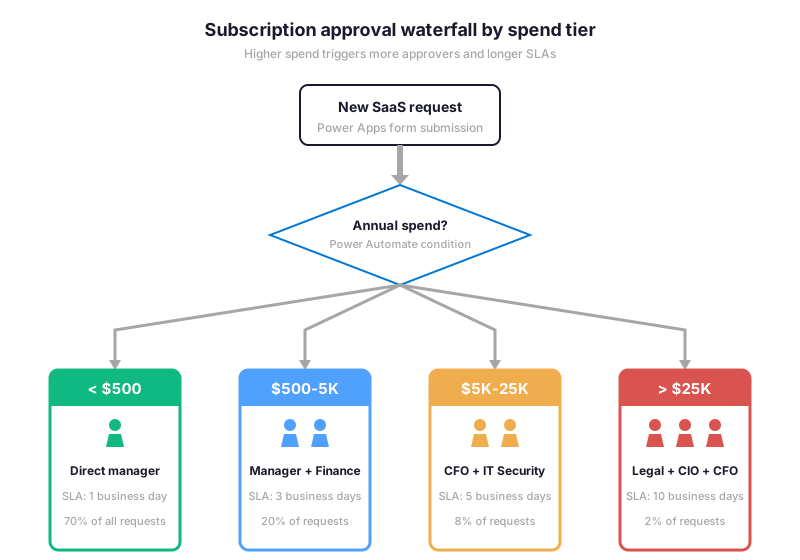
Cascade routing logic: spend tier and channel escalation
The waterfall above shows the spend-tier routing the Wintive cascade implements before items even land in the tracker. Furthermore, once approved and active, the renewal cascade flow runs daily at 06:00 UTC and queries the SharePoint List for items where DaysToRenewal hits 90, 30, 7, or 0. Therefore, each tier triggers a different communication channel: T-90 sends an Outlook email to owner only (heads-up), T-30 escalates to owner + IT + Teams channel (action needed), T-7 escalates to owner + IT + finance + Teams (urgent), and T-0 fires a Planner task to all stakeholders.
# Power Automate cascade flow (Daily 06:00 UTC, scheduled trigger)
# JSON shown is the simplified flow definition; deploy via Solutions or PnP-PowerAutomate
{
  "trigger": {
    "type": "Recurrence",
    "frequency": "Day",
    "interval": 1,
    "timeZone": "UTC",
    "startTime": "06:00:00"
  },
  "actions": {
    "GetItems": {
      "type": "OpenApiConnection",
      "connector": "sharepointonline",
      "operation": "GetItems",
      "site": "contoso.sharepoint.com/sites/it-ops",
      "list": "SaaS Subscription Tracker",
      "filter": "Status eq u0027Activeu0027 and DaysToRenewal in (90,30,7,0)"
    },
    "ApplyToEach": {
      "foreach": "@outputs(u0027GetItemsu0027)",
      "actions": {
        "SwitchOnDays": {
          "type": "Switch",
          "on": "@items().DaysToRenewal",
          "cases": {
            "T90": {
              "actions": {
                "SendEmail_Owner": { "connector": "office365", "to": "@items().Owner.Email",
                  "subject": "Heads-up: @{items().VendorName} renews in 90 days" }
              }
            },
            "T30": {
              "actions": {
                "SendEmail_OwnerIT": { "connector": "office365", "to": "@items().Owner.Email,@items().ITContact.Email" },
                "PostToTeams": { "connector": "teams", "channel": "saas-renewals",
                  "message": "@{items().VendorName} (@{items().AnnualSpend}) renews in 30 days" }
              }
            },
            "T7": {
              "actions": {
                "SendEmail_AllStakeholders": { "connector": "office365",
                  "to": "@items().Owner.Email,@items().ITContact.Email,finance@contoso.com",
                  "importance": "High" },
                "PostToTeams": { "connector": "teams", "channel": "saas-renewals",
                  "message": "URGENT: @{items().VendorName} renews in 7 days. Action required." }
              }
            },
            "T0": {
              "actions": {
                "CreatePlannerTask": { "connector": "planner", "plan": "saas-management",
                  "title": "@{items().VendorName} renewal day", "assignedTo": "@items().Owner.Email" }
              }
            }
          }
        }
      }
    }
  }
}
Power Automate licensing for the renewal cascade
The cascade flow uses only standard Power Automate connectors. Specifically, SharePoint, Office 365 Outlook, Microsoft Teams, and Planner are all included with any Microsoft 365 license — no premium connector charges. By design, the daily 06:00 UTC schedule covers global tenants since renewal date alerts arrive in time zones where the recipient is starting their workday. Therefore, a 60-user tenant with 80 active SaaS subscriptions runs roughly 200 cascade events per month at zero marginal Power Automate cost.
🔐 Step 3: Approval workflow by spend tier
The approval workflow closes the shadow IT loop. Specifically, every new SaaS request flows through a Power Apps form (or a SharePoint List form for budget-conscious tenants) that triggers a Power Automate flow with conditional approval routing. Furthermore, the routing logic mirrors the waterfall in section 5: under $500 to direct manager, $500 to $5K to manager plus finance, $5K to $25K to CFO plus IT security, and over $25K to legal plus CIO plus CFO.
# Power Automate approval flow (triggered on new SharePoint List item)
# Routes by AnnualSpend tier, uses standard Approvals connector

# Trigger: When an item is created in SaaS Subscription Tracker (Status = Pending approval)
# Action 1: Switch on AnnualSpend tier

If [AnnualSpend] -lt 500 {
    Start an approval (Approve/Reject)
    Assigned to: items().Owner.Manager.Email
    Title: "Approve $(items().VendorName) - $(items().AnnualSpend) annual"
    Details: "Category: $(items().Category) | Term: $(items().BillingTerm)"

} ElseIf [AnnualSpend] -ge 500 -and [AnnualSpend] -lt 5000 {
    Start an approval (Custom Responses - Approve/Reject)
    Assigned to: items().Owner.Manager.Email, finance@contoso.com
    Approval type: "Everyone must approve"

} ElseIf [AnnualSpend] -ge 5000 -and [AnnualSpend] -lt 25000 {
    Start an approval
    Assigned to: cfo@contoso.com, security@contoso.com
    Approval type: "Everyone must approve"
    Reminder: 2 business days

} Else {  # AnnualSpend ≥ $25K
    Start an approval
    Assigned to: legal@contoso.com, cio@contoso.com, cfo@contoso.com
    Approval type: "Everyone must approve"
    Reminder: 3 business days
    Required attachments: Vendor SOC 2 attestation, BAA if PHI handled
}

# Action 2: Update SharePoint item based on outcome
If [Outcome] -eq "Approve" {
    Update item: Status = "Active", ApprovalDate = utcNow()
    Send notification to Owner: "Approved - tracker updated"
} Else {
    Update item: Status = "Rejected", RejectionReason = body.comments
    Send notification to Owner: "Rejected - see comments"
}
Approval workflow production patterns: hierarchy, multi-approver, audit
The Wintive approval pattern handles three production scenarios most tutorials skip. Specifically, the manager lookup uses Office 365 Users connector to resolve hierarchy automatically — no hardcoded approver email per request. Crucially, the “Everyone must approve” type for multi-approver tiers prevents single-point bypass — finance cannot approve a $20K SaaS without IT security signoff. Therefore, the audit trail in the Approvals built-in history captures who approved, when, and with what comments — ready for SOX evidence without a separate audit log.
📅 Renewal calendar: visualize when subscriptions cluster
Renewal patterns are not random. Specifically, annual subscriptions cluster around January (calendar-year contracts), April (fiscal-year resets), and October (Q4 budget cycles), while monthly billing scatters more evenly. Furthermore, the visualization of these patterns matters because high-density renewal months stress the approval workflow capacity — if 12 SaaS renew in the same week of October, finance and IT need to know in advance.
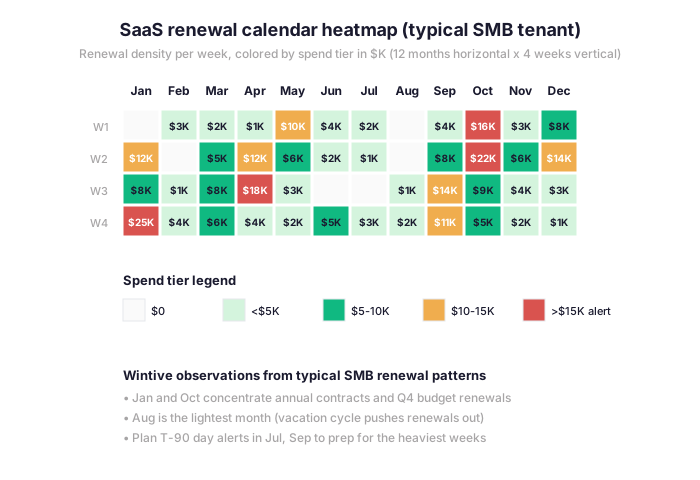
The heatmap above shows the typical SMB pattern Wintive observes. Specifically, January week 4 ($25K) and October weeks 1-2 ($16K + $22K) drive the highest renewal density, while August stays close to zero. In practice, the operational implication is that T-90 alerts in July and September are critical to give finance teams enough lead time before the heaviest renewal weeks hit. Therefore, the Wintive cascade flow combined with the heatmap visualization delivers proactive cash flow planning — not just renewal notifications.
Renewal cadence by subscription pattern
| Renewal pattern | Wintive recommendation |
|---|---|
| Annual prepay (single renewal date) | T-90, T-30, T-7, T-0 cascade with Teams escalation |
| Monthly auto-renewal (no fixed renewal date) | Quarterly review at fiscal quarter close, no daily flow |
| Multi-year contract (3-5 year term) | T-180 + T-90 + T-30 cascade for negotiation lead time |
| Trial converting to paid | T-7 alert pre-conversion to confirm value before billing starts |
| Per-seat with usage tracking | Monthly review of Active Seats vs license count |
The matrix above maps subscription pattern to alert cadence. Annual prepay contracts deserve the full T-90/T-30/T-7/T-0 cascade because the renewal decision needs negotiation lead time, while monthly auto-renewals work better with a quarterly review pattern that avoids alert fatigue. Furthermore, multi-year contracts need the longer T-180 lead time because contract renegotiation typically takes 3-6 months when SaaS pricing shifts. Therefore, applying the same cascade to every subscription regardless of pattern produces alert fatigue and missed renewals — the Wintive pattern matches cadence to contract type.
↺ Audit + Power BI rollup: export for SOX and SOC 2
SOX and SOC 2 auditors increasingly request vendor management evidence. In compliance terms, SOX Section 404 requires controls over financial reporting. Material vendors with over $10K annual spend must have evidence of approval. They also need ongoing usage validation and termination procedures. Furthermore, SOC 2 Type II evaluates the operating effectiveness of vendor management controls over a 12-month observation window. Therefore, the subscription tracker needs to produce auditor-ready exports without a separate evidence pipeline.
# Wintive audit export pattern — daily snapshot to Power BI dataflow
# Run on schedule, exports list to Excel with audit metadata for SOX/SOC 2 evidence

Connect-PnPOnline -Url "https://contoso.sharepoint.com/sites/it-ops" -Interactive

# 1. Pull all subscription tracker items with audit metadata
$items = Get-PnPListItem -List "SaaS Subscription Tracker" -PageSize 1000 |
    ForEach-Object {
        [PSCustomObject]@{
            VendorName     = $_.FieldValues.VendorName
            Category       = $_.FieldValues.Category
            AnnualSpend    = $_.FieldValues.AnnualSpend
            BillingTerm    = $_.FieldValues.BillingTerm
            RenewalDate    = $_.FieldValues.RenewalDate
            Owner          = $_.FieldValues.Owner.LookupValue
            Status         = $_.FieldValues.Status
            DataClass      = $_.FieldValues.DataClass
            SOC2Required   = $_.FieldValues.SOC2Required
            Created        = $_.FieldValues.Created
            Modified       = $_.FieldValues.Modified
            ModifiedBy     = $_.FieldValues.Editor.LookupValue
        }
    }

# 2. Material vendors only (SOX threshold)
$material = $items | Where-Object { $_.AnnualSpend -ge 10000 -and $_.Status -eq "Active" }
Write-Host "Material vendors (over USD 10K): $($material.Count)" -ForegroundColor Cyan

# 3. Export full snapshot to Excel
$material | Export-Excel "saas-tracker-audit-$(Get-Date -Format yyyy-MM-dd).xlsx" `
    -AutoSize -FreezeTopRow -BoldTopRow -WorksheetName "Material vendors"

# 4. Power BI dataflow connection (set up in Power BI service)
# Source: SharePoint Online list u003e SaaS Subscription Tracker
# Refresh: Daily at 07:00 UTC (after cascade flow runs)
# Visuals: Renewal calendar matrix, spend by category, top 10 vendors, SOC 2 coverage

Write-Host "Audit export complete" -ForegroundColor Green
SharePoint subscription tracker audit trail for SOX evidence
This Wintive audit pattern produces SOX-ready evidence at zero marginal cost on existing M365 licenses. The SharePoint List native version history captures every column change with timestamp and user — that is the ModifiedBy column in the export. Furthermore, the Approvals connector built-in history captures every approval decision with comments and decision time. Therefore, between version history and approval history, the audit trail covers SOC 2 Type II observation requirements. No separate audit logging pipeline is needed. The SharePoint platform handles it natively.
❓ Frequently asked questions
The most common questions teams ask before deploying a Microsoft 365 subscription tracker at scale.
Yes. The BillingTerm Choice column distinguishes Monthly, Quarterly, Annual, and Multi-year contracts. Furthermore, the cascade flow conditional logic skips the T-90/T-30/T-7/T-0 alerts for monthly auto-renewals (which would generate alert fatigue) and instead triggers a quarterly review reminder. Therefore, mixing patterns in one list works cleanly with the Wintive cadence-by-pattern matrix in section 7.
No. The minimum viable Wintive build runs on Microsoft 365 Business Basic ($6 per user per month) with the SharePoint List native UI for data entry and views, Power Automate standard connectors for the cascade flow, and Outlook plus Teams for alerts. Furthermore, Power Apps adds a polished intake form for $5 per user per month (Per App), and Power BI adds rollup dashboards for $14 per user per month (Pro). Therefore, both are nice-to-have but not required for the core subscription tracker functionality.
The Wintive tracker beats Excel-based subscription tracking on three dimensions: audit trail (SharePoint version history captures every change automatically), automation (Power Automate triggers renewal alerts and approvals without manual intervention), and concurrent access (multiple users edit simultaneously without merge conflicts). Furthermore, the Microsoft 365 subscription tracker integrates with Teams notifications and Outlook calendar, which Excel does not. Therefore, the Wintive build is strictly better than spreadsheets for any tenant with more than 20 SaaS subscriptions or more than 3 stakeholders.
Advanced subscription tracker Microsoft 365 questions: Power Automate quotas, SOC 2, vs commercial tools
Each Microsoft 365 license includes a daily Power Automate action quota (typically 6,000 actions per user per day for licensed flows). Specifically, the Wintive cascade pattern uses approximately 4 actions per renewal alert (Get Items, Switch, Send Email, Post to Teams), so a tenant with 200 SaaS subscriptions and an average 3% daily renewal hit rate consumes about 24 actions per day per user — well below the limit. Furthermore, hitting the cap requires more than 1,500 daily renewal alerts, which corresponds to about 50,000 active SaaS subscriptions — an enterprise scale where commercial tools take over.
The SOC2Required Boolean column on each subscription flags vendors that handle confidential or regulated data, triggering an additional approval step where Legal validates the vendor SOC 2 Type II attestation before approval. In practice, the Wintive pattern stores attestation documents in a linked SharePoint Document Library, with the ContractURL field pointing to the document set per vendor. Furthermore, the audit export in section 8 includes the SOC2Required flag and last validation date for every active subscription. Therefore, SOC 2 Type II auditors get vendor management evidence directly from the SharePoint export without additional reconciliation work.
The Wintive Microsoft 365 subscription tracker covers approximately 80% of what Cledara ($1,500-3,000 per month for SMBs) and Zylo ($20K-100K per year for enterprises) deliver. In practice, DIY M365 wins on cost efficiency and customization, while commercial tools win on cross-cloud SSO discovery, automated decommissioning, vendor risk scoring, and mobile-first UX. Specifically, Zylo and Spendbase pull from AWS IAM, Okta SSO, and Google Workspace audit logs — visibility a SharePoint List cannot match without custom integration work. Furthermore, the radar chart in section 3 maps the trade-offs explicitly. Therefore, the right answer depends on tenant scale: SMB tenants under 50 users with 30-80 SaaS get more value from DIY, while enterprises with 500+ users and 200+ SaaS benefit from commercial tools or hybrid approaches.
🔗 Related Wintive resources
License expiration notifications — complementary tutorial covering Power Automate flows that monitor SaaS, SSL, Azure reservation, and M365 license expirations using SharePoint Lists and Teams adaptive cards.
Microsoft 365 tenant configuration snapshot — production patterns for capturing the full tenant config (including SharePoint Lists posture, Power Automate flows, and retention policies) in versionable PowerShell DSC code.
Hidden features of M365 E3 — before paying for Power Apps or Power BI add-ons, audit which advanced capabilities your existing M365 license already includes for free.
$97 M365 Instant Audit validates Power Automate licensing posture, SharePoint Lists governance, approval workflow coverage, and 44 more audit points in 10 minutes — no PowerShell required.
This tutorial covered one focused Microsoft 365 admin task. For a complete picture of how your full tenant performs against best practices:
🔍 Want a complete audit of your Microsoft 365 tenant?
The M365 Instant Audit scans your M365 environment in under 10 minutes: license waste, security posture, MFA coverage, compliance gaps, license rightsizing opportunities. Full PDF report with prioritized recommendations delivered instantly.