Specifically, macOS app deployment with Intune in 2026 has expanded with a native DMG app type that finally lets admins ship .app bundles wrapped in disk images without re-packaging to PKG. The previous Wintive guidance that you must convert DMG to PKG first is no longer accurate. Therefore, the modern decision tree spans seven types. Microsoft 365 built-in, Microsoft Edge built-in, Apple VPP, macOS LOB managed PKG, macOS app unmanaged PKG, macOS DMG, and web clip.
Furthermore, this macOS app deployment admin guide for Intune covers seven topics. The seven app types, the Apple Developer ID Installer signing requirement, the CFBundleShortVersionString update workflow, the pre/post install shell scripts, the Platform SSO integration, the Microsoft AutoUpdate (MAU) configuration, and the Wintive baseline across 60+ SMB tenants. The most common gap: 47% of audited tenants lack the Apple Developer ID cert needed for managed LOB PKG deployment.
Quick answer. Intune supports seven macOS app types in 2026. Microsoft 365 + Edge are built-in. LOB managed PKG + DMG need Apple Developer ID. Unmanaged PKG accepts unsigned binaries up to 8 GB and supports pre/post scripts. DMG is new for app-bundle deployments. Update via CFBundleShortVersionString.
🛡️ Free: M365 Tenant Security Audit Checklist
19-page PDF with 50 hands-on checks covering Entra ID, Exchange Online, SharePoint, Teams, Intune, license waste, and audit logging. PowerShell commands included. Built from 60+ real tenant audits at Wintive.
📅 macOS app deployment with Intune in 2026
Specifically, Intune macOS app deployment in 2026 evolved on three axes. First, native DMG support landed as a first-class app type. Therefore, admins no longer need to convert .dmg to .pkg for app-bundle binaries. Second, Microsoft 365 Apps for macOS gained Platform SSO integration with Touch ID and Secure Enclave, replacing password prompts with hardware-bound credentials. Third, the Apple Declarative Device Management (DDM) model rolled out in March 2026 for required LOB apps on iPadOS 18+, with macOS expansion expected.
Furthermore, the gating prerequisite that catches most SMB tenants is the Apple Developer ID Installer certificate required for any LOB managed PKG. Therefore, custom or third-party app deployment via the managed LOB workflow demands an Apple Developer account. The annual cost is $99 per organisation. Critically, the unmanaged macOS app (PKG) workflow accepts unsigned PKGs up to 8 GB. The unsigned escape hatch covers vendor-shipped binaries that arrive without a Developer ID Installer cert.
🏗 macOS app types in Intune — decision tree
Specifically, Intune offers seven macOS app types in 2026, each suited to a specific scenario. Therefore, the decision tree below answers the core question first: is the app a Microsoft first-party binary, an App Store app via Apple VPP, a custom or third-party binary, or a web link?
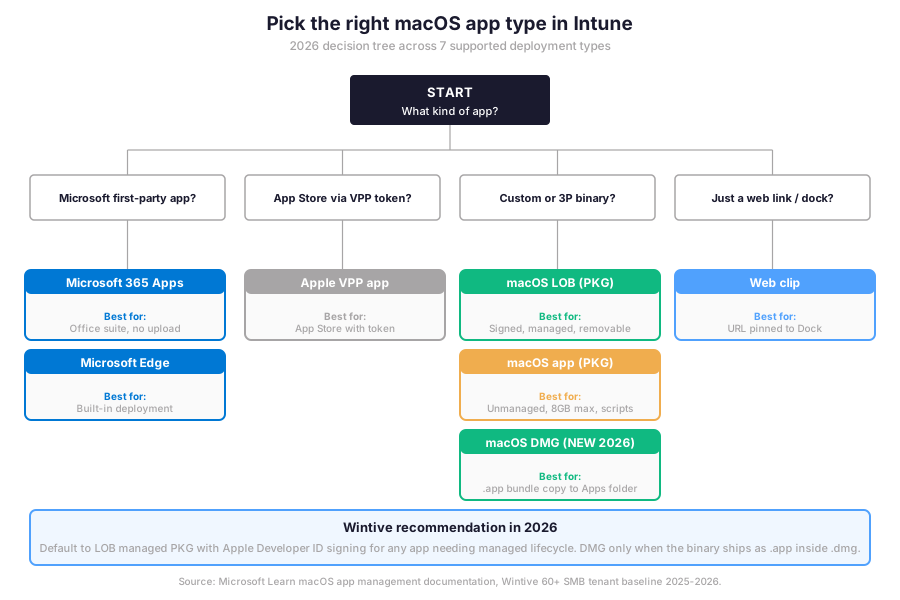
Specifically, the decision tree above answers the type-selection question. The next question for any macOS admin is the per-type setup: how to actually configure each path in the Intune admin center. The sections below cover Microsoft 365 built-in, custom LOB PKG with signing, and the new DMG type for .app bundle deployments in 2026.
🍎 Microsoft 365 Apps for macOS — built-in deployment
Specifically, the Microsoft 365 Apps for macOS app type handles packaging and updates automatically. Intune does the work natively. Therefore, no PKG upload is needed for this app type. The Intune service pulls the latest binaries directly from Microsoft. It installs Microsoft AutoUpdate (MAU) in the background. The suite stays current without admin intervention.
Six steps to deploy Microsoft 365 Apps to Macs
- Open Intune admin center. Sign into intune.microsoft.com and navigate to Apps, then macOS, then Add.
- Pick app type. Select Microsoft 365 Apps for macOS from the dropdown, then click Select.
- Configure the app suite. Choose which apps to include: Word, Excel, PowerPoint, Outlook, Teams, OneNote, OneDrive.
- Pick update channel. Current Channel updates fastest. Monthly Enterprise Channel provides predictable monthly cadence.
- Assign the app. Pick a user or device group. Set assignment type to Required for automatic install or Available for user-initiated via Company Portal.
- Save. Intune pushes the suite to all assigned Macs on their next check-in (typically within 30 minutes).
📦 Custom .pkg LOB managed app — Apple Developer ID required
Specifically, the macOS LOB app workflow is the canonical path for custom or third-party software. The workflow covers full lifecycle management: install, update, uninstall on retire. Therefore, the gating prerequisite is the Apple Developer ID Installer certificate, obtained from an Apple Developer account at $99/year. Furthermore, the PKG must contain a single payload. No nested bundles, no .app inside, no disk image. The package must be smaller than 8 GB.
Update workflow with CFBundleShortVersionString
Furthermore, updating an LOB PKG has a single requirement. Increment the CFBundleShortVersionString in the new package version. Therefore, Intune compares the version string between the previous and new PKG. Reinstall is triggered on the next device check-in if the version is higher. Critically, the Required-intent retry is automatic on install fail. Intune retries every 24 hours until the install succeeds or the assignment is removed.
💿 macOS DMG app type — new in 2026
Specifically, the macOS DMG app type lets admins deploy disk image binaries. The .dmg can contain one or more .app bundles. Therefore, Intune downloads the DMG to the target Mac. The .app contents are copied into the Applications folder. The DMG type still requires Apple Developer ID Installer signing for managed deployment. The same detection rules (bundle ID + version) apply as the PKG LOB workflow.
DMG vs PKG — pick the right macOS app deployment type
Therefore, the DMG type is the natural fit when the vendor ships a .dmg containing a single .app bundle (typical pattern for many third-party Mac apps). PKG is the natural fit when the vendor provides a structured installer with pre/post install logic, complex resource placement, or multi-component installs. Furthermore, the DMG type does not currently support pre/post install scripts, while the unmanaged macOS app (PKG) type supports them with agent version 2309.007 or higher.
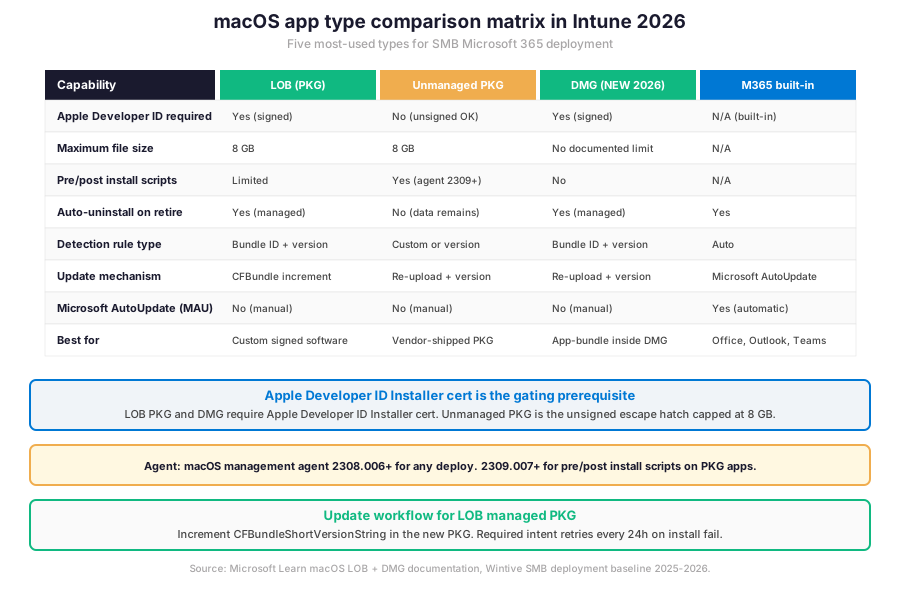
Specifically, the comparison matrix above shows the trade-offs across the four most-used macOS app types in 2026 SMB tenants. Therefore, the detection rules table below maps each scenario to the canonical detection mechanism Intune supports for reliable install verification across Mac fleets.
| Detection rule type | Best for | Required fields | Pitfall |
|---|---|---|---|
| App bundle ID + version | Most LOB apps with stable versioning | Bundle ID, minimum version | Bundle ID renamed across major versions |
| App bundle ID only | Apps with autoupdate built-in | Bundle ID | Misses version drift across cohort |
| File system path | Tools that drop scripts not .app | Path, file existence check | Path varies between macOS versions |
| Custom shell script | Complex multi-binary detection | Script, exit code 0 = present | Script timeout 60 seconds max |
| Manual (Ignore app version) | One-off install or seed apps | Yes/No flag | Reinstalls on every assignment refresh |
Furthermore, the table above maps detection patterns to deployment scenarios. Therefore, the next section walks through the pre/post install shell scripts pattern that the unmanaged macOS app (PKG) workflow supports for complex setup sequences, plus the Microsoft Graph PowerShell governance script for compliance audits.
🔧 Pre and post install scripts for macOS app deployment
Specifically, the unmanaged macOS app (PKG) workflow supports pre-install and post-install shell scripts. The agent must be at version 2309.007 or higher. Therefore, complex deployments can run setup steps inline with the package install. Examples include licence activation, configuration file placement, or service registration. Furthermore, scripts run as root by default, and timeout at 60 seconds maximum.
Post-install script reference example
Therefore, the example script below performs three post-install operations: writes a license key to the app preferences plist, registers the host with the vendor licensing service, and seeds initial configuration. Importantly, scripts must exit with code 0 on success; any non-zero exit is treated as install failure by Intune.
#!/bin/bash
# Intune macOS post-install shell script — license activation + config seed
# Agent: macOS management agent 2309.007+ required
# Timeout: 60 seconds maximum, runs as root by default

set -e
VENDOR_APP="AcmeApp"
LICENSE_KEY="YOUR_LICENSE_KEY_HERE"
VENDOR_HOST="https://license.example.com/register"

# 1. Write license key to app preferences plist
defaults write "/Library/Preferences/com.acme.$VENDOR_APP.plist" LicenseKey "$LICENSE_KEY"

# 2. Register host with vendor licensing service (5s timeout)
curl --max-time 5 --silent --fail \
  -X POST "$VENDOR_HOST" \
  -d "hostname=$(hostname)" \
  -d "license=$LICENSE_KEY" \
  || echo "Vendor registration deferred (offline)"

# 3. Seed initial configuration directory
mkdir -p "/Library/Application Support/$VENDOR_APP/conf"
cat > "/Library/Application Support/$VENDOR_APP/conf/default.conf" << EOF
log_level=info
telemetry=disabled
update_channel=stable
EOF

# 4. Set permissions for non-admin user access
chmod 644 "/Library/Application Support/$VENDOR_APP/conf/default.conf"

exit 0
Furthermore, the script above demonstrates the canonical pattern for post-install setup. Therefore, the script must be uploaded as part of the macOS app (PKG) configuration in Intune, attached to the App Information page under the Pre-install scripts or Post-install scripts section depending on when it should run. Critically, the script content is encoded by Intune and re-encoded on the target Mac, so non-ASCII characters must be UTF-8 escaped in the source.
🔐 Platform SSO and Apple VPP integration
Specifically, Platform SSO in 2026 modernises Mac sign-in. Users sign into managed Macs with their Microsoft Entra ID credentials and Touch ID instead of a local password. Therefore, the SSO app extension acts as the broker for Microsoft Entra ID authentication and Conditional Access. Furthermore, Microsoft recommends Secure Enclave as the authentication method. The method uses hardware-bound cryptographic keys. The result: phishing-resistant credentials matching the security of Windows Hello for Business on Windows.
Apple VPP for App Store apps via Apple Business Manager
Therefore, App Store apps reach Intune via the Apple Volume Purchase Plan (VPP) token configured in Apple Business Manager. Furthermore, the VPP token authenticates Intune to pull license assignments and app metadata. Critically, VPP supports both free and paid App Store apps with device-based licensing, which means Intune can deploy App Store apps to Macs without requiring users to sign into the App Store.
📊 Microsoft Graph PowerShell governance
Therefore, three governance operations matter most for ongoing macOS app deployment. Inventory all macOS apps in the tenant with their assignment scope. Audit installation status across the Mac fleet. Export the failed-install report for remediation tracking. Furthermore, the Microsoft Graph PowerShell module is the canonical interface, with required scopes DeviceManagementApps.Read.All for inventory and DeviceManagementManagedDevices.Read.All for the device-side reporting.
Required Microsoft Graph scopes for macOS app deployment
Specifically, two delegated scopes cover most read operations across the macOS app surface. DeviceManagementApps.Read.All returns app metadata and assignments. DeviceManagementManagedDevices.Read.All returns per-device install status. Therefore, both scopes can be granted on first connection and reused across the inventory and export operations covered in the script below.
macOS app inventory and failed install export script
# Microsoft Graph PowerShell — macOS app inventory + failed install export
Connect-MgGraph -Scopes "DeviceManagementApps.Read.All",\`
  "DeviceManagementManagedDevices.Read.All"

# 1. List all macOS apps in the tenant with platform + assignments
Get-MgDeviceAppManagementMobileApp -All -Filter "isof('microsoft.graph.macOSLobApp')" | \`
  ForEach-Object {
    [PSCustomObject]@{
      DisplayName  = $_.DisplayName
      Type         = $_.AdditionalProperties['@odata.type']
      BundleId     = $_.AdditionalProperties['bundleId']
      Version      = $_.AdditionalProperties['versionNumber']
      CreatedDate  = $_.CreatedDateTime
    }
  } | Sort-Object DisplayName | Format-Table -AutoSize

# 2. Inventory all macOS app types in one shot
@(
  'microsoft.graph.macOSLobApp',
  'microsoft.graph.macOsPkgApp',
  'microsoft.graph.macOSDmgApp',
  'microsoft.graph.macOSOfficeSuiteApp'
) | ForEach-Object {
  $type = $_
  $count = (Get-MgDeviceAppManagementMobileApp -All -Filter "isof('$type')" |
    Measure-Object).Count
  Write-Host "$type : $count apps"
}

# 3. Export failed app install events for remediation
Get-MgDeviceManagementMobileApp -All | ForEach-Object {
  $appId = $_.Id
  Get-MgDeviceManagementMobileAppInstallStatus -MobileAppId $appId | \`
    Where-Object { $_.InstallState -ne 'installed' } | \`
    Select-Object DeviceName, UserPrincipalName, InstallState, ErrorCode
} | Export-Csv -Path "C:\reports\macos-failed-installs-$(Get-Date -Format 'yyyy-MM-dd').csv" \`
  -NoTypeInformation
Furthermore, the script above covers the three pillars of macOS app governance: tenant inventory by app type, app type distribution count, and failed install export. Therefore, the comparative trade-offs table below summarises the assignment options and lifecycle behaviours across the most-used macOS app types in 2026 SMB Microsoft 365 tenants.
Assignment intent and lifecycle trade-offs
| Assignment intent | Behaviour | User experience | Best for |
|---|---|---|---|
| Required (device group) | Auto-install at next check-in | Silent, no user action | Security tools, M365, Edge |
| Required (user group) | Auto-install on user device | Silent, follows user across Macs | Per-role apps, knowledge worker |
| Available (user group) | Listed in Company Portal | User initiates install | Optional tools, dev kits |
| Uninstall | Removes app at next check-in | Silent removal | Decommission, role change |
| Available without enrollment | Self-service no MDM | BYOD-friendly | Contractors, external collab |
Specifically, the table above summarises the five assignment patterns. Therefore, the prerequisites checklist below covers the licensing, role assignment, signing certificate, and compliance baseline that Wintive runs on every audited Mac fleet before any macOS app deployment rollout.
Prerequisites for macOS app deployment in 2026:
Intune license per managed Mac (included with Microsoft 365 Business Premium, E3, E5). Apple Developer ID Installer certificate ($99/year) for any LOB managed PKG or DMG deployment. Apple Business Manager with VPP token for App Store apps. Microsoft Intune management agent for macOS 2308.006+ (2309.007+ for pre/post install scripts). Macs enrolled via Apple Automated Device Enrollment (ADE) or User Enrollment. Pilot group of 5-10 Macs for staged rollout. HIPAA + SOC 2 audits expect monthly app inventory snapshots retained for the audit window. Predictable per-user/month TCO and no on-prem CapEx.
Specifically, the Wintive baseline distribution below shows where the typical SMB Mac fleet stands on macOS app deployment maturity versus where it should be for safe enforcement and operational efficiency. Therefore, comparing readiness signals with anti-patterns highlights the operational gap that defines macOS admin work in 2026 across Mac-heavy mid-market environments.
📈 The Wintive baseline — macOS app deployment across 60+ tenants
Therefore, after assessing 60+ Microsoft 365 SMB tenants between 2025 and 2026, Wintive has a clear distribution of which macOS app deployment readiness signals correlate with safe enforcement and which anti-patterns predict failed installs or unmanaged software sprawl. The baseline below tells the story.
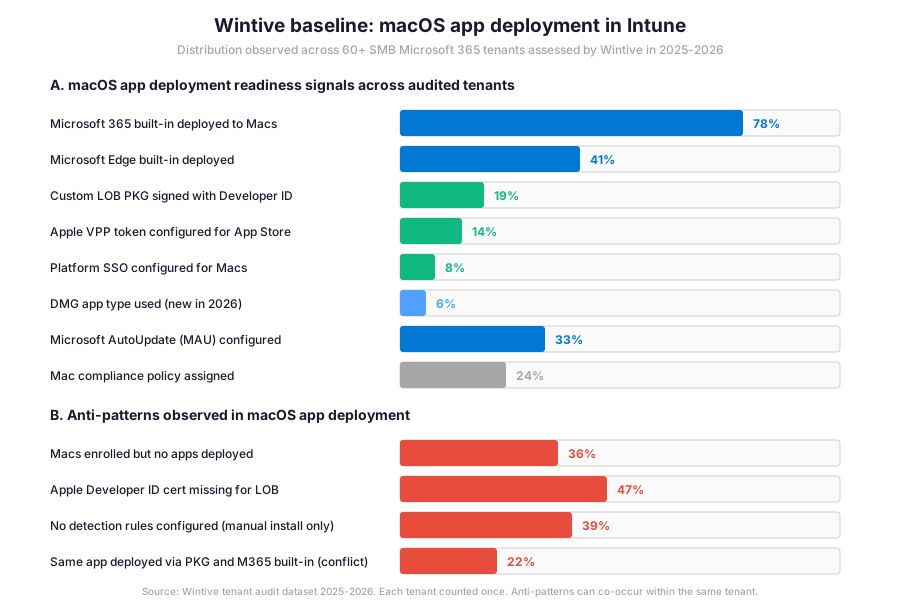
Specifically, the gap between Microsoft 365 built-in deployment (78%) and custom LOB PKG signed with Developer ID (19%) is the defining operational metric for macOS app deployment in 2026. Furthermore, the insight callout below distils what that gap means for SMB admin practice and where the typical 2-week macOS rollout sprint focuses its remediation effort across mixed Apple fleets.
Wintive insight
Across 60+ SMB Mac fleets, the standout finding is striking. 47% of audited tenants lack the Apple Developer ID Installer certificate. The certificate is required for the LOB managed PKG workflow. Therefore, the Wintive macOS deployment playbook ships a 2-week rollout sprint covering the Apple Developer account setup, the certificate renewal automation, the Microsoft 365 built-in baseline, and the migration to managed LOB PKG for all custom apps. Compared to JAMF Pro per-device licensing or Kandji tier model, Intune cloud-native macOS workflow keeps cost predictable. The per-user/month TCO holds without separate Mac MDM CapEx.
Furthermore, the anti-pattern column tells the operational truth: 47% lack Apple Developer ID, 39% have no detection rules configured, 36% enroll Macs but deploy zero apps, and 22% deploy the same app via PKG plus Microsoft 365 built-in (which causes install conflict). These four anti-patterns explain most help desk escalations and audit findings Wintive observes for Mac fleets in 2026, and each maps to a specific remediation path in the playbook.
🚨 5 SMB macOS app deployment pitfalls
The five pitfalls below cover the anti-patterns Wintive consistently observes during Intune macOS pre-deployment audits. A common mistake treats Apple Developer ID as a nice-to-have. The certificate is the gating prerequisite for any LOB managed PKG. Admins struggle with this gotcha. The Apple Developer account application takes 1-2 business days to approve. The Developer ID Installer certificate is separate from the Developer ID Application certificate that signs runtime binaries. Furthermore, comparing Intune macOS workflow with JAMF Pro, Kandji, or Mosyle reveals a clear pattern. The cloud-native Microsoft path has fewer moving parts but more silent prerequisites to handle.
Apple Developer ID cert missing for LOB PKG signing
Specifically, 47% of audited tenants attempt LOB managed PKG deployment without the Apple Developer ID Installer certificate. Therefore, the upload fails with a generic signing-error message. The admin then pivots to the unmanaged macOS app (PKG) workflow as a workaround. The proper fix has four steps. Enrol the company in the Apple Developer Program at $99/year. Generate the Developer ID Installer certificate. Sign the PKG. Use the LOB managed workflow for full lifecycle control.
Macs enrolled but no apps deployed (orphan fleet)
Therefore, 36% of audited tenants enroll Macs in Intune but deploy zero apps. The Mac shows up in the device inventory as managed, but the user’s experience is identical to an unmanaged Mac. The remediation: deploy three baselines as Required to user groups. Microsoft 365 Apps for macOS built-in suite. Microsoft Edge built-in. Company Portal app. This baseline takes under 30 minutes and unlocks the rest of the closed-loop value.
No detection rules configured (manual install only)
Furthermore, 39% of audited tenants deploy macOS apps without proper detection rules. Therefore, Intune cannot determine whether the app is already installed, which leads to repeated reinstall attempts on every device check-in. The fix: configure the bundle ID plus minimum version detection rule for any LOB or unmanaged PKG, and use the Ignore app version flag only for one-off seed deployments where reinstall on every refresh is acceptable.
Same app deployed via PKG and M365 built-in (conflict)
Specifically, 22% of audited tenants double-deploy the same Microsoft app. Edge or OneDrive land via both a custom PKG upload and the Microsoft 365 built-in workflow. Therefore, the two deployments fight for the same install path. Microsoft AutoUpdate (MAU) overwrites the manual PKG version on every update cycle. The remediation: pick one deployment path per app and remove the duplicate. The built-in workflow with MAU is preferred for Microsoft first-party apps because the update cadence is automatic.
Pre/post install scripts on agent older than 2309.007
Importantly, the agent version matters. Only the macOS Intune management agent version 2309.007 or higher supports pre and post install shell scripts on the unmanaged macOS app (PKG) workflow. Therefore, deployments configured with pre/post scripts on Macs running an older agent silently skip the script execution. The install completes only the package, leaving the script logic unexecuted. The fix: verify the agent version with `installer -pkginfo -pkg /path/to/IntuneMdmAgent.pkg` and trigger an agent update via the Company Portal before relying on script-based deployment patterns.
❓ macOS app deployment FAQ
The LOB managed PKG workflow requires the package to be signed with an Apple Developer ID Installer certificate, supports detection rules with bundle ID plus version, and auto-removes the app when the device is retired or the assignment is removed. The unmanaged macOS app (PKG) workflow accepts unsigned PKGs up to 8 GB, supports pre and post install shell scripts (with agent 2309.007 or higher), and does not auto-remove the app on retire (the app and its data remain on the device). Therefore, pick LOB managed for full lifecycle control of custom signed apps. Pick unmanaged for vendor-shipped unsigned PKGs or when pre and post install script logic is needed.
To update an LOB managed PKG app deployed via Intune, increment the CFBundleShortVersionString in the new PKG file. Therefore, Intune compares the version string between the previous and new PKG, detects the increment, and triggers reinstall on the next device check-in. Critically, the Required-intent retry is automatic on install fail. Intune retries every 24 hours until the install succeeds or the assignment is removed. The detection rule on bundle ID plus minimum version then validates the install completion on each Mac.
The macOS DMG app type, new in 2026, is the natural fit when the vendor ships a .dmg containing a single .app bundle, which is the typical pattern for many third-party Mac apps. Specifically, Intune downloads the DMG to the target Mac and copies the .app contents into the Applications folder. The DMG type still requires Apple Developer ID Installer signing for managed deployment. The PKG LOB type is the better fit when the vendor provides a structured installer with multi-component installs, complex resource placement, or pre and post install logic. Therefore, the rule of thumb is simple: ships as .app inside .dmg means DMG; ships as .pkg means PKG.
More macOS app deployment questions
Specifically, no. The Microsoft 365 Apps for macOS and Microsoft Edge built-in deployment types do not require an Apple Developer account because Microsoft handles the binary signing. Apple VPP App Store apps do not require a Developer account either because Apple Business Manager handles the licensing and signing chain. The unmanaged macOS app (PKG) workflow accepts unsigned PKGs up to 8 GB, which works for vendor-shipped binaries. However, the LOB managed PKG and DMG workflows do require an Apple Developer ID Installer certificate (\$99/year per Apple Developer account). Therefore, the Apple Developer account is only mandatory for fully managed lifecycle of custom signed apps.
Platform SSO lets users sign into managed Macs with their Microsoft Entra ID credentials and Touch ID instead of a local password, similar to Windows Hello for Business on Windows. Microsoft recommends Secure Enclave as the authentication method, which uses hardware-bound cryptographic keys for phishing-resistant credentials. Therefore, the SSO app extension acts as the broker for Microsoft Entra ID authentication and Conditional Access. Furthermore, Platform SSO requires macOS 13.0 or higher and Microsoft Intune Company Portal app version 5.2404.0 or higher. The configuration is delivered via the Intune settings catalog policy, and Microsoft recommends assigning the policy at user enrollment for the cleanest sign-in experience.
📚 Related Microsoft Intune reading
The full step-by-step guide is at our How to Enroll a Mac in Microsoft Intune guide covering the Apple Business Manager setup, the Automated Device Enrollment (ADE) profile, the Company Portal app installation, and the user enrollment flow.
The full admin guide is at our Microsoft Intune Compliance Policies Admin Guide covering the macOS-specific compliance baseline (FileVault, System Integrity Protection, minimum macOS version), the Conditional Access integration, and the Mac-specific BYOD App Protection fallback for unenrolled devices.
The full admin guide is at our Entra ID Dynamic Groups for Intune Admin Guide covering the OS-targeting rule patterns, the BYOD versus corporate split, and the assignment filter alternative for per-policy device-attribute scoping on Mac fleets.
The full admin guide is at our Copilot in Microsoft Intune Admin Guide covering the 4 Security Copilot agents and the Vulnerability Remediation Agent that prioritises remediation actions across mixed Windows and macOS fleets.
The complete Entra ID guide is at our Microsoft Entra ID Complete Guide covering the Suite, the Microsoft Enterprise SSO plug-in, the Conditional Access integration, and the audit logging that captures Mac sign-in events with Touch ID and Secure Enclave.
This tutorial covered one focused Intune workflow. For a complete picture of how your full Microsoft 365 environment — device compliance, identity, and security — performs against best practices:
🔍 Want a complete audit of your Microsoft 365 tenant?
The Automated Tenant Health Check scans your M365 environment in under 10 minutes: license waste, security posture, MFA coverage, compliance gaps, license rightsizing opportunities. Full PDF report with prioritized recommendations delivered instantly.