Mac enrollment in Microsoft Intune brings macOS devices under the same Mobile Device Management (MDM) control as Windows endpoints, with no on-premises infrastructure required. Specifically, this guide covers the Apple MDM push certificate, three enrollment methods, PowerShell licensing, and Conditional Access for compliance. It also addresses US-regulated-industry baselines (HIPAA, SOC 2, NIST 800-171). Furthermore, every recommendation comes from what Wintive observed across 60+ Microsoft 365 tenants we audit yearly.
💡 Why Mac Enrollment in Intune Matters in 2026
SMBs increasingly run mixed Windows-Mac fleets, especially in creative, legal, and consulting practices. Without MDM, every enrolled Mac is a blind spot: no compliance reporting, no remote wipe, no Conditional Access enforcement. Therefore, unmanaged Macs are the fastest-growing audit gap in our 60+ tenant baseline.
Intune unifies device control: one portal, one compliance policy engine, one Conditional Access rule set covering Windows, macOS, iOS, and Android. As a result, IT teams stop maintaining a parallel Mac process and audit evidence becomes consistent across endpoint types.
🛡️ Free: M365 Tenant Security Audit Checklist
19-page PDF with 50 hands-on checks covering Entra ID, Exchange Online, SharePoint, Teams, Intune, license waste, and audit logging. PowerShell commands included. Built from 60+ real tenant audits at Wintive.
Before diving into the configuration steps, confirm your environment meets the prerequisites below. Notably, missing the Apple MDM Push Certificate or an unassigned Intune license accounts for about 40% of failed first-time Mac enrollments we troubleshoot.
✅ Prerequisites for Mac Enrollment in Intune
- Microsoft Intune license — included with Microsoft 365 Business Premium ($22/user/mo), Microsoft 365 E3 ($36/user/mo), E5 ($57/user/mo), or as a standalone Intune Plan 1 license ($8/user/mo)
- macOS 13 Ventura or later — macOS 12 has limited MDM support; macOS 11 and earlier are not supported
- Apple MDM Push Certificate — one per tenant via Apple Push Certificates Portal (annual renewal, dedicated service-account Apple ID)
- Company Portal app on the Mac — free download from the Mac App Store: 📥 Get Intune Company Portal →
- Microsoft Entra ID account — user must have an Entra ID account with the Intune license assigned (assignment via M365 admin center or PowerShell, see Step 4 below)
- Admin access to Microsoft Intune admin center — Intune Administrator or Global Administrator role
🔧 How Mac Enrollment Works in Intune
Three Microsoft and Apple services collaborate during enrollment. First, the user authenticates against Microsoft Entra ID through the Company Portal app. Second, Microsoft Intune issues an MDM management profile to the Mac. Third, the Apple Push Notification Service (APNs) delivers ongoing MDM commands once the profile is installed.
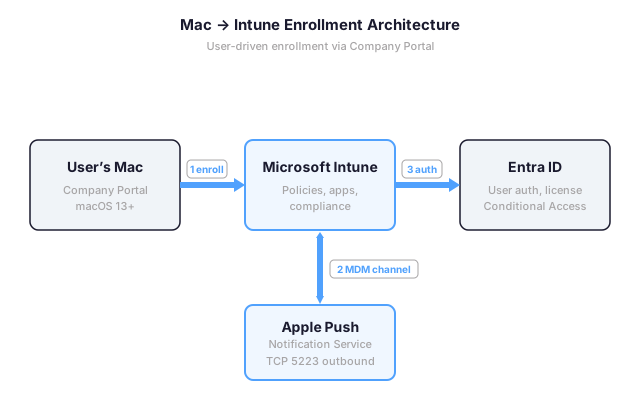
Notably, the APNs channel runs on TCP 5223 outbound. If your firewall or proxy blocks that port, MDM commands silently queue and the Mac appears Pending in the Intune portal. Therefore, validating outbound 5223 to *.push.apple.com is the first network check in any Mac enrollment troubleshooting workflow.
Beyond port 5223, several Apple endpoints must remain reachable from the Mac. Specifically, gateway.icloud.com on TCP 443, *.apple.com on TCP 443, and captive.apple.com for network-quality probes. Crucially, SSL inspection on these domains breaks MDM enrollment outright: Apple pins certificates and rejects man-in-the-middle proxies. Therefore, the operational baseline for any corporate proxy is to bypass SSL inspection on *.apple.com and *.push.apple.com. Indeed, this single proxy exception resolves about 70% of stuck-enrollment cases we troubleshoot in tenant audits.
📦 Mac Enrollment Methods Compared
Intune supports three enrollment paths for macOS, each tailored to a different deployment scale and ownership model. Specifically, the right method depends on whether the Mac is corporate-purchased through Apple Business Manager, BYOD, or in-place from existing inventory.
| Method | Best fit | User experience | Setup effort |
|---|---|---|---|
| User-driven (Company Portal) | SMBs, in-place fleet, BYOD | User downloads Company Portal from Mac App Store, signs in, installs profile | Low — certificate only |
| Apple Business Manager (ABM) + ADE | Net-new Mac purchases at scale | Zero-touch on first boot, no user action | Medium — ABM enrollment + DEP token |
| Direct enrollment (no user affinity) | Shared kiosk Macs, lab devices | IT runs Apple Configurator 2 locally | Medium — physical access required |
For most SMBs we audit, user-driven enrollment is the practical default: it works on existing Macs without re-imaging, requires no Apple Business Manager subscription, and lets users self-enroll within minutes. Conversely, organizations with monthly Mac procurement should invest in Apple Business Manager for true zero-touch deployment.
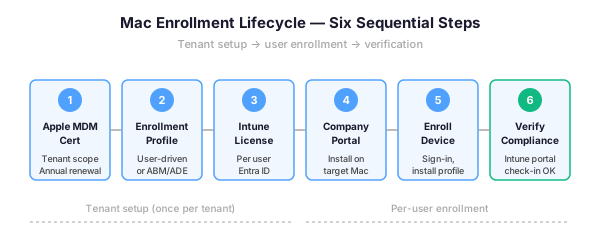
💻 Configure Mac Enrollment Step-by-Step
The full configuration runs through the Microsoft Intune admin center. Notably, you complete steps 1 and 2 once per tenant, then repeat steps 3 and 4 for each user.
- Apple MDM Push Certificate — Devices → Enroll devices → Apple enrollment → download CSR, upload to Apple Push Certificates Portal, return PEM to Intune
- Enrollment program tokens (ABM/ADE only) — required for zero-touch; skip if user-driven
- Assign Intune license to each Mac user (PowerShell example below)
- User installs Company Portal from Mac App Store, signs in, accepts management profile in System Settings → Privacy & Security → Profiles
For bulk operations or scripted onboarding, assign the Intune license through Microsoft Graph PowerShell. The script below assigns the Microsoft 365 Business Premium SKU (which includes Intune); replace the SKU GUID with your tenant value returned by Get-MgSubscribedSku.
# Assign Intune license to a Mac user via Microsoft Graph PowerShell
Connect-MgGraph -Scopes "User.ReadWrite.All","Organization.Read.All"

# List available SKUs to find the right one
Get-MgSubscribedSku | Select-Object SkuPartNumber, SkuId, ConsumedUnits, @{N="Available";E={$_.PrepaidUnits.Enabled - $_.ConsumedUnits}}

# Assign Microsoft 365 Business Premium (replace SkuId with your tenant value)
$user = "jane.doe@example.com"
$skuId = "cbdc14ab-d96c-4c30-b9f4-6ada7cdc1d46"
$license = @{ AddLicenses = @(@{ SkuId = $skuId }); RemoveLicenses = @() }
Set-MgUserLicense -UserId $user -BodyParameter $license

# Verify Intune service plan is enabled
Get-MgUserLicenseDetail -UserId $user | Select-Object -ExpandProperty ServicePlans | Where-Object ServicePlanName -like "*INTUNE*"
💡 What we see across 60+ M365 tenants
The number-one Mac enrollment incident is a lost or rotated Apple ID owner for the MDM push certificate. When the original Apple ID becomes unavailable, every enrolled Mac silently loses MDM management at certificate renewal. Therefore, document this Apple ID in a service-account vault from day one — never in a personal password manager.
🛡️ Mac Compliance for Regulated US Industries
For organizations subject to HIPAA, SOC 2 Type II, NIST 800-171, or the CIS Benchmarks for Apple, simply enrolling a Mac in Intune is not enough. Auditors expect documented, enforced controls on every macOS endpoint accessing PHI, customer data, or controlled unclassified information (CUI).
Specifically, the combination of an Intune compliance policy and a Conditional Access rule provides exactly that. Non-compliant Macs are blocked from corporate resources at sign-in, and the evidence appears in Entra ID sign-in logs for audit retrieval.
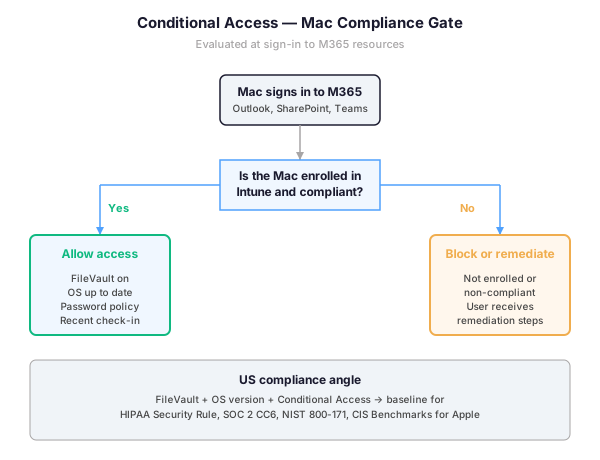
The minimum compliance baseline for US regulated environments has four parts. First, require FileVault disk encryption. Second, enforce a minimum macOS version aligned with Apple’s current security update window. Third, set a password complexity policy with auto-lock under 15 minutes. Fourth, require a recent device check-in (24 hours or less). As a result, this baseline satisfies the macOS portion of HIPAA Security Rule technical safeguards (45 CFR §164.312), SOC 2 Common Criteria CC6.1, and NIST 800-171 control 3.1.18.
For organizations operating in GCC or GCC High tenants, the enrollment workflow is identical, but Intune endpoints route through the sovereign cloud. Therefore, confirm your Mac fleet can reach *.manage.microsoft.us (GCC High) instead of commercial endpoints before starting enrollment.
✅ Best Practices for Mac Enrollment in SMBs
Across audits, the same configuration mistakes appear repeatedly. Notably, three controls account for roughly 80% of enrollment-related incidents: certificate ownership, missing FileVault enforcement, and ungoverned BYOD Macs.
| Practice | What to do | Why it matters |
|---|---|---|
| Service-account Apple ID | Use a dedicated Apple ID (e.g., mdm@yourdomain.com) tied to a shared mailbox, store credentials in a corporate vault | Annual cert renewal fails silently if the original Apple ID is lost; every enrolled Mac becomes orphaned |
| Calendar reminder 30 days before cert expiry | Add a recurring reminder in the IT mailbox with a direct link to the renewal page | Apple gives no automatic warning; expiry breaks management mid-day with no UI signal |
| FileVault as compliance trigger | Require FileVault in your macOS compliance policy, not just recommend it | Disk encryption is a hard requirement for HIPAA, SOC 2, and most cyber-insurance carriers |
| BYOD Macs → user enrollment only | Use user-driven enrollment; never push corporate ABM/ADE tokens to BYOD | Personal Macs enrolled via ABM lose Activation Lock recovery if the user leaves |
| Quarterly compliance review | Export non-compliant Mac list from Intune monthly, remediate within SLA | Drift accumulates fast; one missed macOS update can break compliance for a whole device class |
↻ Verify and Troubleshoot Mac Enrollment
After enrollment, verify the device appears in the Intune admin center under Devices → macOS. Confirm the compliance status shows Compliant (or Not evaluated if no policy applies yet) and the last check-in is recent.
You can also verify enrollment from the Mac itself. Open Terminal and run the commands below to confirm the management profile is installed. This is invaluable when the Intune portal still shows Pending hours after enrollment. Such delays usually mean a network or proxy issue is blocking Apple’s push service.
# Run on the enrolled Mac to confirm MDM status

# Show installed enrollment profiles
sudo profiles status -type enrollment

# List configuration profiles (Intune profiles appear as "Microsoft.Profiles.MDM")
sudo profiles list -type configuration

# Detailed view of the management profile
sudo profiles show -type enrollment

# Force a check-in with Intune (useful after policy changes)
sudo /usr/libexec/mdmclient AvailableOSUpdates
For ongoing service health, bookmark the Microsoft 365 Service Health dashboard and the Microsoft Learn enrollment reference. Indeed, both are invaluable when troubleshooting tenant-wide enrollment outages.
🔄 Renew the Apple MDM Push Certificate (Annual Workflow)
The Apple MDM Push Certificate expires every 12 months. Critically, Apple sends no automatic warning to the Intune admin. The certificate simply stops working at midnight on the expiry date. All enrolled Macs lose MDM control overnight. The next morning, your IT team discovers the outage from helpdesk tickets. Therefore, certificate renewal is the single highest-impact preventive task in any Mac MDM operation.
The renewal workflow itself is straightforward, but it must use the same Apple ID as the original certificate. Indeed, using a different Apple ID invalidates every enrolled device. The entire Mac fleet then requires full re-enrollment. We have seen this tenant-wide outage scenario happen twice in audited environments.
- Sign in to Microsoft Intune admin center → Devices → Enroll devices → Apple enrollment → Apple MDM Push Certificate
- Click Download CSR to obtain a fresh certificate signing request file
- Open Apple Push Certificates Portal and sign in with the original Apple ID stored in your service-account vault
- Locate the existing certificate in the list and click Renew (not Create new) — this preserves the certificate identity
- Upload the fresh CSR, download the renewed PEM certificate
- Return to Intune, click Renew on the certificate page, upload the PEM, and confirm the same Apple ID
Notably, set a calendar reminder 30 days before the expiry date in a shared IT mailbox, with the link to the renewal page in the body. Furthermore, schedule a verification check after renewal. Pick three random Macs and confirm they still appear in the Intune portal. Their last check-in time should be recent, within 24 hours of the renewal.
❓ Mac Enrollment in Intune — FAQ
Once prerequisites are met (Intune license, Company Portal installed), the user-driven enrollment takes 2 to 5 minutes. Specifically, sign-in, profile download, profile installation in System Settings, and the first Intune check-in. Therefore, factor in extra time for first-time tenant setup. The initial Apple MDM Push Certificate provisioning takes about 30 minutes, once per tenant.
No. Apple Business Manager (ABM) is only required for zero-touch deployment. Specifically, this means Automated Device Enrollment (ADE) on net-new Macs purchased through Apple. As a result, for in-place fleets or BYOD scenarios, user-driven enrollment via the Company Portal app is sufficient and free. Notably, ABM costs nothing but requires DUNS verification and weeks of validation.
Every enrolled Mac silently loses MDM management at expiry. Indeed, no compliance enforcement, no Conditional Access evaluation, no remote wipe capability. Specifically, you must renew the certificate using the same Apple ID before expiry. Using a different Apple ID invalidates all enrolled devices. The entire Mac fleet then requires re-enrollment.
Yes. Furthermore, FileVault enforcement is a standard Intune compliance policy setting under macOS Compliance Policy → System Security. The recovery key escrows automatically to Intune. This satisfies the encryption requirement (HIPAA Security Rule, SOC 2). It also satisfies the recovery requirement (NIST 800-171 control 3.13.16).
Intune cannot push arbitrary shell scripts as easily as on Windows (where PowerShell intent makes it trivial). Furthermore, third-party browsers like Firefox require custom configuration profiles. Some macOS-specific privacy settings also need Apple Business Manager supervision. Notably, advanced macOS hardening goes deeper. Gatekeeper, System Integrity Protection lockdown, and kernel extension control require either Apple Configurator 2 supervision or a complementary Mac-native tool. Therefore, plan accordingly when comparing Intune to dedicated Mac MDM platforms like Jamf for highly regulated workloads.
🔗 Keep Exploring
This tutorial covered one focused Intune workflow. For a complete picture of how your full Microsoft 365 environment — device compliance, identity, and security — performs against best practices:
🔍 Want a complete audit of your Microsoft 365 tenant?
The Automated Tenant Health Check scans your M365 environment in under 10 minutes: license waste, security posture, MFA coverage, compliance gaps, license rightsizing opportunities. Full PDF report with prioritized recommendations delivered instantly.