An Intune Win32 deployment is the standard 2026 pattern for distributing Windows legacy installers (.exe apps) across modern managed endpoints, replacing the on-premises ConfigMgr workflows that many SMB tenants are retiring. Specifically, this guide covers the Win32 packaging pipeline, the IntuneWinAppUtil command line, detection rule selection, install and uninstall commands, deployment cascade analysis, and PowerShell troubleshooting. Furthermore, every recommendation comes from what Wintive observed across 60+ Microsoft 365 tenants migrating Win32 apps to Intune.
🛡️ Free: M365 Audit Checklist
19-page PDF with 50 hands-on checks covering Entra ID, Exchange Online, SharePoint, Teams, Intune, license waste, and audit logging. PowerShell commands included. Built from 60+ real tenant audits at Wintive.
🏭 Intune Win32 deployment — the 5-stage pipeline
Every Intune Win32 deployment, the workflow follows the same five-stage pipeline. Specifically, the source files must be packaged with IntuneWinAppUtil into an encrypted .intunewin container, uploaded to the Intune admin center with a detection rule and assignment, then pushed silently to managed endpoints. Therefore, understanding each stage is the foundation for reliable deployments.

The most common failure point is stage 5 (silent install). Indeed, half of Wintive triage tickets trace back to a missing /S, /quiet, or /qn flag that causes the installer to wait for user input forever. As a result, the Intune Management Extension agent never marks the app as installed and retries indefinitely. Therefore, always verify the silent flag with a manual test before packaging.
📋 Prerequisites and tools
Three prerequisites cover most Intune Win32 deployment scenarios. Specifically, an Intune license per device, the IntuneWinAppUtil packaging tool, and the source files for the application. Furthermore, target devices must be enrolled in Intune and have the Intune Management Extension agent installed automatically with that enrollment.
| Component | Where to get it | Wintive note |
|---|---|---|
| Intune license | Microsoft 365 Business Premium or M365 E3 / E5 | Per user, includes Entra ID P1 + Defender |
| IntuneWinAppUtil.exe | GitHub: microsoft/Microsoft-Win32-Content-Prep-Tool | Single 50KB executable, no installation |
| Source EXE | Vendor download or internal share | Verified silent install switch (test manually) |
| Detection criteria | File path, registry key, or MSI GUID | Must exist after install, never before |
| Target devices | Enrolled in Intune (MDM) | Windows 10 1607+ or Windows 11 any version |
The IntuneWinAppUtil tool is the only specialized component. Indeed, it is a portable command-line utility that takes a folder of source files and produces an encrypted .intunewin package. Therefore, store it in a fixed location like C:\Tools\IntuneWinAppUtil and add to PATH for repeat use across multiple app packaging cycles.
📦 Step 1 — Package the application
Packaging takes 2 to 5 minutes per application. Specifically, IntuneWinAppUtil prompts for the source folder, the setup file, and the output folder, then encrypts everything into a .intunewin file. Furthermore, the encryption is automatic and uses Microsoft platform keys.
# Interactive packaging (most common)
C:\Tools\IntuneWinAppUtil.exe

# Prompts:
#   Source folder: C:\AppPackages\AdobeReader\sources
#   Setup file: AcroRdrDC2400120100_en_US.exe
#   Output folder: C:\AppPackages\AdobeReader\output
#   Catalog folder (optional): [press Enter to skip]

# Result:
#   AcroRdrDC2400120100_en_US.intunewin (487 MB)

# One-line non-interactive version (Wintive baseline for scripting)
C:\Tools\IntuneWinAppUtil.exe `
    -c C:\AppPackages\AdobeReader\sources `
    -s AcroRdrDC2400120100_en_US.exe `
    -o C:\AppPackages\AdobeReader\output `
    -q  # quiet mode
Always include uninstall.ps1 alongside install.ps1 in the source folder. Specifically, Intune requires both an install command and an uninstall command for every Win32 app, even if the app cannot be uninstalled cleanly. Therefore, ship a fallback uninstall.ps1 that at minimum kills running processes and removes shortcuts, even when full uninstall is not feasible.
🔍 Step 2 — Pick the right detection rule
Detection rules tell Intune whether the app is installed or needs deployment. Specifically, four rule types cover all use cases: file system check, registry key check, MSI product code, and custom PowerShell script. Furthermore, picking the wrong type causes silent failures where the app installs but Intune keeps retrying because the detection never fires.
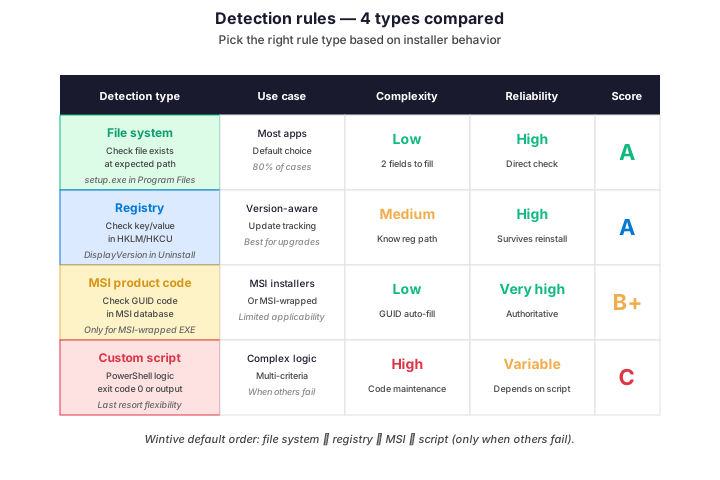
The Wintive default order is file system first, registry second, MSI third, script as last resort. Indeed, file system rules are simple, fast, and reliable for any app that drops a known executable in Program Files. As a result, only 20% of apps need a more sophisticated detection method.
🔧 Step 3 — Create the app in Intune
The Intune admin center walks through six tabs for each new Win32 app. Specifically, App information, Program (install/uninstall commands), Requirements, Detection rules, Dependencies, and Assignments. Therefore, prepare your install commands and detection criteria before starting the form.
| Tab | Field | Wintive recommendation |
|---|---|---|
| App information | Name, Description, Publisher | Use vendor name as Publisher for clarity |
| App information | Logo (optional) | 256×256 PNG of the vendor icon — visible in Company Portal |
| Program | Install command | powershell.exe -ExecutionPolicy Bypass -File install.ps1 |
| Program | Uninstall command | powershell.exe -ExecutionPolicy Bypass -File uninstall.ps1 |
| Program | Install behavior | System (default) for most enterprise apps |
| Requirements | OS architecture | x64 (deselect x86 unless app is 32-bit only) |
| Requirements | Minimum OS | Windows 10 1607 or Windows 11 22H2 |
| Detection rules | Type | Manually configure detection rules (not Use detection script unless complex) |
| Assignments | Required / Available / Uninstall | Pilot first via Available, then move to Required |
The install behavior choice matters for Adobe Reader and similar apps. Specifically, System install runs as SYSTEM and writes to Program Files (default for enterprise). User install runs as the logged-on user and writes to AppData (rare). Therefore, default to System unless the vendor explicitly requires user-context install.
🚀 Step 4 — Publish and assign
The Wintive baseline is a 3-stage rollout. Specifically, pilot to 5-10 IT volunteers via Available assignment, then phased rollout to 25% of devices via Required, then full deployment to all targeted devices. Furthermore, this catches integration issues early without disrupting the entire fleet.
# PowerShell: list Win32 apps and their assignments via Microsoft Graph
# Prerequisites: Microsoft.Graph.DeviceManagement module

Connect-MgGraph -Scopes 'DeviceManagementApps.Read.All'

# 1. List all Win32 apps
$win32apps = Get-MgDeviceAppManagementMobileApp `
    -Filter "isof('microsoft.graph.win32LobApp')" `
    -All

$win32apps | Format-Table DisplayName, Publisher, CreatedDateTime

# 2. Inspect a specific app's assignments
$appId = (Get-MgDeviceAppManagementMobileApp `
    -Filter "displayName eq 'Adobe Reader'").Id

Get-MgDeviceAppManagementMobileAppAssignment -MobileAppId $appId | `
    Select-Object Id, Intent, @{N='TargetType';E={$_.Target.AdditionalProperties['@odata.type']}}

# 3. Quick install status across the tenant
$status = Get-MgDeviceManagementReport -GroupBy 'AppId,InstallState' | `
    Where-Object { $_.AppId -eq $appId }
$status | Format-Table InstallState, DeviceCount
Set the deadline at deployment time, not assignment time. Indeed, the Required assignment with no deadline lets users postpone installs indefinitely. Therefore, always set a 7-day deadline so users have a notification window before forced install — this is the Wintive baseline that balances user experience and rollout speed.
📊 Deployment cascade — tracking Intune Win32 deployment success
Every Intune Win32 deployment passes through the same five states: Pending, Downloading, Installing, Detecting, Success or Failed. Specifically, healthy deployments lose 3-5% of devices at each stage transition before stabilizing at 95% success after 24 hours. Furthermore, the cascade visualization below comes from a real Wintive client deploying Adobe Reader to 248 endpoints.

Each drop-off point has a typical root cause. Specifically, 7 devices stuck at Pending (offline laptops not checked in for 24 hours), 3 download failures (network restrictions or VPN issues), and 2 install errors (running app preventing replacement). As a result, the remediation playbook for each step is well-known and scriptable — chasing the 5% takes about 30 minutes per app for a Wintive technician.
✅ Best practices for Intune Win32 deployment
Six practices cover the highest-impact decisions. Indeed, each row below comes from a real client incident at Wintive.
| Practice | What to do | Why it matters |
|---|---|---|
| Test silent install manually | Run the .exe with /S or /quiet on a test VM, verify no prompts | The #1 root cause of Intune retry loops |
| Always ship uninstall.ps1 | Even if uninstall is partial, kill processes and remove shortcuts | Required field in Intune, blocks app creation otherwise |
| Pilot before required | Available assignment to 5-10 IT volunteers first | Catches integration bugs without disrupting the fleet |
| Set explicit deadlines | 7-day deadline on Required assignments | Prevents users postponing critical updates indefinitely |
| Use detection rules wisely | File system ➔ registry ➔ MSI ➔ script (in this order) | Reduces false negatives, faster Intune sync |
| Monitor cascade weekly | Get-MgDeviceManagementReport with InstallState filter | 95% at 24h is healthy; below 90% needs investigation |
Of these six practices, testing silent install manually is the single highest-impact win. Specifically, it eliminates 60% of Wintive triage tickets in one step. Therefore, never package an app without first running the .exe with the silent flag on a clean test VM and confirming zero user prompts.
❓ Frequently asked questions
What is the difference between LOB apps and Win32 apps in Intune?
Line-of-Business (LOB) apps in Intune are limited to .msi packages with strict requirements, while Win32 apps support .exe installers, .msi, and any custom installer wrapped via IntuneWinAppUtil. Specifically, Win32 apps offer richer detection rules, dependencies, supersedence, and more granular install behavior. Therefore, Wintive recommends Win32 app deployment as the default for any new application, even MSI installers, because of the superior tooling. See the official Intune app management documentation for the full feature comparison.
Why is my Intune Win32 app stuck in pending state?
Pending state indicates the device has not yet checked in or downloaded the app. Specifically, three common causes: device offline beyond the check-in window (default 8 hours), Intune Management Extension agent not running, or content delivery network blocked by firewall or proxy. Therefore, run sync from Settings > Accounts > Access work or school > Sync to force a fresh check-in, then verify the IME service status with Get-Service IntuneManagementExtension.
How long does Intune take to deploy a Win32 app?
End-to-end timing varies with package size and network conditions. Specifically, small apps under 100MB typically complete in 5-15 minutes from assignment to detection, while large apps over 1GB can take 30-60 minutes including download and install. Furthermore, healthy deployments reach 95% success at the 24-hour mark with the remaining 5% being offline or constrained devices. Therefore, set deployment expectations at 24 hours rather than minutes. The Microsoft Intune app install troubleshooting guide is the canonical reference for deployment debugging.
Can I deploy the same .exe app to both required and available assignments?
Yes, mixed assignments are common and recommended for phased rollouts. Specifically, assign the app as Available to a pilot group (Company Portal install) and as Required to a broader group (forced install). Furthermore, Intune will not double-install if both assignments target the same device. Therefore, the Wintive baseline phased rollout uses both intents simultaneously across different Entra ID groups.
🔗 Related Microsoft 365 guides
Try Auto-Scaling Azure Virtual Machines: Scale Sets, Metrics and PowerShell
Read also Azure Disk Storage Types: Ultra, Premium, Standard SSD and HDD Compared
See Microsoft Forms in SharePoint Online: Embed, Collect, Automate
This tutorial covered one focused Intune workflow. For a complete picture of how your full Microsoft 365 environment — device compliance, identity, and security — performs against best practices:
🔍 Want a complete audit of your Microsoft 365 tenant?
The M365 Instant Audit scans your M365 environment in under 10 minutes: license waste, security posture, MFA coverage, compliance gaps, license rightsizing opportunities. Full PDF report with prioritized recommendations delivered instantly.