Microsoft Forms in SharePoint Online remains the fastest path to collecting structured responses from staff, customers, and visitors without writing a single line of code. Specifically, this guide covers the Forms ecosystem, embedding patterns, response KPI benchmarks, downstream flow analysis, Power Automate integration, and the Forms vs SharePoint Lists trade-off. Furthermore, every recommendation comes from what Wintive observed across 60+ Microsoft 365 tenants.
🛡️ Free: M365 Tenant Security Audit Checklist
17-page PDF with 50 hands-on checks covering Entra ID, Exchange Online, SharePoint, Teams, Intune, license waste, and audit logging. PowerShell commands included. Built from 60+ real tenant audits at Wintive.
🕸️ Forms in the M365 ecosystem
Microsoft Forms is rarely used alone. Specifically, it sits at the center of a five-service ecosystem with SharePoint, SharePoint Lists, Excel, Power Automate, and Teams. Furthermore, the strength of Forms in 2026 comes from these integrations — the form itself is just the entry point.

Two integrations dominate real-world deployments. Indeed, Forms-to-SharePoint covers embedding and hosting on intranet pages, and Forms-to-Power-Automate covers the moment a response triggers downstream automation. Therefore, when planning a new form, the first design question is which of these two paths the form will follow — the rest of the configuration follows from that decision.
📋 Survey, Quiz, or Registration: choose the right form type
Microsoft Forms supports three distinct form patterns that map to different SMB use cases. Specifically, surveys collect open-ended feedback, quizzes grade responses against correct answers, and registration forms capture structured event sign-ups. Therefore, picking the right pattern at creation time avoids painful migrations later.
| Form pattern | Best for | Key features | Wintive use case |
|---|---|---|---|
| Survey | Open-ended feedback, NPS, satisfaction | Branching logic, anonymous responses | Quarterly employee pulse, customer NPS |
| Quiz | Training completion, certifications | Auto-scoring, correct answer feedback | Security awareness training, compliance quizzes |
| Registration | Event sign-up, RSVP, intake forms | Capacity limits, response notifications | Webinar sign-ups, internal training reservations |
Surveys make up 55% of forms Wintive observes across SMB tenants, quizzes 30%, and registrations 15%. As a result, the survey pattern receives the most platform investment in 2026 — expect more branching logic and AI-assisted question generation features here first.
🧱 Embed a Microsoft Form on a SharePoint page
The most common Forms deployment in SharePoint is direct embed via the Forms web part. Specifically, SharePoint Online ships with a native Microsoft Forms web part that handles authentication, response routing, and rendering inside any modern page. Furthermore, the entire setup takes under three minutes when both services are in the same tenant.
- Open the target SharePoint page in edit mode and add a new section.
- Click the plus icon and search for the Microsoft Forms web part.
- Choose between Existing form (paste the form URL or share link) or New form (creates a fresh form bound to this page).
- Pick the display mode: Collect responses for active intake, or Show form results for read-only summaries on a dashboard page.
- Save and publish the page — responses begin flowing into the form owner’s response store immediately.
One configuration warrants attention. Specifically, the Show form results mode renders the response summary chart that any page visitor with read access can see, which can leak survey data unintentionally. Therefore, default to Collect responses mode unless the dashboard is the intended use case.
🎯 Response KPIs — what good looks like
Five KPIs track Forms performance over time. Specifically, response rate, completion time, completion rate, mobile share, and data quality together explain whether a form is working. Therefore, instrument these from the first day of the form’s life — retrofitting later is harder than measuring from the start.
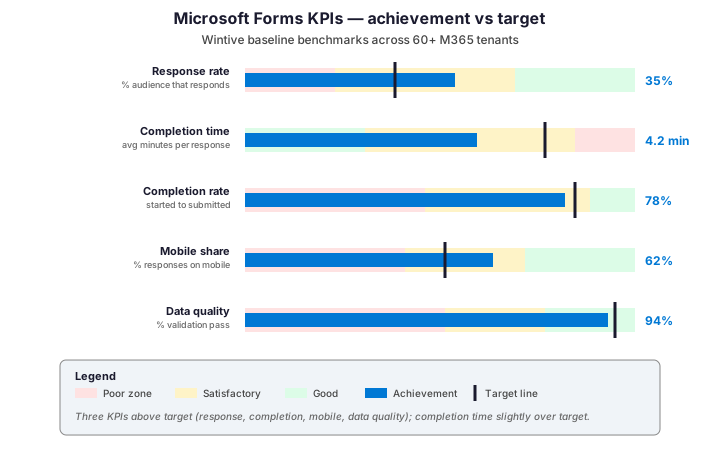
Two of the five KPIs typically drive the most improvement work. Indeed, completion rate is the highest-leverage metric: each percentage point gained means more usable data without any extra outreach. In contrast, mobile share is a leading indicator — high mobile traffic means short forms perform better, which informs question count for future iterations.
🌊 Where do responses come from and where do they go?
Understanding the source-to-output flow tells you where to invest. Specifically, the alluvial diagram below traces typical response volumes across three layers: where responders arrive, what type of form they fill, and where the data lands afterward. As a result, you can spot the bottleneck before it costs you respondents.

The flow exposes one underused pattern. Specifically, only 15% of responses currently trigger a Power Automate workflow, even though 30% of responses are quizzes that would benefit from automatic score logging. Therefore, automating quiz-to-list ingestion is the highest-impact optimization — it removes manual export and reduces audit overhead in regulated environments.
⚖️ Forms vs SharePoint Lists for data collection
Forms and SharePoint Lists overlap on data collection but solve different problems. Specifically, Forms optimizes for speed, anonymity, and external respondents, while Lists optimizes for ongoing record management, validation rules, and team collaboration. Therefore, the choice depends on whether you need a one-shot survey or a living dataset.
| Capability | Microsoft Forms | SharePoint List |
|---|---|---|
| Setup time | Under 5 minutes | 10-30 minutes |
| External respondents | Yes (anonymous link) | Requires guest access |
| Validation rules | Limited (required, format) | Rich (regex, relationships) |
| Edit after submit | Form owner only | Submitter (with permissions) |
| Branching logic | Yes (native) | No (Power Automate needed) |
| Bulk operations | Export to Excel only | Native filter/sort/group |
| Best for | Surveys, quizzes, registrations | Tickets, inventories, projects |
| Wintive recommends | One-shot data collection | Ongoing records management |
The hybrid pattern works best for many SMB scenarios. Indeed, capture responses with Forms (low friction, anonymous-friendly) and immediately push them to a SharePoint List via Power Automate (validation, ongoing management). As a result, you get the best of both: easy entry plus structured downstream operations without forcing respondents into the heavier List interface.
⚡ Automate response handling with Power Automate
The most common automation maps Forms responses directly into a SharePoint List. Specifically, the trigger fires on every new submission, runs validation logic, and creates the list item with all extracted fields. Furthermore, additional steps can route notifications to Teams, send confirmation emails, or branch on response content.
# Power Automate flow skeleton (JSON-style outline)
# Trigger: When a new response is submitted (Microsoft Forms)
#   FormID: 'xxxxxxxx-xxxx-xxxx-xxxx-xxxxxxxxxxxx'
#
# Action 1: Get response details (Microsoft Forms)
#   FormID: same as trigger
#   ResponseID: triggerOutputs()['body']['resourceData']['responseId']
#
# Action 2: Create item (SharePoint)
#   SiteAddress: https://contoso.sharepoint.com/sites/Operations
#   ListName:    Survey Responses
#   Fields:
#     Title:       outputs('Get_response_details')['body']['r1234567890']
#     Department:  outputs('Get_response_details')['body']['r0987654321']
#     SubmittedAt: utcNow()
#
# Action 3: Post message in Teams chat (Teams)
#   To: Operations team channel
#   Message: 'New response from @{outputs(...)['responder']}'
#
# Action 4: Send email confirmation (Outlook)
#   To: outputs('Get_response_details')['body']['responder']
#   Subject: 'Thanks for your response'
Three patterns cover most automation needs. Specifically, response-to-list logging for ongoing data collection, response-to-Teams notification for time-sensitive intake, and response-to-email confirmation for external respondents. Therefore, build these as reusable templates — each new form clones from the relevant pattern and updates only the field mappings.
✅ Best practices for Forms in SharePoint
Six practices cover most Forms wins. Indeed, each row below comes from a real client incident at Wintive.
| Practice | What to do | Why it matters |
|---|---|---|
| Keep forms short | Aim for under 8 questions, 3 minutes max | Completion rate drops 10% per minute beyond 3 |
| Test on mobile first | Build and preview in mobile view, then desktop | 62% of responses now arrive from mobile |
| Pre-fill known fields | Use URL parameters or Power Apps for known data | Removes friction for repeat respondents |
| Use branching wisely | Skip irrelevant questions based on prior answers | Cuts perceived form length by 30-40% |
| Set response limits | Cap responses for capacity-bound forms (events, training) | Avoids overbooking, manual cleanup |
| Audit annually | Review form ownership, response retention, GDPR posture | Orphaned forms accumulate sensitive data quietly |
Of these six practices, the form-length discipline drives the biggest measurable improvement. Specifically, in tenants Wintive audits, cutting forms from 12 to 8 questions typically lifts completion rates by 15-20 percentage points. Therefore, the question to ask before adding a field is always “can the data be inferred or asked later instead?”
❓ Frequently asked questions
What is the difference between Microsoft Forms and a SharePoint List form?
Microsoft Forms and SharePoint List forms solve overlapping but distinct problems. Specifically, Microsoft Forms is a standalone tool optimized for fast survey creation with anonymous external sharing, while SharePoint List forms are entry interfaces for a structured ongoing list with rich validation. Therefore, use Microsoft Forms for one-shot data collection and List forms for sustained record management. As a result, the hybrid pattern (Forms entry plus Power Automate to a List) is often the best of both worlds.
Can I make a Microsoft Form in SharePoint anonymous?
Yes, but only when you generate the public link. Specifically, when you set sharing to Anyone with the link can respond, Forms does not capture the responder identity. However, when embedded inside a SharePoint page that requires sign-in, the form inherits the user identity automatically. Therefore, for anonymous surveys, share the public Forms link explicitly rather than embedding inside a sign-in-protected page.
How do I export Microsoft Forms responses to Excel?
Open the form in Microsoft Forms, select the Responses tab, and click Open in Excel. Specifically, this exports a one-time snapshot to Excel for offline analysis. Furthermore, for ongoing exports synchronized with new responses, configure a Power Automate flow that creates an Excel row per submission. Therefore, choose snapshot export for ad-hoc analysis and Power Automate for live dashboards.
How long do Microsoft Forms responses stay stored?
Form responses persist as long as the form itself exists. Specifically, deleting the form deletes all associated responses, and there is no built-in retention policy that automatically prunes responses after a given duration. Furthermore, this means Forms can quietly accumulate sensitive data in orphaned forms over years. Therefore, Wintive recommends an annual Forms audit to identify orphaned forms and apply explicit retention through Power Automate cleanup flows.
🔗 Related M365 guides
Try Document Version History in SharePoint: Strategies and Retention
Read also File Sharing in Microsoft Teams: Permissions, Channels, and Best Practices
See Auto-Scaling Azure Virtual Machines: Scale Sets, Metrics and PowerShell
🎯 Need help auditing your Forms and SharePoint estate?
Wintive runs full Microsoft 365 tenant audits across Forms, SharePoint, Teams, Power Automate, license waste, and security posture. Specifically, the typical audit identifies orphaned forms, broken automations, and over-provisioned licenses worth thousands per year. Furthermore, our $97 Automated Tenant Health Check delivers actionable findings within minutes — no PowerShell experience required.