Specifically, Intune compliance policies in 2026 have evolved. They are now the foundational gate for Microsoft 365 Zero Trust enforcement. The policy alone does nothing until paired with a Conditional Access policy that requires a compliant device. Therefore, the operational unit of work is the closed loop: Intune evaluates compliance, Entra ID stores the state, Conditional Access decides access.
Furthermore, this Intune compliance policies admin guide covers seven topics. The tenant-wide compliance settings, the per-platform rule matrix for Windows, macOS, iOS, and Android, the Conditional Access integration patterns, the BYOD App Protection fallback, and the Wintive baseline across 60+ SMB tenants. The most common gap: 72% of audited tenants leave the default Mark devices with no policy as Compliant setting unchanged, which is a critical security gap.
Quick answer. Intune compliance policies define platform-specific rules a device must meet for the tenant to mark it compliant. The state alone does nothing until paired with Conditional Access requiring compliant devices. Critically, set tenant-wide Mark devices with no policy = Not compliant. Default is Compliant which is a security gap. Use report-only mode before enforcement. Assign to user groups not device groups for knowledge workers.
🛡️ Free: M365 Audit Checklist
19-page PDF with 50 hands-on checks covering Entra ID, Exchange Online, SharePoint, Teams, Intune, license waste, and audit logging. PowerShell commands included. Built from 60+ real tenant audits at Wintive.
📅 Intune compliance policies in 2026
Specifically, Intune compliance policies define the device access rules. A device must meet the rules to access corporate resources. In a Zero Trust model, compliance is the baseline. Therefore, a device that fails to meet the standards gets blocked. Email, SharePoint, and Teams are unreachable, regardless of whether the user has valid credentials. The closed-loop model is documented by Microsoft as the supported deployment approach.
Furthermore, three forces have reshaped Intune compliance policies. The change unfolded between 2024 and 2026. First, Microsoft Defender for Endpoint integration now feeds device risk back into compliance state with a 60-second remediation window. Second, the EU NIS2 directive requires SMB tenants to evidence device hardening before resource access, and compliance policies are the canonical evidence layer. Third, the BYOD model has shifted to App Protection Policies plus app-based Conditional Access for unmanaged devices, replacing the dead-end pattern of trying to enroll personal devices into MDM.
🏗 Tenant-wide compliance policy settings — the default policy gotcha
Specifically, every tenant has a built-in default device compliance policy that runs before any custom policy is deployed. Therefore, tenant-wide compliance policy settings determine the default Intune behaviour. They apply to devices that have no explicit policy assigned. The two settings that matter most: Mark devices with no compliance policy as Compliant or Not compliant. The second is Compliance status validity period.
Furthermore, the default value is a security gap. Mark devices with no policy = Compliant means unmanaged devices pass the gate. The setting means any newly enrolled device with no policy assignment is automatically considered compliant. Intune then passes that state to Conditional Access. The fix has two steps. Change the value to Not compliant. Then ensure every device receives at least one platform-specific compliance policy via group membership. Critically, this hardening is documented by Microsoft as the recommended Zero Trust default.
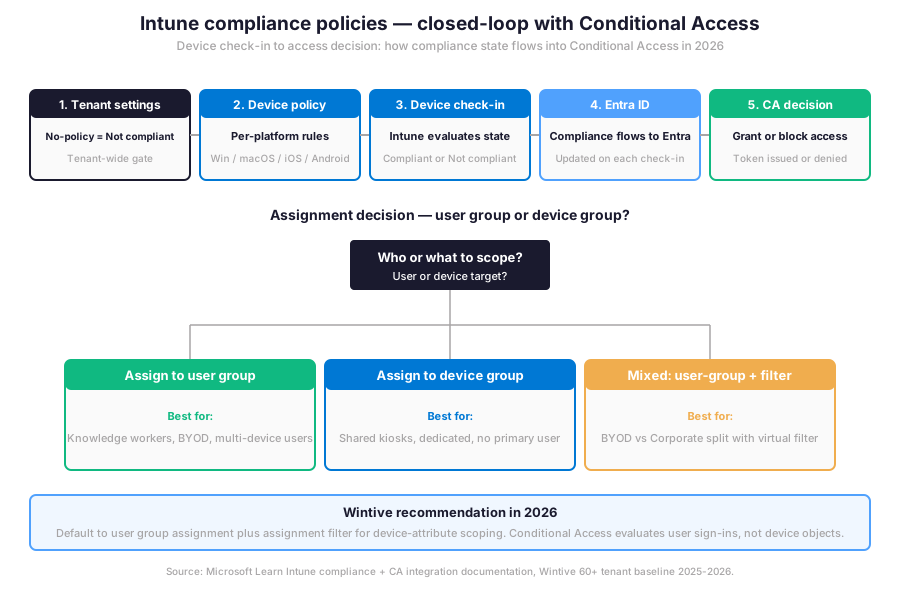
Specifically, the closed-loop diagram above shows where tenant settings sit before any custom policy. Therefore, the next question for any Intune admin is: what compliance settings actually make it into the per-platform policies? The matrix below answers that with the canonical SMB baseline.
📜 Platform-specific compliance settings matrix
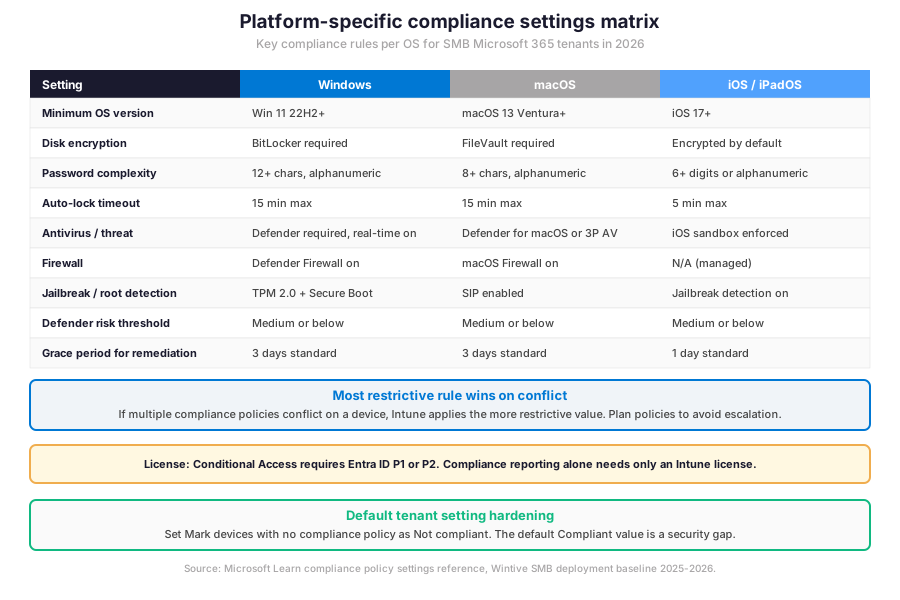
Specifically, compliance policies are platform-specific by design. A Windows policy checks different things than an iOS policy. Therefore, separate policies are needed per platform. The supported list: Windows, macOS, iOS, iPadOS, Android. The matrix below shows the canonical SMB baseline for the most common compliance settings across the three primary platforms in 2026.
Windows compliance baseline
Specifically, the Windows compliance baseline includes four pillars. BitLocker required. Defender Antivirus real-time on. TPM 2.0 plus Secure Boot for jailbreak detection. Minimum OS version Windows 11 22H2 or higher. Furthermore, the Defender for Endpoint integration sets a maximum device risk threshold of Medium. The risk feeds back into compliance state with a 60-second remediation window when a threat is detected.
macOS and iOS compliance baseline
Therefore, the macOS baseline has four requirements. FileVault disk encryption. macOS Firewall on. System Integrity Protection enabled. Minimum macOS Ventura 13 or higher. The iOS baseline requires the device to be at iOS 17 or higher with jailbreak detection on. Critically, iOS does not expose a firewall setting because the iOS sandbox enforces application isolation at the OS level. Mixed Apple fleets benefit from separate policies for macOS and iOS to avoid conflict resolution surprises.
| Use case | Required compliance setting | Conditional Access mapping |
|---|---|---|
| Block jailbroken or rooted devices | Jailbreak detection on (iOS, Android) | Block compliant device required |
| Enforce disk encryption before email access | BitLocker (Win), FileVault (macOS), Encrypted (iOS default) | Require compliant device |
| Mandate OS patch level for known CVE coverage | Minimum OS version per platform | Require compliant device |
| Block devices with active malware | Defender risk threshold = Low | Require compliant device with grace period |
| Restrict access from unmanaged BYOD | App Protection Policy (no MDM enrollment) | App-based CA, not device-based |
| Enforce screen lock on company devices | Auto-lock 15 min (Win/macOS), 5 min (iOS) | Require compliant device |
| Quarantine devices missing compliance policy | Tenant Mark no-policy = Not compliant | Require compliant device |
Furthermore, the table above maps business outcomes to the canonical compliance setting plus the Conditional Access grant control needed for enforcement. Therefore, the next section walks through the Conditional Access integration patterns CA-Device-001 and CA-Device-002 that consume the compliance state in production SMB Microsoft 365 tenants in 2026.
🔗 Conditional Access integration patterns
Specifically, two Conditional Access patterns cover most SMB requirements. CA-Device-001 protects the core M365 workload. CA-Device-002 provides catch-all SaaS coverage. Therefore, the patterns below show the canonical configuration. A Microsoft Graph PowerShell snippet creates the policy in report-only mode for safe rollout.
Conditional Access compliance policies reference patterns
Furthermore, the CA-Device-001 pattern targets only the core Microsoft 365 workload. The cloud apps are Exchange Online, SharePoint Online, and Teams. As grant control, set Require device to be marked as compliant. The CA-Device-002 pattern targets all cloud apps with the same grant control. An OR condition adds Require approved client app to support BYOD scenarios via Intune App Protection. Critically, both policies must exclude break-glass accounts and Directory Synchronization Accounts to prevent tenant lockout.
# Microsoft Graph PowerShell — Create CA-Device-001 policy in report-only mode
Connect-MgGraph -Scopes "Policy.ReadWrite.ConditionalAccess","Application.Read.All"

# Define CA-Device-001: Require compliant device for core M365 workload
$caPolicy = @{
  displayName = "CA-Device-001 - Require compliant device for M365 core"
  state = "enabledForReportingButNotEnforced"  # Report-only mode for safe rollout
  conditions = @{
    users = @{
      includeUsers = @("All")
      excludeGroups = @("BREAK_GLASS_GROUP_ID","DIR_SYNC_GROUP_ID")
    }
    applications = @{
      includeApplications = @(
        "00000002-0000-0ff1-ce00-000000000000",  # Office 365 Exchange Online
        "00000003-0000-0ff1-ce00-000000000000",  # Office 365 SharePoint Online
        "cc15fd57-2c6c-4117-a88c-83b1d56b4bbe"   # Microsoft Teams Services
      )
    }
    clientAppTypes = @("all")
  }
  grantControls = @{
    operator = "OR"
    builtInControls = @("compliantDevice")
  }
}

New-MgIdentityConditionalAccessPolicy -BodyParameter $caPolicy

# Run for 7 days, then promote to enforced state via:
# Update-MgIdentityConditionalAccessPolicy -ConditionalAccessPolicyId POLICY_ID -State "enabled"
Therefore, the snippet above creates CA-Device-001 in report-only mode, which evaluates the policy without enforcing it. The 7-day observation window is the Wintive baseline before promoting to enforced state. Critically, the report-only mode reveals which users and devices would have been blocked, allowing remediation before the user impact lands.
📱 BYOD scenarios — App Protection Policies fallback
Specifically, BYOD devices not enrolled in Intune MDM cannot report a full compliance state. Conditional Access cannot evaluate them as compliant or not. Therefore, the canonical fallback in 2026 is Intune App Protection Policies (also called MAM, Mobile Application Management) combined with app-based Conditional Access. The pattern protects corporate data at the application level without requiring full device enrollment.
When App Protection Policies replace Intune compliance policies
Furthermore, three BYOD scenarios benefit from App Protection Policies. They replace device compliance. First, contractors and external collaborators who need short-term M365 access without enrolling personal devices. Second, employees on personal phones who refuse MDM enrollment for privacy reasons. Third, frontline workers with shared kiosks where individual device compliance does not map cleanly to user identity. The Wintive 2026 baseline shows 17% of audited SMB tenants have App Protection Policies deployed, while the gap to demand sits much higher.
📊 Microsoft Graph PowerShell governance
Therefore, three governance operations matter most. Inventory all compliance policies in the tenant. Audit the assignment scope per policy. Export the non-compliant device report for remediation tracking. Furthermore, the Microsoft Graph PowerShell module is the canonical interface. Two scopes are required. DeviceManagementConfiguration.Read.All for inventory. DeviceManagementManagedDevices.Read.All for the device report.
Required Microsoft Graph scopes for compliance governance
Specifically, two delegated scopes cover most read operations: DeviceManagementConfiguration.Read.All for compliance policy metadata and assignments, and DeviceManagementManagedDevices.Read.All for per-device compliance state. Therefore, both scopes can be granted on first connection and reused across the inventory and export operations covered in the script below.
Compliance policies inventory and non-compliant export
# Microsoft Graph PowerShell — Compliance policy inventory + non-compliant device export
Connect-MgGraph -Scopes "DeviceManagementConfiguration.Read.All",\`
  "DeviceManagementManagedDevices.Read.All"

# 1. List all compliance policies in the tenant with their platform + assignments
Get-MgDeviceManagementDeviceCompliancePolicy -All | \`
  ForEach-Object {
    $assignments = Get-MgDeviceManagementDeviceCompliancePolicyAssignment \`
      -DeviceCompliancePolicyId $_.Id
    [PSCustomObject]@{
      DisplayName = $_.DisplayName
      Platform   = $_.AdditionalProperties['@odata.type']
      Created    = $_.CreatedDateTime
      Assignments = ($assignments | Measure-Object).Count
    }
  } | Sort-Object DisplayName | Format-Table -AutoSize

# 2. Export non-compliant devices for remediation tracking
Get-MgDeviceManagementManagedDevice -All -Filter "complianceState eq 'noncompliant'" | \`
  Select-Object DeviceName, UserPrincipalName, OperatingSystem, OsVersion, \`
    LastSyncDateTime, ComplianceState | \`
  Export-Csv -Path "C:\reports\noncompliant-$(Get-Date -Format 'yyyy-MM-dd').csv" \`
    -NoTypeInformation

# 3. Tenant compliance state distribution — quick health check
Get-MgDeviceManagementManagedDevice -All -Property ComplianceState | \`
  Group-Object ComplianceState | \`
  Select-Object Name, Count | \`
  Format-Table -AutoSize
Furthermore, the script above covers the three pillars of compliance policy operations: tenant inventory, non-compliant device export, and overall compliance state distribution. Therefore, the trade-offs table below summarises the assignment options across user groups, device groups, and the user-group-plus-filter pattern that Wintive recommends as the 2026 default for SMB Microsoft 365 tenants.
Assignment trade-offs matrix
| Assignment target | Best for | CA mapping | Conflict resolution |
|---|---|---|---|
| User group (default) | Knowledge workers, multi-device users | CA evaluates user sign-in directly | Most restrictive policy wins |
| Device group | Shared kiosks, dedicated workstations, no primary user | CA needs primary user for device link | Most restrictive policy wins |
| User group + assignment filter | BYOD vs Corporate split, OS-specific scoping | CA evaluates user sign-in plus device attribute | Filter scopes per-policy |
| Virtual group All users | Tenant-wide minimum baseline | CA evaluates all users equally | Most restrictive policy wins |
| Virtual group All devices | Tenant-wide device check (e.g., encryption mandate) | CA needs primary user for sign-in eval | Most restrictive policy wins |
Specifically, the table above summarises the five assignment patterns.
Pre-rollout Intune compliance policies baseline checklist
Therefore, the prerequisites checklist below covers the licensing, role assignment, naming convention, and compliance baseline that Wintive runs on every audited Intune tenant before any compliance policy rollout.
Prerequisites for Intune compliance policies in 2026:
Intune license per managed user (included with Microsoft 365 Business Premium, E3, E5). Microsoft Entra ID P1 or P2 license per user that signs in through a Conditional Access policy that requires compliant device. Intune Service Administrator or Endpoint Security Manager role to create policies. Microsoft Graph PowerShell module for governance automation. Naming convention defined before policy creation (Wintive default: Comp-{platform}-{scope}). Pilot group of 10-50 users for report-only mode validation before enforced rollout. In HIPAA-aligned tenants, the report-only mode evidence is documented as part of the change management trail. SOC 2 audits expect monthly non-compliant device reports retained for the audit window. NIST AI RMF alignment is not required for compliance policies themselves but applies when device risk drives access to AI workloads or Copilot. Predictable per-user/month TCO and no on-prem CapEx for any compliance component.
Specifically, the Wintive baseline distribution below shows where the typical SMB Intune tenant stands on compliance policy adoption versus where it should be for safe enforcement. Therefore, comparing readiness signals with anti-patterns highlights the operational gap that defines compliance policy admin work in 2026 across mid-market environments.
📈 The Wintive baseline — compliance policies across 60+ tenants
Therefore, after assessing 60+ Microsoft 365 SMB Intune tenants between 2025 and 2026, Wintive has a clear distribution of which compliance policy readiness signals correlate with safe enforcement and which anti-patterns predict tenant lockouts or unnoticed security gaps. The baseline below tells the story.
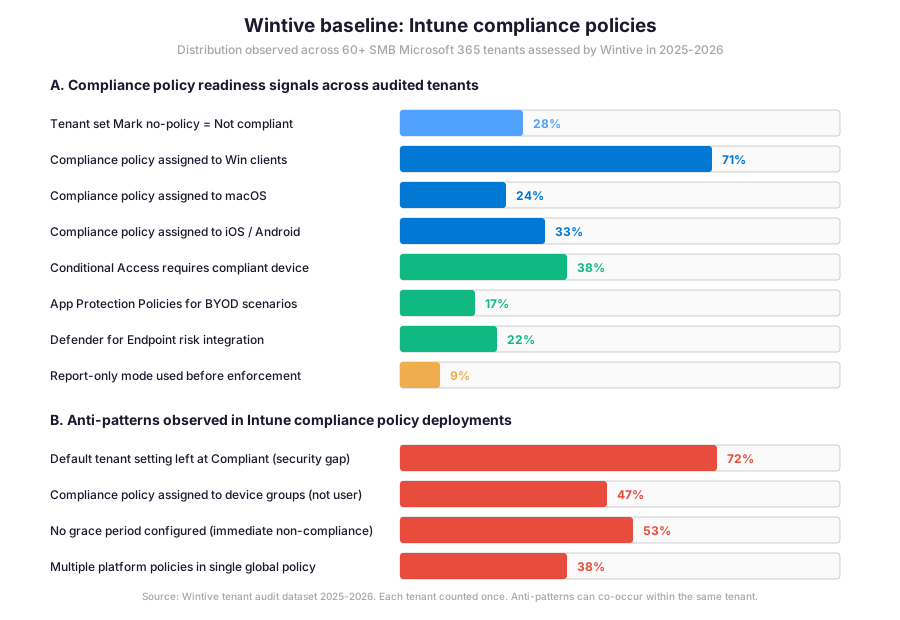
Specifically, the gap between Conditional Access requires compliant device (38%) and tenant Mark no-policy = Not compliant (28%) is the defining operational metric for compliance policies in 2026. Furthermore, the insight callout below distils what that gap means for SMB admin practice and where the typical 2-week governance sprint focuses its remediation effort across mixed-platform environments.
Wintive insight
Across 60+ SMB Intune tenants, the standout finding is striking. 72% of audited tenants left the default Mark devices with no compliance policy as Compliant setting unchanged. Therefore, the Wintive Intune compliance playbook ships a 2-week governance sprint. The sprint covers four streams. Tenant setting hardening. Platform-specific policy creation. Conditional Access integration in report-only mode. Migration to App Protection Policies for BYOD scenarios where MDM enrollment is not feasible. Compared to Configuration Manager (SCCM/MECM) on-prem baselines or AWS WorkSpaces device posture, Intune offers the cloud-native closed loop that on-prem CapEx-heavy alternatives cannot match.
Furthermore, the anti-pattern column tells the operational truth: 72% left the tenant default unchanged, 47% assigned compliance to device groups instead of user groups, 53% had no grace period configured, and 38% used a single global policy instead of platform-specific policies. These four anti-patterns explain most of the help desk escalations and audit findings Wintive observes in 2026, and each maps to a specific remediation path in the playbook.
🚨 5 SMB compliance policy deployment pitfalls
The five pitfalls below cover the anti-patterns Wintive consistently observes during Intune compliance pre-deployment audits. A common mistake is leaving the tenant default Mark no-policy = Compliant unchanged. The setting silently bypasses every Conditional Access policy that depends on compliance state. Admins struggle with this gotcha. The setting is buried in Endpoint security plus Compliance policy settings, rather than the per-policy creation flow. Furthermore, comparing Intune compliance with Configuration Manager device collection-based control or third-party MDM tools like JAMF Pro reveals a clear pattern. The cloud-native closed loop has fewer moving parts but more silent defaults to harden.
Default tenant setting for Intune compliance policies left at Compliant
Specifically, 72% of audited tenants leave the Mark devices with no compliance policy assigned as Compliant default unchanged. Therefore, the fix is straightforward. Navigate to Endpoint security, then Device compliance, then Compliance policy settings. Change the value to Not compliant. This single change closes the silent loophole where unmanaged or unevaluated devices bypass Conditional Access requirements.
Compliance policy assigned to device groups instead of user groups
Therefore, the misassignment rate is high. 47% of audited tenants assign compliance policies to device groups rather than user groups. Conditional Access evaluates user sign-ins, not device objects. Device-group assignments can therefore produce inconsistent compliance reporting per sign-in. The remediation: reassign to user groups for knowledge workers, then use assignment filters for device-attribute scoping when needed.
No grace period configured for compliance failures
Furthermore, the grace period gap is widespread. 53% of audited tenants have compliance policies with no grace period before marking devices non-compliant. Therefore, a transient issue can immediately block resource access. Examples include a paused antivirus update, a temporarily disabled BitLocker, or a lapsed OS patch. Each triggers help desk tickets. The Wintive default is 3 days for Windows and macOS, 1 day for iOS and Android. The grace period is configured per non-compliance action in the policy.
Single global policy across multiple platforms
Specifically, the global-policy anti-pattern is common. 38% of audited tenants try to use a single global policy across multiple platforms. Compliance policies are platform-specific by design. A Windows policy supports BitLocker. A macOS policy supports FileVault. An iOS policy supports neither. Therefore, the fix is to split into platform-specific policies and accept the maintenance overhead in exchange for accurate evaluation per device type.
Conditional Access enforced without report-only mode validation
Importantly, only 9% of audited tenants used report-only mode before enforcing Conditional Access policies that require compliant devices. Therefore, the typical incident is a Friday afternoon enforcement. The policy locks out unenrolled devices over the weekend. A Monday morning help desk surge follows. The Wintive playbook mandates 7-day report-only mode validation, then phased enforcement starting with a 50-user pilot group.
❓ Intune compliance policies FAQ
Intune compliance policies require an Intune license per managed user, included with Microsoft 365 Business Premium, E3, or E5. Therefore, the policy itself can be created and deployed without any additional cost. However, enforcing the compliance state via Conditional Access requires a Microsoft Entra ID P1 or P2 license per user that signs in through the policy. Critically, Microsoft 365 Business Premium includes both Intune and Entra ID P1, so the typical SMB tenant has all the licensing needed for the closed loop in a single bundle.
The most common reason is the tenant-wide setting Mark devices with no compliance policy assigned. If set to Compliant (the default) and a device receives no policy, it shows compliant. If set to Not compliant, devices without a policy show non-compliant immediately. Furthermore, the Has compliance policy assigned check runs on every enrolled device regardless of custom policies. Therefore, devices in groups not targeted by any compliance policy will fail this built-in check. The fix is to ensure every device is in at least one group targeted by a platform-appropriate compliance policy, or to leave the tenant setting at Not compliant and verify enrollment scope coverage.
Microsoft recommends user groups for the typical knowledge worker scenario because Conditional Access evaluates user sign-ins, not device objects. Therefore, when a user signs into a non-compliant device, Conditional Access can block that sign-in. Device groups are the right choice for shared kiosks, dedicated workstations, and devices with no primary user where individual user identity does not map cleanly to device compliance. Specifically, the Wintive 2026 default is user groups for over 80% of compliance policies, with device groups reserved for shared frontline scenarios and explicit kiosk fleets.
More Intune compliance policies questions
Specifically, BYOD devices not enrolled in Intune MDM cannot report a full compliance state and therefore cannot meet a Conditional Access policy that requires Require device to be marked as compliant. Therefore, the canonical 2026 fallback is Intune App Protection Policies (also called MAM or Mobile Application Management) combined with app-based Conditional Access. The pattern protects corporate data at the application level (Outlook, Teams, OneDrive, Edge) without requiring full device enrollment. The grant control is Require approved client app or Require app protection policy rather than Require compliant device. This works across iOS, Android, and Windows for BYOD scenarios.
Microsoft Defender for Endpoint reports a device risk level (Clear, Low, Medium, High) back to Intune through the Mobile Threat Defense connector. Therefore, the compliance policy can include a rule that requires the device risk to be at or below a specified threshold, typically Medium for the SMB baseline. When Defender detects a threat that elevates the risk level above the threshold, the device is automatically marked non-compliant within 60 seconds. Conditional Access then blocks resource access until the threat is remediated. This creates the closed-loop incident response that on-prem alternatives cannot deliver natively.
📚 Related Microsoft Intune reading
The full admin guide is at our Entra ID Dynamic Groups for Intune Admin Guide covering the targeting decision tree (dynamic group vs virtual group vs assignment filter), the rule patterns matrix for BYOD vs Corporate split, and the deployment ring regex on deviceId for phased compliance policy rollout.
The full admin guide is at our Copilot in Microsoft Intune Admin Guide covering the 4 Security Copilot agents and how the Vulnerability Remediation Agent reads compliance policy state when prioritising remediation actions.
The step-by-step deployment guide is at our Deploy Microsoft 365 Copilot with Intune Step-by-Step Admin Guide covering license assignment, dynamic group targeting, compliance policy prerequisites for the Copilot app, and the Conditional Access scoping that depends on compliance state.
The complete Entra ID guide is at our Microsoft Entra ID Complete Guide covering the Suite, the Conditional Access engine, the audit logging that captures every compliance state change, and the role-based access control for compliance policy administration.
The full admin guide is at our Microsoft 365 Copilot for Teams Admin Guide covering the licensing, the Purview governance gates, and how Conditional Access uses compliance state to scope the Copilot app from unmanaged or non-compliant devices.
This tutorial covered one focused Intune workflow. For a complete picture of how your full Microsoft 365 environment — device compliance, identity, and security — performs against best practices:
🔍 Want a complete audit of your Microsoft 365 tenant?
The M365 Instant Audit scans your M365 environment in under 10 minutes: license waste, security posture, MFA coverage, compliance gaps, license rightsizing opportunities. Full PDF report with prioritized recommendations delivered instantly.