Deploying Microsoft 365 Copilot with Intune lets IT administrators push the AI productivity app silently to all enrolled Windows and macOS devices, with the right licenses assigned and update channels configured. Specifically, this guide covers the full deployment process from license assignment via Entra ID dynamic groups, through update-channel configuration, to silent app rollout and adoption monitoring.
The Microsoft 365 Copilot app completed its general rollout in June 2025 and requires Microsoft 365 Apps Version 2511 or later for automatic installation. However, the technical deployment is the easy part. Indeed, the harder problem at $30 per user per month is adoption — across 30 plus Wintive customer projects, roughly half of provisioned licenses are wasted on users who never make Copilot part of their daily workflow.
🛡️ Free: M365 Tenant Security Audit Checklist
19-page PDF with 50 hands-on checks covering Entra ID, Exchange Online, SharePoint, Teams, Intune, license waste, and audit logging. PowerShell commands included. Built from 60+ real tenant audits at Wintive.
📊 The Microsoft 365 Copilot with Intune adoption reality
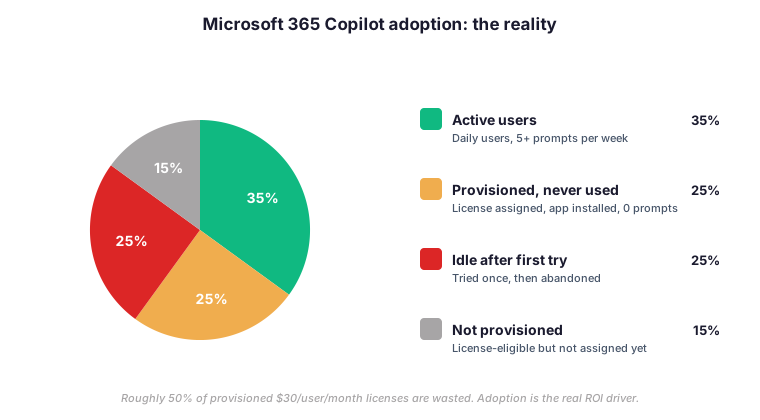
The pie chart above summarises typical adoption across audited Wintive customer tenants. Specifically, only 35 percent of provisioned users qualify as active (5+ prompts per week). Furthermore, 25 percent receive a license that they never actually use, and another 25 percent try Copilot once and abandon it within days. Therefore, the technical deployment is necessary but not sufficient — a $30 per user per month spend that touches only a third of the audience is wasted at scale.
Two patterns drive successful Microsoft 365 Copilot with Intune adoption in our customer base. First, a 30-day pilot with 25 to 50 users measures real prompts per day, satisfaction, and ROI before scaling. Second, role-specific training matters more than feature demos — a 90-minute onboarding session with prompt examples specific to the user’s job function lifts adoption from 35 percent to roughly 70 percent within a quarter.
🏗️ Deployment pipeline architecture
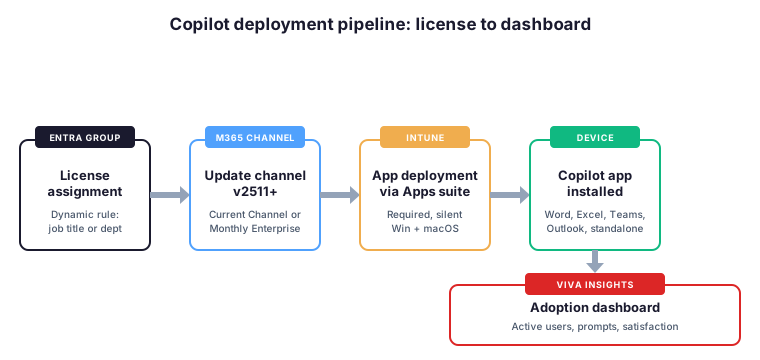
The Microsoft 365 Copilot with Intune deployment pipeline runs through five components. First, an Entra ID dynamic group assigns Microsoft 365 Copilot licenses based on a membership rule. Then, a Microsoft 365 Apps configuration policy in Intune sets the update channel to Current or Monthly Enterprise. Next, an Intune app deployment pushes the Microsoft 365 Apps suite (which includes the Copilot app) to enrolled devices. Finally, Viva Insights tracks adoption metrics that feed back into license-management decisions.
✅ Prerequisites: licenses and update channels
| Requirement | Detail | Why it matters |
|---|---|---|
| Base license | M365 E3, E5, Business Standard, or Business Premium | Copilot is an add-on, not standalone |
| Copilot add-on | $30 per user per month (Copilot Business up to 300 users) | Per-seat pricing drives adoption focus |
| M365 Apps version | 2511 or later, Current or Monthly Enterprise channel | Older channels do not auto-install Copilot |
| Entra ID account | Must have Exchange Online mailbox | Copilot relies on Graph queries |
| Device enrolment | Intune-enrolled with compliance policy | Required for Conditional Access governance |
🛠️ Setup procedure at a glance
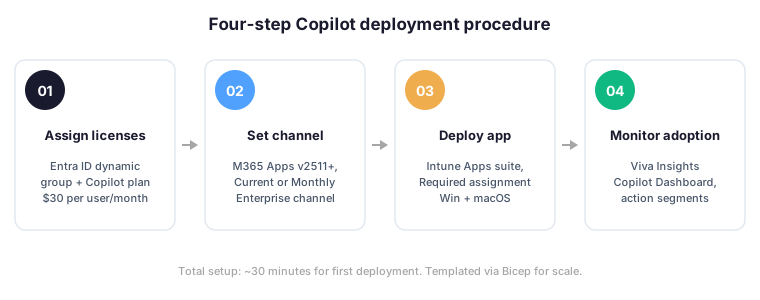
The four-step procedure below takes about 30 minutes for the first deployment and becomes copy-paste from the second tenant onwards. Specifically, the configuration patterns are reusable as Bicep modules, ARM templates, or PowerShell scripts.
⚙️ Step 1 — Assign licenses via Entra ID dynamic groups
The most efficient way to assign Copilot licenses at scale uses Entra ID group-based licensing with dynamic membership. Specifically, you create a security group whose membership rule matches a job title, department, or license attribute, then assign the Copilot license plan to the group. As a result, Entra ID automatically updates membership and licenses without any manual intervention.
# Connect to Microsoft Graph PowerShell
Connect-MgGraph -Scopes "Group.ReadWrite.All","Directory.ReadWrite.All"

# Create a dynamic group for Copilot-licensed users (rule: job title contains "Manager")
$rule = '(user.jobTitle -contains "Manager") or (user.jobTitle -contains "Director")'

$params = @{
    DisplayName     = "Copilot Pilot Group"
    GroupTypes      = @("DynamicMembership")
    MailEnabled     = $false
    SecurityEnabled = $true
    MembershipRule  = $rule
    MembershipRuleProcessingState = "On"
    MailNickname    = "copilot-pilot"
}
$group = New-MgGroup -BodyParameter $params

# Assign Microsoft 365 Copilot license plan to the group
$copilotSku = Get-MgSubscribedSku | Where-Object { $_.SkuPartNumber -eq "Microsoft_365_Copilot" }
$licenseParams = @{
    AddLicenses    = @(@{ SkuId = $copilotSku.SkuId })
    RemoveLicenses = @()
}
Set-MgGroupLicense -GroupId $group.Id -BodyParameter $licenseParams
📡 Step 2 — Configure the update channel
The Copilot app requires Current Channel or Monthly Enterprise The official Microsoft Learn overview documents the supported update channels and SKU prerequisites in depth. Channel. However, the Semi-Annual Enterprise Channel cannot automatically receive the Copilot app. Therefore, switch channels via an Intune Settings catalog policy targeting your Copilot pilot group.
# Verify the current channel on Windows devices via Intune
# Navigate to: Intune admin center > Devices > Configuration > Create policy
# Profile type: Settings catalog
# Setting: Microsoft Office 2016 / Updates / Update Channel
# Value: Current Channel (Preview) | Current Channel | Monthly Enterprise Channel

# Or check existing channel via PowerShell on a target device
$officeReg = "HKLM:\SOFTWARE\Microsoft\Office\ClickToRun\Configuration"
Get-ItemProperty -Path $officeReg -Name CDNBaseUrl, UpdateChannel

# Channel CDN URLs reference:
# Current Channel:    http://officecdn.microsoft.com/pr/492350f6-3a01-4f97-b9c0-c7c6ddf67d60
# Monthly Enterprise: http://officecdn.microsoft.com/pr/55336b82-a18d-4dd6-b5f6-9e5095c314a6
📦 Step 3 — Deploy Microsoft 365 Copilot with Intune
On qualifying devices (M365 Apps Version 2511+), the Copilot app installs automatically in the background once the license is assigned. However, for devices that need a manual push or for macOS endpoints, deploy it explicitly via Intune as part of the Microsoft 365 Apps suite.
# Create a Microsoft 365 Apps deployment via Microsoft Graph
Connect-MgGraph -Scopes "DeviceManagementApps.ReadWrite.All"

$appParams = @{
    "@odata.type"   = "#microsoft.graph.officeSuiteApp"
    DisplayName     = "Microsoft 365 Apps + Copilot"
    Description     = "M365 Apps with Copilot enabled"
    Publisher       = "Microsoft"
    OfficeSuiteAppDefaultFileFormat = "OfficeOpenXMLFormat"
    UpdateChannel   = "current"
    OfficePlatformArchitecture = "x64"
    LocalesToInstall = @("en-us")
    ProductIds      = @("o365ProPlusRetail")
}
New-MgDeviceAppManagementMobileApp -BodyParameter $appParams

# Assign as Required to the Copilot pilot group
# (assignment configured separately via New-MgDeviceAppManagementMobileAppAssignment)
📈 Step 4 — Monitor adoption with Viva Insights and KQL
After Microsoft 365 Copilot with Intune deployment, track Copilot usage in the Copilot Dashboard inside Microsoft Viva Insights. Specifically, the dashboard shows active users, feature adoption rates, satisfaction scores, and high-usage individuals. Furthermore, the Action segments feature lets you target inactive Copilot users with onboarding guidance via Teams, Windows notifications, or email.
// Active Copilot users in the last 7 days (KQL via Microsoft Graph activity logs)
MicrosoftGraphActivityLogs
| where TimeGenerated > ago(7d)
| where ResponseStatusCode == 200
| where RequestUri contains "/copilot/"
| summarize Prompts = count() by UserPrincipalName
| where Prompts >= 5
| order by Prompts desc

// Provisioned but inactive Copilot license holders
let ActiveUsers =
    MicrosoftGraphActivityLogs
    | where TimeGenerated > ago(30d)
    | where RequestUri contains "/copilot/"
    | distinct UserPrincipalName;
UserAccessAnalytics
| where AssignedPlanName == "Microsoft_365_Copilot"
| where UserPrincipalName !in (ActiveUsers)
| project UserPrincipalName, AssignedDate
🛡️ Govern Copilot access with Conditional Access
Deploying the Copilot app is only half the equation. Specifically, governing who can use Copilot and from which devices completes the Zero Trust posture. Therefore, configure a Conditional Access policy in Entra ID that targets the Microsoft 365 Copilot app and requires both compliant device and MFA. As a result, only Intune-enrolled compliant devices can access Copilot features, preventing corporate AI data from being accessible on unmanaged personal devices. For the full procedure, see our guide on Conditional Access with Intune and Entra ID.
💥 Common pitfalls that break Microsoft 365 Copilot with Intune deployments
Four pitfalls account for most of the Microsoft 365 Copilot with Intune rollout incidents we see at Wintive. Specifically, every one of them has caused a customer rollout to stall at least once. Therefore, address them during the pilot phase rather than after the broad rollout.
💸 Pitfall 1: Skipping the 30-day Microsoft 365 Copilot with Intune pilot
Provisioning 500 Microsoft 365 Copilot with Intune licenses on day one without a pilot guarantees waste. Therefore, run a 25 to 50 user pilot for 30 days, measure prompts per day and satisfaction, then scale based on real ROI signals.
📅 Pitfall 2: Wrong update channel
Devices on Semi-Annual Enterprise Channel never receive the Copilot app automatically. Therefore, audit the channel before assigning licenses, and switch via Intune Settings catalog policy if needed.
📨 Pitfall 3: Missing Exchange Online mailbox
Copilot relies on Graph queries against the user’s mailbox, calendar, and OneDrive. Therefore, accounts without an Exchange Online mailbox (shared mailbox UPNs, hybrid orphans) fail silently. Indeed, audit mailbox state before assigning licenses to avoid silent failures.
🎯 Pitfall 4: No Microsoft 365 Copilot with Intune training plan
Users who get a Copilot license without role-specific training abandon the tool within a week. Therefore, invest in a 90-minute onboarding workshop with prompt examples specific to each role. Specifically, generic Copilot demos do not move adoption metrics — customer-relevant prompts do.
⚠️ Wintive take: rules from real Copilot deployments
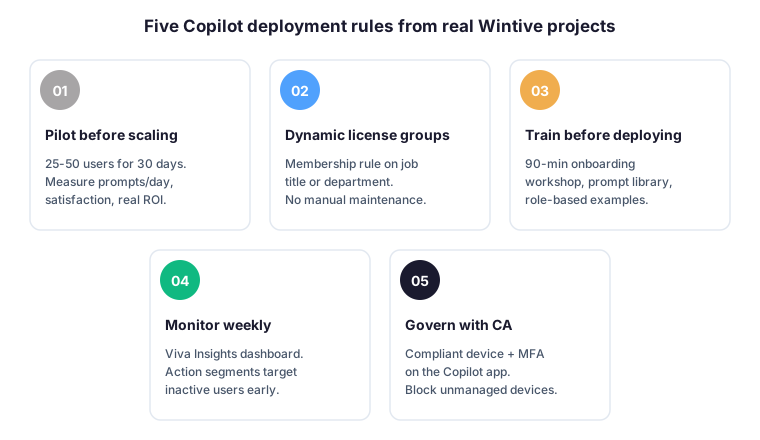
The five rules below come from 30 plus Wintive Copilot deployments since the GA in November 2023. Specifically, every rule has caught at least one adoption issue across our customer base — so we ship them as standard configuration on every new Copilot project.
- Pilot before scaling. 25 to 50 users for 30 days. Specifically, measure prompts per day, satisfaction, and real ROI before going broad. Therefore, the pilot data justifies the broader spend or kills it early.
- Dynamic license groups. Membership rule on job title or department. As a result, no manual maintenance and licenses follow role changes automatically.
- Train before deploying. 90-minute onboarding workshop with role-specific prompt library. Indeed, generic demos do not move adoption — customer-relevant prompts do.
- Monitor weekly. Viva Insights Copilot Dashboard plus KQL on Microsoft Graph activity logs. Furthermore, the Action segments feature targets inactive users with re-engagement nudges before they fully abandon the tool.
- Govern with Conditional Access. Compliant device plus MFA on the Microsoft 365 Copilot app. Therefore, unmanaged personal devices cannot access corporate AI data, closing the Zero Trust posture.
🤔 Frequently asked questions about deploying Microsoft 365 Copilot with Intune
Microsoft 365 Copilot costs $30 per user per month for enterprise tenants on E3, E5, Business Standard, or Business Premium plans. Specifically, Copilot Business is a separate SKU available for tenants under 300 seats. Furthermore, the price is on top of the existing Microsoft 365 base license. Therefore, a 100-user enterprise deployment runs $3,000 per month or $36,000 per year on top of the base licensing.
Version 2511 introduced the standalone Copilot app icon and the runtime infrastructure for inline Copilot integration across Word, Excel, PowerPoint, Outlook, and Teams. Specifically, earlier Microsoft 365 Apps versions cannot host the Copilot app and do not auto-install it. Therefore, devices must be on the Current Channel or Monthly Enterprise Channel running 2511 or later before the silent Copilot rollout takes effect.
Yes, license assignment via Entra ID dynamic groups makes targeted rollout straightforward. Specifically, you create a dynamic security group whose membership rule matches a job title, department, or extension attribute, then assign the Copilot license plan to the group. Therefore, only users matching the rule receive licenses, and the membership updates automatically as roles change.
The Microsoft Viva Insights Copilot Dashboard is the primary adoption tracking surface. Specifically, it shows active users, prompts per day, satisfaction scores, and high-usage individuals. Furthermore, KQL queries against Microsoft Graph activity logs in Log Analytics provide deeper investigation when needed. Therefore, run Viva Insights weekly for trend tracking and KQL ad hoc when investigating specific users or features.
Microsoft 365 Copilot relies on Graph queries against the user mailbox, calendar, and OneDrive to ground responses in personal context. Specifically, accounts without an Exchange Online mailbox (such as shared mailbox UPNs or hybrid identity orphans) cause Copilot to fail silently with degraded results. Therefore, audit mailbox state before assigning Copilot licenses. The Get-Mailbox cmdlet identifies orphans quickly across the tenant.
📚 What to read next
A successful Intune Microsoft 365 Copilot deployment combines technical rollout (license groups, update channel, Intune push) with adoption discipline (pilot, training, monitoring). Therefore, treat the technical setup as the easy first half and adoption as the harder second half. For more, the three companion guides below cover the Intune integration depth, dynamic group targeting, and Conditional Access hardening that surround a production Copilot rollout.
This tutorial covered one focused Intune workflow. For a complete picture of how your full Microsoft 365 environment — device compliance, identity, and security — performs against best practices:
🔍 Want a complete audit of your Microsoft 365 tenant?
The Automated Tenant Health Check scans your M365 environment in under 10 minutes: license waste, security posture, MFA coverage, compliance gaps, license rightsizing opportunities. Full PDF report with prioritized recommendations delivered instantly.