Microsoft Entra ID Conditional Access and Microsoft Intune work together to enforce Zero Trust security across your organisation. Specifically, Conditional Access evaluates every sign-in request against your policies, and Intune provides the device compliance signal that determines whether access is granted, blocked, or challenged with MFA. Therefore, this guide explains how to configure Conditional Access with Intune compliance, covering device-based policies, app-scoped enforcement, Copilot governance, and dynamic group targeting.
Conditional Access requires Entra ID P1 licensing (included with Microsoft 365 Business Premium, E3, and E5). Furthermore, the patterns below come from 30 plus Wintive customer deployments since 2023. For more depth, see our Entra ID complete guide and the Microsoft Intune overview.
🛡️ Free: M365 Tenant Security Audit Checklist
19-page PDF with 50 hands-on checks covering Entra ID, Exchange Online, SharePoint, Teams, Intune, license waste, and audit logging. PowerShell commands included. Built from 60+ real tenant audits at Wintive.
🔄 How Conditional Access and Intune work together
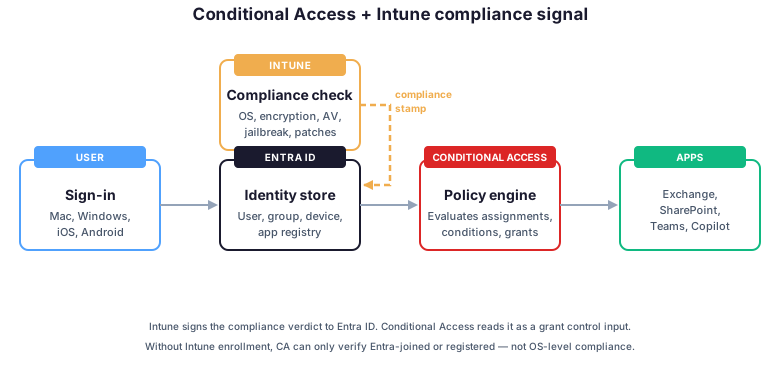
The integration runs through a two-step handshake. First, Intune evaluates each enrolled device against your compliance policies and stamps it as Compliant or Not compliant in Entra ID. Then, your Conditional Access policy reads that compliance stamp when a user signs into a cloud app like Exchange Online, SharePoint, or Microsoft 365 Copilot. As a result, non-compliant devices either receive a block message or land on a remediation page.
Importantly, without Intune enrolment, Conditional Access cannot evaluate device compliance. Specifically, it can only check whether the device is Entra ID joined or registered, not whether the OS is patched, encrypted, or jailbroken. Therefore, Intune enrolment is the prerequisite that unlocks granular compliance data: encryption status, OS version, antivirus state, and jailbreak detection.
🌳 The Entra ID Intune Conditional Access decision tree
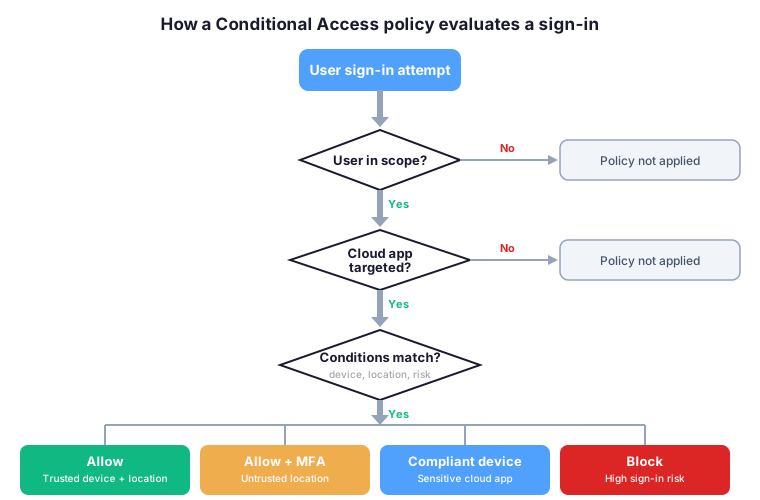
Every Conditional Access policy evaluates each sign-in through three sequential checks before applying grant controls. Specifically, the policy first verifies that the user falls into the assignment scope, then that the cloud app is targeted, then that the conditions match. If all three pass, the grant controls execute and produce one of four outcomes: Allow, Allow with MFA, Require compliant device, or Block.
However, multiple Conditional Access policies can fire on the same sign-in event. In that case, all matching grant controls combine — the user must satisfy every requirement from every applicable policy. Therefore, layering policies for different risk surfaces is the standard pattern: one baseline policy for compliant device, one MFA policy for untrusted locations, one block policy for high sign-in risk.
📋 Common Conditional Access policy patterns
| Pattern | Trigger condition | Grant control | Coverage |
|---|---|---|---|
| Baseline MFA | Any sign-in | Require MFA | All users, all apps |
| Compliant device | Any sign-in | Require compliant device | Sensitive cloud apps |
| Block legacy auth | Legacy auth client | Block access | All users |
| Risk-based MFA | Sign-in risk Medium+ | Require MFA | P2 only, all users |
| Geo restriction | Outside trusted countries | Block or MFA | Adjust per company |
| Copilot governance | Microsoft 365 Copilot app | Compliant device + MFA | Licensed users only |
🛠️ Setup procedure at a glance
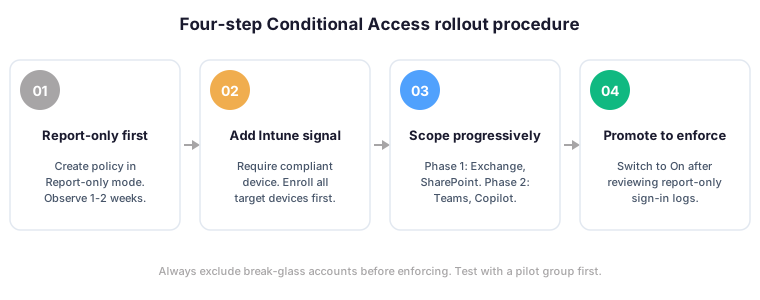
The four-step procedure below is the rollout sequence we use at Wintive on every Conditional Access deployment. Importantly, never skip the report-only phase — it is the difference between a clean rollout and locking out the entire helpdesk on a Friday afternoon.
⚙️ Step 1 — Create the baseline policy in report-only
The first policy enforces device compliance for all cloud apps. Specifically, you start in report-only mode, observe sign-in logs for one to two weeks, then promote to enforce.
# Connect to Microsoft Graph PowerShell
Connect-MgGraph -Scopes "Policy.ReadWrite.ConditionalAccess","Application.Read.All"

# Create a baseline Conditional Access policy in report-only mode
$params = @{
    DisplayName = "Require Compliant Device - All Cloud Apps"
    State       = "enabledForReportingButNotEnforced"
    Conditions  = @{
        Users        = @{ IncludeUsers = @("All") }
        Applications = @{ IncludeApplications = @("All") }
    }
    GrantControls = @{
        Operator        = "OR"
        BuiltInControls = @("compliantDevice")
    }
}
New-MgIdentityConditionalAccessPolicy -BodyParameter $params
📱 Step 2 — Add device compliance via Intune conditional access
Step 1 already requires compliant device, but Intune must actually evaluate compliance for it to mean anything. Therefore, ensure target devices are enrolled in Intune and that compliance policies are scoped to them.
# Verify device compliance state via Microsoft Graph
Get-MgDeviceManagementManagedDevice -All |
    Select-Object DeviceName, OperatingSystem, ComplianceState, LastSyncDateTime |
    Where-Object { $_.ComplianceState -ne "compliant" } |
    Format-Table

# Identify users with non-compliant devices
Get-MgDeviceManagementManagedDevice -All |
    Where-Object { $_.ComplianceState -ne "compliant" } |
    Group-Object UserPrincipalName |
    Select-Object Name, Count |
    Sort-Object Count -Descending
🤖 Step 3 — Scope Copilot governance
Microsoft 365 Copilot accesses sensitive organisational data across SharePoint, OneDrive, Exchange, and Teams. Therefore, applying a stricter Conditional Access policy specifically to Copilot is critical. Specifically, target the Microsoft 365 Copilot app ID and require both compliant device and MFA.
# Create a Conditional Access policy targeting Microsoft 365 Copilot
$copilotAppId = "fb78d390-0c51-40cd-8e17-fdbfab77341b"  # M365 Copilot app

$params = @{
    DisplayName = "Copilot - Require MFA + Compliant Device"
    State       = "enabledForReportingButNotEnforced"
    Conditions  = @{
        Users        = @{ IncludeUsers = @("All") }
        Applications = @{ IncludeApplications = @($copilotAppId) }
    }
    GrantControls = @{
        Operator        = "AND"
        BuiltInControls = @("mfa", "compliantDevice")
    }
}
New-MgIdentityConditionalAccessPolicy -BodyParameter $params
👥 Step 4 — Use dynamic groups for license-based scoping
Dynamic groups are the most scalable way to scope Conditional Access policies. Specifically, you create a group whose membership rule matches a license assignment attribute, then scope the policy to that group exclusively. As a result, when licenses are assigned or removed, Entra ID updates membership automatically, and the policy adjusts without manual intervention.
# Create a dynamic group for Copilot-licensed users
$rule = 'user.assignedPlans -any (assignedPlan.servicePlanId -eq "3f30311c-6b1e-48a4-ab79-725b469da960" -and assignedPlan.capabilityStatus -eq "Enabled")'

$params = @{
    DisplayName     = "Copilot Licensed Users"
    GroupTypes      = @("DynamicMembership")
    MailEnabled     = $false
    SecurityEnabled = $true
    MembershipRule  = $rule
    MembershipRuleProcessingState = "On"
    MailNickname    = "copilot-licensed"
}
New-MgGroup -BodyParameter $params
🔍 Monitor with sign-in logs and KQL
After deploying Conditional Access policies, monitor their impact in the Entra admin center under Monitoring then Sign-in logs. However, KQL against the Log Analytics workspace gives faster aggregation across thousands of sign-ins. Specifically, the queries below answer the three questions every Conditional Access deployment surfaces in week one.
// Sign-ins blocked by Conditional Access in the last 24 hours
SigninLogs
| where TimeGenerated > ago(24h)
| where ConditionalAccessStatus == "failure"
| project TimeGenerated, UserPrincipalName, AppDisplayName, Status, Location
| order by TimeGenerated desc

// Top 10 users hitting Conditional Access blocks
SigninLogs
| where TimeGenerated > ago(7d)
| where ConditionalAccessStatus == "failure"
| summarize Blocks = count() by UserPrincipalName
| top 10 by Blocks desc

// Policies firing most often (helps identify over-broad scopes)
SigninLogs
| where TimeGenerated > ago(7d)
| mv-expand ConditionalAccessPolicies
| extend PolicyName = tostring(ConditionalAccessPolicies.displayName)
| summarize Hits = count() by PolicyName
| order by Hits desc
💥 Common pitfalls that break Conditional Access
Four pitfalls account for most of the Conditional Access incidents we see at Wintive. Specifically, every one of them has caused a customer outage at least once. Therefore, address them during the initial design rather than after the first lockout.
🔑 Pitfall 1: No break-glass exclusion
A misconfigured policy can lock out every admin. Therefore, create two break-glass accounts excluded from every Conditional Access policy. Specifically, store their credentials offline and rotate them annually.
📢 Pitfall 2: Skipping report-only mode
Enforcing on day one without observing report-only data produces support tickets at scale. Specifically, you discover edge cases only by watching sign-ins for a week. Therefore, treat report-only as mandatory, not optional.
📲 Pitfall 3: Forgetting service accounts
Service accounts often have no MFA, no managed device, and no clean owner. Therefore, identify them before enforcing and either exclude them explicitly or migrate them to managed identities.
🌐 Pitfall 4: Geo-blocking without escape hatch
Travelling executives still need access from unexpected countries. Therefore, pair geo-restrictions with a self-service VPN or named locations that can be temporarily expanded. Indeed, the helpdesk should never be the only path out of a geo block.
⚠️ Wintive take: rules from real CA deployments
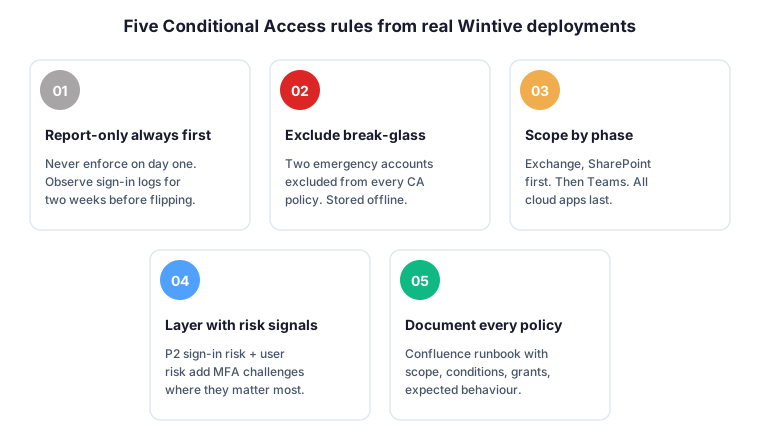
The five rules below come from 30 plus Wintive Conditional Access deployments since 2023. Specifically, every rule has caught at least one production issue across our customer base — so we ship them as standard configuration on every new Entra ID project.
- Report-only always first. Specifically, never enforce on day one. Therefore, observe sign-in logs for two weeks, identify edge cases, then flip to enforce only once the data is clean.
- Exclude break-glass accounts everywhere. Two emergency accounts excluded from every Conditional Access policy. Furthermore, store their credentials offline and rotate them annually.
- Scope by app phase, not by user. For example, start with Exchange Online and SharePoint in phase 1, extend to Teams and admin center in phase 2, then all cloud apps in phase 3. In contrast, scoping by user creates inconsistent enforcement.
- Layer with sign-in risk signals. Specifically, P2 sign-in risk and user risk add MFA challenges where they matter most. Therefore, the upgrade to P2 pays back the first time a real attack hits a low-risk account.
- Document every policy in the runbook. Confluence or Notion page with scope, conditions, grant controls, and expected behaviour for each policy. Indeed, six months later the documentation is the only way to figure out why a sign-in was blocked.
🤔 Frequently asked questions about Conditional Access with Intune
Conditional Access requires Entra ID P1, which is included with Microsoft 365 Business Premium, E3, and E5. Specifically, Entra ID P2 adds risk-based Conditional Access (sign-in risk and user risk) and Privileged Identity Management. Therefore, smaller tenants typically buy Business Premium for the bundle, while enterprises pay for E5 for the full Entra ID P2 feature set.
Report-only mode evaluates the policy against every sign-in but does not actually block or challenge anything. Specifically, the verdict (would allow, would block, would require MFA) appears in sign-in logs without affecting the user. In contrast, enforce mode applies the grant controls in real time. Therefore, every Wintive deployment runs report-only for one to two weeks before flipping the policy to enforce.
Conditional Access works without Intune for identity-based controls: MFA, location restrictions, sign-in risk, application targeting. However, the compliant device grant control specifically requires Intune to evaluate device compliance. Therefore, organisations without Intune can still build a strong Conditional Access posture, but they lose visibility into OS patch level, encryption status, and antivirus state on the endpoint.
Break-glass accounts are emergency admin accounts excluded from every Conditional Access policy. Specifically, you create two cloud-only Global Administrator accounts, exclude them from all CA policies via the user exclusion list, and store their credentials offline. Therefore, if a misconfigured policy locks out every other admin, the break-glass accounts can still sign in to fix the issue. Audit them monthly and rotate the passwords annually.
Three causes account for most cases. First, the policy is in report-only mode rather than enforce. Second, the user falls outside the assignment scope. Third, the cloud app is not in the targeted resources. Therefore, check the sign-in log entry for the user, review the Conditional Access details panel, and verify which policies evaluated and what their result was. The Conditional Access insights workbook in Azure Monitor speeds up this troubleshooting significantly.
📚 What to read next
A well-designed Conditional Access deployment combines compliant-device requirements, MFA challenges, geo-restrictions, and risk-based escalation — layered as parallel policies rather than a single mega-rule. Therefore, treat the report-only phase as mandatory, exclude break-glass accounts everywhere, and document every policy in your runbook. For more, the three companion guides below cover compliance policies, dynamic group targeting, and Copilot deployment as the next-step layers above this Conditional Access baseline.
This tutorial covered one focused Intune workflow. For a complete picture of how your full Microsoft 365 environment — device compliance, identity, and security — performs against best practices:
🔍 Want a complete audit of your Microsoft 365 tenant?
The Automated Tenant Health Check scans your M365 environment in under 10 minutes: license waste, security posture, MFA coverage, compliance gaps, license rightsizing opportunities. Full PDF report with prioritized recommendations delivered instantly.