Specifically, Entra ID dynamic groups in Intune are no longer the default targeting mechanism. Microsoft 2026 guidance has shifted. The official guidance has shifted to assignment filters and virtual groups for most scenarios. Therefore, dynamic groups should be reserved for specific scenarios. Three cases qualify: BYOD versus corporate separation, OS version targeting, and deployment rings via deviceId regex.
Furthermore, this Entra ID dynamic groups for Intune admin guide covers the targeting decision tree (entra id dynamic groups vs filters) the targeting decision tree, the rule patterns matrix with the canonical Microsoft Learn syntax, the performance gotchas, and the Wintive baseline across 60+ SMB Intune tenants. The most common error: rebuilding a custom All users or All devices group instead of using the Intune virtual groups with assignment filters.
Quick answer. Entra ID dynamic groups in Intune use rule-based membership. Dynamic USER groups need Entra ID P1 per user. Dynamic DEVICE groups need no license. The 2026 best practice: default to virtual group plus assignment filter for performance. Critically, the Intune UI shows Corporate but the rule uses deviceOwnership -eq Company. Mixed user-group + device-group exclusions are not supported.
🛡️ Free: M365 Tenant Security Audit Checklist
19-page PDF with 50 hands-on checks covering Entra ID, Exchange Online, SharePoint, Teams, Intune, license waste, and audit logging. PowerShell commands included. Built from 60+ real tenant audits at Wintive.
📅 Entra ID dynamic groups in Intune in 2026
Specifically, three forces have reshaped how Intune admins use Entra ID dynamic groups. The change unfolded between 2024 and 2026. First, Microsoft published the official performance guidance that virtual groups (All users, All devices) plus assignment filters should be the default. Therefore, dynamic groups now compete with filters. They no longer replace static groups by default. Second, the Microsoft Learn documentation now explicitly warns about the gotcha that the Intune UI shows Corporate but the dynamic membership rule uses deviceOwnership -eq Company. Third, mixed exclusions with one user group plus one device group are not supported and produce inconsistent assignment behaviour.
Furthermore, the licensing model still applies in 2026 with predictable per-user/month TCO and no on-prem CapEx for any Entra ID component. Entra ID P1 is required for any user that is a member of a dynamic USER group, with one license per unique user across all dynamic user groups in the tenant. Dynamic DEVICE groups need no per-device license. Therefore, the cheapest path for SMB tenants is layered. First, dynamic device groups for Intune scoping. Second, static security groups for user assignments. Third, assignment filters where attribute-based scoping is needed at policy level rather than at group level.
🎯 Targeting decision tree — dynamic group, virtual group, or filter
Specifically, Microsoft now offers four targeting mechanisms for Intune assignments. First, static security groups for stable membership. Second, dynamic groups for rule-based membership. Third, virtual groups (All users, All devices) for tenant-wide scope without sync overhead. Fourth, assignment filters for high-performance attribute-based scoping during device check-in. Therefore, picking the right mechanism per scenario is the single highest-impact decision an Intune admin makes.
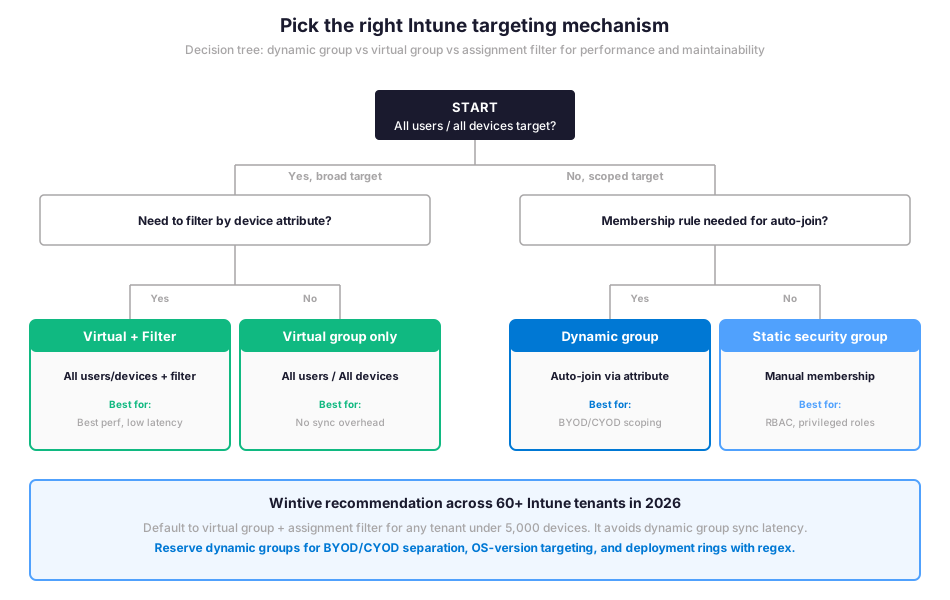
Specifically, the decision tree above answers the targeting mechanism question. The next question for any Intune admin: what does the actual dynamic membership rule look like for the most common SMB scenarios? The rule patterns matrix in the next section covers the canonical syntax with the exact gotchas Wintive sees in 60+ tenant audits.
⚙ Create a dynamic group for Intune in the Entra admin center
Specifically, dynamic groups are created in the Microsoft Entra admin center under Groups, not in the Intune admin center. Therefore, the path is entra.microsoft.com, then Groups, then New group. Furthermore, the role required to create the group is Group Administrator or Global Administrator. Once the group is created, Intune picks it up automatically the next time the admin opens the Groups blade in the Intune admin center.
Six steps to create a dynamic device group
- Sign in. Sign into the Microsoft Entra admin center at entra.microsoft.com with Group Administrator or higher role.
- Navigate to Groups. Click Groups in the left navigation, then click New group at the top of the page.
- Pick group type. Select Security as the group type. Microsoft 365 groups do not support device membership in Intune assignments.
- Name + naming convention. Use a consistent prefix like Auto-DG-Win11-Corporate or Auto-DG-iOS-BYOD. The Wintive convention is Auto-DG-{platform}-{scope}.
- Set membership type. Pick Dynamic Device or Dynamic User. The two cannot mix in one group.
- Add the rule. Click Add dynamic query, write the rule using the rule builder for simple cases or the syntax editor for advanced cases. Validate with the preview before saving.
📜 Dynamic membership rule patterns for Intune
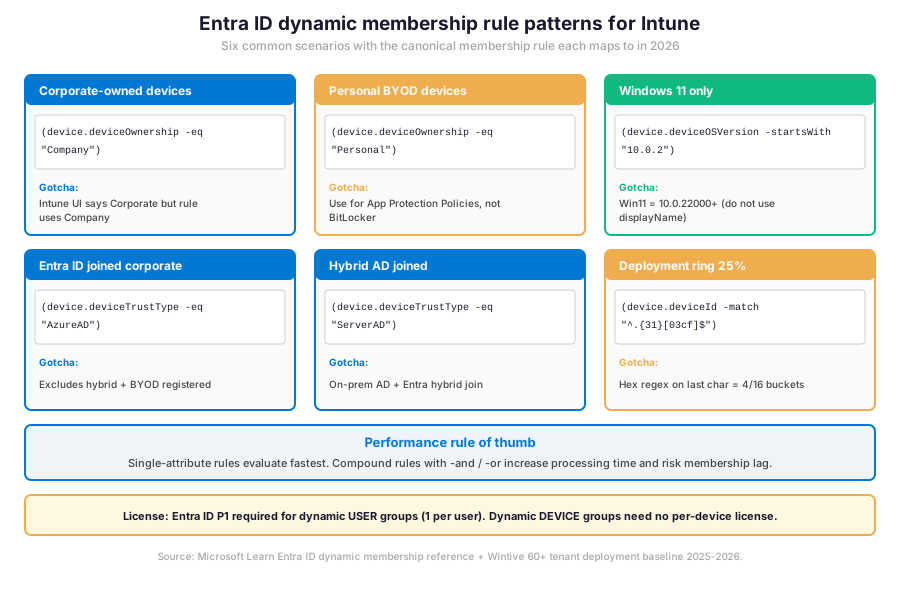
Specifically, six rule patterns cover most SMB Intune scenarios in 2026: corporate ownership, BYOD ownership, OS version targeting, Entra ID join type, hybrid Entra ID join, and deployment ring percentage via deviceId regex. Therefore, the matrix below shows the canonical syntax per scenario plus the gotcha that catches admins on first deployment.
BYOD vs Corporate device separation
Specifically, the BYOD versus corporate split is the most common dynamic group scenario in SMB tenants. Therefore, two device groups are needed: Auto-DG-Corporate with rule (device.deviceOwnership -eq “Company”) and Auto-DG-BYOD with rule (device.deviceOwnership -eq “Personal”). Furthermore, the Intune UI shows Corporate as the label. The rule string is Company. The reason: Entra ID uses the underlying canonical name. This gotcha catches admins on first deployment regularly.
Windows 11 OS version targeting
Furthermore, Windows 11 in 2026 still reports a deviceOSVersion. The version string starts with 10.0.22000 or higher. Therefore, the canonical Windows 11 rule is (device.deviceOSVersion -startsWith “10.0.2”). The rule catches all Windows 11 builds: 21H2 (10.0.22000), 22H2 (10.0.22621), 23H2 (10.0.22631), and 24H2 (10.0.26100). The rule should never match on the displayName property because that string is not stable across vendor builds.
| Attribute | Type | Common values | Use case |
|---|---|---|---|
| device.deviceOwnership | String | Company, Personal | BYOD vs Corporate split |
| device.deviceOSVersion | String | 10.0.22000, 10.0.26100 | Windows feature update rings |
| device.deviceTrustType | String | AzureAD, ServerAD, Workplace | Join type segmentation |
| device.deviceOSType | String | Windows, iOS, Android, MacMDM | Platform-specific policies |
| device.enrollmentProfileName | String | COBO, COPE, AndroidEnterprise | Enrollment scenario targeting |
| device.deviceId | String (GUID) | Hex 32 chars | Deployment ring regex split |
| user.assignedPlans | Multi-value | SCO (Intune) | Intune-licensed users only |
| user.department | String | Sales, Engineering | Department app targeting |
Furthermore, the table above lists the most-used attributes. Therefore, the systemLabels attribute is read-only and cannot be set by Intune, and the organizationalUnit attribute is no longer supported per the Microsoft Learn dynamic membership reference 2026 update. Critically, dynamic groups always evaluate single-attribute rules faster than compound rules with multiple -and or -or operators chained together.
🔁 Deployment rings via deviceId regex split
Specifically, dynamic groups with regex rules let admins create percentage-based deployment rings. Manual ring assignment is no longer needed. Therefore, the trick relies on the Entra ID deviceId structure. It is a 32-character hexadecimal GUID. The last character distributes evenly across 16 hex values (0-9, a-f). A regex anchor on the last character creates buckets of N/16 of the device fleet.
# Entra ID dynamic group rules — Deployment ring split via deviceId regex (canonical hex distribution)

# Ring 0 — Pilot 6.25% (1/16 buckets, hex 0)
(device.deviceOSType -eq "Windows") -and (device.deviceId -match "^.{31}0$")

# Ring 1 — Early adopters 12.5% (2/16 buckets, hex 1 + 8)
(device.deviceOSType -eq "Windows") -and (device.deviceId -match "^.{31}[18]$")

# Ring 2 — Wave A 25% (4/16 buckets, hex 2 + 6 + a + e)
(device.deviceOSType -eq "Windows") -and (device.deviceId -match "^.{31}[26ae]$")

# Ring 3 — Wave B 25% (4/16 buckets, hex 3 + 7 + b + f)
(device.deviceOSType -eq "Windows") -and (device.deviceId -match "^.{31}[37bf]$")

# Ring 4 — Broad 31.25% (5/16 buckets, hex 4 + 5 + 9 + c + d)
(device.deviceOSType -eq "Windows") -and (device.deviceId -match "^.{31}[459cd]$")

# Total = 1 + 2 + 4 + 4 + 5 = 16 buckets covering 100% of Windows fleet
# Each device falls into exactly one ring based on the last character of its deviceId GUID
Furthermore, the regex split delivers cohorts that stay stable as new devices enrol. Therefore, the deviceId is generated once at enrolment and never changes for the lifetime of the device, which makes the buckets stable across the device lifecycle. This approach replaces the manual deployment ring assignment that Microsoft Configuration Manager admins used to do for Software Center.
🔍 Assignment filters — the modern alternative to dynamic groups
Specifically, assignment filters are an Intune-only construct that evaluates device attributes at policy check-in time, not at group sync time. Therefore, filters scale better than dynamic groups in tenants with high enrollment churn or complex attribute combinations. Furthermore, Microsoft documentation explicitly recommends filters over dynamic groups for most scoping scenarios in 2026: filters are high-performance, low-latency, and do not require any Entra ID sync.
When to pick a filter instead of a dynamic group
Therefore, four rules guide the choice. The rules are simple. First, if scoping is purely about device attributes that the policy cares about (OS, ownership, model), pick a filter. Second, if rule-based auto-membership is needed across multiple policies and apps, pick a dynamic group. Third, if mixed user + device exclusion is the goal, neither is supported and the assignment must be redesigned to use only one or the other. Fourth, if the tenant has fewer than 5,000 devices, default to virtual group plus filter for the cleanest performance baseline.
📜 Microsoft Graph PowerShell governance for Entra ID dynamic groups
Specifically, PowerShell automation is the Wintive baseline for dynamic group governance in 2026. Therefore, three operations matter most: inventory all dynamic groups in the tenant, audit the membership rule per group, and export monthly snapshots for compliance evidence. Furthermore, the Microsoft Graph PowerShell module is the canonical interface, replacing the AzureAD and MSOnline modules retired by Microsoft.
Inventory and compound rule detection script
# Microsoft Graph PowerShell — Dynamic group inventory + governance audit
Connect-MgGraph -Scopes "Group.Read.All","Directory.Read.All"

# 1. List all dynamic groups in the tenant with their membership rules
Get-MgGroup -All -Filter "groupTypes/any(c:c eq 'DynamicMembership')" -Property Id,DisplayName,MembershipRule,MembershipRuleProcessingState | \`
  Select-Object DisplayName, MembershipRule, MembershipRuleProcessingState | \`
  Sort-Object DisplayName | \`
  Format-Table -AutoSize

# 2. Find groups with compound rules (4+ -and / -or operators — performance risk)
Get-MgGroup -All -Filter "groupTypes/any(c:c eq 'DynamicMembership')" -Property Id,DisplayName,MembershipRule | \`
  Where-Object {
    $ops = ([regex]::Matches($_.MembershipRule, '\b-and\b|\b-or\b')).Count
    $ops -ge 4
  } | \`
  Select-Object DisplayName, MembershipRule

# 3. Find groups in error state (membership rule processing failed)
Get-MgGroup -All -Filter "groupTypes/any(c:c eq 'DynamicMembership')" -Property Id,DisplayName,MembershipRuleProcessingState | \`
  Where-Object { $_.MembershipRuleProcessingState -ne "On" } | \`
  Select-Object DisplayName, MembershipRuleProcessingState

# 4. Export monthly snapshot for compliance audit trail
$snapshot = Get-MgGroup -All -Filter "groupTypes/any(c:c eq 'DynamicMembership')" -Property Id,DisplayName,MembershipRule,CreatedDateTime
$snapshot | Export-Csv -Path "C:\reports\dynamic-groups-$(Get-Date -Format 'yyyy-MM').csv" -NoTypeInformation
Specifically, the PowerShell snippets above cover four operations: inventory, compound rule detection, error state monitoring, and monthly snapshot export for compliance audit trail. Therefore, the table below summarises the trade-offs across the five Intune targeting mechanisms so admins can pick the right tool per scenario per scope.
Targeting mechanism trade-offs matrix
| Mechanism | Sync overhead | Latency | License cost | Best for |
|---|---|---|---|---|
| Virtual group (All users / All devices) | None | Instant | None | Tenant-wide baseline policies |
| Assignment filter | None | Instant at check-in | None | Attribute-based scoping per policy |
| Dynamic device group | Membership re-eval on attr change | Minutes to hours | None per device | BYOD/CYOD, OS targeting, deployment rings |
| Dynamic user group | Membership re-eval on attr change | Minutes to hours | Entra ID P1 per user | Department, location, role auto-grouping |
| Static security group | Manual membership only | Instant on add | None | RBAC, privileged roles, audit-controlled |
Specifically, the table above shows the trade-offs across the five targeting mechanisms.
Compliance baseline before dynamic group rollout
Therefore, the prerequisites checklist below covers the licensing, role assignment, naming convention, and compliance baseline that Wintive runs on every audited Intune tenant before any dynamic group rollout.
Prerequisites for Entra ID dynamic groups in Intune:
Microsoft Entra ID P1 license per user that is a member of any dynamic USER group (one license per unique user across all dynamic user groups in the tenant). No per-device license for dynamic DEVICE groups. Group Administrator or Global Administrator role to create groups. Microsoft Graph PowerShell module for governance automation. Naming convention defined before group creation (Wintive default: Auto-DG-{platform}-{scope}). Pilot group for rule validation before production deployment. In HIPAA-aligned tenants, dynamic group governance is documented in the change management evidence trail and audited monthly. SOC 2 audits expect membership rule snapshots exported to CSV monthly, with the audit log retained for the audit window. NIST AI RMF alignment is not required for dynamic groups themselves but applies when dynamic groups scope policies that target Copilot or AI workloads.
Specifically, the Wintive baseline distribution below shows where the typical SMB Intune tenant stands on Entra ID dynamic groups adoption versus where it should be for safe scoping. Therefore, comparing readiness signals with anti-patterns highlights the operational gap that defines dynamic groups admin work in 2026.
📈 The Wintive baseline — dynamic groups in Intune across 60+ tenants
Therefore, after assessing 60+ Microsoft 365 SMB Intune tenants between 2025 and 2026, Wintive has a clear distribution of which dynamic group readiness signals correlate with safe scoping and which anti-patterns predict assignment incidents or sync delays. The baseline below tells the story.
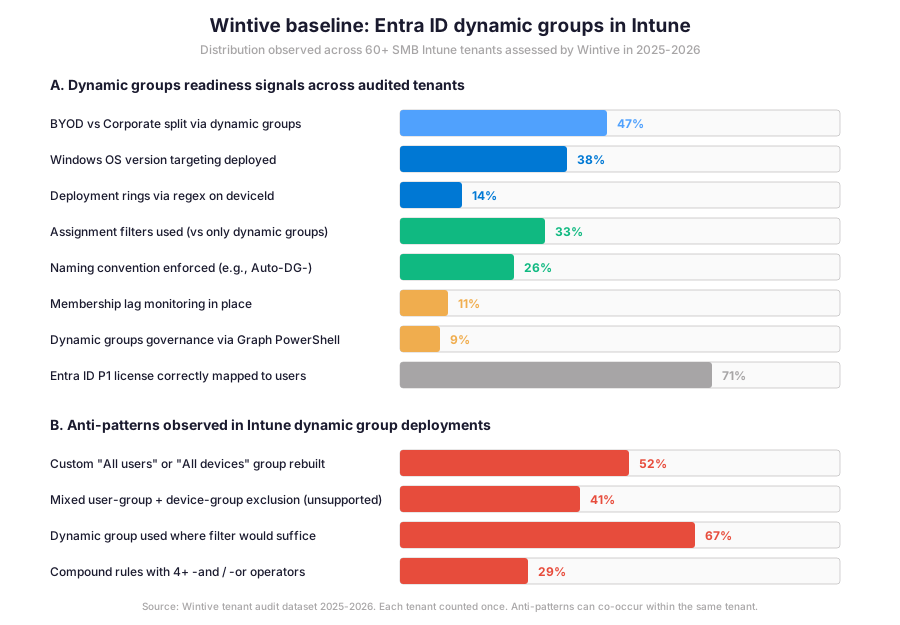
Specifically, the gap between BYOD vs Corporate split (47%) and assignment filters used (33%) is the defining operational metric for dynamic groups in Intune in 2026. Furthermore, the insight callout below distils what that gap means for SMB admin practice and where the typical 2-week governance sprint focuses its remediation effort.
Wintive insight
Across 60+ SMB Intune tenants using Entra ID dynamic groups, the standout finding is that 67% of audited tenants used a dynamic group where an assignment filter would have been the better tool. Therefore, the Wintive Intune targeting playbook ships a 2-week governance sprint covering Entra ID dynamic groups inventory, mixed exclusion detection, redundant group consolidation, and the migration to virtual group plus assignment filter for any scoping that does not require rule-based auto-membership across multiple policies.
Furthermore, the anti-pattern column tells the operational truth: 52% of audited tenants rebuilt a custom All users or All devices group when the Intune virtual groups would have worked, 41% used unsupported mixed user-group + device-group exclusions, 67% used dynamic groups where filters would have sufficed, and 29% had compound rules with 4+ -and or -or operators chained. These four anti-patterns explain most assignment incidents and most CIO escalations Wintive sees in 2026.
🚨 5 SMB dynamic groups deployment pitfalls
The five pitfalls below cover the anti-patterns Wintive consistently observes during Entra ID dynamic groups pre-deployment audits in Intune. A common mistake is reflexively creating a dynamic group when an assignment filter would deliver better performance and simpler governance. Admins struggle with this gotcha because dynamic groups feel familiar from on-prem AD habits, while filters are an Intune-only construct that took until 2024 to mature. Furthermore, comparing Intune scoping with Configuration Manager collections, AWS IAM groups, or JAMF Pro smart groups shows that the Microsoft cloud-native model favours the lightweight, low-latency filter over the heavy, sync-bound dynamic group for most everyday scoping work.
Custom All users or All devices group rebuilt
Specifically, 52% of audited tenants rebuilt a custom All users or All devices group when Intune already provides virtual groups for both. Therefore, the fix is to delete the custom group, retarget every assignment to the Intune virtual group, and apply assignment filters to scope where needed. This single change reduces sync overhead and improves assignment latency.
Mixed user-group + device-group exclusions used
Therefore, 41% of audited tenants used assignments with one user group included and one device group excluded (or vice versa). This pattern is not supported by Intune and produces inconsistent assignment behaviour because dynamic group membership lag means devices can incorrectly receive policies during transition windows. The fix: assign to a user group only, then use assignment filters to dynamically scope devices.
Dynamic group used where assignment filter would suffice
Furthermore, 67% of audited tenants created dynamic groups for scoping that an assignment filter would have handled with less overhead. Therefore, the rule of thumb is straightforward. If scoping is purely about device attributes that the policy cares about, pick a filter. Dynamic groups are reserved for rule-based auto-membership across multiple policies and apps.
Compound rules with 4+ -and or -or operators chained
Specifically, 29% of audited tenants have at least one dynamic group with 4+ logical operators in the membership rule. Therefore, evaluation time scales with rule complexity. Membership lag occurs in tenants over 5,000 devices. The Wintive remediation has two paths. First, split the compound rule into multiple simpler dynamic groups and use a static parent group for combination. Second, migrate the scoping to assignment filters where attribute logic stays per-policy.
No naming convention enforced for dynamic groups
Importantly, only 26% of audited tenants enforce a naming convention for dynamic groups. Therefore, the audit trail breaks down quickly: admins cannot tell which group is dynamic versus static, which group serves Intune versus Conditional Access, or which group owner is responsible for the rule. The Wintive default convention is Auto-DG-{platform}-{scope}, for example Auto-DG-Win11-Corporate or Auto-DG-iOS-BYOD.
❓ Entra ID dynamic groups for Intune FAQ
Entra ID P1 is required for dynamic USER groups, with one license per unique user that is a member of any dynamic user group in the tenant. P1 is included with Microsoft 365 Business Premium, E3, and E5 base licenses. Dynamic DEVICE groups need no per-device license. Therefore, the cheapest path for SMB Intune scoping is dynamic device groups for OS or BYOD scoping plus static security groups for user assignments. The license requirement is enforced at the tenant level, not per group.
The most common reason is the gotcha that the Intune admin center shows Corporate as the device ownership label, but the dynamic membership rule must use deviceOwnership -eq Company. Furthermore, the deviceOwnership values supported by Entra ID rules are Company, Personal, and Unknown. Therefore, the canonical corporate-owned rule is (device.deviceOwnership -eq “Company”) and the canonical BYOD rule is (device.deviceOwnership -eq “Personal”). The Microsoft Learn documentation explicitly flags this gotcha in the 2026 guidance.
Microsoft 2026 guidance recommends assignment filters as the default for most scoping scenarios because filters evaluate at device check-in with no Entra ID sync overhead. Therefore, dynamic groups should be reserved for cases where rule-based auto-membership is genuinely needed across multiple policies and apps. Specifically, BYOD versus corporate separation is a good fit for a dynamic group because the same group is reused across compliance, configuration, and app protection policies. Conversely, scoping a single policy to Windows 11 devices is a good fit for an assignment filter because the rule lives with the policy.
More Entra ID dynamic groups for Intune questions
Specifically, the Entra ID deviceId is a 32-character hexadecimal GUID where the last character distributes evenly across 16 hex values (0-9, a-f). Therefore, a regex anchor on the last character creates buckets of N/16 of the device fleet. For example, a 25% pilot ring uses (device.deviceId -match “^.{31}[0123]$”) to match devices ending in 0, 1, 2, or 3 (4 of 16 buckets = 25%). This approach replaces manual ring assignment that on-prem Configuration Manager admins used to do, and the buckets stay stable across the device lifecycle because the deviceId is generated once at enrollment.
No. Mixed user-group + device-group exclusions (or vice versa) are not supported by Intune and produce inconsistent assignment behaviour. Therefore, the recommended pattern is to assign to a user group, then use assignment filters to dynamically include or exclude the appropriate devices. The reason is timing and latency: dynamic group membership lag means devices can incorrectly receive app or policy assignments during transition windows. The Microsoft Learn documentation explicitly flags this as a support boundary in the 2026 guidance.
📚 Related Microsoft Intune reading
The full admin guide is at our Copilot in Microsoft Intune Admin Guide covering the 4 Security Copilot agents (Change Review, Device Offboarding, Policy Configuration, Vulnerability Remediation), the SCU licensing decision tree, and how the Vulnerability Remediation Agent reads device groups when prioritising remediation actions.
The step-by-step deployment guide is at our Deploy Microsoft 365 Copilot with Intune Step-by-Step Admin Guide covering license assignment, dynamic group targeting for Copilot pilot rollout, Endpoint DLP for Copilot output, and the Conditional Access scoping for the Copilot app.
The complete Entra ID guide is at our Microsoft Entra ID Complete Guide covering the Suite, the dynamic membership engine, the role-based access control, and the audit logging that captures dynamic group membership changes.
The compliance policy admin guide is at our Intune compliance policies admin guide covering the device compliance settings that target dynamic device groups for BYOD versus corporate scoping and the assignment filter alternative for per-policy scoping.
The full admin guide is at our Microsoft 365 Copilot for Teams Admin Guide covering the licensing, the Purview governance gates, and how dynamic groups scope the Conditional Access policy that protects the Copilot app from unmanaged devices.
This tutorial covered one focused Intune workflow. For a complete picture of how your full Microsoft 365 environment — device compliance, identity, and security — performs against best practices:
🔍 Want a complete audit of your Microsoft 365 tenant?
The Automated Tenant Health Check scans your M365 environment in under 10 minutes: license waste, security posture, MFA coverage, compliance gaps, license rightsizing opportunities. Full PDF report with prioritized recommendations delivered instantly.