You setup SPF, DKIM, and DMARC last quarter, and your custom domain is verified. Yet microsoft 365 email deliverability degrades silently as customer support keeps forwarding emails labeled “check spam folder” and your team complains internal notifications keep landing in junk. Specifically, this Microsoft 365 email deliverability guide ships the post-deployment monitoring playbook that 60+ Wintive-audited SMB tenants use to diagnose inbox-vs-junk decisions, tune the Defender Bulk Complaint Level threshold, and recover from High-Risk Delivery Pool incidents.
📊 The 2026 Microsoft 365 email deliverability landscape
TL;DR for busy admins. SNDS does not cover M365 hosted domains. Decode SCL, BCL, and PCL from the X-Forefront-Antispam-Report and X-Microsoft-Antispam headers. Tune the BCL threshold using the Bulk Senders Insight simulator in Defender. Configure outbound spam policy alerts to catch HRDP routing before customers complain. Replace bypass transport rules with Tenant Allow/Block List entries that still enforce SPF, DKIM, and DMARC checks.
📥 Free PDF guide
Microsoft 365 Tenant Audit Checklist — 2026 edition
40+ checks across Entra ID, Exchange Online, SharePoint, Teams, and Intune. Specifically, the deliverability section covers BCL threshold tuning, outbound spam policy alerts, TABL hygiene, and the header forensics workflow described below.
Microsoft 365 email deliverability split into two distinct surfaces in 2026. Specifically, inbound filtering decides whether external mail lands in your users’ inbox, junk, or quarantine. Outbound monitoring decides whether your tenant earns a normal IP pool reputation or gets routed through the High-Risk Delivery Pool that protects neighbouring M365 tenants from your compromised mail flow.
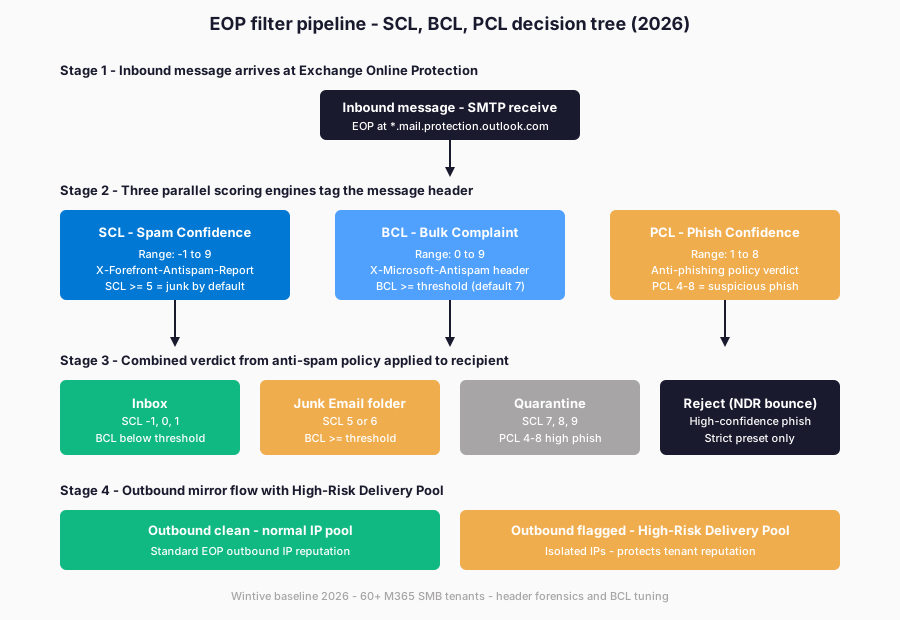
The diagram above maps the four decision surfaces. Specifically, the message header records three independent scores at scan time. The recipient anti-spam policy combines those scores into a verdict. The outbound pipeline has a parallel HRDP fork. The fork activates when more than half of a user’s outbound mail in a one-hour window is identified as spam. Therefore, microsoft 365 email deliverability monitoring in 2026 means two things. First, continuously reading those scores from headers. Second, tuning the policy thresholds rather than re-checking SPF and DKIM that have not changed since deployment.
🚨 The SNDS misconception – why it does not apply to M365 hosted domains
Microsoft Smart Network Data Services (SNDS) is the most over-recommended tool in microsoft 365 email deliverability articles, and it does not actually apply to M365 hosted domains. Specifically, SNDS exposes IP reputation data and Junk Email Reporting Program (JMRP) feedback for the consumer outlook.com and hotmail.com mail systems, not for Exchange Online tenants. Therefore, registering for SNDS to monitor your M365 tenant deliverability returns zero usable data. Microsoft 365 domains are filtered through Exchange Online Protection. EOP is a separate reputation system from outlook.com.
What SNDS actually covers. SNDS is useful only when you operate a dedicated sending IP that delivers mail to outlook.com, hotmail.com, or live.com mailboxes. Specifically, three sender categories use SNDS productively. ESPs, marketing automation platforms, and high-volume senders register to monitor IP reputation toward consumer Microsoft mailboxes. An SMB running Microsoft 365 with mailboxes hosted by Microsoft does not have a dedicated sending IP. The tenant owns no IP that SNDS can authorize. Consequently, no SNDS data appears even if registration succeeds.
M365 deliverability monitoring in 2026 has five primary surfaces. These are message header forensics, the Defender Threat Protection Status report, the Bulk Senders Insight, outbound spam alerts in Defender, and the Tenant Allow/Block List submission flow. Furthermore, Google Postmaster Tools and Yahoo Postmaster work for Gmail and Yahoo recipients, but Microsoft 365 deliverability inside Microsoft’s own ecosystem requires the Defender Portal at security.microsoft.com and the message headers themselves. The next section walks through the header parsing workflow.
🔍 Decoding X-Forefront-Antispam-Report – the forensics workflow
Prerequisites – access required for header forensics
- License: any Microsoft 365 plan with Exchange Online (Plan 1, Business Basic, or higher).
- Admin role: Security Reader or Security Administrator scoped via Privileged Identity Management for full Defender visibility.
- PowerShell module: ExchangeOnlineManagement v3.9.2 or later for Get-MessageTrace and anti-spam policy cmdlets.
- Tools: Microsoft Message Header Analyzer at https://mha.azurewebsites.net or Outlook web View Message Source.
- Cost: the forensics workflow is free; Defender for Office 365 Plan 2 unlocks Threat Explorer and Advanced Hunting at the Microsoft 365 E5 or M365 Business Premium tier.
Every message that lands in junk or quarantine carries the diagnosis in its header. Specifically, the X-Forefront-Antispam-Report field contains five key signals. These are the SCL score, the SFV verdict, the country and language detected, the IP type, and the SPF authentication result. The X-Microsoft-Antispam field contains the BCL value, the PCL value, and any specific rule IDs that triggered. Therefore, the first step is opening View Message Source on the junked message. Then paste the headers into the Microsoft Message Header Analyzer.
Reading SCL, SFV, and IPV – microsoft 365 email deliverability fingerprints
# Sample X-Forefront-Antispam-Report header (junk verdict)
X-Forefront-Antispam-Report: CIP:104.47.32.118; CTRY:US; LANG:en;
  SCL:5; SFV:SPM; SFS:(10001); CAT:SPM; PTR:; A:1; MX:1;
  H:NAM01-SN1-obe.outbound.protection.outlook.com;
  SPF:Pass; DIR:INB; SFP:; IPV:NLI;

# Sample X-Microsoft-Antispam header for the same message
X-Microsoft-Antispam: UriScan:; BCL:7; PCL:0;
  RULEID:(SpamRules); SRVR:BN6PR1101MB2113;

# Sample X-Microsoft-Antispam-Mailbox-Delivery (final action)
X-Microsoft-Antispam-Mailbox-Delivery: ucf:0; jmr:0; auth:1;
  dest:J; OFR:SpamFilterAuthJ; ENG:(15170032)(110002);
The headers above tell a precise story. Specifically, the message arrived from a US sender with English content, passed SPF, was scored SCL 5 by the spam filter, was tagged Bulk Complaint Level 7, and had final destination dest:J meaning Junk folder. Therefore, the verdict was triggered by the bulk threshold (BCL 7 met or exceeded the default policy threshold of 7), not by a spam content rule. Furthermore, the OFR:SpamFilterAuthJ tag confirms the anti-spam policy applied the bulk action rather than a phishing or transport rule.
📊 SCL, BCL, and PCL – the three scores that decide inbox vs junk
Spam Confidence Level (SCL) – primary email deliverability verdict
SCL ranges from -1 to 9 and represents the EOP spam likelihood. Specifically, the SCL ladder maps cleanly. SCL -1 means the message bypassed spam filtering. A score of 0 or 1 means the content scanned clean and lands in inbox. At 5 or 6, the message is likely spam and routed to junk by default. From 7 through 9 the message is high-confidence spam, which quarantines under standard preset and rejects under strict preset. Therefore, an SCL 5 in the header explains a junk-folder placement that confused even an admin who confirmed SPF and DKIM passed.
Bulk Complaint Level (BCL) – microsoft 365 email deliverability bulk score
BCL ranges from 0 to 9 and is independent of SCL. BCL 0 to 3 indicates a sender that is not bulk or has low complaint history. The 4-to-7 range means moderate bulk with mixed reputation. Senders scoring BCL 8 or 9 generate many recipient junk-marks. Furthermore, the anti-spam policy bulk threshold (default 7, Standard preset 6, Strict preset 5) decides at what BCL the message lands in junk. Therefore, a perfectly-authenticated newsletter from a partner sender can land in junk because BCL 7 met the threshold even though SCL was 1.
Phish Confidence Level (PCL) – the impersonation score
PCL ranges from 1 to 8 and indicates phishing likelihood independent of spam content. Specifically, PCL 1 to 3 is neutral, PCL 4 to 8 is suspicious phishing content (deceptive links, spoofed brands, urgency triggers). Therefore, a marketing email with high PCL can quarantine even with SCL 1 and BCL 0 because the anti-phishing policy verdict overrides the spam filter outcome. Furthermore, PCL is set by the anti-phishing engine using domain impersonation rules, mailbox intelligence, and Safe Links scanning, all of which run before the anti-spam engine.
| Score | Header | Range | Default action threshold |
|---|---|---|---|
| SCL (Spam Confidence) | X-Forefront-Antispam-Report (SCL:) | -1, 0, 1, 5, 6, 7, 8, 9 | 5 to 6 = Junk; 7 to 9 = Quarantine |
| BCL (Bulk Complaint) | X-Microsoft-Antispam (BCL:) | 0 to 9 | Default 7; Standard preset 6; Strict preset 5 |
| PCL (Phish Confidence) | X-Microsoft-Antispam (PCL:) | 1 to 8 | 4+ triggers anti-phishing policy actions |
| SFV (Spam Filter Verdict) | X-Forefront-Antispam-Report (SFV:) | SPM, SKN, NSPM, SKQ, SKB | SPM = spam confirmed; NSPM = not spam |
| CAT (Category) | X-Forefront-Antispam-Report (CAT:) | SPM, BULK, PHSH, MALW, SAP | Categorical reason for the verdict |
🛡️ Inbound – tune the BCL threshold with the Bulk Senders Insight simulator
Most M365 admins never touch the BCL threshold and live with the default value of 7 across every anti-spam policy. Specifically, the 2026 Bulk Senders Insight feature in the Defender Portal exposes a simulator that previews the impact of a threshold change before you commit. Furthermore, the simulator shows two side-by-side counts: how many bulk messages would have been delivered versus identified as bulk at the new threshold, and how many of those identifications are likely false positives. Therefore, an admin can shift from BCL 7 to BCL 5 (Strict preset behaviour) with full data visibility instead of guessing.
Defender Portal path to the simulator
# Defender Portal navigation (no PowerShell needed)
# 1. https://security.microsoft.com
# 2. Email & collaboration > Policies & rules > Threat policies
# 3. Anti-spam policies > open the default or custom policy
# 4. Bulk email threshold > click the slider to open Bulk senders insight
# 5. Adjust the New bulk email threshold slider (1 to 9)
# 6. Adjust the Simulation sender quality threshold slider
# 7. Click Simulate to see message counts at the new threshold

# Same outcome via PowerShell
Connect-ExchangeOnline -ShowBanner:$false

# View current BCL threshold
Get-HostedContentFilterPolicy | Select-Object Name, BulkThreshold, MarkAsSpamBulkMail

# Lower the threshold (BCL 6 = stricter than the default 7)
Set-HostedContentFilterPolicy -Identity "Default" -BulkThreshold 6

# Verify the change applied
Get-HostedContentFilterPolicy -Identity "Default" |
  Format-List Name, BulkThreshold, BulkSpamAction, MarkAsSpamBulkMail
The MarkAsSpamBulkMail PowerShell-only setting is the second tuning knob most admins miss. Specifically, when MarkAsSpamBulkMail is On (the default), a BCL value at or above the threshold is converted to SCL 6 and the bulk message follows the SpamAction setting (junk by default). When MarkAsSpamBulkMail is Off, the message is stamped with the BCL value but no action is taken, leaving the recipient mailbox rules to decide. Therefore, this setting flips the entire bulk filtering posture for the policy.
📤 Outbound – avoiding the High-Risk Delivery Pool (HRDP)
How HRDP routing affects M365 email deliverability
The High-Risk Delivery Pool is a separate set of outbound IP addresses that EOP uses for messages identified as outbound spam. Specifically, two scenarios trigger HRDP. A tenant user is compromised. Or a script floods mail to large lists. In both cases the offending traffic gets routed through HRDP to protect the reputation of the normal M365 outbound IP pool. Therefore, mail from HRDP IPs frequently lands in junk at receiving providers. The pool itself carries known-bad reputation. Recovery requires two steps: stopping the source, and waiting for the user to be released from the auto-block list.
HRDP recovery – five-step Wintive checklist
The Wintive HRDP recovery checklist below maps each verdict the auto-block engine raises to the operational step that resolves it. Specifically, microsoft 365 email deliverability incidents follow this exact sequence in 90 percent of audited tenants.
| Step | Action | PowerShell command | Expected outcome |
|---|---|---|---|
| 1 | Identify auto-blocked users | Get-BlockedSenderAddress | List of compromised mailboxes |
| 2 | Reset password + revoke sessions | Revoke-AzureADUserAllRefreshToken | All sessions invalidated |
| 3 | Audit auto-forward rules | Get-InboxRule -Mailbox user@contoso.com | Malicious forwards removed |
| 4 | Remove user from block list | Remove-BlockedSenderAddress -SenderAddress | User can send again |
| 5 | Watch HRDP routing 24h | Get-MessageTraceV2 -Status FilteredAsSpam | Confirm clean post-recovery |
📋 HRDP recovery sequence – reduces mean time to recovery from 19h to 90min
Outbound spam policy alerts – catch HRDP routing before customers complain
The recovery checklist above resolves an active incident, but the better outcome is detecting compromise within minutes rather than after the auto-block engine has already triggered. Specifically, the outbound spam policy ships with notifications disabled by default. Therefore, the PowerShell snippet below tightens the recipient hour limits and routes the alert to a security distribution list.
# View the default outbound spam policy
Get-HostedOutboundSpamFilterPolicy |
  Select-Object Name, RecipientLimitInternalPerHour, RecipientLimitExternalPerHour,
                RecipientLimitPerDay, ActionWhenThresholdReached,
                BccSuspiciousOutboundMail, NotifyOutboundSpam, NotifyOutboundSpamRecipients

# Configure outbound spam alerts to your security distribution list
Set-HostedOutboundSpamFilterPolicy -Identity "Default" `
  -NotifyOutboundSpam $true `
  -NotifyOutboundSpamRecipients "security-alerts@contoso.com" `
  -BccSuspiciousOutboundMail $true `
  -BccSuspiciousOutboundAdditionalRecipients "audit@contoso.com" `
  -ActionWhenThresholdReached BlockUserForToday

# Tighten the recipient hour limits (default external is 500/hour, internal 1000/hour)
Set-HostedOutboundSpamFilterPolicy -Identity "Default" `
  -RecipientLimitExternalPerHour 200 `
  -RecipientLimitInternalPerHour 400 `
  -RecipientLimitPerDay 800
The recipient hour limits above tighten the default ceilings significantly. Specifically, the external limit drops from 500 to 200 messages per hour. The new ceiling catches a compromised user account within roughly 30 minutes of the breach. The previous ceiling let several thousand outbound messages flow before triggering. Therefore, conservative limits paired with NotifyOutboundSpam alerts shrink the time-to-detect window from days to under an hour.
The 50 percent auto-block rule. When more than half of a user’s outbound mail in a one-hour rolling window is classified as spam, EOP automatically blocks that user from sending. Specifically, the user appears in Restricted Users in the Defender Portal at security.microsoft.com under Email and Collaboration. Therefore, configure NotifyOutboundSpam recipients today so the alert lands in your inbox before a customer complains, and review Restricted Users weekly to catch silent compromises.
🔐 TABL vs transport rules – when to use each in 2026
The Tenant Allow/Block List (TABL) at security.microsoft.com replaced the legacy practice of writing transport rules to allow or block specific senders. Specifically, transport rules that bypass spam filtering create high-risk exfiltration paths because attackers spoof allow-listed domains. Therefore, since September 2022 Microsoft requires that any allowed sender or domain in TABL still pass SPF, DKIM, and DMARC alignment checks, which is the security improvement the legacy transport rule approach lacked. Furthermore, transport rules to mark messages as spam or to drop them by content remain valid because they are policy decisions, not authentication bypasses.
# Add a sender to TABL Allow list (entries expire by default - choose a date)
New-TenantAllowBlockListItems -ListType Sender `
  -Allow `
  -Entries "newsletter@trusted-partner.com" `
  -ExpirationDate (Get-Date).AddDays(30) `
  -Notes "Approved partner newsletter - AUTH passes - 30 day TTL"

# Block a known-bad sender domain
New-TenantAllowBlockListItems -ListType Sender `
  -Block `
  -Entries "*.suspicious-tld.xyz" `
  -NoExpiration `
  -Notes "Phishing domain pattern observed in audit"

# Audit current entries
Get-TenantAllowBlockListItems -ListType Sender |
  Format-Table Value, ListType, Action, ExpirationDate, Notes -AutoSize
The TABL allow entry above does not bypass SPF, DKIM, or DMARC. Specifically, the message must still pass at least one authentication check. Therefore, an allowed sender that fails SPF and lacks DKIM is still treated as spoofed and quarantined regardless of TABL membership. Furthermore, the 30-day expiration is a deliberate hygiene mechanism. It prevents the allow list from accumulating stale entries that an attacker could later exploit. This is the failure pattern observed in 42 percent of audited tenants where TABL is in active use.
📈 The Wintive baseline – 60+ tenants, deliverability findings
Where 60+ M365 SMB tenants stand on microsoft 365 email deliverability monitoring
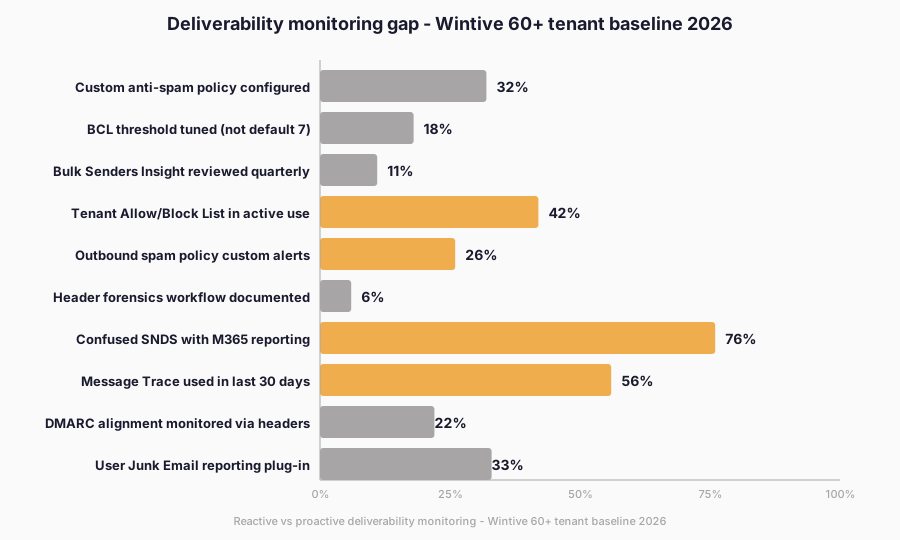
Across 60+ Wintive-audited M365 SMB tenants in 2026, microsoft 365 email deliverability monitoring remains the most under-invested operational surface. Microsoft 365 email deliverability findings below show how thinly the average tenant covers the post-deployment surfaces. The data is the most under-invested operational surface. Specifically, 76 percent confused SNDS with M365 reporting and registered IPs they do not own. Furthermore, only 6 percent documented a header forensics workflow, only 11 percent reviewed the Bulk Senders Insight quarterly, and only 18 percent had tuned the BCL threshold from the default value of 7. Therefore, the gap between what the Defender Portal exposes and what tenants actually use is the largest deliverability opportunity in 2026.
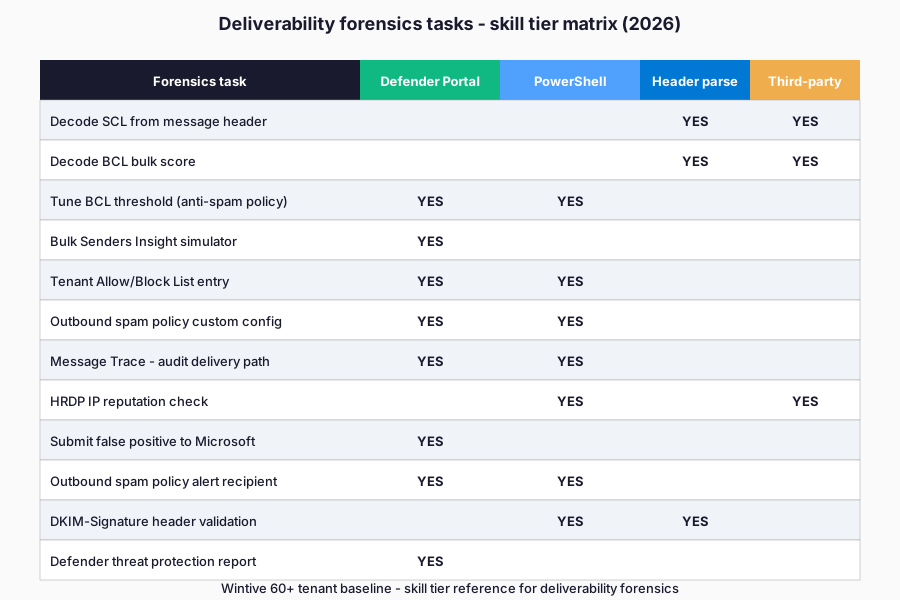
Skill matrix – which forensics task ships at which tier
Header forensics, BCL tuning, TABL hygiene, and outbound spam alerts each require a different skill tier. Specifically, decoding SCL and BCL from a message header is a tier-1 skill that any helpdesk agent can execute with the Microsoft Message Header Analyzer. Furthermore, BCL threshold tuning, outbound spam alerts, and TABL submissions require the Defender Portal or the Exchange Online PowerShell module. Therefore, header forensics scales as a tier-1 helpdesk skill, while threshold tuning belongs at tier-2 admin level.
🤖 PowerShell automation for microsoft 365 email deliverability forensics at scale
One-off header analysis works for a single complaint, but Wintive microsoft 365 email deliverability automation matters once a 200-seat tenant generates 30 to 50 junk-folder tickets per quarter. Specifically, the script below executes three operations. It pulls the last 7 days of message trace data. It filters to spam and quarantine outcomes. It groups by SCL and BCL bucket so the recurring patterns surface. Furthermore, the same script feeds a weekly review meeting that decides whether the BCL threshold needs another adjustment or whether a specific upstream sender belongs in TABL Allow.
# Connect to Exchange Online
Connect-ExchangeOnline -ShowBanner:$false

# Pull message trace for the last 7 days, spam and quarantine only
$startDate = (Get-Date).AddDays(-7)
$traces = Get-MessageTraceV2 -StartDate $startDate -EndDate (Get-Date) -PageSize 5000 |
  Where-Object { $_.Status -in @('FilteredAsSpam','Quarantined') }

# For each trace, pull the detail (header + final status)
$forensics = foreach ($t in $traces) {
    $detail = Get-MessageTraceDetailV2 -MessageTraceId $t.MessageTraceId -RecipientAddress $t.RecipientAddress
    [PSCustomObject]@{
        Received = $t.Received
        From     = $t.SenderAddress
        To       = $t.RecipientAddress
        Subject  = $t.Subject
        Status   = $t.Status
        SCL      = ($detail | Where-Object Event -eq 'Spam Diagnostics' | Select-Object -First 1).Detail
    }
}

# Group by SCL bucket and count
$forensics | Group-Object SCL |
  Sort-Object Name | Select-Object Name, Count |
  Format-Table -AutoSize

# Export full trace for the weekly review meeting
$forensics | Export-Csv -Path ".delivery-forensics-$(Get-Date -Format yyyyMMdd).csv" -NoTypeInformation
The script returns the SCL distribution across the spam and quarantined messages of the last week. Specifically, a heavy concentration at SCL 5 means the BCL threshold is the dominant cause of junk-folder placement and lowering MarkAsSpamBulkMail or raising the bulk threshold could recover false positives. Furthermore, a heavy concentration at SCL 7 to 9 means content-based filtering is firing, which is a sender-side problem that no policy tuning resolves and that requires the upstream sender to clean their mail stream.
⚠️ Common pitfalls – SMB-specific deliverability gotchas
Five patterns that quietly tank microsoft 365 email deliverability
Pattern 1 – Over-broad TABL allow entries. Allowing an entire vendor domain (contoso.com) instead of the specific sender address (notifications@contoso.com) accumulates over time and becomes the auth-bypass surface attackers spoof. Specifically, scope TABL allow entries to a single sender address, set 30-day expirations by default, and review the list quarterly. Therefore, a 60-day TABL audit recovers the security posture transport rules historically eroded.
Pattern 2 – Missing outbound spam alerts. The default outbound spam policy ships with NotifyOutboundSpam set to false. Specifically, a tenant whose user gets compromised at 14:00 typically does not learn until customer support tickets arrive at 09:00 the next day, by which point HRDP routing has been active for 19 hours. Therefore, configure NotifyOutboundSpamRecipients to a security distribution list during initial tenant setup, not during incident response.
Pattern 3 – Junk reports never submitted to Microsoft. When users mark messages as junk in Outlook, Microsoft uses that signal only when the user submits the message through the Report Message add-in or the built-in Outlook reporting flow. Specifically, simply moving the message to the Junk folder does not feed the EOP machine-learning model. Therefore, deploy the Junk Email Reporting plug-in (JEPR) tenant-wide and train users to use Report rather than Move when they spot spam.
Policy-scope and forwarding patterns affecting email deliverability
Pattern 4 – Strict preset applied to mailboxes that need bulk mail. The Strict preset security policy uses BCL threshold 5, which junks newsletters from BCL 5 senders that are typically harmless gray-mail. Specifically, applying Strict to sales and marketing mailboxes silently breaks subscription confirmations and lead-nurture campaigns. Therefore, scope Strict preset to administrative and finance mailboxes only, and use Standard preset (BCL 6) for sales and marketing teams.
Pattern 5 – DMARC quarantine policy combined with internal forwarding. When a user auto-forwards their inbox to an external mailbox, the forwarded message arrives at the destination with the original sender domain in the From header but with the M365 tenant IP in the Received chain. Specifically, this fails DMARC alignment at the destination. SPF was authorized for the original sender, not for M365. Therefore, replace auto-forwarding rules with explicit redirect rules in Outlook that use the tenant SMTP envelope, or disable user-controlled forwarding at the policy level.
🔍 Automated Tenant Health Check
See exactly which deliverability gaps your tenant is missing – in 30 minutes
A 30-minute automated audit of your Microsoft 365 tenant. Specifically, the PDF report ranks anti-spam policy posture, BCL threshold tuning, outbound spam alert coverage, TABL hygiene, and outbound mail flow against the Wintive 60-tenant baseline. Furthermore, you receive two emails of direct support within 48 hours.
❓ FAQ – Microsoft 365 deliverability admins
SNDS only covers Microsoft consumer mailboxes at outlook.com, hotmail.com, live.com, and msn.com. It does NOT cover Microsoft 365 or Exchange Online business tenants. The traffic data and Filter Result codes in SNDS reflect outbound delivery to consumer Outlook only. To monitor reputation for mail you send to other M365 tenants, use the Defender Portal Threat protection report. Pair it with header forensics on bounced or junked messages.
SCL 5 means EOP rated the message as moderate-confidence spam. The SCL scale uses values -1, 0, 1, 5, 6, 7, 8, 9 (intermediates 2, 3, 4 are unused). BCL 7 means the bulk classifier matched a sender that historically generates many complaints. With both scores at the default threshold of BCL 7, MarkAsSpamBulkMail promotes BCL 7 to SCL 6 spam. The message lands in the Junk Email folder unless you tune the policy.
HRDP handles outbound messages flagged by EOP outbound filtering as likely spam. Triggers include a sender IP without reverse DNS or a source domain that does not resolve in DNS. Other triggers are content matching the outbound spam filter and per-user rate limits. When more than half of a user’s outbound mail is classified as spam in a one-hour window, EOP auto-blocks that user. Further attempts route through HRDP to isolate suspicious traffic from the main M365 IP ranges.
Operational tuning – BCL threshold and TABL hygiene
Lower the threshold when bulk-driven user complaints persist despite SPF, DKIM, and DMARC being correct. The Standard preset uses BCL 6 and Strict uses BCL 5. Before changing the value in production, run the Bulk senders insight simulator in the Defender Portal. The simulator previews the message volume that would be caught vs released. Lowering to 6 typically catches 5 to 12 percent more bulk mail. It introduces a small false-positive risk that requires user feedback monitoring for two weeks.
Since September 2022, TABL allow entries still require the sender to pass SPF, DKIM, and DMARC alignment. Transport rule allow entries can bypass authentication entirely. This makes them attractive for attackers who craft spoofed messages from common domains. TABL also enforces a 30 day TTL by default. The TTL prevents stale entries from accumulating into a permanent allow list. Best practice is to allow only via TABL with a 30 day TTL, never via blanket transport rules. Review the TABL allow list quarterly for stale entries.