Knowing how to recall a message sent by mistake in Outlook can save you from an embarrassing or costly email error. For more Exchange Online administration, see our top PowerShell commands guide. For more Outlook tips, see our Outlook efficiency guide and 18 Microsoft Office tips. This guide explains exactly how to recall an Outlook message in the desktop app and Outlook Web. For more Outlook tricks, see our 10 Outlook efficiency tips.
Who has never made a mistake by sending an email too quickly (forgetting an attachment or sending it to the wrong recipient)?
In Outlook, it is possible to recall an email as long as the recipient has not yet read it.
To do this, go to Sent Items and open the message. Then go to “Actions” and “Recall this message.”
Conditions for recalling an email
With Outlook, you can’t recall just any email. To use this feature, you must meet these three conditions:
- You and the recipient must have a Microsoft 365 or Microsoft Exchange account;
- Both accounts must belong to the same organization;
- The recipient must not yet have read the original message.
In conclusion, it’s generally only possible to recall an email between colleagues within the same company. If you’ve sent a personal message by mistake, you won’t be able to recall it or replace it with another one until the recipient opens it.
The method
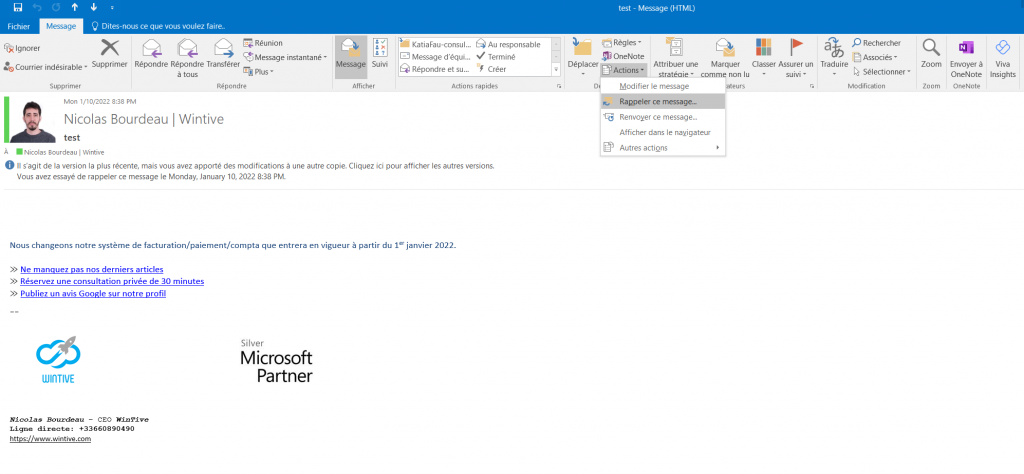
A new window opens:

Just click OK and Outlook notifies you when the recipient deletes the message.
What happens on the recipient’s computer?
Email recall behaves differently depending on the recipient’s email settings. In all cases, the recipient will receive a notification informing them that a message has been deleted from their inbox.
Attempting to recall and send a new mail may fail in several cases:
- The recipient has not enabled the “Automatically process meeting requests and responses to meeting requests and surveys” feature found in “Follow-up.” Therefore, the reminder fails if the recipient opens the original email first.
- if the original mail and the replacement mail arrive in two different folders;
- You sent your emails to a public folder and the message was marked as read.
When Does Outlook Message Recall Work?
Recalling a message in Outlook only works under specific conditions. Specifically, both you and the recipient must use Microsoft Exchange or Microsoft 365 within the same organization. Furthermore, the recall only succeeds if the recipient has not yet opened the message. If they have already read it, Outlook cannot unsend the email — it will simply notify you that the recall failed.
How to Recall a Message in Outlook Web (OWA)
Recalling a message in Outlook on the Web works differently from the desktop app. In OWA, Microsoft does not offer a traditional recall option. However, if you have the Undo Send feature enabled, Outlook delays sending your email by a few seconds, giving you a window to cancel it. To enable this, go to Settings → Mail → Compose and reply, then set a delay under Undo send. Additionally, you can also attempt to delete the message from the recipient’s mailbox using Exchange Admin Center if you have admin rights.
Alternatives When Recall Fails
When the recall fails, you have a few options. First, send a follow-up email acknowledging the mistake and providing the correct information. Second, consider enabling the Undo Send delay in Outlook settings so you have time to catch errors before they send. Finally, always double-check the recipient field and attachments before hitting Send — a habit that prevents most recall situations entirely. For more time-saving habits, see our Outlook efficiency tips.
📱 Need help with your Exchange Online setup or migration?
We handle Exchange migrations, mail flow configuration, and PowerShell automation for organizations of all sizes. Get in touch for a free assessment. 📅 Book a free 30-min call | 💬 Chat on WhatsApp
When Recall Does Not Work
Message recall fails in several situations: the recipient has already read the email, the message was sent to an external address outside your Microsoft 365 tenant, the recipient uses a non-Exchange email client, or the email was moved out of the inbox by a rule. In these cases, send a follow-up email acknowledging the mistake. For sensitive emails, use Microsoft Purview sensitivity labels to prevent forwarding or printing before sending. See also our guide on Exchange Online PowerShell commands for bulk mailbox operations.