Applying email policies in Teams with PowerShell gives administrators precise control over how Teams handles email integration. This guide walks through the key PowerShell commands for managing Teams policies.
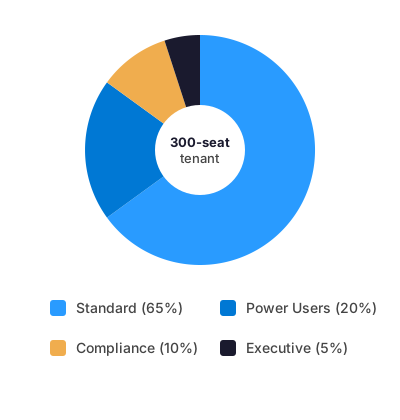
Teams messaging policies control features like priority notifications, @mentions, memes, stickers, and channel email integration. For SMBs running 100–500 Microsoft 365 seats, you typically need several messaging-policy tiers — a baseline for standard employees and stricter policies for executive assistants, compliance-bound departments, or temporary contractors.
The Teams admin center caps bulk policy assignment at 20 users per operation. That is workable for a small team, but painful the moment you need to apply a policy across a full department.
The admin-center user picker also offers almost no filtering. You cannot target a department, a city, or a dynamic group without manually ticking each box. Across a 300-seat tenant with a dozen custom policies, what should take 5 minutes burns an afternoon.
| Aspect | Admin Center | PowerShell |
|---|---|---|
| Bulk assignment cap | 20 users per operation | Unlimited (piped from Get-CsOnlineUser) |
| User filtering | Manual checkbox selection | Server-side filter on department, city, job title, Entra ID attributes |
| Time to assign 300 users | ~3 hours (15 batches of 20) | Under 1 minute |
| Repeatability | Manual every time | Scripted, scheduled, versioned in Git |
| New hire automation | Not possible | Dynamic — attribute changes flow through automatically |
| Admin Center vs PowerShell for Teams messaging-policy assignment. | ||
Simplify things using PowerShell
PowerShell removes both constraints in one shot. The Grant-CsTeamsMessagingPolicy cmdlet assigns a policy to a single user or to a stream of users piped from Get-CsOnlineUser — which is where the real power comes from. Get-CsOnlineUser supports server-side filtering on department, city, usage location, job title, and most Entra ID attributes.
First, install the Microsoft Teams PowerShell module. (Note: the legacy SkypeOnlineConnector module was deprecated by Microsoft in 2021. The modern MicrosoftTeams module replaces it and now covers all Teams messaging-policy cmdlets.) Run this command in an elevated PowerShell session:
After installing the module, connect to Microsoft Teams using:
# Install the module (one-time)
Install-Module MicrosoftTeams -Force -AllowClobber

# Connect to Microsoft Teams
Connect-MicrosoftTeams
Running the PowerShell Commands
Once connected, you have the full MicrosoftTeams cmdlet set at your fingertips — service-level policies, Teams Phone, calling and meeting policies, plus individual team and channel management.
For messaging-policy work, two cmdlets are enough: Grant-CsTeamsMessagingPolicy to assign and Get-CsOnlineUser to target.
Single-user assignment is the simplest case. Pass the user’s UPN as Identity and the exact policy name as PolicyName:
Grant-CsTeamsMessagingPolicy -Identity "<UserUPN>" -PolicyName "<PolicyName>"That assigns the Power Users policy to one user. Useful for exceptions, but not how you handle a whole department.
For bulk assignment, you have two patterns. The first is the CSV approach: export a list of UPNs per policy, then loop with Import-Csv users.csv | ForEach-Object { Grant-CsTeamsMessagingPolicy -Identity $_.UserPrincipalName -PolicyName $_.PolicyName }. Fine for one-time migrations, but it goes stale fast. HR changes, people move departments, and your CSV becomes a liability.
The second — and better — pattern is attribute-based targeting. Get-CsOnlineUser exposes dozens of properties per user; the most useful for policy scoping are:
| Attribute | Use case | Example filter |
|---|---|---|
Department | Target a whole business unit | {Department -eq 'Sales'} |
City | Geo-scoped rollout | {City -eq 'London'} |
UsageLocation | Region/compliance boundary | {UsageLocation -eq 'FR'} |
JobTitle | Target by role or seniority | {JobTitle -like '*Manager*'} |
Company | Separate subsidiaries in same tenant | {Company -eq 'Contoso'} |
DisplayName | One-off edge cases by name | {DisplayName -like 'Jean*'} |
| Get-CsOnlineUser attributes most useful for messaging-policy targeting. | ||
Example
Concrete scenario: a tenant with a Development department that needs the Power Users messaging policy (which enables GIFs, memes, priority messages), while the rest of the organization stays on the default policy.
Before doing anything destructive, verify the target set. Get-CsOnlineUser with a -Filter scriptblock returns only matching users:
Get-CsOnlineUser -Filter {Department -eq 'Development'}| Select UserPrincipalNamePiping into Select UserPrincipalName trims the output to just the UPNs — which is all you need to sanity-check that the filter caught the right people, and no one it should not have.
Once the dry-run looks right, drop the Select and pipe directly into Grant-CsTeamsMessagingPolicy:
Get-CsOnlineUser -Filter {Department -eq 'Development'}| Grant-CsTeamsMessagingPolicy -PolicyName "PowerUsers"Policy changes propagate server-side in 5–10 minutes (sometimes up to an hour for large tenants). Once settled, verify assignment by filtering Get-CsOnlineUser on TeamsMessagingPolicy directly:
Get-CsOnlineUser -Filter {TeamsMessagingPolicy -eq 'Power Users'}| Select UserPrincipalNameThis returns everyone currently assigned the Power Users policy. Cross-check against your expected set — if someone is missing, they are likely in a differently-spelled department string (Development - EU vs Development) or caught by a conflicting tenant-wide assignment.
Conclusion
Attribute-based assignment via Get-CsOnlineUser | Grant-CsTeamsMessagingPolicy scales from 20-user SMBs to 2,000-seat enterprises and stays in sync with Entra ID attribute changes automatically. It is the standard approach in our Microsoft 365 tenant rollouts. CSV-driven bulk work still has its place for one-off migrations, but attribute targeting is what you want in steady state.
🛡️ Free: M365 Tenant Security Audit Checklist
17-page PDF with 50 hands-on checks covering Entra ID, Exchange Online, SharePoint, Teams, Intune, license waste, and audit logging. PowerShell commands included. Built from 60+ real tenant audits at Wintive.
Common Teams Email Policy Commands
The most useful PowerShell commands for Teams email integration policies are:
# Get current Teams messaging policy
Get-CsTeamsMessagingPolicy

# Apply a policy to a specific user
Grant-CsTeamsMessagingPolicy -Identity "user@domain.com" -PolicyName "PolicyName"

# Create a new messaging policy
New-CsTeamsMessagingPolicy -Identity "NoExternalEmail" -AllowEmailEditing $false
Combining Teams messaging policies with Exchange mail flow rules gives administrators granular control over communication flows. For example, you can prevent specific Teams channels from receiving external email while allowing internal notifications. For broader Exchange Online policy management, see our Exchange Online PowerShell reference and our guide on spam filtering with Exchange mail flow rules.