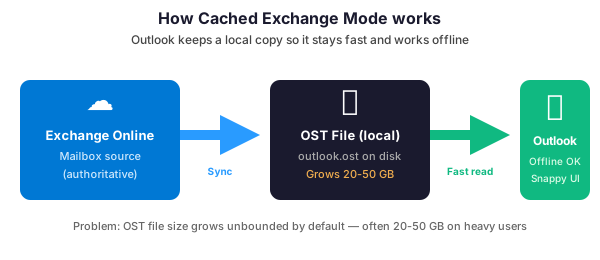
Outlook for Microsoft 365 defaults to Cached Exchange Mode: it downloads a local copy of the mailbox to an .ost file so the client stays fast and works offline. Consequently, that copy can easily reach 20-50 GB on heavy users with large attachments and long retention, and on low-disk laptops or shared workstations it becomes a real operational problem.
🛡️ Free: M365 Tenant Security Audit Checklist
17-page PDF with 50 hands-on checks covering Entra ID, Exchange Online, SharePoint, Teams, Intune, license waste, and audit logging. PowerShell commands included. Built from 60+ real tenant audits at Wintive.
In practice, this guide covers the four ways to tune Outlook cache mode and control OST file size in 2026 — the user-facing Outlook slider, the Group Policy rollout, the registry script for targeted fixes, and Intune configuration profiles (the default for any serious SMB tenant). Includes the PowerShell snippets we run in Wintive tenant cleanups.
🎯 What is Outlook cache mode?
Specifically, when Outlook cache mode is enabled and Outlook connects to an Exchange Online mailbox, it downloads messages, calendar items, and contacts to a local .ost file. The client reads from the local copy (fast), syncs changes back to the server in the background, and keeps working when the network drops.
Moreover, Outlook cache mode is the default because Online Mode (reading everything from the server in real time) performs poorly on anything slower than a LAN. With users on home WiFi, hotel networks, and airplanes, cache is no longer optional — it is the only mode that delivers acceptable performance.
💾 What is an OST file?
The OST (Offline Storage Table) is Outlook’s local cache. One OST per account, stored by default at:
%LOCALAPPDATA%MicrosoftOutlook<user>@<tenant>.onmicrosoft.com.ostA few practical limits to remember:
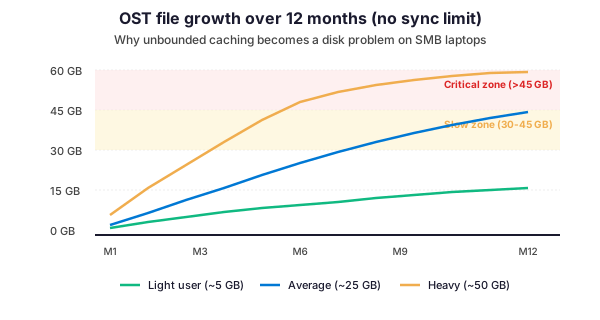
- 50 GB default cap for Outlook 2016 and newer. It can be raised via registry up to 100 GB
- Past a certain size (~25 GB), Outlook performance degrades noticeably — slower search, slower folder switching
- Shared mailboxes get their own OST. Add 3 shared mailboxes to a user and you triple the local disk footprint
- OneDrive Known Folder Move + OST on low-disk SSDs is a classic SMB trap — Desktop, Documents, and OST all competing for the same 128 GB partition
🛠️ Four ways to control OST size
| Method | Scope | Best for |
|---|---|---|
| Outlook slider | Per user, per profile | One-off fix on a specific laptop |
| Registry key | Per machine, per user | Targeted fix via remote PowerShell |
| Group Policy (GPO) | AD-joined fleet | On-premises AD environments |
| Intune configuration profile | Entra ID / Intune-managed fleet | Modern M365 tenants (our recommendation) |
🔧 Method 1 — Outlook slider (per-user)
Specifically, the slider is the visible control in Outlook cache mode Account Settings. It restricts how far back in time messages are cached locally — older items stay on the server and are fetched on demand.
- In Outlook: File → Account Settings → Account Settings
- Select the Exchange account → Change
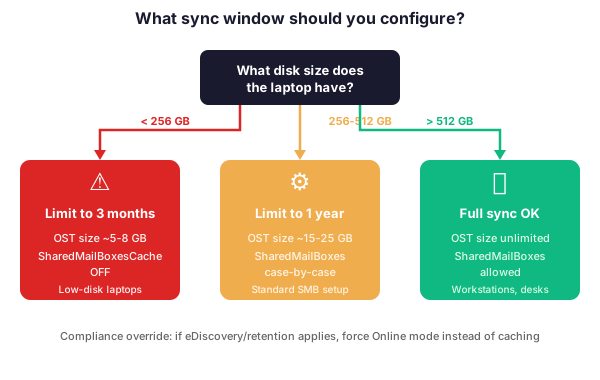
- Move the Mail to keep offline slider: 3 days, 1 week, 2 weeks, 1 month, 3 months, 6 months, 1 year, 2 years, All
- Click Next → Done, restart Outlook
For example, for a user with a 30-GB mailbox on a low-disk laptop, setting the slider to 6 months typically reduces the OST to under 8 GB without impacting normal day-to-day email access.
📝 Method 2 — Registry (per-machine, scriptable)
In addition, the slider corresponds directly to two registry values that control Outlook cache mode behaviour at the OS level. Setting them via PowerShell lets you fix a machine remotely or deploy a fix script to a group of users.
# Set Outlook cache to 6 months (current user, Outlook 2016/2019/365)
$RegPath = "HKCU:SoftwarePoliciesMicrosoftoffice16.0outlookcached mode"

New-Item -Path $RegPath -Force | Out-Null

# Enable cached mode (1 = on)
New-ItemProperty -Path $RegPath -Name "enable" -Value 1 -PropertyType DWORD -Force

# Set sync window to 6 months
# Values: 0=All, 1=1mo, 3=3mo, 6=6mo, 12=1yr, 24=2yr, 60=5yr
New-ItemProperty -Path $RegPath -Name "syncwindowsetting" -Value 6 -PropertyType DWORD -Force

# Lock the setting so users cannot change it via the slider
New-ItemProperty -Path $RegPath -Name "syncwindowsettingdays" -Value 0 -PropertyType DWORD -Force

Write-Host "OST sync window set to 6 months. Restart Outlook to apply." -ForegroundColor Green
Furthermore, to increase the maximum OST file size cap (default 50 GB → up to 100 GB), set MaxLargeFileSize:
# Raise max OST size to 80 GB (80000 MB)
$RegPath = "HKCU:SoftwareMicrosoftOffice16.0OutlookPST"

New-Item -Path $RegPath -Force | Out-Null
New-ItemProperty -Path $RegPath -Name "MaxLargeFileSize"     -Value 81920 -PropertyType DWORD -Force
New-ItemProperty -Path $RegPath -Name "WarnLargeFileSize"    -Value 76800 -PropertyType DWORD -Force
📁 Method 3 — Group Policy (AD-joined fleets)
Download the Microsoft Office ADMX templates and drop them into your central store.
In Group Policy Management, navigate to:
User Configuration
  -> Policies
    -> Administrative Templates
      -> Microsoft Outlook 2016
        -> Account Settings
          -> Exchange
            -> Cached Exchange Mode
              -> "Cached Exchange Mode Sync Settings"  (set to 6 months)
              -> "Use Cached Exchange Mode for new..."  (Enabled)
✅ Method 4 — Intune configuration profile (recommended)
In particular, for any tenant where devices are Entra-joined and Intune-managed, this is the cleanest Outlook cache mode governance path. Deploy the Office Cloud Policy Service or an Administrative Template in Intune — same settings as GPO, but policy travels with the user regardless of network.
- Go to config.office.com (Office Cloud Policy Service)
- Create a new policy configuration, target an Entra ID group (typically by department or device pool)
- Set Cached Exchange Mode Sync Settings to your target (6 months is a good default)
- Set Use Cached Exchange Mode for new and existing Outlook profiles to Enabled
- Save — policies apply on next Outlook start
🧭 Wintive take: when to skip caching altogether
- Shared workstations in retail or warehousing. Multiple users signing into the same PC each create their own OST. Disable Cached Mode entirely (Online Mode) for shared devices — the latency penalty is acceptable when the only thing the user does is check email between shifts.
- VDI / Azure Virtual Desktop. Do not cache on non-persistent VDI — the OST gets wiped at sign-out and re-downloaded at sign-in, chewing bandwidth and user time. Use Online Mode, or FSLogix Office Container for persistent caching.
- Users with multiple large shared mailboxes. Admins managing 5+ delegated shared mailboxes (finance, HR) quickly hit 60-80 GB of OSTs. Disable caching per shared mailbox via
Download shared foldersregistry setting — keep the primary mailbox cached, shared ones Online.
📌 Conclusion
In summary, OST files are the silent disk-space killer on SMB laptops whenever Outlook cache mode runs unbounded. In practice, a good default (6 months sync window, 50 GB cap, caching disabled for shared mailboxes and VDI) deployed through Intune covers 95% of users without a single support ticket. The PowerShell snippets above handle the other 5% — the one user with a 90-GB mailbox or the shared workstation that needs Online Mode.
Related: our Exchange Online PowerShell guide for broader admin tasks, and increasing the Outlook OST file size limit for the raw size cap details.