You just got the call: a user emptied their Deleted Items folder by accident, or worse, ran a “select all + Shift+Delete” on a critical folder. By default, Exchange Online keeps deleted mail recoverable for 14 days — sometimes 30, depending on your tenant policy. However, the user cannot restore mail past the soft-delete stage on their own; the admin has to step in with PowerShell.
This Wintive playbook walks the full workflow to restore deleted emails in Exchange Online: the deletion lifecycle, how to locate items with Get-RecoverableItems, the six filters that scope your search, and how to actually run Restore-RecoverableItems safely. In practice, across 60+ Exchange Online tenant migrations, the recovery window to restore deleted emails closes faster than most teams expect — this guide is the one we run when the clock is ticking.
🛡️ Free: M365 Tenant Security Audit Checklist
17-page PDF with 50 hands-on checks covering Entra ID, Exchange Online, SharePoint, Teams, Intune, license waste, and audit logging. PowerShell commands included. Built from 60+ real tenant audits at Wintive.
🎯 Soft, hard, and purged: where do deleted emails actually go?
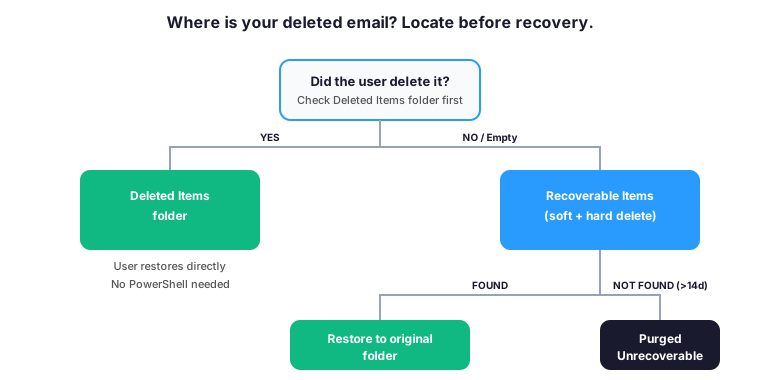
Before you try to restore deleted emails, you need to know where the message currently sits. Specifically, Exchange Online has three stages of deletion, and each one needs a different tool. The decision tree below shows how to locate the email before attempting any recovery.
| Stage | What it means | Recovery method | Default retention |
|---|---|---|---|
| 🟢 Soft delete | User pressed Delete — item lives in Deleted Items folder | User restores from Outlook UI | Until user empties trash |
| 🟠 Hard delete | User pressed Shift+Delete OR emptied trash — item moves to RecoverableItems | Admin via PowerShell or user via “Recover deleted items” | 14 days (configurable to 30) |
| ⚫ Purged | Retention expired OR user clicked “Purge” in Recover deleted items | None — permanently lost unless under Litigation Hold | N/A |
🔄 The deletion lifecycle (and your recovery window)
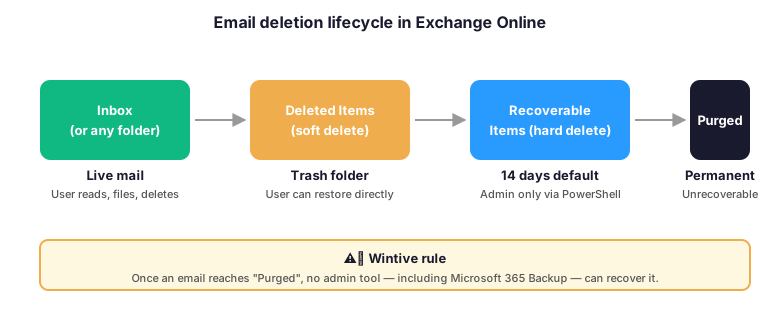
The full path from inbox to permanent purge has four checkpoints. In particular, the 14-day default in stage 3 is the only window where you can use Restore-RecoverableItems — once the item is purged, no admin tool brings it back, including Microsoft 365 Backup unless the mailbox is under Litigation Hold or had a retention policy in place.
📋 Prerequisites
- Exchange Online PowerShell module v3.0+ (
Install-Module -Name ExchangeOnlineManagement) - Global Administrator OR Exchange Administrator on the tenant
- The Mailbox Import Export role assigned to your account — required for both
Get-RecoverableItemsandRestore-RecoverableItems(see our role assignment guide) - The exact UPN of the affected mailbox (e.g.,
jeff@yourtenant.onmicrosoft.com) - Approximate deletion date and identifying details (subject keywords, sender) — speeds up filtering
# Connect to Exchange Online (one-time per session)
Connect-ExchangeOnline -UserPrincipalName admin@yourtenant.onmicrosoft.com

# Quick sanity check: confirm the role is effective
Get-Command Get-RecoverableItems -ErrorAction SilentlyContinue
# Empty output = role not yet propagated (wait up to 60 minutes after assignment)
🔍 Step 1 — Find deleted emails with Get-RecoverableItems
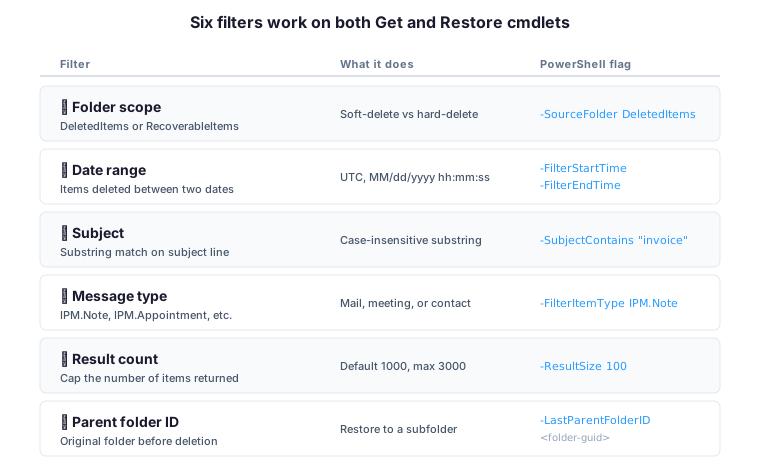
Always run Get-RecoverableItems before you try to restore deleted emails with Restore-RecoverableItems. Indeed, the same six filters work on both cmdlets, so any query you build to find items is reusable verbatim to restore them. Therefore, the matrix below is your restore deleted emails reference card — six filters, two cmdlets, identical syntax.
📁 Filter by folder scope
-SourceFolder limits the search to either the DeletedItems folder (soft deletes) or RecoverableItems (hard deletes plus soft deletes that aged out of trash). For example, if a user emptied their trash this morning, search RecoverableItems.
# All recoverable items across both folders
Get-RecoverableItems -Identity jeff@yourtenant.onmicrosoft.com

# Only items in Deleted Items (soft delete, still in trash)
Get-RecoverableItems -Identity jeff@yourtenant.onmicrosoft.com -SourceFolder DeletedItems

# Only items in Recoverable Items (hard delete or aged out)
Get-RecoverableItems -Identity jeff@yourtenant.onmicrosoft.com -SourceFolder RecoverableItems
📅 Filter by date range
-FilterStartTime and -FilterEndTime narrow the search to items deleted between two dates. Importantly, both values are UTC and follow the format MM/dd/yyyy hh:mm:ss. For example, if the user said “I deleted it Tuesday morning”, widen the window to the full day.
# Items deleted between two specific dates (UTC)
Get-RecoverableItems -Identity jeff@yourtenant.onmicrosoft.com `
  -FilterStartTime "04/22/2026 00:00:00" `
  -FilterEndTime "04/22/2026 23:59:59"
🔎 Filter by subject
-SubjectContains performs a case-insensitive substring match on the subject line. Specifically, this is the fastest filter when the user remembers any keyword from the deleted email — “invoice”, “Q4 report”, a sender name, anything distinctive.
# Find deleted emails with "invoice" anywhere in the subject
Get-RecoverableItems -Identity jeff@yourtenant.onmicrosoft.com -SubjectContains "invoice"
📨 Filter by item type
-FilterItemType scopes the search to a specific MAPI item class. Therefore, you can isolate emails (IPM.Note), calendar events (IPM.Appointment), contacts (IPM.Contact), or tasks (IPM.Task) without touching the others.
# Standard email messages only
Get-RecoverableItems -Identity jeff@yourtenant.onmicrosoft.com -FilterItemType IPM.Note

# Calendar events only
Get-RecoverableItems -Identity jeff@yourtenant.onmicrosoft.com -FilterItemType IPM.Appointment
🔢 Cap the result count
-ResultSize caps the number of items returned. By default, the cmdlet returns up to 1000 items; the maximum is 3000. Consequently, on large mailboxes always pair this with another filter or you risk hitting the cap before reaching the items you actually want.
# Return up to 100 items only
Get-RecoverableItems -Identity jeff@yourtenant.onmicrosoft.com -ResultSize 100

# Count total recoverable items
(Get-RecoverableItems -Identity jeff@yourtenant.onmicrosoft.com).Count
📂 Filter by original parent folder
-LastParentFolderID restricts results to items deleted from one specific folder. In practice, this filter is the killer feature when you need to restore deleted emails after a user accidentally emptied a single subfolder (say, “Project Apollo”) and you do not want to restore everything they ever deleted from the entire mailbox.
# First, find the folder ID by listing folders
Get-MailboxFolderStatistics -Identity jeff@yourtenant.onmicrosoft.com |
  Select-Object Name, FolderId

# Then filter by that ID
Get-RecoverableItems -Identity jeff@yourtenant.onmicrosoft.com `
  -LastParentFolderID 9B52034A478A6141B401DF3BF7851B460000000015E0
📊 Group results and export to CSV
For larger investigations, group the output by item class or export to CSV. For example, exporting before you restore gives you a paper trail for audit purposes — a Wintive habit on every ticket where we restore deleted emails or run a PST migration.
# Group recoverable items by class (Note, Appointment, Contact, etc.)
Get-RecoverableItems -Identity jeff@yourtenant.onmicrosoft.com |
  Group-Object ItemClass |
  Format-Table Name, Count

# Export the full list to CSV (Wintive audit trail)
Get-RecoverableItems -Identity jeff@yourtenant.onmicrosoft.com |
  Export-Csv -Path "C:Temprecoverable-jeff.csv" -NoTypeInformation
⚡ Step 2 — Restore deleted emails with Restore-RecoverableItems
Once you have validated the Get-RecoverableItems output and you are ready to restore deleted emails, switch to Restore-RecoverableItems with the same filters. Specifically, this cmdlet returns each restored email to its original parent folder — no extra mapping needed. However, if the original folder was deleted in the meantime, the items land in the Inbox.
📁 Restore by folder scope
# Restore everything from the Deleted Items folder
Restore-RecoverableItems -Identity jeff@yourtenant.onmicrosoft.com -SourceFolder DeletedItems

# Restore everything from Recoverable Items (hard-deleted)
Restore-RecoverableItems -Identity jeff@yourtenant.onmicrosoft.com -SourceFolder RecoverableItems
📅 Restore by date range
# Restore only items deleted on a specific day (UTC)
Restore-RecoverableItems -Identity jeff@yourtenant.onmicrosoft.com `
  -FilterStartTime "04/22/2026 00:00:00" `
  -FilterEndTime "04/22/2026 23:59:59"
🔎 Restore by subject or item type
# Restore only emails with "invoice" in the subject
Restore-RecoverableItems -Identity jeff@yourtenant.onmicrosoft.com -SubjectContains "invoice"

# Restore only standard emails (no calendar items, no contacts)
Restore-RecoverableItems -Identity jeff@yourtenant.onmicrosoft.com -FilterItemType IPM.Note
📂 Restore by parent folder & measure performance
# Restore only items deleted from a specific folder
Restore-RecoverableItems -Identity jeff@yourtenant.onmicrosoft.com `
  -LastParentFolderID 9B52034A478A6141B401DF3BF7851B460000000015E0

# Time the operation (useful for large mailboxes)
Measure-Command {
  Restore-RecoverableItems -Identity jeff@yourtenant.onmicrosoft.com -SubjectContains "Q4"
}
🔐 Required permissions
Both cmdlets require the Mailbox Import Export role. By default, no admin holds it — not even Global Admin. Therefore, you have to assign it explicitly before any restore attempt. Importantly, propagation can take up to 60 minutes after assignment.
# Assign the role to your admin account
New-ManagementRoleAssignment `
  -Role "Mailbox Import Export" `
  -User "admin@yourtenant.onmicrosoft.com" `
  -Name "MIE-RecoveryAdmin"

# Verify it took effect
Get-ManagementRoleAssignment -RoleAssignee "admin@yourtenant.onmicrosoft.com" |
  Where-Object { $_.Role -eq "Mailbox Import Export" }
For the full role-assignment workflow, see our dedicated guide: Assigning the Mailbox Import Export role.
🚨 When you cannot restore deleted emails
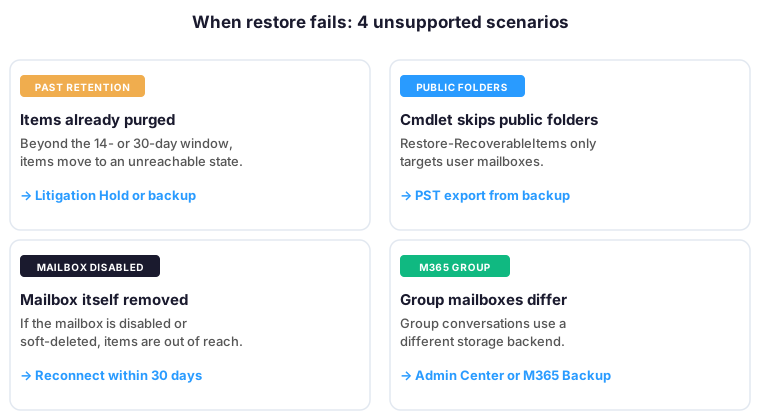
Even with the right role and within the retention window, certain situations block your ability to restore deleted emails. In particular, these are the four scenarios where you cannot restore deleted emails — the cmdlet Restore-RecoverableItems returns nothing or fails outright.
- Items already purged. Beyond the 14-day (or 30-day) retention window, you cannot restore deleted emails because items move to a deleted state that no admin tool can reach. Consequently, the only safety net at that point is Litigation Hold or a third-party backup that captured the item before purge.
- Public folders.
Restore-RecoverableItemsonly operates on user mailboxes, not public folders. Therefore, public folder recovery requires a different approach (PST export from a backup, or restoration from a soft-deleted public folder). - Disabled or soft-deleted mailboxes. If the mailbox itself was disabled or removed, you cannot restore individual items until the mailbox is reconnected (within 30 days of disablement).
- Group mailboxes (Microsoft 365 Groups). Group conversations are stored differently and the cmdlet does not target them. Instead, restore via the Microsoft 365 admin center or the Microsoft 365 Backup product.
💡 Wintive take: production gotchas
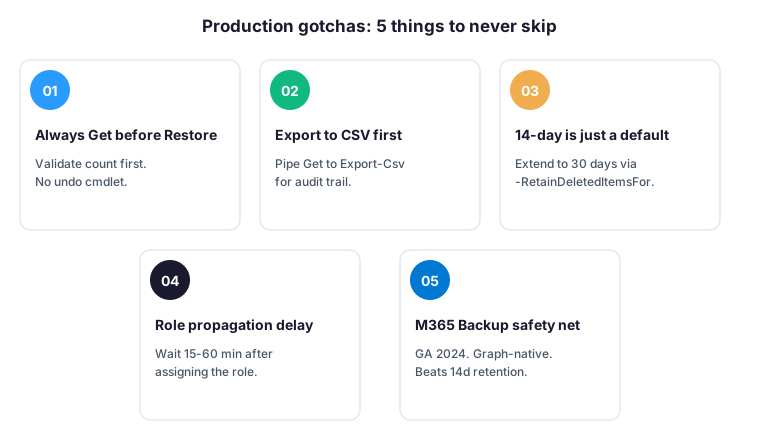
- Always Get before Restore. Run
Get-RecoverableItemswith the exact filter set first, validate the count and a sample of subjects, then swapGetforRestore. Otherwise, you risk restoring 5000 items the user did not actually want back — and there is no “undo restore” cmdlet. - Export to CSV before any restore over 100 items. Wintive habit on every ticket to restore deleted emails:
Get-RecoverableItems | Export-Csvfirst, store the CSV in the audit folder, then run the restore. For example, this gives you a defensible paper trail when the user later asks “did you also restore that one email I actually wanted gone?”. - The 14-day default is just that — a default. Many SMB tenants still run with 14 days. However, you can extend retention to 30 days via
Set-Mailbox -RetainDeletedItemsFor 30.00:00:00. We recommend 30 days minimum for any mailbox handling financial or legal correspondence. - The role propagation delay is real. If
Get-RecoverableItemsreturns “command not found” right after assigning the Mailbox Import Export role, it is not broken — it is propagating. Therefore, wait 15 to 60 minutes before escalating to support or re-assigning the role. - Microsoft 365 Backup is the modern safety net. Microsoft 365 Backup went GA in 2024 and offers Graph-native restore for mail, OneDrive, and SharePoint — with an SLA. Furthermore, it survives the 14-day retention window. For tenants where deleted-mail recovery is a recurring ticket type, evaluate it before adding a third-party backup vendor.
✅ Final word
To restore deleted emails in Exchange Online safely: locate first (Get-RecoverableItems with at least one filter), validate the output, then restore with the same filters (Restore-RecoverableItems). However, the recovery window is short — 14 days by default — and once items are purged, no PowerShell cmdlet brings them back. Therefore, the real fix is upstream: extend retention, evaluate Microsoft 365 Backup, and document the recovery playbook before the next “I deleted everything” call lands in your inbox.
For the official Microsoft documentation, see Get-RecoverableItems and Restore-RecoverableItems.