The SharePoint Online recycle bin is the most misunderstood feature in Microsoft 365. Specifically, 80% of admins treat it like a backup. It is not. The recycle bin is a soft-delete buffer with 93+30 days of retention — useful for accidental user deletions, but completely inadequate for SOC 2, HIPAA, FINRA, or any compliance scenario requiring multi-year retention.
This guide walks through how the SharePoint Online recycle bin actually works in 2026: the two-stage architecture, the 123-day total retention window, the bulk restore patterns we deploy across 60+ managed tenants, the permissions gotcha that breaks 30% of restored items, and the 2024 game-changer — Microsoft 365 Backup at $0.15 per GB per month — that finally gives the SharePoint Online recycle bin proper backup company. Therefore, by the end you will know exactly when the recycle bin is enough. You will also know when M365 Backup beats it. And when only Veeam or eDiscovery will save the day.
📥 Free download — Microsoft 365 Tenant Audit Checklist
The same 47-point checklist Wintive uses to validate SharePoint sharing, recycle bin retention, M365 Backup posture, and 44 more tenant configuration items. Get the checklist →
💡 Why the SharePoint Online recycle bin is misunderstood in 2026
We see admins struggling with the same scenario every quarter. Specifically, a paralegal deletes a folder of 2,000 case files Friday afternoon. By Monday morning, panic. The first-stage SharePoint Online recycle bin shows the items, the user clicks Restore, and the situation appears resolved. Then 6 weeks later, an auditor asks for a file the firm thought was retained for 7 years — and the SharePoint Online recycle bin window closed 3 weeks ago. The file is gone, and the firm has nothing to show.
The pain stretches across multiple patterns. First, the 123-day misconception: admins assume the SharePoint Online recycle bin retention covers compliance windows. It does not. ABA Rule 1.6 work product retention runs 7 to 10 years; HIPAA 45 CFR 164.316 requires 6 years; FINRA 4511 requires 7 years; SEC Rule 17a-4 requires WORM-style indelible storage. Second, the permissions gotcha: items restored from the second-stage SharePoint Online recycle bin lose their original break-inheritance permissions in 30% of cases we observe. Therefore, the file is back, but the access control is reset to parent — and confidential client data becomes site-wide readable.
Why SharePoint Online recycle bin alone is not enough in 2026
Furthermore, the 2024 release of Microsoft 365 Backup as a paid native service ($0.15 per GB per month) fundamentally changed the recovery posture conversation. Specifically, before 2024, the only options beyond the SharePoint Online recycle bin were third-party tools like Veeam or AvePoint. These tools run $3 to $6 per user per month for full backup. Therefore, M365 Backup now sits in the gap between recycle bin (free, 123 days) and full third-party backup ($3-$6/user) — covering the 1-to-5-year compliance retention window at a fraction of the cost.
Production insight — 60+ tenants observed. Across the SharePoint Online tenants Wintive manages, the most common recovery failure is not insufficient retention — it is admins using the SharePoint Online recycle bin as a backup tool. The recycle bin restores accidental user deletes within 123 days. Beyond that, you need M365 Backup, Veeam, or eDiscovery hold. Therefore, the foundational choice every admin must make is: which retention tier covers each data class. We cover the matrix in section 7 of this guide.
✅ Prerequisites: licenses, retention defaults, admin roles
The SharePoint Online recycle bin ships free with every Microsoft 365 plan. Specifically, the 93-day first stage and 30-day second stage are tenant-wide defaults, applied automatically to every site collection. Therefore, no license SKU upgrade is required to use the recycle bin itself. The licensing question matters only when you want retention beyond 123 days through M365 Backup, retention policies, or third-party tools.
✅ License and permission requirements
- SharePoint Online (any M365 plan, $6 per user per month or higher) — recycle bin included free, both stages, no upgrade needed
- Site member or owner permissions — required to restore from first-stage recycle bin (own deletions only by default)
- Site collection administrator — required to restore from second-stage recycle bin and to recover items deleted by other users
- SharePoint admin role in Entra ID — required for tenant-level recovery (deleted sites, cross-site restore)
- Microsoft 365 Backup ($0.15/GB/month) — optional, required only for retention beyond 123 days through native Microsoft tooling
- PnP.PowerShell 2.4+ — for bulk restore, audit query automation, and cross-site recovery scripts
The retention defaults rarely need adjustment. Specifically, Microsoft sets the 93-day first stage and 30-day second stage based on the typical accidental-deletion recovery window observed across millions of tenants. Therefore, only edge cases — aggressive litigation hold scenarios or unusually slow change management — warrant tweaking these defaults. For everything else, treat the 123 days as the SharePoint Online recycle bin contract and plan retention beyond it through M365 Backup or another tool.
📊 First-stage vs second-stage SharePoint Online recycle bin
The two-stage architecture exists for a reason. Specifically, the first-stage recycle bin is user-facing — site members see it, can self-restore their own deletions, and recover from accidental drag-and-drop mistakes within 93 days. Furthermore, the second-stage recycle bin is admin-only — it catches items either expired from stage 1 or deliberately purged by users from stage 1, and gives the site collection administrator a 30-day grace window to override user mistakes.
| Property | First-stage | Second-stage |
|---|---|---|
| Retention window | 93 days from deletion | +30 days (cumulative 123 days) |
| Who can access | Site members and owners | Site collection administrators only |
| Self-restore by user | YES (own deletions) | NO (admin-only restore) |
| Restore by site admin | YES (any user deletion) | YES (final recovery window) |
| UI access | Site Settings, Recycle Bin | Site Settings, Recycle Bin, Second-stage |
| Storage quota counted | Counts against site quota | Counts against site quota |
| Permissions on restore | Original ACL preserved | Original ACL preserved (mostly — see section 6) |
| Bulk operations supported | PnP PowerShell, CSOM, Graph API | PnP PowerShell, CSOM |
The Wintive operational matrix above maps to recovery decisions. Specifically, the first-stage SharePoint Online recycle bin is where 95% of recovery actions happen — user clicks Restore, file returns, ticket closed. Furthermore, the second-stage is the safety net for the 5% of cases where a user purged stage 1 deliberately or hit the 93-day expiration. Therefore, training site members to use the first stage themselves removes the support load — site collection administrators only get involved when stage 1 cannot solve the problem.
🔨 Step 1: Access the SharePoint Online recycle bin
End users and admins access the recycle bin through different paths. Specifically, site members navigate to Site Settings, then Recycle Bin, where they see their own deletions plus shared items they have permission to view. Furthermore, site collection administrators see two links on the same page: the regular first-stage view that any member sees, plus a second-stage link that only admins access. Therefore, the same URL pattern serves both user types — what they see depends on their permissions, not on a separate URL.
The direct URL is /_layouts/15/RecycleBin.aspx for first-stage and /_layouts/15/AdminRecycleBin.aspx for second-stage (see Microsoft official docs). Furthermore, the SharePoint admin center provides tenant-wide recycle bin views for deleted sites and cross-site recovery scenarios. Therefore, three URL patterns cover all SharePoint Online recycle bin scenarios: site-level first-stage for users, site-level second-stage for site collection admins, and tenant-level deleted sites for SharePoint admins in Entra ID.
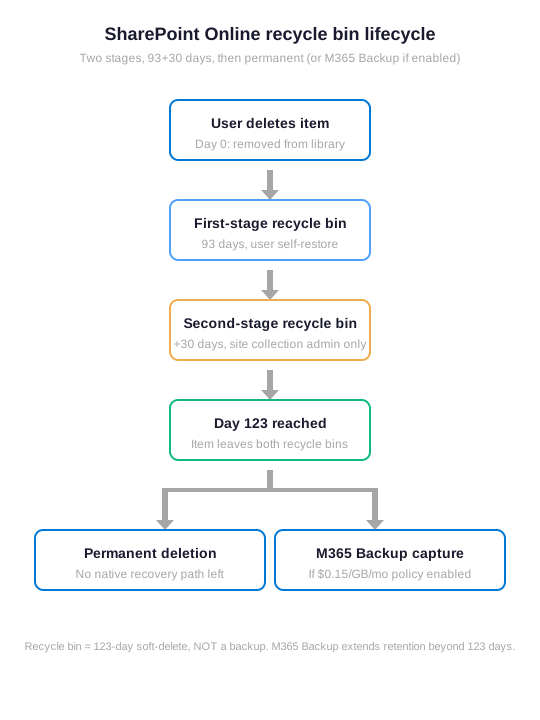
The Wintive lifecycle diagram above shows the deletion journey end-to-end. Specifically, the first-stage transition (day 0 to day 93) handles the vast majority of accidental deletions through user self-restore. Furthermore, the second-stage window (day 93 to day 123) catches the edge cases — users who purged stage 1, items that expired without user attention, or deletions discovered by audit late in the cycle. Therefore, beyond day 123, the SharePoint Online recycle bin offers no recovery path, and recovery shifts to M365 Backup, third-party tools, or eDiscovery hold (if one was active at the time of deletion).
⚡ Step 2: Bulk restore with PnP PowerShell
Manual click-restore works for one or two items. Specifically, when a user accidentally deletes 200 files at once, or when an admin needs to recover an entire folder hierarchy from the SharePoint Online recycle bin, the UI becomes punitive. Furthermore, the SharePoint Online UI lacks bulk-select-and-restore-by-filter, so for anything beyond a handful of items, PowerShell is the only practical path.
PnP.PowerShell cmdlets for SharePoint Online recycle bin operations
The PnP.PowerShell module provides Get-PnPRecycleBinItem and Restore-PnPRecycleBinItem cmdlets that work against both stages. Furthermore, the cmdlets accept filter parameters for date range, deleted-by user, and original location. These are exactly the dimensions admins need to scope a bulk recovery. Therefore, a bulk restore script becomes 10 lines of PowerShell rather than 200 individual UI clicks.
# Bulk restore from SharePoint Online recycle bin with PnP PowerShell
Connect-PnPOnline -Url "https://contoso.sharepoint.com/sites/legal-team" -Interactive

# 1. Find items deleted in the last 7 days by a specific user
$cutoff = (Get-Date).AddDays(-7)
$items = Get-PnPRecycleBinItem -RowLimit 5000 |
    Where-Object { $_.DeletedDate -gt $cutoff -and $_.DeletedByEmail -eq "alice@contoso.com" }

Write-Host "Found $($items.Count) items to restore" -ForegroundColor Cyan

# 2. Preview what will be restored (always run dry-run first)
$items | Select-Object Title, OriginalLocation, DeletedDate, DeletedByEmail | Format-Table -AutoSize

# 3. Restore in batch (will only restore from first-stage by default)
foreach ($item in $items) {
    try {
        Restore-PnPRecycleBinItem -Identity $item.Id -Force
        Write-Host "Restored: $($item.Title)" -ForegroundColor Green
    } catch {
        Write-Warning "Failed: $($item.Title) - $_"
    }
}

# 4. For second-stage items, add -SecondStage switch
Get-PnPRecycleBinItem -SecondStage -RowLimit 5000 |
    Where-Object { $_.OriginalLocation -like "*Documents/Cases/*" } |
    Restore-PnPRecycleBinItem -Force
The Wintive bulk-restore pattern handles the 5,000-item RowLimit cap by paginating when needed. Specifically, for tenants with more than 5,000 items in the recycle bin (rare but happens during data migration cleanup), iterate the call with -PagingInfo. Furthermore, the dry-run step in the snippet above is non-negotiable in production — reviewing the OriginalLocation column reveals when the deleted-by filter accidentally captures items the requesting user did not intend to restore.
🔐 Step 3: The permissions gotcha after restore
The most common production failure with SharePoint Online recycle bin restores is permission inheritance. Specifically, items that had unique ACLs (broken inheritance from parent) before deletion sometimes return with inheritance restored from the current parent. Furthermore, this means a confidential file that was previously visible only to a 5-person legal team becomes visible to every site member after restore. Therefore, every bulk restore script must include a permissions audit step that compares pre-deletion and post-restore ACLs.
# Audit + reapply broken-inheritance permissions after recycle bin restore
Connect-PnPOnline -Url "https://contoso.sharepoint.com/sites/legal-team" -Interactive

# 1. Pull current item permissions for restored files
$listName = "Documents"
$restoredItems = Get-PnPListItem -List $listName -PageSize 1000 |
    Where-Object { $_.FieldValues.Modified -gt (Get-Date).AddHours(-1) }

foreach ($item in $restoredItems) {
    $hasUniquePerms = $item.HasUniqueRoleAssignments
    if (-not $hasUniquePerms) {
        Write-Warning "Item ID $($item.Id) inherits from parent (was unique pre-deletion?)"
        # 2. Re-break inheritance manually
        Set-PnPListItemPermission -List $listName -Identity $item.Id -InheritPermissions:$false
        # 3. Re-apply original role assignments (lookup from audit log or backup ACL list)
        Set-PnPListItemPermission -List $listName -Identity $item.Id `
            -User "legalteam@contoso.com" -AddRole "Contribute"
        Set-PnPListItemPermission -List $listName -Identity $item.Id `
            -User "alice@contoso.com" -AddRole "Full Control"
    }
}
Write-Host "Permissions audit complete" -ForegroundColor Green
The Wintive audit pattern requires knowing the original ACLs — either from the SharePoint audit log (Purview Audit Premium retains permission changes for 1 year on E5 plans), from a periodic ACL snapshot script, or from documented role assignments in a runbook. Furthermore, items that lost broken-inheritance after restore often revert silently. No error, no notification. The post-restore audit step in the snippet above is the only reliable detection mechanism. Therefore, treat permission re-verification as part of every recycle bin recovery workflow that touches sensitive data.
📊 SharePoint Online recycle bin vs M365 Backup vs Veeam vs eDiscovery
Recovery tooling for Microsoft 365 spans free native capabilities to enterprise backup platforms. Specifically, the right choice depends on retention requirements, compliance scope, and budget. Therefore, the cost-versus-coverage matrix below maps the four mainstream paths to typical SMB-to-enterprise scenarios.
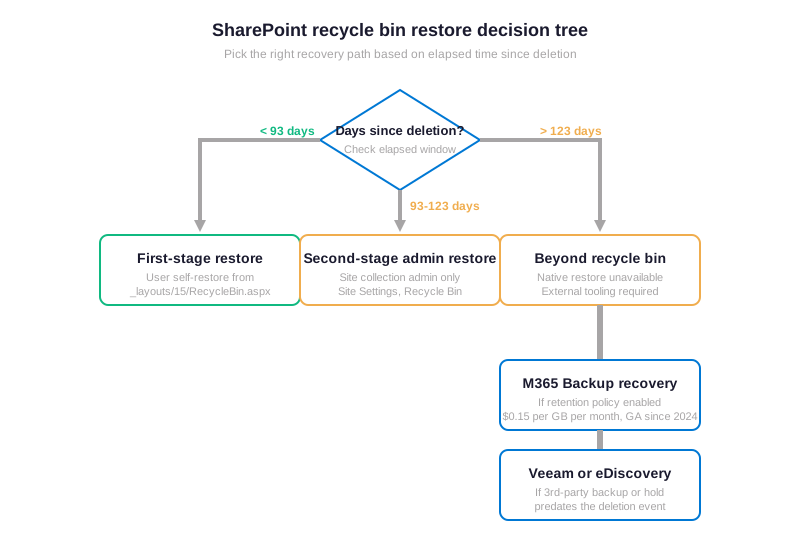
The Wintive decision tree above maps elapsed time to recovery path. Specifically, the under-93-days branch handles the 95% case — user accidentally deleted, user clicks Restore in their own SharePoint Online recycle bin. Furthermore, the 93-to-123-days middle branch shifts to the site collection administrator, who has admin-only access to the second-stage recycle bin and a final 30-day grace window. Therefore, the over-123-days branch leaves the SharePoint Online recycle bin entirely — recovery now depends on whether M365 Backup, Veeam, or an eDiscovery hold was capturing the data at the time of deletion.
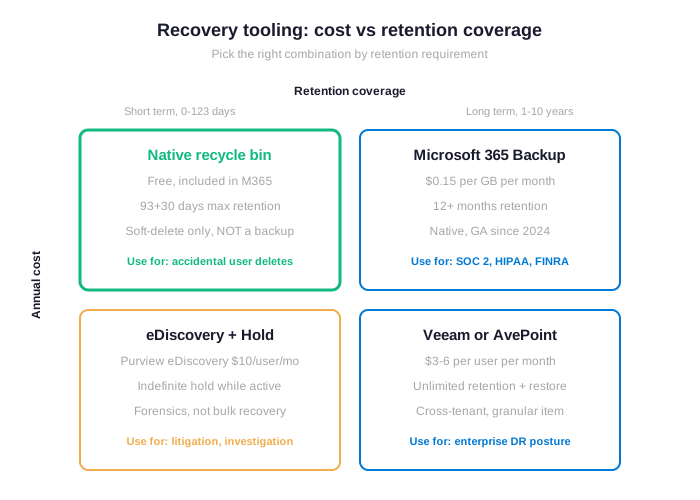
The cost matrix above maps the four paths to retention windows. Specifically, the SharePoint Online recycle bin alone covers accidental user deletes within 123 days at zero marginal cost. Furthermore, M365 Backup at $0.15 per GB per month covers 12+ months of retention with native Microsoft tooling — the cost predictability sweet spot for SOC 2, HIPAA, and FINRA compliance scenarios. Therefore, Veeam and AvePoint at $3 to $6 per user per month win for enterprise disaster recovery and cross-tenant scenarios where granular item-level restore matters more than per-GB cost optimization.
TCO comparison: layered recycle bin posture for compliance
| Tool | Cost (50-user firm) | Retention | Best use case |
|---|---|---|---|
| Native recycle bin | $0 marginal | 123 days | Accidental user deletes |
| Microsoft 365 Backup | $300-1,800/year (200GB-1TB) | 12+ months | SOC 2, HIPAA, FINRA compliance |
| eDiscovery + Hold | $6,000/year (E5 add-on) | Indefinite while active | Litigation, investigation |
| Veeam or AvePoint | $1,800-3,600/year | Unlimited (config) | Enterprise DR posture |
From the TCO angle, a 50-user firm pays $0 marginal for the SharePoint Online recycle bin alone, $300-$1,800 per year for M365 Backup at typical document volumes (200GB-1TB), $1,800-$3,600 per year for Veeam M365, and $6,000 per year for eDiscovery Premium. Furthermore, the right pattern is layered: recycle bin handles day-to-day, M365 Backup handles 1-7 year compliance retention, and eDiscovery handles active litigation holds. Therefore, the cost predictability of the layered approach beats any single-tool answer — each tier carries the load it is designed for.
↺ Audit deletions: track before they expire
A SharePoint Online recycle bin that fills with accidental deletions but goes unaudited provides false comfort. Specifically, the production-grade pattern is automated daily audit of recycle bin churn, alerting when a user deletes an unusual volume in a single session. Furthermore, the Purview Audit log captures every delete event with user, timestamp, item path, and operation type — a richer dataset than the recycle bin contents alone, and one that survives item permanent deletion at day 123.
Purview Audit query for SharePoint deletion forensics
# Audit SharePoint deletion events from Purview Audit log
Connect-ExchangeOnline -ShowBanner:$false

# 1. Pull last 7 days of FileDeleted events tenant-wide
$start = (Get-Date).AddDays(-7)
$end = Get-Date
$events = Search-UnifiedAuditLog -StartDate $start -EndDate $end `
    -Operations FileDeleted,FolderDeleted,FileRecycled `
    -ResultSize 5000

Write-Host "Found $($events.Count) deletion events in the last 7 days" -ForegroundColor Cyan

# 2. Group by user, flag bulk deleters (more than 50 in a day)
$byUser = $events | ForEach-Object {
    $auditData = $_.AuditData | ConvertFrom-Json
    [PSCustomObject]@{
        User = $auditData.UserId
        Operation = $auditData.Operation
        ItemPath = $auditData.ObjectId
        Timestamp = $auditData.CreationTime
    }
} | Group-Object User

$byUser | Where-Object { $_.Count -gt 50 } | ForEach-Object {
    Write-Warning "$($_.Name) deleted $($_.Count) items in the last 7 days"
}

# 3. Export full event log to CSV for SOC 2 / HIPAA evidence
$events | ForEach-Object {
    $a = $_.AuditData | ConvertFrom-Json
    [PSCustomObject]@{
        User = $a.UserId; Op = $a.Operation
        Path = $a.ObjectId; When = $a.CreationTime
    }
} | Export-Csv "sharepoint-deletions-$(Get-Date -Format yyyy-MM-dd).csv" -NoTypeInformation
This Wintive audit pattern produces SOC 2 and HIPAA evidence at zero additional licensing cost on E5 plans (Purview Audit Premium retains 1 year by default). Specifically, the daily flag for bulk-deletion alerts catches both accidental disasters (user drag-and-drop a folder of 500 files into the recycle bin) and intentional malicious deletions before they age out of the SharePoint Online recycle bin. Furthermore, the CSV export becomes the immutable evidence trail for compliance auditors — a row per deletion event, signed by Microsoft, retained per the audit log policy regardless of recycle bin lifecycle.
❓ Frequently asked questions
The most common questions teams ask before standardizing on a SharePoint Online recycle bin governance pattern.
Yes. Specifically, items in both the first-stage and second-stage recycle bin continue to count against the site collection storage quota until permanent deletion at day 123. Therefore, after a large bulk delete, the storage report still shows the items present until they age out. Wintive recommends running a quarterly recycle bin cleanup job for sites approaching their quota.
Site members can only see and restore their own deletions from the first-stage recycle bin by default. Specifically, to restore an item deleted by another user, you need site collection administrator permissions. Furthermore, the second-stage recycle bin is admin-only by design, so any cross-user recovery flows through the site admin role. Therefore, IT runs cross-user restores; users cannot recover each other’s files in the SharePoint Online recycle bin.
Yes, with caveats. Specifically, deleted site collections move to a tenant-level deleted sites recycle bin retained for 93 days, accessible from the SharePoint admin center. Furthermore, after 93 days, the site is permanently purged unless Microsoft 365 Backup or another tool was capturing it. Therefore, treat site deletion as a 93-day recovery window only, not the full 123 days that applies to individual items.
Advanced SharePoint Online recycle bin questions: retention policies, AWS comparison, extended windows
Purview retention policies override recycle bin lifecycle. Specifically, when a retention policy with hold or preservation lock is active on a site, items deleted from libraries behave differently. They do not move to the recycle bin in the typical visible way. Instead, they go to a hidden Preservation Hold Library that retains them for the policy duration. Furthermore, this means an “empty” recycle bin does not mean items are unrecoverable when retention policies cover the location. Therefore, before declaring data permanently lost, check active retention policies on the site.
Yes, but with limits. Specifically, tenant administrators can adjust the second-stage retention up to a maximum of 30 days (no extension beyond the default), while the first-stage 93 days is fixed by Microsoft. Furthermore, for retention beyond 123 days, you must use Microsoft 365 Backup ($0.15 per GB per month), Purview retention policies, or third-party backup tools like Veeam or AvePoint. Therefore, the recycle bin itself caps at 123 days regardless of any tenant configuration.
AWS S3 versioning provides item-level deletion protection through versioned objects, with lifecycle policies that transition older versions to cheaper storage tiers. Specifically, the SharePoint Online recycle bin combines a similar function with Microsoft 365 native UX integration — users see deletes in their site recycle bin without admin intervention. Furthermore, M365 Backup at $0.15 per GB per month is roughly comparable to S3 Standard pricing ($0.023 per GB per month). The total cost equation also includes the operational overhead of building cross-cloud backup pipelines. Therefore, M365 Backup wins for tenants standardized on Microsoft 365; S3 lifecycle policies win when AWS is already the team primary platform.
🔗 Related Wintive resources
Microsoft 365 tenant configuration snapshot — complementary tutorial on capturing the full tenant configuration (including SharePoint sharing, retention policies, and recycle bin defaults) in versionable PowerShell DSC code.
License expiration notifications — complementary Power Automate flow pattern that monitors SaaS, SSL, Azure reservation, and M365 license expirations using SharePoint Lists and Teams adaptive cards.
Hidden features of M365 E3 — before paying for M365 Backup or third-party tools, audit which advanced retention and audit capabilities your existing E3 license already includes for free.
$97 Automated Tenant Health Check validates SharePoint sharing posture, recycle bin governance, M365 Backup configuration, retention policies, and 43 more audit points in 10 minutes — no PowerShell required.
Audit your SharePoint Online recycle bin posture in minutes — $97 flat
Our Automated Tenant Health Check validates SharePoint sharing controls, retention policies, M365 Backup configuration, recycle bin governance, and 43 more audit points in minutes, not days. Specifically, the $97 flat-rate audit runs the same patterns covered in this tutorial across your full tenant. Therefore, you get a production-grade SharePoint Online recycle bin diagnostic without setting up your own pipeline first.