Restore Deleted Emails Using PowerShell – 1#3

Restore Deleted Emails Using PowerShell – 1#3
This article series focuses on viewing and restoring deleted emails from an Exchange Online mailbox. There are two new PowerShell cmdlets for this: Get-RecoverableItems and Restore-RecoverableItems
The Magic of Using the Get-RecoverableItems and Restore-RecoverableItems Cmdlets
Exchange email clients include a built-in option that allows the user to recover:
- “standard deleted emails” (mail items stored in the “Deleted Items” folder)
- “soft deleted items” (mail items stored in the “Delete” folder).
So the obvious question is: what is the benefit of using the full set of PowerShell cmdlets – Get-RecoverableItems and Restore-RecoverableItems?
The answer is that using this set of PowerShell cmdlets has three major advantages:
Handle event of – viewing and restoring deleted mail items | Server-side
Until now, Exchange didn’t provide a dedicated method for administrators to view and restore deleted email items. I use the term “dedicated” because Exchange Online includes an option to search for/export a mailbox to a PST. However, this “capability” doesn’t apply to deleted emails.
Manage event of – view and restore deleted mail items | remotely
Get-RecoverableItems and Restore-RecoverableItems allow the Exchange administrator to restore deleted emails remotely without user intervention.
In the past, the methods available to the Exchange administrator to handle a deleted email restore event were to physically reach the user’s desktop or to grant themselves full access rights to the user’s mailbox.
Using the PowerShell cmdlet – Get-RecoverableItems, you can remotely view and display detailed information about deleted emails. Based on this information, commands can be used to decide how and which emails to recover.
Restore deleted mail items to their original folder
The unique and interesting advantage of Restore-RecoverableItems is the ability to restore deleted emails to their original folder.
Previously, we did not have the ability to restore deleted items to their original folder.
However, the user must navigate an arduous process to locate the “original mail folder” that contains the deleted emails. Then, they must manually “scatter” the mail items that the system recovered from that mail folder.

Exchange environment and the subject “deleted emails”
The topic of “restoring deleted email items” in the Exchange environment is a complicated and confusing one.
This article reviews the basic terms and concepts related to deleted emails in the Exchange environment.
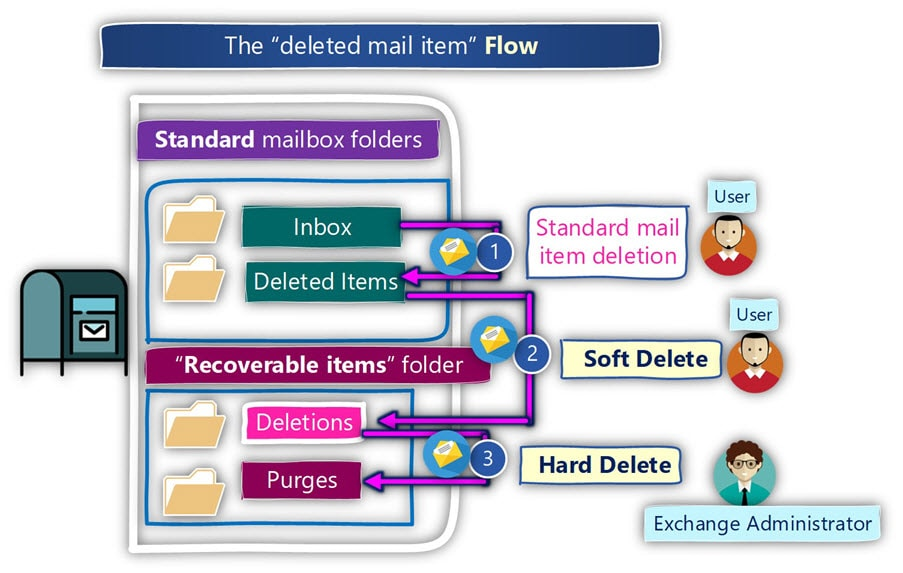
When a user deletes an email, it ends up in the “Deleted Items” folder in the mailbox. Although the emails are in the “Deleted Items” folder, technically, the emails are not deleted.
Softly deleted items
An email deleted from the “Deleted Items” folder defines a “soft delete”.
In this case, Exchange places the emails in a specially hidden folder called the “Recoverable Items Folder.”
One important thing I would like to mention is that even though we use the term “Recoverable Items Folder,” which supposedly refers to a single folder, in reality, the “Recoverable Items Folder” operates as a “set of system folders,” each of which has a unique function.
When the mail item is soft-deleted, it is sent to the “Recoverable Items Folder Space” to a folder named “Deletions” (number 2).
Deleted Mail Items Policy
Exchange enforces a special policy called “Deleted Email Policy” on the Recoverable Items folder space.
By default, the “Deleted Email Policy” sets a 14-day period for emails stored in the Recoverable Items Folder Space. After this period, the email item will be permanently deleted and cannot be recovered.
In an Exchange Online environment, the 14-day retention policy can be extended to a maximum of 30 days. For longer retention, there is the Litigation Hold option, which requires an Exchange Plan 2.
The Deletion folder does not appear as a standard mailbox folder that the user can access. However, the user can view the contents of the Deletion folder. They can also delete or restore emails from the Deletion folder using the Recover Deleted Items option.
Hard deleted items
Deleting an email from the “Deletions” folder defines a permanent deletion.
In this case, emails will be moved from the “Deletions” folder to an additional special system folder called “Purges” (number 3).
The user (mailbox owner) is not able to see the contents of the “Purges” folder!
Only the Exchange administrator has the ability to view or restore mail items stored in the “Purges” folder. In other words, only the Exchange administrator can recover deleted mail items.
Note – We cannot use the full set of PowerShell cmdlets – Get-RecoverableItems and Restore-RecoverableItems to recover deleted mail items.
Restoring Deleted Mail Items – User-Initiated vs. PowerShell-Implementation
This article series covers viewing and restoring deleted emails from an Exchange Online mailbox. There are two new PowerShell cmdlets for this: Get-RecoverableItems and Restore-RecoverableItems.
But before we get to the “technical part,” it’s important that we answer a few questions.
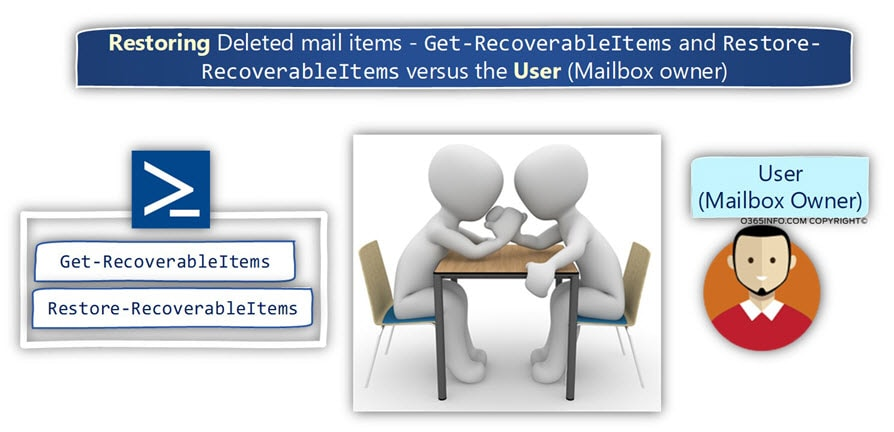
Can a user (mailbox owner) restore deleted mail items?
The answer is “Yes.” Deleted email items are sent to the mailbox’s trash folder (“Deleted Items” folder). The user can easily view the contents of the mailbox’s trash folder (“Deleted Items” folder). They can also “move” emails to the folder of their choice.
For soft-deleted emails, the Outlook email client allows the user to perform a recovery process.
Is there any scenario where a user cannot perform deleted mail restoration by himself?
The answer is “Yes.” For permanently deleted emails, the user cannot recover these email items on their own. Only the Exchange administrator will be able to perform the procedure to restore hard-deleted email items.
Case 1 – Restoring hard-deleted email items
Get-RecoverableItems and Restore-RecoverableItems do not perform the procedure for restoring hard-deleted emails. Get-RecoverableItems and Restore-RecoverableItems have no benefit in terms of the user’s ability to recover deleted email items.
Case 2 – Restoring deleted mail items + slightly deleted mail items
Get-RecoverableItems and Restore-RecoverableItems leverage a special email property that includes information about the mail folder that stored the email before it was deleted.
Using this property, we can recover deleted emails, but also restore deleted emails to their original location.
Summary and Key Takeaways
The Type of Mail Item Deletion Scenario
For “email deletion”, in the Exchange environment, there are 3 types of email deletion scenarios:
- Standard deletion of a mail item.
- Soft deleted mail item
- Mail item permanently deleted
The procedure for restoring deleted emails is only relevant for the following types of email deletion:
- Standard mail deletion – a scenario in which the user deletes an email that is sent to the “Deleted Items” folder.
- Soft delete – a scenario in which the user deletes emails stored in the Deleted Items folder. The emails are sent to the “Deletions” folder.
- Mail item permanently deleted
These cmdlets do not support hard-deleted mail item scenario and and cannot view or recover mail items residing in the “Purges” folder.

Restore deleted mail items and Soft Deleted mail to their original folder
To better understand the great advantage of using the Restore-RecoverableItems cmdlet, which “knows” how to restore deleted mail items to their original folder, let’s briefly review the process of restoring a mail item by the user himself using the Outlook or OWA GUI.
Scenario 1 – Restoring a deleted “standard” mail
In the following diagram, we can see an example of such a scenario. When the user opens the trash folder of their mailbox (“Deleted Items” folder), he can see all the mail items that reside in the trash, but he notices one important fact – the user does not have a “Recover” menu option.
This means the recovery process works by moving mail items from the trash back to the destination mail folder.” The basic assumption is that the user knows which “original mail folder” stores the mail items before they disappear, but the reality is a bit more complicated.
In many scenarios, the user doesn’t remember what the original folder was, and will have to guess or simply drop the mail items into a folder of their own choosing.

Scenario 2 – Restoring Soft Deleted Mail
A second scenario involves deleted mail items that qualify as Soft Deleted mail items.
In this case, when the user views the contents of the “Recoverable Items” folder, they have a menu option that allows them to restore the mail items.
However, what is important to know is that the “restore procedure” is not implemented by restoring the Soft Deleted mail item to its original folder, but rather to the “last folder” that hosted the item before its deletion. Although the user has the option to restore the Soft Deleted mail item, they face the same problem: how to locate the mail item to restore it to the “real folder” that hosts it.

How does the Restore-RecoverableItems cmdlet know “how to restore deleted mail items to their original folder”?
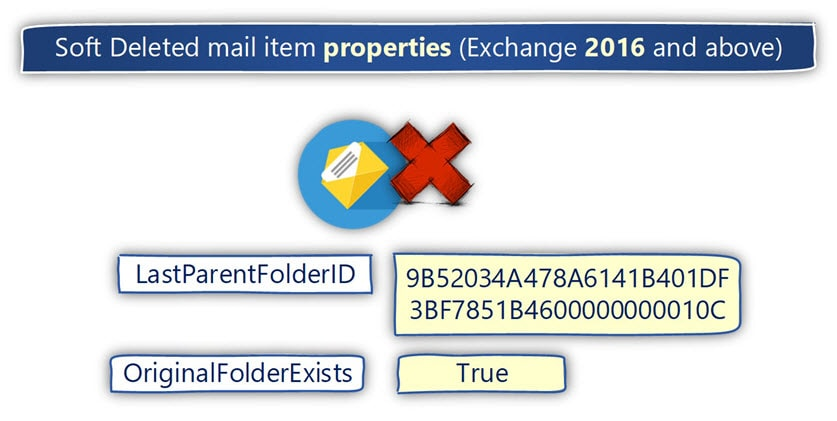
The secret to restoring deleted mail items to their original folder lies in two properties of the deleted mail item:
- LastParentFolderID – This property holds the GUID of the “original folder” that hosted the mail items before they left the folder.
- OriginalFolderExists – This property uses the values “True” or “False” to define the status of the original folder. For example, if the original folder that hosted the mail items before they left the folder still exists, the value is “True”.
When we perform a deleted mail restore procedure using the Restore-RecoverableItems cmdlet, it knows how to read the information stored in the LastParentFolderID property of the mail item and, based on that information, how to restore the deleted mail items to the folder that hosted the mail items before they left the folder.
Finally, it is important to mention that these special properties only exist in Exchange mailboxes hosted on an Exchange 2016 or higher server. In an Office 365-based environment, the basic assumption is that the Exchange Online infrastructure operates using the Exchange 2016 server infrastructure.
The Get-RecoverableItems and Restore-RecoverableItems couple
Restoring deleted mail items via PowerShell operates using a set of two PowerShell cmdlets:
Get-RecoverableItems (recover recoverable items)
This is the PowerShell cmdlet we use to view (display) information about deleted mail items from a specific user (specific Exchange Online mailbox). It is important to mention that the Get-RecoverableItems cmdlet will be able to view deleted mail items that reside in the mailbox’s Recycle Bin (Deleted Items folder) and in the “Purges” folder that stores Soft Deleted mail items.
For example
View the contents of the user’s mailbox trash (Deleted Items folder)
Get-RecoverableItems <Mailbox Name> -SourceFolder DeletedItemsView the contents of a user’s mailbox – “Deletions” folder (deleted mail items)
Get-RecoverableItems <Mailbox Name> -SourceFolder RecoverableitemsRestore-RecoverableItems cmdlet
This is the “other half” of the two-mdlet set that recovers (restore) deleted mail items.
First, the most basic use of the Restore-RecoverableItems function can be implemented using the following syntax:
Restore-RecoverableItems <Mailbox Name>In this scenario, the Restore-RecoverableItems cmdlet accesses the user’s mailbox and initiates an automatic recovery process for deleted mail items of the following type:
- All mail items stored in the mailbox trash, i.e. in the “Deleted Items” folder.
- All mail items that define as soft-deleted mail items, i.e., mail items that reside in the folder in the “Recoverable Items” folder space.
Permissions to use the Get-RecoverableItems and Restore-RecoverableItems cmdlets
To be able to use the Get-RecoverableItems and Restore-RecoverableItems cmdlets, the user must have the rule – “Mailbox Import Export Role”.
What are the unsupported scenarios (which recovery scenario cannot be implemented)?
It is important that we know the limitations of these PowerShell cmdlets or in other words, what are the mail retrieval scenarios that are not supported by the above PowerShell cmdlets.
- Currently, the Get-RecoverableItems and Restore-RecoverableItems cmdlets are only supported in the Office 365 environment.
- The Get-RecoverableItems and Restore-RecoverableItems cmdlets cannot access or restore emails stored in the “Purges” folder.
- Restoring deleted emails based on retention labels is not supported by the Restore-RecoverableItems cmdlet.
- The Restore-RecoverableItems cmdlet always restores emails to their original folder — you cannot choose a custom destination. Restore-RecoverableItems will automatically restore deleted emails to their original folder (the mailbox folder that hosted the deleted emails before they left the folder). If the original folder does not exist, the emails will be restored to the “root mailbox folder.”
- Note that the cmdlet restores mail items only, not deleted mail folders.
- Archive mailboxes are also out of scope:
- to – restore deleted mail items stored in an Archive mailbox.
- In case the original folder that hosted the deleted mail has been deleted, we cannot create a new folder with an identical name because the information about the “original folder” is saved using the GUID identity of the original folder.
For more information, see the Microsoft docs: Restore-RecoverableItems PowerShell cmdlet.
📱 Need help with your Exchange Online setup or migration?
We handle Exchange migrations, mail flow configuration, and PowerShell automation for organizations of all sizes. Get in touch for a free assessment. 📅 Book a free 30-min call | 💬 Chat on WhatsApp